

Microsoft quietly shipped a native NVMe storage driver in Windows 11 25H2 that can unlock measurable real‑world performance gains for many NVMe SSDs — but unlocking it requires a manual registry tweak, carries compatibility hazards, and should be treated as an advanced, backup‑first optimization rather than a casual tweak.
For nearly a decade NVMe (Non‑Volatile Memory Express) has been the high‑performance storage protocol for SSDs connected over PCI Express, designed to exploit deep queueing and low latency. Despite that, Windows historically presented NVMe devices through a storage class interface that traces its roots to SCSI class drivers and the long‑standing disk.sys class driver. That approach simplified the kernel storage model but introduced translation and queuing mismatches that limited how efficiently Windows could use NVMe’s intrinsic parallelism. New work from Microsoft replaces that translation path with a purpose‑built, native NVMe path — nvmedisk.sys — and exposes the capability in recent server and client builds. Microsoft published details about enabling the native NVMe stack as a server‑side feature in Windows Server 2025, and community investigators have confirmed the same driver binary exists in Windows 11 25H2. Advanced users discovered that flipping specific FeatureManagement override flags in the registry causes the OS to load nvmedisk.sys for eligible NVMe devices; when that happens, Device Manager stops listing those SSDs under the legacy “Disk drives” SCSI presentation and moves them into a “Storage disks” (or “Storage media”) category that reflects true native NVMe handling. Early benchmark runs and independent tests have shown meaningful reductions in latency and boosts in throughput and random I/O when the native path is used.
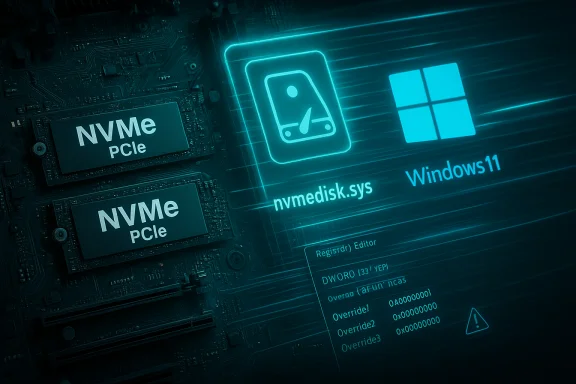
nvmedisk.sys is Microsoft’s native NVMe class driver and an updated I/O path designed to remove that translation step on supported hardware. The result is fewer CPU cycles per I/O, lower queuing latency and better utilization of PCIe/NVMe bandwidth and parallelism — which translates into higher sustained throughput and better random I/O performance in many workloads. Microsoft’s Server testing reported substantial IOPS and CPU efficiency gains and community testing on desktops has shown tangible improvements in consumer SSD benchmarks as well.
HKEY_LOCAL_MACHINE\SYSTEM\CurrentControlSet\Policies\Microsoft\FeatureManagement\Overrides
The concrete reg.exe commands that have been used by testers are:
For enthusiasts and IT professionals who can afford to test safely with images and recovery media, enabling the native driver is a legitimate optimization to explore and benchmark. For mainstream users and production endpoints the prudent approach is to wait for an official, supported rollout from Microsoft or your OEM/vendor with clear guidance and automated enablement. When you do test, document the baseline, back everything up, and be prepared to restore if the system becomes unbootable.
The shift toward native NVMe in Windows is a positive technical step with measurable benefits, but the first implementations on client systems are a reminder that kernel‑level changes intersect with a complicated web of firmware, vendor drivers, encryption and platform peculiarities. Proceed with care, and make the backup your first line of defense.
Source: TechPowerUp Windows 11 25H2 Includes a Faster NVMe Driver Needing Manual Installation | TechPowerUp}
 Background
For nearly a decade NVMe (Non‑Volatile Memory Express) has been the high‑performance storage protocol for SSDs connected over PCI Express, designed to exploit deep queueing and low latency. Despite that, Windows historically presented NVMe devices through a storage class interface that traces its roots to SCSI class drivers and the long‑standing disk.sys class driver. That approach simplified the kernel storage model but introduced translation and queuing mismatches that limited how efficiently Windows could use NVMe’s intrinsic parallelism. New work from Microsoft replaces that translation path with a purpose‑built, native NVMe path — nvmedisk.sys — and exposes the capability in recent server and client builds. Microsoft published details about enabling the native NVMe stack as a server‑side feature in Windows Server 2025, and community investigators have confirmed the same driver binary exists in Windows 11 25H2. Advanced users discovered that flipping specific FeatureManagement override flags in the registry causes the OS to load nvmedisk.sys for eligible NVMe devices; when that happens, Device Manager stops listing those SSDs under the legacy “Disk drives” SCSI presentation and moves them into a “Storage disks” (or “Storage media”) category that reflects true native NVMe handling. Early benchmark runs and independent tests have shown meaningful reductions in latency and boosts in throughput and random I/O when the native path is used. What nvmedisk.sys is — and why it matters
The technical change in plain terms
The old flow in Windows treated many block devices as if they spoke a single, unified SCSI‑style command model. For NVMe, that meant Windows did extra work to translate between NVMe commands and the SCSI‑oriented stack. That translation imposes CPU overhead, serialization in some I/O paths and prevents Windows from exploiting NVMe’s multiple queue and deep parallelism features optimally.nvmedisk.sys is Microsoft’s native NVMe class driver and an updated I/O path designed to remove that translation step on supported hardware. The result is fewer CPU cycles per I/O, lower queuing latency and better utilization of PCIe/NVMe bandwidth and parallelism — which translates into higher sustained throughput and better random I/O performance in many workloads. Microsoft’s Server testing reported substantial IOPS and CPU efficiency gains and community testing on desktops has shown tangible improvements in consumer SSD benchmarks as well.
Why it’s not just a vendor driver story
Many NVMe SSD vendors supply their own optimized drivers and firmware. When a device already uses a vendor driver that bypasses the Windows in‑box stack, enabling nvmedisk.sys at the OS level will not swap that vendor driver in. The native Microsoft stack is primarily relevant for devices using Windows’ default NVMe presentation; on systems with vendor‑specific controllers or Intel/AMD Volume Management Device (VMD) stacks, the behavior will differ and the registry trick may have no effect. That’s an important compatibility nuance for anyone considering the change.How users discovered and enable the native NVMe path on Windows 11
What researchers and outlets reported
Technology publications and independent testers (NotebookCheck, Tom’s Hardware, Heise and others) reproduced Microsoft’s server feature in Windows 11 25H2 by setting three FeatureManagement override keys under the local machine registry and rebooting. After the change, test systems reported that the in‑box driver for eligible NVMe devices switched to nvmedisk.sys and benchmarks (synthetic and real‑world) showed latency and throughput improvements ranging from modest (single‑digit percentage) to substantial (double‑digit gains) depending on the SSD and workload. NotebookCheck and other outlets published step‑by‑step instructions researchers used; the community then iterated on those steps and refined which override values work for the client (Windows 11) builds versus Server 2025. The values that circulated for the Windows 11 client are three DWORD overrides in the FeatureManagement Overrides key — community testing shows these are required together on many client builds to unlock the native stack.The registry commands commonly used on Windows 11 25H2
The most widely‑circulated client-side procedure sets three DWORDs under:HKEY_LOCAL_MACHINE\SYSTEM\CurrentControlSet\Policies\Microsoft\FeatureManagement\Overrides
The concrete reg.exe commands that have been used by testers are:
- reg add HKEY_LOCAL_MACHINE\SYSTEM\CurrentControlSet\Policies\Microsoft\FeatureManagement\Overrides /v 735209102 /t REG_DWORD /d 1 /f
- reg add HKEY_LOCAL_MACHINE\SYSTEM\CurrentControlSet\Policies\Microsoft\FeatureManagement\Overrides /v 1853569164 /t REG_DWORD /d 1 /f
- reg add HKEY_LOCAL_MACHINE\SYSTEM\CurrentControlSet\Policies\Microsoft\FeatureManagement\Overrides /v 156965516 /t REG_DWORD /d 1 /f
Verifying whether nvmedisk.sys is active
Use Device Manager (right‑click Start → Device Manager) to inspect presentation:- Before: NVMe SSDs usually appear under “Disk drives” and the driver details typically list disk.sys (or vendor driver).
- After: If the native NVMe driver is active, the device may display under “Storage disks” or “Storage media” and the driver details should show C:\Windows\System32\Drivers\nvmedisk.sys.
Measured performance: what the numbers look like
Independent reviewers and community testers report a range of improvements depending on the drive and workload:- Consumer PCIe 4.0 NVMe SSDs in typical desktop workloads generally show single‑digit to mid‑teens percent increases in sequential throughput or IOPS and reductions in small‑block latency. Tom’s Hardware documented an example where AS‑SSD overall scores rose by ~13% and 4K random write tests improved in the mid‑teens percent range on a tested drive.
- Microsoft’s server benchmarks show larger headroom on enterprise hardware: published lab figures for Windows Server 2025 cited very large percentage gains (up to ~80% IOPS improvements in some server scenarios) when the native stack was activated for workloads that push extreme I/O parallelism. Those server numbers illustrate the theoretical ceiling when the OS fully exposes the NVMe parallel model, but client systems and consumer SSDs will usually see smaller, workload‑dependent gains.
Compatibility, caveats and serious risks
The registry trick and driver change are not sanctioned as a general consumer toggle and they come with meaningful risks.Known compatibility issues
- Not all SSDs switch to nvmedisk.sys. Some vendors’ firmware/drivers — Samsung, Western Digital and other manufacturers providing their own NVMe drivers — will continue to use their vendor stack and won't flip to the Microsoft native driver. Community reports and forum threads show some models do not change driver even after the registry keys are set.
- Systems using Intel/AMD VMD, RAID layers or vendor controllers can behave unpredictably. If your system uses VMD, Intel RST or hardware RAID, the native toggle may not apply, or it may break access in recovery modes. That’s especially true for systems where the NVMe device is behind a chipset RAID or special controller.
- BitLocker and boot‑time behavior. Because the change affects how the OS accesses block devices, encrypted systems or those with pre‑boot security may see boot failures or require reconfiguration. Multiple community posts report inaccessible boot device or inability to enter Safe Mode after making unsupported driver changes. NotebookCheck and several forum threads specifically warn that enabling the native stack can break Windows boot on incompatible systems. Back up everything.
- Safe Mode and recovery. Some users have documented that after flipping the driver, Safe Mode fails to mount the Windows volume, producing INACCESSIBLE_BOOT_DEVICE errors. That makes recovery from Safe Mode or offline repair more complicated unless you have a complete system image or external rescue media.
Why this remains risky and unsupported for many users
The registry override technique exploits FeatureManagement overrides that are intended for internal feature rollout testing in Microsoft servers and client builds. Because the client approach is community‑discovered (not a Microsoft consumer toggle) there’s no formal compatibility matrix, driver signing guarantee for every vendor firmware combination, or Microsoft support path for desktops where the change breaks the system. Enterprise admins should treat the server‑documented feature separately from community client toggles.Safe‑test checklist: how to try this without destroying your system
If you decide to test the native NVMe driver on a Windows 11 25H2 PC, follow a precautionary checklist and treat the operation as an experiment:- Full disk image: Create a full block image of your system drive with a reliable imaging tool (Macrium Reflect, Acronis TrueImage, etc.. Store the image externally and verify the image integrity. This is the single most important safety step.
- Update firmware and vendor drivers: Update your SSD firmware to the latest release and make sure chipset and storage controller drivers are current. If you use vendor NVMe drivers, note that switching to Microsoft’s stack may not be possible without uninstalling those drivers.
- Suspend BitLocker: If BitLocker is enabled, suspend protection before making driver changes. That prevents BitLocker from triggering a recovery prompt if the driver swap changes drive access at pre‑boot. Remember to re‑enable after testing if you want full disk encryption.
- Create Windows recovery media: Make a Windows 11 USB recovery drive (Windows Media Creation Tool or built‑in Recovery Drive creation) and ensure it boots on your system. Confirm you can access the registry offline and restore images from that environment.
- Test on a secondary machine or secondary drive: If possible, clone the OS to a spare NVMe and test the registry changes there. That isolates the risk away from your primary work system.
- Document baseline performance: Run benchmarks (CrystalDiskMark, DiskSpd, AS‑SSD) and capture baseline numbers before enabling the native stack so you have an apples‑to‑apples before/after comparison.
- Apply the registry changes and reboot: Use the reg add commands above, reboot, then confirm the driver in Device Manager. If a device is missing or the system fails to boot, use your rescue media to revert the registry keys or restore from your image.
Step‑by‑step: enable, verify, and (if needed) revert
Below is a practical, numbered procedure copyable into an administrative PowerShell or Command Prompt. This is an experimental community method — it is not an official Microsoft consumer recommendation. Use only after full backups.- Prepare:
- Ensure you have a recent full image of the system disk and an external recovery drive.
- Suspend BitLocker (if applicable).
- Open an elevated command prompt (Run as Administrator) and enter the three reg add commands:
- reg add HKEY_LOCAL_MACHINE\SYSTEM\CurrentControlSet\Policies\Microsoft\FeatureManagement\Overrides /v 735209102 /t REG_DWORD /d 1 /f
- reg add HKEY_LOCAL_MACHINE\SYSTEM\CurrentControlSet\Policies\Microsoft\FeatureManagement\Overrides /v 1853569164 /t REG_DWORD /d 1 /f
- reg add HKEY_LOCAL_MACHINE\SYSTEM\CurrentControlSet\Policies\Microsoft\FeatureManagement\Overrides /v 156965516 /t REG_DWORD /d 1 /f
- Verify in Device Manager:
- Open Device Manager.
- Check whether your NVMe device moved from “Disk drives” into a “Storage disks” or “Storage media” category.
- Open the device’s Properties → Driver → Driver Details and confirm nvmedisk.sys is listed.
- Re‑run benchmarks and compare Delta vs baseline.
- To revert: If anything goes wrong or you want to return to the old behavior, delete the three registry values and reboot:
- reg delete HKEY_LOCAL_MACHINE\SYSTEM\CurrentControlSet\Policies\Microsoft\FeatureManagement\Overrides /v 735209102 /f
- reg delete HKEY_LOCAL_MACHINE\SYSTEM\CurrentControlSet\Policies\Microsoft\FeatureManagement\Overrides /v 1853569164 /f
- reg delete HKEY_LOCAL_MACHINE\SYSTEM\CurrentControlSet\Policies\Microsoft\FeatureManagement\Overrides /v 156965516 /f
Practical guidance: who should consider this, and who absolutely shouldn’t
- Consider it if:
- You are comfortable creating and restoring full disk images and have an external recovery plan.
- You run heavy I/O workloads where latency and IOPS matter (content creation, local databases, virtualization, file servers).
- Your drives currently use the Microsoft in‑box NVMe presentation (no vendor driver) and you want to run controlled before/after benchmarks.
- Avoid it if:
- Your system is your only working machine and you cannot afford downtime.
- Your system uses vendor NVMe drivers, RAID/VMD controllers or BitLocker without a tested recovery plan.
- You are inexperienced with the Windows boot recovery process, registry editing, or disk imaging.
What this means for the Windows ecosystem and future drivers
This native NVMe path is a significant architectural modernization for Windows storage. It brings the OS’s storage model closer to the design of modern NVMe hardware and aligns Microsoft’s stack with the parallelism and queue depth that NVMe provides. For server admins and power users running I/O‑heavy workloads, the native stack is a substantial efficiency win. On the client side, Microsoft’s gradual rollout (and the registry‑override discovery by the community) demonstrates both the potential performance upside and the practical challenges of rolling out a major kernel‑level change across a heterogeneous hardware ecosystem. Expect Microsoft and major OEMs/Vendor drivers to harmonize behavior over time — but until then, manual tweaks remain an advanced, risk‑first option.Final assessment: benefits vs risk — a short verdict
The native NVMe driver (nvmedisk.sys) in Windows 11 25H2 is real, it can deliver meaningful performance and efficiency benefits, and it represents a long‑overdue modernization of Windows’ storage stack. However, enabling it on client machines today is a partly‑unsupported, community‑driven experiment that carries non‑trivial risk: incompatible SSDs, vendor controllers, pre‑boot encryption and recovery modes are all possible points of failure.For enthusiasts and IT professionals who can afford to test safely with images and recovery media, enabling the native driver is a legitimate optimization to explore and benchmark. For mainstream users and production endpoints the prudent approach is to wait for an official, supported rollout from Microsoft or your OEM/vendor with clear guidance and automated enablement. When you do test, document the baseline, back everything up, and be prepared to restore if the system becomes unbootable.
The shift toward native NVMe in Windows is a positive technical step with measurable benefits, but the first implementations on client systems are a reminder that kernel‑level changes intersect with a complicated web of firmware, vendor drivers, encryption and platform peculiarities. Proceed with care, and make the backup your first line of defense.
Source: TechPowerUp Windows 11 25H2 Includes a Faster NVMe Driver Needing Manual Installation | TechPowerUp}
