

Windows 11 users running NVMe storage just gained access to a low‑level performance path that can deliver substantial I/O improvements — but it’s not turned on by default, it’s still early, and enabling it carries real compatibility and stability risks for many systems.
For over a decade Windows has supported NVMe drives “natively” in the sense that they worked out of the box, could boot the OS, and were manageable with standard Windows tools. That support historically relied on a translation model: Windows adapted NVMe drives to a long‑standing SCSI‑centric storage stack rather than treating NVMe as a first‑class protocol end‑to‑end. The result was broad compatibility but also a layer of per‑I/O overhead and queue‑model mismatch that matter as modern NVMe devices push millions of IOPS and leverage dozens of hardware queues.
Microsoft has announced and shipped a redesigned, truly native NVMe I/O path inside Windows Server 2025 and the associated servicing updates. The same kernel components are present in recent Windows 11 servicing builds, but Microsoft has left the native path disabled by default on consumer/client SKUs. Enthusiasts discovered community registry overrides that flip the same code path on Windows 11 25H2, allowing many NVMe drives to be managed through the new stack on desktop hardware.
This change is more than marketing: Microsoft’s lab microbenchmarks show substantial gains on small random workloads, and community benches report material improvements on several consumer drives. At the same time, real‑world compatibility reports have emerged — ranging from harmless UI oddities to drives disappearing mid‑write or applications crashing — which explains why Microsoft is rolling this out as an opt‑in server feature first.
This worked well enough: NVMe drastically out‑performed spinning disks and SATA SSDs, so the translation cost was often invisible for everyday users. But as SSDs became faster and workloads became more parallel, the legacy model put avoidable contention, CPU overhead, and latency on the critical path.
Community testers have also reported real‑world, consumer‑level improvements: in some cases sequential reads/writes moved hundreds of MB/s and random IOPS rose materially. Conversely, other drives saw marginal or no difference, and a handful reported instability after switching to the native path.
Key takeaway: the feature materially reduces OS overhead on small, parallel I/O workloads. That benefit is most visible for databases, virtualization hosts, server storage, and other high‑concurrency workloads — less so for casual desktop tasks like web browsing or typical game installs.
Commonly reported problems include:
The commonly circulated (community) method does the following:
For Windows 11 users this means:
Enabling native NVMe on Windows 11 can be a free, technically elegant performance gain — but it’s not a free lunch. The switch touches the kernel’s storage DNA, and realism demands careful testing, robust backups, and healthy skepticism about community “one‑click” tweaks until vendors and Microsoft ship fully supported client pathways. For enthusiasts and server admins who understand the risks and can test methodically, the upgrade path is worth exploring. For everyone else, patience — and a carefully staged, supported rollout — is the safer route.
Source: XDA Windows 11 just gave NVMe owners a free speed boost, but you'll have to enable it first
 Background
For over a decade Windows has supported NVMe drives “natively” in the sense that they worked out of the box, could boot the OS, and were manageable with standard Windows tools. That support historically relied on a translation model: Windows adapted NVMe drives to a long‑standing SCSI‑centric storage stack rather than treating NVMe as a first‑class protocol end‑to‑end. The result was broad compatibility but also a layer of per‑I/O overhead and queue‑model mismatch that matter as modern NVMe devices push millions of IOPS and leverage dozens of hardware queues.Microsoft has announced and shipped a redesigned, truly native NVMe I/O path inside Windows Server 2025 and the associated servicing updates. The same kernel components are present in recent Windows 11 servicing builds, but Microsoft has left the native path disabled by default on consumer/client SKUs. Enthusiasts discovered community registry overrides that flip the same code path on Windows 11 25H2, allowing many NVMe drives to be managed through the new stack on desktop hardware.
This change is more than marketing: Microsoft’s lab microbenchmarks show substantial gains on small random workloads, and community benches report material improvements on several consumer drives. At the same time, real‑world compatibility reports have emerged — ranging from harmless UI oddities to drives disappearing mid‑write or applications crashing — which explains why Microsoft is rolling this out as an opt‑in server feature first.
What changed in Windows’ storage stack
The old model: NVMe inside a SCSI world
For years the Windows storage stack has centered around abstractions and code paths designed for SCSI/SATA-era block devices. Even after NVMe arrived, the OS adapted NVMe commands into SCSI‑style flows, creating translation overhead and limiting exposure to NVMe’s native multi‑queue, per‑core submission model.This worked well enough: NVMe drastically out‑performed spinning disks and SATA SSDs, so the translation cost was often invisible for everyday users. But as SSDs became faster and workloads became more parallel, the legacy model put avoidable contention, CPU overhead, and latency on the critical path.
The new model: NVMe end‑to‑end
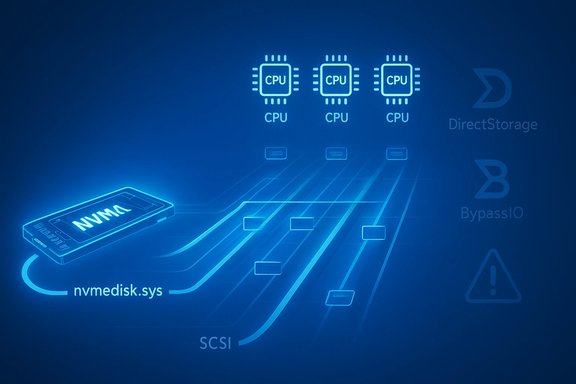
Microsoft’s “native NVMe” work replaces parts of that stack with an NVMe‑aware path. Practically, this includes a new disk‑layer driver (the native NVMe disk class driver) and accompanying kernel changes that expose NVMe queueing and reduce translation overhead. When the native path is active, the OS issues and manages NVMe commands directly instead of translating them into SCSI semantics first.- The old disk layer used general disk.sys + SCSI abstractions for many block devices.
- The new path introduces an NVMe‑specific disk layer (commonly observed as nvmedisk.sys in the community) that avoids the translation layer, uses multi‑queue semantics, and reduces per‑I/O CPU costs.
The practical upside: real numbers and what they mean
Microsoft’s controlled microbenchmarks (DiskSpd-style 4K random reads on NTFS) demonstrate dramatic improvements in scenarios that stress per‑I/O CPU cost and queue handling:- Up to roughly 80% more IOPS in synthetic 4K random read workloads in lab configurations.
- Around 45% fewer CPU cycles per I/O on the same tests.
Community testers have also reported real‑world, consumer‑level improvements: in some cases sequential reads/writes moved hundreds of MB/s and random IOPS rose materially. Conversely, other drives saw marginal or no difference, and a handful reported instability after switching to the native path.
Key takeaway: the feature materially reduces OS overhead on small, parallel I/O workloads. That benefit is most visible for databases, virtualization hosts, server storage, and other high‑concurrency workloads — less so for casual desktop tasks like web browsing or typical game installs.
Compatibility, stability, and known failure modes
Microsoft intentionally shipped native NVMe as an opt‑in capability for servers and left client behavior conservative. Community enabling on Windows 11 revealed several recurring issues.Commonly reported problems include:
- Drive presentation changes: NVMe devices may move from “Disk drives” to a new “Storage disks”/“Storage media” device tree node in Device Manager. That difference reflects the new disk layer but can confuse vendor tools that expect the old layout.
- Vendor driver and firmware interactions: Some NVMe models use vendor‑supplied drivers (Samsung, Intel, others) that continue to control the device, preventing the OS native path from taking effect. In other cases vendor drivers or firmware can conflict with the native stack.
- Applications and utilities misreading disks: Tools such as vendor management utilities, backup/imaging software, and some disk managers may not correctly identify drives or may show duplicate entries.
- DirectStorage / BypassIO compatibility: The new native path is not yet universally compatible with the BypassIO path used by some DirectStorage workloads. That can result in higher CPU usage or missed DirectStorage accelerations for games that expect BypassIO behavior.
- Safe Mode and recovery issues: Some testers reported Safe Mode or recovery environments failing to mount disks after enabling the native stack, creating an INACCESSIBLE_BOOT_DEVICE symptom in certain configurations.
- Drives disappearing or I/O failures: In a minority of reports, heavy sequential writes caused some SSDs to become unresponsive, disappear from Device Manager, or present truncated/corrupted writes. These incidents were often tied to particular controller families and firmware states and required firmware or vendor intervention.
How advanced users have been enabling it on Windows 11 (community method)
Microsoft provided an official opt‑in toggle for Windows Server 2025. Community investigators discovered that recent Windows 11 25H2 servicing builds also include the native stack binary, and that certain Feature Management overrides in the registry can flip the path on many client systems.The commonly circulated (community) method does the following:
- Confirm you are on Windows 11 25H2 (or a build that contains the native NVMe components).
- Verify your NVMe device is currently using the Microsoft in‑box driver (StorNVMe.sys / “Standard NVM Express Controller”) — if the drive is using a vendor driver (for example, Samsung or Intel), the change may not take effect.
- Apply three DWORD overrides under:
HKEY_LOCAL_MACHINE\SYSTEM\CurrentControlSet\Policies\Microsoft\FeatureManagement\Overrides - 735209102 = 1
- 1853569164 = 1
- 156965516 = 1
- Reboot and inspect Device Manager — drives that switched typically show the new disk driver (observed as nvmedisk.sys or similar) and may be listed under a different device category.
- If problems occur, delete the three keys and reboot to return to the prior stack.
- The three‑value sequence is a community‑discovered client toggle, not an officially documented or supported consumer switch. Microsoft’s documented server toggle uses a different single numeric feature ID for server SKUs.
- These numeric IDs are internal feature identifiers; Microsoft may change or remove them in future updates, and there is no formal support path for consumer machines that break after using community overrides.
- Do not attempt this on critical machines without a full backup and a tested recovery plan.
Verifying whether the native path is active and BypassIO state
After enabling, these are practical checks to validate behavior:- In Device Manager, inspect the NVMe device’s Driver Details. The Microsoft in‑box NVMe miniport typically shows stornvme.sys and the disk driver will appear as disk.sys on the legacy path. When the native path is in effect you may see nvmedisk.sys (or similar) as the disk layer backing driver and the device may be presented under a “Storage disks” node rather than “Disk drives.”
- Check BypassIO compatibility (DirectStorage optimization) with:
fsutil bypassio state /v C:
That command reports whether the volume is BypassIO compatible. Some community reports show the native path currently presents as not BypassIO compatible, which can increase CPU cost in DirectStorage paths until BypassIO support is added to the native disk layer. - Run controlled benchmarks and compare before/after numbers on the same test: small random I/O (4K) with varying queue depths (DiskSpd, FIO, CrystalDiskMark with 4K/Queue Depth) plus application‑level tests that matter to you (database queries, VM boot storms, game load times).
Safe testing checklist and rollback steps
Before you flip anything on a personal or production machine, follow this checklist:- Back up everything. Create a full image backup of the boot/OS volume and any critical data.
- Create a recovery USB drive (Windows recovery media) and ensure you can boot it.
- Test enabling on a non‑critical machine or a VM (where possible) first.
- Uninstall vendor NVMe drivers temporarily if you want to force the Microsoft in‑box driver to be used (but understand vendor tools like firmware update utilities may require the vendor driver).
- After enabling, validate boot, safe mode, and recovery boot paths — don’t rely only on normal boot.
- If you experience issues, delete the three registry values from:
HKEY_LOCAL_MACHINE\SYSTEM\CurrentControlSet\Policies\Microsoft\FeatureManagement\Overrides
and reboot. Confirm the device returns to its prior driver. - If a drive disappears or behaves strangely, power‑cycle, boot to recovery media, and use vendor tools for diagnostics; in extreme cases vendor firmware updates or RMA may be required.
- reg delete HKEY_LOCAL_MACHINE\SYSTEM\CurrentControlSet\Policies\Microsoft\FeatureManagement\Overrides /v 735209102 /f
- reg delete HKEY_LOCAL_MACHINE\SYSTEM\CurrentControlSet\Policies\Microsoft\FeatureManagement\Overrides /v 1853569164 /f
- reg delete HKEY_LOCAL_MACHINE\SYSTEM\CurrentControlSet\Policies\Microsoft\FeatureManagement\Overrides /v 156965516 /f
- Reboot.
Who should consider enabling the native NVMe path — and who should not
This change suits different audiences differently.- Ideal candidates
- Enterprise administrators and storage engineers who can stage the opt‑in in controlled environments, run reproducible workloads, and have rollback/provisioning control over affected systems.
- Test benches, storage labs, and enthusiasts who understand kernel debugging and are willing to test and report issues.
- Systems that run I/O‑bound server workloads (databases, virtualization, high‑concurrency file services) where per‑I/O CPU and queue scaling matter.
- Not recommended
- Casual desktop users, laptops with vendor‑specific NVMe drivers or hybrid RAID/VMD setups, and anyone who lacks a tested backup and recovery plan.
- Gamers whose DirectStorage pipeline relies on BypassIO until the native disk path explicitly advertises BypassIO compatibility; enabling the native path can, in some setups, increase CPU usage and reduce DirectStorage benefits.
- Production machines without an approved testing window or rollback strategy.
Practical benchmarking advice
If you decide to test this yourself, adhere to measurement rigor:- Record baseline performance across:
- 4K random reads/writes at multiple queue depths (q1, q8, q32)
- Sequential large block transfers
- Application‑level tests (game load times, VM boot times, database transactions)
- Use controlled tools: DiskSpd, FIO, CrystalDiskMark (custom test settings), and application benchmarks you care about.
- Run tests multiple times and average results. Monitor CPU usage per test and check latency percentiles (p50/p99/p999).
- Test with the same firmware, same OS build, and after a warm system boot to avoid thermal or HW variance.
- If results are mixed, test with vendor drivers reinstalled to see whether the vendor stack already provides similar optimizations.
Why Microsoft moved the feature to servers first — and what that implies for Windows 11
Microsoft’s decision to ship native NVMe as a server opt‑in first is sensible: servers are typically homogeneous, centrally managed, and easier to validate at scale. Server workloads also benefit the most from the per‑I/O efficiency improvements. By shipping the underlying code in servicing for client builds but keeping the toggle off by default, Microsoft provides the ability for early adopters to test while retaining a conservative default for the broader consumer population.For Windows 11 users this means:
- The capability is present but not fully supported or polished for every consumer scenario.
- Community workarounds expose the feature earlier — but those paths are unsupported and can break with future updates.
- Expect Microsoft and major SSD vendors to collaborate on firmware and driver updates over the coming months to broaden compatibility and add missing features (for example, full BypassIO support on the native path).
Final assessment: strengths, risks, and what to do next
Strengths- Real architectural modernization: The native NVMe path attacks a long‑standing mismatch between modern NVMe hardware and a legacy SCSI‑centric stack.
- Substantial upside for the right workloads: When hardware and drivers align, the change can unlock dramatically higher IOPS and lower CPU overhead.
- Forward‑looking: This sets Windows up to scale with future PCIe Gen‑5/Gen‑6 NVMe devices and multi‑controller enterprise SSDs.
- Compatibility fragility: Third‑party tools, vendor drivers, and filter drivers can break due to changes in device presentation and driver model.
- Unsupported client enablement: The community registry method is not an official consumer toggle; it can be changed or removed and leaves users without formal support.
- DirectStorage/B ypassIO gaps: Missing BypassIO support on the native path can negate gains for some gaming workloads and increase CPU usage.
- Potential for data loss in edge cases: There are credible community reports of drives becoming unresponsive or files getting truncated during pathological heavy‑write scenarios on some controller/firmware combinations.
- If you manage servers or test rigs, stage the official server opt‑in, validate thoroughly, and coordinate vendor support.
- If you’re a power user on Windows 11, only experiment on non‑critical systems and keep full backups and recovery media at hand.
- If you’re an average desktop user, wait for Microsoft and SSD vendors to finalize support and for the native NVMe stack to be enabled officially for consumer SKUs.
- Watch vendor and Microsoft updates: expect firmware and driver patches in the coming windows servicing cycles to broaden compatibility and add missing features such as BypassIO support.
Enabling native NVMe on Windows 11 can be a free, technically elegant performance gain — but it’s not a free lunch. The switch touches the kernel’s storage DNA, and realism demands careful testing, robust backups, and healthy skepticism about community “one‑click” tweaks until vendors and Microsoft ship fully supported client pathways. For enthusiasts and server admins who understand the risks and can test methodically, the upgrade path is worth exploring. For everyone else, patience — and a carefully staged, supported rollout — is the safer route.
Source: XDA Windows 11 just gave NVMe owners a free speed boost, but you'll have to enable it first
