

Microsoft’s native NVMe storage path — the kernel-level driver that speaks NVMe natively instead of translating it through Windows’ long‑standing SCSI-oriented stack — is present in recent servicing builds and can be enabled on Windows 11 through a community‑discovered registry tweak, delivering measurable wins on the right hardware while exposing serious compatibility and data‑safety risks.
For years Windows presented NVMe SSDs through a SCSI-style abstraction to preserve compatibility with older tooling and drivers. That translation layer simplified device handling across many device classes, but it also introduced extra CPU work, queue serialization and lock contention that limited how effectively the OS could use modern NVMe hardware’s parallelism. Microsoft recently introduced a native NVMe I/O path in Windows Server 2025 to change that, shipping the components as an opt‑in feature in a servicing update and publishing lab test parameters that engineers can reproduce.
Because Windows Server and Windows 11 share much of the same kernel and driver packaging, members of the enthusiast community discovered that the same native NVMe components exist inside recent Windows 11 builds. A set of undocumented Feature Management override registry values — widely circulated in forums and reproduced by multiple outlets — can flip client builds into the native NVMe presentation, causing eligible NVMe drives to be represented differently in Device Manager and to load Microsoft’s native NVMe stack. That community route is unsupported by Microsoft for client SKUs and carries a non‑trivial chance of creating instability or making drives temporarily inaccessible.
Microsoft’s server lab microbenchmarks — published alongside their guidance so IT teams can reproduce them — show the largest deltas in high‑concurrency scenarios: up to roughly 80% higher IOPS on selected 4K random workloads and about 45% fewer CPU cycles per I/O in the tested server configurations. These figures are lab results on server‑class hardware and are not universal guarantees for consumer systems.
The commonly circulated registry commands used by testers (run in an elevated prompt) are:
diskspd.exe -b4k -r -Su -t8 -L -o32 -W10 -d30
Those tests were run on server‑class hardware with enterprise NVMe devices and high concurrency, which is why their reported gains (up to ~80% IOPS uplift and ~45% fewer CPU cycles per I/O) are substantially larger than typical desktop results.
For IT teams, the recommended path remains Microsoft’s supported Server enablement and staged rollout processes. For individual power users, the experiment is intellectually interesting and potentially beneficial, but it should never be performed on an unbacked production system.
Bold, deliberate modernization rarely arrives without short‑term pain. Native NVMe in Windows is one of those moments — a promising architectural leap that demands respect, rigorous testing and prudent operational safeguards if its benefits are to be realized without collateral damage.
Source: VideoCardz.com https://videocardz.com/newz/windows-11-registry-hack-unlocks-microsofts-native-nvme-ssd-driver/
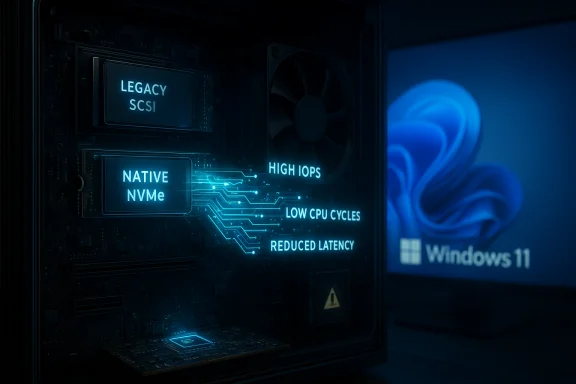 Background / Overview
For years Windows presented NVMe SSDs through a SCSI-style abstraction to preserve compatibility with older tooling and drivers. That translation layer simplified device handling across many device classes, but it also introduced extra CPU work, queue serialization and lock contention that limited how effectively the OS could use modern NVMe hardware’s parallelism. Microsoft recently introduced a native NVMe I/O path in Windows Server 2025 to change that, shipping the components as an opt‑in feature in a servicing update and publishing lab test parameters that engineers can reproduce.Because Windows Server and Windows 11 share much of the same kernel and driver packaging, members of the enthusiast community discovered that the same native NVMe components exist inside recent Windows 11 builds. A set of undocumented Feature Management override registry values — widely circulated in forums and reproduced by multiple outlets — can flip client builds into the native NVMe presentation, causing eligible NVMe drives to be represented differently in Device Manager and to load Microsoft’s native NVMe stack. That community route is unsupported by Microsoft for client SKUs and carries a non‑trivial chance of creating instability or making drives temporarily inaccessible.
What Microsoft changed and why it matters
The technical shift in plain terms
NVMe was designed for PCIe flash with per‑core queues and high command depth. The legacy Windows approach translated NVMe semantics into a SCSI-oriented model, which worked for compatibility but created software-side bottlenecks. The native NVMe path removes that translation, exposing NVMe queues and reducing the kernel overhead per I/O. The practical outcome: lower latency, fewer CPU cycles per operation, and better utilization of high‑end NVMe devices under parallel workloads.Microsoft’s server lab microbenchmarks — published alongside their guidance so IT teams can reproduce them — show the largest deltas in high‑concurrency scenarios: up to roughly 80% higher IOPS on selected 4K random workloads and about 45% fewer CPU cycles per I/O in the tested server configurations. These figures are lab results on server‑class hardware and are not universal guarantees for consumer systems.
Why consumer benefits differ from server gains
The headline server numbers illustrate the ceiling of what the native design enables under engineered conditions. On desktops and laptops, independent testing and community benchmarks show a wide distribution of outcomes:- Many consumer NVMe SSDs show modest improvements (single‑digit to low double‑digit percentage gains) in synthetic and some real workloads.
- Some systems report no meaningful change or even regressions, especially when vendor drivers are active or when firmware/platform topology limits throughput.
- A subset of high‑end consumer setups (PCIe Gen4/Gen5 drives with firmware and controllers that benefit from reduced software overhead) can show more notable improvements.
The registry “hack” that turned heads
What the community discovered
Microsoft provided a supported, single‑DWORD FeatureManagement override to enable native NVMe on Windows Server 2025. Enthusiasts found that a different set of numeric Feature Management override values — three DWORDs applied under the same Overrides registry key — can enable the native NVMe path on many Windows 11 client builds. Because those client IDs are internal and undocumented for consumer SKUs, the technique is community‑driven and unsupported.The commonly circulated registry commands used by testers (run in an elevated prompt) are:
- reg add HKEY_LOCAL_MACHINE\SYSTEM\CurrentControlSet\Policies\Microsoft\FeatureManagement\Overrides /v 735209102 /t REG_DWORD /d 1 /f
- reg add HKEY_LOCAL_MACHINE\SYSTEM\CurrentControlSet\Policies\Microsoft\FeatureManagement\Overrides /v 1853569164 /t REG_DWORD /d 1 /f
- reg add HKEY_LOCAL_MACHINE\SYSTEM\CurrentControlSet\Policies\Microsoft\FeatureManagement\Overrides /v 156965516 /t REG_DWORD /d 1 /f
Important verification points reported by testers
- Device Manager presentation shifts: Eligible NVMe drives may move from the legacy “Disk drives” category into “Storage disks” / “Storage media.”
- Driver file check: Driver Details and C:\Windows\System32\drivers showing nvmedisk.sys (or related native NVMe driver) confirm the switch.
- Vendor driver caveat: If a vendor‑supplied NVMe driver (Samsung, WD, Intel, etc. is installed, it may continue to control the device and block the Microsoft native path.
Step‑by‑step — how enthusiasts have tested this (experimental)
This section documents the community method so readers understand the exact steps and the safeguards commonly recommended by testers. This is not an endorsement; it is a practical record of what the community did and why backup and recovery are essential.- Prepare: create a verified, full block image of the system drive (Macrium Reflect, Acronis, or similar). Ensure the image boots when restored.
- Create a Windows Recovery USB drive and confirm it can boot the affected hardware.
- Suspend BitLocker (if enabled) to avoid pre‑boot recovery prompts caused by driver changes.
- Open an elevated Command Prompt and run the three reg add commands shown above.
- Reboot.
- Verify Device Manager presentation and Driver Details for nvmedisk.sys (or check C:\Windows\System32\drivers for the nvmedisk.sys binary).
- Run before/after benchmarks (DiskSpd, CrystalDiskMark, AS‑SSD, fio) and record p50/p95/p99/p999 latency percentiles and CPU per‑I/O.
- If anything goes wrong, boot WinRE from the recovery USB, delete the three registry values or restore the full image. reg delete commands are the inverse of the adds.
Real‑world performance: what to expect and how to measure it
Microsoft’s testing method
Microsoft published the DiskSpd invocation and the test hardware used for their lab microbenchmarks so other engineers can reproduce the results. The canonical DiskSpd command used in those tests is:diskspd.exe -b4k -r -Su -t8 -L -o32 -W10 -d30
Those tests were run on server‑class hardware with enterprise NVMe devices and high concurrency, which is why their reported gains (up to ~80% IOPS uplift and ~45% fewer CPU cycles per I/O) are substantially larger than typical desktop results.
Community and independent test results
Independent reviewers and community testers reproduce the idea but report more modest client gains in the majority of consumer scenarios:- Typical consumer results cluster in the single‑digit to mid‑teens percent range for synthetic IOPS and some small‑block latency improvements on PCIe 4.0 consumer SSDs.
- Some reviewers found ~10–15% overall improvements on specific drives in consumer benchmarks, while others saw no benefit.
- The largest gains remain in server‑scale tests or in edge case consumer rigs where the OS was the limiting factor previously.
What metrics to capture for meaningful comparisons
- IOPS (read/write), throughput (MB/s) for sequential and random profiles.
- Latency percentiles (P50/P95/P99/P999) — tail latency often matters more than average throughput.
- Host CPU utilization per I/O (cycles per operation) under comparable load.
- Device presentation and driver file names before and after (to confirm the switch).
Compatibility, hazards, and real dangers
Known compatibility pitfalls
- Vendor drivers: If a drive uses a vendor‑supplied NVMe driver, that driver may continue to be loaded and block Microsoft’s native stack, or the vendor driver may be required for proper operation (features, firmware hooks, telemetry). The registry toggle will not magically replace vendor drivers in those cases.
- Intel/AMD VMD and RAID layers: Systems using Intel VMD, RST, or hardware RAID may behave unpredictably; toggling the storage stack for the boot drive can cause boot failures or recovery mode issues.
- Backup and imaging tools: Some imaging and vendor management utilities may not recognize the drive properly after the change, or could see device ID changes that break scripts or licensing tied to disk identity.
- BitLocker: If not suspended properly, BitLocker can trigger recovery when the driver/boot presentation changes. Suspend BitLocker before testing and re‑enable it after verification.
Real examples of harm reported by early testers
Community threads include reports of devices momentarily disappearing from Device Manager, imaging tools failing to find partitions, and a small number of machines that required image restore because they would not boot after the change. These are not hypothetical — testers documented such failures and emphasize the need for a full image and recovery plan before attempting anything on a primary machine.Unsupported client state
Because the client method is community‑discovered and uses internal Feature Management overrides not published by Microsoft for Windows 11 SKUs, there is no official Microsoft support channel for problems caused by enabling the client toggle. Microsoft’s supported path remains the Server 2025 opt‑in via the documented override and Group Policy MSI for managed deployments. Relying on undocumented registry keys on consumer SKUs risks future build updates breaking the method or removing the flags entirely.Practical advice — who should and who should not try this
Consider it only if you meet all of the following
- You are comfortable creating and validating full block images and can restore them.
- You have spare hardware or a secondary NVMe to test with (preferably non‑boot).
- You can accept downtime and the possibility of requiring a full disk restore.
- Your workloads are I/O‑heavy or latency‑sensitive (content creation, local databases, virtualization, file servers) and you want to measure before/after differences.
Do not try this if any of the below apply
- This is your only production machine and you cannot tolerate downtime.
- You have encrypted boot drives (BitLocker) with no tested recovery plan.
- Your system uses vendor NVMe drivers, VMD, RAID or other controller stacks that are essential to boot.
- You lack a verified full disk image and a recovery USB.
How enterprises should approach native NVMe
For managed fleets and servers, the correct path is the supported Microsoft route: install the servicing update that contains the native NVMe components, use the documented Feature Management override (the single, supported toggle for Server), and roll the change out in stages with lab validation, canary hosts and monitoring. Microsoft supplies Group Policy artifacts to orchestrate controlled deployment; administrators should follow those practices rather than ad‑hoc registry edits. The Server path is supported and accompanied by explicit validation guidance from Microsoft.Long‑term implications for the Windows ecosystem
Native NVMe is a structural modernization that aligns the Windows storage stack with modern hardware design. Over time, expect:- Vendors to adapt firmware and host tooling to the native path.
- Backup, imaging and management vendors to update software to handle changes in device presentation.
- Microsoft to refine enablement and potentially offer client SKU toggles once ecosystem compatibility is broader and more predictable.
Conclusion — measured optimism with a clear safety requirement
The arrival of a native NVMe I/O path in Microsoft’s Windows kernel is a technically important modernization that can unlock real performance and efficiency gains — especially for server workloads and highly parallel NVMe devices. The community‑discovered registry method shows the code is already present in client builds, and early testers have demonstrated measurable wins in the right configurations. However, these are experimental, unsupported steps for Windows 11 consumers and carry concrete risks: boot failures, broken vendor tooling, imaging complications and BitLocker recovery traps. Enthusiasts and power users who pursue this must do so with full backups, recovery plans, and realistic expectations that results will vary by device, firmware and workload.For IT teams, the recommended path remains Microsoft’s supported Server enablement and staged rollout processes. For individual power users, the experiment is intellectually interesting and potentially beneficial, but it should never be performed on an unbacked production system.
Bold, deliberate modernization rarely arrives without short‑term pain. Native NVMe in Windows is one of those moments — a promising architectural leap that demands respect, rigorous testing and prudent operational safeguards if its benefits are to be realized without collateral damage.
Source: VideoCardz.com https://videocardz.com/newz/windows-11-registry-hack-unlocks-microsofts-native-nvme-ssd-driver/
