• Thread Author
A low‑level storage change quietly arriving in Windows Server 2025 has opened a backdoor for enthusiasts to unlock a dramatic boost for NVMe SSDs on Windows 11 — by switching on a native NVMe I/O path that bypasses decades of SCSI emulation. The capability is real and measurable in Microsoft’s server lab numbers, and community testers have reproduced consumer gains on Windows 11 by applying undocumented Feature Management overrides in the registry — but the path is unofficial, risky, and can break vendor tooling, backup workflows, and even disk visibility unless you proceed with care.

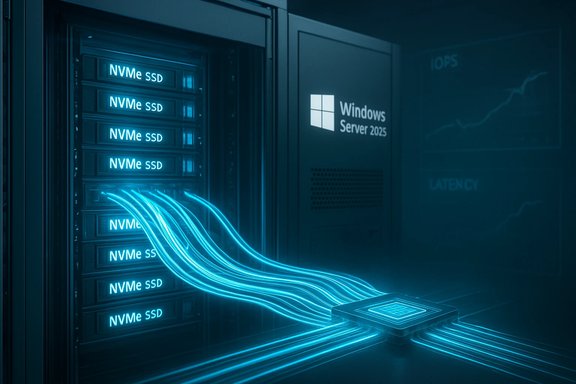
Server rack with NVMe SSDs and a glowing dashboard displaying Windows Server 2025 and Windows 11 paths.Background / Overview​

Windows historically exposed NVMe drives through a SCSI‑oriented stack that simplified OS device handling and compatibility with legacy tooling. That SCSI translation layer works, but it also introduces CPU cost, serialization points, and an I/O model that doesn’t match NVMe’s massively parallel, multi‑queue design. Microsoft’s Native NVMe initiative removes that translation for eligible devices: it installs a native NVMe class driver (nvmedisk.sys / related components) and exposes NVMe queue semantics natively to the kernel, lowering per‑IO overhead and reducing tail latency under concurrency. Microsoft’s server testing shows this can be a dramatic improvement in engineered workloads. What Microsoft reported in its server lab is straightforward and verifiable: using DiskSpd on an enterprise testbed, enabling the native NVMe path produced up to roughly 80% more 4K random IOPS and ~45% fewer CPU cycles per I/O on the specific configuration Microsoft published. Those figures are a server‑scale upper bound that depends heavily on hardware, concurrency, and the test profile. Independent editorial labs and outlets confirmed the high‑level trend while reporting that real‑world consumer gains are usually much smaller — but still tangible. Because the Server 2025 codebase shares large parts of the storage stack with Windows client builds, testers discovered the native components already exist in some Windows 11 servicing builds — they’re simply disabled by default for consumer SKUs. That opened the door to community experiments which used registry FeatureManagement overrides to flip the behavior on client machines. Those experiments are the origin of the recent headlines about seemingly “hidden” speedups in Windows 11.

What Microsoft actually shipped — verified numbers​

  • Microsoft’s announcement documents the feature as an opt‑in capability for Windows Server 2025, not a default consumer feature. The server guidance includes a documented FeatureManagement toggle and an explicit warning to stage and test the change. The official post also provides the DiskSpd command line parameters used in the lab.
  • The lab numbers Microsoft published for their enterprise testbed are: up to ~80% higher 4K random IOPS and ~45% lower CPU cycles per I/O under a heavily parallel DiskSpd workload. Those figures came from a dual‑socket server test with enterprise NVMe media and are reproducible only in similar, high‑parallelism scenarios. Treat them as an upper bound, not a guaranteed consumer uplift.
  • Independent editorial testing (consumer focus) repeatedly found smaller but meaningful gains on desktop workloads: single‑digit to low‑double‑digit percent improvements in many sequential workloads and larger improvements in small‑block random I/O and latency-sensitive patterns. Those results align with the expectation that server lab ceilings are seldom seen on a single consumer system.

How the community enabled it on Windows 11 (what’s being changed)​

Advanced testers found that feature flags for Native NVMe exist in client servicing builds and can be toggled using FeatureManagement Overrides in the registry. The widely circulated, community‑tested sequence most often used in Windows 11 25H2 builds is three 32‑bit DWORD entries under:
HKEY_LOCAL_MACHINE\SYSTEM\CurrentControlSet\Policies\Microsoft\FeatureManagement\Overrides
Commonly applied values (community method) are:
  • 735209102 = 1
  • 1853569164 = 1
  • 156965516 = 1
After adding those values and rebooting, eligible NVMe devices on many systems switch to the Microsoft native presentation and the system may load the native driver (for example nvmedisk.sys), producing a visible change in Device Manager (drives can show under “Storage disks”/“Storage media” instead of “Disk drives”). These steps are community‑discovered and undocumented for client SKUs; Microsoft’s official Server guidance uses a different documented override ID for supported server deployments. Important verification checks after enabling:
  • Device Manager change: drives appear under a storage‑oriented class rather than legacy disk drives.
  • Driver file: check Driver Details and confirm the in‑box native file like nvmedisk.sys is listed in C:\Windows\System32\drivers.

Benchmarks: lab vs. consumer vs. anecdote — what to expect​

  • Microsoft server numbers (lab upper bound): up to ~80% IOPS, ~45% CPU savings on a high‑end testbed with enterprise NVMe. These are reproducible in similar server conditions.
  • Editorial and consumer lab tests: typical consumer gains reported by outlets like Tom’s Hardware, TechSpot, and TechRadar fall into single‑digit to mid‑teens percent range for mixed desktop workloads; improvements are usually greater for small random I/O than for sustained sequential throughput. These tests show the native path can reduce latency and increase small‑block IOPS, but will not magically double every consumer NVMe’s sequential throughput.
  • Community anecdotes: specific hardware + firmware + workload combinations have produced striking jumps. Examples circulating in community posts include an SK hynix P41 showing double‑digit AS SSD gains and an individual report claiming up to 85% increase in random write speed on a Crucial T705 in a particular test scenario. These are intriguing — and worth noting — but they’re anecdotal and must be treated cautiously. Independent outlets reproduce some large gains, but they are not universal.
Bottom line: expect modest, reliable gains in IOPS and latency for many consumer NVMe devices; occasional setups with the right controller/firmware/test profile may show very large uplifts, but that is not guaranteed.

Compatibility, risks, and reported failures​

The registry toggle is not a feature switch blessed for consumers. Multiple risk categories have been reported:
  • Vendor driver interaction: If your SSD is already using a vendor‑supplied NVMe driver (Samsung Magician driver, Intel/Solidigm vendor stacks, Western Digital tooling, or platform VMD drivers), the Microsoft native path may not replace or will conflict with the vendor driver, meaning you may see no change or get unpredictable behavior. Some vendor utilities may stop recognizing the drive correctly after the switch.
  • Tooling and backup breakage: Backup suites, disk managers, encryption containers, and vendor utilities that rely on specific device classes or IDs can fail to find volumes or show duplicate/changed device IDs after the driver presentation changes. That can break scheduled backups or make restore points inaccessible until the registry change is undone. Editorial coverage warned about backup utilities and partition‑aware software misidentifying disks.
  • Data/visibility incidents: There are community reports of drives temporarily losing file system accessibility or appearing with changed device layout, which in some cases was resolved after undoing the registry edits. Those reports are limited in number but consequential enough to emphasize caution: back up first. The changes can leave stale device entries in PnP tables and may require vendor tools (pnputil, diskpart, or reinstalling drivers) or a full reboot/restore to recover. Treat any claim of “no risk” with skepticism.
  • Unsupported state & future updates: Because the client‑side override values are undocumented, Microsoft could change or remove the keys in future updates, and there is no official consumer support path for problems caused by an unsupported registry toggle. The server option is supported in its documented server path; the client hack is community‑driven.

A practical, safety‑first checklist (if you still want to experiment)​

  • Create a full disk image backup of the system disk (use an image tool that supports offline restore). Do not rely on a single restore point.
  • Ensure you have current, verified file backups for critical data stored outside the system disk. Backups on the same physical drive are not sufficient.
  • Update Windows 11 to the latest cumulative update for your build (the native components exist only in recent servicing branches). Verify Optional driver updates are applied where appropriate.
  • Confirm the NVMe device is currently using the Windows in‑box driver (check Device Manager → Driver Details and confirm vendor driver vs. nvmedisk.sys). If a vendor driver is installed, expect reduced likelihood of benefit and higher risk.
  • Export the registry branch you will change (File → Export in regedit) so you can restore it easily. Create a System Restore point as a secondary fallback.
  • Apply the three registry DWORDs (or run the documented server toggle if you are on Server), reboot, then confirm driver presentation. Use Device Manager and run a small, non‑destructive benchmark and validate filesystem mount points.
  • If you encounter odd behavior (missing partitions, unexpected drive IDs, backup failures), revert the registry change immediately, reboot, and check device visibility. Keep vendor rescue media and image restore tools ready.
A short, safe command snippet (community method — do not run without backups) commonly shared:
  • Open an elevated PowerShell or Command Prompt and run:
    reg add "HKEY_LOCAL_MACHINE\SYSTEM\CurrentControlSet\Policies\Microsoft\FeatureManagement\Overrides" /v 735209102 /t REG_DWORD /d 1 /f
    reg add "HKEY_LOCAL_MACHINE\SYSTEM\CurrentControlSet\Policies\Microsoft\FeatureManagement\Overrides" /v 1853569164 /t REG_DWORD /d 1 /f
    reg add "HKEY_LOCAL_MACHINE\SYSTEM\CurrentControlSet\Policies\Microsoft\FeatureManagement\Overrides" /v 156965516 /t REG_DWORD /d 1 /f
  • Reboot and verify Device Manager and Driver Details.
Again: this community recipe is an unofficial client hack; for supported server environments Microsoft documents a different, official override ID and guidance.

Critical analysis — is the reward worth the risk?​

Strengths
  • Architectural correctness: The native NVMe path aligns OS I/O handling to NVMe hardware design. When hardware and workload exercise parallelism and small‑block operations, it’s the right design. The server lab figures demonstrate what a native stack can unlock.
  • Measurable desktop gains in many cases: Independent tests show improvements in small random I/O and latency — exactly the areas where consumer systems can feel snappier (app launches, database work, game asset streaming). While the gains are usually modest, they are real and predictable for the right workloads.
  • Long‑term alignment: This move modernizes Windows’ storage stack to better use modern flash hardware, closing a gap where other OSes have long had native NVMe behavior.
Risks and caveats
  • Unsupported client toggles: The registry method used by enthusiasts is undocumented for consumer Windows and may cause edge failures, tooling incompatibility, or worse. That makes it unsuitable for production or non‑technical users.
  • Vendor tool conflicts and recoverability: Backup processes or vendor utilities that rely on stable device identifiers have a realistic chance of being disrupted. Recovery often requires reverting the toggle, and in some scenarios restoring from a full image backup may be the safest path.
  • Variability by hardware & firmware: Drive controller, firmware version, platform NVMe stacks (Intel/AMD VMD), and whether you use vendor drivers determine benefit and risk. Some devices see minimal improvement; others improve notably. Expect uneven results.
Who should consider enabling it?
  • Systems administrators and lab testers who can stage changes, run regression tests, and restore images quickly.
  • Enthusiasts with non‑critical machines who understand driver/registry recovery and maintain full backups.
  • Avoid on laptops or machines where backups are incomplete, where disk encryption or vendor management tools are required for daily operations, or in corporate environments without IT approval.

Final verdict and practical recommendation​

Microsoft’s native NVMe driver is an important architectural advance for Windows storage; their server results show the performance ceiling of the approach. Community efforts to enable the same path on Windows 11 demonstrate that consumer gains are possible, particularly for small random I/O and latency‑sensitive workloads. However, the method circulating in the community is an unsupported registry override for client builds, with documented compatibility caveats and real user reports of tooling misbehavior and temporary loss of access until the change is reverted. That combination of upside and tangible downside demands a conservative approach.
If you run non‑critical hardware, have complete, verified backups, and are comfortable restoring images, the registry experiment can be a worthwhile, educational test — but treat it as an experiment, not a production upgrade. If your PC is mission‑critical, managed by IT, or relies on vendor tooling (Samsung Magician, Intel toolbox, imaging/backup software), wait for Microsoft or your vendor to provide an official client rollout or for vendor drivers to adopt the native path safely. Microsoft’s documented server toggle and lab guidance remain the proper, supported route for production server deployments.

Quick recap (TL;DR for power users)​

  • Microsoft added a native NVMe I/O path to Windows Server 2025 with lab claims of up to ~80% IOPS and ~45% CPU savings in engineered workloads.
  • Community testers found the native components in recent Windows 11 servicing builds and used undocumented FeatureManagement registry overrides to enable the path on many client machines. Typical consumer gains are single‑digit to mid‑teens percent, with occasional larger anecdotes (one report cited up to 85% on a particular drive/test). Treat large anecdotes as unverified until reproduced widely.
  • Enabling the native path on Windows 11 carries compatibility and recovery risks: vendor drivers may block or conflict, backup and disk‑aware tools may fail to find volumes, and some users reported temporary loss of access that was resolved by undoing the tweak. Back up first.
This is a genuine and technically sound improvement for Windows storage — but the current client‑side route is experimental. Proceed only with full backups, testing, and the expectation that you may need to revert the change if tools or firmware react poorly.

Source: Inbox.lv A Hidden Way to Speed Up PC Performance Found in Windows 11
 

Microsoft's storage team quietly delivered a dramatic change to the Windows I/O stack in Windows Server 2025 — native NVMe support — and enterprising users have found a way to flip that switch on consumer Windows 11 builds, delivering measurable SSD speed boosts while also exposing a string of compatibility hazards that make this one of the riskiest “tweaks” to try at home.

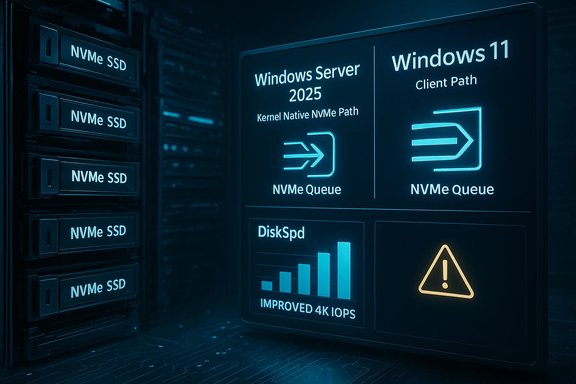
Blue-tinted close-up of an NVMe SSD on a circuit board with glowing data lines.Background / Overview​

Microsoft published the Native NVMe announcement as a Windows Server 2025 feature designed to remove decades-old SCSI translation overhead and let NVMe SSDs speak in their native language to the OS. The company’s official guidance describes the change as a redesigned storage stack with direct multi-queue NVMe access, and it reports up to ~80% higher IOPS on certain 4K random workloads and roughly ~45% CPU savings per I/O in its server microbenchmarks. Those are server-class results from controlled DiskSpd runs on enterprise hardware, and Microsoft positioned Native NVMe as an opt‑in feature for Windows Server customers.
Shortly after Microsoft’s blog and cumulative update for Windows Server 2025 arrived, members of the enthusiast community discovered that the same driver and stack components are present in recent Windows 11 builds. By adding specific Feature Management override entries in the registry — a method used by Microsoft itself in the server instructions — hobbyists were able to force-enable the native NVMe codepath on Windows 11 systems. Early community benchmarks reported anything from modest single-digit improvements to dramatic jumps in random write performance — one widely circulated test showed a near‑doubling (about +85%) of random write throughput on a specific drive in a specific handheld system.
This article explains what the native NVMe change actually does, verifies the key technical numbers reported by Microsoft and independent testers, breaks down the real-world benefits and compatibility risks, documents how enthusiasts are enabling the feature, and lays out safe testing and rollback practices. The goal is practical, accurate guidance: this is real and measurable technology, but it is also a feature you should treat like beta-level software when applied to consumer systems.

What “Native NVMe” actually changes​

Why Windows historically used a SCSI path​

For years Windows has translated NVMe device commands into a SCSI-like path inside the storage stack. That approach provided broad compatibility and let Windows reuse an established I/O architecture, but it also introduced a software translation layer, shared locks, and legacy synchronization that can bottleneck NVMe’s massively parallel architecture.
NVMe is designed for flash: it exposes thousands of queues and tens of thousands of commands per queue. The legacy SCSI-based model was never optimized for that scale. By contrast, native NVMe support removes the translation and enables a leaner, more parallel, lock‑free I/O path.

What Microsoft claims and why it matters​

Microsoft’s Windows Server 2025 documentation and performance notes state that on their test hardware the native NVMe stack:
  • Delivered up to about 80% more IOPS on 4K random read workloads in server microbenchmarks.
  • Reduced CPU cycles per I/O by roughly 45% in their tests.
  • Improves latency and tail latency characteristics because the stack no longer relies on legacy SCSI locking models.
These numbers come from server-focused DiskSpd workloads run on enterprise NVMe devices and high-core-count CPUs. The architecture change is meaningful — it’s a foundational redesign of how Windows handles NVMe — but server microbenchmarks are not the same as desktop usage, and Microsoft’s quoted figures are the upper-bound results from a controlled environment.

How users are enabling the driver on Windows 11 (what’s actually being changed)​

Microsoft’s official guidance for Windows Server indicates the feature is controlled via Feature Management overrides and, after the appropriate cumulative update, a single registry override key can enable Native NVMe on Server. Enthusiast testing on Windows 11 has shown that additional Feature Management override keys are sometimes required to make the consumer client path switch over.
The server-provided PowerShell-style command Microsoft lists for the supported server scenario looks like this (as a single-line reg add example):
reg add HKEY_LOCAL_MACHINE\SYSTEM\CurrentControlSet\Policies\Microsoft\FeatureManagement\Overrides /v 1176759950 /t REG_DWORD /d 1 /f
Community experiments on Windows 11 builds use three numeric DWORD names under the same Overrides key, for example:
  • 735209102 = 1
  • 1853569164 = 1
  • 156965516 = 1
After adding the relevant keys and restarting, Device Manager behavior changes for NVMe drives: drives may appear under “Storage disks” instead of the traditional “Disk drives” and the NVMe controller may be served by the in-box Windows NVMe driver (stornvme.sys or related components) rather than via the older translation path.
Important technical notes:
  • The presence of the in-box NVMe driver (stornvme.sys / StorNVMe.sys) is a prerequisite for any benefit; system setups that use vendor-supplied NVMe drivers may not see changes.
  • Not all Windows builds or hardware configurations behave the same: some users reported no gain, others large gains; differences correlate with drive model, firmware, platform I/O paths such as Intel VMD, and whether the drive already uses a vendor-optimized driver.

What independent tests show (verification and cross-check)​

Multiple independent outlets and community benchmarkers reproduced and measured the effect. The high-level, cross‑checked picture looks like this:
  • Microsoft’s server microbenchmarks report up to ~80% IOPS improvement and ~45% CPU savings. Those figures refer to a Windows Server 2025 environment on enterprise hardware and were produced with DiskSpd synthetic loads.
  • Independent publications running consumer and enthusiast hardware found real gains, but those gains varied:
  • Several tests show modest overall throughput increases in sequential workloads (single-digit %), and larger improvements on random I/O patterns, particularly small-block 4K random operations.
  • Community benchmarks on specific high-end drives and certain handheld consoles recorded dramatic random-write jumps (one prominent test recorded ~+85% on random write), while others saw more modest lifts in the 10–15% range.
  • German and European testing groups and mainstream tech outlets reported that typical desktop workloads (light web browsing, office apps, most games) are less likely to see a perceptible difference; the biggest impact is in server-like workloads — databases, virtualization, metadata-heavy file server operations, and other high-concurrency scenarios.
Synthesis: multiple reputable outlets and community threads confirm the core technical claim — the feature exists, it can be enabled on some Windows 11 machines, and it yields measurable performance increases — but the magnitude of benefit is highly workload‑ and hardware‑dependent. Any headline number should be treated as scenario-specific rather than universal.

Real‑world benefits: where you’ll most likely notice gains​

  • Databases and OLTP workloads: Faster IOPS and lower latency reduce transaction times and improve throughput under heavy concurrency.
  • Virtualization / Hyper-V hosts: VM boot times, checkpoint I/O, and migrations benefit from the parallelized I/O paths.
  • High-concurrency server workloads: File servers, small-file metadata operations, containerized workloads and AI/ML data shuffles see improved tail latency and consistency.
  • Workstation tasks that issue many small random I/Os: Some professional workloads (large photo/video editing catalogs, software builds, code compilation with heavy I/O, or specialized engineering tools) may see improvements.
  • Enthusiast handhelds and high-end SSD setups: In some specific device+drive combinations, the experience can improve noticeably, particularly for random write-heavy workloads.
Where you are less likely to notice improvement:
  • Routine desktop usage: web browsing, standard games, office workloads, streaming.
  • Workloads dominated by sequential large-block transfers, where existing NVMe sequential performance is already strong.

Compatibility, risks and failure modes — why Microsoft left it opt-in for Server and kept it off by default on consumer builds​

Early community enabling of Native NVMe on Windows 11 exposed multiple compatibility issues in real-world ecosystems:
  • Third‑party SSD management tools may break: Utilities like vendor “Magician” apps have been reported to either fail to detect drives, report duplicate devices, or mis-identify disks after switching stacks. That occurs because enabling native NVMe can change how the OS enumerates devices and expose different device IDs or paths.
  • Backup, imaging and boot‑time tooling can be sensitive: Tools that depend on particular disk IDs, drivers, or device paths may fail, create duplicate images, or not boot. Some users reported loss of access to file systems — in at least some cases reversible by undoing the registry changes, but still a scary outcome.
  • Safe mode and boot configuration: Several community reporters noted you may need to register class GUIDs used by the driver in SafeBoot registry keys or adjust the stornvme driver start type (for example, sc config stornvme start= boot) to avoid issues with recovery environments or safe mode. Misconfiguration risks leaving a machine unbootable without recovery media.
  • Drive vendor drivers and firmware interactions: If a drive is using a vendor-supplied driver or a platform-specific virtualization driver (for instance Intel VMD), the native stack may not deliver benefits or could create conflicts. In some systems, disabling these vendor drivers without proper preparation can cause immediate boot or data-access failures.
  • Potential for data visibility changes: Some users reported seeing a drive listed twice or appearing under a different Device Manager category after the change, which can confuse disk utilities and backup software.
  • Unpredictable edge-cases: In a small number of community reports, users initially lost access to some filesystems until the change was rolled back. While those were usually recoverable, they demonstrate that this is not a risk-free switch.
Given these outcomes, Microsoft’s server-first, opt-in approach is understandable: enterprises can validate and control the rollout in managed environments, while consumer environments are more diverse and fragile.

How to test safely (recommended precautions and a safe checklist)​

If you decide to experiment on a non-critical Windows 11 machine, treat this like beta software testing and follow strict safeguards.
  • Full image backup first.
  • Create a full disk image using a reputable imaging tool and verify the image. Do not rely solely on file-level backup.
  • Create recovery media.
  • Prepare Windows recovery USB or external rescue tools so you can boot and undo registry changes if needed.
  • Test on a spare machine or non-boot NVMe drive first.
  • If possible, test on a secondary PC or an internal NVMe that is not the boot/system disk.
  • Document current state.
  • Note Device Manager state, driver versions (stornvme.sys or vendor driver), and the registry keys you will change.
  • Apply changes in a controlled way.
  • Add registry override keys (or use group policy/msi approach for enterprise) and reboot.
  • Validate enumeration and verify Disk Manager & Device Manager.
  • Confirm that disks appear as expected and check the driver file that’s in use.
  • Run controlled benchmarks.
  • Use DiskSpd (synthetic), CrystalDiskMark, or AS SSD for comparative testing. Also validate application-level responsiveness.
  • Rollback plan.
  • If things break, remove the registry entries (or set them to 0) and reboot. If the machine fails to boot, use recovery USB and restore the image.
Rollback quick commands:
  • To remove one of the registry overrides, delete the DWORD you added or set its value to 0, then restart.
  • If you must change stornvme start behavior, restore it to default (typically SERVICE_DEMAND_START unless otherwise configured).
Caveat: some community reports indicate that additional SafeBoot class GUID registrations or driver start-type tweaks may be necessary to avoid broken safe mode. If you are not comfortable with low-level registry, driver start modes, and boot recovery, do not attempt this on your daily driver.

Reversibility and recovery — what to do if something goes wrong​

  • If enumeration or access disappears after reboot: Boot from recovery media and either restore your disk image or use regedit from the recovery environment to remove the override DWORD(s).
  • If safe mode is broken: Use recovery USB to add expected SafeBoot class GUIDs under HKLM\SYSTEM\CurrentControlSet\Control\SafeBoot\Minimal and SafeBoot\Network if you documented them beforehand, or roll back the registry changes.
  • If SSD tools show duplicates or misreport: Rollback the registry keys, check vendor tool updates, and re-run vendor diagnostics.
  • If you lose data access: Avoid destructive recovery steps; try to revert the registry, then run filesystem checks from recovery media. If necessary, restore from your verified full-image backup.

Should you enable it on your main PC?​

  • For most users: No — not yet. The benefits for everyday desktop usage are often marginal, while the compatibility risks are real. If you depend on your PC for work or have complex backup and encryption setups (BitLocker, enterprise AV or endpoint agents), the risk profile increases.
  • For server / enterprise environments: follow Microsoft’s official guidance and test in controlled clusters before wider deployment.
  • For enthusiasts and testers: proceed on a secondary machine or non-critical drive, with full backups and recovery media in hand. This is exactly the kind of scenario where an enthusiast testbed is the right place to validate results.

Broader implications: why this matters and what comes next​

  • Platform modernization: Native NVMe in Windows Server is a long-overdue modernization of the storage stack. It aligns Windows more closely with the hardware realities of flash-first storage and with what Linux/other kernels have long been able to exploit.
  • Pressure on vendor tools to adapt: Expect vendors to update their management utilities and vendor drivers to be compatible with the native stack — but that will take time. Until vendor toolchains are updated, interoperability will be inconsistent.
  • Potential consumer rollout: The presence of the driver and working community tweaks on Windows 11 suggests Microsoft may eventually enable the feature for consumer versions after more validation and compatibility work. That would be the ideal outcome: benefits with fewer caveats.
  • SSD design and firmware: Drive makers may tune firmware to take better advantage of the native path, which could unlock more consistent consumer benefits over time.
  • Security and reliability scrutiny: Microsoft and the ecosystem need to ensure the new stack does not degrade resilience for consumer scenarios (recovery, safe mode, imaging, encryption). That’s the main barrier to a default consumer switch.

Final analysis — strengths, caveats, and a pragmatic recommendation​

Strengths:
  • Architectural correctness: The native NVMe change is the right long-term move for a flash-first world. Eliminating translation layers and unlocking multi-queue NVMe can greatly improve IOPS and reduce CPU overhead where workloads exercise many small random I/Os.
  • Measurable benefits: Independent tests and community benchmarks confirm real gains in certain scenarios; server microbenchmarks show large numbers.
  • Backward-compatible path exists: Microsoft implemented Native NVMe as an opt‑in feature, which lets enterprise and hobbyist users validate results before a general rollout.
Risks:
  • Compatibility fragility: Third-party vendor tools, backup and imaging utilities, and recovery scenarios can break or become unpredictable.
  • Non-uniform gains: Improvements depend heavily on platform, drive firmware, and workload. Many desktop users will see negligible subjective difference.
  • Potential for data access issues: The registry-based enablement route used by enthusiasts can produce enumeration and boot issues. It’s reversible, but recovery sometimes requires advanced troubleshooting.
Pragmatic recommendation:
  • Wait for an official consumer enablement or vendor tooling updates if you depend on your PC. If you enjoy tinkering and have a spare system, test there with strict backups and recovery procedures. For enterprise deployments, use Microsoft’s documented opt‑in process and validate with representative workloads and vendor coordination.

Native NVMe in Windows Server 2025 is real engineering progress, and the community hacks that expose it on Windows 11 show the performance potential of a proper NVMe-first stack. But until the ecosystem — Microsoft, SSD vendors, and toolmakers — finishes the work to ensure predictable behavior across the diverse consumer hardware matrix, this remains a powerful but potentially hazardous trick. Treat it like experimental software: exciting to test, indispensable in the future, but not something to use on mission-critical systems today.

Source: Inbox.lv A Hidden Way to Speed Up PC Performance Found in Windows 11
 

Microsoft’s storage team quietly delivered a native NVMe driver in Windows Server 2025 — and enterprising users have discovered a way to coerce that same driver into recent Windows 11 builds, producing measurable SSD performance uplifts in some configurations while exposing significant compatibility and data‑safety risks.

Server rack with glowing NVMe drives and a monitor showing IOPS and latency graphs.Background / Overview​

For years Windows has handled NVMe SSDs by presenting them through a SCSI‑style block stack that ensured broad compatibility but added translation overhead and locking that can throttle modern NVMe hardware under heavy parallel workloads. Microsoft’s Server 2025 release introduces a native NVMe I/O path (exposed via a new in‑box class driver such as nvmedisk.sys / StorNVMe components) that removes that translation layer and aligns the OS storage plumbing with NVMe’s multi‑queue, per‑core design. Microsoft’s server lab numbers show this can be dramatic in engineered tests: up to ~80% higher 4K random IOPS and roughly ~45% fewer CPU cycles per I/O in the specific DiskSpd workloads the company published. Because many kernel components are shared across Server and Client SKUs, those native NVMe binaries exist in some recent Windows 11 servicing builds — but Microsoft has left the feature disabled by default on consumer SKUs. Community researchers discovered that adding undocumented Feature Management overrides in the registry can force Windows 11 to prefer the Microsoft native NVMe stack on eligible NVMe devices, which in many test cases yields measurable improvements in small‑block random I/O and tail latency. Multiple independent outlets and community labs have reproduced the effect and measured gains; they also document variability and risk.

What Microsoft shipped (the official Server story)​

The design change​

Microsoft’s Server announcement frames the change as a foundational modernization: the OS now supports a native NVMe path that:
  • Eliminates SCSI translation overhead for NVMe devices.
  • Exposes NVMe’s multi‑queue semantics directly to the kernel.
  • Reduces per‑I/O CPU work and lock contention.
  • Improves tail latencies for highly concurrent workloads.

The official enablement and caveats​

On Server 2025 the feature is opt‑in and accompanied by Microsoft guidance for admins (including a documented FeatureManagement override for supported server updates) and a reproducible DiskSpd command line to show the synthetic engineering gains. Microsoft expressly recommends staged validation and firmware/driver compatibility testing before production deployment. The company’s lab parameters are reproducible, but they represent upper‑bound numbers for engineered enterprise hardware and workloads, not guaranteed consumer gains.

How enthusiasts are enabling the native NVMe path on Windows 11​

What the community discovered​

Because Windows 11 servicing builds can include the same storage binaries, hobbyists identified a set of FeatureManagement override values that — when added under the registry key used by Microsoft’s server toggle — can cause many Windows 11 systems to load the native NVMe driver for eligible devices. The most commonly circulated client‑side registry entries are three 32‑bit DWORD values added to:
HKEY_LOCAL_MACHINE\SYSTEM\CurrentControlSet\Policies\Microsoft\FeatureManagement\Overrides
Community examples have used (as numeric DWORD names):
  • 735209102 = 1
  • 1853569164 = 1
  • 156965516 = 1
After adding those values and rebooting, testers reported that NVMe devices sometimes move in Device Manager from the legacy “Disk drives” category into “Storage disks” or “Storage media” and the driver details show a Microsoft native NVMe file such as nvmedisk.sys or StorNVMe.sys. These steps are community‑sourced, undocumented for client builds, and unsupported by Microsoft.

Typical community procedure (what people did)​

  • Update SSD firmware and motherboard BIOS.
  • Create full disk image and recovery media (mandatory).
  • Add the FeatureManagement override DWORDs to the registry (elevated prompt / .reg merge).
  • Reboot and verify Device Manager presentation and driver file.
  • Re-run synthetic and application benchmarks (DiskSpd, CrystalDiskMark, AS SSD) to compare before/after.

The technical explanation: Why the native path can speed things up​

NVMe is architected for deep parallelism: thousands of submission/completion queues, per‑core mapping, and minimal per‑command overhead. The legacy Windows approach funneled NVMe commands through a SCSI‑style stack designed originally for spinning disks and older block semantics. That translation introduced extra context switches, kernel locking and serialization that increasingly becomes the bottleneck as NVMe controllers and PCIe bandwidth scale.
The native NVMe path removes the translation step, enabling:
  • Direct multi‑queue submission/completion semantics.
  • Lower per‑I/O CPU overhead and fewer context switches.
  • Better p99/p999 tail latency for high concurrency.
In practice, sequential throughput (large file transfers) is usually limited by NAND and PCIe link bandwidth and therefore changes little; random small‑block I/O, high queue‑depth or multi‑threaded I/O patterns are where the native path shows the biggest improvement. Independent labs confirm the pattern: synthetic small‑block workloads show the strongest gains, while everyday desktop activities may or may not be noticeably faster.

Benchmarks and real‑world results: what to expect​

Microsoft’s lab ceiling​

Microsoft’s published DiskSpd test parameters and lab hardware returned headline numbers (up to ~80% IOPS uplift, ~45% CPU cycles saved) on enterprise testbeds under targeted 4K random workloads. These are credible lab upper bounds for server scenarios but are not universal consumer expectations.

Independent editorial and community tests​

Multiple outlets and hobbyist posts measured real gains on consumer hardware — typically:
  • Single‑digit to mid‑teens percent improvements on many PCIe 4.0 consumer SSDs for mixed desktop/random I/O tests.
  • Larger deltas in synthetic, pathological or highly parallel tests; isolated posts reported an 85% increase in certain random‑write synthetic metrics on a particular drive and test setup. Treat these as outliers tied to a very specific drive + firmware + benchmark combination.
Benchmarks show variability depends on vendor drivers, controller topology (Intel/AMD VMD, RAID layers), SSD firmware, and whether the device already used a vendor‑provided NVMe stack. If a vendor driver had already bypassed the Windows in‑box path, the native toggle may produce no change.

Compatibility, risks, and reported failures​

This is the most important section for any reader contemplating testing: the client‑side route is experimental, unsupported, and capable of breaking tools and workflows.
  • Boot and disk visibility risks: Several users reported temporary loss of access to filesystems or devices moving to unexpected categories in Device Manager; some needed offline recovery tools or to undo the registry changes to restore visibility. In a few cases testers temporarily saw duplicated devices or imaging/backup utilities fail to locate volumes.
  • Vendor tool incompatibility: Utilities like Samsung Magician or vendor firmware updaters sometimes expect the vendor’s driver; switching the OS driver can break those tools or prevent firmware updates.
  • Unsupported state and volatility: The numeric FeatureManagement IDs circulating in the community are undocumented internal flags that Microsoft could change or remove in future servicing, making the tweak ephemeral and unsupported on client SKUs.
  • No guarantees for everyday workloads: Most users running typical desktop tasks (web browsing, office apps, most games) will see little or no perceptible difference; the largest benefits are for metadata‑heavy, small‑I/O, or virtualized workloads.
Because these changes touch the storage driver path for a boot device, any mistake risks making the system unbootable. That elevated risk profile is why major outlets and Microsoft emphasize testing only in lab/non‑production environments and maintaining a recovery plan.

Step‑by‑step testing checklist (safe, lab‑first approach)​

Follow these steps on a test machine or a non‑critical system. Do not experiment on a primary work PC without full, verified backups and recovery media.
  • Create a verified, offline disk image of the boot drive (disk‑level image you have tested to restore).
  • Create a Windows Recovery USB and ensure you can boot to WinRE on the machine.
  • Update motherboard BIOS/UEFI and SSD firmware to the latest vendor releases.
  • Note current driver presentation: open Device Manager → check whether your NVMe drive is listed under “Disk drives” and record Driver Details (StorNVMe.sys, vendor .sys, etc..
  • Record baseline performance: run DiskSpd (or CrystalDiskMark/AS SSD) and capture IOPS, throughput, average and p99/p999 latencies, and CPU usage. Use Microsoft’s lab DiskSpd template if you want comparable microbenchmarking: diskspd.exe -b4k -r -Su -t8 -L -o32 -W10 -d30.
  • If still testing: apply the registry override (community method) only as a documented change you can undo. Example community commands commonly circulated are:
  • reg add HKEY_LOCAL_MACHINE\SYSTEM\CurrentControlSet\Policies\Microsoft\FeatureManagement\Overrides /v 735209102 /t REG_DWORD /d 1 /f
  • reg add HKEY_LOCAL_MACHINE\SYSTEM\CurrentControlSet\Policies\Microsoft\FeatureManagement\Overrides /v 1853569164 /t REG_DWORD /d 1 /f
  • reg add HKEY_LOCAL_MACHINE\SYSTEM\CurrentControlSet\Policies\Microsoft\FeatureManagement\Overrides /v 156965516 /t REG_DWORD /d 1 /f
    These commands are community‑sourced and not Microsoft‑documented for Windows 11. Use them only in a controlled test.
  • Reboot and verify Device Manager and driver details (look for nvmedisk.sys / StorNVMe.sys). If the device disappears, stops mounting, or backup tools cannot find volumes, shut down and restore from the image or undo the registry changes from offline WinRE.
  • Re-run the same benchmarks and compare results (IOPS, latencies, CPU). Evaluate application‑level effects with real workloads (VM boot storms, database operations, project loads in your editor).
  • If you encounter problems you cannot fix in Windows: boot WinRE → Registry Editor or attach the drive to another system and remove the override DWORDs to revert behavior, then reboot. Many community members who lost access recovered when the registry keys were removed and the system restarted, but recovery is not guaranteed.

Practical recommendations​

  • For most users: Wait. If your system is mission‑critical, managed by IT, or depends on vendor tools (Samsung Magician, enterprise imaging software), do not enable undocumented toggles. Wait for Microsoft or your OEM to provide a supported client rollout or for vendor drivers to adopt native NVMe support in a certified manner.
  • For enthusiasts with spare hardware: If you pursue testing, do so on spare systems or non‑boot drives, follow the checklist above, and treat the change as experimental. Document every step and keep your recovery image and tools at hand.
  • For IT teams and labs: Treat Microsoft’s Server guidance as the authoritative starting point, reproduce Microsoft’s DiskSpd workloads in lab, and plan staged rollouts with firmware, BIOS and third‑party vendor validations. Use official Group Policy/MSI controls for supported enablement where available.

Strengths, opportunities, and long‑term implications​

  • Strengths: The native NVMe path is a meaningful architectural modernization for Windows storage. When combined with modern NVMe hardware and server workloads, it unlocks headroom that SCSI emulation was wasting: better IOPS scaling, lower CPU overhead, and improved tail latencies for highly concurrent tasks. Microsoft’s lab numbers and independent reproductions validate the technical rationale.
  • Opportunities: Once rolled out and validated on client SKUs (or embraced by OEM/vendor drivers), the native path could give consumers and professionals more consistent, driver‑agnostic NVMe performance without risky registry hacks. It should also simplify vendor support long term, by making the in‑box path more competitive with specialized vendor drivers.
  • Risks: The immediate risk is practical: unsupported registry edits touching the storage stack can break booting, backup visibility, and vendor tooling. The method circulating in the community uses internal toggle IDs that Microsoft can change, so the tweak is inherently fragile and ephemeral. There are also potential long‑tail risks where vendor software that expects specific device presentations will misbehave.

Conclusion​

The native NVMe driver work that Microsoft shipped for Windows Server 2025 is technically sound and important: it modernizes Windows’ storage plumbing and proves that eliminating decades of SCSI translation can unleash substantial I/O and CPU efficiency gains in the right workloads. Enthusiasts have already shown that the same binaries exist in some Windows 11 builds and that community‑sourced registry overrides can flip the client into the native path, producing real benchmark gains in many cases. However, the current client‑side route is experimental, unsupported, and carries material compatibility and recovery risks — including reports of temporary loss of file system access that were resolved only after reverting the tweak. For general users the prudent path is to wait for a supported client rollout or vendor‑validated drivers; for experimenters, the only responsible approach is to test in a lab with complete backups and a verified recovery plan.
Source: Inbox.lv A Hidden Way to Speed Up PC Performance Found in Windows 11
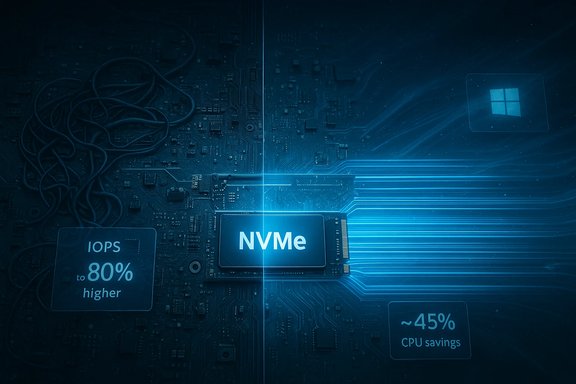
 

Data center racks display NVMe I/O paths and a SCSI emulation path diagram.
Microsoft’s storage team quietly shipped a native NVMe I/O path in Server builds, and enterprising enthusiasts have found a way to flip that behavior on many Windows 11 machines — producing measurable SSD gains in some setups but also exposing real compatibility and data‑safety risks that make this a power‑user‑only experiment.

Background / Overview​

Windows historically presented NVMe SSDs through a legacy SCSI‑style stack that simplified device handling across many types of storage. That translation layer worked well for compatibility, but it also introduced CPU overhead, serialization points and queueing mismatches that increasingly limit modern NVMe devices’ potential as PCIe bandwidth and SSD internal parallelism have scaled. Microsoft’s new approach replaces the translation path with a native NVMe class driver designed to expose NVMe’s multi‑queue, per‑core semantics directly to the kernel — a redesign aimed at reducing per‑I/O CPU cost, lowering tail latency, and improving IOPS on small random workloads. Why this matters: NVMe was built for massive parallelism — thousands of submission/completion queues and minimal per‑command overhead. When the OS routes NVMe through SCSI emulation, it effectively bottlenecks the device at the software layer. The native path removes much of that friction, which is particularly impactful for workloads that issue lots of small, concurrent I/O (databases, virtualization, hyperconverged storage, and metadata‑heavy file servers). Consumer desktop workloads can also benefit, but the gains are typically smaller and highly dependent on drive controller, firmware, platform topology and whether a vendor driver is already in use.

What Microsoft shipped and what the lab numbers mean​

Microsoft documented this capability as an opt‑in feature for Windows Server 2025, published the DiskSpd test harness used in its labs, and provided an official enablement route for administrators. In their published server microbenchmarks (small‑block, highly parallel 4K random tests), Microsoft reported up to roughly 80% higher IOPS and approximately 45% fewer CPU cycles per I/O versus the legacy SCSI‑based path — figures that are credible for engineered, high‑parallelism server hardware but should be treated as upper bounds rather than universal consumer expectations. Key technical points Microsoft used and published for reproducibility:
  • DiskSpd parameters for the headline test: diskspd.exe -b4k -r -Su -t8 -L -o32 -W10 -d30 (this targets 4K random I/O with multiple threads and high queue depth).
  • The supported enablement path on Server is documented and distributed as a FeatureManagement policy (a single numeric override for server scenarios) and as a Group Policy artifact for staged admin rollouts.
Two important clarifications about the lab numbers:
  1. Microsoft’s numbers come from a controlled dual‑socket server testbed with enterprise NVMe media and are intended to show the headroom unlocked by removing software bottlenecks.
  2. Real‑world consumer gains are usually smaller; independent editorial labs and community tests tend to report single‑digit to mid‑teens percentage uplifts for many desktop workloads, with larger deltas limited to specific drive/controller/firmware combinations.

How the capability surfaced on Windows 11: the community discovery​

Because much of Windows’ kernel and driver packaging is shared between Server and Client SKUs, the native NVMe components exist in recent Windows 11 servicing builds even though Microsoft has not enabled them by default for consumer SKUs. Enthusiast researchers discovered that adding specific FeatureManagement override entries to the registry can cause many Windows 11 machines to prefer Microsoft’s native NVMe class driver for eligible devices — effectively switching the client to the new native path. The sequence circulated in community threads sets three DWORD overrides under:
HKEY_LOCAL_MACHINE\SYSTEM\CurrentControlSet\Policies\Microsoft\FeatureManagement\Overrides
The most widely reported client‑side values used by testers are:
  • 735209102 = 1
  • 1853569164 = 1
  • 156965516 = 1
After creating those entries and rebooting, some testers observed the NVMe device presentation change in Device Manager (moving drives into a “Storage disks” or “Storage media” category) and driver details showing Microsoft’s native NVMe driver file (for example nvmedisk.sys or other in‑box NVMe components). These commands are community‑sourced, undocumented for Windows 11 consumer builds, and therefore unsupported.

Benchmarks, anecdotes and the reality of variability​

What labs and independent outlets say
  • Microsoft’s server lab numbers (up to ~80% IOPS and ~45% CPU savings) are reproducible in similar server conditions when using the same DiskSpd profile and enterprise NVMe hardware — they demonstrate the engineering headroom, not a guaranteed desktop uplift.
  • Editorial testing on consumer gear (PCIe 3.0/4.0 NVMe SSDs on desktop platforms) generally shows useful, but smaller, improvements: many outlets report single‑digit to mid‑teens percent throughput increases and improved tail latency for small random I/O. These outlets stress that results vary widely with drive controller, firmware, motherboard firmware (BIOS/UEFI), and whether the system uses vendor NVMe drivers.
Community anecdotes
  • Posts circulating in forums and social media include high‑impact anecdotes — for example, individual users claiming dramatic jumps (one reported an 85% increase in write speeds on a particular SSD synthetic test). These anecdotes can be real for that exact drive + firmware + benchmark combination, but they are not generalizable and often represent outliers. Treat them as starting points for investigation, not guarantees.
Why results vary so much
  • Vendor drivers: Many vendors ship their own optimized NVMe drivers or management stacks that already bypass parts of the Windows stack. If a device uses a vendor driver, flipping the Microsoft native path at the OS level may do nothing or may create conflicts.
  • Firmware and platform topology: NVMe controller firmware, PCIe generation (Gen3/Gen4/Gen5), CPU chipset and whether the device sits behind Intel/AMD VMD or RAID layers all affect outcome.
  • Workload shape: Sequential transfers are often bound by NAND and PCIe link bandwidth and hence show little change; small random I/O at moderate‑to‑high queue depths is where the native path shines.

Risks, compatibility pitfalls and reported failures​

This is the most consequential part of the story for everyday users: enabling the native NVMe path on Windows 11 via community registry overrides is unsupported and carries documented risks.
Reported compatibility issues and failures:
  • Backup and imaging tools: Some users reported backup or imaging software no longer recognizing volumes or showing altered device identifiers after the registry change, which can break restoreability and licensing schemes that bind to disk IDs. Some were able to recover by undoing the registry change and restoring from images.
  • Vendor utilities and driver conflicts: Tools such as Samsung Magician, Western Digital Dashboard and vendor NVMe drivers sometimes stop recognizing devices, report duplicates, or behave inconsistently after switching presentation. Reinstalling vendor tools or rolling back the registry change was required in a number of community reports.
  • Boot or access issues: A small number of testers reported loss of access to file systems or boot problems; these were typically reversible when the registry overrides were removed, but some users required full recovery media or image restores. This underscores that the change can alter low‑level presentation in ways that higher‑level utilities and boot managers do not expect.
  • Servicing/regression side effects: The native NVMe capability arrived inside larger servicing updates. Historical rollouts show that LCUs sometimes include unrelated regressions that require out‑of‑band patches; enabling an experimental path without staging increases the blast radius for such regressions.
Security and support implications
  • Microsoft’s official guidance treats the server toggle as a supportable admin action when done by IT staff under staged testing; the community client method is undocumented for Windows 11 and therefore not supported by normal consumer support channels. If you enable an unsupported tweak and later encounter data loss, vendors and Microsoft support may not be able to provide standard remedies.

How to evaluate this safely — a recommended investor‑level playbook (for power users and IT)​

If you manage lab machines, a test pool, or spare hardware and you want to evaluate the native NVMe path, follow a conservative, reproducible process:
  1. Inventory and baseline
    • Record NVMe model, firmware version, motherboard model and BIOS/UEFI version, and current driver (Microsoft in‑box vs vendor driver).
    • Capture baseline metrics: sequential throughput, IOPS, P50/P95/P99 latency, CPU usage per I/O, and Disk Transfers/sec. Use DiskSpd, CrystalDiskMark and real‑workload traces where possible.
  2. Update firmware and drivers
    • Install the latest SSD firmware and motherboard BIOS from the vendor and ensure Windows is on the servicing baseline that includes the native NVMe components. This reduces the chance that a firmware bug skews results.
  3. Create a full system image and recovery media
    • Create an offline image (block image backup) and a bootable recovery USB. Confirm you can restore the image to the test machine before you proceed. This is mandatory.
  4. Apply the change in a controlled test node
    • On a non‑production machine, add the FeatureManagement overrides or use the documented server toggle if you are testing on a server SKU. Reboot and check Device Manager for a presentation change and the driver file reported.
  5. Run reproducible benchmarks
    • Re-run DiskSpd with Microsoft’s published parameters to reproduce engineering metrics, then run representative application tests (game loading, VM boot storms, database small‑random I/O). Record p99/p999 tails as well as averages — the native path often shows its value in tail latency.
  6. Monitor ecosystem tooling
    • Launch backup/imaging tools, vendor SSD utilities and any licensing or virtualization tools that rely on disk identity. Verify that nothing critical breaks. If tools misbehave, revert immediately and investigate.
  7. Staged rollout for fleets
    • If you’re an admin in an organization and lab results are positive, canary a small set of non‑critical hosts and monitor telemetry before broader deployment. Maintain a rollback window.

Step‑by‑step: the community method (what people actually ran)​

This is the community‑documented sequence used by many testers on Windows 11 client builds (run as Administrator or using an elevated .reg merge):
  • Create three 32‑bit DWORD values under:
    HKEY_LOCAL_MACHINE\SYSTEM\CurrentControlSet\Policies\Microsoft\FeatureManagement\Overrides
  • Set these names/values:
    • 735209102 = 1
    • 1853569164 = 1
    • 156965516 = 1
  • Reboot and verify Device Manager and driver details.
Important operational notes:
  • This method is community‑sourced and not Microsoft‑documented for Windows 11 client SKUs; the server SKU uses a different documented numeric ID for the FeatureManagement toggle. Use the community registry values only on test hardware with complete backups.

Practical recommendations: who should (and should not) try this​

Do try this only if:
  • You are an IT pro testing on lab hardware or
  • You are an advanced enthusiast with spare, non‑critical hardware, full offline image backups and recovery media, and you accept that support channels may be limited.
Do not try this if:
  • The machine is your only daily‑use device and you don’t have a tested image backup.
  • You rely on vendor SSD utilities for warranties or firmware updates that could be impacted by driver changes.
  • You cannot tolerate transient loss of drive presentation or need immediate vendor support in case of problems.
If you want faster performance without the registry risk, consider these safer alternatives first:
  • Upgrade to a faster NVMe Gen4/Gen5 drive or a higher‑end controller.
  • Ensure SSD firmware and platform BIOS are up to date.
  • Tune OS-level settings like power mode, background app behavior, and storage cleanup to reduce system‑level I/O contention.

Critical analysis — strengths, limitations and long‑term implications​

Strengths
  • The engineering rationale is sound: aligning the OS I/O path with NVMe semantics reduces unnecessary translation overhead and unlocks real headroom, especially for small random I/O and highly concurrent workloads. Microsoft’s lab numbers convincingly demonstrate the potential on server hardware.
  • For workloads that are storage‑bound and highly parallel (virtualization hosts, file servers, database applications), the native path can translate into meaningful operational efficiencies (higher IOPS, lower CPU per I/O, and improved latency tails).
Limitations and risks
  • This is a platform migration, not a trivial tweak: changing the driver presentation can alter device IDs and interaction with third‑party tools that expect the legacy presentation. That creates real support and recovery exposure for everyday users.
  • The community registry method is undocumented for consumers and could change or be removed in future servicing updates; it is fragile and unsupported.
  • Not all drives benefit equally: vendor drivers, firmware differences and platform topologies mean the uplift is heterogeneous — some consumer setups will see modest improvements, others none, and a few may experience regressions.
Long‑term implications
  • Microsoft’s native NVMe work is a necessary modernization of the Windows I/O stack. Over time, expect vendors and backup/management tool vendors to adapt; the default client presentation may well change as the ecosystem validates compatibility, but that will require staged rollouts and broad testing. For now, the feature’s server‑first rollout and conservative client‑side posture reflect the complexity of the storage ecosystem.

Conclusion​

The discovery that a Microsoft native NVMe driver exists inside recent Windows servicing builds and can be coaxed into client machines via registry overrides is an important signal: Windows’ storage stack is being modernized, and the technical gains are real in the right environments. However, the current community method for enabling it on Windows 11 is experimental and unsupported, and it has produced both impressive wins and painful compatibility failures in the wild. The right approach for most readers is cautious: baseline, back up, test on spare hardware, and wait for an official client‑side enablement or tooling that Microsoft and vendors validate for consumer scenarios. For IT teams, follow staged validation, monitor vendor advisories and treat the change as a platform migration rather than a casual performance tweak.

Source: Inbox.lv A Hidden Way to Speed Up PC Performance Found in Windows 11

 

A quietly delivered change in Microsoft's storage stack has spawned one of the most talked‑about performance tweaks of recent months: code shipped for Windows Server 2025 exposes a native NVMe I/O path that, when present in recent Windows 11 builds, can be forced on by users — producing meaningful SSD speed gains in many cases, but also creating clear compatibility and data‑safety risks.

Neon-lit data center rack with NVMe drives and glowing circuit paths.Background / Overview​

Microsoft’s engineering work for Windows Server 2025 replaces decades of SCSI‑oriented translation for NVMe devices with a purpose‑built, native NVMe class driver intended to expose NVMe’s multi‑queue design and reduce software overhead. In server lab microbenchmarks this new path reportedly produced up to roughly 80% higher 4K random IOPS and about 45% fewer CPU cycles per I/O on engineered testbeds — figures Microsoft published for server scenarios. Because recent Windows 11 servicing builds share much of the packaged storage stack with Server, community investigators discovered the native NVMe components are already present in some client updates — but Microsoft has not enabled them by default on consumer SKUs. By adding undocumented FeatureManagement override entries in the registry, testers can cause eligible NVMe devices to switch to the Microsoft native path on Windows 11. Multiple independent outlets and community posts documented both the registry method and the typical post‑change indicators (driver file names and Device Manager presentation).

What changed under the hood: SCSI emulation vs native NVMe​

Why the old model limited modern SSDs​

For years Windows presented many block devices through a SCSI‑style abstraction layer. That translation simplified compatibility for older hardware and vendor drivers, but it also introduced extra CPU work, serialization points and translation overhead that increasingly bottle‑necked NVMe SSDs built for massive parallelism. When SSDs are capable of many hundreds of thousands of IOPS, the software stack can become the limiting factor rather than the drive itself.

What the native NVMe path does​

The native NVMe path removes the translation to SCSI and aligns the OS path with NVMe semantics: per‑core queues, direct submission/completion semantics, and more efficient interrupt/queue management. The practical result is fewer CPU cycles per I/O, lower tail latencies in highly parallel workloads, and better utilization of PCIe bandwidth. Microsoft designed this for enterprise workloads — virtualization hosts, large databases, and heavy metadata workloads — but parts of it translate to consumer systems, particularly on high‑end PCIe Gen4/Gen5 SSDs.

How the discovery reached consumers​

Community researchers and power users noticed the native NVMe components in client servicing packages and shared a reproducible registry approach that flips the client into the native NVMe path. Multiple independent publications and enthusiast forums reproduced the change and the observable signs that it took effect: the drive’s device class in Device Manager changes (often moving from “Disk drives” into “Storage disks” or “Storage media”) and the driver list includes native Microsoft NVMe files such as nvmedisk.sys or StorNVMe components. Community posts circulated a trio of numeric FeatureManagement override DWORDs added at:
HKEY_LOCAL_MACHINE\SYSTEM\CurrentControlSet\Policies\Microsoft\FeatureManagement\Overrides
The three commonly cited DWORD names set to 1 are:
  • 735209102 = 1
  • 1853569164 = 1
  • 156965516 = 1
After reboot, many users reported the driver presentation changes described above and, in some cases, measurable improvements in benchmarks and real‑world throughput. These specific numeric IDs are community‑discovered; Microsoft’s documented toggle for Server uses a different, supported override. Treat the community values as undocumented and unofficial.

The performance picture: lab numbers vs. real systems​

Microsoft’s lab claims (server workloads)​

Microsoft’s published server lab runs (DiskSpd microbenchmarks) highlight dramatic uplifts — up to ~80% higher 4K random IOPS and roughly ~45% lower CPU usage per I/O — but those figures were produced on enterprise servers with heavy parallelism, high core counts, and enterprise NVMe media. They are engineering upper bounds for highly parallel scenarios, not a consumer guarantee.

Independent editorial and community tests (consumer reality)​

Independent editorial labs and consumer tests consistently found smaller but meaningful gains on desktops and laptops. Typical outcomes reported by outlets testing Windows 11 client machines fall into the single‑digit to low‑double‑digit percent range for many mixed and sequential workloads, while random small‑block I/O and latency‑sensitive operations show the largest relative uplifts. For example, several consumer tests reported gains in the mid‑teens for some random write patterns and more modest single‑digit improvements for sustained sequential transfers.

Anecdotes and outliers​

Some community anecdotes are more dramatic. One Reddit user reported an 85% increase in write speed for his particular SSD after enabling the native path, and other posters shared single‑system jumps that approached double‑digit percentages. These are useful for signal but must be treated as single‑system anecdotes: hardware, firmware, vendor drivers, OS build, and workload vary widely, and impressive one‑off numbers are not reproducible across all setups. Always treat anecdotal claims as unverified until reproduced under controlled conditions.

Verified checks and cross‑references​

Key claims from the community discovery have been cross‑checked against multiple independent sources:
  • Microsoft’s native NVMe feature and its lab numbers are documented in Microsoft’s communications for Windows Server 2025; those bench figures are corroborated by technical reporting.
  • Major tech outlets (Tom’s Hardware, TechSpot, gHacks) reproduced the registry approach and independently observed Device Manager/driver changes and consumer‑class benchmark results consistent with the community’s findings.
  • Forum and community archives captured repeated reports of the same registry override DWORDs and the same observable indicators (nvmedisk.sys present, drives showing under “Storage disks”), although the numeric IDs remain undocumented and could change in future updates.
Together these checks satisfy a practical cross‑reference standard: the high‑level engineering claims come from Microsoft, and independent outlets plus community tests confirm that the native NVMe components exist in client servicing builds and can be exercised on Windows 11 with an undocumented registry override — producing measurable consumer gains in many but not all cases.

Risks, compatibility issues, and why caution matters​

Enabling an unsupported OS path carries real, documented hazards.
  • Disk/volume visibility and vendor tooling: Several users reported that disk management tools, vendor utilities, and backup software temporarily failed to see or correctly identify volumes after the change. Some managed to recover by undoing the registry edits, but recovery is not guaranteed if a tool writes metadata or the boot path is altered.
  • Driver and vendor conflicts: If a vendor‑supplied NVMe driver is installed (Samsung, Western Digital, Intel, etc., it may remain in control of the device and block the Microsoft native path, or vice‑versa, creating unpredictable interactions. Testing vendor driver compatibility is essential.
  • Boot and data‑loss risk: Any manual manipulation of the storage stack can render disks temporarily inaccessible, and a small subset of users reported loss of file‑system access until the registry changes were reverted or a backup image restored. This is the most serious practical risk and is why backups and rollback plans are critical.
  • Unsupported status and fragility: The client‑side override method is undocumented. Microsoft’s supported path is for Windows Server 2025; undocumented numeric keys used on Windows 11 may be changed or removed without notice in future updates, leaving systems in inconsistent states after cumulative updates.

A pragmatic, safety‑first checklist (for enthusiasts and admins)​

If you decide to experiment, follow a conservative, staged approach. These steps synthesize best practices reported by community experimenters and editorial labs.
  • Create a full disk image (system image) or clone before attempting any registry changes. Having a verified image restore is the single best insurance policy.
  • Update Windows and your firmware: install the same servicing updates that included the native NVMe components and ensure your SSD firmware and motherboard chipset drivers are current. Vendor firmware updates can change device behavior significantly.
  • Export the registry branch you will change and create a System Restore point. Document the exact keys you add so you can revert them precisely.
  • Test in a non‑production environment first: a spare machine, secondary NVMe device, or virtual lab setup that mirrors your workload are safer places to evaluate gains.
  • After enabling the change, verify indicators before trusting the system: check Device Manager driver details (look for nvmedisk.sys or StorNVMe components), confirm volumes mount correctly, and run your backup software’s job to ensure it detects the disks.
  • Run targeted benchmarks (random small‑block and application‑specific tests) and monitor for errors in Event Viewer and vendor utilities. Compare before/after numbers and stability.
  • If you see tool failures or inaccessible volumes, revert the registry changes immediately and restore from your image if necessary. Avoid proceeding further until the root cause and vendor guidance are clear.

What this means for different user types​

Enthusiasts and tinkerers​

This is a compelling optimization to experiment with if you enjoy hands‑on system tuning and have robust backups. Expect meaningful improvements in random I/O heavy tasks and latency‑sensitive operations on high‑end NVMe hardware. However, proceed only after full backups and with the expectation of troubleshooting or reverting when updates land.

Gamers and general consumers​

Most gaming workloads and everyday desktop apps are not primarily limited by small random I/O; gains here will be modest for many users. If your system is stable and your workflow depends on vendor tools (Samsung Magician, WD Dashboard, hardware encryption utilities), the compatibility trade‑offs may outweigh the benefit. Prioritize vendor guidance and wait for an official client path before changing production systems.

IT admins and enterprises​

Enterprises already have a supported, staged path for Windows Server 2025 and should follow Microsoft’s documented enablement, testing, and rollout guidance rather than relying on community overrides. For client fleets, organizations should test in lab rings and coordinate with hardware vendors before broad deployment. Microsoft’s enterprise guidance emphasizes staging and validation precisely because of the systemic nature of this change.

Vendor response and ecosystem considerations​

Several SSD and platform vendors are watching this closely. Vendor drivers and firmware updates can influence whether a client machine benefits from a native OS path or whether vendor tooling remains the performance leader. Some drives ship with vendor drivers that bypass parts of the in‑box stack; in those cases the Microsoft native path may be irrelevant unless the vendor driver is removed or replaced. Always check vendor release notes and compatibility guidance before making system‑level changes.

Bottom line: real potential, real responsibility​

The native NVMe architecture Microsoft shipped for Windows Server 2025 is a legitimate, technically sound modernization of the Windows storage stack. It can unlock measurable performance and CPU efficiency in workloads designed around high concurrency. Community experiments show the same components exist in many Windows 11 servicing updates and can be enabled via undocumented registry overrides, producing useful gains for many users. That said, this is not a casual “one‑click” tweak for every consumer. The community method is unsupported, fragile across updates, and has real compatibility and data‑availability risks. The sensible path for most users is to:
  • Prefer vendor guidance and Microsoft’s supported channels for production systems.
  • If experimenting, use full disk images, a test environment, and staged validation before trusting the tweak on important machines.
For power users willing to accept the trade‑offs, the upside can be meaningful in the right workloads. For everyone else, the rollout in Server and the likely future supported client path will deliver these gains without the manual risk — and patience coupled with careful testing is the prudent option.

Conclusion​

A hidden lever to speed up SSD performance in Windows 11 has surfaced because Microsoft’s server‑grade work on native NVMe shipping in Windows Server 2025 ended up packaged into client servicing builds. The engineering payoff is real: lower CPU overhead and higher IOPS where concurrency matters. The community’s registry workaround demonstrates that consumer systems can often tap those gains today, but doing so trades off official support, stability guarantees, and possibly compatibility with vendor tooling.
The responsible approach blends curiosity with caution: validate the change in a controlled environment, keep full backups, and prioritize official vendor and Microsoft guidance for production systems. When the client‑side path becomes an officially supported, documented feature, the storage‑stack modernization will be a genuine win for users who want to speed up their Windows 11 PCs — but until then, the fastest route to higher speed is a careful, measured experiment rather than a blind flip of an undocumented switch.
Source: Inbox.lv A Hidden Way to Speed Up PC Performance Found in Windows 11
 

Windows Server 2025 ships a native NVMe storage path that finally eliminates the long-standing SCSI translation choke point and — when enabled and validated correctly — can unlock dramatically higher IOPS, lower latency, and significantly reduced CPU overhead for modern NVMe SSDs and NVMe-over-Fabrics deployments.

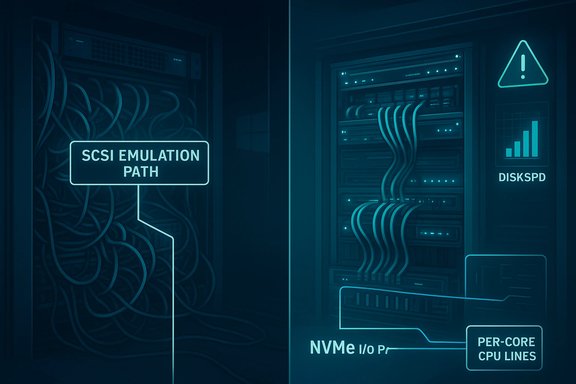
Futuristic data center with NVMe SSD racks and glowing cables converging on a central chip.Background / Overview​

For more than a decade Windows historically presented block storage through a SCSI-oriented abstraction that simplified compatibility across HDDs, SATA SSDs and storage arrays. That design worked well for spinning disks and early SSDs, but it becomes an architectural mismatch for NVMe devices, which were designed around large numbers of submission/completion queues, per‑core queue affinity and extremely low per‑command overhead.
Microsoft’s storage team has reworked the server I/O plumbing in Windows Server 2025 so the kernel can speak NVMe natively rather than translating NVMe commands into SCSI equivalents. The vendor frames this as a foundational modernization intended to let high‑end PCIe Gen‑4/Gen‑5 NVMe SSDs and HBAs reach far more of their hardware potential. It’s worth clarifying the timeline: NVMe as a specification was first released in 2011, so the idea that Windows is “only now supporting NVMe natively after 12 years” is a little loose — the standard is roughly 14 years old. The practical point remains: Windows’ server SKU now exposes a true native NVMe path that Linux and many hypervisor stacks have long supported, and that matters for modern, massively parallel flash hardware.

What changed in Windows Server 2025​

The technical shift​

  • The Windows Server 2025 release contains an opt‑in native NVMe I/O path that removes the per‑I/O SCSI translation previously used for NVMe devices and exposes NVMe multi‑queue semantics to the kernel.
  • The feature arrived via the October 2025 servicing update and is disabled by default; administrators must apply the servicing update and enable the documented feature toggle to switch the server onto the native path.
Microsoft’s engineering team describes the benefits in three terse buckets: massive IOPS headroom, lower latency / improved tail behavior, and CPU efficiency (fewer cycles spent in the kernel on I/O bookkeeping). Those are precisely the gains NVMe was designed to deliver when the OS does not force a legacy SCSI-style serialization on every operation.

What the vendor published (reproducible artifacts)​

Microsoft shipped:
  • A Tech Community post explaining the change, the supported enablement method (registry/Group Policy), and how to validate results.
  • The DiskSpd command line used for their lab microbenchmarks so administrators can reproduce the synthetic tests.
  • A concrete registry toggle example to opt in on servers after applying the relevant cumulative update.
Those artifacts make the engineering case reproducible — but they also underscore Microsoft’s intent: this is a controlled, administratively gated change for data center operators, not an automatic switch across all servers.

The headline numbers — and how to interpret them​

Microsoft’s lab microbenchmarks show eye‑catching deltas on engineered server hardware:
  • Up to ~80% higher IOPS on targeted 4K random read tests (NTFS) versus the legacy SCSI-emulation path.
  • Roughly ~45% fewer CPU cycles per I/O in the same measured scenarios.
  • Examples in Microsoft’s charts cite enterprise Gen‑5 SSDs reaching multi‑million IOPS in synthetic profiles.
Independent outlets that re‑ran or summarized the tests reported similar directional improvements, while also noting the lab context and hardware choices that produce the largest deltas. Community testing on client hardware and consumer drives shows smaller, more variable gains — single‑digit to mid‑teens percent in many desktop workloads, larger in other synthetic corner cases. This is consistent with the fact that the biggest wins come when the software stack was the bottleneck and the workload is high‑concurrency, small‑block I/O. Important interpretation points:
  • These numbers are reproducible upper bounds for targeted synthetic workloads on specific enterprise testbeds; they are not universal guarantees for every disk, controller, or workload.
  • The improvements are largest for small random I/O at high queue depth and on server-grade controllers that actually benefit from multi‑queue behavior.
  • Real‑world application-level uplift (e.g., OLTP throughput, VM density) will depend on storage topology, controller firmware and the full software stack.

How to enable — the supported path for Server​

Microsoft documented a supported, server‑side enablement flow:
  • Install the October 2025 servicing update (identified in Microsoft’s materials and rollup releases; the cumulative update commonly referenced is KB5066835 or its servicing bundle successors).
  • Apply the documented FeatureManagement override (registry key) or use the Group Policy MSI Microsoft supplied, then reboot. The blog contains the exact registry example used by Microsoft: reg add HKEY_LOCAL_MACHINE\SYSTEM\CurrentControlSet\Policies\Microsoft\FeatureManagement\Overrides /v 1176759950 /t REG_DWORD /d 1 /f.
  • Validate device presentation in Device Manager and measure with DiskSpd/Performance Monitor and Windows Admin Center. Microsoft shows devices listing under “Storage disks” and recommends verifying the in‑box Microsoft NVMe driver (StorNVMe.sys/nvmedisk.sys) is in use.
These steps are the supported route for production servers; they give administrators a controlled way to opt in and validate before broad deployment.

Community experiments: Windows 11, unofficial toggles, and the risk profile​

Because much kernel and driver plumbing is shared across Server and Client SKUs, community enthusiasts quickly discovered that the same native NVMe binaries exist in certain Windows 11 servicing builds. That led to the creation and circulation of undocumented registry overrides that can coax Windows 11 to prefer Microsoft’s native NVMe stack. Community posts and tests show a wide range of outcomes — from measurable desktop responsiveness gains to broken behavior with backup utilities, broken SafeBoot/WinRE entries, and driver‑mismatch headaches. Key community findings and warnings:
  • Some testers report double‑digit IOPS/latency gains on consumer drives; others see no benefit or net regressions depending on firmware and third‑party drivers.
  • The client‑side method is unsupported by Microsoft and requires multiple undocumented FeatureManagement override values; it can break Safe Mode, boot recovery, or vendor tools if not done carefully.
  • Several community threads emphasize the importance of registering associated ClassIDs for SafeBoot and having a tested rollback plan if Device Manager changes or driver load behavior interfere with tools.
The upshot: while hobbyists and some admins have coaxed benefits on Windows 11, those routes are experimental. Enterprises should not rely on them for production.

Practical compatibility considerations (what can go wrong)​

The kernel‑level nature of this change means it touches many subsystems that expecting SCSI semantics. Areas requiring explicit validation before enabling Native NVMe in production:
  • Vendor NVMe drivers: If an NVMe device uses a third‑party driver instead of the in‑box Microsoft NVMe driver, the native path may not apply or may produce different behavior. Validate driver stacks and firmware versions.
  • Backup, imaging and replication tools: Many enterprise backup products, volume managers and image tools rely on device IDs, SCSI semantics or stable device names. Changing the driver presentation can cause tools to misidentify disks or fail. Community reports highlight unpredictable behavior with some backup suites.
  • Multi‑disk topologies: Storage Spaces, software RAID, and clustered file systems (including certain SAN/NVMe-oF setups) need careful testing. The native path likely benefits direct‑attached NVMe and certain fabrics more than legacy SAN paradigms that rely on SCSI emulation.
  • Hypervisors and guest mapping: Hyper‑V, partitioning, and pass‑through scenarios should be tested for latency, identification, and failover behavior when the host switches driver presentation.
  • Recovery and SafeBoot: Community threads show that toggling client‑side overrides without registering associated class IDs can break SafeBoot or recovery paths. Test WinRE/boot recovery after enabling the feature and ensure your restore procedures remain functional.

Recommended rollout strategy for IT teams​

  • Lab validation first: Reproduce Microsoft’s DiskSpd microbenchmark in a lab using the exact parameters Microsoft published (diskspd.exe -b4k -r -Su -t8 -L -o32 -W10 -d30) and confirm driver presentation. Measure both IOPS and CPU cycles per I/O before and after.
  • Firmware & driver audit: Inventory NVMe devices and their drivers. If a vendor‑supplied driver is in use, contact the vendor to confirm whether the native path is supported or if their driver provides equal or better NVMe-native semantics.
  • Staged deployment: Start with non‑critical hosts and use controlled canary groups. Monitor application latency, backup jobs, cluster behavior and hypervisor interaction closely.
  • Recovery checks: Validate WinRE, SafeBoot, and your emergency recovery path after enabling the feature. Document rollback procedures to uninstall the cumulative update or remove the registry toggle if necessary.
  • Vendor coordination: For enterprise arrays, HBAs or NVMe‑oF, coordinate with hardware vendors to confirm compatibility and test firmware/driver combinations that vendors certify.
Following those steps will reduce the chance of surprises in production.

Business and operational implications​

For organizations running I/O‑sensitive workloads — large OLTP databases, densified virtual machine hosts, high‑performance file servers and AI/ML scratch workloads — the native NVMe path can translate into measurable capacity, cost and performance improvements:
  • Higher VM density per host when storage is the bottleneck.
  • Lower CPU overhead for storage I/O, freeing cores for application work or allowing smaller hosts to do the same work.
  • Reduced tail latency for transactional workloads, improving service responsiveness and predictability.
That said, the measurable business uplift depends on where the bottleneck sits today. If your environment is latency‑bound by network, application, or storage controller bottlenecks outside the host I/O stack, the native NVMe upgrade may yield modest returns. It’s a highly workload‑dependent lever.

Strengths, limits and risks — critical analysis​

Strengths
  • Architectural alignment. The change aligns Windows Server’s kernel with NVMe’s original design (multi‑queue, low overhead), removing a long‑standing mismatch.
  • Reproducible engineering artifacts. Microsoft published DiskSpd parameters, the registry toggle for Server, and guidance — all good signs for reproducible testing and controlled rollouts.
  • Potentially large headroom. For properly matched hardware and workloads, the delta can be dramatic (multi‑million IOPS headroom in synthetic tests).
Limits and caveats
  • Not a drop‑in panacea. The gains are workload and hardware dependent; consumer results vary and community testers show mixed outcomes on desktops.
  • Ecosystem fragility. Kernel‑level changes expose interactions with backup tools, imaging, cluster software and recovery environments that require explicit validation. Community threads and Microsoft’s own guidance emphasize staged rollouts and caution.
  • Client path is unofficial. While the native components exist in some client builds, using them on Windows 11 is unsupported and risky. Enthusiast “registry hacks” are not production remedies.
Risks that demand checklist items
  • Unverified third‑party drivers and vendor tools may fail or misreport device information after the driver presentation changes.
  • Emergency recovery environment and boot‑time behaviors must be re‑tested to avoid serviceability regressions.
  • Clustered storage and SAN/NVMe‑oF topologies require vendor‑certified testing; don’t assume direct‑attach results generalize to fabrics.

How admins should measure success​

  • Use DiskSpd for microbenchmarks (the exact command Microsoft published) for reproducible IOPS comparisons.
  • Use Performance Monitor and Windows Admin Center counters for longer‑running, application‑level telemetry: Physical Disk>Disk Transfers/sec, Average Latency, CPU cycles/interrupt, and application‑specific counters (SQL Server waits, Hyper‑V storage latency).
  • Track p95/p99 tail latencies, not just average IOPS — storage stack changes often produce the largest application benefits in reduced tail latency.
  • Validate end‑to‑end backups, DR procedures, and firmware update flows, because these are the common sources of operational pain after low‑level driver changes.

What to expect next​

  • Microsoft’s Server‑first rollout and the published artifacts suggest the company intends to expand native NVMe usage across the Windows ecosystem over time, but enterprise caution will temper the cadence.
  • Vendor drivers and firmware will continue to be updated to either match or exceed Microsoft’s in‑box behavior. Expect vendors to publish compatibility notes and suggested firmware for customers that want to enable Native NVMe at scale.
  • The client story will likely evolve: Microsoft has not made Windows 11 the official target yet, and community experiments are noisy and unsupported. Enterprise and managed consumer channels will determine when and how the client path becomes official.

Quick reference: enable, test, validate (concise checklist)​

  • Install the October 2025 servicing bundle (ensure KB5066835 or later is present).
  • In a lab, enable the registry toggle Microsoft documents for Server and run DiskSpd with the published parameters.
  • Confirm driver presentation (StorNVMe.sys / nvmedisk.sys) and Device Manager listing under “Storage disks.”
  • Validate backups, WinRE, SafeBoot, clustering and hypervisor interactions.
  • Roll forward to controlled production canaries only after security/availability checks pass, and coordinate vendor firmware/drivers as needed.

Conclusion​

Windows Server 2025’s native NVMe path is a significant architectural modernization that brings Windows’ server I/O plumbing closer to the design goals of NVMe hardware. Microsoft’s published artifacts and lab numbers show real, reproducible gains in the right environments — but this is not a simple toggle for every installation. The change is opt‑in for good reasons: kernel‑level changes interact with many ecosystem components, and the real‑world benefit depends on device firmware, vendor drivers, workload patterns and storage topology.
Enterprises should treat Native NVMe as a powerful new lever: validate carefully, test backups and recovery, stage rollouts, and coordinate with hardware vendors. Enthusiasts can experiment on client builds, but those hacks remain unsupported and carry material operational risk. For teams that do the due diligence, the payoff can be substantial — more IOPS per host, lower CPU overhead, and better tail latency — all of which matter for high‑density virtualization, databases and large‑scale analytics workloads.
Source: TechPowerUp Windows Server 2025 Gets Native NVMe SSD Support After 12 Years
 

IO Interactive has published the first official PC system requirements for 007 First Light and confirmed full DLSS 4 support — including NVIDIA’s multi‑frame generation — at launch, while the game’s release has moved to May 27, 2026, giving PC players a clear (if sometimes puzzling) roadmap for hardware planning.

Neon-lit gaming setup with an RGB PC and monitor displaying 007: First Light.Background / Overview​

IO Interactive’s James Bond origin story, 007 First Light, is being positioned as the studio’s most ambitious single‑player project since its Hitman work, running on the proprietary Glacier engine and promising a cinematic blend of stealth, gadgets, driving and large set pieces. The developer delayed the game from its original March window to May 27, 2026 to allow extra polish, and released the PC hardware table in advance of launch to help players prepare. Two parallel headlines come out of IOI’s announcement: the concrete PC tiers for 1080p play and a technical partnership with NVIDIA that brings DLSS 4 and Multi‑Frame Generation to the PC client at release. Both items materially affect how players should approach upgrades, benchmarking expectations, and the value of vendor upscalers and frame‑generation tools.

Official PC system requirements — what IO Interactive published​

IO Interactive published a two‑tier requirement sheet that targets two explicit performance goals: 1080p / 30 FPS for minimum and 1080p / 60 FPS for recommended. The studio also made a point of listing VRAM and system RAM targets separately from GPU and CPU classes, which creates important nuance for buyers. These are the numbers IOI published on its official channels.

Minimum (Target: 1080p @ 30 FPS)​

  • Processor: Intel Core i5‑9500K / AMD Ryzen 5 3500.
  • Graphics card: NVIDIA GTX 1660 / AMD RX 5700 / Intel discrete GPU equivalent.
  • System RAM: 16 GB.
  • Video RAM (VRAM): 8 GB.
  • Storage: 80 GB minimum (SSD recommended).
  • OS: Windows 10/11, 64‑bit.

Recommended (Target: 1080p @ 60 FPS)​

  • Processor: Intel Core i5‑13500 / AMD Ryzen 5 7600.
  • Graphics card: NVIDIA RTX 3060 Ti / AMD RX 6700 XT / Intel discrete GPU equivalent.
  • System RAM: 32 GB — an unusually high recommended system memory target for a 1080p/60 experience.
  • Video RAM (VRAM): 12 GB.
  • Storage: 80 GB minimum (NVMe SSD preferred).
  • OS: Windows 10/11, 64‑bit.
Multiple reputable outlets reproduced IOI’s table verbatim, confirming the headline numbers are the developer’s guidance at the time of the reveal.

DLSS 4, multi‑frame generation and the NVIDIA collaboration​

IO Interactive confirmed a direct collaboration with NVIDIA to integrate DLSS 4 features into the PC build, including DLSS Multi‑Frame Generation, which is designed to multiply frame throughput on supported RTX hardware. NVIDIA’s own GeForce News announced the title as a DLSS 4 launch partner and emphasized that DLSS will be used to increase detail while boosting frame rates. Why this matters: DLSS 4’s frame‑generation techniques can substantially raise perceived framerates on RTX‑class cards, potentially allowing midrange GPUs to reach higher refresh targets without a direct hardware jump. That’s an important lever for players who want higher refresh rates on midrange hardware. However, frame generation is not a free lunch — it can introduce latency tradeoffs and transient visual artifacts in some scenes, and its real‑world benefit depends on driver maturity and how the engine integrates the feature. PC Gamer and GameSpot both highlight these pros and cons in their coverage.

The standout spec: 32 GB system RAM for a 1080p/60 target​

The most conversation‑driving element of IOI’s table is the 32 GB recommended system RAM figure for the 1080p/60 column. This is an uncommon recommendation for a midrange 1080p target and has immediate practical implications for many PC owners. Several outlets called attention to this oddity when the announcement landed. Technical reasons IOI might list 32 GB:
  • Modern engines stream large texture sets, physics state, and world data into system memory as well as VRAM; larger working sets benefit from more RAM to reduce hitching during heavy scenes.
  • The recommended target likely assumes real‑world usage that includes background processes (streaming, capture tools, browser tabs), which inflate RAM needs for creators and multitaskers.
  • Developers sometimes target comfortable headroom in the recommended column to reduce day‑one performance variance across diverse hardware.
Practical takeaway: if you want to meet IOI’s recommended experience while streaming, recording, or running overlays, 32 GB is the safer bet; users on 16 GB can still play at the minimum target but may need to reduce texture quality or close background apps.

VRAM vs. GPU model: a confusing pairing​

IOI’s recommended VRAM figure of 12 GB for its 1080p/60 target does not align cleanly with one of the GPUs listed — the RTX 3060 Ti, which commonly ships with 8 GB of GDDR6 on many SKUs. This juxtaposition has led outlets to flag a potential mismatch and buyer confusion. Implications:
  • A card can meet the compute performance profile of a recommended GPU class (shader throughput, RT cores, etc. but still be VRAM‑limited if IOI’s texture pools or streaming budgets assume 12 GB.
  • Buyers should check the exact VRAM capacity of a SKU rather than relying solely on model names. If you own a 3060 Ti with 8 GB and want high texture presets, you may need to lower texture quality or rely on vendor upscalers to reduce VRAM pressure.
This nuance suggests IOI is communicating both a GPU performance class and an ideal VRAM budget — two separate but related signals that must both be respected when planning an upgrade.

Practical PC upgrade checklist — what to prioritize​

For readers preparing systems for 007 First Light, the data above implies a pragmatic order of upgrades depending on budget and current hardware.
  • Storage: move the game to a fast SSD (NVMe preferred) and reserve extra free space for preloads and day‑one patches. Aim for 120–160 GB free during initial installs.
  • System RAM: if you regularly multitask, stream, or capture gameplay, upgrade to 32 GB if possible — this is the single most consequential recommendation IOI made for recommended play.
  • GPU: match your resolution and quality goals — for 1080p/60 with quality upscaling, the RTX 3060 Ti / RX 6700 XT class fits IOI’s recommended column, but confirm VRAM on the SKU.
  • CPU: a modern midrange chip (i5‑13500 / Ryzen 5 7600) is sufficient to meet IOI’s recommended CPU column; upgrade only if your current CPU is many generations old.
  • Drivers and OS: keep Windows and GPU drivers updated to the versions IOI and vendors recommend at launch; DLSS frame generation features benefit from driver maturity.
Short checklist (concise):
  • Update Windows 10/11 and GPU drivers.
  • Free 120–160 GB on an NVMe SSD for preload/patching.
  • Upgrade to 32 GB RAM if you multitask, stream, or use capture software.
  • Confirm GPU SKU VRAM before purchasing.

Performance tuning: using upscalers and frame generation​

IO Interactive’s collaboration with NVIDIA and the integration of DLSS 4 (with Multi‑Frame Generation) gives players a high‑impact tool to raise framerates without a linear hardware uplift. However, tuning will be needed.
  • Use DLSS 4’s settings to balance detail and framerate; test Multi‑Frame Generation vs. native rendering for latency and visual artifact tradeoffs.
  • For non‑NVIDIA owners, enable AMD FSR or Intel XeSS where available to replicate similar upscaling benefits; IOI’s published tiers do not lock performance expectations to NVIDIA alone.
  • Lowering texture resolution and view distance is a high‑ROI way to reduce VRAM pressure without a GPU purchase.
Tip for benchmarking at launch: run the built‑in benchmark (if included) at native resolution to capture baseline frametimes, then enable the vendor upscaler and compare frame times and input latency in short recorded runs.

Risks, caveats and open questions​

IO Interactive’s published table is helpful but not exhaustive. Several open questions and risks merit attention before making large hardware purchases:
  • Specs can change prior to release. Developer guidance is often tweaked near launch due to driver updates, day‑one patches, and optimization passes. Plan purchases with a short waiting window if your upgrade decision depends on final 1440p/4K guidance.
  • No 1440p or 4K target tiers were published. IOI only released 1080p/30 and 1080p/60 targets; anyone chasing native 1440p or 4K should expect to step up hardware above the recommended column or rely heavily on upscalers.
  • VRAM vs. model mismatch. The 12 GB VRAM callout does not line up with many RTX 3060 Ti SKUs; buyers must confirm SKU memory budgets.
  • Frame generation latency/artifact tradeoffs. DLSS Multi‑Frame Generation can boost framerates but may affect input feel and introduce reconstruction artifacts in some scenes — competitive players should test before relying on it in timed or reflexive gameplay.
  • Potential anti‑cheat or firmware requirements. IOI currently lists Windows 10/11 support only and has not announced firmware locks, but publishers sometimes add anti‑cheat attestation checks close to launch; monitor IOI support notes.
Flag on unverifiable or evolving claims: any precise performance uplift numbers for DLSS 4 on particular GPUs (for example “6x performance boost on RTX 50‑series”) should be treated cautiously until vendor benchmarks and independent third‑party test labs validate them under controlled conditions. Early vendor claims and leaks may overstate real‑world gains; wait for independent benchmarks at launch.

What to watch between now and launch​

  • IO Interactive support updates and the Steam/Epic system pages for any final changes to install size, RAM or VRAM guidance.
  • NVIDIA and AMD driver releases that add or refine DLSS 4 / frame generation and vendor upscaler support for 007 First Light.
  • Independent third‑party performance reviews and benchmarks from outlets that test a wide range of GPUs, memory configs and resolution targets. These will be the clearest guide for buyers seeking 1440p/4K targets.
  • Community feedback on frame generation latency and artifact behavior, which often reveals edge cases not covered in developer or vendor marketing.

Final analysis — strengths and potential risks for Windows players​

Strengths
  • IO Interactive provides a clear, pragmatic entry and recommended tier for PC players that keeps the door open to midrange rigs while nudging creators toward more future‑proof RAM and fast storage.
  • Official DLSS 4 support at launch — backed by NVIDIA collaboration — offers a realistic path to higher framerates for RTX owners without a wholesale GPU replacement.
  • The moderate headline install size (80 GB) and explicit SSD recommendation give players actionable steps to avoid launch hitching.
Risks and open questions
  • The recommended 32 GB RAM and 12 GB VRAM figures create real upgrade friction for budget‑constrained players and introduce SKU confusion (3060 Ti vs VRAM target), potentially forcing memory or GPU choices that don’t neatly align.
  • Absence of 1440p/4K tiers leaves a gap for higher‑resolution buyers; those players should hold off on expensive GPU purchases until independent benchmarks appear.
  • DLSS 4 and Multi‑Frame Generation benefits will depend on driver maturity and the final engine integration — expect iterative improvements, but also day‑one quirks.

Conclusion​

IO Interactive’s early PC specification reveal for 007 First Light gives Windows players the core facts they need: a minimum that keeps the game accessible to midrange rigs, a recommended column that emphasizes system RAM and VRAM headroom for a stable 1080p/60 experience, and a confirmed NVIDIA partnership that brings DLSS 4 and Multi‑Frame Generation to the PC client at launch. Practical next steps for PC owners: confirm your GPU SKU’s VRAM, ensure you have fast SSD space free for preloads and patches, and seriously consider 32 GB of system RAM if you multitask, stream or want to match IOI’s recommended experience. Keep an eye on IO Interactive’s official channels and independent third‑party benchmarks as May 27, 2026 approaches; those data points will be the decisive guides for anybody planning a targeted GPU or memory buy specifically for 007 First Light.

Source: MP1st 007 First Light PC Specs and DLSS 4 Support Revealed
 

Back
Top