

Windows 11 has matured, but the practical polish that kept power users happy in Windows 10 remains scattered across third‑party projects — and a handful of those projects do more than restore nostalgia: they solve real, repeatable productivity problems that Microsoft could and should offer as first‑class options. A recent community roundup pointing to five specific tweaks — StartAllBack’s taskbar and Start restorations, the convenience of Microsoft PowerToys, EarTrumpet’s audio mixer, Everything’s instant indexing, and OneCommander’s modern dual‑pane file manager — crystallizes a simple proposition: Windows would be objectively better if it exposed these capabilities natively and optionally, not forced users to stitch them together from external downloads. This feature examines each tweak, verifies the core technical claims, weighs benefits and risks, and lays out practical, low‑-friction ways Microsoft could adopt the best ideas without undermining system stability or user choice.
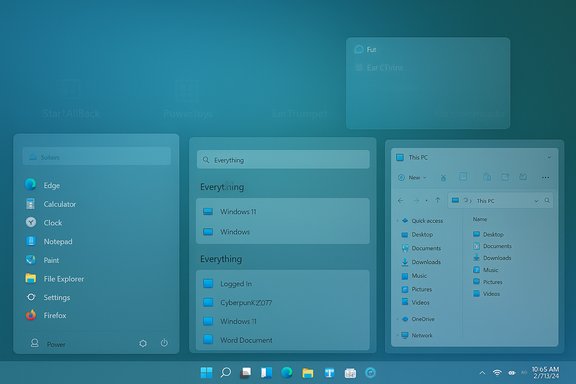
Windows has always been a platform shaped as much by third‑party innovation as by Microsoft’s roadmap. Over the last several years Microsoft has moved smaller utilities out of the core OS and into side projects (the clearest example is Microsoft PowerToys), while simultaneously tightening the default UI to promote a consistent experience. That tradeoff improves predictability for the majority but leaves a very vocal minority — power users, IT admins, and productivity‑driven professionals — having to reintroduce missing features via third‑party apps. The five tools highlighted by enthusiasts address distinct gaps:
Source: XDA 5 third-party tweaks Microsoft needs to implement into Windows 11 natively
 Background / Overview
Windows has always been a platform shaped as much by third‑party innovation as by Microsoft’s roadmap. Over the last several years Microsoft has moved smaller utilities out of the core OS and into side projects (the clearest example is Microsoft PowerToys), while simultaneously tightening the default UI to promote a consistent experience. That tradeoff improves predictability for the majority but leaves a very vocal minority — power users, IT admins, and productivity‑driven professionals — having to reintroduce missing features via third‑party apps. The five tools highlighted by enthusiasts address distinct gaps:- Start/taskbar customization and classic UI behavior (StartAllBack).
- A bundled suite of power‑user utilities that go beyond simple Settings toggles (PowerToys).
- Per‑app audio control and quick device switching (EarTrumpet).
- Instant, lightweight desktop indexing and search (Everything by Voidtools).
- A modern dual‑pane file manager for power workflows (OneCommander).
1) StartAllBack — Start menu and taskbar done right
What StartAllBack brings to the table
StartAllBack is a compact, low‑overhead utility that restores and extends the classic Start menu and taskbar behaviors Windows 11 removed or locked down. Its core capabilities include:- Move the taskbar to any screen edge, restore small/large icon sizes and spacing, and re-enable drag‑and‑drop.
- Restore classic two‑column Start layouts or provide flexible hybrid styles that mix Windows 10 familiarity with Windows 11 visuals.
- Bring back full context menus and legacy File Explorer affordances like ribbon/command bar behavior.
Why Microsoft should consider native options
There are three practical reasons Microsoft should adopt or expose these behaviors:- Consistency and discoverability: a Settings toggle for taskbar placement, icon grouping, and classic context menus would cut the support overhead for enterprises and end users struggling to reconcile documentation with third‑party fixes.
- Reduced fragmentation: when vendors or IT admins rely on unsupported system hooks, update compatibility becomes a maintenance headache (StartAllBack and similar apps sometimes require quick updates when Microsoft changes Explorer internals). Having official toggles avoids a perpetual catch‑up game.
- Choice without compromise: expose features as optional Settings flags (off by default) so mainstream users don’t inherit complexity, while power users can opt in.
Risks and constraints
Implementing these options natively isn’t risk‑free:- Compatibility: File Explorer and taskbar behaviors involve long‑standing shell APIs and thousands of ecosystem extensions; a poorly designed toggle could break legacy shell extensions or OEM customizations.
- UX fragmentation: offering multiple legacy UI modes risks splintering the user guidance and support documentation, especially across languages and regions.
- Maintenance cost: Microsoft would need robust QA across Insider rings and a clear compatibility policy to avoid leaving toggles broken after feature updates.
Practical proposal
- Add a “Taskbar & Start — Classic options” page under Settings with discrete toggles: taskbar placement, ungroup icons, restore full context menu, and Start menu layout presets.
- Implement these features in a compatibility layer inside the Explorer process rather than using brittle registry hacks, with explicit enterprise Group Policy entries.
- Ship as an optional component that Windows Update can patch independently from the main build cadence.
2) PowerToys — Put the best of PowerToys in Settings (optionally)
The case for PowerToys becoming first‑class
PowerToys is a Microsoft‑maintained, open‑source collection of utilities (FancyZones, PowerRename, Keyboard Manager, Color Picker, and more) that solves dozens of small friction points for power users. Its GitHub repo and active roadmap show ongoing investment and fast feature churn. The tools are stable, well‑documented, and already widely trusted. Key PowerToys benefits that belong in the OS, at least as optional features:- FancyZones — advanced tiling/layout templates that meaningfully improve multi‑window workflows.
- Keyboard Manager — system‑level remapping with per‑profile support (useful for accessibility and developer workflows).
- Color Picker and Image Resizer — small utilities that save time for creatives and content creators.
Why Microsoft hasn’t folded them already
PowerToys operates as a fast‑moving incubator: it receives experimental features and UX iterations that would be difficult to include directly in the core OS’s longer QA cycle. The separation gives Microsoft agility. But some PowerToys features are stable enough and widely demanded to justify a native option. Recent PowerToys updates — scheduled theme switching, improved shortcut conflict detection — underscore that many UX gaps can be addressed through this channel first and promoted to the OS later.Risks and trade‑offs
- Surface area and support burden: bundling every PowerToy into Settings would increase testing obligations and enlarge the support surface.
- Performance and telemetry: care must be taken to keep background telemetry minimal and optional, and to avoid autostart defaults that spike memory footprints on low‑end devices.
Suggested approach
- Integrate a small subset of PowerToys into Settings as “Power features” that are off by default but installable with a single switch (e.g., FancyZones, Keyboard remapping, Color Picker).
- Keep PowerToys as a developer hub for experimental features; promote stable modules into the OS after a defined maturity criteria.
- Provide enterprise control via ADMX/Intune for enabling/disabling these modules at scale.
3) EarTrumpet — Fix the audio UX
What EarTrumpet solves
Windows’ modern sound settings are serviceable for casual use but awkward for per‑app control and quick device switching. EarTrumpet provides:- A compact, right‑click tray mixer that exposes per‑app volume and quick device switching.
- Direct links to legacy audio control panels that are otherwise hidden behind multiple Settings layers.
Why Microsoft should adopt the ideas
- The current Quick Settings flow forces repeated clicks and context switching. A lightweight, hoverable per‑app mixer would reduce task switching and improve accessibility.
- Native support would ensure audio device switching works reliably across APIs and avoid third‑party compatibility workarounds.
Caveats and technical notes
- EarTrumpet is essentially a better UI over the same underlying audio APIs. Microsoft would need to ensure the native implementation persists state consistently across reboots and handles audio session lifecycles robustly — a nontrivial engineering task. Community discussions show users expect saved per‑app levels and profiles, features that currently differ in reliability across Windows versions.
Implementation suggestion
- Add a compact “audio tray” toggle: hover to reveal per‑app sliders and device selector (off by default for users who prefer the present Quick Settings).
- Expose an optional “Audio Profiles” API for apps to signal preferred default device/level, with privacy guardrails.
- Allow PowerToys/EarTrumpet to register as alternate UI providers to prevent redundancy.
4) Everything (Voidtools) — Real desktop search that actually indexes
Why Everything matters
Windows Search’s evolution prioritized cloud results and “unified” experiences, but many users still need blazing‑fast local file search. Everything indexes NTFS metadata almost instantly, with low CPU/memory overhead, and returns results as you type. It’s a fundamentally different model from Windows Search’s content‑heavy indexing and is why users install it by the thousands. Voidtools documents how Everything maintains a fast, memory‑resident database and offers flexible indexing options (NTFS/ReFS volumes, folder lists, and service mode).Verification and recent caveats
Everything is reliable and lightweight — but its ecosystem relationship with Windows has had bumps. In early 2025 some users reported a certificate‑related block triggered by Windows security updates, creating temporary execution failures and raising questions about distribution and signing workflows for small independent developers. That incident shows the fragility of relying on unsigned or narrowly signed binaries against aggressive platform blocklists.Why Microsoft should include an Everything‑style indexer
- Speed: instantaneous filename indexing and low search latency are huge quality‑of‑life improvements for both power users and helpdesk staff.
- Efficiency: Everything’s model uses minimal resources when running in the background compared with full content indexing.
- Control: letting users choose a simple filename indexer integrated with the existing Search UI would reduce the need for third‑party installers and the attendant certificate/signing friction.
Security and privacy concerns
- Desktop indexing comes with privacy expectations: users should be able to scope what is indexed (work vs. personal folders), control persistence across reboots, and understand where the database is stored. Voidtools documents database locations and options; Microsoft should preserve this transparency if shipping a native variant.
Implementation proposal
- Offer an optional “Filename Fast Index” in Search Settings that builds an Everything‑style, name‑only index for NTFS/ReFS volumes.
- Keep indexing local, provide explicit controls for excluded folders and database location, and include enterprise policies that govern indexing on managed devices.
- Ensure signed delivery and compatibility with Windows Defender and blocklist policies to avoid the certificate problems some third‑party developers have faced.
5) OneCommander — What File Explorer for power users should be
What OneCommander delivers
OneCommander demonstrates how File Explorer could evolve for modern workflows: dual‑pane browsing, tabbed sessions saved across restarts, Miller‑column navigation, built‑in previews (spacebar peek), and robust support for long Unicode paths. It’s fast (DirectX rendering), supports themes, and includes productivity niceties like quick filters and named windows. For anyone who moves files between deep folder trees regularly, the dual‑pane and keyboard‑centric workflows are decisive time‑savers.Why these features deserve an OS‑level option
- Copy/move operations are some of the most common desktop tasks; improving the default UX here directly increases productivity for a broad set of users.
- Enterprise scenarios — support desks, content production, developers — benefit from consistent dual‑pane, keyboard‑driven file management. Offering an optional advanced Explorer mode would serve power workflows without disrupting casual users.
Implementation considerations
- Backwards compatibility remains the dominant constraint: Explorer must maintain shell extension support, context menu handler compatibility, and predictable drag‑and‑drop behavior. An advanced mode could run as a separate, first‑party file manager (like Windows shipped “Windows Terminal” separate from CMD) and be promoted in Settings.
- Microsoft should avoid forcing a radical File Explorer rewrite; instead ship a modern companion app that integrates with Explorer (Open with… / context menu) and, over time, migrate widely used features into the classic shell after enterprise validation.
Cross‑cutting analysis: benefits, risks, and the right integration model
Notable strengths of the proposal
- Real productivity gains: these tools aren’t gimmicks; they solve repeated workflow problems. Integrating them reduces the “install a dozen utilities” onboarding for power users and enterprise fleets.
- Reduced security friction: first‑party options avoid signing/blocklist conflicts and reduce the support load that comes from external executables being treated as risky. The Everything certificate incident illustrates the risk of relying on unsigned or narrowly signed binaries in a changing security posture.
- Better accessibility and discoverability: exposing these features in Settings with clear documentation and enterprise control will make them usable by a wider audience, including those who can’t or shouldn’t install third‑party utilities.
Potential risks and how to mitigate them
- Bloat and choice overload: adding every feature by default would overwhelm many users. Mitigation: ship these as optional components (installable toggle or as “Power features” in Settings) and avoid enabling them by default.
- Maintenance and QA cost: integrating UI features into Explorer or core Settings requires long testing cycles. Mitigation: adopt PowerToys’ incubator model — incubate in a side project and promote stable modules into Windows once they meet maturity and compatibility tests.
- Ecosystem compatibility: legacy shell extensions and OEM customizations can break. Mitigation: provide compatibility layers, clear policy controls, and rollback options (safe mode disabling, one‑click uninstall).
A practical path forward: three phased recommendations
- Low friction (3–6 months):
- Add opt‑in toggles in Settings for a few high‑value features: classic context menu, ungrouped icons, and a Fast Filename Index. Keep them off by default and wire enterprise policies for admins.
- Surface a “Power features” installer (lightweight bundle) that can enable FancyZones, the audio tray, and Fast Index as a single optional package.
- Mid term (6–18 months):
- Promote stable PowerToys modules into Settings with full documentation and telemetry transparency.
- Ship a first‑party “Advanced File Manager” app that implements dual‑pane and tabbed workflows and integrates with Explorer context menus.
- Long term (18+ months):
- Consolidate mature, high‑adoption features into the core Settings and Explorer with enterprise deployment tooling, ADMX/Intune support, and robust compatibility testing across OEM devices.
Conclusion
The best version of Windows is not an either/or between Microsoft’s design choices and the wealth of third‑party tweaks; it’s a synthesis. StartAllBack shows that sensible, user‑driven choices about the taskbar and Start menu can coexist with a modern aesthetic. PowerToys proves Microsoft can incubate and iterate on power‑user features outside the main OS and then promote stable bits inward. EarTrumpet, Everything, and OneCommander each make a targeted case: improve the audio UX, restore truly fast local search, and offer a modern dual‑pane file manager. Bringing these capabilities into Windows as optional, well‑documented features would reduce fragmentation, improve reliability, and deliver tangible productivity gains — without forcing change on users who prefer the status quo. Microsoft doesn’t need to flip a switch and ship everything by default; it simply needs to offer choice, clear controls, and enterprise governance so those who want power can get it — and those who don’t can keep working without distraction.Source: XDA 5 third-party tweaks Microsoft needs to implement into Windows 11 natively
