

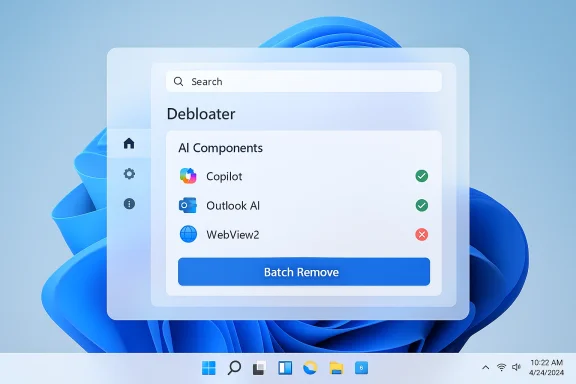
A wave of familiar Windows “debloat” tools has quietly reinvented itself to look — and act — more like first‑party Windows 11 apps, and that shift matters more than it seems. Where many of these utilities once wore their third‑party roots on their sleeves (old WPF windows, clunky menus, and web‑like shells), recent releases move to native WinUI flavors, tighter high‑DPI scaling, and Fluent‑inspired controls — all while expanding their capability to detect and remove Microsoft’s new AI components such as Copilot, bundled AI features in Outlook, and other “AI‑infused” elements. For users who want a cleaner system, that’s a compelling upgrade; for enterprise and cautious hobbyists, it’s a reminder that convenience and deeper system access come with concrete risks.
Windows “debloater” utilities have been part of the enthusiast toolkit almost as long as Windows itself. Their goal is simple: remove or disable preinstalled apps, telemetry components, and UI cruft most users don’t want. Historically, these tools were small, targeted scripts or PowerShell bundles that required comfort with command lines. Over the last two years, the field matured into a mix of GUI apps, OOBE (out‑of‑box experience) toolkits, and one‑click debloaters with extensible plugin systems.
Two recent trends accelerated change. First, Windows 11’s increasing integration of AI features — notably Copilot and related on‑device assistants — created a new category of “AI bloat” that users want control over. Second, developers of debloaters responded not by hiding in the command prompt but by modernizing their UI, moving toward native Windows 11 visuals and control frameworks. That design pivot makes these tools easier to use for mainstream users, but it also normalizes powerful system‑level operations for people who might not fully appreciate the implications.
Typical removal techniques include:
But design parity also raises questions of legitimacy. Native‑feeling UI can imply an official sanction that does not exist. Users should treat polished UI as convenience, not as an endorsement. Likewise, Microsoft’s own trajectory — gradually exposing MDM and policy controls for AI features — suggests the long‑term, sustainable path for managing preinstalled components is through supported platform policies, not community shortcuts.
If you’re tempted to click a shiny WinUI toggle to remove Copilot or block a new Outlook preinstall, do the legwork first: back up, test, and prefer supported administrative policies where possible. The tools are better, but the consequences of misused power are unchanged. Treat modern debloaters as capable utilities — not magic bullets — and you’ll get the best of both worlds: a cleaner Windows experience with a safety net you can actually rely on.
Source: Neowin Popular Windows AI debloater redesigned with native Windows 11 UI
 Background
Windows “debloater” utilities have been part of the enthusiast toolkit almost as long as Windows itself. Their goal is simple: remove or disable preinstalled apps, telemetry components, and UI cruft most users don’t want. Historically, these tools were small, targeted scripts or PowerShell bundles that required comfort with command lines. Over the last two years, the field matured into a mix of GUI apps, OOBE (out‑of‑box experience) toolkits, and one‑click debloaters with extensible plugin systems.Two recent trends accelerated change. First, Windows 11’s increasing integration of AI features — notably Copilot and related on‑device assistants — created a new category of “AI bloat” that users want control over. Second, developers of debloaters responded not by hiding in the command prompt but by modernizing their UI, moving toward native Windows 11 visuals and control frameworks. That design pivot makes these tools easier to use for mainstream users, but it also normalizes powerful system‑level operations for people who might not fully appreciate the implications.
What changed: native Windows 11 UI and expanded AI removal
Several well‑known projects in the debloater ecosystem have recently released updates that emphasize a native look and upgraded functionality.- Modern UI migration: Projects that previously relied on older UI stacks (WPF, custom frameworks, or even web‑based shells) are adopting WinUI‑inspired styling or fully migrating to WinUI 3. The shift delivers smoother high‑DPI scaling, Fluent design consistency, and system‑feel transitions such as compact action buttons and native list rendering.
- Deeper AI detection: Debloaters now scan for a growing number of AI integration points across Windows 11 — not just the visible Copilot button, but supporting packages, WebView‑backed components, and registry entries that re‑enable features after updates.
- Smarter removal engines: UI changes are paired with backend improvements: better indexing of OOBE pages and apps, smarter batch uninstall operations, and plugin/extension systems that let maintainers add “block new Outlook preinstall” or “remove Copilot re‑provisioning” rules without rewriting the core app.
Notable examples and concrete changes
Several community projects exemplify the trend:- FlyOOBE (formerly Flyby11): The project’s recent releases focused on modernizing the action buttons and introducing a compact UI mode that mimics native Windows controls. The debloat (Apps OOBE) page has been reorganized for faster removals and batch operations, and new extensions explicitly target AI‑related provisioning during OOBE and upgrade flows. The releases emphasize faster startup and lower memory use while adding more aggressive AI detection routines.
- Bloatynosy (BloatyNosyAI / Winpilot): The tool introduced WinUI‑inspired visuals, improved dark mode, and a plugin engine to handle preinstall blocks like the new Outlook client. The new UI makes searching for “AI” or “Copilot” immediate and gives users direct toggles to disable or uninstall identified components.
- Winhance: One project made an explicit jump from an older WPF base to WinUI 3, aligning its look and behaviour with the native Settings app. That migration provides improved scaling and a cleaner appearance on high‑DPI devices.
Why developers are moving to WinUI 3 (and what it means technically)
At a technical level, the move toward WinUI 3 (or WinUI‑inspired XAML styling) is driven by a few concrete benefits:- Native look and feel: WinUI is Microsoft’s modern native UI framework for Windows apps. Using it makes third‑party tools align visually with system apps and delivers Fluent design affordances such as compact controls, theme awareness, and acrylic accents where appropriate.
- Better DPI handling: WinUI pays dividends on high‑DPI screens; controls and text scale more predictably than many legacy toolkits.
- Modern development toolchain: WinUI 3 pairs with the Windows App SDK and modern XAML toolsets that many developers already use for desktop GUI projects.
How these debloaters remove AI features: methods and mechanics
Understanding how these utilities remove AI hooks in Windows is critical for judging both effectiveness and risk.Typical removal techniques include:
- Uninstalling Appx/AppxBundle packages: Many modern Windows components and Microsoft Store apps ship as Appx packages. Tools call PowerShell cmdlets such as Get‑AppxPackage and Remove‑AppxPackage to uninstall packages for the current user or system.
- Removing provisioning packages from the image: Debloaters can use DISM or package tooling to alter the provisioned app list so that future user accounts don’t get re‑provisioned copies of the apps.
- Editing Group Policy / MDM policy keys: For features like Copilot, Microsoft has added policy settings (e.g., TurnOffWindowsCopilot) to disable functionality. Debloaters can write registry keys or invoke policy endpoints to set these values.
- Stopping or removing supporting components: Some AI features rely on components such as WebView2 or background services. Removing or blocking these components can neutralize the feature but may also affect other apps.
- Blocking re‑provisioning: Some tools add steps to disable the store’s automatic reinstallation of removed components or to create AppLocker/Intune rules that prevent reinstall.
Verification: what is provably true — and what needs caution
Several concrete claims are verifiable:- WinUI 3 is Microsoft’s modern native UI framework designed for building Windows apps and is part of the Windows App SDK; moving to it improves visual fidelity and high‑DPI behaviour for desktop apps. This is a platform fact.
- Debloaters are increasingly adding detection and removal logic for AI features (Copilot, new Outlook preinstalls, etc.). Release notes and changelogs for popular community projects show explicit additions that target AI features and OOBE provisioning.
- Group Policy and MDM policies exist to disable certain Copilot behavior (TurnOffWindowsCopilot and associated WindowsAI policy CSPs). Microsoft documents policy channels for disabling or managing integrated AI features in managed environments.
- Permanence of removals: Uninstalling app packages is effective short term, but Windows updates, feature upgrades, or provisioning changes can reintroduce removed components. For durable prevention, enterprise controls (AppLocker, tenant policies, MDM) are often necessary — and even they may require periodic maintenance.
- Safety of removal actions: Not every remove action is equally safe. Removing shared runtime components like WebView2 or Edge runtimes can break unrelated apps, so blanket “remove everything with ‘Edge’ in the name” approaches are dangerous.
- Official support: Microsoft is gradually exposing supported mechanisms for managing preinstalled apps at enterprise scale (Intune/GPO), and community tools occupy a grey zone. Using community debloaters on consumer devices is different in risk profile than applying controlled MDM policies in enterprise.
The risks: what can go wrong
Debloating is powerful, and power introduces risk. Key failure modes include:- Breaking shared components: Many Windows apps rely on shared runtimes like WebView2 or particular Appx components. Removing or modifying these can produce unpredictable failures, ranging from app crashes to broken UWP/Store experiences.
- Update re‑provisioning and regressions: Windows cumulative updates and feature updates can re‑install packages or change the behaviour of policies, re‑exposing the components you removed. That can lead to time‑consuming troubleshooting and the need to reapply modifications after feature upgrades.
- Accessibility and assistive impact: Some AI features also serve accessibility functions (image descriptions, Narrator integrations). Blindly removing features without testing can harm users who rely on assistive technologies.
- Security and trust: Running a third‑party tool with administrative privileges to remove system components is inherently trust‑sensitive. Community tools are often open source, but you still need to vet releases, check signatures, and run in controlled environments first.
- Supportability: If you rely on vendor support (device OEMs, Microsoft support via enterprise contracts), heavy modification of base images can remove supportability assumptions. Restoring the system to a stock configuration may be required before official troubleshooting.
Best practices: how to use these tools safely
If you decide to use a modern debloater that now looks native and packs AI removal features, follow disciplined steps to minimize risk.- Back up first.
- Create a full disk image or at minimum a System Restore point before running any removal operation.
- Test in a VM or spare machine.
- Run the tool on a virtualized image or non‑critical device to observe side effects and re‑provisioning behaviour over one or two simulated updates.
- Prefer disabling UI elements before uninstalling runtimes.
- If possible, hide or disable buttons, taskbar icons, and UI prompts rather than uninstalling shared runtime components.
- Use supported enterprise controls when available.
- For organizations, prefer Group Policy, Intune, and documented policy CSPs to block features like Copilot; these approaches are safer and easier to sustain across updates.
- Track what was changed.
- Keep a log of package names, registry keys, and commands executed so you can reverse changes if necessary.
- Avoid blanket removal rules.
- Don’t delete packages based on substring matches (for example “Edge”) unless you know the exact package identity and downstream dependency impact.
- Stay current with project changelogs.
- Projects in this space move fast. Read release notes and changelogs to understand what each update modifies.
- Maintain recovery media.
- Keep a bootable Windows recovery USB and offline installers for essential runtimes (Edge/WebView2) if you must restore functionality.
For IT administrators: what changes in policy and process
Enterprises should treat the rise of visually polished debloaters as both a symptom and an opportunity.- Symptom: Mainstream users want fewer AI‑first features in their desktops, and community tools are meeting that demand. That indicates product decisions by platform vendors may need clearer controls for managed environments.
- Opportunity: Enterprises with strict provisioning requirements should adopt supported policies and MDM controls that Microsoft now documents for managing AI features at scale. This is preferable to permitting end users to run third‑party debloaters on corporate endpoints.
- Audit and document installed packages and provisioning flows on new images.
- Use Intune or GPO to set supported policies (for example, turning off Copilot through policy rather than ad‑hoc uninstalls).
- Block unauthorized administrative tools through endpoint controls and AppLocker where appropriate.
- Maintain a test lab that exercises feature updates and re‑provisioning scenarios to see how Microsoft’s updates interact with their controls.
The broader picture: UX, legitimacy, and the future of system control
The migration of community debloaters to native virtual parity with Windows 11 apps signals a broader shift in how system control is presented. When tools that change the system deeply look and behave like first‑party apps, the psychological barrier to executing powerful actions falls away. For many users that is a good thing: the ability to reclaim disk space, remove unsolicited components, and take control of an experience that increasingly feels curated by remote policies is empowering.But design parity also raises questions of legitimacy. Native‑feeling UI can imply an official sanction that does not exist. Users should treat polished UI as convenience, not as an endorsement. Likewise, Microsoft’s own trajectory — gradually exposing MDM and policy controls for AI features — suggests the long‑term, sustainable path for managing preinstalled components is through supported platform policies, not community shortcuts.
Conclusion
The recent wave of debloaters redesigned with native Windows 11 UI and enhanced AI‑feature detection is a double‑edged sword. On one side, it democratizes powerful system control: improved visuals, clearer affordances, and smarter removal engines make cleaning an OS more accessible than ever. On the other, the convenience masks complexity: uninstalling Appx packages, editing policy keys, and removing shared runtimes can produce subtle breakage, re‑provisioning, and accessibility regressions.If you’re tempted to click a shiny WinUI toggle to remove Copilot or block a new Outlook preinstall, do the legwork first: back up, test, and prefer supported administrative policies where possible. The tools are better, but the consequences of misused power are unchanged. Treat modern debloaters as capable utilities — not magic bullets — and you’ll get the best of both worlds: a cleaner Windows experience with a safety net you can actually rely on.
Source: Neowin Popular Windows AI debloater redesigned with native Windows 11 UI
