.NET Conf 2025: .NET 10 Launch and AI First Visual Studio 2026

  • Thread Author
The .NET community will gather virtually next week as .NET Conf 2025 kicks off on November 11, bringing the official launch of .NET 10, the first public glimpses of Visual Studio 2026, and a concentrated push toward cloud‑native and AI‑driven developer workflows — including new support for Microsoft’s Aspire modernization tooling and the Model Context Protocol (MCP). The three‑day program promises deep technical keynotes, hands‑on demos, and community sessions focused on performance, modernization, and agentic AI, and Microsoft will stream the entire event live with on‑demand sessions available afterward.

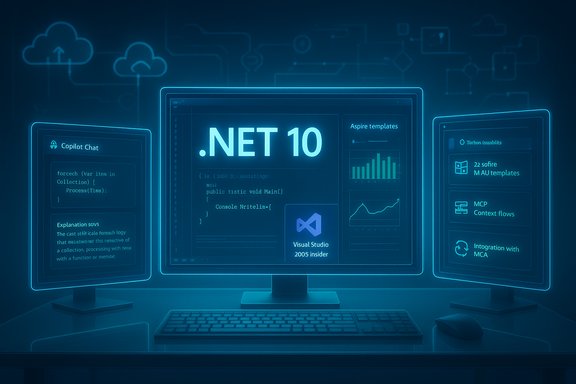
Futuristic multi-monitor setup glowing with .NET 10 code and visuals.Background​

Why November matters: .NET’s annual cadence and LTS timing​

Microsoft has followed a predictable November cadence for major .NET releases for several years. That rhythm matters because enterprises plan around LTS (Long‑Term Support) milestones and the tooling that accompanies them. .NET 10 is positioned as a major, LTS release, which makes its November unveiling at .NET Conf strategically significant for organizations planning upgrades and long‑term maintenance windows. The official .NET support policy and the conference material both indicate the November release pattern and the LTS positioning that organizations rely on when scheduling migrations.

The event format and who’s on stage​

.NET Conf 2025 runs November 11–13 as a free virtual event with a mix of long-form keynotes and shorter technical sessions. The agenda lists an opening keynote led by Scott Hanselman and the .NET team on day one; an Azure‑centric keynote on day two featuring Scott Hunter and Paul Yuknewicz; and a community day with global speakers on day three. Sessions span core runtime work, C# 14 language updates, Blazor, MAUI, cloud‑native patterns, and AI agent tooling. There’s also a Student Zone geared toward beginners on November 14.

What’s new and worthy of attention​

.NET 10 — the technical headline​

.NET 10 arrives as the primary announcement of the conference and is being billed as the “fastest .NET ever,” with cross‑cutting performance work in the runtime, JIT, GC, and libraries. The public agenda and preview materials highlight improvements across:
  • JIT and codegen optimizations (better inlining, escape analysis)
  • Garbage collector tuning and write‑barrier improvements (including Arm64)
  • Standard library optimizations (System.Text.Json, collections, LINQ)
  • Compression and I/O improvements
  • Native AOT maturation and platform convergence work for MAUI and mobile targets
Speakers on the agenda include language and runtime leads who will present real‑world performance samples and guidance for adoption. Independent community reporting and engineering previews have echoed these focus areas, pointing to measurable cost and throughput wins for many server workloads, while cautioning that outcomes depend on application shape (CPU vs I/O‑bound, allocation patterns, etc..

C# 14 — language evolution without chaos​

C# 14 is part of the launch conversation. Early materials promise features aimed at clarity and ergonomics — improvements that are likely to be adopted incrementally by teams who rely on stable toolchains. Microsoft’s language team will run a session explaining the intent and migration surface for these changes; tooling support in Visual Studio and Roslyn will be essential to make adoption smooth.

Visual Studio 2026 — AI‑first IDE in the Insiders channel​

Visual Studio 2026 is shipping to Insiders with a clear pivot: AI as a first‑class developer assistant. The Insiders release notes and coverage list features that are already rolling into developer toolchains:
  • Adaptive Paste: Copilot rewrites or adapts pasted snippets to match local context and conventions.
  • Copilot Chat and context menu Copilot actions (explain, optimize, generate).
  • An AI‑assisted profiler that can surface hotspots and suggest tests.
  • BYOM (Bring Your Own Model) integrations for Visual Studio Chat to route chat/assistant queries to enterprise models.
  • Built‑in support for .NET 10 and C# 14 project templates and IntelliSense.
The Insiders channel is side‑by‑side installable to let teams test without disrupting stable developer setups. That said, enterprise adopters should treat the Insiders channel as an evaluation surface rather than production tooling until maturity and compatibility with existing extensions are verified.

Microsoft Aspire and Model Context Protocol (MCP)​

Microsoft’s Aspire toolkit and the Model Context Protocol (MCP) are central to Microsoft’s modernization and agent story at the conference. Aspire aims to simplify cloud‑native development with batteries‑included templates and observability, while MCP — an open standard popularized by research and vendor communities — provides a secure, structured protocol for agents to access external context and tools (APIs, indexes, internal docs). Multiple sessions are scheduled to show how to build MCP servers, register MCP sources, and wire agents to infrastructure — a capability that unlocks real‑world agentic workflows in IDEs and Azure. MCP support has broader OS and platform implications as well: Microsoft is integrating MCP primitives into Windows and the wider Copilot ecosystem, which increases the potential utility — and the governance surface area — for agentic automation.

Day‑by‑day breakdown (what to expect)​

Day One — .NET 10 launch​

Day one anchors the conference on runtime and language advances: the keynote led by Scott Hanselman and the .NET team will preview .NET 10 highlights, C# 14, and Visual Studio 2026 integrations. Deep dives will cover ASP.NET Core updates (passkey authentication, minimal API validation, Blazor improvements), performance deep dives with Stephen Toub, and early showcases of Aspire and agentic development demos. The day closes with a community Code Party — a light, engaging post‑keynote show with giveaways.

Day Two — Azure, containers, and deep technical dives​

Day two turns toward Azure and cloud‑native operations: an Azure keynote (Scott Hunter and Paul Yuknewicz) will show how Azure services (AKS, Container Apps, Redis, Azure Functions) and .NET 10 align to make cloud‑native patterns easier to implement. Sessions include technical labs on Azure Kubernetes Service integration, containerized .NET workloads, and AI testing inside Visual Studio. There’s also an “Aspire Unplugged” conversation exploring the future direction of the Aspire toolkit.

Day Three — Community Day and global voices​

The final day is community focused with a mix of technical topics — Clean Architecture, OpenTelemetry tracing, F#, passkey auth, and practical sessions on building agentic AI for developers. A Student Zone follows the three‑day conference with beginner sessions for students and early career developers.

What the technical details mean for teams — practical analysis​

Performance gains: real but workload dependent​

The breadth of .NET 10’s performance improvements is its most compelling selling point. Optimizations that reduce allocations, enable more inlining, and improve common library paths can deliver immediate uplift without code changes — a rare form of “free” optimization for large codebases. Independent community benchmarks and early adopters have reported notable CPU and throughput wins in server scenarios, and Microsoft’s own performance sessions will show where those wins are credible and repeatable. However, microbenchmarks can overstate impact; teams must measure representative workloads to quantify gains for their systems.

Native AOT, trimming, and mobile caveats​

Native AOT continues to mature and is an important route to smaller cold‑starts and lower memory for some deployments. But AOT and trimming can break libraries that rely on reflection, dynamic type generation, or certain serialization behaviors. Mobile MAUI work (including an experimental CoreCLR on Android) signals direction toward runtime consolidation, but the Android CoreCLR option is explicitly experimental at this stage and may increase binary size or expose device‑specific quirks. Teams targeting AOT or MAUI mobile should plan extended testing and be ready for compatibility fixes.

Tooling and extension compatibility​

Visual Studio 2026’s Insiders release integrates AI deeply, but extension and tool compatibility remains a governance concern. Some extensions — particularly those running in legacy host processes — may need updates to work with newer host semantics; extension authors should test thoroughly. Organizations that depend on specific paid or vendor tooling should validate extension compatibility before enabling Insiders or early Visual Studio builds widely.

AI in the IDE: productivity vs governance trade‑offs​

Bringing Copilot‑style models into the core IDE (adaptive paste, Copilot Chat, profiler agents) can materially reduce friction, speed repetitive tasks, and help with diagnostics and migrations. Visual Studio 2026’s BYOM support gives enterprises control over model choice, offering better data locality and compliance options. But BYOM and MCP integrations increase operational surface area:
  • BYOM means new connections to external inference endpoints; teams must govern credentials, encryption, and billing.
  • MCP exposes a path for agents to reach internal documents and tools; the capabilities are powerful but must be safeguarded with consent, logging, and access controls to avoid data leaks or automated misuse.
Security, auditability, and human‑in‑the‑loop checkpoints must be central to any aggressive Copilot/agent rollout.

Recommended migration and adoption checklist​

  • Establish goals and success metrics (performance, OpEx reduction, startup latency, developer productivity).
  • Build a representative test environment and snapshot baseline metrics (CPU, memory, latency, throughput).
  • Install the .NET 10 RC (or GA when available) in an isolated environment and run full integration, load, and feature tests.
  • Validate third‑party NuGet packages and native dependencies for trimming and AOT compatibility.
  • Test Visual Studio 2026 Insiders side‑by‑side on developer machines; validate extension compatibility and CI tooling.
  • Pilot agentic features in a controlled ring with explicit governance, RBAC, logging, and human approval gates.
  • Run staged rollouts: canary → partial → full, while monitoring error budgets and observability metrics.
  • Prepare rollback plans, monitoring playbooks, and incident runbooks for post‑upgrade issues.
  • Reassess licensing and entitlements (Copilot/agent store, Visual Studio SKUs) with procurement and legal teams.
  • Document the upgrade journey and share lessons learned across teams.
These steps reflect both engineering best practices and the specific risks introduced by AOT/trimming and agentic automation. The objective is to realize .NET 10’s benefits while limiting surprise regressions and governance gaps.

Security, compliance, and governance considerations​

Agents, MCP, and data access​

MCP makes it simple to provide agents with contextual tools and documents. That convenience implies new responsibilities: every MCP‑enabled endpoint or registered context becomes a potential data egress path for models. Enterprises should:
  • Gate MCP server registration behind administrative controls.
  • Require explicit user consent for agent actions that access sensitive data.
  • Log agent decisions and tool calls to an immutable audit trail (OpenTelemetry or equivalent).
  • Limit agent privileges by least privilege, and use short‑lived tokens where possible.
Without these controls, agentic automation can accidentally expose secrets or perform unauthorized actions. Microsoft and the broader ecosystem recognize these risks and are rolling out controls (agent store, admin governance settings) — but organizations must operationalize them.

BYOM and model governance​

BYOM is attractive for privacy and cost control, but connecting third‑party or private models to developer machines and CI introduces new compliance questions:
  • Where is inference hosted, and what data leaves the tenant?
  • Who is billed for model usage?
  • How are prompts and embeddings logged and retained?
  • Are there safeguards for prompt injection or model hallucination?
Enterprise policies should define approved model endpoints, data handling rules, and retention schedules before broad BYOM adoption.

Strengths and opportunities​

  • Immediate performance upside: .NET 10’s broad runtime and library improvements can yield real OpEx reductions for cloud services without code changes.
  • AI‑embedded productivity: Visual Studio 2026’s Copilot integrations promise fewer context switches and faster iteration for developers.
  • Modernization at scale: Aspire and agentic app modernization tools can dramatically reduce the manual labor in migrations, especially when combined with Visual Studio automation.
  • Platform alignment: Synchronized launches (runtime + IDE + cloud tooling) reduce friction for early adopters who want integrated experiences.
These advantages make .NET Conf 2025 more than a promotional event — it’s a practical roadmap for teams that want to modernize responsibly.

Risks and caveats​

  • Benchmarks vs reality: Microbenchmark gains may not translate directly to complex systems. Real‑world testing is mandatory.
  • AOT/trimming fragility: Native AOT can break reflection‑heavy libraries; remediation can require code changes or library updates.
  • Tooling compatibility: Extensions and vendor tools may lag support for Visual Studio 2026 or require recompilation.
  • Agent governance: MCP and BYOM increase attack surface and demand robust governance, auditing, and human review policies.
  • Experimental MAUI/Android work: CoreCLR on Android remains experimental; teams should avoid production adoption until maturity is proven.
Flagging these tradeoffs up front helps organizations tailor phased adoption plans that maximize value and minimize disruption.

How to get the most from .NET Conf 2025​

  • Attend the key runtime and performance sessions (Stephen Toub and the C# team) to understand where your workloads may benefit.
  • Join the Azure keynote for guidance on cloud‑native patterns and the specific Azure services optimized for .NET 10.
  • Test Visual Studio 2026 Insiders in a controlled environment to evaluate AI features and extension compatibility.
  • Use the Student Zone sessions or recorded labs to onboard junior engineers to new patterns (Aspire templates, MCP basics).
  • Watch the Aspire and agent sessions if you are planning large modernization projects — the agent‑assisted migration demos can save weeks of manual effort if integrated correctly into your CI/CD pipelines.
  • Collect baseline metrics before upgrading and run the same suites against RC/GA builds — empirical measurement beats optimism.
.NET Conf’s livestream and on‑demand sessions mean teams can adopt a two‑stage learning approach: consume keynote context first, then work through labs and demos during a focused migration sprint.

Final assessment​

.NET Conf 2025 lands at a pivot point for the .NET ecosystem: a major LTS runtime release, an AI‑first IDE preview, and increasing emphasis on agentic modernization via Aspire and MCP. The technical work in .NET 10 delivers cross‑cutting performance improvements that are meaningful for cloud services and desktop applications alike, while Visual Studio 2026 promises to reshape developer workflows with integrated Copilot experiences.
Adopting these technologies will reward teams that combine cautious engineering practices with disciplined governance: run measured pilots, validate third‑party dependencies (especially for AOT), test extension compatibility, and build governance around model usage and MCP registration. For organizations that get the balance right, .NET 10 and the surrounding tooling could deliver significant productivity and cost wins; for those that rush, the hazards are mostly predictable and manageable with the right controls in place.
.NET Conf 2025 will be the place to see the full technical story first‑hand, absorb real‑world demos, and start shaping a phased plan that turns the promise of .NET 10, Visual Studio 2026, Aspire, and MCP into safe, measurable results. Register, watch the keynotes and sessions most relevant to your stack, and treat the post‑event weeks as the time for deliberate pilots and metrics‑driven decision making.
Source: Windows Report .NET Conf 2025 Kicks Off Next Week With .NET 10 Launch
 

Microsoft and Meta quietly turned a long‑running mixed‑reality promise into something you can try on an affordable headset today: on October 30, 2025 Microsoft promoted Mixed Reality Link to general availability, and the Windows App for Meta Quest now streams full Windows 11 desktops — including multi‑monitor configurations and a curved ultrawide mode — into Quest 3 and Quest 3S headsets.

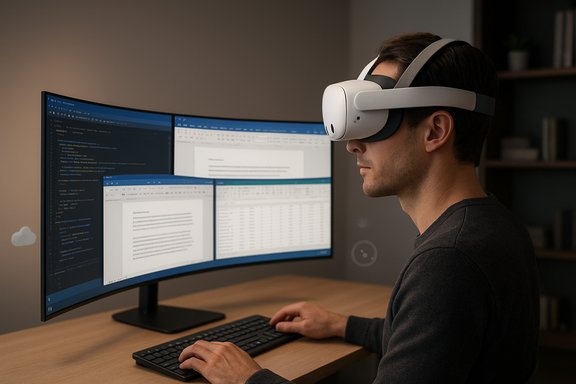
Man wearing a VR headset works at a curved, multi-monitor desk, coding and reviewing documents.Background / Overview​

Microsoft first published Mixed Reality Link as a public preview in December 2024. That early program let developers and enthusiasts test whether a streamed Windows desktop could be practical for productivity tasks inside consumer headsets, and it generated a steady stream of engineering updates over 2025. The feature model is pragmatic: rather than porting Windows to headset silicon, Mixed Reality Link streams a rendered Windows 11 session from a local PC or a cloud endpoint (Windows 365, Azure Virtual Desktop, or Microsoft Dev Box) to the Quest headset. That preserves application compatibility and corporate policies while shifting display and spatial layout responsibilities to the headset. Meta’s Horizon OS updates — notably the v81 family released alongside Microsoft’s GA announcement — provided the headset‑side display controls, passthrough improvements, and multitasking capacity required for a genuinely useful workspace. The combination of a stable Windows client and a Horizon OS rollout is what turned a set of preview demos into a mainstream pilot path for IT teams and prosumers.

What Mixed Reality Link delivers today​

Microsoft and Meta built Mixed Reality Link around practical productivity capabilities rather than experimental gimmicks. At GA the public feature set is focused and measurable:
  • Multi‑monitor streaming: stream your Windows 11 desktop from a local PC or a Windows 365 Cloud PC and place multiple virtual monitors inside the Quest environment. Typical setups reproduce two to three high‑resolution virtual displays.
  • Immersive ultrawide (curved) display mode: opt for a continuous curved desktop that wraps around a large portion of your horizontal field of view — a virtual ultrawide experience intended for side‑by‑side work.
  • Passthrough‑aware workflows: choose mixed presence so your physical keyboard and desk are visible through passthrough while virtual monitors float in front of you; a quick gesture or the Quest action button provides a full passthrough peek when needed.
  • Local + cloud endpoints: connect to a local Windows 11 PC or route sessions to Windows 365 Cloud PC/Azure endpoints for centralized management and data protection.
  • Increased multitasking: Horizon OS updates raised concurrent app limits (some users and builds report up to 12 simultaneous app windows), enabling genuine multi‑window workflows inside the headset. Note that this number has been reported in reviews and vary by build/channel.
These are the building blocks that make a headset feel like a practical multi‑monitor workstation rather than a novelty.

Why this matters now — strategic and practical implications​

The timing and design choices behind Mixed Reality Link matter for three overlapping audiences: individual power users, IT and procurement teams, and software developers.

1) Lower cost of entry for spatial productivity​

Apple’s Vision Pro and other high‑end spatial computers priced in the thousands redefined what a top‑tier mixed reality desktop could look like, but they also set a prohibitive price for many pilots. By contrast, Meta’s Quest 3 family sits in the mainstream consumer price band, and streaming Windows from an existing PC or managed Cloud PC removes the need to buy specialized AR hardware for every user. That shifts the question from “can we afford the hardware?” to “does our workflow benefit enough from a spatial display to pilot it?” — a much easier question for many teams to answer.

2) Pragmatic compatibility with existing Windows workflows​

Mixed Reality Link’s streaming model preserves your current Windows apps and peripheral compatibility. For enterprises, that means security policies, single sign‑on, peripheral drivers, and managed app stacks can remain largely unchanged while the display surface becomes spatial. The Windows 365 integration is especially significant for teams that want to keep corporate data out of personal endpoints: sessions can live in the cloud while the headset is effectively a secure display.

3) A real testbed for spatial UI and hybrid work​

The GA rollout transforms spatial computing from a demo technology into a practical testbed for hybrid work. Teams can trial spatial collaboration, side‑by‑side reference windows, and immersive design reviews without major capital procurement. That will accelerate experimentation with spatial UX patterns in real work scenarios and, if developers follow, drive a wave of productivity‑focused spatial UI tweaks (e.g., optimised window arrangements, pointer affordances for large curved canvases, and better text rendering at varying virtual distances).

Technical basics and verifiable specs​

If you’re planning a pilot, these are the technical realities to confirm before deployment.

Minimum platform requirements (verified)​

  • Windows host: Windows 11, version 22H2 or later to run the Mixed Reality Link client.
  • Supported headsets: Meta Quest 3 and Meta Quest 3S are explicitly supported for Microsoft’s Windows App experience. Older Quest models and Quest Pro are not part of this GA path.
  • Network: A robust local network is required. Wi‑Fi 5 (802.11ac) is the practical minimum; Wi‑Fi 6/6E (6 GHz) is recommended. Wired Ethernet for the PC plus a strong headset Wi‑Fi link improves stability.
  • Ports: Some deployments require inbound ports for discovery/streaming (commonly TCP 8264, TCP 8265, UDP 8266). Lockdown networks must account for these.
These items are present in Microsoft’s product support documentation and in the Windows Experience Blog announcement. Treat them as mandatory checkpoints for pilot readiness.

Quest 3 hardware: what to expect for legibility and runtime​

The Quest 3’s panels deliver roughly 2064 × 2208 pixels per eye and a ~110° horizontal field of view, with pancake optics and the Snapdragon XR2 Gen 2 SoC. That per‑eye resolution and the device’s display characteristics materially affect how large and legible your virtual monitors will be — text size, DPI, and perceived sharpness vary with headset optics and display pipeline. Practical pilot notes: readable small text requires careful scaling settings and headsets with the latest firmware.

Latency, battery, and ergonomic constraints​

A streamed desktop depends on consistent low latency. Local wired or high‑quality Wi‑Fi 6/6E networks reduce lag and artifacts. Battery life on Quest 3 is limited for extended productivity sessions (average session figures vary by usage), so account for charging strategies or external battery packs when planning day‑long pilots. Early hands‑on reviews show surprisingly low latency for general productivity but also note that latency‑sensitive work (audio production, precision editing) remains a poor fit.

Hands‑on observations and real‑world limits​

Independent hands‑on coverage and community reports are consistent: Mixed Reality Link is polished enough for serious trials, but practical limits remain.
  • Readability: smaller UI elements and dense text are readable at typical headset distances, but not as crisp as a high‑dpi physical monitor. Developers and knowledge workers should test typical document and IDE views before committing.
  • App compatibility: because Windows runs on the host, most desktop applications work unchanged, but spatial usability varies — some complex toolbars and dialog boxes were designed for physical mouse/keyboard workflows and don’t map naturally to spatial window management. Expect a short adaptation period.
  • Multitasking tradeoffs: running many concurrent high‑resolution windows increases GPU and network load on the host. Meta’s reported increase to 12 concurrent apps in Horizon OS builds illustrates the platform’s direction, but actual usable density depends on host GPU capabilities, network throughput, and text legibility at smaller virtual window sizes.
  • Comfort and ergonomics: wearing a full‑coverage HMD while working for hours carries ergonomic risk — neck strain, heat, and peripheral awareness loss are real concerns that organizations must measure in user trials. Shorter sessions and scheduled breaks are practical mitigations. Community commentary emphasizes posture, headset fit, and a careful definition of session length.

Enterprise considerations: rollout checklist​

For IT teams preparing a pilot or a limited deployment, here’s a pragmatic checklist that maps to verified guidance.
  • Inventory and compatibility
  • Confirm host OS is Windows 11 22H2+ and identify candidate GPUs and Arm device support if relevant.
  • Confirm Quest 3 / 3S firmware version supports the Windows App (Horizon OS v81 or later for GA functionality).
  • Network readiness
  • Plan a wired backhaul for office PCs and a high‑quality Wi‑Fi 6/6E SSID for headsets. Configure QoS and, where necessary, separate SSIDs for MR traffic.
  • Ensure firewall/inbound port allowances for discovery/streaming (TCP 8264/8265, UDP 8266).
  • Security and data handling
  • Prefer Windows 365 Cloud PC endpoints for sessions requiring central control and data separation. Evaluate SSO, conditional access, and endpoint compliance policies.
  • Pilot scope and KPIs
  • Define pilot success metrics (task completion time, perceived focus, ergonomic tolerance, number of apps used concurrently). Capture telemetry and user feedback.
  • Support and lifecycle
  • Budget for pilot support: headsets require firmware updates, pairing assistance, network diagnostics, and occasional troubleshooting around drivers or GPU load. Treat early deployments as proof‑of‑concepts, not immediate replacements for multi‑monitor estates.

Software and developer implications​

Mixed Reality Link lowers the immediate need to rebuild classic desktop apps for spatial platforms by allowing existing Windows apps to run inside a headset. But the release creates a new incentive structure:
  • Short term: productivity tooling vendors can test whether spatially arranged windows and ultrawide canvases improve workflows (e.g., code + terminal + docs visible simultaneously). If well‑received, feature flags for spatial layout or floating palette modes will be quick wins.
  • Mid term: developers of collaboration and whiteboarding tools will see value in building native spatial experiences that blend 2D app content with volumetric assets or presence signals, enhancing the “meeting” use case beyond replicated 2D windows.
  • Platform extensions: as more organizations pilot the headset as a portable office, expect investments in device provisioning, cloud graphics optimizations, and administrative tooling that treats headsets like specialized displays.
This transition path — stream first, optimize later — is precisely what will accelerate real usage data and inform follow‑on native spatial UI investments.

Risks, unknowns, and caveats​

The rollout is consequential, but it’s not a magic bullet. Key risks and caveats include:
  • Network sensitivity: streaming readable text at high resolution is bandwidth and latency sensitive. If your environment can’t provide stable 5 GHz or 6 GHz connectivity or wired backhauls where needed, the experience will degrade.
  • Ergonomics and health: HMDs impose a physiological cost for long sessions. Existing guidance suggests short, targeted sessions and careful testing of session length to avoid neck strain and discomfort. This is not yet a proven 8‑hour replacement for a physical monitor array.
  • Feature variability: the headline “up to 12 apps at once” is accurate for some Horizon OS builds and channels, but staged rollouts and feature flags mean individual users may see different limits depending on firmware and region. Treat that figure as a leading indicator rather than a guaranteed floor.
  • App UX friction: many desktop apps were never designed for a curved ultrawide felt distance in a headset. UX problems (small controls, modal dialogs, tooltips) will surface and require adaptation by vendors.
  • Battery and mobility constraints: while the headset is portable, battery life limits all‑day use without additional accessories. Expect pilots for short, focused tasks rather than continuous day‑long headset use.
Where claims in early previews are anecdotal or build‑dependent, treat them with caution and verify against your organizational test matrix before procurement.

Practical use cases that make the most sense today​

Not every workflow benefits from a headset, but several practical scenarios are strong initial candidates:
  • Road warriors and freelancers who want a multi‑monitor workspace without packing extra monitors; the headset is a portable high‑density display for hotel rooms, co‑working spaces, or small apartments.
  • Developers and researchers who rely on multiple reference windows (documentation, code, terminal) — an ultrawide or three‑monitor spatial layout mirrors that mental model and reduces alt‑tabbing.
  • Designers and data analysts who want a private, distraction‑reduced canvas for focus work; passthrough lets them keep a physical keyboard in place while blocking ambient distractions.
  • Secure remote work via Windows 365: regulated or mobile teams can run policy‑controlled Cloud PCs while using a Quest headset as the display, avoiding local data residency concerns.

How to test it yourself — a concise pilot playbook​

  • Hardware and network readiness
  • Verify Windows 11 22H2+ on the host PC and update the Quest 3 / 3S to the latest Horizon OS (v81+ for GA behavior).
  • Install and pair
  • Install Mixed Reality Link from the Microsoft Store and the Windows App on your Quest. Use the pairing flow (QR / glance and tap as prompted) to establish a secure link.
  • Baseline tasks
  • Run a set of baseline tasks: a half‑hour coding session, a video conference with screen share, and spreadsheet/analytics work to evaluate readability and latency. Capture subjective comfort and objective metrics (task time, error rates).
  • Iterate network and scaling settings
  • Try wired PC connections and Wi‑Fi 6E headsets, test different virtual display scales, and tune DPI settings for legibility. Record GPU load and any artifacts.
  • Document and decide
  • Capture support time, user satisfaction, and performance telemetry. Decide whether to enlarge the pilot, procure headsets, or halt based on measurable ROI.

Conclusion​

Mixed Reality Link’s general availability on October 30, 2025 represents a meaningful pivot in how spatial computing enters the workplace: rather than forcing enterprises to invest in new hardware ecosystems, Microsoft and Meta are offering a lower‑friction, software‑led route to bring Windows workflows into mixed reality. That matters because it turns an affordable consumer headset into a viable test platform for spatial productivity — enabling pilots that will deliver the real performance and UX data needed to decide whether spatial computing should graduate from experimentation to standardized tooling.
The move is pragmatic and strategic: it leverages existing Windows investments, offers cloud‑first security options through Windows 365, and pushes the industry to answer a simpler, more useful question than “Can we afford a Vision Pro?” — namely, “Does this workflow improve enough to warrant trying spatial work for a subset of users?” Early hands‑on reports and Microsoft’s documentation validate the core claims, but practical adoption will depend on network quality, ergonomics, and how quickly vendors adapt UI patterns for curved ultrawide canvases. For IT teams and prosumers, the sensible next step is a tightly scoped pilot: the cost of trying a Quest 3 as a portable multi‑monitor is far lower than buying dedicated spatial hardware, and the findings from such pilots will determine whether mixed‑reality offices are an incremental productivity tool or an aspirational concept for years to come.

Source: Glass Almanac Windows 11 Reveals Ultrawide Mixed Reality Mode For Quest 3 In 2025 - Why It Matters Now
 

Microsoft and Meta have quietly — and strategically — moved a long‑teased idea from preview into practical reality: Windows 11 can now run as a high‑resolution, multi‑monitor desktop inside Meta Quest 3 and Quest 3S headsets via Microsoft’s Mixed Reality Link, delivered alongside Meta’s Horizon OS v81 rollout.

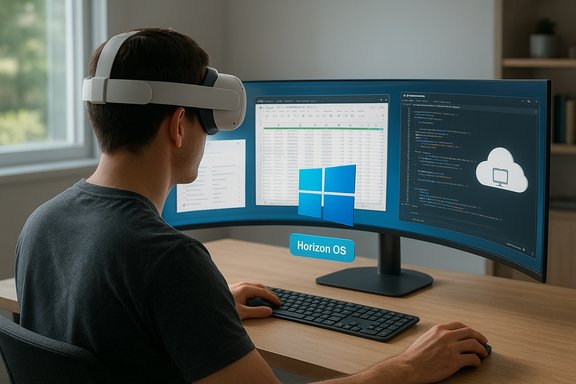
Person wearing a VR headset at a curved multi-monitor setup, coding and viewing data.Background​

Mixed Reality Link started life as a public technical preview in December 2024, a collaboration between Microsoft and Meta to test whether a streamed Windows desktop could be reliable and useful inside a consumer mixed‑reality headset. Over ten months of testing, both companies refined pairing flows, display quality, passthrough integrations and cloud‑PC support before promoting the experience to general availability on October 30, 2025. The architecture is deliberately simple and pragmatic: Windows remains a host OS running on a local PC or a cloud endpoint such as Windows 365 or Azure Virtual Desktop; the Quest headset acts as a spatial display and compositor. That streaming model preserves application compatibility and corporate policies while offering users a flexible, large virtual workspace without buying physical monitors.

What’s shipping now: features at a glance​

The initial general‑availability package focuses on productivity—recreating the conventional multi‑monitor desktop inside mixed reality, with a small but important set of capabilities:
  • Multiple high‑resolution virtual monitors (typical setups reproduce two to three displays).
  • An immersive ultrawide / curved display mode that wraps a single continuous desktop around the user’s field of view.
  • Passthrough‑aware workflows that let you keep sight of your physical keyboard and desk or switch to a fully private virtual room.
  • Native pairing flow: install Mixed Reality Link on a Windows 11 PC, open the Windows App on the Quest, look at your physical keyboard and tap “Pair.”
  • Local and cloud endpoints: stream from a local Windows 11 PC or connect to Windows 365 Cloud PC and other Azure‑hosted desktops.
These are the practical building blocks Microsoft and Meta are shipping for everyday productivity rather than gaming‑first scenarios. The Verge’s hands‑on coverage highlights the ultrawide curved mode and the overall intention to mirror the Vision Pro’s Mac integration in function, if not in hardware.

Installation and first‑run: step‑by‑step​

  • Confirm prerequisites: a PC running Windows 11 (version 22H2 or later) and a Meta Quest 3 or Quest 3S updated to Horizon OS v81 or later. Windows 10 is not supported.
  • On the Windows PC, download and install the Mixed Reality Link app from the Microsoft Store. Launch the app and, if needed, press Alt+Shift+W (or the provided shortcut) to show pairing UI and QR code.
  • On the headset, ensure “Pair to PC with Mixed Reality Link” is enabled under Settings → Advanced (if you don’t see it, update Horizon OS and reboot). Open the Windows App for Meta Quest and either scan the QR or use the on‑screen device list to add your PC. If pairing via the desk detection flow works, a floating “Pair” button will appear over your physical keyboard; look at it and tap to confirm.
  • Choose your session model: stream a local PC desktop for lowest latency, or sign in to Windows 365 / Azure Virtual Desktop to route sessions to cloud VMs. Input is handled by the PC (keyboard/mouse), while the headset manages window layout, passthrough and spatial controls.
Practical pairing notes and troubleshooting: both devices must be on the same network/subnet for discovery to succeed. Microsoft’s support documentation calls out common network and firewall issues, and provides error codes and reconnection guidance for locked PCs or blocked ports. If you run into pairing failures, the simplest fixes are checking network subnets, disabling strict firewall rules for discovery ports, and ensuring the PC is awake and unlocked during setup.

Technical and network requirements — what IT should validate​

Mixed Reality Link is sensitive to the same constraints that affect any high‑bandwidth remote desktop or game‑streaming scenario.
  • OS: Windows 11 (22H2+) required on the host PC; Windows 10 is unsupported.
  • Headset: Meta Quest 3 / Quest 3S with Horizon OS v81 or later. Older Quest models and Quest Pro are not supported by this integration at GA.
  • Network: Microsoft recommends a wired Ethernet connection for the PC where possible or a robust Wi‑Fi connection (5 GHz; ideally 6 GHz / Wi‑Fi 6E). Same‑subnet connectivity between headset and PC is critical.
  • Cloud support: Windows 365 and Azure Virtual Desktop endpoints are supported for cloud‑hosted sessions; enterprises can therefore centralize data in managed Cloud PCs rather than on local endpoints.
Why network matters: frame delivery, input responsiveness and image clarity are all bounded by network bandwidth and latency. Wired ethernet to the source PC reduces packet loss and jitter; high‑bandwidth Wi‑Fi 6/6E or Wi‑Fi 7 networks help with untethered use. If you’re planning pilots, reserve time to profile real‑world latency and packet loss in your office Wi‑Fi environment.

Device capabilities and display quality​

Meta’s Quest 3 and Quest 3S present different hardware envelopes that influence image fidelity in Mixed Reality Link sessions. The Quest 3 uses pancake lenses and higher per‑eye resolution (reported around 2064×2208 per eye in spec sheets and reviews), while the Quest 3S trades some visual fidelity for a lower price with slightly lower per‑eye resolution (reports vary by outlet). These hardware differences will be visible when reading text on multiple high‑density virtual monitors or when using the immersive ultrawide mode. Practical takeaway: the Quest 3 will give the sharpest, most comfortable productivity experience for text‑heavy work; the Quest 3S remains a capable and much cheaper alternative for general productivity scenarios. Test with real applications (code editors, spreadsheets, design apps) to validate readability and eye comfort before broad deployment.

How Mixed Reality Link compares to third‑party solutions​

Mixed Reality Link’s main competitive advantage is that it’s a first‑party, Microsoft‑built Windows desktop streaming experience, designed for simple pairing and enterprise scenarios. That contrasts with established third‑party options:
  • Virtual Desktop (paid) — a feature‑rich app widely used by power users for ultra‑low‑latency gaming and highly tunable encoders; offers advanced settings not currently present in Mixed Reality Link.
  • Steam Link / SteamVR Desktop View — focused on game streaming and SteamVR integration rather than native Windows productivity use.
  • Immersed and other productivity‑focused apps — offer polished multi‑monitor workflows and collaborative features but require separate subscriptions or ecosystems.
Mixed Reality Link intentionally limits its scope toward productivity and enterprise readiness (Windows compatibility, cloud PC routing, simplified pairing). That first‑party simplicity will be a draw for IT teams and mainstream users, but advanced GPU/encoder tuning and gaming optimizations will still favor third‑party tools for latency‑sensitive VR gaming.

Real‑world limits, early reports and cautious caveats​

The launch is significant, but it isn’t without caveats. Several important caveats emerged during preview and from early GA reporting:
  • App concurrency limits vary. Some reports and release notes reference the ability to run many windows (numbers like “up to 12 apps” have circulated), but real‑world testers observed differences by build and region. Treat any specific “max windows” number as provisional: firmware, server‑side flags and staged rollouts can change practical limits.
  • Platform and device rollouts are staged. Not every headset receives Horizon OS v81 on the same day; some users saw the pairing experience appear after additional reboots or delayed server flags. Expect staggered availability in the wild.
  • Bugs and regressions exist. Community threads and support cases recorded issues around pairing, audio routing anomalies, and app‑specific oddities during preview. Microsoft’s support guidance lists common failure modes related to blocked ports, mismatched subnets, and locked PCs. IT pilots should plan for troubleshooting and feedback loops.
  • Windows on Arm support: there are community reports that the Mixed Reality Link client received updates that enabled Windows on Arm devices to connect in practice, but these reports were initially community‑sourced and not uniformly documented at launch; treat Arm compatibility as promising but verify on your specific hardware.
Where uncertainty remains, label the claim provisional and validate in controlled pilots before broad enterprise deployment. Several outlets and community threads explicitly advise staged rollouts and careful testing.

Security and enterprise considerations​

Mixed Reality Link’s architecture means the Windows workload runs on the host PC or a cloud PC, not on headset silicon. From a data‑protection standpoint this is a plus: enterprises can route sessions to managed Windows 365 Cloud PCs where corporate policies, conditional access, disk encryption and DLP controls remain enforced. That design reduces data exposure risk on unmanaged endpoints while enabling mobility. Operational considerations for IT:
  • Firewall and network policy: discovery and streaming require specific local network ports and same‑subnet connectivity; hardened networks may need exceptions for discovery traffic or a controlled pilot VLAN. Microsoft’s troubleshooting guidance highlights blocked ports and subnet mismatches as common causes of failures.
  • Endpoint hygiene: ensure the Windows 11 host is patched, awake during pairing, and has the Mixed Reality Link client installed from the Microsoft Store. Enforce configuration baselines and document support steps for users who cannot see the “Pair” prompt.
  • Resource planning: streaming multiple high‑resolution virtual monitors increases GPU and CPU load on the host machine. Establish minimum hardware baselines for acceptable frame rates and pixel clarity; for cloud PCs, select VM SKUs with GPU or GPU‑backed rendering where needed.
  • User training: mixed presence (passthrough) workflows, visual comfort, and session etiquette (notifications, audio routing) will require brief user training to avoid confusion and repeated support tickets. Early pilots should collect UX telemetry and qualitative feedback.

Practical recommendations — a deployment checklist​

  • Verify Windows build and Mixed Reality Link client: Windows 11, 22H2+; install Mixed Reality Link from the Microsoft Store on pilot machines.
  • Update headsets to Horizon OS v81 and validate the Windows App is present. Reboot and confirm “Pair to PC with Mixed Reality Link” is visible.
  • Network: test with wired Ethernet to the host PC and ensure headset uses the same SSID/subnet. Use Wi‑Fi 6/6E routers for untethered scenarios.
  • Pilot scale: start with a small group of power users who can tolerate iterative fixes. Capture latency, packet loss and app‑specific performance data.
  • Test Windows 365 integration: run a cloud PC session to confirm IAM, conditional access and DLP behave as expected before issuing headsets to mobile teams.

User experience — early impressions​

Hands‑on reporting and community previews describe the experience as satisfying for focused, text‑heavy work (spreadsheets, coding, document editing) where multiple screens improve productivity. The passthrough keyboard detection and quick‑peek Full Passthrough gesture reduce friction for mixed‑presence workflows, letting users maintain spatial context without breaking immersion. The ultrawide curved display can recreate the “panoramic desk” feeling for side‑by‑side reference work. That said, real‑world comfort, battery life and prolonged visual fatigue remain factors. Encourage shorter sessions during pilot programs, and validate whether users prefer a hybrid setup (one physical monitor + headset) rather than full replacement of physical displays. Community reports highlight that some users still rely on a physical screen for long‑running video production or high‑precision tasks.

What to watch next​

  • Performance tuning and encoder options — will Microsoft expose more granular settings or partner with Meta to optimize encoders for varying network conditions?
  • Expanded hardware support — broader Quest family support or native Windows‑on‑XR ports could shift the model from streaming to partially native experiences.
  • Enterprise management tooling — MDM/Intune policies, telemetry and support automation around Mixed Reality Link and Horizon OS updates.
  • Ecosystem features — collaboration tools (pinned windows, multi‑user shared Windows sessions), per‑app passthrough policies, and deeper Windows 365 integration for persistent, managed state across headsets.

Final assessment​

Mixed Reality Link’s move to general availability is a pragmatic and consequential step for XR productivity: it brings a first‑party Windows desktop streaming solution to millions of affordable Quest headsets, simplifies pairing and enterprise routing to Windows 365, and supplies a practical multi‑monitor experience that many users will find immediately useful. The combination of Microsoft’s Windows‑side client and Meta’s Horizon OS v81 improvements is the rare case of two platform owners co‑engineering a feature that matters for day‑to‑day work. Strengths:
  • First‑party Windows support and simple pairing makes adoption straightforward for mainstream users and IT.
  • Cloud PC support (Windows 365 / AVD) enables secure, managed deployments without local data sprawl.
  • The ultrawide and multi‑monitor modes offer a genuinely productive spatial workspace for many knowledge‑work tasks.
Risks and trade‑offs:
  • Networking, GPU load and headset hardware remain gating factors — poor networks or low‑spec hosts will degrade the experience.
  • Some advanced features (encoder tuning, low‑latency gaming optimizations) still favor third‑party tools like Virtual Desktop for power users.
  • Staged rollouts, build‑dependent limits and community‑reported anomalies mean enterprises should pilot carefully rather than deploy broadly overnight.
For anyone with a Quest 3 or Quest 3S and a Windows 11 PC, Mixed Reality Link is now an accessible way to experiment with an immersive multi‑monitor workspace. For IT teams, the path to pilot is clear: validate network and host resources, test Windows 365 routing for security, and collect measured UX telemetry before scaling. This GA launch is not the end of the story — it’s a foundational step that opens the door to far broader XR productivity scenarios, and the next 12 months of firmware and client updates will determine how compelling the headset‑as‑portable‑workstation actually becomes.
Source: Jason Deegan Windows 11 Officially Launches on Meta Quest 3 for Multi-Screen Work
 

Back
Top