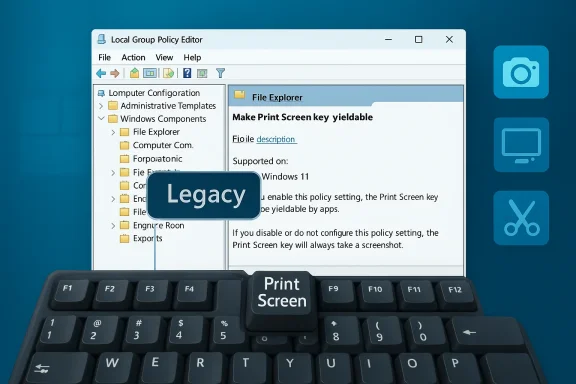
Microsoft has quietly added a new Group Policy in recent Windows 11 preview builds that gives administrators explicit control over whether the Print Screen (PrtScn) key can be intercepted by third‑party applications — a setting surfaced as Make Print Screen key yieldable under Computer Configuration → Administrative Templates → Windows Components → File Explorer.
The Print Screen key has been a stable, decades‑old shortcut for capturing the screen, but Microsoft began steering that behavior toward the Snipping Tool in Windows 11 previews and stable updates starting in 2023. That shift — intended to modernize capture workflows and encourage use of an integrated, editable capture experience — caused friction for users and software vendors who relied on the legacy behavior or who registered their own global handlers for PrtScn.
In early 2026 preview builds Microsoft added the Group Policy named Make Print Screen key yieldable. The policy explicitly governs whether the OS will yield the PrtScn scan code to other applications that attempt to register global hotkeys or hooks. In practice, this provides a single administrative control to allow or block applications from hijacking PrtScn on a per‑machine basis, rather than relying on per‑user toggles, registry edits, or brittle application conflicts.
This article explains what the policy does, how it maps to existing configuration options, the technical mechanisms apps use to intercept keyboard input, and the practical, security, and manageability considerations IT teams should weigh before enforcing it across a fleet.
However, it is not a comprehensive security control. Kernel drivers, compromised firmware, and high‑privilege malware remain outside its reach. For most organizations the policy should be treated as part of a layered approach: combined with driver installation restrictions, application control, DLP, and user communication to deliver both security and usability.
Source: Windows Report https://windowsreport.com/microsoft-adds-make-print-screen-key-yieldable-policy-to-windows-11/
 Background
The Print Screen key has been a stable, decades‑old shortcut for capturing the screen, but Microsoft began steering that behavior toward the Snipping Tool in Windows 11 previews and stable updates starting in 2023. That shift — intended to modernize capture workflows and encourage use of an integrated, editable capture experience — caused friction for users and software vendors who relied on the legacy behavior or who registered their own global handlers for PrtScn.In early 2026 preview builds Microsoft added the Group Policy named Make Print Screen key yieldable. The policy explicitly governs whether the OS will yield the PrtScn scan code to other applications that attempt to register global hotkeys or hooks. In practice, this provides a single administrative control to allow or block applications from hijacking PrtScn on a per‑machine basis, rather than relying on per‑user toggles, registry edits, or brittle application conflicts.
This article explains what the policy does, how it maps to existing configuration options, the technical mechanisms apps use to intercept keyboard input, and the practical, security, and manageability considerations IT teams should weigh before enforcing it across a fleet.
What the policy actually does
How the setting appears to administrators
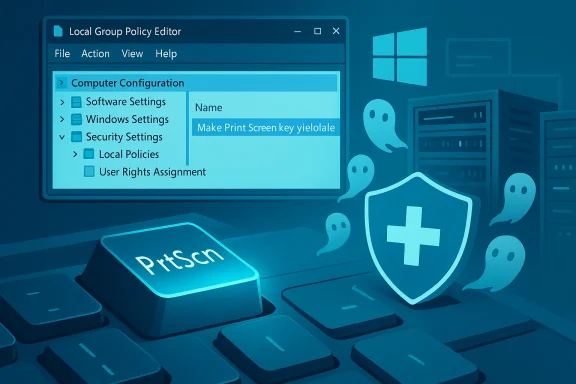
- Policy name: Make Print Screen key yieldable
- Location in Local Group Policy Editor: Computer Configuration → Administrative Templates → Windows Components → File Explorer
- Visibility: Appears in recent Windows 11 Dev channel preview builds; requires gpedit.msc (Windows 11 Pro/Enterprise or equivalent) to view and set.
Plain‑language behavior
- Enabled: The Print Screen key can be intercepted by applications. Third‑party screenshot tools and utilities are allowed to register handlers that take precedence over the OS’s configured screenshot behavior.
- Disabled: The Print Screen key is intended to retain its legacy behavior and not be intercepted. Windows will attempt to prevent applications from hijacking PrtScn.
- Not configured: System/default behavior applies. In many preview builds this default permitted third‑party interception; in other builds and releases the default may differ.
- Changes to the policy may require a restart (or at least a logoff/logon and restart of Explorer) for global hotkey registrations and low‑level hooks to be reset.
- The policy is machine‑level; it complements per‑user settings that have existed for the Snipping Tool integration.
How this maps to existing settings and registry keys
Windows already exposed ways to change Print Screen behavior:- Per‑user toggle in Settings: Accessibility → Keyboard → Use the Print screen key to open Snipping Tool (present on some builds and missing in others).
- Per‑user registry key: HKCU\Control Panel\Keyboard\PrintScreenKeyForSnippingEnabled (REG_DWORD). Value 1 enables Snipping Tool interception; 0 disables it.
- If you set the Group Policy to Disabled, you can enforce legacy PrtScn behavior regardless of what users set under HKCU or which applications attempt to claim the key.
- If you need user‑level flexibility, keep policy Not configured and manage per‑user behavior via Settings or registry preferences distributed with logon scripts or Group Policy Preferences.
The technical picture: how apps intercept Print Screen
Understanding how applications take over the Print Screen key clarifies what the policy can — and cannot — block.Common interception techniques
- RegisterHotKey API: Applications use user‑mode APIs such as RegisterHotKey to register global hotkeys. When an app registers a hotkey without modifiers, it can prevent other apps from seeing the keypress.
- Low‑level keyboard hooks (WH_KEYBOARD_LL via SetWindowsHookEx): Global hooks let an application receive keyboard events before they reach the target application. Hooks can swallow or reroute events if the hook procedure returns the appropriate result.
- DLL injection and thread hooks: More aggressive techniques inject code into other processes so hooks run in target process contexts.
- Kernel‑mode filter drivers: Device drivers that sit above the keyboard class driver (Kbdclass) can intercept every keystroke at a lower level than user‑mode hooks. These are powerful and can bypass user‑mode restrictions.
- Raw input or message interception: Applications can use Raw Input APIs or monitor window messages to react to certain key sequences.
Important limitations to keep in mind
- User‑mode hooks and RegisterHotKey are visible to the OS and subject to timeouts and other safety constraints; badly behaved hook procedures are ignored if they exceed allowed processing windows.
- Kernel drivers and firmware can still capture keystrokes even if the OS refuses to yield the key to user‑mode handlers. The new Group Policy controls OS behavior for normal user‑mode interception channels, but it does not magically block malicious or privileged kernel code.
- Some hotkey registrations are stored in internal kernel/User objects (hotkey tables). Tools that read or manipulate those structures can detect registrations even when ETW instrumentation cannot.
Why Microsoft added this control
There are three overlapping motivations behind exposing a machine‑level toggle for PrtScn yielding:- Enterprise manageability: IT teams need a predictable way to enforce consistent input behavior across large fleets — for example, to ensure support tools using PrtScn work reliably, or to prevent unauthorized screenshot capturing in sensitive environments.
- Compatibility clarity: A central policy reduces the “which setting wins” confusion when a per‑user toggle, multiple third‑party apps, and OEM utilities all compete for the same key.
- Security and privacy: Limiting which processes can intercept a widely used screenshot key closes one convenient channel for data exfiltration (though it is not a comprehensive control).
Practical impacts for users and admins
Benefits
- Predictable behavior: Enabling the policy in a chosen state yields consistent keystroke handling across user sessions.
- Centralized control: Admins can enforce a secure posture for sensitive endpoints.
- Reduced app conflicts: Prevent accidental or undesirable app hijacking of PrtScn that breaks corporate workflows.
Downsides and trade‑offs
- Potential workflow disruption: Many help‑desk, documentation, and training processes rely on third‑party screen capture tools tied to PrtScn. Locking the key can break those tools.
- Not a silver bullet for security: Kernel drivers, malicious firmware, and privilege escalation remain capable of capturing screen content.
- Support overhead: Users who lose their preferred behavior will call the help desk unless IT proactively communicates the change and provides alternatives.
- Fragmentation between Insider and production channels: The policy’s exact default and UI exposure may vary across Windows channels and versions, making testing essential before broad deployment.
Recommended deployment approach for enterprises
If you manage devices and plan to use the new Group Policy, follow a controlled, test‑driven rollout:- Inventory: Identify critical applications and workflows that expect PrtScn behavior (e.g., remote support tools, capture utilities, OneDrive/Share integrations, OEM utilities).
- Pilot: Apply the policy in a lab or pilot OU and test with key user personas. Confirm that applications register hotkeys or hooks as expected and verify behavior after logoff/logon and reboots.
- ADMX management: Update your Central Store with matching ADMX/ADML files from the target Windows build so the policy is visible in Group Policy Management.
- Per‑user fallbacks: If some users need Snipping Tool integration but you want to block third‑party capture, consider combining the machine policy with per‑user registry settings distributed via Group Policy Preferences or logon scripts.
- Communication: Notify users in advance with clear instructions about alternative shortcuts (e.g., Win+Shift+S, tools’ own hotkeys) and provide quick troubleshooting steps.
- Monitoring: Track support tickets and telemetry for capture related failures. If you use endpoint detection solutions, add monitoring for suspicious hotkey registrations or kernel driver installs.
Security, privacy, and compliance considerations
What the policy helps mitigate
- Quiet exfiltration via user‑mode screenshot tools that silently capture screen contents in the background.
- Accidental leakage caused by apps that aggressively claim PrtScn and disrupt established workflows.
What the policy does not prevent
- Kernel‑level drivers and firmware that intercept keyboard input before the OS’s user‑mode policies can act.
- Malicious processes that take screenshots using other APIs or by reading frame buffers if they gain the necessary privileges.
- Insider threats with admin privileges who can change policies or install drivers.
Recommended complementary controls
- Limit driver installation: Use Device Installation restrictions in Group Policy or MDM controls to block untrusted kernel drivers.
- Harden endpoint configuration: Restrict the set of allowed applications (application whitelisting) and use code integrity policies.
- Audit hotkey registrations: Where possible, monitor for unusual RegisterHotKey or low‑level hook activity as part of endpoint telemetry.
- Educate users: Explain why the policy exists and provide approved capture tools and procedures for sanctioned tasks.
Compatibility note: per‑user registry vs. machine policy
Organizations should differentiate between per‑user preferences and machine policy:- HKCU\Control Panel\Keyboard\PrintScreenKeyForSnippingEnabled remains a useful per‑user control for personal devices where central enforcement is not required.
- The Group Policy operates at the machine level and should be used when a predictable, administrative baseline is required.
- For mixed environments, consider Group Policy Preferences or logon scripts to keep user preferences aligned with machine policy where appropriate.
Troubleshooting and quick checks
If users report unexpected Print Screen behavior:- Confirm whether the Local Group Policy or domain GPO sets Make Print Screen key yieldable.
- Check the per‑user registry: HKCU\Control Panel\Keyboard\PrintScreenKeyForSnippingEnabled (0/1).
- Temporarily quit common capturers: OneDrive, ShareX, Snagit, Logitech/Logi software, and OEM utilities to see if behavior returns to legacy.
- Restart Explorer and/or the machine after changing policy or registry, as global handlers are often re‑registered at logon.
- If problems persist, check for third‑party kernel drivers or unusual device drivers with driver signing or inventory tools.
Real‑world scenarios where this matters
Help desk and remote support
Many remote support tools rely on predictable capture behavior for diagnostics and documentation. If the Print Screen key is unexpectedly claimed by Snipping Tool, remote support workflows that capture full screens may break. Enforcing the machine policy in support environments ensures third‑party tools retain the expected hotkey behavior.Regulated industries
In environments with strict data‑loss prevention (DLP) rules, preventing unapproved apps from intercepting PrtScn reduces one attack surface for exfiltration. However, DLP policies should still inspect file transfer channels, clipboard activity, and network egress; the new policy is only a narrow but useful control.Creative and power users
Designers, writers, and power users often use specialized capture workflows (snipping with time delay, multi‑monitor full‑screen capture, annotation pipelines). Locking PrtScn to a single behavior may disrupt productivity. For these user groups, allow yieldable behavior and instead control app installation or use sanctioned capture tools.Developer and vendor perspective
Third‑party screenshot tools have historically used a mix of RegisterHotKey and low‑level hooks to capture PrtScn reliably. A machine policy that blocks interception may force developers to:- Offer explicit installer options to register alternate hotkeys (e.g., Ctrl+Alt+PrtScn).
- Use documentation and user education to instruct customers on how to opt into PrtScn behavior on their machines.
- Work with enterprise customers to ensure their app’s hotkey strategy is compatible with enforced policies.
Verdict: useful, but not a panacea
The Make Print Screen key yieldable Group Policy is a pragmatic, overdue administrative control that brings clarity and manageability to an increasingly contested input. It gives administrators a direct lever to ensure consistent behavior across managed devices and can reduce a modest class of accidental or malicious screenshot capture.However, it is not a comprehensive security control. Kernel drivers, compromised firmware, and high‑privilege malware remain outside its reach. For most organizations the policy should be treated as part of a layered approach: combined with driver installation restrictions, application control, DLP, and user communication to deliver both security and usability.
Actionable checklist for IT teams
- Identify all apps that rely on PrtScn and test their behavior with the policy both Enabled and Disabled.
- Update your ADMX Central Store to the build that introduced the policy so GPO editors show the setting.
- Pilot the policy in a small OU and collect user feedback for one business cycle.
- If you plan to enforce Disabled, provide an approved capture tool with a documented alternate hotkey and user instructions.
- Use application control and driver installation policies to reduce the risk of kernel‑level interception.
- Monitor support queues and adjust communication and training materials to minimize friction.
Final thoughts
A single clearly named Group Policy that controls whether the Print Screen key is yieldable addresses a messy, long‑running clash between legacy behavior, modern OS convenience, and third‑party integrations. For administrators it is a welcome tool — but one that must be wielded with care. Test extensively, communicate proactively, and treat the setting as one element in a broader endpoint security and usability strategy rather than a standalone fix.Source: Windows Report https://windowsreport.com/microsoft-adds-make-print-screen-key-yieldable-policy-to-windows-11/