

Windows 11 users can take screenshots with the Snipping Tool, Windows + Shift + S, Print Screen, Alt + Print Screen, or Windows + Print Screen, with captures either copied to the clipboard or saved automatically in Pictures > Screenshots. That sounds simple, but Microsoft has quietly turned screen capture from a one-key utility into a small productivity system. The real choice is no longer whether Windows can grab the screen; it is whether you want speed, precision, annotation, or a file you can find later.
For years, the Print Screen key was treated like plumbing: useful, old, and mostly invisible until it stopped working. Press the key, paste the image somewhere, move on. Windows 11 keeps that legacy alive, but it also pushes users toward a more deliberate capture model built around the Snipping Tool.
That change matters because screenshots are no longer just proof that something happened. They are bug reports, training material, compliance evidence, classroom notes, support tickets, Slack messages, Teams attachments, and the fastest way to say “this is what I mean” when words become inefficient. In that world, a screenshot tool that only copies the whole desktop is not enough.
Windows 11’s approach is pragmatic rather than elegant. There are several ways to do the same basic thing, and they overlap enough to confuse casual users. But once you understand the logic, the system divides neatly into two camps: shortcuts that capture immediately, and Snipping Tool workflows that let you choose what matters before the image leaves your screen.
This is the modern screenshot experience Microsoft wants most users to learn. It is fast enough for everyday use but precise enough to avoid the common mistake of sharing too much. If you only need one dialog box, one chart, or one section of a web page, this shortcut prevents you from capturing your entire desktop, including notifications, browser tabs, or documents sitting in the background.
After the snip is taken, Windows copies it to the clipboard. That means you can immediately paste it into Paint, Word, Outlook, Teams, PowerPoint, OneNote, a browser-based editor, or almost any chat application with Ctrl + V. For many users, that clipboard-first behavior is exactly right: the screenshot is not a keepsake, it is a message.
The small notification that appears after capture is also important. Click it, and Windows opens the Snipping Tool editor, where the capture becomes something you can mark up, crop, save, copy again, or share. Ignore it, and the image remains ready to paste.
Once a capture opens in Snipping Tool, you can draw on it, highlight areas, crop the image, and save it as a file. That sounds basic until you consider how screenshots are actually used. A red box around an error code, a quick underline beneath a setting, or a cropped view that removes irrelevant information can save a long back-and-forth support thread.
This is especially useful for administrators and help desk staff. A user’s full-screen capture may show the error, but it may also show private email, internal systems, customer data, or browser tabs that should not leave the machine. Cropping and annotation are not cosmetic features; they are a small but meaningful layer of operational hygiene.
The Snipping Tool also supports delayed captures, which are useful when the thing you need to record disappears as soon as you click elsewhere. Menus, hover states, right-click context menus, and transient pop-ups are all easier to capture when Windows waits a few seconds before taking the shot. For documentation work, that delay can be the difference between a clean guide and a clumsy workaround.
There is virtue in that simplicity. If you are documenting a multi-monitor layout, saving a full desktop state, or quickly grabbing everything before it changes, Print Screen is still hard to beat. It requires no decision-making and no interface.
But that strength is also its flaw. Full-screen captures often include too much: personal messages, password manager icons, admin consoles, file paths, customer records, or browser tabs that reveal more than the sender intended. In an office environment, the old Print Screen habit can become a low-grade data leakage risk.
That is why Windows + Shift + S is usually the better first recommendation. It nudges users to capture only what they need. The goal is not just a cleaner image; it is a safer one.
This shortcut is ideal when you need to capture an application dialog, a browser window, a settings page, or a software error without dragging a selection box around it. It is also useful for writing internal documentation, because it keeps attention on the application rather than the user’s desktop environment.
There is one catch: the window you want must be active. Click the target window first, then press Alt + Print Screen, then paste. If the wrong window was focused, Windows will faithfully capture the wrong thing.
For IT teams writing quick instructions for users, this shortcut deserves more attention. It is easier to explain than a selection interface and safer than a full-desktop capture. It also produces cleaner images for documents and tickets because the image boundaries match the application window.
This is the best method when you are collecting multiple screenshots in sequence. Testers, reviewers, students, and documentation writers often need a quick series of captures rather than one polished image. Windows + Print Screen turns that into a repeatable rhythm.
The tradeoff is control. The shortcut captures the whole screen, so the resulting file may still need cropping before it is shared. It is a capture-first, edit-later workflow.
Finding the files is straightforward: open File Explorer, go to Pictures, then Screenshots. If OneDrive is configured to back up Pictures, the exact sync behavior may vary by setup, but the local Windows convention remains easy enough for most users to understand.
This is efficient, but it also explains why some users think a screenshot has “disappeared.” If you press Print Screen and nothing obvious happens, Windows has not necessarily failed. It may simply be waiting for you to paste.
That model is powerful for people who live in communication apps. A support technician can snip an error, paste it into a ticket, and move on without ever creating a standalone file. A teacher can capture part of a slide and paste it directly into lesson notes. A user can send a visual explanation in Teams faster than they can describe the issue.
The weakness is that clipboard captures are easy to overwrite. Take another screenshot, copy a paragraph of text, or copy a file path, and the previous screenshot may be gone unless it was saved or pasted somewhere. If the image matters, open the Snipping Tool notification and save it.
Windows 11’s built-in editing tools are not meant to compete with Photoshop. They are meant to make the safe thing easy. Crop the irrelevant edges, mark the important area, and remove the need for a recipient to hunt through visual clutter.
For user guides, annotation also changes the tone of the instruction. A screenshot without markup says, “Look somewhere in here.” A screenshot with a line, box, or highlight says, “Click this.” That difference is small on one image and enormous across a 30-page internal guide.
Screenshots are also increasingly used in troubleshooting conversations with AI tools, remote support systems, and knowledge bases. The clearer the capture, the better the answer. A screenshot that isolates the actual failure state is more useful than a beautiful but unfocused image of the entire desktop.
For quick sharing, Windows + Shift + S is usually the best starting point. It lets the user capture only what matters and paste it immediately. For formal documentation, opening the Snipping Tool and using its editor gives the capture more polish and precision.
For file collection, Windows + Print Screen wins because it saves automatically. For single-window documentation, Alt + Print Screen is cleaner than a full-screen capture and faster than manual selection. For old habits and emergency grabs, Print Screen still does the job.
The mistake is treating all screenshots as interchangeable. A screenshot for a private note, a screenshot for a public forum, and a screenshot for an enterprise support ticket should not necessarily be taken the same way. The tool should follow the audience.
That distinction is simple once learned, but not obvious the first time. A visible screen flash can make users think a file was saved somewhere, when in fact the image is waiting to be pasted. Conversely, Windows + Print Screen quietly creates a growing archive that users may forget exists.
For administrators supporting less technical users, this is the explanation that prevents most confusion: some screenshot methods copy, one common shortcut saves, and the Snipping Tool can do both. Teach that, and the rest becomes easier.
It is also worth reminding users that laptops and compact keyboards may require the Fn key for Print Screen shortcuts. Hardware vendors do not label keys consistently, and some modern keyboards bury Print Screen behind a function layer. If a shortcut fails, the keyboard layout may be the culprit rather than Windows.
 Microsoft Has Turned the Screenshot Into a Workflow
For years, the Print Screen key was treated like plumbing: useful, old, and mostly invisible until it stopped working. Press the key, paste the image somewhere, move on. Windows 11 keeps that legacy alive, but it also pushes users toward a more deliberate capture model built around the Snipping Tool.That change matters because screenshots are no longer just proof that something happened. They are bug reports, training material, compliance evidence, classroom notes, support tickets, Slack messages, Teams attachments, and the fastest way to say “this is what I mean” when words become inefficient. In that world, a screenshot tool that only copies the whole desktop is not enough.
Windows 11’s approach is pragmatic rather than elegant. There are several ways to do the same basic thing, and they overlap enough to confuse casual users. But once you understand the logic, the system divides neatly into two camps: shortcuts that capture immediately, and Snipping Tool workflows that let you choose what matters before the image leaves your screen.
Windows + Shift + S Is the New Default for Most People
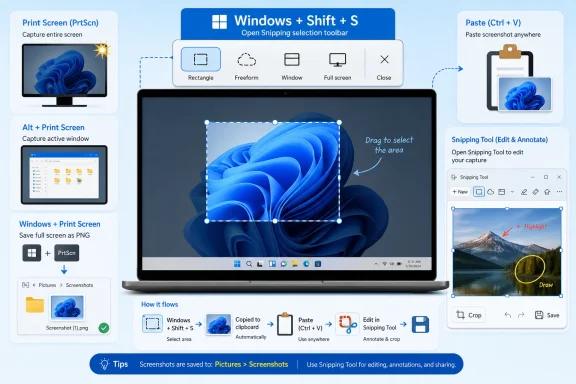
The most useful Windows 11 screenshot shortcut is Windows + Shift + S. Press it, and the screen dims while a compact toolbar appears at the top of the display. From there, you choose whether to capture a rectangle, draw a freeform shape, grab a single window, or take the full screen.This is the modern screenshot experience Microsoft wants most users to learn. It is fast enough for everyday use but precise enough to avoid the common mistake of sharing too much. If you only need one dialog box, one chart, or one section of a web page, this shortcut prevents you from capturing your entire desktop, including notifications, browser tabs, or documents sitting in the background.
After the snip is taken, Windows copies it to the clipboard. That means you can immediately paste it into Paint, Word, Outlook, Teams, PowerPoint, OneNote, a browser-based editor, or almost any chat application with Ctrl + V. For many users, that clipboard-first behavior is exactly right: the screenshot is not a keepsake, it is a message.
The small notification that appears after capture is also important. Click it, and Windows opens the Snipping Tool editor, where the capture becomes something you can mark up, crop, save, copy again, or share. Ignore it, and the image remains ready to paste.
The Snipping Tool Is Where Screenshots Become Evidence
The Snipping Tool is no longer merely a revived Windows accessory. In Windows 11, it is the hub where Microsoft has consolidated the old Snipping Tool and the newer Snip & Sketch style of capture. The result is not a professional graphics application, but it is enough for the tasks that make screenshots valuable in real life.Once a capture opens in Snipping Tool, you can draw on it, highlight areas, crop the image, and save it as a file. That sounds basic until you consider how screenshots are actually used. A red box around an error code, a quick underline beneath a setting, or a cropped view that removes irrelevant information can save a long back-and-forth support thread.
This is especially useful for administrators and help desk staff. A user’s full-screen capture may show the error, but it may also show private email, internal systems, customer data, or browser tabs that should not leave the machine. Cropping and annotation are not cosmetic features; they are a small but meaningful layer of operational hygiene.
The Snipping Tool also supports delayed captures, which are useful when the thing you need to record disappears as soon as you click elsewhere. Menus, hover states, right-click context menus, and transient pop-ups are all easier to capture when Windows waits a few seconds before taking the shot. For documentation work, that delay can be the difference between a clean guide and a clumsy workaround.
Print Screen Still Works, But It Belongs to an Older Windows
The Print Screen key remains the classic method, and on many keyboards it is labeled PrtScn, PrtSc, or something similarly compressed. Pressing it captures the full screen and copies the result to the clipboard. From there, you paste it wherever the image is needed.There is virtue in that simplicity. If you are documenting a multi-monitor layout, saving a full desktop state, or quickly grabbing everything before it changes, Print Screen is still hard to beat. It requires no decision-making and no interface.
But that strength is also its flaw. Full-screen captures often include too much: personal messages, password manager icons, admin consoles, file paths, customer records, or browser tabs that reveal more than the sender intended. In an office environment, the old Print Screen habit can become a low-grade data leakage risk.
That is why Windows + Shift + S is usually the better first recommendation. It nudges users to capture only what they need. The goal is not just a cleaner image; it is a safer one.
Alt + Print Screen Is the Shortcut Professionals Forget Too Often
If Print Screen is too broad and Snipping Tool feels like an extra step, Alt + Print Screen remains the underrated middle path. It captures only the active window and copies it to the clipboard. For many work scenarios, that is exactly the right scope.This shortcut is ideal when you need to capture an application dialog, a browser window, a settings page, or a software error without dragging a selection box around it. It is also useful for writing internal documentation, because it keeps attention on the application rather than the user’s desktop environment.
There is one catch: the window you want must be active. Click the target window first, then press Alt + Print Screen, then paste. If the wrong window was focused, Windows will faithfully capture the wrong thing.
For IT teams writing quick instructions for users, this shortcut deserves more attention. It is easier to explain than a selection interface and safer than a full-desktop capture. It also produces cleaner images for documents and tickets because the image boundaries match the application window.
Windows + Print Screen Is the Fastest Way to Build a Screenshot Folder
When you need a screenshot saved as a file immediately, use Windows + Print Screen. The screen briefly dims, and Windows saves a PNG image automatically in the Screenshots folder under Pictures. There is no need to open Paint, paste, and save manually.This is the best method when you are collecting multiple screenshots in sequence. Testers, reviewers, students, and documentation writers often need a quick series of captures rather than one polished image. Windows + Print Screen turns that into a repeatable rhythm.
The tradeoff is control. The shortcut captures the whole screen, so the resulting file may still need cropping before it is shared. It is a capture-first, edit-later workflow.
Finding the files is straightforward: open File Explorer, go to Pictures, then Screenshots. If OneDrive is configured to back up Pictures, the exact sync behavior may vary by setup, but the local Windows convention remains easy enough for most users to understand.
The Clipboard Is the Hidden Center of Windows Screenshots
A surprising amount of Windows screenshot behavior makes more sense once you realize the clipboard is the default destination. Print Screen, Alt + Print Screen, and Windows + Shift + S all put the image somewhere temporary first. The user’s next action decides whether that image becomes an email attachment, a Word illustration, a chat message, a Paint file, or nothing at all.This is efficient, but it also explains why some users think a screenshot has “disappeared.” If you press Print Screen and nothing obvious happens, Windows has not necessarily failed. It may simply be waiting for you to paste.
That model is powerful for people who live in communication apps. A support technician can snip an error, paste it into a ticket, and move on without ever creating a standalone file. A teacher can capture part of a slide and paste it directly into lesson notes. A user can send a visual explanation in Teams faster than they can describe the issue.
The weakness is that clipboard captures are easy to overwrite. Take another screenshot, copy a paragraph of text, or copy a file path, and the previous screenshot may be gone unless it was saved or pasted somewhere. If the image matters, open the Snipping Tool notification and save it.
Editing Is Not Decoration When the Screenshot Carries Risk
The best screenshot is often the smallest screenshot that proves the point. That is especially true in business environments, where images can reveal more than the sender realizes. A cropped image of an error message is useful; a full desktop screenshot with customer names, internal URLs, and open inbox previews is a problem waiting to be forwarded.Windows 11’s built-in editing tools are not meant to compete with Photoshop. They are meant to make the safe thing easy. Crop the irrelevant edges, mark the important area, and remove the need for a recipient to hunt through visual clutter.
For user guides, annotation also changes the tone of the instruction. A screenshot without markup says, “Look somewhere in here.” A screenshot with a line, box, or highlight says, “Click this.” That difference is small on one image and enormous across a 30-page internal guide.
Screenshots are also increasingly used in troubleshooting conversations with AI tools, remote support systems, and knowledge bases. The clearer the capture, the better the answer. A screenshot that isolates the actual failure state is more useful than a beautiful but unfocused image of the entire desktop.
The Best Method Depends on the Job, Not the User
There is no single “correct” Windows 11 screenshot method. There is only the method that fits the moment. That is why Microsoft’s overlapping shortcuts are less redundant than they first appear.For quick sharing, Windows + Shift + S is usually the best starting point. It lets the user capture only what matters and paste it immediately. For formal documentation, opening the Snipping Tool and using its editor gives the capture more polish and precision.
For file collection, Windows + Print Screen wins because it saves automatically. For single-window documentation, Alt + Print Screen is cleaner than a full-screen capture and faster than manual selection. For old habits and emergency grabs, Print Screen still does the job.
The mistake is treating all screenshots as interchangeable. A screenshot for a private note, a screenshot for a public forum, and a screenshot for an enterprise support ticket should not necessarily be taken the same way. The tool should follow the audience.
Where the Images Go Is Still the Part Windows Could Explain Better
Windows 11 is much better at taking screenshots than it is at explaining where they went. If you use Windows + Print Screen, the file lands in Pictures > Screenshots. If you use Windows + Shift + S, the capture is copied to the clipboard unless you open the notification and save it. If you use Print Screen or Alt + Print Screen, the result is also clipboard-first.That distinction is simple once learned, but not obvious the first time. A visible screen flash can make users think a file was saved somewhere, when in fact the image is waiting to be pasted. Conversely, Windows + Print Screen quietly creates a growing archive that users may forget exists.
For administrators supporting less technical users, this is the explanation that prevents most confusion: some screenshot methods copy, one common shortcut saves, and the Snipping Tool can do both. Teach that, and the rest becomes easier.
It is also worth reminding users that laptops and compact keyboards may require the Fn key for Print Screen shortcuts. Hardware vendors do not label keys consistently, and some modern keyboards bury Print Screen behind a function layer. If a shortcut fails, the keyboard layout may be the culprit rather than Windows.
A Screenshot Habit Worth Teaching
The practical Windows 11 screenshot playbook is short, but it changes how people work once it becomes muscle memory. The key is matching the shortcut to the outcome before pressing anything.- Use Windows + Shift + S when you want to select part of the screen and paste it quickly into another app.
- Use the Snipping Tool when you need to annotate, crop, delay, save, or refine the capture before sharing it.
- Use Print Screen when you need a full-screen image copied to the clipboard and do not need an immediate file.
- Use Alt + Print Screen when you want only the active window without manually selecting its edges.
- Use Windows + Print Screen when you want Windows to save a full-screen PNG automatically in Pictures > Screenshots.
- Save or paste important clipboard captures promptly, because a later copy action can replace them.
References
- Primary source: secnews.gr
Published: 2026-06-07T10:20:07.137326
How to Take Screenshots in Windows 11
Windows 11 offers many easy ways to take screenshots and edit them.www.secnews.gr - Official source: support.microsoft.com
Keyboard shortcut for print screen - Microsoft Support
Keyboard shortcut for print screensupport.microsoft.com - Official source: microsoft.com
How to Take Screenshots on Windows 11 | Microsoft Windows
Learn how take a screenshot with Windows 11 using the Snipping Tool or the Print Screen key. Save anything on your screen in an instant with these shortcuts.www.microsoft.com
- Related coverage: dell.com
How to Print Screen in Windows Using the Print Screen Key | Dell US
How to use the Print Screen (PrtScr) key in Windows to take screenshots of the whole screen or only the active window. It explains shortcuts like Windows + PrtScr, Alt + PrtScr, Fn key combinations, where your screenshots are saved, and how the keys may look different on Dell keyboards.www.dell.com - Related coverage: windowscentral.com
How to get started with the Snipping Tool app in Windows 11 | Windows Central
In this guide, I will show you how to use the Snipping Tool app to take screenshots and screen-record videos on Windows 11. No extra software required.www.windowscentral.com - Related coverage: tomshardware.com
How to Take Screenshots in Windows 10 or Windows 11 | Tom's Hardware
Capture your entire desktop, a single window, a region or a scrolling area.www.tomshardware.com
- Official source: answers.microsoft.com
When I'm taking screenshot using windows+prt sc, it takes a screenshot of the top end bar instead of capturing the full screen - Microsoft Q&A
Whenever I take the the screenshot using windows+prt sc, it just captures the small portion of the screen which looks like a bar running from top left corner to the top right corner, and the width of the bar is also varying in different screenshots in…answers.microsoft.com - Official source: learn.microsoft.com
how to take a screenshot with keyboard shortcuts - Microsoft Q&A
hi i was on windows 10 before it was windows key shift and s in windows 8.1 now i tried that and prnt sc windows key and prnt sc also tried shift and prnt sc ctrl alt prnt sc nothings working!learn.microsoft.com - Related coverage: techradar.com
My gift to Windows 11 users — here are 10 keyboard shortcuts I can't live without | TechRadar
And some bonus shortcuts to bootwww.techradar.com
