

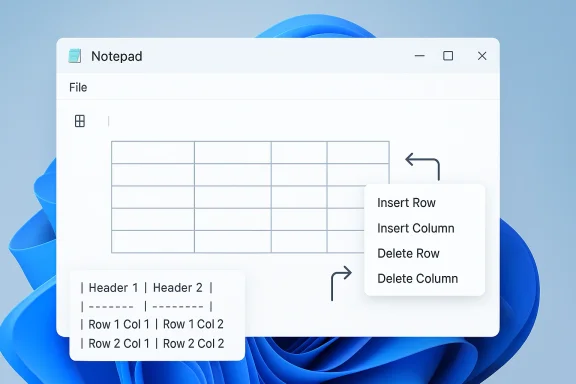
Microsoft is quietly turning Notepad into a much more capable Windows 11 app, and the latest preview build adds something longtime users probably never expected: tables. In version 11.2510.6.0, Microsoft says you can insert tables from the formatting toolbar, use Markdown syntax to create them, and then edit rows and columns from either the right-click menu or the Table menu in the toolbar. The feature lands as part of a broader evolution that has already brought tabs, autosave, lightweight formatting, and AI features to the once-barebones editor.
For decades, Notepad was the definition of Windows simplicity. It launched fast, saved plain text, and stayed out of the way, which is exactly why so many users trusted it for notes, code fragments, and throwaway drafts. That simplicity is still a core part of its appeal, but Windows 11 has steadily transformed the app into something closer to a lightweight drafting surface than a pure scratchpad. The table feature is the latest sign that Microsoft is willing to push Notepad farther into structured content creation.
This is not a random bolt-on. Microsoft’s own Insider announcement says tables are part of an “expanded formatting” push in Notepad, sitting alongside streaming AI results for Write, Rewrite, and Summarize. The company also notes that users can create tables either through the toolbar or by typing Markdown directly, which is a useful clue about where Microsoft thinks the app’s center of gravity now lives. In other words, Notepad is becoming a hybrid tool: still minimal, but no longer strictly unformatted.
The shift also makes sense in the context of WordPad’s disappearance from Windows. Once Microsoft retired the old middleweight editor, there was a gap between plain text and full Office documents. Notepad’s newer Markdown support, tabs, and now tables help fill that space without turning the app into a clone of Word. That matters because many Windows users want structure, but not the overhead that comes with richer office software.
There is also a strategic layer here. Microsoft has been modernizing a range of built-in Windows apps, from Snipping Tool to Notepad, in part to make the operating system feel more coherent and more useful out of the box. Adding tables is a small feature in isolation, but it signals a larger product philosophy: if users increasingly expect basic productivity tools to support formatted content, Microsoft would rather meet that need inside Windows than cede it entirely to third-party apps.
Once inserted, tables are editable through the right-click context menu or the Table menu in the toolbar. Microsoft specifically says you can add or remove rows and columns from either place, which keeps the interaction model consistent with other basic table editors. That consistency is useful because it means Notepad is not inventing a new table language; it is borrowing a familiar one and trimming it down to the essentials.
Here are the practical takeaways:
The feature also reflects the broader Windows 11 trend of adding just enough structure to keep users inside the default app. Tabs, autosave, and Markdown support already made Notepad more useful for everyday drafting. Tables push that idea further by giving users a way to organize content visually without switching to Word, OneNote, or a third-party editor. That is a classic Microsoft move: make the default app “good enough” for more tasks, and let the ecosystem fill the gaps for advanced ones.
The biggest turning point came when Microsoft started treating Notepad as a living product again. Tabs made it possible to keep multiple drafts open. Autosave and session restore made it safer to use as a working editor rather than a disposable scratchpad. Markdown support added lightweight structure, and now tables extend that structure into visual organization. Each step has been small on its own, but together they show a deliberate redesign of the app’s role in Windows.
That balance matters because Windows users are hypersensitive to feature creep in a utility they expect to be instant. If Notepad starts feeling slow, cluttered, or dependent on cloud services for core tasks, it loses the very identity that made it indispensable in the first place. Microsoft seems to be trying to avoid that trap by keeping the new features accessible but optional.
This is where Notepad’s new identity becomes clear. The app is no longer just the place to type raw text and move on. It is becoming a convenient staging area for structured content that can later be copied into a more polished destination if needed. That makes it more flexible without necessarily making it heavier in the way a full productivity suite would.
A few obvious use cases stand out:
Tables themselves are not a risk. They are a harmless productivity enhancement. The bigger issue is the direction of travel: Notepad is becoming more capable, but also more complex, and complexity is where enterprise preferences tend to change. A simple text editor can often be allowed broadly; a formatting-capable editor with AI hooks and evolving UI elements may prompt more caution.
Enterprises are also likely to prefer predictable defaults. The more Notepad becomes a mini authoring environment, the more it overlaps with tools that have clearer governance models. That does not make the feature bad; it simply means Microsoft is pushing the app into a space where administrative expectations are much higher than they used to be.
That puts pressure on competitors in the “simple but structured” category. If Notepad can handle tabs, Markdown, autosave, and tables well enough, casual users have less reason to download a separate app. The upside for third-party editors is that they can still differentiate on advanced search, plugin ecosystems, syntax highlighting, collaboration, or power-user automation. In other words, Microsoft is crowding the middle, not the edges.
That strategy could work well, but only if Microsoft resists the temptation to keep piling on. A few more practical features can make Notepad indispensable; too many can make it feel like a compromised editor that doesn’t fully satisfy anyone. That tension is likely to define the next phase of the app.
What makes this interesting is that Notepad is now trying to serve both the plain-text purist and the lightweight formatting user. That is a difficult balancing act. Microsoft’s approach suggests it believes the answer is not to force a choice, but to let the user move between modes as needed. Tables are a good example of that philosophy because they are useful without being mandatory.
The same logic applies to Notepad’s other recent additions. Tabs reduce window clutter. Autosave reduces friction. Markdown reduces the gap between raw text and structure. Tables reduce the need to jump to another app for compact visual organization. Taken together, these features suggest Microsoft wants Notepad to remain simple while quietly becoming far more versatile.
The table feature will probably generate less backlash than AI features because it is easy to frame as an efficiency upgrade. Still, it contributes to the same larger story: Microsoft is redefining what a default Windows utility should be. The company is clearly betting that a modern app can still feel lean if the added features are carefully scoped. That is an optimistic view of product design, and one that can work if Microsoft stays disciplined.
It will also be worth watching how Microsoft balances this with the app’s AI layer. The company has already been testing streaming results for Write, Rewrite, and Summarize, which means Notepad now sits at the intersection of formatting and generative assistance. That is a powerful combination, but also a delicate one, because every new convenience feature raises the stakes for privacy, clarity, and trust.
Source: Guiding Tech How to Create Tables in Windows 11 Notepad
 Overview
For decades, Notepad was the definition of Windows simplicity. It launched fast, saved plain text, and stayed out of the way, which is exactly why so many users trusted it for notes, code fragments, and throwaway drafts. That simplicity is still a core part of its appeal, but Windows 11 has steadily transformed the app into something closer to a lightweight drafting surface than a pure scratchpad. The table feature is the latest sign that Microsoft is willing to push Notepad farther into structured content creation.This is not a random bolt-on. Microsoft’s own Insider announcement says tables are part of an “expanded formatting” push in Notepad, sitting alongside streaming AI results for Write, Rewrite, and Summarize. The company also notes that users can create tables either through the toolbar or by typing Markdown directly, which is a useful clue about where Microsoft thinks the app’s center of gravity now lives. In other words, Notepad is becoming a hybrid tool: still minimal, but no longer strictly unformatted.
The shift also makes sense in the context of WordPad’s disappearance from Windows. Once Microsoft retired the old middleweight editor, there was a gap between plain text and full Office documents. Notepad’s newer Markdown support, tabs, and now tables help fill that space without turning the app into a clone of Word. That matters because many Windows users want structure, but not the overhead that comes with richer office software.
There is also a strategic layer here. Microsoft has been modernizing a range of built-in Windows apps, from Snipping Tool to Notepad, in part to make the operating system feel more coherent and more useful out of the box. Adding tables is a small feature in isolation, but it signals a larger product philosophy: if users increasingly expect basic productivity tools to support formatted content, Microsoft would rather meet that need inside Windows than cede it entirely to third-party apps.
How the Table Feature Works
The new table workflow is intentionally lightweight. Microsoft says users can insert tables from the formatting toolbar or by adding them with Markdown syntax directly, which keeps the experience in line with the rest of Notepad’s recent formatting approach. That dual path is important because it serves two distinct user types: people who prefer clicking controls, and people who want to type structure quickly without reaching for the mouse.Once inserted, tables are editable through the right-click context menu or the Table menu in the toolbar. Microsoft specifically says you can add or remove rows and columns from either place, which keeps the interaction model consistent with other basic table editors. That consistency is useful because it means Notepad is not inventing a new table language; it is borrowing a familiar one and trimming it down to the essentials.
Two ways to create a table
The feature is simple enough that most users will probably encounter it in one of two ways. Microsoft’s Insider note describes the toolbar route and the Markdown route, while Guiding Tech’s walkthrough highlights the same practical split: create a table either from the top menu or by using the context menu. The exact wording differs, but the underlying idea is the same — Notepad now gives users a direct way to structure information instead of simulating tables with spaces and tabs.Editing is the real story
The more interesting part is not insertion, but editing. Microsoft says table maintenance happens from the toolbar or context menu, where users can insert or delete rows and columns. That sounds ordinary, but it is the difference between a novelty and a usable feature. A table that can’t be adjusted after creation is a gimmick; a table that can be maintained is part of a real workflow.Here are the practical takeaways:
- Users can create tables from the toolbar or by typing Markdown.
- Tables can also be inserted through the right-click menu.
- Rows and columns can be added or removed after insertion.
- Editing remains intentionally lightweight rather than spreadsheet-like.
Why Microsoft Added Tables Now
Microsoft did not add tables to Notepad because users suddenly demanded a spreadsheet-lite editor. It added them because Notepad has been recast as a general-purpose lightweight composition tool, and structured notes are now a mainstream use case. If a user is drafting meeting notes, a quick checklist, a bug report, or a comparison chart, a table is often the fastest way to keep things legible without leaving the app.The feature also reflects the broader Windows 11 trend of adding just enough structure to keep users inside the default app. Tabs, autosave, and Markdown support already made Notepad more useful for everyday drafting. Tables push that idea further by giving users a way to organize content visually without switching to Word, OneNote, or a third-party editor. That is a classic Microsoft move: make the default app “good enough” for more tasks, and let the ecosystem fill the gaps for advanced ones.
A response to the WordPad gap
With WordPad gone, Microsoft has a problem and an opportunity. The problem is that Windows lost a simple middle-tier document app. The opportunity is that Notepad can absorb some of those everyday use cases if Microsoft adds the right amount of formatting. Tables are a sensible addition because they help with the kinds of compact, practical documents WordPad users often created.A better fit for modern note-taking
Modern note-taking is less about long prose and more about quick structure. People paste logs, compare specs, capture action items, and jot down lists that need columns more than paragraphs. A table feature in Notepad is small, but it acknowledges that the app is no longer just a text dump — it is a place where many users now expect a little formatting intelligence.Historical Context: From Bare Text to Structured Notes
Notepad’s recent trajectory is remarkable precisely because the app spent so long changing almost not at all. It began as a plain text editor, became a trusted utility, and then spent years sitting untouched while the rest of Windows grew more complex. That stability built loyalty, but it also made the app feel frozen in time. Microsoft’s modern Notepad strategy is essentially a reversal of that old restraint.The biggest turning point came when Microsoft started treating Notepad as a living product again. Tabs made it possible to keep multiple drafts open. Autosave and session restore made it safer to use as a working editor rather than a disposable scratchpad. Markdown support added lightweight structure, and now tables extend that structure into visual organization. Each step has been small on its own, but together they show a deliberate redesign of the app’s role in Windows.
Why the app still feels like Notepad
Despite all the additions, Microsoft has been careful not to bury the app under heavy chrome. The Insider announcement still describes the tables feature as part of lightweight formatting, which is a telling phrase. The company appears to understand that the value of Notepad is not maximum capability; it is a very specific balance of speed, familiarity, and just-enough structure.That balance matters because Windows users are hypersensitive to feature creep in a utility they expect to be instant. If Notepad starts feeling slow, cluttered, or dependent on cloud services for core tasks, it loses the very identity that made it indispensable in the first place. Microsoft seems to be trying to avoid that trap by keeping the new features accessible but optional.
How This Changes Everyday Use
For ordinary users, the practical value of tables in Notepad will probably be modest but real. The feature is most useful for short, structured content where a full office document would be overkill. Think shopping lists with prices, side-by-side comparisons, project notes, or draft reports that need a quick visual layout before being pasted elsewhere.This is where Notepad’s new identity becomes clear. The app is no longer just the place to type raw text and move on. It is becoming a convenient staging area for structured content that can later be copied into a more polished destination if needed. That makes it more flexible without necessarily making it heavier in the way a full productivity suite would.
Consumer usage scenarios
Consumers will probably use tables for small, personal tasks rather than formal documents. The value is convenience, not sophistication, and that distinction matters. A table in Notepad is not trying to replace Excel or Word; it is trying to save the user from opening either one when all they need is a few aligned rows.A few obvious use cases stand out:
- Comparing products or prices.
- Tracking tasks and due dates.
- Drafting simple meeting notes.
- Organizing copied text before moving it elsewhere.
- Creating compact reference lists.
Enterprise Implications
For enterprises, the tables feature is more interesting than it may first appear. Many IT teams have spent years tolerating Notepad because it is simple, local, and predictable. Once Microsoft starts layering in richer formatting and AI-assisted features, administrators have to think harder about policy, user training, and app governance. The question becomes not whether Notepad is useful, but whether its expanded behavior fits enterprise standards.Tables themselves are not a risk. They are a harmless productivity enhancement. The bigger issue is the direction of travel: Notepad is becoming more capable, but also more complex, and complexity is where enterprise preferences tend to change. A simple text editor can often be allowed broadly; a formatting-capable editor with AI hooks and evolving UI elements may prompt more caution.
Policy and compliance questions
IT admins may care less about tables than about the broader Notepad package that now surrounds them. If users can create formatted content in a built-in tool, they may start relying on it for internal documentation or ad hoc records. That can be fine, but only if the organization is comfortable with the app’s save behavior, file paths, and any associated AI or cloud features.Enterprises are also likely to prefer predictable defaults. The more Notepad becomes a mini authoring environment, the more it overlaps with tools that have clearer governance models. That does not make the feature bad; it simply means Microsoft is pushing the app into a space where administrative expectations are much higher than they used to be.
Competitive Implications
Notepad’s table support is a small but meaningful competitive move against lightweight editors and note-taking tools. Many third-party apps win users by offering a frictionless way to create structured text without entering the heavyweight world of Office. Microsoft is now closing some of that gap by giving Windows users a native option that is already installed, already trusted, and already integrated into the OS.That puts pressure on competitors in the “simple but structured” category. If Notepad can handle tabs, Markdown, autosave, and tables well enough, casual users have less reason to download a separate app. The upside for third-party editors is that they can still differentiate on advanced search, plugin ecosystems, syntax highlighting, collaboration, or power-user automation. In other words, Microsoft is crowding the middle, not the edges.
The middle-tier editor problem
The middle tier has always been hard to own. If a tool is too plain, users outgrow it. If it becomes too capable, it starts competing with richer apps and loses the simplicity that made it appealing. Notepad’s table feature shows Microsoft trying to occupy that middle ground more aggressively than before, especially now that WordPad is no longer available as a fallback.That strategy could work well, but only if Microsoft resists the temptation to keep piling on. A few more practical features can make Notepad indispensable; too many can make it feel like a compromised editor that doesn’t fully satisfy anyone. That tension is likely to define the next phase of the app.
Where Tables Fit Among Notepad’s New Features
Tables do not arrive alone. They join a broader set of Notepad improvements that includes tabs, autosave, Markdown formatting, and AI text tools. Microsoft’s own phrasing makes clear that the app is being repositioned around lightweight formatting and faster composition, not around full document editing. The table feature is simply the latest proof that the transformation is still underway.What makes this interesting is that Notepad is now trying to serve both the plain-text purist and the lightweight formatting user. That is a difficult balancing act. Microsoft’s approach suggests it believes the answer is not to force a choice, but to let the user move between modes as needed. Tables are a good example of that philosophy because they are useful without being mandatory.
Markdown and tables are a natural pair
Markdown support makes the table feature especially sensible. Users who already think in Markdown are likely to appreciate having a fast way to create structure, while users who do not can ignore the syntax and use the toolbar instead. That keeps the app accessible while still rewarding users who want a keyboard-driven workflow.The same logic applies to Notepad’s other recent additions. Tabs reduce window clutter. Autosave reduces friction. Markdown reduces the gap between raw text and structure. Tables reduce the need to jump to another app for compact visual organization. Taken together, these features suggest Microsoft wants Notepad to remain simple while quietly becoming far more versatile.
User Reactions and Product Philosophy
Notepad’s evolution tends to provoke strong reactions because the app carries so much emotional weight for Windows users. To some, these changes are overdue and practical. To others, they feel like a betrayal of a tool that was supposed to stay out of the way. That tension is not unique to Notepad, but it is especially visible here because the app’s old identity was so clean and so well understood.The table feature will probably generate less backlash than AI features because it is easy to frame as an efficiency upgrade. Still, it contributes to the same larger story: Microsoft is redefining what a default Windows utility should be. The company is clearly betting that a modern app can still feel lean if the added features are carefully scoped. That is an optimistic view of product design, and one that can work if Microsoft stays disciplined.
What users are likely to notice
Most users will not think about architecture or product philosophy. They will notice whether Notepad feels faster, whether it still opens instantly, and whether the new controls are obvious enough to use when needed. That is why tables are a smart test case: they are visible, practical, and easy to ignore if you do not need them.- Helpful for simple organization.
- Easy to skip if you prefer plain text.
- Familiar enough to avoid a learning curve.
- More useful than ad hoc spacing.
- Less complex than a full spreadsheet.
Strengths and Opportunities
Notepad’s biggest opportunity is to become the best default lightweight writing tool on Windows without abandoning the speed and simplicity that made it famous. Tables strengthen that pitch because they make the app more useful for real-world note-taking and quick drafting. If Microsoft keeps the feature set restrained, the app could remain the best example of minimal but capable software in the Windows ecosystem.- Instant access remains a core advantage.
- Markdown support makes structured drafting easier.
- Tables improve practical note organization.
- Tabs support multi-note workflows.
- Autosave reduces the risk of losing work.
- Plain-text compatibility still keeps Notepad portable.
- Default presence on Windows means no installation friction.
Risks and Concerns
The biggest concern is feature creep. Notepad’s value has always depended on being fast, quiet, and predictable, and every new layer risks diluting that identity. Tables are unlikely to break that balance by themselves, but they are part of a broader pattern that could eventually make the app feel more like a platform than a utility.- UI clutter could erode the app’s simplicity.
- Performance regressions would damage trust quickly.
- AI features may raise privacy concerns for some users.
- Too much overlap with richer apps could blur Notepad’s purpose.
- Enterprise administrators may scrutinize new behavior more closely.
- Feature sprawl could make the app harder to explain.
- Philosophical backlash from longtime users is still possible.
What to Watch Next
The most important question is whether Microsoft keeps the table feature purely lightweight or expands it into something more ambitious. Tables are useful, but they can also become the entry point to broader formatting ambitions if Microsoft starts adding more document-like behaviors. The company’s next few Insider updates will tell us whether it intends to keep Notepad tightly scoped or continue moving it toward a fuller authoring experience.It will also be worth watching how Microsoft balances this with the app’s AI layer. The company has already been testing streaming results for Write, Rewrite, and Summarize, which means Notepad now sits at the intersection of formatting and generative assistance. That is a powerful combination, but also a delicate one, because every new convenience feature raises the stakes for privacy, clarity, and trust.
Key things to monitor
- Whether tables remain limited to simple row-and-column editing.
- Whether more Markdown-friendly features arrive later.
- Whether Microsoft adds clearer controls for formatting modes.
- Whether AI features become more visible or more subdued.
- Whether performance stays instant and dependable.
Source: Guiding Tech How to Create Tables in Windows 11 Notepad
