

The NVIDIA SHIELD Wireless Controller remains a pragmatic, well‑made accessory for SHIELD owners — comfortable and feature‑rich for TV and streaming box use, but a mixed, sometimes confusing choice for PC gamers and general Android users seeking a plug‑and‑play Windows 10 gamepad.
The SHIELD Wireless Controller was designed as a companion accessory for NVIDIA’s SHIELD line (SHIELD TV, SHIELD Tablet and SHIELD Portable) and emphasizes TV‑centric features: a capacitive touchpad, integrated microphone for voice search, a headset jack, and a volume slider. Official documentation confirms the controller’s primary use case is SHIELD devices and that some PC functionality requires a wired connection or firmware updates applied through a SHIELD device. NVIDIA’s support pages explicitly state the controller can be used with a PC when connected by USB and note that certain wireless modes and advanced features are SHIELD‑focused. Independent reviews and retail listings echo that messaging: reviewers praise the controller’s ergonomics and battery life but point out limits in PC wireless compatibility and varied behavior across Android devices and Windows hosts. One hands‑on review summarized the experience as “Good but not Great,” calling out comfort and build quality while noting the controller’s wireless ecosystem is tightly coupled to NVIDIA hardware. This feature digs into what the SHIELD controller does well, where it falls short on Windows 10 and general PC use, how to shop for one safely (including “outlet online” tips), and practical troubleshooting and long‑term ownership considerations.
The NVIDIA SHIELD Wireless Controller is a well‑executed companion for NVIDIA’s media hardware — comfortable, capable, and smart for living room play. For Windows 10 users, its strengths translate best when the controller is treated as a wired PC pad or when buyers accept the extra steps required to manage wireless firmware and pairing. Given the controller’s retail price and frequent promotions through mainstream retailers, it remains a worthwhile buy for SHIELD owners and an acceptable wired option for PC users — but it is not the seamless, wireless Windows 10 gamepad some shoppers hope for.
Source: Born2Invest https://born2invest.com/?b=style-229829812/
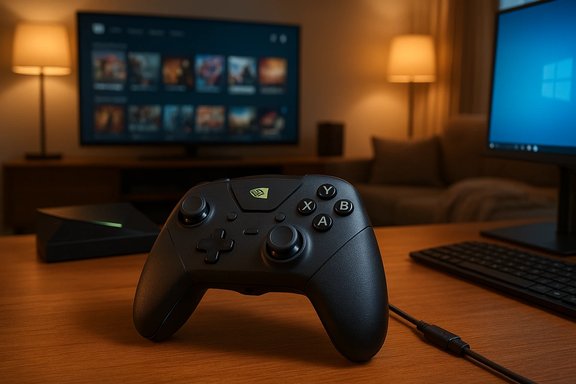 Background / Overview
The SHIELD Wireless Controller was designed as a companion accessory for NVIDIA’s SHIELD line (SHIELD TV, SHIELD Tablet and SHIELD Portable) and emphasizes TV‑centric features: a capacitive touchpad, integrated microphone for voice search, a headset jack, and a volume slider. Official documentation confirms the controller’s primary use case is SHIELD devices and that some PC functionality requires a wired connection or firmware updates applied through a SHIELD device. NVIDIA’s support pages explicitly state the controller can be used with a PC when connected by USB and note that certain wireless modes and advanced features are SHIELD‑focused. Independent reviews and retail listings echo that messaging: reviewers praise the controller’s ergonomics and battery life but point out limits in PC wireless compatibility and varied behavior across Android devices and Windows hosts. One hands‑on review summarized the experience as “Good but not Great,” calling out comfort and build quality while noting the controller’s wireless ecosystem is tightly coupled to NVIDIA hardware. This feature digs into what the SHIELD controller does well, where it falls short on Windows 10 and general PC use, how to shop for one safely (including “outlet online” tips), and practical troubleshooting and long‑term ownership considerations.What the SHIELD Controller Is — and Isn’t
Designed for SHIELD first
The SHIELD Wireless Controller’s hardware and software are optimized for NVIDIA’s SHIELD ecosystem. That means integrated capabilities such as voice search, the tactile capacitive touchpad, and certain wireless pairing workflows are intended for SHIELD TV/Tablet owners. NVIDIA’s own compatibility notes reiterate that advanced or wireless features work best when the controller is managed via an updated SHIELD device.PC compatibility: wired by default, wireless with caveats
- Wired USB operation: The most reliable way to use the controller with a Windows PC (including Windows 10) is via the included USB cable. NVIDIA documents and support pages instruct PC users to update controller firmware via a SHIELD device and then use the USB cable for PC play.
- Wireless modes: Earlier SHIELD controllers used Wi‑Fi Direct and custom pairing flows; Bluetooth support and broad Bluetooth interoperability with other Android devices or PCs were added and improved over time, but real‑world wireless PC support can still be inconsistent depending on firmware and host drivers. Retail listings and product pages list Wi‑Fi Direct connectivity as a hardware trait and note that wireless operation is optimized for SHIELD hardware.
Practical bottom line
If you primarily own or plan to own an NVIDIA SHIELD device, the SHIELD Wireless Controller is an excellent match. If your primary platform is a Windows 10 PC, treat the controller as a capable wired pad with limited wireless guarantees — you’ll likely need the cable, and some voice/haptics functions may remain unavailable.In‑Depth: Hardware, Features and Real‑World Behavior
Build quality and ergonomics
The controller is frequently praised for its ergonomics and comfortable long‑session feel. It includes:- Dual analog sticks and a standard D‑pad
- Shoulder buttons and triggers
- A capacitive touchpad and dedicated Android Home/Back buttons
- A 3.5 mm headset jack and built‑in microphone
- Rechargeable internal battery (NVIDIA lists extended play times in official specs)
Connectivity specifics
- Wi‑Fi Direct: Early SHIELD controllers used Wi‑Fi Direct for ultra‑low‑latency wireless pairing to SHIELD devices; this is still documented in official spec sheets. That wireless stack is different from a general Bluetooth gamepad connection and explains why the SHIELD controller historically didn’t pair as a standard wireless PC controller in all cases.
- Bluetooth: NVIDIA’s more recent support notes indicate Bluetooth compatibility with Android devices and basic Bluetooth gamepad profiles, but advanced features (microphone, headset passthrough, bespoke touchpad behaviors) can be limited or unavailable when used as a generic Bluetooth controller.
- USB: Wired use is plug‑and‑play on many Windows systems, provided you have the current GeForce Experience or relevant drivers installed, and any required firmware has been applied via SHIELD.
Battery and charging
The controller ships with a rechargeable battery and a micro‑USB charging cable (older models). Real‑world battery life is commonly reported as long‑lasting for media and TV use; however, wireless PC play and heavy voice/chat use will reduce run times.Controls and media features
The microphone, headphone jack, touchpad, and volume control separate this controller from strictly “game” pads; they’re tailored to living room navigation and voice search. That makes the SHIELD controller a multifunction remote/gamepad hybrid — an advantage for media‑first households, a mixed trade for PC gamers who want a dedicated gamepad experience.Windows 10: Compatibility, Limitations and Troubleshooting
What to expect on Windows 10
Windows 10 recognizes the SHIELD controller when connected by USB and in many Bluetooth cases, but certain wireless-only features remain SHIELD‑centric. NVIDIA’s support pages advise updating the controller’s firmware via an NVIDIA device first, then connecting to a PC — a workflow that’s awkward if you don’t own SHIELD hardware. The practical implications:- Firmware updates: Some firmware updates are delivered only through SHIELD devices, so full functionality on a PC may require a SHIELD device at least temporarily.
- Wireless quirks: Bluetooth pairing can be unreliable on older Bluetooth stacks or when Windows/Bluetooth drivers are out of date. Use a modern Bluetooth adapter or the wired connection for predictable behavior.
Common Windows 10 issues and fixes
The following steps reflect community and official troubleshooting condensed into a practical checklist:- Update GeForce Experience and Windows: Ensure drivers and GeForce Experience are current; some integrations depend on vendor software.
- Apply firmware via SHIELD (if possible): If firmware shows as outdated or features are missing, apply updates using a SHIELD TV/tablet before plugging into Windows.
- Use a data USB cable and a rear USB‑A port: Front panel ports and charge‑only cables can prevent detection; try a direct rear port.
- Update Bluetooth stack/drivers: If pairing over Bluetooth fails, install OEM Bluetooth drivers (Intel/Qualcomm) rather than generic Microsoft stacks.
- Prefer wired for latency‑sensitive games: Wired USB avoids Bluetooth interference and driver mismatches that lead to lag or dropped inputs.
Shopping Guide — Where to Buy and What to Watch For
Outlet online and bargain hunting
If you’re searching “Shop NVIDIA controller Windows 10 outlet online” or similar bargain phrases, here’s pragmatic buying advice for both cost savings and safety:- Verify the SKU and included cable: Retailers sometimes list ambiguous items (e.g., “includes 9’’ cable”) — confirm whether the listing means 9 inches or 9 feet and whether the cable is micro‑USB or USB‑C. Manufacturer pages and full retail descriptions often specify cable length and type.
- Buy from reputable merchants for returns and warranty: The controller is covered by a limited warranty; retailers like Best Buy or B&H often have clearer return policies and authentic new stock versus unknown “outlet” sellers.
- Watch for “open box” or refurbished offers: These can be good value, but check the condition, whether firmware updates are current, and whether the seller accepts returns. If a wireless pairing problem appears, a return or RMA is simpler with reputable sellers.
What to avoid or double‑check
- Listings claiming full Bluetooth/PC wireless parity without firmware notes: If a listing promises seamless wireless PC play, confirm the vendor’s claim against NVIDIA support info and the product page.
- Extremely low prices from unverified outlets: Counterfeit or region‑locked units occasionally show up; ensure serial numbers and seller reputations check out.
- Missing accessories: Some “core” or stripped bundles omit audio cables, carrying cases, or extra accessories — read the SKU description before purchase.
Strengths, Weaknesses, and Long‑Term Considerations
Strengths
- Comfortable ergonomics for TV and long sessions.
- Media‑friendly features (mic, headset jack, touchpad, volume control).
- Solid battery life in everyday media usage.
- Reliable wired Windows 10 operation when correctly set up and updated.
Weaknesses and risks
- Wireless PC functionality is inconsistent; expect to rely on wired USB for many Windows 10 setups unless you’ve verified Bluetooth and firmware status.
- Firmware update dependency: certain updates historically required a SHIELD device, complicating pure PC owners’ experiences.
- Confusion in retail copy: ambiguous specs and cable claims on deal pages can mislead buyers — always cross‑check OEM specs.
- Not a dedicated esports or low‑latency PC pad: For competitive Windows 10 play, devices that explicitly target PC polling and direct USB polling rates will provide lower latency. The SHIELD controller is optimized for living room play, not PC tournament rigs.
Longevity and support
NVIDIA’s SHIELD family has received long‑tail software updates; however, the SHIELD ecosystem is niche relative to mainstream PC controllers. Buyers should balance the controller’s media features against the reality that warranty/support and firmware updates remain tied to NVIDIA’s SHIELD cadence. Keep receipts and vendor return windows in mind.Verdict: Who Should Buy It?
- Buy if:
- You own or plan to own a SHIELD TV, Shield Tablet, or another NVIDIA SHIELD device and want a polished living‑room controller.
- You want a comfortable media/game hybrid with integrated voice, touchpad and headset features.
- You intend to primarily play couch/streaming titles and value the SHIELD‑oriented feature set.
- Pause if:
- Your primary platform is Windows 10 and you want wireless PC play without extra steps or a SHIELD device to apply firmware.
- You are a competitive or latency‑sensitive PC gamer who needs the tightest possible polling and wired tournament‑grade controllers.
- Alternatives to consider:
- For Windows‑first players: controllers with explicit Xbox Wireless or 1000Hz HyperPolling modes.
- For media + console parity: official console controllers (Xbox, PlayStation) that offer broad OS support and easy pairing across devices.
Final Notes and Unverified Claims
A user‑shared Born2Invest link was provided as a possible review source, but the exact URL supplied could not be retrieved in this review and could not be validated directly. Where Born2Invest content was referenced by community posts, the conclusions align with broader independent reviews: comfortable hardware with SHIELD‑centric wireless limitations. Treat that specific Born2Invest link as unverified unless you can supply a corrected URL or a direct copy of the article.Quick Practical Checklist: Buying & Setting Up on Windows 10
- Confirm the SKU and included cable type/length before purchase.
- If you don’t own a SHIELD device, plan to use wired USB for Windows 10.
- Update GeForce Experience and install OEM Bluetooth drivers if you’ll pair via Bluetooth.
- If you experience pairing or lag issues, try a different USB port, a data cable, and check firmware status; when in doubt, plug in.
The NVIDIA SHIELD Wireless Controller is a well‑executed companion for NVIDIA’s media hardware — comfortable, capable, and smart for living room play. For Windows 10 users, its strengths translate best when the controller is treated as a wired PC pad or when buyers accept the extra steps required to manage wireless firmware and pairing. Given the controller’s retail price and frequent promotions through mainstream retailers, it remains a worthwhile buy for SHIELD owners and an acceptable wired option for PC users — but it is not the seamless, wireless Windows 10 gamepad some shoppers hope for.
Source: Born2Invest https://born2invest.com/?b=style-229829812/
