

I didn’t upgrade to Windows 11 because I fell for the marketing or because I craved the rounded corners — I did it because my new OLED monitor demanded it, and because a fresh install was the clean break my aging Windows 10 setup desperately needed. The XDA contributor’s tale of finally switching for practical reasons — improved HDR handling on Windows 11, a Microsoft Store HDR calibration app unavailable on Windows 10, and the convenience of leaving behind long-running system glitches — is a useful microcosm of why many holdouts are now moving off Windows 10.
Windows 10 reached official end of support on October 14, 2025, which means Microsoft no longer issues routine security or quality updates for consumer Windows 10 SKUs. Microsoft’s guidance is clear: remaining on an unsupported OS raises the attack surface and increases exposure to newly discovered vulnerabilities, and the company recommends upgrading to Windows 11 or enrolling in a short-term Extended Security Updates (ESU) program when hardware prevents an upgrade. At the same time, display technology has moved forward: OLED panels with deep blacks, high contrast, and wide color volumes have become affordable and more common in desktop monitors. Modern HDR-capable displays can show dramatic improvements in image quality — but only when the operating system and apps cooperate. For many users who purchased OLED displays, the problem was not the hardware but Windows 10’s inconsistent HDR pipeline and the lack of a modern calibration workflow that works with external HDR monitors.
Detailed cross-platform testing from independent reviewers shows that Windows 11 and Windows 10 deliver similar gaming performance across a wide range of titles and hardware. Benchmarks from rigorous outlets (measuring dozens of games and multiple GPUs/CPUs) reveal that average frame-rate deltas tend to be within a few percent — sometimes one OS is marginally faster, sometimes the other. The notable exception in some testing is configuration and security features like Virtualization-Based Security (VBS) or certain scheduler improvements targeted at hybrid CPUs, which can affect performance in measurable ways if enabled or configured differently between installs. Key takeaways for gamers:
The XDA article’s personal arc — from resistance to pragmatism — is instructive: upgrades are rarely about the latest UI flourish. Often they’re about fixing a concrete problem you actually have today. If your problem is washed-out HDR on a new OLED monitor, Windows 11 is a functional solution, not just a fashionable one.
Source: XDA I'm finally switching to Windows 11, but not for the reason you think
 Background
Windows 10 reached official end of support on October 14, 2025, which means Microsoft no longer issues routine security or quality updates for consumer Windows 10 SKUs. Microsoft’s guidance is clear: remaining on an unsupported OS raises the attack surface and increases exposure to newly discovered vulnerabilities, and the company recommends upgrading to Windows 11 or enrolling in a short-term Extended Security Updates (ESU) program when hardware prevents an upgrade. At the same time, display technology has moved forward: OLED panels with deep blacks, high contrast, and wide color volumes have become affordable and more common in desktop monitors. Modern HDR-capable displays can show dramatic improvements in image quality — but only when the operating system and apps cooperate. For many users who purchased OLED displays, the problem was not the hardware but Windows 10’s inconsistent HDR pipeline and the lack of a modern calibration workflow that works with external HDR monitors.Overview: What the XDA post actually says
- The author resisted upgrading for years, citing a lack of compelling benefits, but the purchase of an OLED monitor changed the calculus.
- On Windows 10, HDR often produced “washed-out” desktop and game colors; Auto HDR and other HDR conveniences were far better handled on Windows 11.
- Microsoft released a dedicated Windows HDR Calibration app on the Microsoft Store that requires Windows 11, which simplified tuning an OLED display to taste.
- The upgrade also served as an opportunity to wipe an ailing Windows 10 install plagued by sporadic file corruption, disappearing restore points, and audio problems.
- Finally, the imminent end of Windows 10 security updates made the move inevitable rather than optional for long-term data security.
Windows 11 and HDR: what changed and why OLED owners notice it first
Windows HDR pipeline — the practical differences
Windows 11’s HDR experience is the product of several incremental changes Microsoft made after Windows 10 shipped. The company added features like Auto HDR (originally adapted from Xbox to PC), system-level HDR toggles and improved app handling, and later shipped an HDR calibration app tailored for modern displays. The HDR calibration tool is explicitly documented on Microsoft’s support pages as the recommended way to tune HDR on Windows 11, and Microsoft notes special handling for external displays that need app-based calibration. Why does this matter for OLED monitors? OLEDs typically have far higher per-pixel contrast and much higher peak luminance capabilities in small areas than older LCDs. That means SDR-to-HDR tone mapping and tone mapping for SDR content shown with the display in HDR mode become critical: if the OS applies an inappropriate gamma or mapping curve, ordinary SDR desktop content can look washed out or oversaturated, while HDR content may look correct. Many OLED owners reported that enabling HDR in Windows 10 led to inconsistent SDR appearance and odd color balance, whereas Windows 11’s Auto HDR and the calibration tool gave them better results out of the box. User communities and press outlets documented widespread experiences of washed-out colors and tone-mapping quirks on Windows 10 that were improved by moving to Windows 11 plus the HDR Calibration workflow.The HDR Calibration app: why it tips the scales
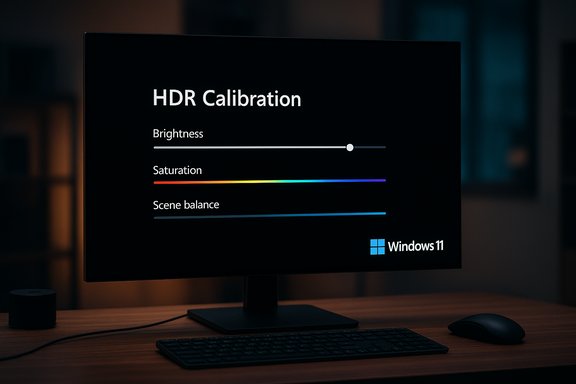
Microsoft’s “Windows HDR Calibration” app landed in the Microsoft Store as a Windows 11 experience. The app gives three practical test patterns — darkest visible detail, brightest visible detail, and maximum brightness — and exposes sliders for brightness, saturation and scene balance so users can tune displays that otherwise expose tone-mapping problems. Multiple tech outlets reported that the Store app requires Windows 11 and recent GPU drivers; community notes and troubleshooting guides confirm it’s frequently the easiest path to a usable HDR desktop for modern monitors. For many users with high-end panels (including OLED), the calibration app alone is a compelling reason to upgrade.Gaming and HDR: Auto HDR, toggles, and practical workarounds
- Auto HDR in Windows 11 can automatically boost contrast and widen the apparent dynamic range of older DX11 and newer titles that don’t ship native HDR — a boon on HDR-capable OLEDs.
- Windows 11 has added in-game HDR controls and a system-wide HDR toggle that is more forgiving than the legacy Windows 10 approach, reducing the number of times a user must manually switch settings before playing.
- That said, HDR in PC gaming remains messy: capture tools, overlay software, and drivers still interact unpredictably with HDR modes. Windows 11 has improved game-bar integration and the global Win+Alt+B HDR toggle that helps in quick testing, but corner cases persist.
System health and the “fresh install” argument
Upgrading provided the XDA author with two unexpected wins beyond HDR:- A fresh OS install repaired long-standing system instability (file corruption, disappearing restore points, Bluetooth headset microphone oddities) that persisted through years of incremental fixes.
- It removed the overhead of maintaining a second Windows 11 installation for work, consolidating a more modern and supported environment.
DirectStorage, game load times, and the “still spotty” claim
DirectStorage — Microsoft’s storage acceleration API inspired by Xbox Velocity Architecture — promised to reduce load times and streaming bottlenecks by moving asset decompression closer to the GPU and using a modern IO submission model. Early messaging from Microsoft positioned DirectStorage as a Windows 11 highlight, but the reality is nuanced:- The DirectStorage API and SDK are available for both Windows 11 and Windows 10 (version 1909 and later), and games built around the DirectStorage model can run on both platforms. However, Windows 11 benefits from an upgraded OS-level storage stack that gives it an advantage in some scenarios.
- GPU-accelerated decompression — the feature that will deliver the most dramatic streaming benefits — shipped as part of subsequent DirectStorage iterations and developer tooling; adoption by games is a separate, gradual process. The net effect for most players today is faster load times in titles that explicitly adopt DirectStorage, but not universal performance differences across the board.
Gaming performance: is Windows 11 actually faster?
Short answer: usually not by a game-changing margin.Detailed cross-platform testing from independent reviewers shows that Windows 11 and Windows 10 deliver similar gaming performance across a wide range of titles and hardware. Benchmarks from rigorous outlets (measuring dozens of games and multiple GPUs/CPUs) reveal that average frame-rate deltas tend to be within a few percent — sometimes one OS is marginally faster, sometimes the other. The notable exception in some testing is configuration and security features like Virtualization-Based Security (VBS) or certain scheduler improvements targeted at hybrid CPUs, which can affect performance in measurable ways if enabled or configured differently between installs. Key takeaways for gamers:
- Expect similar FPS in most modern games on the same hardware.
- Windows 11 can show small advantages in select titles and processor configurations (2–5% in some cases), but differences are typically not dramatic for most gamers.
- Features like Auto HDR, DirectStorage (when adopted by a game), and updated drivers are the functional benefits more likely to influence the perceived gaming experience than raw FPS headroom.
The Microsoft account friction: practical implications
The XDA author noted annoyance with Microsoft account prompts and alleged “mandatory Microsoft account” behavior. That friction has a factual basis: Microsoft tightened OOBE (out-of-box experience) rules in 2024–2025 and has been removing common non-MS-account bypasses in Insider builds and public releases. As of the last year’s changes, consumer editions of Windows 11 commonly require a Microsoft account and internet connectivity during setup for Home (and in many cases Pro) editions unless workarounds like domain join or custom unattended installs are used. Microsoft says this is to ensure devices finish OOBE fully configured, though many users see it as an erosion of local-account freedom. If you value local accounts or offline installs, plan for additional steps or be prepared to convert an account post-setup.Security calculus: Windows 10 EOL and what it means practically
The author viewed EOL as a secondary but important reason to upgrade — and that’s a reasonable risk calculus:- After October 14, 2025, Microsoft stopped issuing routine security updates for consumer Windows 10. That means emerging vulnerabilities will not be fixed by Microsoft for most Windows 10 devices, increasing long-term exposure.
- Microsoft offered a short consumer ESU option to bridge some systems for a defined period, but that is a stopgap, not a long-term strategy. Enterprises had longer ESU options, but consumer choices are constrained.
Strengths of the author’s decision — what went right
- HDR experience improved materially: for OLED owners the HDR calibration app plus Windows 11’s HDR pipeline reduces the tedious manual tinkering and often fixes the washed-out desktop/gaming impressions users saw on Windows 10.
- A fresh install can heal ailing systems: many users benefit from a clean slate when chronic, low-level errors persist.
- Security posture improved: upgrading returns the desktop to a supported platform that will receive security patches and ongoing quality updates.
Risks, trade-offs, and why some users still resist
- Mandatory Microsoft account during OOBE: for privacy-minded users or those wanting local accounts, the tighter setup flow is a real annoyance and may require additional workarounds.
- UX and telemetry trade-offs: Windows 11 emphasizes new features and ecosystem integration (Copilot, Microsoft Store tie-ins), which some power users view as nudges toward subscription services and deeper cloud integration. Expect more bundled features and occasional promotional content unless adjusted in settings.
- HDR is better but not perfect: HDR on PC remains a contentious ecosystem — capture tools, overlays, and app support are not uniformly reliable, so some HDR oddities will persist even on Windows 11. Users should still expect occasional HDR-related quirks.
- Driver and app compatibility: while most mainstream hardware and major drivers support Windows 11 well, niche or older hardware may require driver updates; bring patience if you rely on legacy devices.
Practical upgrade checklist for OLED / HDR owners and cautious upgraders
- Backup everything: full image backup plus exported settings and application lists.
- Verify hardware compatibility: check TPM, Secure Boot, and minimum Windows 11 requirements if you plan to use the direct upgrade route.
- Update firmware and GPU drivers before the upgrade: newer drivers improve HDR handling and reduce driver-level quirks.
- If keeping HDR always on, prepare a plan:
- Use the Windows HDR Calibration app on Windows 11 to generate a tailored profile.
- Identify apps that misbehave in HDR and consider per-app toggles or using the Win+Alt+B shortcut for quick switching.
- Expect to sign in with a Microsoft account during OOBE on most consumer SKUs or plan an unattended install method if you require a local account.
- After install, double-check power settings and anti-burn-in precautions for OLED panels (screensavers, auto-dimming, and black wallpapers for static elements like taskbar icons).
Verdict and final analysis
The XDA author’s decision to switch to Windows 11 because of an OLED purchase and the promise of better HDR is a concrete, defensible rationale that many hardware-forward users will recognize. Windows 11’s HDR calibration app and ongoing HDR improvements materially improve the experience on modern displays, and for owners of OLED monitors that sensitivity to tone mapping and color fidelity makes the OS-level improvements meaningful rather than cosmetic. At the same time, the upgrade is not purely a visual or convenience win. It also allowed the author to resolve long-standing system glitches via a fresh install and eliminated the growing security risk of remaining on an unsupported Windows 10 install. Those are pragmatic, long-term considerations that go beyond aesthetics and land firmly in the reliability and security columns. That said, readers should weigh trade-offs: mandatory account sign-ins and tighter OOBE controls, continued HDR capture/overlay edge cases, and only marginal raw gaming-FPS differences between Windows 10 and Windows 11 on equivalent hardware. Independent benchmarking shows performance deltas are small and heavily dependent on configuration and enabled security features; for many gamers, the perceived wins are feature-driven (Auto HDR, DirectStorage-enabled load-time improvements) rather than big FPS jumps.Bottom line for WindowsForum readers
- If you bought an OLED display or otherwise care deeply about HDR fidelity, Windows 11 offers a better, more practical HDR toolset — and the Microsoft Store HDR Calibration app alone is frequently worth the upgrade for display enthusiasts.
- If your Windows 10 installation is showing chronic, unexplained problems and you have the patience for a full rebuild, upgrading to Windows 11 during a fresh install is a sensible way to solve both stability and support-life problems in one operation.
- If you’re primarily worried about raw framerate in games and run stable hardware with recent drivers, the performance differences between Windows 10 and 11 are generally modest; consider the upgrade for feature parity and security rather than FPS alone.
The XDA article’s personal arc — from resistance to pragmatism — is instructive: upgrades are rarely about the latest UI flourish. Often they’re about fixing a concrete problem you actually have today. If your problem is washed-out HDR on a new OLED monitor, Windows 11 is a functional solution, not just a fashionable one.
Source: XDA I'm finally switching to Windows 11, but not for the reason you think
