

OmniVoice Studio has evolved quickly from a promising local voice-cloning experiment into a broad desktop suite for text-to-speech, transcription, video dubbing, dictation, and audiobook production. The appeal is straightforward: instead of uploading recordings and scripts to a cloud service, the application runs its core AI workloads on the user’s own PC. For Windows users with an NVIDIA GPU—or simply the patience to run models on a CPU—that local-first approach offers a compelling alternative to metered, account-based voice platforms.
The important caveat is that OmniVoice Studio remains active beta software. That matters because installation guidance, engine support, hardware compatibility, licensing, and release versions have all changed rapidly. The earlier walkthrough describing version
For Windows enthusiasts interested in self-hosted AI, OmniVoice Studio is worth understanding—but it should be approached as a capable, fast-moving open-source project rather than a polished drop-in replacement for every commercial voice service.
At its core, OmniVoice Studio is a native desktop application designed to perform voice AI tasks locally. Its headline features include:
However, local-first does not mean every optional workflow is automatically offline. A user can configure remote-compatible transcription services, use online video URLs, install packages from the internet, or download gated models from Hugging Face. The local privacy model is strongest when users deliberately choose local engines, inspect their settings, and avoid routing media to third-party services.
This is more significant than it first appears. Tauri allows the application to behave like a conventional Windows program while still exposing local services for automation. Instead of treating the app as a sealed interface, OmniVoice Studio can act as a workstation for both manual creative work and repeatable production pipelines.
A basic text-to-speech task may feel lightweight after initial setup. A fully automated dubbing job, by contrast, can involve downloading or reading a video, extracting audio, isolating voices, transcribing speech, identifying speakers, translating text, generating new dialogue, synchronizing timing, and producing a final media file. That is an ambitious local workflow by desktop-app standards.
The current software presents a broader set of choices than the original six-engine overview suggested. Depending on platform support and installed components, the app can expose engines such as:
The practical takeaway is simple: choose the engine for the job rather than assuming the default model is always best.
Windows systems with an NVIDIA RTX GPU remain the clearest performance path. A GPU with 8 GB or more of VRAM is a sensible target for dependable local voice AI work, while 16 GB of system RAM should be considered a practical baseline rather than a luxury.
An SSD is strongly recommended. Model downloads, virtual environments, cache files, audio exports, waveform analysis, transcription artifacts, and video renders all benefit from fast random storage performance.
AMD users should be especially careful with assumptions. AMD ROCm support is generally associated with Linux environments, not a universal Windows acceleration path. On Windows, an AMD or Ryzen AI machine may still run the application, but the main local backend can fall back to CPU processing for engines that do not support that hardware stack.
Intel GPU acceleration should similarly be treated as feature-specific rather than guaranteed. The safest assumption is that CPU operation works broadly, while GPU acceleration depends on the selected engine and the available backend support.
Source installation remains valuable for users who need the newest fixes, want to contribute, or need to inspect and modify the code. But it introduces more moving parts:
A successful initial test matters more than maximum feature coverage. Generate a short clip, verify playback and export, then expand into cloning, transcription, voice design, and media work.
The workflow is conceptually simple:
That is particularly relevant for low-resource languages. OmniVoice’s broad coverage is a major achievement, but broad coverage should be understood as availability—not an unconditional promise of studio-grade results in every language and dialect.
Users should only clone:
A typical job may include:
Common challenges include:
OmniVoice Studio’s newer workflow features—such as glossary-oriented handling, take management, duration awareness, and sentence-level regeneration—matter because they acknowledge a basic production truth: the first generated result is not always the final result.
That makes OmniVoice Studio relevant beyond voice creators. It can support:
That flexibility is excellent, but it complicates troubleshooting. If dictation feels slow or inaccurate, the solution may not be “buy a better GPU.” It could be:
The application also supports Model Context Protocol integration. In practical terms, that can let compatible AI clients and coding tools request local speech generation or create dubbing jobs through structured tool calls.
This creates interesting opportunities:
A service intended for local desktop automation should not be casually opened to a home network or the public internet.
The application is published under AGPL-3.0, while the bundled upstream OmniVoice text-to-speech model has its own licensing terms. AGPL is a genuine open-source license, and it permits commercial use. But it carries a strong copyleft requirement: organizations that modify the software and provide it as a network service generally must make the corresponding modified source code available under the same license.
That distinction matters for businesses.
Using OmniVoice Studio to create audio for a commercial video, audiobook, course, or client project is a different question from embedding a modified version into a closed-source SaaS platform. The latter can create obligations that an internal content workflow does not.
Before deploying OmniVoice Studio inside a product, service, or commercial platform, organizations should review:
Its advantages are clear:
The best way to approach it is not as a magical replacement for professional localization, cloud reliability, or human voice talent. It is better understood as a powerful local production environment—one that rewards good hardware, clean input audio, careful engine selection, responsible consent practices, and a willingness to work through the occasional rough edge of fast-moving open-source software.
The important caveat is that OmniVoice Studio remains active beta software. That matters because installation guidance, engine support, hardware compatibility, licensing, and release versions have all changed rapidly. The earlier walkthrough describing version
v0.2.7, six TTS engines, and broad AMD GPU support is no longer a reliable snapshot of the project. The current application has expanded substantially, including more synthesis and speech-recognition backends, a local API surface, diagnostics, audiobook-oriented tools, and a different licensing position.For Windows enthusiasts interested in self-hosted AI, OmniVoice Studio is worth understanding—but it should be approached as a capable, fast-moving open-source project rather than a polished drop-in replacement for every commercial voice service.
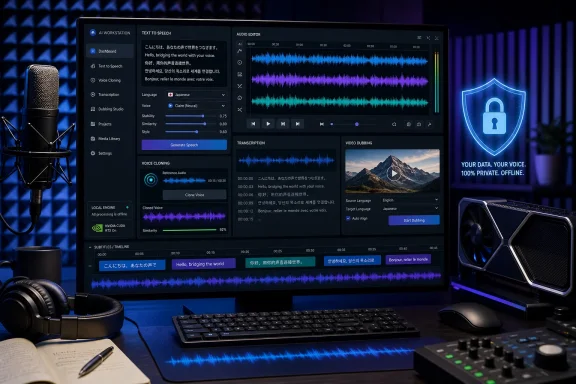 Overview: What OmniVoice Studio Does
At its core, OmniVoice Studio is a native desktop application designed to perform voice AI tasks locally. Its headline features include:- Zero-shot voice cloning from a short reference recording
- Text-to-speech generation across hundreds of supported languages
- Voice design based on attributes such as accent, age, pitch, emotion, and speaking style
- Video dubbing with transcription, translation, speaker handling, synthesis, and remuxing
- Real-time dictation with a global keyboard shortcut
- Vocal isolation for separating speech from music or background audio
- Speaker diarization for identifying different people in multi-speaker media
- Audiobook and story workflows, including multi-voice projects
- Local REST API and MCP integration for automation and AI-tool workflows
- Batch processing for repeated generation and dubbing tasks
However, local-first does not mean every optional workflow is automatically offline. A user can configure remote-compatible transcription services, use online video URLs, install packages from the internet, or download gated models from Hugging Face. The local privacy model is strongest when users deliberately choose local engines, inspect their settings, and avoid routing media to third-party services.
The Technology Behind the Desktop App
OmniVoice Studio uses a hybrid architecture that combines a modern desktop shell with a local Python AI backend. The graphical interface is built around Tauri, which uses Rust for the native application layer and a web-based frontend for the UI. The speech and media workloads run through a bundled local backend based on Python and FastAPI.This is more significant than it first appears. Tauri allows the application to behave like a conventional Windows program while still exposing local services for automation. Instead of treating the app as a sealed interface, OmniVoice Studio can act as a workstation for both manual creative work and repeatable production pipelines.
Major Components
Several established open-source projects power different stages of the workflow:- OmniVoice supplies the main zero-shot multilingual speech synthesis capability.
- WhisperX supports transcription, word-level alignment, and subtitle-oriented timing.
- Demucs handles source separation, including vocal isolation.
- Pyannote enables speaker diarization in recordings with multiple speakers.
- CTranslate2 is used to optimize some inference tasks across CPU and GPU hardware.
- AudioSeal can provide AI-audio provenance watermarking.
- SQLite stores local application data such as settings, history, projects, and voice assets.
A basic text-to-speech task may feel lightweight after initial setup. A fully automated dubbing job, by contrast, can involve downloading or reading a video, extracting audio, isolating voices, transcribing speech, identifying speakers, translating text, generating new dialogue, synchronizing timing, and producing a final media file. That is an ambitious local workflow by desktop-app standards.
The Most Important Change: This Is Not a Static Project
OmniVoice Studio’s early releases focused on a smaller number of synthesis engines and foundational capabilities. The project has since added a much wider engine selection, additional transcription options, improved diagnostics, and more content-production features.The current software presents a broader set of choices than the original six-engine overview suggested. Depending on platform support and installed components, the app can expose engines such as:
- OmniVoice
- CosyVoice 3
- GPT-SoVITS
- VoxCPM2
- MOSS-TTS-Nano
- KittenTTS
- MLX-Audio
- Sherpa-ONNX
- IndexTTS 2
- OmniVoice GGUF
- Supertonic 3
- MOSS-TTS-v1.5
- dots.tts
- Confucius4-TTS
The practical takeaway is simple: choose the engine for the job rather than assuming the default model is always best.
A Sensible Engine Strategy for Windows
For most Windows users, the initial path should be conservative:- Start with the default OmniVoice engine.
- Use a short, clean reference clip for voice-cloning tests.
- Confirm that audio generation works before installing multiple optional engines.
- Add an alternate engine only when it solves a specific problem.
- Monitor GPU memory and system RAM as more models are installed.
Windows systems with an NVIDIA RTX GPU remain the clearest performance path. A GPU with 8 GB or more of VRAM is a sensible target for dependable local voice AI work, while 16 GB of system RAM should be considered a practical baseline rather than a luxury.
Windows Requirements and Compatibility Reality
The application can run on Windows 10 and Windows 11, but the phrase “runs on Windows” needs context. AI applications are sensitive to driver versions, GPU support, Python dependencies, runtime libraries, model formats, and storage availability.Recommended Windows Hardware
For a smooth experience, a Windows desktop or laptop should ideally have:| Component | Practical Baseline | Better Experience |
|---|---|---|
| Operating system | Windows 10 or Windows 11, 64-bit | Fully updated Windows 11 |
| System memory | 8 GB RAM | 16 GB or more |
| Storage | 10 GB free | 20 GB or more on an SSD |
| GPU | Optional | NVIDIA RTX-class GPU |
| VRAM | 4 GB minimum for limited acceleration | 8 GB or more |
| CPU | Modern 64-bit processor | Recent 6-core or higher CPU |
| Python | Managed during setup where applicable | Current supported Python toolchain |
| Media tools | FFmpeg required for many workflows | FFmpeg installed and available in PATH |
NVIDIA, AMD, and Intel Considerations
NVIDIA systems receive the broadest acceleration support because many of the underlying AI tools target CUDA. That does not make other platforms unusable, but it does make NVIDIA the least complicated path for high-throughput speech generation and transcription.AMD users should be especially careful with assumptions. AMD ROCm support is generally associated with Linux environments, not a universal Windows acceleration path. On Windows, an AMD or Ryzen AI machine may still run the application, but the main local backend can fall back to CPU processing for engines that do not support that hardware stack.
Intel GPU acceleration should similarly be treated as feature-specific rather than guaranteed. The safest assumption is that CPU operation works broadly, while GPU acceleration depends on the selected engine and the available backend support.
Intel Macs Are Not the Same as Apple Silicon
Although this is primarily relevant to cross-platform users, it is worth correcting a common misconception. Current local backend support is not equivalent across all Macs. Apple Silicon Macs have access to Metal- and MLX-oriented workflows, while older Intel Macs are not a dependable target for the full local backend. Windows users should not assume that a generic “macOS support” statement means hardware parity with their own systems.Installation: Prefer the Simplest Supported Path First
The project provides Windows installers and a source-based development route. For most users, the Windows MSI installer is the reasonable starting point. It offers the lowest-friction way to determine whether the application launches, detects the GPU, and can complete a basic voice generation task.Source installation remains valuable for users who need the newest fixes, want to contribute, or need to inspect and modify the code. But it introduces more moving parts:
- Bun and frontend dependencies
- Python environment management
- Native build tools
- FFmpeg
- Rust and Tauri components
- PyTorch-compatible packages
- Model downloads
- Environment variables for troubleshooting
A Safer First-Run Checklist
Before launching the app for the first time:- Update GPU drivers, especially on NVIDIA hardware.
- Confirm that Windows has adequate free disk space.
- Install or verify FFmpeg if the installer does not bundle it.
- Keep the PC connected to a stable network for initial model downloads.
- Start with a short English text-to-speech task before attempting video dubbing.
- Check the app’s diagnostics or self-check tool if the backend fails to start.
- Avoid installing every optional model immediately.
A successful initial test matters more than maximum feature coverage. Generate a short clip, verify playback and export, then expand into cloning, transcription, voice design, and media work.
Voice Cloning: Powerful, Convenient, and Easy to Misuse
Voice cloning is the feature most likely to attract new users. OmniVoice Studio’s workflow is based on zero-shot synthesis: instead of fine-tuning a model for a particular person over hours or days, the system uses a short audio reference to condition generation at inference time.The workflow is conceptually simple:
- Open the voice generation or cloning workspace.
- Record or import a brief reference clip.
- Select the target language.
- Enter the desired script.
- Generate, preview, and export the result.
Building a Better Reference Clip
For stronger output:- Use a quiet room.
- Avoid music, sound effects, and overlapping voices.
- Capture normal conversational speech.
- Use a clear microphone where possible.
- Avoid extreme compression from phone calls or social-media reuploads.
- Try several clips if consonants, rhythm, or accent reproduction sound wrong.
- Use vocal isolation before cloning if only noisy source material is available.
That is particularly relevant for low-resource languages. OmniVoice’s broad coverage is a major achievement, but broad coverage should be understood as availability—not an unconditional promise of studio-grade results in every language and dialect.
Consent Is Not Optional
The technical ability to clone a voice does not create a right to use it.Users should only clone:
- Their own voice
- A voice for which they have explicit permission
- Licensed recordings that clearly permit synthetic reuse
- Fictional or deliberately designed voices
- Internal voices covered by a documented organizational agreement
Video Dubbing and Local Media Pipelines
The dubbing workflow is arguably OmniVoice Studio’s most ambitious feature. It attempts to turn a source video into a locally dubbed version through a chain of AI and media-processing stages.A typical job may include:
- Importing a local video file or downloading an online source
- Extracting the audio track
- Isolating dialogue from music and effects
- Transcribing speech
- Aligning words and subtitles
- Identifying speakers
- Translating dialogue
- Generating target-language speech
- Matching dialogue to timeline constraints
- Combining the new voice track with the video
- Exporting the final MP4 and related assets
Where Dubbing Still Gets Difficult
Despite the appeal, automatic dubbing is not a one-click substitute for professional localization.Common challenges include:
- Names, acronyms, dates, and technical terminology
- Idioms and culture-specific phrasing
- Speaker overlap and interruptions
- Rapid dialogue
- Music-heavy clips
- On-screen text that remains untranslated
- Lip-sync expectations
- Differences in sentence length between languages
- Emotional delivery and comedic timing
OmniVoice Studio’s newer workflow features—such as glossary-oriented handling, take management, duration awareness, and sentence-level regeneration—matter because they acknowledge a basic production truth: the first generated result is not always the final result.
Dictation and Transcription on Windows
The system-wide dictation widget is one of the most practical parts of the application. Instead of opening a transcription window, speaking, copying text, and pasting it elsewhere, the user can trigger recording with a global hotkey and have recognized speech inserted into the previously focused application.That makes OmniVoice Studio relevant beyond voice creators. It can support:
- Drafting emails
- Writing notes
- Entering text into browsers
- Recording code comments
- Creating rough document drafts
- Capturing ideas without changing windows
- Accessibility-oriented input workflows
Recognition Engines Matter
OmniVoice Studio now supports more than one speech-recognition backend. WhisperX remains central for subtitle-grade timing and broad multilingual transcription, but other engines can prioritize speed, low-latency dictation, CPU efficiency, or specific language coverage.That flexibility is excellent, but it complicates troubleshooting. If dictation feels slow or inaccurate, the solution may not be “buy a better GPU.” It could be:
- Selecting a more appropriate ASR model
- Using a smaller model for live dictation
- Choosing a language-specific engine
- Fixing microphone input levels
- Reducing background noise
- Verifying that the app is not silently using CPU mode
- Updating audio drivers or permissions
API, MCP, and Automation Potential
OmniVoice Studio is not limited to its graphical interface. Its local backend exposes a substantial API surface, making it appealing to developers who want to integrate text-to-speech, transcription, and media processing into a local automation stack.The application also supports Model Context Protocol integration. In practical terms, that can let compatible AI clients and coding tools request local speech generation or create dubbing jobs through structured tool calls.
This creates interesting opportunities:
- Generate narration from a documentation pipeline
- Turn release notes into local audio summaries
- Build accessibility features into internal applications
- Automate podcast intro generation
- Create multilingual internal training videos
- Add speech output to local AI assistants
- Connect content workflows to an on-premises media pipeline
A service intended for local desktop automation should not be casually opened to a home network or the public internet.
Licensing Requires a Careful Reading
One of the biggest corrections to older OmniVoice Studio descriptions concerns licensing. The project is not simply “free for personal use” in the narrow sense often associated with source-available consumer software.The application is published under AGPL-3.0, while the bundled upstream OmniVoice text-to-speech model has its own licensing terms. AGPL is a genuine open-source license, and it permits commercial use. But it carries a strong copyleft requirement: organizations that modify the software and provide it as a network service generally must make the corresponding modified source code available under the same license.
That distinction matters for businesses.
Using OmniVoice Studio to create audio for a commercial video, audiobook, course, or client project is a different question from embedding a modified version into a closed-source SaaS platform. The latter can create obligations that an internal content workflow does not.
Before deploying OmniVoice Studio inside a product, service, or commercial platform, organizations should review:
- The application’s current license
- The license of each optional TTS engine
- Model-specific terms
- Third-party package requirements
- Audio data rights
- Voice-actor agreements
- Their own distribution model
Strengths, Risks, and the Bottom Line
OmniVoice Studio’s strongest quality is its ambition. It combines local voice cloning, multilingual synthesis, transcription, vocal isolation, dictation, dubbing, automation, and project management in a form that Windows users can run on their own hardware.Its advantages are clear:
- No mandatory cloud account
- No per-character meter for local generation
- Strong privacy potential
- A remarkably broad multilingual TTS foundation
- Support for multiple engines and workflows
- Windows installer availability
- Developer-friendly local API options
- A growing feature set for audio and video creators
- Beta-stage instability
- Rapidly changing documentation and release behavior
- High storage, RAM, and VRAM demands for advanced features
- Inconsistent quality across languages and engines
- Potential Windows dependency and driver issues
- Complex licensing across the application and models
- Significant ethical and legal risks around unauthorized voice cloning
- A real need for human review in professional dubbing
The best way to approach it is not as a magical replacement for professional localization, cloud reliability, or human voice talent. It is better understood as a powerful local production environment—one that rewards good hardware, clean input audio, careful engine selection, responsible consent practices, and a willingness to work through the occasional rough edge of fast-moving open-source software.
References
- Primary source: KDnuggets
Published: 2026-07-23T14:20:09.133845
Loading…
www.kdnuggets.com - Official source: github.com
Loading…
github.com - Related coverage: github.leishennb.icu
Loading…
github.leishennb.icu - Related coverage: opensourceprojects.dev
Loading…
www.opensourceprojects.dev - Related coverage: newreleases.io
Loading…
newreleases.io - Related coverage: huggingface.co
Loading…
huggingface.co