

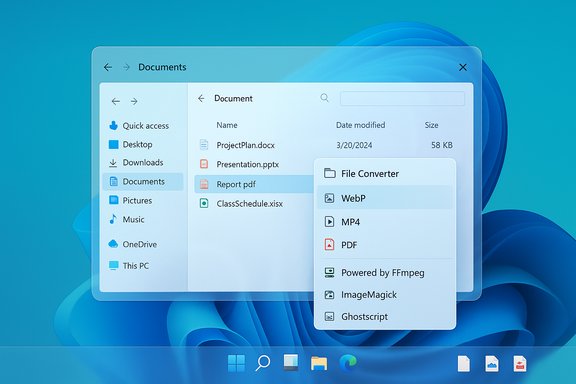
I added a convert button to my Windows 11 right‑click menu and the moment it arrived my workflow stopped feeling like a scavenger hunt and started feeling like a proper desktop again — a single right‑click now handles conversions, compression, resizing and simple edits without launching a dozen apps.
File conversion is one of those low‑glamour tasks that quietly eats time. Whether preparing images for the web, transcode footage for an article, or producing a PDF from a document, the typical method is "open an app, wait, export, close app" — repeated dozens of times a week for some creators and IT pros. File Converter is built to collapse that routine into a single action: right‑click a file (or many files), pick a preset, and let the tool do the rest. File Converter is an open‑source project with a simple goal: attach conversion and compression commands to Explorer’s context menu so you don’t have to leave File Explorer to process files. The project’s GitHub repository lists the app’s architecture and the open backends it uses — FFmpeg for media, ImageMagick for images, and Ghostscript for PDFs — which explains the broad format coverage and fidelity of conversions.
Source: MakeUseOf I added a convert button to Windows 11's context menu and my life is so much better now
 Background: why a context‑menu converter matters
File conversion is one of those low‑glamour tasks that quietly eats time. Whether preparing images for the web, transcode footage for an article, or producing a PDF from a document, the typical method is "open an app, wait, export, close app" — repeated dozens of times a week for some creators and IT pros. File Converter is built to collapse that routine into a single action: right‑click a file (or many files), pick a preset, and let the tool do the rest. File Converter is an open‑source project with a simple goal: attach conversion and compression commands to Explorer’s context menu so you don’t have to leave File Explorer to process files. The project’s GitHub repository lists the app’s architecture and the open backends it uses — FFmpeg for media, ImageMagick for images, and Ghostscript for PDFs — which explains the broad format coverage and fidelity of conversions. Overview: what File Converter actually does
- Adds a File Converter entry to File Explorer’s context menu so conversions are one right‑click away.
- Supports audio, video, image, and many document formats via preset output formats and batch operations.
- Offers additional quick actions from the same menu: compress, resize, rotate, and extract audio from video.
- Runs locally, using well‑known OSS libraries (FFmpeg, ImageMagick, Ghostscript), so conversions happen offline and without sending data to third parties.
How it integrates with Windows Explorer
One right‑click — the UI model
File Converter’s UX model is intentionally minimalist: right‑click a supported file, choose File Converter, then pick a preset. Conversion begins immediately; the output appears next to the source file with the same base name and the new extension. Bulk selection works the same way — select a group of files and choose a preset to transcode them together. The result is fast, low‑friction conversion for common tasks.Presets, presets, presets
The app ships with numerous conversion presets and a Settings area where you can:- Edit or create presets for specific formats or quality levels.
- Define renaming rules and whether the original file is deleted after conversion.
- Configure per‑format actions like automatic rotation, scaling, and clipboard copy.
Why this is useful — a practical case study
For writers, reviewers, and media producers the day‑to‑day advantages are obvious:- Convert screenshots to WebP for faster page loads without opening an editor.
- Turn long .MOV camera files into MP4s while preserving bitrate/codec choices via FFmpeg presets.
- Compress images before uploading to CMS, saving bandwidth and storage space.
- Batch‑convert audio stems into MP3 for review copies.
The technical backbone (what’s under the hood)
File Converter does not implement codecs itself; it orchestrates battle‑tested conversion engines:- FFmpeg: media decoding/encoding and audio/video transformations.
- ImageMagick (via a C# wrapper): image conversions, scaling and filters.
- Ghostscript: PDF rendering and PDF to image conversion.
- SharpShell is used to implement Explorer shell integration.
Installation and safety — what to watch out for
- Download only from trusted sources: the project’s GitHub repo and the official site are primary distribution points. The GitHub project and its README identify file‑converter.io as the canonical landing page.
- Beware fake sites and copycats: there have been community reports and discussion threads warning that an impersonating domain (for‑profit or otherwise) has posed as the File Converter project — avoid third‑party “converters” that try to wrap the open‑source product in trialware or paywalls. If in doubt, get the installer from the GitHub Releases page or verify the publisher.
- Explorer shell extension risk: any program that injects into Explorer increases the attack surface and can cause stability issues if installed improperly. Prefer official, signed releases and scan installers before running them. If you’re security‑conscious, compile from source and inspect the build.
- Office document conversions: converting Office formats reliably may require Microsoft Office to be installed and activated on the machine because some conversions rely on Office’s native converters for fidelity. The official product documentation makes this caveat explicit.
Real‑world caveats and limitations
- Not a replacement for heavy batch pipelines: For large‑scale media workflows, dedicated transcoding stacks and job queue systems are still better. File Converter is optimized for convenience, not high‑performance server‑grade processing.
- Proprietary/document fidelity: Complex Office documents that depend on fonts, macros, or advanced layouts may not survive perfect fidelity unless MS Office is present; test a sample before committing.
- Platform quirks (Windows 11): On Windows 11 the app is accessible via the compact context menu’s Show more options or by holding Shift while right‑clicking. If you prefer the classic menu permanently, community registry tweaks and third‑party shell tools exist — but editing the registry has risk and must be done with adequate backups.
- Security and provenance: Because a malicious actor could ship a modified installer under a similar name, verify digital signatures and download origins. Community threads have flagged suspicious third‑party sites posing as the project.
Security checklist before you install
- Verify the checksum or signature of the installer when available.
- Prefer the GitHub Releases page or the project’s verified domain.
- Create a System Restore point before installing shell‑level utilities.
- Run the installer in a controlled account (non‑admin) when possible, then elevate only if required.
- If you maintain multiple machines, test on one machine or a VM to ensure compatibility.
Troubleshooting common issues
Context menu doesn’t appear
- Confirm you installed the Explorer integration (some installers give a choice to add shell extension).
- On Windows 11, use Show more options or hold Shift and right‑click. Restoring the classic context menu is possible with a registry tweak but proceed with caution and back up the registry first.
Conversions fail or are inaccurate
- Ensure required backends (FFmpeg, ImageMagick, Ghostscript) are present or available to the app — official installers bundle or reference these dependencies.
- For Office documents, confirm MS Office is installed and activated.
Antivirus flags or blocks
- Shell extensions and apps that call FFmpeg can trigger heuristics. Validate the installer, and if you built from source consider using the compiled binary you produced. Report false positives to your AV vendor if you’re confident about the installer provenance.
Privacy and offline operation: a major plus
One of File Converter’s standout advantages is that it runs conversions locally. For sensitive files — legal documents, private photos, or business recordings — avoiding third‑party upload is a clear privacy win compared to web converters. The app’s reliance on local open‑source backends means data leaves your device only if you explicitly transfer it elsewhere. This offline model is increasingly important for privacy‑first workflows.Comparing File Converter to alternatives
File Converter wins on convenience and low friction: the right‑click integration is its defining feature. But other tools have complementary strengths:- Command‑line FFmpeg/ImageMagick: maximum control, scriptable, ideal for complex automations.
- HandBrake / HandBrakeCLI: purpose‑built for video transcoding with advanced preset management for batch jobs.
- Dedicated image processors (XnConvert, Photoshop, Affinity) provide GUI control for nuanced image edits.
- Online services (Zamzar and similar) offer cross‑platform accessibility but require trusting an external provider and often have limits or paywalls. Community discussion has called out impersonating sites that repackage the open project with paywalls — another reason to prefer the OSS releases.
Advanced usage and workflows
- Create a custom preset for your most frequent conversion (e.g., 1080p H.264, 4 Mbps, AAC audio).
- Set the preset to automatically delete the original file if you’re comfortable with that behavior.
- Use batch selection to convert a folder of files in one right‑click pass.
- For repetitive multi‑step processes, consider a small script that renames and moves completed files, or integrate File Converter output into an automation pipeline with PowerShell or AutoHotkey.
Strengths — what File Converter gets absolutely right
- Speed of interaction: removing the app launch step saves small amounts of time that compound into real productivity gains.
- Format breadth: thanks to FFmpeg/ImageMagick/Ghostscript, it handles a very wide range of inputs and outputs that match most users’ needs.
- Offline operation: better privacy and no upload limits.
- Customizable presets: make once, use forever — ideal for repetitive work.
- Open source: source code review, community contributions and the ability to build your own binary if you’re concerned about trust.
Risks and potential downsides
- Installer provenance and impersonation: community warnings show malicious or commercial sites sometimes impersonate the open project — always verify the download source.
- Shell injection stability: Explorer extensions can cause Explorer instability if a third‑party tool misbehaves or conflicts with other shell extensions. Test before mass deployment.
- Document fidelity caveats: Office conversions may require MS Office; some complex documents may not translate perfectly without native Office APIs.
- Not a high‑performance server tool: for heavy batch workloads, this tool is convenient but not optimized for distributed or GPU‑accelerated server pipelines.
Recommendation: who should install it
- Install if you are a content creator, technical writer, journalist, or power user who frequently converts individual files or occasional batches and values speed over micro‑managed control.
- Consider building from source or testing first if you manage sensitive enterprise machines, because Explorer shell hooks can create broader attack or stability surfaces.
- Avoid trusting unknown third‑party “wrappers” or sites that rebrand the open project and impose paywalls; use the GitHub releases or the project’s verified domain.
Final verdict
Adding a convert button to the Windows 11 context menu transforms a repetitive, multistep chore into a single, frictionless interaction. File Converter’s open‑source design, offline operation and use of established conversion engines make it an elegant, low‑cost productivity boost. The main risks are procedural and provenance‑related: install carefully, validate downloads, and test conversions for critical documents. For anyone who regularly juggles images, audio, video, and documents, the right‑click convert workflow is a surprisingly large improvement in day‑to‑day efficiency. If your conversion needs are occasional and privacy matters, File Converter is a pragmatic, sensible tool. For enterprise rollouts or heavy media pipelines, treat it as a convenient desktop utility rather than a replacement for purpose‑built server solutions.Source: MakeUseOf I added a convert button to Windows 11's context menu and my life is so much better now
