

The Windows right‑click menu is one of those small, ever‑present UI elements that quietly determines how much friction you feel every time you move a file, open an app, or share a screenshot — and with a few well‑chosen additions it can shave minutes (and hours) off your weekly workflow. A recent MakeUseOf primer cataloged six practical context‑menu shortcuts — from launching favorite apps and pinned folders to resizing images, batch renaming, and one‑click file conversion — and the payoff is immediate for anyone who spends time inside File Explorer every day.
This feature piece unpacks those six right‑click shortcuts, verifies the technical claims, cross‑references independent sources, explains how to implement them safely, and flags the security, compatibility, and maintainability trade‑offs you need to know before you start editing menus or installing third‑party shell extensions. It’s written as a practical guide for Windows users who want fast wins with minimal fuss, and it includes setup tips and alternatives so you can tailor the approach to your needs.
The modern Windows desktop is optimized for keyboard power users, but the context menu remains the fastest, most discoverable place to attach targeted one‑off actions to files and folders. Right‑click actions cut out multi‑step flows (open app → import → export → save) and replace them with a single contextual operation where it’s most logical: on the file or folder itself.
Recommended rollout checklist:
The right‑click menu is a deceptively powerful interface for removing friction from everyday tasks. Small, deliberate changes — a Send To folder for work files, PowerToys’ Image Resizer for quick photo edits, a trusted file converter for fast format swaps, and Phone Link for cross‑device sharing — compound into measurable time savings. Implement them carefully, watch for compatibility with your Windows build, and prefer well‑maintained tools to preserve stability; the time reclaimed will be worth the initial setup.
Source: MakeUseOf These 6 Windows right-click shortcuts save me hours every week
This feature piece unpacks those six right‑click shortcuts, verifies the technical claims, cross‑references independent sources, explains how to implement them safely, and flags the security, compatibility, and maintainability trade‑offs you need to know before you start editing menus or installing third‑party shell extensions. It’s written as a practical guide for Windows users who want fast wins with minimal fuss, and it includes setup tips and alternatives so you can tailor the approach to your needs.
 Background: Why the context menu matters now
The modern Windows desktop is optimized for keyboard power users, but the context menu remains the fastest, most discoverable place to attach targeted one‑off actions to files and folders. Right‑click actions cut out multi‑step flows (open app → import → export → save) and replace them with a single contextual operation where it’s most logical: on the file or folder itself.- The context menu is usable everywhere — desktop, File Explorer, and many app lists — which makes added entries immediately accessible.
- Microsoft and third‑party tools have increasingly embraced shell extensions and Explorer add‑ons (PowerToys, Image Resizer, PowerRename) to provide context‑menu integration. These extensions are intended to integrate directly into File Explorer for faster execution.
Overview of the six high‑value right‑click shortcuts
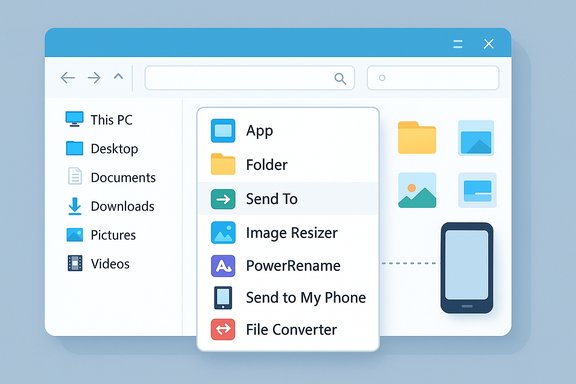
The MakeUseOf list boils down to six practical additions that save repeated friction:- Shortcuts to frequently used apps, folders, and websites (via context menu extensions).
- Quick access to pinned folders and recent files by right‑clicking a taskbar icon (built‑in Windows behavior).
- A customized Send To entry for fast file movement to a work folder (Send To menu tweak).
- Image Resizer and PowerRename integration (PowerToys) for quick resizing and batch renames from Explorer.
- Sending files to a phone with a right‑click (the new “Send to My Phone” File Explorer option that depends on Phone Link).
- A context‑menu file converter that converts common formats without opening a separate app (open‑source File Converter and similar tools).
1) Turn the right‑click menu into a quick‑access hub: apps, folders, and websites
What the shortcut does
Instead of using Start, the desktop, or browser bookmarks, you can place your daily apps, deep folders, and favorite websites into a context‑menu submenu so they’re a right‑click away from any Explorer window or the desktop. That reduces context switches and keeps your hands near the mouse and keyboard.How to implement it
Two common approaches:- Use lightweight third‑party context‑menu utilities such as Easy Context Menu to add custom shortcuts and submenus. These tools provide UI checkboxes for adding commands to Desktop, Drive, Folder, and File context menus, avoiding registry edits.
- Or use registry methods for advanced or scripted deployments, but registry edits are brittle and riskier for most users — third‑party tools expose the same actions with a GUI and undo options.
Pros and cons
- Benefits: Global availability, reduced clicks, and instantly discoverable actions.
- Risks: Third‑party menu tools add shell extensions that run inside Explorer; poorly written handlers can cause Explorer crashes or slowdowns. Always download from reputable sources and check digital signatures. Also keep the menu organized — too many entries defeat the purpose.
2) Access pinned folders and recent files from the taskbar right‑click (built‑in)
What the shortcut does
Right‑clicking an app icon on the taskbar exposes pinned items and recently opened files for that app. File Explorer, Word, Edge, and other apps use this built‑in “jumplist” behavior to speed access to frequently used content.Why it’s useful
This feature requires no extra software and works across desktop and File Explorer contexts. It’s especially helpful for recovering a folder you just closed or for jumping to a frequently used folder without navigating deep folder trees.Caveats
- Jumplists are app‑specific and their contents depend on the app’s integration and settings. Some apps may not populate a useful list.
- For enterprise environments, jumplist behavior or recent item lists may be reduced or disabled by policy.
3) Move files to important folders with “Send To” (Send To menu)
What the shortcut does
The Send To submenu is a classic, under‑used way to copy or move files to a predefined target folder, create shortcuts, or send to compressed folders. Adding a work folder to Send To lets you right‑click any file and place it directly where it belongs, skipping Explorer navigation.How to add entries
- Built‑in: Open the SendTo folder (%appdata%\Microsoft\Windows\SendTo) and drop a shortcut to any folder you want. That adds it to the Send To menu immediately.
- Tools: Right Click Enhancer provides a polished UI for adding and managing Send To entries and also supplies other useful context‑menu edits. It’s a mature product that specifically advertises Send To management.
Pros and cons
- Benefits: Simple, reversible, and low‑risk; no shell extension required if you use the SendTo folder.
- Risks: If you rely on Send To targets across multiple machines, replicate the shortcuts or use a script to deploy them automatically.
4) Edit images and rename files without opening separate apps: PowerToys Image Resizer & PowerRename
What the tools do
PowerToys bundles two Explorer shell extensions that add high‑value right‑click actions:- Image Resizer adds a Resize pictures option to the context menu so you can bulk resize images using presets or custom dimensions.
- PowerRename provides an advanced bulk‑rename dialog (search/replace and regex support) in the context menu.
Verification and behavior
- PowerToys is an official Microsoft open‑source project, and Image Resizer / PowerRename are included as File Explorer add‑ons. The PowerToys wiki documents both tools and their context‑menu integration.
- Practical notes: On Windows 11, there have been cases where new Explorer context‑menu behavior requires a restart for PowerToys entries to appear, or you may temporarily see the classic context menu. PowerToys release notes and community threads document this nuance.
How to use them
- Install PowerToys from the official release (GitHub or Microsoft distribution).
- Open PowerToys Settings and enable Image Resizer and PowerRename.
- Select the images or files in File Explorer, right‑click, and choose the appropriate action.
Pros and cons
- Benefits: Fast, reliable, and maintained by Microsoft; powerful bulk operations for content creators and prosumers.
- Risks: Because these are shell extensions, they integrate deeply with Explorer — if you install on a managed or corporate image, check compatibility. On some builds you may need to restart Explorer after installation.
5) Send files to your phone with a single right‑click (Phone Link integration)
What the shortcut does
Microsoft has introduced a File Explorer context‑menu option — “Send to My Phone” — that appears when Phone Link is installed and configured. It allows quick transfers from PC to an Android device directly from the right‑click menu. This is rolling out gradually and, at present, is limited to Android (Phone Link’s deep Android feature set doesn’t apply to iOS).Verification
- Multiple independent reports and Windows‑insider coverage confirm the feature exists in Beta/Insider channels and depends on Phone Link integration; if Phone Link isn’t present or configured, the option won’t appear. ViVeTool has been used by enthusiasts to toggle the feature on in early builds, but forcing preview flags is advanced and not recommended for casual users.
How to use it safely
- Install and sign into Phone Link (and the companion app on Android) via Microsoft’s Store and follow pairing steps.
- When configured, right‑click a file in File Explorer and choose Send to My Phone. If multiple phones are linked, choose the target device.
- Confirm receipt on the phone; some file types open immediately while others are saved to the device storage / Files app.
Caveats and privacy
- This feature is rolling out and may not be available on all Windows 11 builds or OEM releases. It’s Android‑only due to platform limitations on iOS. Users should verify their Windows build and the Phone Link app status before relying on it.
6) Convert files on the fly from the right‑click menu (File Converter and alternatives)
What the tools do
Open‑source projects like File Converter provide a context‑menu item that performs common file conversions (images, audio, video, documents) via integrated engines (FFmpeg, ImageMagick, Ghostscript). That means you can right‑click a photo and create a compressed JPG or web‑friendly PNG without opening a separate app. The File Converter project (GitHub) explicitly documents Explorer integration and uses well‑known back‑end libraries.Verification
- File Converter (Tichau) on GitHub is an actively maintained open‑source project that registers a shell extension and relies on FFmpeg, ImageMagick, and Ghostscript for conversions. The project’s README and wiki describe the supported formats and the context‑menu flow.
How to use it
- Install the File Converter package or an equivalent free tool that provides Explorer integration.
- Select one or more files, right‑click, choose File Converter, and pick the target format.
- The tool invokes the conversion engine and places the results beside the originals (or in a chosen folder).
Pros and cons
- Benefits: Offline, fast, avoids web converters; ideal for bulk format normalization before publishing or emailing.
- Risks: Many converter tools bundle complex native libraries; ensure the installer is from the official repository, watch for bundled adware with older third‑party sites, and verify the project license (File Converter uses GPLv3).
Setup checklist: Safe deployment and daily practice
- Pick one low‑risk change first: add a folder to the Send To menu (drop a shortcut in %appdata%\Microsoft\Windows\SendTo). It’s reversible and harmless.
- Install PowerToys from the official Microsoft GitHub releases page and enable Image Resizer / PowerRename; expect to restart Explorer or the PC if menu items don’t appear.
- For context‑menu customization beyond Send To, prefer well‑known utilities: Easy Context Menu (MajorGeeks distribution) or Right Click Enhancer (RBSoft). Both deliver UI controls for adding items and editing menus; verify signatures before running installers.
- To send files to a phone, configure Phone Link and ensure the device is paired; the “Send to My Phone” item is feature‑gated and may not be present on all builds.
- For file conversions, use the open‑source File Converter GitHub project or another trusted converter that documents dependencies (FFmpeg, ImageMagick). Confirm the project’s integrity and keep backups of originals.
Risks, caveats, and long‑term maintainability
- Explorer stability and performance: Shell extensions run in Explorer’s process. Poorly written or unsigned context‑menu extensions can cause hangs, slow right‑click menus, or crash Explorer. Prefer maintained projects and avoid multiple overlapping context handlers.
- Security and supply‑chain risk: Third‑party installers can contain unwanted software if downloaded from mirror sites. Always use official repositories (GitHub releases, vendor sites) and verify checksums/signatures when available.
- Privacy concerns: Clipboard syncing, file sharing to phones, and apps that upload data automatically introduce privacy trade‑offs. For example, enabling Clipboard history and cloud sync can surface copied secrets on other devices if not managed carefully. Treat sync features as opt‑in and clear sensitive items regularly.
- Windows build variability: Some context‑menu behaviors are build‑dependent (Windows 11’s “new” context menu versus the classic menu) and may hide add‑ons until you restart Explorer or the machine. PowerToys release notes document specific issues with new/old menu integration and recommend restarts after installation.
- Enterprise policies: Managed machines may block shell extensions or user modifications via group policy. Confirm with IT in corporate environments before deploying changes broadly.
Alternatives and advanced workflows
- AutoHotkey scripts offer unsurpassed flexibility for custom actions, but they require scripting discipline and security review of community scripts. Use AutoHotkey for workflows that can’t be covered by Explorer extensions, but test in a sandbox first.
- PowerToys FancyZones and PowerToys Run are complementary productivity tools: FancyZones creates deterministic window layouts while PowerToys Run speeds launching and searching. Use these in tandem with context‑menu shortcuts for a keyboard/mouse hybrid workflow.
- For teams, package Send To shortcuts and context‑menu changes via Group Policy or a deployment script to ensure consistency; avoid manual registry edits on multiple machines.
Practical examples: Three workflows that save the most time
- Content publishing (images + documents)
- Right‑click select images → Resize with Image Resizer (PowerToys) → Bulk convert to web‑PNG or compressed JPG with File Converter → PowerRename to stamp filenames with article slug and date. This replaces a multi‑app sequence with three context‑menu steps.
- Rapid triage and movement of downloads
- Right‑click a download → Send To → Work folder (a SendTo shortcut added to your work folder). No File Explorer navigation, no drag and drop.
- Mobile transfers during a meeting
- Right‑click a screenshot → Send to My Phone (Phone Link) → Tap notification on phone. Fast way to share images or documents to the phone when you need to walk out of a meeting. Verify Phone Link pairing first.
Final assessment and recommended checklist
The six right‑click shortcuts described in the MakeUseOf piece represent small, high‑ROI changes: they reduce micro‑latency and remove repetitive menu hunting. When implemented carefully with trusted tools they are low cost and yield immediate time savings in day‑to‑day workflows.Recommended rollout checklist:
- Start with the built‑in options: taskbar jumplists and Send To folder shortcuts. These are reversible and require no third‑party code.
- Install PowerToys for Image Resizer and PowerRename from the official repository; enable each add‑on in settings and restart if entries are missing.
- Use Right Click Enhancer or Easy Context Menu only if you need submenu organization or app shortcuts; prefer the official vendor pages and avoid bundlers.
- Configure Phone Link for Android if you want right‑click send; confirm behavior on your Windows build before making it a core workflow.
- Use File Converter (or a similarly documented open‑source tool) for offline batch conversions; verify its dependencies (FFmpeg, ImageMagick) and test on copies first.
The right‑click menu is a deceptively powerful interface for removing friction from everyday tasks. Small, deliberate changes — a Send To folder for work files, PowerToys’ Image Resizer for quick photo edits, a trusted file converter for fast format swaps, and Phone Link for cross‑device sharing — compound into measurable time savings. Implement them carefully, watch for compatibility with your Windows build, and prefer well‑maintained tools to preserve stability; the time reclaimed will be worth the initial setup.
Source: MakeUseOf These 6 Windows right-click shortcuts save me hours every week
