

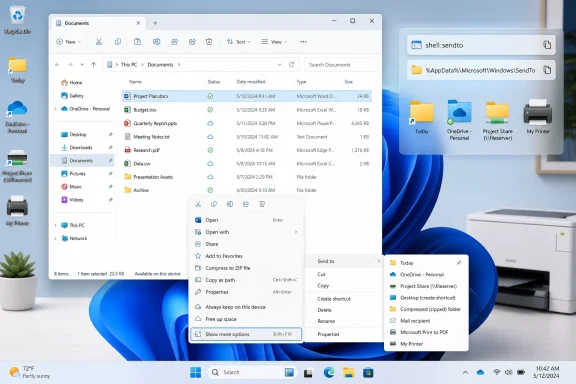
Microsoft did not remove the Send To menu from Windows 11; it moved the feature behind the legacy right-click menu, where users can still open it through “Show more options,” Shift-right-click, or the
Windows 11’s right-click menu was supposed to be a reset. The old context menu had become a junk drawer for GPU drivers, archive tools, cloud sync clients, editors, scanners, and every application that believed it deserved a permanent seat at the table. Microsoft’s redesign tried to solve that by promoting common actions, collapsing the rest, and forcing legacy shell extensions behind “Show more options.”
That impulse was defensible. The execution was less so. In cleaning up the menu, Microsoft also buried utilities that were not third-party clutter at all, but part of Windows’ own muscle memory.
Send To is one of those casualties. In Windows 10, it was visible enough that a curious user might notice it, click it, and wonder why the entries looked so stale. In Windows 11, it is a second-layer feature by default, which means it now belongs mostly to people who already know it exists.
That matters because Send To is not really a menu. It is a folder masquerading as a menu. Open the Run dialog, type
That is the kind of Windows feature that used to define the platform: simple, local, scriptable, and discoverable if you knew the right incantation. It is also exactly the kind of feature modern Windows tends to hide, because it does not fit neatly into Settings, cloud accounts, or Microsoft’s cleaner visual language.
Compressed folder remains useful. It is a quick way to zip a file or folder in place without opening a separate tool, and it is one of the few default entries that still earns its keep. Desktop shortcut is more situational, but it has a clear purpose.
The rest are harder to defend. Mail recipient depends on a configured desktop mail client and a workflow many users no longer have. Bluetooth file transfer is useful for a shrinking subset of people who still send files to phones that way. Documents is not wrong, but it is bland; it assumes the same generic destination matters to everyone.
That is the central failure of the default Send To menu. It offers destinations, but not your destinations. It reflects the idea of a Windows user as imagined years ago, not the way a current user’s files actually move between Downloads, OneDrive, project folders, screenshots, NAS shares, workspaces, and automation scripts.
The good news is that this is one of the rare Windows annoyances that does not require a registry hack, a third-party utility, or administrative rights. The entries are shortcuts. The fix is housekeeping.
That simplicity gives the feature a kind of durability that newer Windows surfaces often lack. A shortcut to a folder becomes a file destination. A shortcut to a printer becomes a quick print action. A batch file becomes a miniature automation endpoint. A shortcut to a synced cloud folder becomes a one-click bridge between devices.
This is where Send To differs from the usual right-click customization rabbit hole. Many context-menu edits involve registry keys, shell verbs, COM handlers, or questionable utilities that promise to “restore” Windows 10 behavior. Send To is more modest. It does not remake the shell; it gives users a small pocket of control inside it.
That also makes it unusually safe. Deleting an unwanted Send To shortcut removes it from the menu, not from the system. Adding a folder shortcut does not change the folder itself. If the menu gets messy, clean the folder. If a destination stops mattering, remove the shortcut.
The only real conceptual trap is copy versus move. By default, sending a file to a folder destination copies it. Hold Shift while choosing the destination, and Windows moves it instead. That distinction is crucial, because the difference between copying a screenshot to a work folder and moving a downloaded installer out of Downloads is the difference between organization and duplication.
A “Today” folder is a perfect example. It is not a Windows feature, not a productivity app, and not a subscription service. It is simply a place to dump files that need attention now, rather than letting them dissolve into the sediment of Downloads or the desktop.
That kind of folder works because it matches the way people actually handle files. Most file movement is not grand archival strategy. It is triage. Screenshots need to go somewhere before they are inserted into a document. PDFs need to be grouped before they are emailed. Attachments need to land in the right project folder before the browser’s download bar is forgotten.
A cloud subfolder is the other obvious win. If OneDrive, Google Drive, Dropbox, or another sync client has a local folder, Send To can target it. Suddenly the right-click menu becomes a device handoff mechanism: send a file into the synced folder, and it starts traveling before the user has finished thinking about it.
For administrators and power users, mapped drives and shared folders make the feature more interesting still. A shortcut to a departmental drop folder, a staging share, or a ticket-attachment directory can remove several clicks from a task repeated dozens of times a week. The improvement is small each time, but the repetition is the point.
A printer shortcut is the most old-school example. Open the legacy printers folder, create a shortcut to a device, place that shortcut in SendTo, and the menu becomes a quick print path for compatible files. It is not glamorous, but it is exactly the kind of direct action Windows used to make easy.
Scripts take the idea further. A batch file placed in the SendTo folder receives the selected file path as an argument. That means the menu can rename files, move them into dated folders, hand them to command-line tools, append their paths to a log, compress them with a preferred utility, or trigger a local workflow.
This is not just a hobbyist trick. It is a lightweight automation model hiding in plain sight. For IT staff, support technicians, developers, and content workers, the ability to pass a selected file into a known script is often more valuable than another polished Settings page.
There is a security caveat, and it is not optional. A script in SendTo runs with the user’s permissions, and a user who drops in a script they do not understand has created a self-service malware launcher. That does not make the feature dangerous by default, but it does make it powerful enough to deserve the same caution as any other automation path.
The distinction is important. Windows is often criticized for hiding power from ordinary users while still exposing them to risk through obscure legacy mechanisms. Send To, used properly, is a rare case where the power is understandable: a shortcut in a folder becomes an action in a menu. The risk comes not from mystery, but from carelessness.
The redesigned context menu is the perfect illustration. The top-level Windows 11 menu is cleaner and more touch-friendly. The legacy menu is denser, uglier, and often more useful. Users are not wrong to resent the extra click when the hidden menu contains the command they actually needed.
Microsoft has spent years moving pieces of Windows from Control Panel to Settings, from legacy dialogs to modern surfaces, and from local affordances to account-connected experiences. Some of that work is necessary. Much of Windows’ old interface was inconsistent, overloaded, or simply incomprehensible to new users.
But the migration is uneven. Legacy pieces remain because they solve problems the modern UI has not replaced. The danger is not that Microsoft modernizes Windows. The danger is that it treats useful old surfaces as clutter before it has provided equally capable replacements.
Send To is not a beautiful interface, but it is a functional one. It respects the file system. It respects shortcuts. It respects the user’s ability to decide that a folder, device, or script matters enough to be one menu away. In that sense, it is more personal than many of Windows 11’s newer personalization features.
That modesty is its strength. A customized Send To menu does not require a new habit so much as a refinement of an existing one. Users already right-click files. The customization simply makes the next step more relevant.
On a clean Windows install, this is why Send To belongs near the top of the setup checklist. After installing core apps, signing into sync services, and adjusting a few preferences, adding three or four Send To destinations can immediately change how tidy the machine feels. Downloads becomes less of a landfill. Screenshots stop piling up. Project files land where they belong.
For administrators, the same principle scales down rather than up. This is not Group Policy grandeur or endpoint-management theater. It is the kind of local optimization that makes a workstation feel tuned to its operator.
That may sound old-fashioned, but Windows power users have always valued exactly this layer: not deep system modification, not unsupported hacks, but small seams where the OS can be bent toward the user. Send To is one of those seams. Microsoft did not remove it, but Windows 11 made it less visible at precisely the moment when many users could benefit from rediscovering it.
The practical version is simple: delete the defaults that do nothing for you, add the destinations you use constantly, and treat scripts with respect. That is enough to turn an ignored legacy menu into one of the quickest workflow upgrades on a Windows 11 PC.
shell:sendto folder path. That small demotion says more about modern Windows than the feature itself. Send To is old, a little dusty, and almost absurdly useful once customized. The tragedy is that Windows 11 made one of the shell’s simplest productivity wins feel like archaeology.
 Microsoft Hid a Power Tool in the Name of Tidiness
Windows 11’s right-click menu was supposed to be a reset. The old context menu had become a junk drawer for GPU drivers, archive tools, cloud sync clients, editors, scanners, and every application that believed it deserved a permanent seat at the table. Microsoft’s redesign tried to solve that by promoting common actions, collapsing the rest, and forcing legacy shell extensions behind “Show more options.”That impulse was defensible. The execution was less so. In cleaning up the menu, Microsoft also buried utilities that were not third-party clutter at all, but part of Windows’ own muscle memory.
Send To is one of those casualties. In Windows 10, it was visible enough that a curious user might notice it, click it, and wonder why the entries looked so stale. In Windows 11, it is a second-layer feature by default, which means it now belongs mostly to people who already know it exists.
That matters because Send To is not really a menu. It is a folder masquerading as a menu. Open the Run dialog, type
shell:sendto, and Windows takes you to the directory that controls the entries shown under Send To. Add a shortcut there, and a new destination appears in the right-click menu. Delete one, and it disappears.That is the kind of Windows feature that used to define the platform: simple, local, scriptable, and discoverable if you knew the right incantation. It is also exactly the kind of feature modern Windows tends to hide, because it does not fit neatly into Settings, cloud accounts, or Microsoft’s cleaner visual language.
The Default Menu Is a Museum Exhibit
The default Send To entries have barely kept pace with how people actually move files in 2026. A typical Windows 11 installation still exposes options such as Bluetooth device, Compressed folder, Desktop shortcut, Documents, and Mail recipient. Some removable and mapped drives appear when present, but the core set feels frozen in an earlier era of PC use.Compressed folder remains useful. It is a quick way to zip a file or folder in place without opening a separate tool, and it is one of the few default entries that still earns its keep. Desktop shortcut is more situational, but it has a clear purpose.
The rest are harder to defend. Mail recipient depends on a configured desktop mail client and a workflow many users no longer have. Bluetooth file transfer is useful for a shrinking subset of people who still send files to phones that way. Documents is not wrong, but it is bland; it assumes the same generic destination matters to everyone.
That is the central failure of the default Send To menu. It offers destinations, but not your destinations. It reflects the idea of a Windows user as imagined years ago, not the way a current user’s files actually move between Downloads, OneDrive, project folders, screenshots, NAS shares, workspaces, and automation scripts.
The good news is that this is one of the rare Windows annoyances that does not require a registry hack, a third-party utility, or administrative rights. The entries are shortcuts. The fix is housekeeping.
The Folder Is the Interface
The genius of Send To is also why it is neglected: there is almost no interface. The folder at%AppData%\Microsoft\Windows\SendTo is the interface. File Explorer is the configuration panel. Shortcuts are the settings format.That simplicity gives the feature a kind of durability that newer Windows surfaces often lack. A shortcut to a folder becomes a file destination. A shortcut to a printer becomes a quick print action. A batch file becomes a miniature automation endpoint. A shortcut to a synced cloud folder becomes a one-click bridge between devices.
This is where Send To differs from the usual right-click customization rabbit hole. Many context-menu edits involve registry keys, shell verbs, COM handlers, or questionable utilities that promise to “restore” Windows 10 behavior. Send To is more modest. It does not remake the shell; it gives users a small pocket of control inside it.
That also makes it unusually safe. Deleting an unwanted Send To shortcut removes it from the menu, not from the system. Adding a folder shortcut does not change the folder itself. If the menu gets messy, clean the folder. If a destination stops mattering, remove the shortcut.
The only real conceptual trap is copy versus move. By default, sending a file to a folder destination copies it. Hold Shift while choosing the destination, and Windows moves it instead. That distinction is crucial, because the difference between copying a screenshot to a work folder and moving a downloaded installer out of Downloads is the difference between organization and duplication.
The Best Customizations Are Boring, Which Is Why They Work
The most useful Send To entries are not clever. They are the mundane destinations a person uses every day but still reaches through manually: a current work folder, a screenshots folder, a cloud-sync handoff directory, a network share, a project archive, or an intake folder for scanning and processing.A “Today” folder is a perfect example. It is not a Windows feature, not a productivity app, and not a subscription service. It is simply a place to dump files that need attention now, rather than letting them dissolve into the sediment of Downloads or the desktop.
That kind of folder works because it matches the way people actually handle files. Most file movement is not grand archival strategy. It is triage. Screenshots need to go somewhere before they are inserted into a document. PDFs need to be grouped before they are emailed. Attachments need to land in the right project folder before the browser’s download bar is forgotten.
A cloud subfolder is the other obvious win. If OneDrive, Google Drive, Dropbox, or another sync client has a local folder, Send To can target it. Suddenly the right-click menu becomes a device handoff mechanism: send a file into the synced folder, and it starts traveling before the user has finished thinking about it.
For administrators and power users, mapped drives and shared folders make the feature more interesting still. A shortcut to a departmental drop folder, a staging share, or a ticket-attachment directory can remove several clicks from a task repeated dozens of times a week. The improvement is small each time, but the repetition is the point.
Send To Becomes More Powerful When It Stops Being About Sending
The phrase “Send To” undersells the feature. It sounds like file movement. In practice, it can be a launcher.A printer shortcut is the most old-school example. Open the legacy printers folder, create a shortcut to a device, place that shortcut in SendTo, and the menu becomes a quick print path for compatible files. It is not glamorous, but it is exactly the kind of direct action Windows used to make easy.
Scripts take the idea further. A batch file placed in the SendTo folder receives the selected file path as an argument. That means the menu can rename files, move them into dated folders, hand them to command-line tools, append their paths to a log, compress them with a preferred utility, or trigger a local workflow.
This is not just a hobbyist trick. It is a lightweight automation model hiding in plain sight. For IT staff, support technicians, developers, and content workers, the ability to pass a selected file into a known script is often more valuable than another polished Settings page.
There is a security caveat, and it is not optional. A script in SendTo runs with the user’s permissions, and a user who drops in a script they do not understand has created a self-service malware launcher. That does not make the feature dangerous by default, but it does make it powerful enough to deserve the same caution as any other automation path.
The distinction is important. Windows is often criticized for hiding power from ordinary users while still exposing them to risk through obscure legacy mechanisms. Send To, used properly, is a rare case where the power is understandable: a shortcut in a folder becomes an action in a menu. The risk comes not from mystery, but from carelessness.
Windows 11’s Shell Still Has a Split Personality
The Send To menu is a small feature, but it sits inside a much larger Windows 11 problem. Microsoft is still trying to reconcile two operating systems that share the same desktop: the modern, simplified Windows that wants to be visually coherent, and the legacy Windows that remains indispensable because it does the work.The redesigned context menu is the perfect illustration. The top-level Windows 11 menu is cleaner and more touch-friendly. The legacy menu is denser, uglier, and often more useful. Users are not wrong to resent the extra click when the hidden menu contains the command they actually needed.
Microsoft has spent years moving pieces of Windows from Control Panel to Settings, from legacy dialogs to modern surfaces, and from local affordances to account-connected experiences. Some of that work is necessary. Much of Windows’ old interface was inconsistent, overloaded, or simply incomprehensible to new users.
But the migration is uneven. Legacy pieces remain because they solve problems the modern UI has not replaced. The danger is not that Microsoft modernizes Windows. The danger is that it treats useful old surfaces as clutter before it has provided equally capable replacements.
Send To is not a beautiful interface, but it is a functional one. It respects the file system. It respects shortcuts. It respects the user’s ability to decide that a folder, device, or script matters enough to be one menu away. In that sense, it is more personal than many of Windows 11’s newer personalization features.
The Real Productivity Win Is Local Control
The modern productivity market wants users to think in terms of apps, dashboards, synced workspaces, and AI assistants. Send To is almost comically smaller than that. It moves a selected file to a place or hands it to a tool.That modesty is its strength. A customized Send To menu does not require a new habit so much as a refinement of an existing one. Users already right-click files. The customization simply makes the next step more relevant.
On a clean Windows install, this is why Send To belongs near the top of the setup checklist. After installing core apps, signing into sync services, and adjusting a few preferences, adding three or four Send To destinations can immediately change how tidy the machine feels. Downloads becomes less of a landfill. Screenshots stop piling up. Project files land where they belong.
For administrators, the same principle scales down rather than up. This is not Group Policy grandeur or endpoint-management theater. It is the kind of local optimization that makes a workstation feel tuned to its operator.
That may sound old-fashioned, but Windows power users have always valued exactly this layer: not deep system modification, not unsupported hacks, but small seams where the OS can be bent toward the user. Send To is one of those seams. Microsoft did not remove it, but Windows 11 made it less visible at precisely the moment when many users could benefit from rediscovering it.
The Overlooked Menu Deserves a Place on the New-PC Checklist
A good Send To setup should be short. If it grows into a second Start menu, it has failed. The goal is to replace repeated navigation, not to create another junk drawer.The practical version is simple: delete the defaults that do nothing for you, add the destinations you use constantly, and treat scripts with respect. That is enough to turn an ignored legacy menu into one of the quickest workflow upgrades on a Windows 11 PC.
- Add one temporary working folder for files you need to handle today, then clear it on a schedule so it does not become another Downloads folder.
- Add one cloud-synced folder that acts as a fast handoff point between your PC, phone, laptop, or tablet.
- Keep Compressed folder if you still need quick zip creation, because it remains one of the few default entries with broad utility.
- Remove default entries such as Mail recipient, Bluetooth device, or Documents if they do not match how you actually move files.
- Use Shift when selecting a folder destination if you intend to move the file rather than copy it.
- Treat any script added to SendTo as executable code, because that is exactly what it is.
References
- Primary source: TweakTown
Published: Thu, 21 May 2026 21:35:04 GMT
The Send To menu is the right-click feature on Windows 11 that nobody bothers to customize
The Windows "Send To" submenu is just an editable shortcuts folder. A printer, dated folder, OneDrive path, and batch script earn permanent spots. www.tweaktown.com
- Official source: learn.microsoft.com
Send to does not show all options when starting from SHIFT + right click - Microsoft Q&A
In the latest version of Windows 11, they have added the feature that if you SHIFT + Right click on a file you automatically go the old style menu. I've however noticed that the "Send to" menu is not complete if you open this menu through the…learn.microsoft.com - Official source: techcommunity.microsoft.com
It is recommended that the Windows 11 right-click menu include a Send to”option. | Microsoft Community Hub
Currently, the default right-click menu in Win11 does not include the "Send to" option. To find it, you need to press Shift + Right-click or select "Show... techcommunity.microsoft.com
- Related coverage: howtogeek.com
How to Find Missing Right-Click Context Menu Options on Windows 11
Reveal Windows 10-style context options from a secret menu. www.howtogeek.com
- Official source: answers.microsoft.com
[ARTICLE] Restore old Right-click Context menu in Windows 11 - Microsoft Q&A
Starting with Windows 11, the context menu in File Explorer is refreshed, offering a compact design based on modern principles. However, the refreshed context menu shows fewer items compared to the Legacy Context menu. This article discusses how to…answers.microsoft.com - Related coverage: makeuseof.com
How to Add New Shortcuts to the "Send To" Menu in Windows 11
The "send to" menu is a quick and easy way to move files, so why not build your own? Here's how to add shortcuts to the "send to" menu in Windows 11. www.makeuseof.com
- Related coverage: pcgamer.com
How to fix Windows 11's right-click menus | PC Gamer
Restore Windows 11's redesigned context menus to their full, classic functionality.www.pcgamer.com - Related coverage: ctrlaltnod.com
How to Enable/Disable "Show More Options" in Windows 11
Learn how to enable or disable Windows 11's "Show more options" button in the right-click menu to customize your File Explorer experience.www.ctrlaltnod.com - Related coverage: elevenforum.com
Add or Remove Send to Context Menu in Windows 11 | Windows 11 Forum
This tutorial will show you how to add or remove the Send to context menu for all users in Windows 10 and Windows 11. The Send to context menu allows you...www.elevenforum.com - Related coverage: partitionwizard.com
How to Add Shortcuts to the “Send To” Menu in Windows 11? - MiniTool Partition Wizard
How to add shortcuts to the “Send to” menu in Windows 11? The process is revealed in this post that shows you how to remove a shortcut from Send to menu.www.partitionwizard.com
- Official source: intowindows.com
3 Ways To Open "Send To" Menu In Windows 11
The Send to option in the file/folder context menu is a handy function available in the Windows operating system to quickly send files/folders to externalwww.intowindows.com - Related coverage: scscc.club
