

Windows 11 can be annoyingly chatty and slow out of the box, but with a focused hour of cleanup you can turn a fiddly, ad-laden machine into a calmer, faster workspace—no reinstall required. The tips below synthesize a short TweakTown how‑to with independent verification and practical context so you can make safe, reversible changes that actually improve day‑to‑day usability. rview
Windows 11 shipped with a number of default behaviours that prioritize discoverability, cloud integration, and product promotion. That’s helpful for new users, but for many power and casual users it creates noise: slow startups, apps launching unbidden at boot, promotional suggestions in the Start menu and File Explorer, and a compact right‑click menu that hides familiar commands.
The good news: most of these defaults are adjustable without third‑party “optimizers.” The tweaks fall into four practical categories: boot and startup performance, interface and menu preferences, privacy/notification cleanup, and prompt/security tweaks. Each change is straightforward and reversible, but a few involve Registry edits or lowered protection levels—those require caution. Verified Microsoft guidance and independent how‑to coverage back up the exact steps below.
If your PC feels slow the moment you press the power button, focus first on boot order, startup apps, and storage media.
One hour of methodical tweaking is a small investment for a substantially less annoying Windows 11. Start with backups, run the high‑impact items first (SSD, startup apps, Start menu and File Explorer suggestions), and only apply Registry or UAC changes once you understand the trade‑offs. The result is a cleaner, faster, and more focused PC that behaves the way you expect—without constant interruptions or unwanted promotions.
Source: TweakTown How I Made My Windows 11 PC Less Annoying in Just One Hour
Windows 11 shipped with a number of default behaviours that prioritize discoverability, cloud integration, and product promotion. That’s helpful for new users, but for many power and casual users it creates noise: slow startups, apps launching unbidden at boot, promotional suggestions in the Start menu and File Explorer, and a compact right‑click menu that hides familiar commands.
The good news: most of these defaults are adjustable without third‑party “optimizers.” The tweaks fall into four practical categories: boot and startup performance, interface and menu preferences, privacy/notification cleanup, and prompt/security tweaks. Each change is straightforward and reversible, but a few involve Registry edits or lowered protection levels—those require caution. Verified Microsoft guidance and independent how‑to coverage back up the exact steps below.
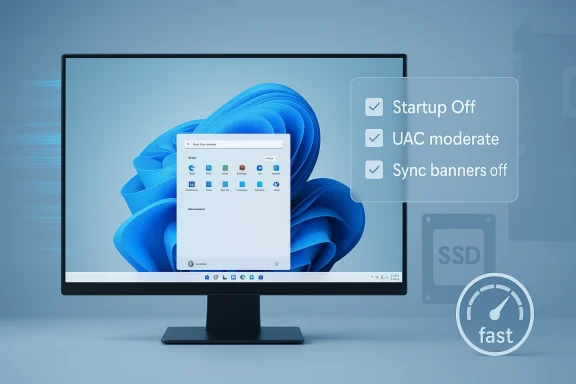 Speed Up the Boot Process
If your PC feels slow the moment you press the power button, focus first on boot order, startup apps, and storage media.1) Make sure the right device boots first
If your motherboard is trying to initialize from the wrong device (USB, old HDD, optical), that can add time. Enter your UEFI/BIOS during POST and set the drive that contains Windows 11 as the first boot device. It’s a tiny change that prevents needless device probing and removes a predictable source of delay.2) Stop programs from autostarting
Windows 11 exposes startup management through both Settings (Apps > Startup) and the Task Manager’s Startup tab. Disable any app you don’t need right away—messaging clients, app updaters, cloud tools you rarely use. Windows even labels “Startup impact,” so prioritize disabling High impact third‑party apps first. Disabling a startup entry does not uninstall the app; it merely prevents it from launching automatically.3) Consider the single best hardware upgrade: an SSD
Replacing a mechanical HDD with a modern SSD (SATA or NVMe) is the fastest way to lift boot times and general responsiveness. Real‑world measurements show multi‑fold improvement: many HDD systems boot in 30–90 seconds, whereas SSD systems commonly hit desktop in the teens or low tens of seconds. For boot improvements, move your OS to or install Windows on the SSD rather than merely using it for storage.4) Reduce the OS selection timeout if you don’t dual-boot
If you see a “Choose an operating system” list on boot, that timeout adds to startup. Remove the extra wait by launching System Configuration (msconfig.exe) and set the boot timeout to a smaller value (or usebcdedit /timeout 0 to skip it entirely). If you aren’t comfortable with command‑line, use the System Properties → Advanced → Startup and Recovery settings UI. Back to the Classic Right‑Click Menu
Windows 11 introduced a compact context menu that consolidates common actions but hides less‑used commands under a “Show more options” submenu. That’s neat visually, but it slows people down who rely on legacy options.- To restore the old full context menu permanently, you can create a per‑user Registry override. Run Command Prompt as Administrator and run:
reg add "HKCU\Software\Classes\CLSID{86ca1aa0-34aa-4e8b-a509-50c905bae2a2}\InprocServer32" /f /ve- Restart Explorer (or sign out and sign in) to see the classic menu by default again.
Adjust the Lock Screen and Screen Timeout
Nothing is more annoying than returning from a short break and being asked for credentials because your screen or lock timeout is too aggressive.- Open Settings → System → Power & Battery → expand Screen and sleep.
- Increase the values for “On battery power, turn off my screen after” and “When plugged in, turn off my screen after.” Set Never only if you accept the physical security trade‑off.
- If you need the screen to remain unlocked for short breaks but still want security when truly away, keep a moderate timeout and manually lock (
Win + L) when required.
Remove Annoying Ads and Suggestions
Windows 11 surfaces suggestions and promotional content in a surprising number of places. Here are the highest payoff switches to flip.Stop Start menu recommendations
Settings → Personalization → Start → turn off Show recommendations for tips, shortcuts, new apps, and more. That removes the “Recommended” promotional items that often appear under your pinned apps.Silence File Explorer banners
File Explorer → menu (three dots) → Options → View tab → uncheck Show Sync Provider Notifications. That stops OneDrive / Microsoft 365 banners and similar “tips” from being injected into the file manager. Multiple guides and Microsoft moderators confirm this option controls those promotional banners.Turn off tips inside Notifications and Settings
- Settings → System → Notifications → uncheck Get tips and suggestions when using Windows and disable “Show the Windows welcome experience after updates” to reduce marketing-style notifications.
- Settings → Privacy & Security → General → turn off “Show me suggested content in the Settings app” if present on your build.
Widgets, Search Highlights, and Store Suggestions
- Widgets: disable via Settings → Personalization → Taskbar → turn off Widgets, or remove specific feeds from the widget gear.
- Search highlights: Settings → Privacy & Security → Search permissions → turn off Show search highlights if you don’t want curated news or promotional context in the search box.
- Microsoft Store: open the Store’s own settings and turn off any “recommendations” or personalized promotions if you see them.
Reduce UAC Prompts Without Throwing Away Security
User Account Control (UAC) exists to stop unwanted system changes. Turning it off entirely is a security downgrade, but you can reduce the frequency of prompts:- Search for “UAC” and open Change User Account Control settings.
- Move the slider one or two notches down to avoid full‑screen, blocking prompts for routine tasks while keeping protection for installs or system changes.
Quick One‑Hour Plan — What to Do, Step by Step
This sequence is designed to be safe, efficient, and reversible. It maps to roughly 60 minutes for a typical PC.- (5 min) Create a System Restore point and ensure backups are up to date. This is your safety net.
- (5 min) Hardware/BIOS check: confirm the OS drive is first in UEFI/BIOS boot order. Save and exit.
- (10 min) Storage & startup triage:
- If you have an HDD and an SSD available, plan the migration (time permitting you can clone or install fresh later).
- Open Task Manager → Startup and disable high‑impact apps you don’t want at boot. Also run Settings → Apps → Startup to double‑check.
- (5 min) Shorten or remove the OS selection timeout (msconfig → Boot tab or
bcdedit /timeout 0) if you don’t dual‑boot. - (10 min) Interface cleanup:
- Restore classic context menu with the single
reg addcommand if you prefer it. Don’t forget to restart Explorer. - Adjust taskbar icons (hide Widgets/Search) via Settings → Personalization → Taskbar.
- (10 min) Turn off recommendations and ads:
- Settings → Personalization → Start → toggle off recommendations.
- File Explorer → Options → View → uncheck Show Sync Provider Notifications.
- Settings → System → Notifications → turn off Get tips and suggestions.
- Settings → Personalization → Lock Screen → choose Picture/Slideshow and uncheck fun facts and tips.
- (10 min) UAC and power:
- Adjust UAC slider to a less intrusive level while preserving protections.
- Settings → System → Power & Battery → Screen and sleep: lengthen screen timeout so short breaks don’t lock you out.
Risks, Caveats, and When Not to Tweak
These are practical considerations any reader should understand before altering defaults.- Registry edits (like restoring the classic context menu) are supported by community and Microsoft doc examples but can be overridden by future Windows updates. Always create a restore point and export keys you change.
- Disabling UAC entirely or silencing telemetry/diagnostic services reduces protection and can complicate troubleshooting or enterprise compliance. Follow policy‑aligned methods in managed environments (Group Policy / Intune) rather than ad‑hoc registry hacks.
- Some “ad” settings can be reset by feature updates or by re‑provisioned inbox apps. Periodic rechecks after major Windows Feature Updates (and after reinstalls) are prudent. Community and vendor documentation both warn that Microsoft sometimes reverts or re‑ships defaults.
- If you are on a corporate machine, consult your IT admin before removing telemetry, changing UAC, or uninstalling pre‑installed utilities—these steps may violate support agreements or impact dev
More Advanced (Optional) Tweaks
For readers who want to go beyond the one‑hour checklist:- Use Group Policy or MDM to create persistent, centrally managed overrides on business devices instead of per‑user Registry hacks. This is the supported enterprise pattern.
- Replace the Start menu or taskbar behavior with third‑party tools like StartAllBack or Start11 if you need a permanent Windows 10 look and feel (these are paid tools but widely used).
- Install Microsoft PowerToys for micro‑optimizations (FancyZones, Always On Top, Image Resizer). PowerToys is lightweight, supported by Microsoft, and helps productivity without advertising side effects.
Final Analysis — What You Gain and What You Trade
- Strengths: The changes above produce immediate wins: shorter boot times, fewer distractions, more predictable right‑click behaviour, and fewer promotional prompts. These improvements are measurable and restore control to the user without sacrificing core OS functionality. Independent guides and Microsoft documentation confirm both the steps and the expected outcomes.
- Limits: Windows 11’s design and Microsoft’s services integration mean some behaviours will reappear after major updates or when signing in with a Microsoft account. Some tweaks are cosmetic; they reduce annoyance but won’t transform an underpowered machine into a powerhouse—the hardware bottlenecks remain (CPU, RAM).
- Risks: Registry edits and disabling core protections can break scenarios or reduce security. For managed devices, use sanctioned controls (Group Policy, MDM). For home users, keep a restore point and be conservative with Permanent or system‑level changes.
One hour of methodical tweaking is a small investment for a substantially less annoying Windows 11. Start with backups, run the high‑impact items first (SSD, startup apps, Start menu and File Explorer suggestions), and only apply Registry or UAC changes once you understand the trade‑offs. The result is a cleaner, faster, and more focused PC that behaves the way you expect—without constant interruptions or unwanted promotions.
Source: TweakTown How I Made My Windows 11 PC Less Annoying in Just One Hour
