

If your Windows 11 PC feels sluggish, cluttered, or slow to boot, a focused cache and temporary‑files cleanup can often deliver a fast, low‑risk performance uplift without reinstalling the OS or buying new hardware. The steps are simple, built into Windows, and — when used in the proper order — safe for most users, yet they are not a panacea for every type of lag. Many of the practical recommendations circulating in mainstream tech coverage are correctly captured in recent guidance and expanded here into a clear, actionable plan that balances benefit and risk.
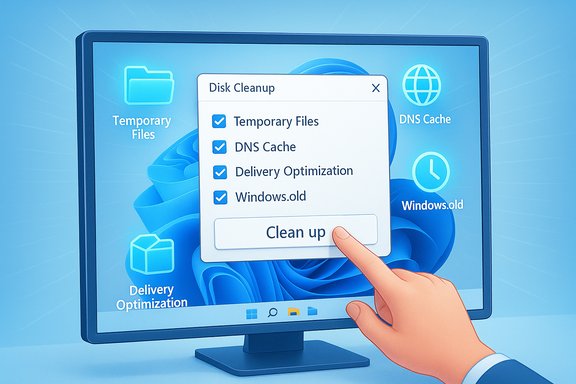
Windows accumulates many types of caches and temporary stores during normal use: browser caches, system temporary files, thumbnail and icon caches, Windows Update download caches, location history, the DNS resolver cache, and Delivery Optimization caches. These caches exist to improve speed on repeat tasks, but when they grow large or become corrupted they can cause slower boot times, miscellaneous application glitches, and reduced free disk space. Built‑in Windows tools are intentionally conservative and are the recommended first line of defense to reclaim space and remove corrupted temporary data.
This article synthesizes that advice into:
Think of these steps as digital housekeeping — small, repeatable, and cumulative. Over time they reduce the chance that old caches or corrupted temporary files will become the kind of mystery performance problem that otherwise demands a full OS reinstall. For most users, this routine restores snappiness and keeps Windows behaving the way it should.
Source: ZDNET How to clear your Windows 11 PC cache (and wipe out lag for good)
 Background / Overview
Windows accumulates many types of caches and temporary stores during normal use: browser caches, system temporary files, thumbnail and icon caches, Windows Update download caches, location history, the DNS resolver cache, and Delivery Optimization caches. These caches exist to improve speed on repeat tasks, but when they grow large or become corrupted they can cause slower boot times, miscellaneous application glitches, and reduced free disk space. Built‑in Windows tools are intentionally conservative and are the recommended first line of defense to reclaim space and remove corrupted temporary data.This article synthesizes that advice into:
- a short explanation of what each cache type does,
- step‑by‑step Windows 11 procedures (with numbered how‑tos),
- advanced options for stubborn caches,
- an assessment of realistic gains and risks,
- and a maintenance plan to keep Windows performing well long term.
What “cache” means in Windows 11
Common cache types and why they matter
- Temporary files and installer logs — created during app installs and updates; generally safe to delete once an operation finishes.
- Browser cache — local copies of website assets; clearing frees space and fixes corrupted-cache page loads, but makes first visits slower afterward.
- DNS resolver cache — stores recent domain→IP lookups to speed browsing; flushing it forces fresh resolution if entries are stale or corrupted. Microsoft documents the ipconfig /flushdns option as the supported method to clear the resolver cache.
- Location history — small history used by location‑aware apps; clearing improves privacy and reclaims a sliver of disk space.
- Delivery Optimization cache — used for peer‑assisted updates; it can grow large and is safe to clear via Disk Cleanup or the Settings UI. Microsoft recommends using Disk Cleanup to remove these files.
- Windows upgrade leftovers (Windows.old, update caches) — keep these only if you might roll back to a previous Windows version; removing them reclaims multiple gigabytes but is irreversible from the UI.
The safe, recommended workflow (start here)
Before any cleanup:- Confirm Windows and drivers are up to date (Settings → Windows Update).
- Back up critical files and, for major removals like Windows.old, create a System Restore point.
- Start with the UI‑based, conservative tools — they are designed to avoid deleting personal data.
1. Use Cleanup recommendations (quick, conservative)
- Click Start → Settings.
- Go to System → Storage.
- Scroll to Cleanup recommendations and open it.
- Inspect the categories Windows identifies (Temporary files, Downloads, Recycle Bin, Large or unused files, Unused apps).
- For each category, review items before deleting — especially files in Downloads and large media that are easy to lose.
2. Run Storage Sense (automate recurring maintenance)
Storage Sense can be configured to run automatically and free space without manual intervention.- Start → Settings → System → Storage → Storage Sense.
- Toggle Storage Sense on.
- Configure:
- Run frequency (Daily / Weekly / Monthly / During low free space)
- When to delete files from Recycle Bin and Downloads
- Whether to remove local OneDrive files that haven’t been used
- Click Run Storage Sense now to execute immediately.
3. Use Disk Cleanup (deeper system sweep)
Disk Cleanup (cleanmgr) is the classic utility for deeper system items such as update leftovers and Delivery Optimization files.- Press Start, type Disk Cleanup, and launch the app.
- Choose your system drive (usually C
 .
. - Click Clean up system files to reveal options like previous Windows installations and Windows Update Cleanup.
- Check the file types you want removed (e.g., Temporary files, Delivery Optimization Files, Recycle Bin, Thumbnails).
- Click OK and confirm Delete Files.
Targeted one‑line fixes (fast and effective)
- Flush DNS resolver cache (fixes stale DNS lookups):
- Press Windows key + R → type cmd and press Enter (or open PowerShell as needed).
- Run: ipconfig /flushdns
- You should see a confirmation that the DNS Resolver Cache was flushed. This is the supported Microsoft command to reset the DNS client cache.
- Clear location history (privacy + small free space gain):
- Start → Settings → Privacy & Security → Location.
- Scroll to Location history and click Clear.
- Reset Microsoft Store (if Store apps misbehave):
- Run wsreset.exe from Start → type wsreset.exe → Enter.
Advanced cleanup (when UI tools don’t reach stubborn caches)
Proceed only after backups and with awareness of irreversible consequences.Delivery Optimization cache (manual method)
- Preferred (safe) method: Disk Cleanup → check Delivery Optimization Files → Delete.
- Advanced manual method (power users):
- Open an elevated Command Prompt (Run as Administrator).
- Stop the Delivery Optimization service: net stop dosvc
- Delete contents of C:\ProgramData\Microsoft\Windows\DeliveryOptimization\Cache
- Restart the service: net start dosvc
Windows Update caches and Windows.old
- Use Disk Cleanup → Clean up system files to safely remove:
- Windows Update Cleanup
- Previous Windows installation(s)
- Deleting Windows.old frees multiple GBs but removes the rollback option. Only remove this if you are sure you won’t revert to the prior Windows build. Several sources warn that this action is irreversible from the UI.
DISM and SFC (repair corrupted components)
If updates fail or you suspect systemic corruption:- Open an elevated Command Prompt.
- Run: DISM /Online /Cleanup-Image /RestoreHealth
- Then run: sfc /scannow
Diagnostics when cleanup doesn’t help
If performance is still poor after cleaning caches:- Check Task Manager (Ctrl+Shift+Esc) for runaway processes, high disk queue lengths, or excessive startup apps. Disable unneeded startup items.
- Run a full malware scan with Windows Defender or a reputable AV product — malware can mimic cache‑related slowdowns.
- Inspect disk health (chkdsk, SMART tools) and the physical drive type. Upgrading an HDD to an SSD typically produces the single biggest real‑world performance improvement if storage is the bottleneck.
- Consider adding RAM for heavy multitasking scenarios or swapping CPUs/GPUs only if resource monitoring shows consistent CPU/GPU saturation.
Realistic expectations: what cleaning will and won’t do
- What it will likely fix:
- Reclaims disk space, sometimes several GB when update leftovers or Delivery Optimization files have accumulated.
- Resolves odd app behavior caused by corrupt temp files.
- Improves browsing responsiveness in cases of stale DNS entries.
- Speeds up boots slightly if the system drive was near full.
- What it usually won’t fix:
- Major lag caused by insufficient RAM, a slow mechanical HDD, or CPU/GPU bottlenecks — hardware upgrades are the cure.
- Chronic slowdowns from driver bugs or misbehaving background services — these require diagnosis beyond cache cleanup.
Risks and safe practices
- Always review the contents of Downloads and large files before deletion.
- Do not manually delete files from Program Files, ProgramData, or Windows directories unless following documented procedures; improvised deletions can break installed apps or system functionality.
- Deleting Windows.old is irreversible from the UI; back up before removing it.
- Be wary of third‑party “system cleaners” that promise dramatic speedups; many are aggressive and can remove needed registry entries or drivers. Prefer Windows’ built‑in tools first.
Simple monthly maintenance checklist (one page you can follow)
- Confirm Windows Update is current (Settings → Windows Update).
- Run Cleanup recommendations (Settings → System → Storage → Cleanup recommendations).
- Run Disk Cleanup → Clean up system files (C.
- Empty Recycle Bin and review Downloads for accidental trash.
- Run ipconfig /flushdns (optional if you’ve seen DNS or browsing issues).
- Run a malware scan and check Task Manager for persistent culprits.
- If you want automation: turn on Storage Sense and set an appropriate schedule.
When to escalate: follow this sequence
- UI cleanup + Storage Sense + DNS flush.
- Disk Cleanup (system files) + WSReset for Store issues.
- Check Task Manager, Malware scan, CHKDSK / SMART.
- DISM /RestoreHealth and sfc /scannow for system corruption.
- If updates still fail, use documented procedures to reset Windows Update components (stop services, rename SoftwareDistribution and Catroot2, restart services) or consider a repair install. Only escalate to a full reinstall when diagnostics indicate irreparable corruption or hardware replacement is planned.
Editor’s analysis — strengths, limitations, and practical advice
Built‑in Windows 11 cleanup tools are the major strength here: they’re free, integrated, and tuned to minimize accidental deletion of personal data. Cleanup recommendations and Storage Sense are deliberately conservative and do a good job surfacing the biggest, safest wins for most users. Disk Cleanup remains the go‑to for deeper system items and update leftovers, and the ipconfig /flushdns command is the standard, supported method to reset DNS resolution. These behaviors and options are documented by Microsoft and echoed across mainstream coverage. Limitations are real: cache clearing is often an incremental improvement and rarely fixes hardware‑limited performance. Expect a perceptible snappier first boot and fewer app hiccups on many systems, but don’t expect to transform an old HDD laptop into a fast modern workstation without hardware upgrades. Aggressive manual deletion of system directories, or reliance on untrusted third‑party cleaners, introduces the largest risk. When in doubt, stick to Windows’ UI tools, create a restore point, and back up data first.Final words: build the habit, not the panic
Cleaning cache and temporary files on Windows 11 is straightforward, safe when you use the native tools, and often produces measurable benefits: reclaimed storage, fewer glitches, and modest speed gains. The single most reliable approach is a staged one — start with Cleanup recommendations, run Disk Cleanup with the system files option when needed, and use targeted commands like ipconfig /flushdns and wsreset.exe for network and Store situations. Automate what you can with Storage Sense and adopt a monthly check‑in for lower‑capacity devices.Think of these steps as digital housekeeping — small, repeatable, and cumulative. Over time they reduce the chance that old caches or corrupted temporary files will become the kind of mystery performance problem that otherwise demands a full OS reinstall. For most users, this routine restores snappiness and keeps Windows behaving the way it should.
Source: ZDNET How to clear your Windows 11 PC cache (and wipe out lag for good)
