

If your Windows 11 PC feels sluggish and your desktop looks like digital clutter, a focused cache and temporary-files cleanup can produce measurable improvements — and you don’t need third‑party tools to do it. The recommended, safe-first approach is to use Windows 11’s built‑in tools: Storage > Cleanup recommendations, the classic Disk Cleanup utility, Location history clearing, and a DNS cache flush via ipconfig /flushdns. For heavier cleanup scenarios (delivery‑optimization caches or leftover Windows upgrade files) Windows provides both UI paths and command‑line options — but those require extra care because some removals are irreversible.
Windows accumulates many types of cache and temporary files during everyday use: browser caches, system temporary files, installer logs, DNS resolver entries, location history, Delivery Optimization files, and remnants from Windows updates or upgrades. These files exist to speed repeated tasks, but when they grow large or become corrupted they can cause slower boot times, application sluggishness, and reduced free disk space. Cleaning them is a routine maintenance task that restores disk capacity and can reduce odd operational quirks.
This article explains what each common cache type is, shows step‑by‑step safe methods to clear them using Windows 11’s built‑in tools, highlights advanced options for stubborn caches, and analyzes benefits, tradeoffs, and risks so you can clean confidently without losing important data.
Steps:
How to run:
UI method (simple):
Third‑party apps may also maintain local caches (photo editors, IDEs, etc.. Use each app’s preferences or documentation to clear caches safely.
However, risk arises when users venture into manual deletion of ProgramData or update caches without stopping services or without backups. Delivery Optimization and update caches can be safely cleaned via UI, but manual deletion without stopping the service can create file‑in‑use errors or inconsistent state. Microsoft’s tools generally protect novices, but power users must follow documented procedures for command‑line removals.
For sustained performance, cache cleanup should be one part of a broader strategy: keep Windows and drivers updated, limit unnecessary startup apps, maintain antivirus protection, and invest in hardware upgrades where software measures cannot overcome physical limits. When followed methodically, the cleanup steps outlined here reduce clutter, reclaim storage, and often restore snappy responsiveness — especially on older machines or drives nearing capacity.
Cleaning your Windows 11 cache is a practical first step in rescuing a slow machine: it’s quick, mostly safe when using the UI, and often returns gigabytes of space and a perceptible speed boost. Follow the staged approach — start with Cleanup recommendations, run Disk Cleanup with the system files option, then handle targeted caches like DNS and location history. Reserve manual deletions for when the built‑in tools don’t reach the problem areas, and always back up before irreversible removals like deleting Windows.old. With a regular maintenance cadence, your PC will stay leaner, safer, and more responsive.
Source: ZDNET How to clear your Windows 11 PC cache (and put an end to slow performance)
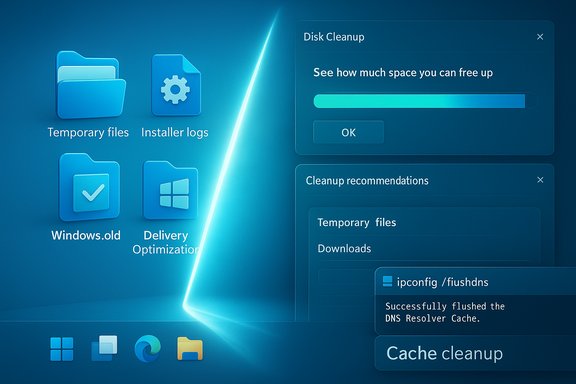 Background / Overview
Windows accumulates many types of cache and temporary files during everyday use: browser caches, system temporary files, installer logs, DNS resolver entries, location history, Delivery Optimization files, and remnants from Windows updates or upgrades. These files exist to speed repeated tasks, but when they grow large or become corrupted they can cause slower boot times, application sluggishness, and reduced free disk space. Cleaning them is a routine maintenance task that restores disk capacity and can reduce odd operational quirks.This article explains what each common cache type is, shows step‑by‑step safe methods to clear them using Windows 11’s built‑in tools, highlights advanced options for stubborn caches, and analyzes benefits, tradeoffs, and risks so you can clean confidently without losing important data.
What “cache” means in Windows 11
Cache is a broad label for temporary files created to make future actions faster. Key categories to understand:- Temporary files and installer logs — created during app installs or operations; safe to remove once an operation finishes.
- Browser cache — local copies of website assets stored by your browser; clearing it frees space but may make sites slightly slower the first time you revisit them.
- DNS resolver cache — saves recent domain-to-IP lookups to speed page loads; flushing it forces DNS lookups to use fresh records.
- Location history — recorded by Windows for location‑aware apps; clearing improves privacy and reclaims a small amount of space.
- Delivery Optimization cache — a repository used for peer‑assisted Windows Update downloads; it can grow large and sometimes become corrupted.
- Windows upgrade leftovers (Windows.old / update caches) — files kept after a major update to allow rollback; removing them returns gigabytes but removes the ability to easily roll back.
The safe, recommended workflow (start here)
- Keep Windows updated — performance and cleanup tools improve over time, so check for updates first. Regular updates are the foundation of reliable maintenance.
- Use Windows 11’s Cleanup recommendations to remove obvious clutter. It’s the most user‑friendly, lowest‑risk starting place.
- Run Disk Cleanup (and “Clean up system files” when needed) for deeper system items like old update files.
- Clear small, targeted caches (location history, DNS cache) with the built‑in controls and a one‑line command.
How to use Windows 11 Cleanup recommendations
Windows 11’s Storage > Cleanup recommendations scans your drive and presents safe, categorized suggestions: Downloads that haven’t changed in a while, Recycle Bin contents, large files, and rarely used apps.Steps:
- Start > Settings.
- System > Storage.
- Click “Cleanup recommendations.”
- Review suggested items — especially check Downloads and large media files before deleting.
- Select items to remove and confirm.
Use Disk Cleanup for a deeper sweep
Disk Cleanup is the long‑standing Windows utility that targets temp files, system update caches, and more.How to run:
- Open Start, type “Disk Cleanup,” and launch the utility.
- Choose the drive to scan (usually C
 .
. - Click “Clean up system files” to reveal additional options such as previous Windows installations and Windows Update Cleanup.
- Check the categories you want removed and click OK.
- Removing “Previous Windows installation(s)” or contents of Windows.old frees gigabytes but prevents rolling back to the previous OS version. Only remove these if you’re confident you won’t need to revert.
- Disk Cleanup’s “Clean up system files” exposes update caches (which can safely be removed) and old installer remnants.
Clear your Location history (quick privacy + small space reclaim)
Windows stores location history for apps and services. Clearing it is safe and easy:- Start > Settings > Privacy & Security.
- Scroll to Location history and press Clear.
Flush the DNS cache (one command that can help browsing)
If a site is slow to resolve or DNS entries are stale, flush the resolver cache:- Press Windows key + R, type: cmd and press Enter (or open PowerShell).
- Execute: ipconfig /flushdns
Handling the Delivery Optimization cache (when updates hog space)
Delivery Optimization caches can grow large because Windows may store parts of update payloads for peer download. There are two safe methods:UI method (simple):
- Settings > System > Storage > Temporary files; check Delivery Optimization files and remove them.
- Open an elevated command prompt.
- Stop the Delivery Optimization service: net stop dosvc
- Delete files in C:\ProgramData\Microsoft\Windows\DeliveryOptimization\Cache (or use the del command with care).
- Restart the service: net start dosvc
- Reboot.
Deleting Windows Update leftovers and Windows.old
Large update leftovers can be recovered through Disk Cleanup (Clean up system files). This removes the Windows.old folder and previous installation files:- Open Disk Cleanup > Clean up system files > select “Previous Windows installation(s)” and “Windows Update Cleanup” and confirm.
Browser cache and app caches
Web browsers (Edge, Chrome, Firefox) maintain their own cache and histories. Clearing them is done from each browser’s settings and is straightforward. Browser cache removal helps with storage and privacy but will make first visit reloads slower.Third‑party apps may also maintain local caches (photo editors, IDEs, etc.. Use each app’s preferences or documentation to clear caches safely.
Advanced: when to consider a fresh install or reset
If cleanup and targeted fixes don’t restore acceptable performance, consider:- Refreshing the OS using Built‑in Recovery > Reset this PC (choose “Keep my files” or “Remove everything”).
- A clean install from installation media for the most thorough reset (backup first).
- Hardware upgrades — adding RAM or switching from HDD to SSD yields the biggest sustained performance gains.
Practical maintenance plan (recommended cadence)
- Weekly: Empty Recycle Bin and tidy Downloads.
- Monthly: Run Cleanup recommendations and Storage Sense (or run Storage Sense manually).
- Quarterly: Run Disk Cleanup > Clean up system files to remove Windows Update leftovers if safe.
- As needed: Flush DNS and clear location history when encountering related issues.
Benefits you can realistically expect
- Faster boot times in many cases, especially if the disk was near full.
- More free disk space — often several GBs depending on what’s cleaned.
- Reduced occurrence of app oddities caused by corrupted temp files.
- Improved privacy (cleared location and DNS entries).
Risks, caveats, and things to watch out for
- Deleting Windows.old or previous installations removes rollback options — back up before you remove them.
- Deleting files from Downloads without review can remove important documents. Always inspect the list before confirming deletion.
- Manual deletion inside system folders (ProgramData, Windows directories) can break features if you remove the wrong files. Use UI tools or documented command sequences.
- Third‑party “cleaners” may promise instant speed boosts but can remove needed registry entries, drivers, or app data. Rely on Windows’ built‑in tools first.
Troubleshooting: if performance doesn’t improve
- Check Task Manager (Ctrl+Shift+Esc) for background processes or startup apps hogging CPU, memory, or disk. Disable unnecessary startup entries.
- Run a full malware scan with Windows Defender or a reputable AV product. Malware can mimic cache‑related slowdowns.
- Check disk health (chkdsk) and consider drive type — HDDs will always lag behind SSDs even on a clean system.
- If you removed update files and encounter update issues, run Windows Update Troubleshooter or use DISM/SFC only after attempting repair guidance.
Final assessment and editorial analysis
Windows 11 provides robust, accessible cleanup tools that balance safety and effectiveness. The new Cleanup recommendations surface high‑value targets for most users, while Disk Cleanup’s “Clean up system files” remains the go‑to for deeper, system‑level caches. The ability to flush DNS and clear location history quickly addresses two common but often forgotten causes of slow browsing and privacy concerns. These built‑in options are the major strength of Windows’ approach: no third‑party installs, transparent UI, and clear undo limits like rollback availability through Windows.old.However, risk arises when users venture into manual deletion of ProgramData or update caches without stopping services or without backups. Delivery Optimization and update caches can be safely cleaned via UI, but manual deletion without stopping the service can create file‑in‑use errors or inconsistent state. Microsoft’s tools generally protect novices, but power users must follow documented procedures for command‑line removals.
For sustained performance, cache cleanup should be one part of a broader strategy: keep Windows and drivers updated, limit unnecessary startup apps, maintain antivirus protection, and invest in hardware upgrades where software measures cannot overcome physical limits. When followed methodically, the cleanup steps outlined here reduce clutter, reclaim storage, and often restore snappy responsiveness — especially on older machines or drives nearing capacity.
Quick reference — commands and paths
- Flush DNS: ipconfig /flushdns.
- Disk Cleanup: Start > Disk Cleanup > select drive > Clean up system files.
- Cleanup recommendations: Settings > System > Storage > Cleanup recommendations.
- Clear location history: Settings > Privacy & Security > Location history > Clear.
- Delivery Optimization cache path (advanced): C:\ProgramData\Microsoft\Windows\DeliveryOptimization\Cache — stop dosvc before manual deletion.
Cleaning your Windows 11 cache is a practical first step in rescuing a slow machine: it’s quick, mostly safe when using the UI, and often returns gigabytes of space and a perceptible speed boost. Follow the staged approach — start with Cleanup recommendations, run Disk Cleanup with the system files option, then handle targeted caches like DNS and location history. Reserve manual deletions for when the built‑in tools don’t reach the problem areas, and always back up before irreversible removals like deleting Windows.old. With a regular maintenance cadence, your PC will stay leaner, safer, and more responsive.
Source: ZDNET How to clear your Windows 11 PC cache (and put an end to slow performance)
