• Thread Author
Microsoft has finally given administrators a supported way to remove the consumer Microsoft Copilot app from managed Windows 11 devices — but the escape hatch is tightly controlled, limited to Insider Preview builds, and intentionally designed as a one‑time, surgical cleanup rather than a fleet‑wide “kill switch.”

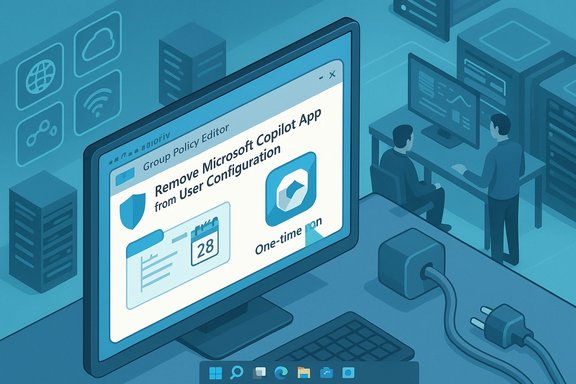
Stylized IT office scene with a monitor showing a policy editor to remove the Microsoft Copilot App.Background​

Microsoft’s Copilot family now spans several layers: a consumer‑facing Microsoft Copilot app that appears on many Windows 11 installations, deep OS integrations (taskbar icon, Win+C or Copilot hardware keys, Explorer context menus), and the paid, tenant‑managed Microsoft 365 Copilot service. That proliferation has raiand governance questions for IT teams who need deterministic control over what runs on managed endpoints.
The January Insider update that introduced the new uninstall path — Windows 11 Insider Preview Build 26220.7535 (delivered as KB5072046) — is positioned as an administrative convenience for specific remediation scenarios rather than a retreat from integrating AI into the OS. Microsoft documented the Group Policy path and rollout details in the Windows Insider announcement.

What Microsoft shipped (the facts)​

  • Build and KB: Windows 11 Insider Preview Build 26220.7535, delivered as KB5072046.
  • New Group Policy name: RemoveMicrosoftCopilotApp.
  • Where it appears in Group Policy Editor: User Configuration → Administrative Templates → Windows AI → Remove Microsoft Copilot App.
  • Target SKUs and channel: the policy is visible on Windows 11 Pro, Enterprise, and Education SKUs in the Insider Dev & Beta channels (feature rollout is controlled).
These are the core, verifiable technical facts administrators should plan around. Multiple independent outlets and community tests have reproduced the presence and behavior of the policy in Insider Preview builds.

How the RemoveMicrosoftCopilotApp policy actually works​

Microsoft implemented the policy as a conditional, one‑time uninstall that only runs when a strict checklist of preconditions is satisfied. The policy’s conservative design aims to avoid inadvertently removing paid, tenant‑managed Copilot capabilities or surprising active users.
The policy will perform the uninstall only if all of the following are true for the targeted user/device:
  • Both Microsoft 365 Copilot (the tenant‑managed paid offering) and the consumer Microsoft Copilot app are installed on the device. This guard prevents admins from removing the only Copilot experience a paid user relies on.
  • The consumer Microsoft Copilot app was not installed by the user — it must be provisioned by OEM/tenant tooling or preinstalled in the image. User‑installed copies are explicitly excluded.
  • The consumer Copilot app has not been launched in the last 28 days. Microsoft enforces this inactivity window as a safety gate to avoid removing a tool an active user depends on.
When those gates are met and RemoveMicrosoftCopilotApp is enabled, the consumer Copilot front‑end is uninstalled for that user one time. It does not create a persistent ban: the app can later be reinstalled via the Microsoft Store, tenant provisioning, image updates, or user action unless administrators implement additional blocking measures.

Why Microsoft designed the policy this way​

The design balances two competing priorities:
  • Preserve Microsoft 365 Copilot for tenants that have purchased and rely on the paid service. Removing the consumer front end without that check could cripple productivity for paid customers.
  • Provide a supported, auditable remediation path to clean up provisioned, unused installs — for classroom images, kiosks, or incorrectly provisioned devices. The one‑time uninstall and the 28‑day inactivity gate reduce the risk of surprising or harming active users.
The resulting policy is intentionally surgical: useful in cleanup scenarios but not a durable enforcement tool for organizations that require Copilot to never return.

Practical implications for IT: when this helps and when it doesn’t​

Good use cases (where RemoveMicrosoftCopilotApp helps)​

  • Imaging cleanups: OEM or provisioning images that accidentally include the consumer Copilot app and need a suppo
  • Classrooms or kiosks that received provisioned installs but don’t use Copilot.
  • Low‑touch endpoints where administrators want a supported, auditable one‑time removal rather than manual scripting on each device.

Where it falls short​

The most load‑bearing claims in this story are corroborated by Microsoft’s official Windows Insider announcement and multiple independent outlets:
  • Microsoft’s Windows I lists Build 26220.7535 (KB5072046) and identifies the Group Policy path for RemoveMicrosoftCopilotApp. ([blogs.windows.com](Announcing Windows 11 Insider Preview Build 26220.7535 (Dev & Beta Channels) Independent reporting from outlets including AllThingsHow, Tom’s Hardware and TechRadar reproduced the build number, the policy name, and the three gating conditions (user installation status, presence of M365 Copilot, and 28‑day inactivity).
  • Communreporting also reproduced the one‑time uninstall semantics and recommended layered controls such as AppLocker/WDAC and tenant provisioning changes for durable enforcement.
If an exact technical detail matters to your deployment (for example, the mechanism Windows uses to determine "last launched within 28 days"), validate on a test device and review debug logs — Insider features are often server‑gated and subject to later refinement. The public documentation does not publish every implementation detail of the inactivity check; treat that part as operational ation.

Recommended admin playbook (practical, step‑by‑step)​

This is a concise, actionable rollout plan for admins who want to evaluate and use RemoveMicrosoftCopilotApp safely.
  • Build a lab and test: deploy Windows 11 Insider Preview Build 26220.7535 (KB5072046) to a small test ring and confirm the Group Policy appears at: User Configuration → Administrative Templates → Windows AI → Remove Microsoft Copilot App.
  • Inventory: identify endpoints with both the consumer Microsoft Copilot app and Microsoft 365 Copilot installed; flag which installs were OEM/provisioned vs user‑installed.ntune app reports, or AppxPackage queries.
  • Reduce activity window: to allow the uninstall to trigger faster, consider disabling Copilot auto‑start for your pilot group (via startup settings or script) so the app can meet the 28‑day inactivity gate. Document the expected user impact. ([allthings.how](Windows 11 build 26220.7535 brings Copilot image descriptions and admin Copilot controls Apply policy in a pilot OU: enable RemoveMicrosoftCopilotApp via Group Policy or map the ADMX into Intune configuration profiles for a small set of managed users. Monitor event logs and MDM reports for the uninstall action.
  • Verify post‑uninstall: confirm the Copilot front end is removed for the user account, test critical accessibility workflows, and validate that Microsoft 365 Copilot (tenant service) remains functional if required.
  • Harden for durability: if your goal is to permanently block reinstall,ontrol (AppLocker/WDAC) rules or Intune App Protection policies and remove Copilot from images. Reimaging or AppLocker are the only reliable long‑term methods.

How to check and (if necessary) remove Copilot locally — safe options for power users and admins​

Start with the safe, reversible options. If Windows exposes, use that first.
  • GUI (least risky):
  • Settings → Apps → Installed apps (or Apps & features) → search “Copilot” → Uninstall (if enabled). This removes the front‑end without registry surgery and is reversible.
  • PowerShell (power users — confirm names first):
  • Open PowerShell as Administrator.
  • List matching packages: Get‑AppxPackage | Wheree "Copilot" }
  • If you confirm the package name, remove for the current user: Remove‑AppxPackage -Package <PackageFullName>
  • To similarly remove prr all users, use Remove‑AppxProvisionedPackage or Get‑AppxPackage -AllUsers with caution. Package names vary across builds (examples include Microsoft.Copilot or Microsoft.Windows.Copilot), so confirm boup Policy / Registry (supported management):
  • For general Copilot disabling (not the one‑time uninstall) you can use the supported Group Policy "Turn off Windows Copilot" which maps to the registry key:
  • SOFTWARE\Policies\Microsoft\Windows\WindowsCopilot\TurnOffWindowsCopilot = 1
  • Note: this is separate from RemoveMicrosoftCopilotApp and is used to turn off Copilot affordances rather than execute the targeted uninstall. Always back up registry and test.
Caution: community "deep removal" tools exist (RemoveWindowsAI and similar projects) that surgically delete many AI components; these are powerful but unsupported and risk breaking features and future updates. Use only in controlled environments and with full imagRisks, caveats and verification checks you must do
  • 28‑day inactivity: the exact implementation of the inactivity check (hlast launch) is not exhaustively documented in public release notes. Validate in a lab and gather logs to confirm behavior for your provisioning scenario. Treat any precise claims about the internal last‑use heuristic as operationally socally.
  • Accessibility impact: Copilot powers new Narrator features (image descriptions and related accessibility advantages). Removing the front‑end may change accessibility behavior; test with assistive‑technology users before broad rollout.
  • Reprovisioning risk: OS feature updates, image deployments, or tenant provisioning can reintroduce Copilot; make sure images are rebuilt or add AppLocker/Intune controls to prevent reinstallation. The one‑time uninstall will not stop later re‑provisioning.
  • Telemetry and data artifacts: uninstalling the front‑end may not delete cloud‑stored artifacts, tenant telemetry, or service‑side data. Consult Microsoft’s Copilot privacy documentation and tenant agreements if data residency or retention is a compliance concern. This is outside the scope of the Group Policy uninstall.

Alternatives for durable enforcement​

If the organizational requirement is “Copilot must not run or be reinstallable,” adopt a layered approach:
  • AppLocker or Windows Defender Application Control (WDAC): block the Copilot package family or publisher signing across the estate. This is the most robust approach to stop execution and reinstallation.
  • Image deprovisioning: remove the Copilot package from your base image and rebuild the image used for deployment. Prevent reappearance during provisioning.
  • Tenant provisioning controls: disable tenant auto‑provisioning flows that push the consumer Copilot package as part of device setup or Intune policies. Validate your tenant provisioning blueprint.
Combine AppLocker/WDAC with image hygiene and tenant controls for true durability. Relying on RemoveMicrosoftCopilotApp alone is insufficient for a permanent ban.

A realistic admin checklist before broad deployment​

  • Pilot in a controlled ring using Windows 11 Insider Preview Build 26220.7535 (KB5072046). Confirm Group Policy presence and uninstall behavior.
  • Test accessibility workflows and Microsoft 365 Copilot dependencies for users who must keep tenant‑managed Copilot.
  • Validate how your MDM/Intune inventory reports presence and usage, and confirm a reliable way to detect “last launched” status for the 28‑day gate or rely on behavior changes (disable auto‑start).
  • If permanence is required, plan AppLocker/WDAC rules and update images accordingly. Document and automate the process.
  • Maintain a post‑update verification cadence: after each Windows feature update, re‑verify Copilot’s presence and enforcement posture. Reporter and community experience show that updates and provisioning can reintroduce components.

Final assessment​

RemoveMicrosoftCopilotApp is a welcome, pragmatic tool for targeted cleanup: it gives IT administrators a supported, auditable way to remove provisioned, unused consumer Copilot installs from managed Windows 11 devices. But it is deliberately conservative — the one‑time uninstall, the 28‑day inactivity gate, and the exemption for user‑installed copies position it as a surgical remedy, not a universal enforcement mechanism. Organizations that need durable, fleet‑wide control should treat RemoveMicrosoftCopilotApp as one element in a layered governance model that includes AppLocker/WDAC, tenant provisioning controls, image hygiene, and an operational verification runbook. Test thoroughly before deployment, account for accessibility impacts, and plan for re‑provisioning risk after OS updates.
In short: yes — administrators can finally (and officially) uninstall the consumer Copilot app on managed devices — but it’s tricky, intentionally narrow, and should be used as part of a broader governance strategy rather than a stand‑alone fix.

Source: PCMag Australia https://au.pcmag.com/news/115401/you-can-finally-uninstall-microsofts-copilot-app-but-its-tricky]
 

Microsoft’s latest Insider preview gives administrators a supported way to remove the consumer Microsoft Copilot app from managed Windows 11 devices — but the capability is intentionally narrow, conditional, and best understood as a surgical cleanup tool rather than a fleet‑wide "kill switch."

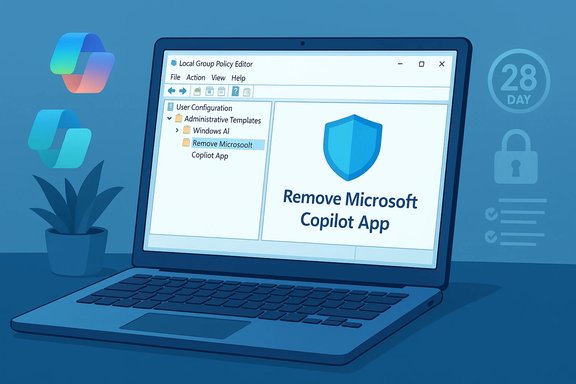
Laptop screen shows a policy editor with the option to remove the Microsoft Copilot app.Background​

Windows 11’s Copilot has evolved into a layered family of experiences: a consumer‑facing Microsoft Copilot app that ships or is provisioned on many images, a paid, tenant‑managed Microsoft 365 Copilot service for enterprise productivity, and a set of OS‑level integrations (taskbar icon, Win+C shortcut, Explorer context menus, hardware key bindings). That multiplicity created a persistent management and governance headache for IT teams who needed deterministic control over what runs on managed endpoints. Micro release adds a new Group Policy intended to address a narrow slice of that problem. Microsoft delivered the change in Windows 11 Insider Preview Build 26220.7535 (packaged as KB5072046). The update surfaces a Group Policy named RemoveMicrosoftCopilotApp under the Local Group Policy Editor at: User Configuration → AdministrativeI → Remove Microsoft Copilot App. The policy, when enabled, will attempt a one‑time uninstall of the consumer Copilot app for a targeted user — but it will only run when several strict conditions are satisfied.

What changed: the RemoveMicrosoftCopilotApp policy explained​

The exact conditions (the policy’s safety gates)​

The policy is deliberately conservative. For a given user/device, RemoveMicrosoftCopilotApp will execute only when all of the following are true:
  • Microsoft 365 Copilot (tenant‑managed) and the consumer Microsoft Copilot app are both installed on the device. This guard prevents removing the only Copilot experience that a paid user or tenant relies on.
  • The consumer Microsoft Copilot app was not installed by the user — it must be OEM‑preinstalled, image‑provisioned, or pushed via tenant tooling. The policy intentionally excludes copies that users installed from the Microsoft Store.
  • The consumer Microsoft Copilot app has not been launched in the last 28 days. This inactivity gate is a calendar‑based safety check intended to avoid surprising active users.
When these requirements are met and the policy is applied, it performs a single uninstall action for the given user account. It does not create a prs can reinstall the consumer Copilot app later via the Microsoft Store, tenant provisioning, or image updates unless administrators combine the policy with additional controls.

Why Microsoft designed it this way​

The policy is a compromise: Microsoft retained tenant continuity for paid Copilot services while giving administrators a supported, documented tool to clean up provisioned, unused consumer Copilot front ends. That design reduces the risk of accidentally removing a tenant‑managed Copilot instance or surprising active users, but it also limits how immediately and broadly the policy can be used. Independent reporting and early community testing have reproduced these behavioral limits in the Insider preview.

Practical implications for administrators​

Where this helps​

  • Cleanup of provisioned images: classroom, kiosk, or lab devices often get images with preinstalled consumer Copilot. The policy is ideal for one‑time remediation when those installs are unused.
  • Imaging mistakes and OEM oversights: when Copilot is inadvertently included in a shipped image, the policy gives admins a supported way to remove the consumer front end for targeted accounts.
  • Low‑touch endpoints: education and shared devices (where provisioned copies exist and users do not personally install software) benefit most.

Where this falls short​

  • It does not provide durable enforcement. Because the uninstall is one‑time and reinstall is possible, organizations that must permanently exclude Copilot must combine thintrols.
  • The 28‑day inactivity requirement is operationally awkward. Copilot often auto‑starts at sign‑in, which prevents the inactivity gate from ever being met unless auto‑start is disabled or users agree note required period. This reduces the policy’s usefulness for immediate, mass removals.
  • The policy is limited to managed SKUs (Windows 11 Pro, Enterprise, and Education) and currently ships via the **Insider Dev/Besumer or Home devices are out of scope for now.

Recommended admin playbook (tested, practical steps)​

  • Build a small test ring: deploy Build 26220.7535 (KB5072046) in a controlled environment and verify the Group Policy path appears at User Configuration → Administrative Templates → Windows AI → Remove Microsoft Copilot App.
  • Inventory devices: identify endpoints with both Microsoft 365 Copilot and the consumer Copilot app installed, and tag whether the consumer app is provisioned or user‑installed. Use Intune reporting, AppxPackage queries, or imaging inventories.
    3ty window: to allow the uninstall to trigger sooner, consider disabling Copilot auto‑start for the pilot group so the 28‑day inactivity gate can be satisfied. Document user impact in advance.
  • Apply policy in pilot OU: map ADMX into Intune or enable via GPO for a targeted pilot OU and monitor the one‑time uninstall action in event logs.
  • Harden for durability (if required): combine with AppLocker, WDAC, Intune app policies, or image re‑provisioning to prevent future reinstalls. Re‑verify after each Windows feature update or tenant provisioning change.

Security, telemetry and compliance considerations​

Removing the consumer front end does not automatically sanitize all AI telemetry or cloud artifacts. IT teams must validate:
  • Residual telemetry flows from other Copilot components and OS integrations.
  • How tenant‑managed data created or surfaced by Microsoft 365 Copilot is stored, retained, or logged.
  • Whether accessibility features (for example, Narrator‑driven Copilot image descriptions) are impacted by removal actions in the preview build.
Administrators in regulated industries should coordinate with privacy, legal, and security teams to confirm that the uninstall action meets compliance goals and that no required telemetry or integration is inadvertently broken. Documentation and logging are essential: Insider features can be server‑gated, refined across builds, and occasionally changed before a broad release.

The broader Copilot picture: enterprise deployments at scale​

While Microsoft added a conservative uninstall policy for managed endpoints, many global organizations are simultaneously embracing Copilot at scale — but with a heavy emphasis on secure, governed rollouts.

PwC’s global deployment: scale and governance​

PwC has publicly described a rapid, enterprise‑level adoption of Microsoft Copilot and related GenAI tooling across its workforce. The firm has positioned itself as an early and large adopter of Microsoft 365 Copilot, using Microsoft technologies to scale secure GenAI capabilities across dozens of countries and hundreds of thousands of users. Public statements and Microsoft customer stories confirm PwC’s broad, firm‑wide deployments and emphasize security, change management, and user adoption as core enablers. Key operational themes clude:
  • Human‑led, tech‑powered adoption: aggressive upskilling programs and role‑specific pilots to demonstrate immediate ROI and drive behavioral change across the workforce.
  • Platform governance and secure architecture: using Microsoft and PwC’s combined engineering and controls to provide tenant separation, plugin governance, and secure data access patterns for Copilot and Copilot Studio.
  • Phased rollout and measurable outcomes: beginning with targeted pilots that produce tangible time or cost savings, then scaling where use cases and controls are validated.
At conferences and customer sessions, PwC executives have cited deployment metrics in the hundreds of thousands of users and tens of thousands of Copilot licenses, underlining the scale that modces firms can reach when pairing adoption programs with governance tooling. Independent summaries and Microsoft’s own customer storytelling corroborate this magnitude of deployment and the importance of governance at scale. ([classcentral.com](https://www.classcentral.com/course...nd-the-rise-of-agentic-ai-studiosp74-504121?u-

Strengths and opportunities in Microsoft’s dual approach​

  • Balanced governance: The RemoveMicrosoftCopilotApp policy shows Microsoft’s attempt to balance broad OS‑level AI integration with enterprise governance needs. The safety gates reduce the risk of bre or surprising end users.
  • Documented, supported controls: Exposing a Group Policy and mapping ADMX for Intune provides a predictable, supportable mechanism an around — preferable to brittle scripts and unsupported workarounds.
  • Enterprise guidance aligns with deployments: Large rollouts like PwC’s underline that enterprises can gain real productivity and transformation value from Copilot — provided they invest in security, adoption, and governance. The combination of platform controls and organizational work is the differentiator.

Risks, limitations and unanswered questions​

  • Not a permanent block: The one‑time uninstall semantics mean the policy cannot be relied upon for durable exclusion.le via the Microsoft Store, tenant provisioning, or imaging. Durable enforcement requires additional controls such as AppLocker/WDAC and image hardening.
  • Operational friction from the inactivity gate: The 28‑day non‑launch many rollouts or force admins to coordinate user behavior to create a 28‑day quiet window — an unrealistic ask in many active enterprise environments.
  • Consumer visibility and parity: Home and unmanaged consumer SKUs remain out of scope. Any expectation that consumer uninstall options will mirror enterprise controls should be treated as speculative until Microsoft publishes a broader consumer policy.
  • Telemetry and cloud artifacts: The public preview notes do not enumerate every telemetry retention window or cross‑service linkage; administrators with strict compliance needs must validate retention and auditability directly with Microsoft. Where claims are operationally critical, validate in a test device and log traces because Insider features can be server‑gated or modified.

What this means for organizations planning Copilot deployments​

  • Treat RemoveMicrosoftCopilotApp as a cleanup tool, not a compliance control. Use it to tidy up provisioned, unused consumer Copilot installs where the preconditions are already satisfied.
  • For durable exclusion or a strict “no‑Copilot” posture, implement a layered strategy:
  • Disable provisioning slices that push the consumer app into images.
  • Use AppLocker or WDAC policies to block reinstall attempts reliably.
  • Automate verification after Windows feature updates and tenant provisioning events.
  • If deploying Copilot at scale (as PwC and other professional services firms have), invest heavily in:
  • Secure architecture (tenant isolation, plugin governance, least privilege),
  • Change management (role training, pilot programs, metrics),
  • Operational monitoring (audit logs, telemetry review, re‑verification cycles).

Quick technical checklist for admins evaluating the policy​

  • Confirm devices are on Windows 11 Pro/Enterprise/Education and are enrolled in Dev/Beta Insider channels running Build 26220.7535 (KB5072046).
  • Verify both Microsoft 365 Copilot and the consumer Microsoft Copilot app are installed on targeted devices.
  • Confirm the consumer app was provisioned (OEM / tenant push / image) and not user‑installed.
  • Disable Copilot auto‑start where possible to allow the 28‑day inactivity condition to be satisfied.
  • Apply RemoveMicrosoftCopilotApp in a pilot OU and monitor for a single uninstall event; log results and verify tenant‑managed Copilot continues to operate where required.

Conclusion​

Microsoft’s new RemoveMicrosoftCopilotApp Group Policy is a pragmatic, narrowly defined tool that responds to a clear enterprise need: a supported way to surgically remove a provisioned, unused consumer Copilot app from managed Windows 11 devices. It provides administrators with a documented mechanism that is safer than ad‑hoc scripts and clearer than relying on accidental update behavior.
However, the policy’s conservative gates — most notably the 28‑day inactivity window, the requirement that the consumer app be provisioned, and the one‑time uninstall semantics — firmly position this feature as a cleanup instrument rather than a permanent enforcement control. Organizations that require durable exclusion or that manage mixed fleets should treat RemoveMicrosoftCopilotApp as one component in a layered governance playbook alongside AppLocker/WDAC, image hygiene, and tenant provisioning controls. Meanwhile, enterprises that choose to embrace Copilot at scale — exemplified by large professional services deployments — demonstrate that secure, measurable benefits are achievable when governance, architecture, and adoption programs are executed together. Those organizations show how Copilot can be scaled responsibly when security and change management are baked in from day one. This is a step forward in the management of OS‑level AI: it does not end the debate about how and where AI should run on desktops, but it equips administrators with a documented tool for a narrowly scoped, operationally realistic problem. For most enterprises, the real work remains the same — piloting carefully, combining controls for durability, and verifying behavior after each update.

Source: Yahoo! Tech https://tech.yahoo.com/ai/copilot/a...ies/pwc-microsoft-copilot-enterprise-ai.html]
 

Microsoft has finally given administrators a supported way to remove the consumer Microsoft Copilot app from managed Windows 11 devices, but the escape hatch is intentionally narrow: it’s a one‑time, conditional uninstall that protects tenant‑managed Copilot, excludes user‑installed copies and will only run when the app hasn’t been used for 28 days.

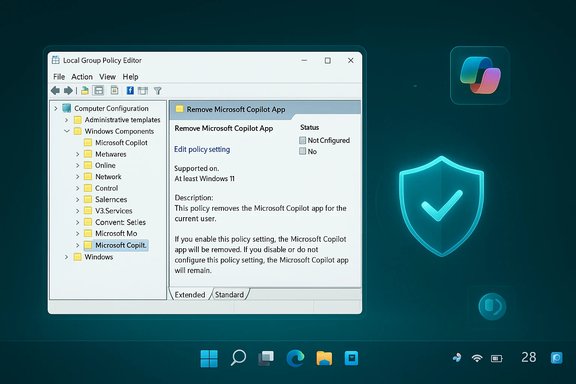
Windows Local Group Policy Editor showing policy to remove the Microsoft Copilot app.Background​

Microsoft’s Copilot presence on Windows now spans several layers: a consumer‑facing Microsoft Copilot app that ships or is provisioned on many Windows 11 images, deeper OS integrations (taskbar button, Win+C or hardware Copilot keys, context‑menu entries), and Microsoft 365 Copilot, the paid, tenant‑managed service integrated into the Microsoft 365 ecosystem. That multiplicity has created persistent management headaches for IT teams that need over what runs on managed endpoints and how corporate data is exposed to AI surfaces. In the January Insider Preview, Microsoft introduced a Group Policy named RemoveMicrosoftCopilotApp packaged in Windows 11 Insider Preview Build 26220.7535 (delivered as KB5072046). The policy appears under: User Configuration → Administrative Templates → Windows AI → Rot App. It targets Windows 11 Pro, Enterprise and Education SKUs enrolled in Insider Dev/Beta channels and is being rolled out with server‑side gating.

What the new Group Policy actually does​

The one‑time, guarded uninstall​

The technical behavior is precise and intentionally conservative. When enabled and when a strict checklist ofied for a targeted user/device, the policy will perform a single uninstall of the consumer Microsoft Copilot app for that user account. It does not implement a persistent block — the app can be reinstalled later by the user, via the Microsoft Store, through tenant provisioning, or by reimaging. The uninstall will only run if all of the following are true:
  • Both Microsoft 365 Copilot (the tenant‑managed paid offering) and the consumer *** are present on the device.
  • The consumer Copilot app was not installed by the end user — it must be OEM‑preinstalled, provisioned with the image, or pushed by tenant tooling.
  • The consumer Copilot app has not been launched in the last 28 days fccount. That inactivity window is a calendar‑based safety gate designed to avoid surprising active users.
These checks make the feature a surgical cleanup tool for provisioned, unused copies of Copilot (classroom PCs, kiosk images, or accidentally provisioned endpoints), rather than a universal “kill switch” for Copilot across a fleet.

Where administrators find it and how to enable it​

The policy appears in Group Policy Editor at:
User Configuration → Administrative Templates → Windows AI → Remove Microsoft Copilot App.
It can be enabled locally, pushed by AD/GPO, or mapped into Intune/MDM configuration profiles via the supplied ADMX. Because the preview is server‑gated, installing KB5072046 is necessary but may not be sufficient to see the policy immee — verify visibility in a test ring.

Why Microsoft scoped it this way — design rationale and tradeoffs​

Microsoft’s design choices reflect three priorities:
  • Preserve functionality foray for and depend on* Microsoft 365 Copilot by ensuring the uninstall won’t remove the only tenant‑managed Copilot capability on a device.
  • Respect end‑user agency by excluding copies that users intentionally installed.
  • Avoid surprising active users by enforcing a conservative 28‑day inactivity gate before automatically removing the app.
The result is a pragmatic, low‑risk administrative tool that reduces reliance on brittle custom scripts for specific cleanup scenarios. However, the narrow gating increases operational friction for administrators whomanent fleet‑wide removal. The policy shifts responsibility back to IT teams to operationalize a layered enforcement model.

Practical implications for IT teams — a recommended playbook​

The RemoveMicrosoftCopilotApp policy is useful, but it’s not sufficient by itself if your goal is durable, fleet‑wide exclusion of Copilot. Use this playbook to plan, pilot and harden a removal strategy.

1. Inventory and classification (must do)​

  • Identify endpoints with both the consumer Copilot app and Microsoft 365 Copilot installed.
  • Determine how Copilot was delivered: OEM preinstall, image provisioning, tenant push, or user install. The policy only targets provisioned copies.

2. Create a laty​

  • Deploy Windows 11 Insider Preview Build 26220.7535 (KB5072046) to a representative test ring and confirm the Group Policy appears at the stated path. Server‑side gating may delay visibility.

3. Prepare the inactivity window​

  • Because the policy requires 28 days of no launches, ensure the Copilot app does not auto‑start or get triggered during the countdown:
  • Disable Copilot autostart in Task Manager or via startup configuration.
  • Remap or disable Copilot hardware keys where possible.
  • Block taskbar or shell launch paths for the pilot group.
  • Monitor launch telemetry to confirm the 28‑day inactivity has been achieved.

4. Apply the policy in a narrow pilot OU​

  • Enable RemoveMicrosoftCopilotApp for a small pilot OU or MDM scope.
  • Monitor event logs and MDM reports to confirm uninstall actions and watch for side effects on accessibility workflows.

5. Veravior​

  • Confirm the Copilot app front end is removed for the affected user.
  • Validate that Microsoft 365 Copilot functionality (if required) remains intact for tenant users.
  • Test accessibility features and any dependent apps.

6. Harden for durability (if needed)​

  • If your posture requires permanent prevention of reinstallation, layer on:
  • AppLocker or **Windows Defender Application Controlock the Copilot package family.
  • Remove Copilot from golden images and rebuild/validate images.
  • Leverage Intune app protection and device configuration to deny store installs.
  • Document the acceptance criteria and maintenance plan: re‑apply AppLocker rules and verification after every feature update because provisioning len releases.

What this does — and doesn’t — solve​

It helps for:​

  • Cleaning up provisioned, unused Copilot installs on classroom, kiosk, and incorrectly imaged devices.
  • Providing an auditable, supported uninstall pathway that is om scripts.
  • Retaining tenant‑managed Microsoft 365 Copilot functionality while removing redundant consumer UI on managed devices.

It does not:​

  • Prevent users from reinstalling Copilot via the Microsoft Stoning.
  • Remove deeply integrated Copilot components that may persist as part of the OS or firmware on Copilot+ hardware.
  • Offer an immediate fleet‑wide ban if the app has been launched in the last 28 days or was user instical caveats and verification points
  • The precise mechanism Windows uses to determine “last launched within 28 days” is not exhaustively documented — validate in a test environment and check event logs if this detail is critical for your rollout. Treat the inactivity check as an operational gate that can vary between preview and production code paths.
  • Because the uninstall is one‑time and non‑persistent, imaging processes and tenant provisioning may reintroduce Copilot after feature or servicing updates; include re‑verification steps in your update cadence.
  • App control technologies (AppLocker/WDAC) remain the most robust approach to preventcution across an estate, but they require mature change control and careful testing to avoid collateral blocking.

Policy and governance considerations​

  • For regulated industries, document the full flow of any data that touches Copilot surfaces before and after uninstall. Removing the consumer UI may not remove telemetry hooks or other background components unless explicitly addressed.
  • Communicate with accessibility stakeholders: some assistive technologies may rely on Copilot‑related features; test before mass removal.
  • Maintain contractual and technical safeguards around Microsoft 365 Copilot usage — the new policy explicitly avoids breaking tenant functionality. Relying solely on RemoveMicrosoftCopilotAppcontrol is risky.

The bigger picture: platform evolution and admin tooling​

This update is emblematic of a broader trend: platform vendors are integrating AI features deeply into operating systems while simultaneously providing managed controls that reflect enterprise governance demands. Microsoft’s approach here is to give a supported, auditable remediation for a narrow class of scenarios while retaining the flexibility and upgradeability of the platform. For administrators, that means:
  • Expect incremental, gated controls to appear in Insider / preview channels first.
  • Build processes to validate and operationalize those controls rapidly across staging rings.
  • Keep a layered enforcement posture to achieve durable outcomes.

Even Starlink wants your data for AI model training — and how to opt out​

The conversation about platform AI extends beyond Microsoft. Starlink — the consumer satellite ISP service — recently updated its privacy controls to allow customer data to be used for third‑party AI model training, while also providing an opt‑out mechanism in account settings. The company’s Global Privacy Policy indicates customers are opted in by default but may opt out via their account settings.

What changed and why it matters​

  • Starlink updated its privacy policy to explicitly permit the use of customer data by "trusted collaborators" to train AI models, with an opt‑out available through account settings. The change drew media attention because it illustrates how network and service providers are increasingly viewing customer data as valuable for AI training.
  • Being opted in by default is material: customers who do not proactively change settings may have their data used for model training. That has implications for privacy, compliance and corporate use of Starlink services in sensitive environments.

How to opt out — step‑by‑step (verified)​

The simplest methods reported and reflected in the updated privacy text are:
  • Sign in to your Starlink account at your Starlink account page and navigate to Account Settings.
  • Click Edit Profile (or Profile / Account Overview in the app), scroll to the privacy section, and uncheck the option labeled similar to “Share personal data with Starlink’s trusted collaborators to train AI models.” Save changes.
  • In the Starlink mobile app: open the menu → Profile → Account overview → locate the data‑sharing toggle and turn it off. Save or confirm as required.
If you prefer direct confirmation or have complex compliance needs, email Starlink’s privacy contact (privacy@spacex.com) to request account‑level confirmation and record the request.

Gud regulated customers​

  • Do not rely solely on default settings: validate the account settings across any business Starlink subscriptions and document opt‑out proofs for audits.
  • If you run Starlink on endpoints that handle regulated or confidential data, treat the network element as a potential data flow for AI training unless explicitly opt‑ed‑out and verified via contractual controls.
  • Consider dedicated connectivity plans or contractual addendums if your organization requires a guarantee that network‑level data will not be used for training third‑party AI models.

Critical analysis: strengths, risks and unanswered questions​

Strengths of Microsoft’s approach​

  • Supported path: Microsoft supplies a documented Group Policy that administrators can deploy via familiar management tooling — better than ad‑hoc scripts that lack auditability.
  • Safety gates: The 28‑day inactivity requirement and exclusion of user‑installed copies reduce the chance of surprising users or breaking tenant services.
  • Encourages layered governance: By making the tool surgical rather than blunt, Microsoft plement robust, long‑term controls like AppLocker and image deprovisioning.

Operational risks and shortcomings​

  • Not durable by itself: The one‑time uninstall semantics mean Copilot can reappear unless administrators pair the policy with AppLocker/WDAC or update images.
  • 28‑day delay is friction: The inactivity gate is a meaningful operational hurdle in environments where Copilot auto‑starts at login; admins must orchestrate a quiet period or tweak startup behavior.
  • Visibility and gating: Because the policy is in Insider preview and server‑gated, early adopters may see inconsistent availability across rings and devices. Validate before broad rollout.

Starlink opt‑in default: user friction and compliance exposure​

  • Default opt‑in for AI training is convenient for service providers but increases compliance risk for enterprise customers and privacy‑sensitive users.
  • The opt‑out path is straightforward, nventory and document opt‑out actions across all accounts and devices to satisfy auditors.

Unverifiable or evolving details (flagged)​

  • The exact telemetry surfaces and backend signals used by Microsoft to gauge “app launched in the last 28 days” are not fully public; organizations that require absolute guarantees should validate with test logs and escalate to Microsoft support for clarity.
  • Starlink’s description of "trusted collaborators" and the precise scope of data shared for AI training (metadata only vs content vs traffic flows) may require contractual clarification for enterprise customers — request specifics in writing if this matters for compliance.

Recommended actions for admins and privacy teams​

  • Inventory: locate all endpoints and Starlink accounts in use across the organization.
  • Pilot: deploy Build 26220.7535 in a lab to verify RemoveMicrosoftCopilotApp behavior and logs.
  • Coordinate: if you plan to use RemoveMicrosoftCopilotApp, schedule a 28‑day quiet window and disable Copilot auto‑start for the pilot group.
  • Harden: implement AppLocker/WDAC rules and remove Copilot from golden images if you require durable blocking.
  • Document: capture proof of Starlink opt‑out for business account provider in writing for audit trails.
  • Verify after updates: re‑run verification post feature updates and after major servicing to detect re‑provisioning.

Conclusion​

The arrival of RemoveMicrosoftCopilotApp is a pragmatic win for administrators who need a supported, auditable tool to clean up provisioned but unused Copilot front ends on managed Windows 11 devices. Its conservative design — the one‑time uninstall, the 28‑day inactivity gate, and the exclusion of user‑installed copies — protects tenant‑managed Copilot users and reduces the risk of surprising active users, but it leaves the burden of durable enforcement on IT teams. Administrators should treat this feature as one component in a layered governance playbook that includes AppLocker/WDAC, image hygiene, Intune controls and a verification cadence. At the same time, the Starlink privacy change illustrates a broader theme: companies across the stack increasingly view user and network data as valuable inputs for AI training. The availability of opt‑outs is good, but default opt‑ins mean enterprises and privacy‑sensitive users must proactively manage settings and contractual guarantees to avoid unwanted data exposure. Both stories underline a simple truth for modern IT governance: the platform vendors are moving fast, and the operational and privacy fences you build today must be actively maintained. Plan, test, document and verify — and treat these admin controls as tools that need operational discipline to deliver the outcomes your organization requires.

Source: PCMag UK https://uk.pcmag.com/ai/162646/you-...ur-data-for-ai-model-training-how-to-opt-out]
 

Microsoft has finally given administrators a supported way to remove the consumer Microsoft Copilot app from managed Windows 11 devices—but the new option is deliberately narrow, one‑time, and full of practical caveats that make it useful only in specific corporate or education scenarios.

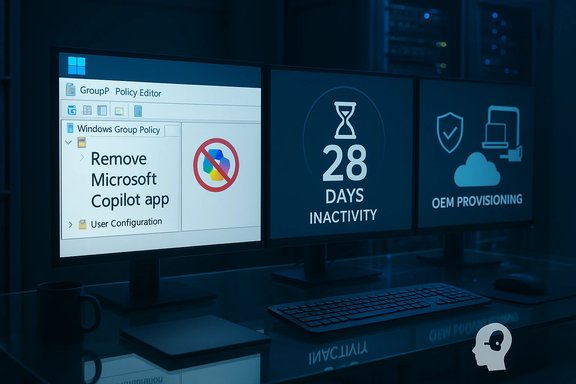
Three-monitor setup showing Windows Group Policy to remove Copilot, a 28-days inactivity timer, and OEM provisioning.Background​

Microsoft’s Copilot strategy has been a major focus across Windows and Microsoft 365 for the last few years. The company began pushing Copilot components broadly across Windows 10 and Windows 11 images in 2023, positioning the assistant as a core part of the operating system experience while also offering a paid, tenant‑managed Microsoft 365 Copilot for business customers. Where users could previously only disable Copilot’s UI elements or hide the taskbar button, there was no supported, one‑click way for administrators to uninstall the consumer Copilot app from managed devices—until the latest Insider Preview. In the January Insider preview (Build 26220.7535, delivered as KB5072046), Microsoft introduced a new Group Policy named RemoveMicrosoftCopilotApp that lets IT teams attempt a one‑time uninstall of the consumer Copilot application for eligible user accounts on managed devices running Windows 11 Pro, Enterprise, and Education. The policy is surfaced under:
User Configuration → Administrative Templates → Windows AIRemove Microsoft Copilot App.

What the new Group Policy actually does​

The policy in plain language​

  • When the Group Policy RemoveMicrosoftCopilotApp is enabled and its all gating conditions are met, Windows will perform a one‑time uninstall of the consumer Microsoft Copilot app for the targeted user account.
  • This action is not a permanent block. The app can be reinstalled by users, tenant provisioning, or OEM/IT reimaging unless administrators take further steps to prevent reinstallation.

The three gating conditions​

To avoid surprising active users or accidentally removing tenant‑managed features, Microsoft requires all of the following to be true before the policy will act:
  • Both Microsoft 365 Copilot and the standalone Microsoft Copilot app are installed on the device. The policy is intentionally conservative: Microsoft will not remove the consumer front end if removing it could break access to paid, tenant‑managed Copilot features.
  • The Copilot app was not installed by the user. That means the policy targets provisioned copies delivered by OEMs, tenant deployment tooling, or image provisioning—not user‑installed instances from the Microsoft Store.
  • The Copilot app has not been launched within the past 28 days. Microsoft enforces a 28‑day inactivity gate so that active users aren’t unexpectedly stripped of the app. In practice, this is one of the most limiting checks because the Copilot app’s auto‑start on login setting is enabled by default on many systems.
Because the policy runs only when every one of these checks passes, it is primarily a surgical cleanup tool for provisioned but unused Copilot instances—think classroom images, kiosk devices, or large fleets where an OEM or provisioning flow inadvertently added the consumer app. It is not a fleet‑wide blocking control.

How administrators enable the policy (step‑by‑step)​

  • Open the Group Policy Editor (gpedit.msc) on a machine where you preview or author policies.
  • Navigate to: User Configuration → Administrative Templates → Windows AIRemove Microsoft Copilot App.
  • Enable the policy for the user or OU you want to target. Remember that this is a one‑time uninstall action and will only run when the gating conditions are satisfied.
  • For large environments, deploy the corresponding ADMX/ADML templates, or map the setting via Microsoft Intune device configuration profiles. Use a staged pilot before broad rollout—this preview contains server‑side gating and may not be visible on every device immediately.

Practical checklist for successful removal​

  • Ensure both the consumer Copilot app and Microsoft 365 Copilot are present on test devices. If Microsoft 365 Copilot is not installed, the policy won’t run.
  • Confirm the consumer Copilot was provisioned (OEM image, tenant push, or preinstall), not installed by the end user.
  • Disable auto‑start on login for Copilot and avoid launching it for 28 days, or plan a staged timeline so the inactivity window elapses before the policy is applied. Note that preventing accidental launches across many users can be operationally painful.

Why Microsoft designed the policy this way​

Microsoft balanced two competing priorities with a single Group Policy: preserve business continuity for paid Microsoft 365 Copilot customers while giving IT a safety valve to tidy up unwanted consumer Copilot installations. The conservative design avoids removing the only Copilot surface that a paid user might rely on and prevents surprise uninstalls for actively using users. In short: the policy is a targeted cleanup tool, not a wholesale rollback mechanism.

Strengths: where this helps IT​

  • Removes unwanted preinstalled copies safely. For IT teams managing machine images or school fleets that inherited OEM‑provisioned Copilot, the new policy provides a supported method to remove the consumer app without breaking tenant workflows.
  • Minimal risk of breaking paid services. By requiring Microsoft 365 Copilot to be present, the policy reduces the chance of disrupting paid tenant experiences that businesses depend on.
  • Exposed in standard management tools. The policy is surfaced in Group Policy and can be deployed with ADMX/ADML or mapped into Intune profiles, so it fits standard enterprise deployment pipelines.

Limits and risks: why this won’t meet everyone’s expectations​

  • One‑time uninstall only. The policy does not create a persistent ban. Users and provisioning flows can reinstall Copilot through the Microsoft Store, tenant pushes, or new images unless administrators add enforcement layers. That makes this unsuitable for organizations that require a durable prohibition.
  • The 28‑day inactivity rule is a practical blocker. Because Copilot commonly auto‑starts on login, most provisioned machines will fail the inactivity check unless IT explicitly disables auto‑start and prevents user launches for nearly a month. This requirement significantly reduces the policy’s real‑world applicability.
  • Doesn’t remove Microsoft 365 Copilot. Organizations that want to entirely remove all Copilot‑branded surfaces will be disappointed: tenant‑managed Microsoft 365 Copilot is out of scope for this policy, which was designed to protect paid tenant workflows.
  • Not available to unmanaged or Home edition devices. The policy targets managed devices running Windows 11 Pro, Enterprise, or Education. Consumer Home editions and unmanaged desktops are not covered.
  • Potential for inconsistent user experience. Mixed environments—BYOD, partially managed endpoints, and user‑installed copies—mean some machines will lose Copilot while others keep it, creating confusion and additional support burden.

Alternatives and complementary controls for persistent enforcement​

Because RemoveMicrosoftCopilotApp is conservative and one‑time, many IT teams will want stronger, persistent options. These include:
  • Use AppLocker or Windows Defender Application Control to block the Copilot app package family name permanently. This prevents both provisioned and user‑installed copies from running. AppLocker allows fine‑grained allow/deny rules for applications and packages. (Windows Forum and enterprise administrators have recommended this approach for persistent enforcement.
  • Deploy Intune device configuration profiles that restrict Microsoft Store installations or block specific app package identities. You can also use Intune to remove store apps centrally and prevent re‑installation via store restrictions.
  • Create custom image builds that exclude the consumer Copilot app at provisioning time. For greenfield deployments, avoid provisioning the app in the first place to eliminate cleanup needs.
  • Use Group Policy to disable Copilot UI and hotkeys (for Pro/Enterprise/Education) or the registry tweaks for Home users to keep Copilot disabled but still present on the system. These are stopgap measures for organizations that do not want removal but do want to reduce accidental usage.
  • Combine one‑time uninstall with store‑blocking policies and AppLocker to create a durable state where the consumer Copilot experience cannot be reintroduced without administrative change.

Practical admin playbook: recommended deployment steps​

  • Identify target devices: filter for machines with the consumer Copilot app provisioned by OEM or tenant image.
  • Verify Microsoft 365 Copilot presence (if required by the policy’s gate) to avoid breaking paid workflows.
  • Disable Copilot auto‑start on login through a configuration profile or OOBE provisioning so the 28‑day inactivity window can be met.
  • Stage the Group Policy on a pilot OU and monitor results, confirming that the uninstall occurs and noting which users were excluded because they launched the app.
  • If a persistent ban is desired, follow up with AppLocker/Intune Store restrictions to prevent reinstallation.

The March 2025 accidental uninstall: community reaction and why it matters​

In March 2025, a separate incident caused some Windows 10 and Windows 11 devices to lose the Copilot app after a cumulative update. Microsoft acknowledged the problem in an official update advisory, confirmed that the issue didn’t affect Microsoft 365 Copilot, and applied a fix (including Known Issue Rollback mechanisms) to return affected devices to their prior state. The accidental uninstall generated widespread user commentary—some users celebrated the unintended removal as a welcome lightening of their system. That community reaction is one of the drivers behind making a supported uninstall path available to administrators. It’s important to note the difference between the accidental removal event and the new Group Policy: the former was a bug; the latter is a deliberate, conservative administrative control designed not to disturb active or tenant‑managed Copilot scenarios.

Security and compliance considerations​

  • Audit and change management: Because RemoveMicrosoftCopilotApp can produce a one‑time change, track which user accounts and devices receive the uninstall in your SIEM or endpoint inventory. Consider logging GPO changes and monitoring store reinstalls.
  • Licensing and contractual impact: If your organization subscribes to Microsoft 365 Copilot, removing the consumer client might change how end users access their paid features. Validate with procurement and app owners before mass removal.
  • User support load: Expect help‑desk tickets from users who find their Copilot icon missing or who reinstall the app. Provide internal guidance and a restore path if the organization still permits optional usage.
  • Privacy and telemetry: For organizations concerned about data exfiltration or tenant telemetry, the presence of Copilot surfaces and their ties into Microsoft services require a broader governance review. Removing the consumer UI reduces one exposure surface for casual users but does not eliminate server‑side telemetry tied to Microsoft 365 Copilot or other integrated services. This nuance is critical for compliance teams.

What this means for everyday users​

For consumers and unmanaged Home edition users, nothing changes today. The new policy is aimed squarely at managed Enterprise, Pro, and Education fleets and will not be visible on Home systems. End users on managed devices may see their IT staff remove the consumer Copilot app as part of an image cleanup or policy rollout; where Copilot is removed, users can still reinstall it from the Microsoft Store unless additional controls prevent that. If you personally dislike Copilot and are using a non‑managed device, administrative removal isn’t an option—your practical choices remain hiding the taskbar button, disabling the Copilot keyboard shortcut, or applying local registry tweaks (for advanced users) to turn Copilot off. Those methods disable behavior but do not perform a supported uninstall in the same way an admin can on managed devices.

Final assessment: a helpful tool, not a definitive solution​

The RemoveMicrosoftCopilotApp Group Policy is a pragmatic response from Microsoft that recognizes administrators’ desire to clean up provisioned bloat without risking service disruptions for paid Copilot customers. It is a welcome addition for specific scenarios—particularly image hygiene in education or enterprise contexts where Copilot was provisioned unintentionally.
However, the policy’s conservative gating conditions, the requirement for a 28‑day inactivity window, and the one‑time uninstall behavior mean it is not a silver bullet for organizations that need a durable, enterprise‑wide ban on Copilot. For those scenarios, combining the new Group Policy with persistent controls like AppLocker, Intune Store restrictions, and provisioning‑level exclusions remains necessary.
In short: this change gives administrators a supported, minimally risky tool to tidy provisioned devices, but it should be treated as one piece in a broader endpoint governance strategy rather than a final answer to Copilot management.

Quick reference (admin cheat‑sheet)​

  • Group Policy path: User Configuration → Administrative Templates → Windows AIRemove Microsoft Copilot App.
  • Build that introduced the policy: Windows 11 Insider Preview Build 26220.7535 (KB5072046) on Dev & Beta channels.
  • Policy requirements: both consumer Copilot and Microsoft 365 Copilot installed; consumer Copilot not user‑installed; consumer Copilot not launched within last 28 days.
  • Recommended persistent controls: AppLocker, Intune store restrictions, image provisioning that excludes the app.
This policy represents a measured step toward giving IT more control over AI surfaces in Windows—but its conservative design means administrators must plan carefully, combine tools, and prepare for follow‑up enforcement if they want a permanent, consistent outcome.
Source: PCMag UK You Can Finally Uninstall Microsoft's Copilot App, But It's Tricky
 

Microsoft has quietly given IT administrators a supported, one‑time way to remove the consumer Microsoft Copilot app from managed Windows 11 devices — but the escape hatch is deliberately narrow, gated by multiple checks, and designed as a surgical cleanup tool rather than a fleet‑wide “kill switch.”

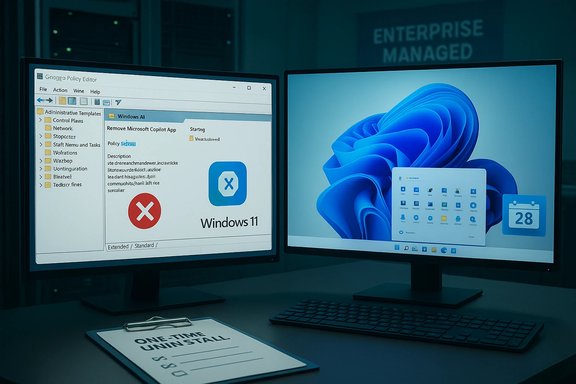
Two-monitor workstation in an enterprise setting displaying Windows 11 and policy editor.Background​

Windows 11’s Copilot presence is layered: a free, consumer‑facing Microsoft Copilot app, deep OS integrations (taskbar button, Win+C / Copilot key, explorer context menus), and the paid, tenant‑managed Microsoft 365 Copilot service. That multiplicity created real operational and governance headaches for IT teams, who have repeatedly asked for deterministic, auditable controls to remove or limit Copilot on managed endpoints. Microsoft’s January Insider Prrowly scoped administrative policy intended to address a subset of those scenarios.

What Microsoft shipped (the facts)​

  • The capability is included in Windows 11 Insider Preview Build 26220.7535, delivered as KB5072046. cy is named RemoveMicrosoftCopilotApp and is exposed under:
    User Configuration → Administrative Templates → Windows AIRemove Microsoft Copilot App.
  • The policy targets managed SKUs: Windows 11 Pro, Enterprise, and Education, and is currently visible in the Insider Dev and Beta channels (server‑side gating may delay visibility).
These are concrete, verifiable facts published in the Insider blog and reproduced by independent outlets.

The policy mechanics — the careful, one‑time uninstall​

MicrMicrosoftCopilotApp as a conservative remediation: it will perform a one‑time uninstall of the consumer Microsoft Copilot app for a targeted user *only when all of the following c
  • Microsoft 365 Copilot (paid, tenant‑managed) and the consumer Microsoft Copilot app are both installed on the device. This prevents removing the only Copilot experience a licensed tenant user relied on.
  • The consumer Microsoft Copilot app was not installed by the user (it must be OEM‑preinstalled, provisioned via tenant tooling, or pushetalled copies are explicitly excluded.
  • The consumer Microsoft Copilot app has not been launched in the last 28 days for the targeted user — a calendar‑based inactivity gate meant to avoid surprising active users.
When those gates are satisfied and the Group Policy is enabled, Windows performs the uninstall for the affected user account once. The policy does not create a persistent block — the app can be reinstalled by the user, through the Microsoft Store, by tenant provisioning, or via image updates unless administrators apply additional enforcement layers.

Why Microsoft scoped it this way​

ree competing priorities:
  • Preserve functionality for tenants that pay for Microsoft 365 Copilot by ensuring the uninstall won’t remove the only tenant‑managed Copilot capability.
  • Respect end‑user agency by excluding copies that users intentionally installed.
  • Avoid surprising active users by enforcing the 28‑day inactivity gate.
The result is a surgical cleanup tool—useful in imaging / provisioning errors, classroom and kiosk scenarios, and low‑touch endpoints — but insufficient by itself for organizations that must ensure Copilot never runs.

Practical admin playbook — how to evaluate and use RemoveMicrosoftCopilotApp​

The policy is useful but operationally constrained. Below is a practical, step‑by‑step playbook for IT teams that want to pab and test ring. Deploy Windows 11 Insider Preview Build 26220.7535 (KB5072046) to a small set of devices and confirm the Group Policy appears at User Configuration → Administrative Templates → Windows AI → Remove Microsoft Copilot App.
  • Inventory target devices. Identify machines that have both the consumer Copilot app and Microsoft 365 Copilot installed and confirm whether the consumer app was provisioned or user‑installed (Intune inventor, or store install records are useful).
  • Meet the inactivity gate. If a device is actively launching Copilot, the policy won’t act until 28 days of inactivity. To accelerate cleanup, consider disabling Copilot auto‑start for pilot users (via startup settings, Intune policy, or a logon script) while you run the pilot. tart may itself change user expectations and requires coordination.
  • Apply the policy to a pilot OU or Intune profile. Use the ADMX/ADML supplied by Microsoft and map the setting into Intune configuration profiles where needed. Monitor event logs and MDM reports for the uninstall action.
  • Layer enfoutcomes. If you require a permanent prohibition, combine the policy with:
  • AppLocker / WDAC rules preventing reinstall,
  • Intune device configurore or prevent sideloading, and
  • image hygiene by removing Copilot from provisioning images.

What RemoveMicrosoftCopilotApp does NOT do (and why that matters)​

  • It does not remove OS‑leves such as the taskbar button, keyboard shortcuts, or protocol handlers; those deeper hooks remain part of the OS and may require separate controls or feature‑flighting to neutralize.
  • It does not stop users from reinstalling the consumer Copilot app after the one‑time uninstall. For a durable block, administrators must add further controls.
  • It is scoped to managed SKUs in Insider channels and is server‑gated; not every device that has the KB installed will immediately see the policy. Test and verify visibility in your rings before rollout.

A note about regional availability and undocumented details​

Community repoe preview is not available in all regions (for example, parts of the European Economic Area may be excluded in this preview). Also, Microsoft’s public notes do not document every internal implementation detail—for example, the exact mechanism used to determine “last launched within 28 days” (user‑session telemetry, app execution logs, or Store usage records). These parts of the behavior should be treated as operationally uncertain until validironment and by reviewing event traces. Proceed accordingly.

Analysis — strengths, limitations and operational risk​

Strengths
  • Documented, auditable control: Administrators now have a supported path to uninstot app in targeted cleanup scenarios — better than ad‑hoc scripting and unsupported hacks. ([blogs.windows.com](Announcing Windows 11 Insider Preview Build 26220.7535 (Dev & Beta Channels)
  • Safety‑first design: The gating conditions protect tenant customers and users, reducing the chance of accidentally removing paid capabilities.
Limitations & Risks
  • Not a durable enforcement tool: Because the pinstall and does not block reinstallation, organizations that require Copilot to never return must layer additional enforcement.
  • Operational friction from the 28‑day gate: In environments where Copilot autostarts or where devices are frequently used, meeting the inactivity window can be slow or impractical. Admins must plan around user activity windows.
  • Undocumented behavior: Microsoft has not published every detection detail; teams must verify behavior in a controlled environment before trusting mass deployment. Treat parts as operational assumptions until validated.

Broader context — Copilot, OS‑level AI and enterprise governance​

RemoveMicrosoftCopilotApp is a pragmatic, incremental response to the governance problemsI as a default system experience. It does not reverse the decision to integrate AI across Windows, nor does it address broader concerns about telemetry, training data, or how agentic UI surfaces surface corporate content. Enterprises still need a layered governance playbook: inventory, pilot, technical enforcement, DLP integration, and contractual protections with platform vendors. The policy reduces a specific operational headache — provisioned but unused Copilot installs — but the hard questions of data flows, default settings and user consent remain on the table.

Switching gears: Shopify, Google and the Universal Commerce Protocol — a new plumbing for AI‑powered shopping​

While Microsoft tightens administrative control over Copilot on managed PCs, a parallel industry shift is remaking how consumers buy things inside AI conversations. Shopify and Google jointly announced the Universal Commerce Protocol (UCP) — an open, transport‑agnostic standard designed to let AI agents discover merchant catalogs, assemble carts, and initiate delegated, tokenized checkouts as Google Gemini, Microsoft Copilot, and ChatGPT. Shopify framed the work as part of its broader Agentic Storefronts and Agentic planhoppable” across AI channels.

sses​

Early in‑chat checkout experiments repeatedly failed because conversational agents lacked reliable access to canonical product metadata, robust cart semantics, and secure payment handoffs. UCP standardizes:
  • Canonical product representation (SKUs, GTINs, inventory windows, images, policies).
  • Cart lifecycle semantics (create, update, validate, submit) and merchant‑specific inputs (delivery slots, subscription cadence).
  • Delegated, tokenized payments so agents never touch raw card data and merchants remain the merchant of record.
Shopify positions Agentic Storefronts as the operational layer that norlogs into a Shopify Catalog that agents can reliably consume. Google and Microsoft are building native surfaces (Gemini AI Mode, the Gemini app, Copilot Checkout) that will consume UCP semantics tperiences.

Why UCP matters — opportunities and hazards​

Opportunities
  • Frictionless discovery → conversion: Agents can shorten the path from intent to purchase by keeping the user in one conversational flow, which can materially improve conversion.
  • Interoperability at scale: A common protocol reduces the need for bespoke integrations between every assistant and every merchant. That lowers engineering costs and accelerates adoption.
Hazards & unresolved issues
  • Merchant economics and control: Platforms could embed monetization levers (placement fees, preferential treatment) into agent discovery. Merchants must insist on transparent placement policies and negotiable commercial terms.
  • **Data and priases require careful consent flows and clear provenance for how intent signals, payment tokens and post‑purchase data are stored and shared. Consumers and regulators will scrutinize data flows closely.
  • Fraud, disputes and chargebacks: Delegated tokenization reduces PCI surface area but pushes settlement and fraud detection to PSPs; the industry must prove the model scales with acceptable dispute and return rates.

Cross‑checking the claims: multiple independent confirmations​

Major platform and press coverage confirms the core elements of UCP an. Shopify’s product blog describes the Agentic Storefronts and UCP design rationale; independent outlets reported Google’s UCP announcement at the National Retail Federation event and coverage confirmed named retail partners and payment firms backing the project. These independent corroborapal claims about UCP and early pilots credible.

Practical checklist for merchants and developers premmerce​

  • Ensure your product data is high quality: canonical SKUs, GTINs, images, inventory staleness windows, shipping rules and clear returns/terms. Agents depend on canonical data to avoi Review payment and PSP readiness: confirm your PSP supports delegated token flows and the session semantics UCP requires. Test edge cases (partial refunds, subscriptions, multi‑otiate data and attribution terms: demand explicit rights to order data, first‑party customer relationships, and export rights so you do not lose direct customer ownership over time.
  • Pilot with a narrow SKU set: run A/B tests comparing agentic converersions; measure disputes, returns, and customer satisfaction before broad rollouts.
Numbered adoptts:
  • Enable Agentic Storefront or Agentic plan in Shopify Admin (or equivalent syndication toolical product feeds and map required merchant inputs (e.g., delivery slots).
  • Integrate with supported PSPs for delegated token checkout (PayPal, Stripe, Shop Pay, others).
  • Run a focused pilot, monitor disputes, and instrument provenance logging for auditability.

Strategic venext​

  • For Windows administrators: the RemoveMicrosoftCopilotApp policy solves a narrow but real operational problem; treat it as one tool in a layered governance strategy and validate behavior in test rings before relying on it for compliance needs.
  • For merchants and platforms: UCP and Agentic ragmatic foundation for agentic commerce — the specification and partner roster are promising, but the channel’s long‑term health depends on fair commercial terms, proven fraud / dispute handling, and transparent data governance.

Conclusion​

January’s platform moves are a study in contrasts: Microsoft’s conservative, admin‑facing uninstall policy shows how platform vendors are responding to governance pressure around desktop AI, while Shopify and Google’s Universal Commerce Protocol accelerates the business logic of agentic commerce by making AI agents first‑class checkout surfaces. Both stories share the same underlying dynamic: the rush to embed AI into everyday workflows and commerce has reached a point where interoperable controls and auditable plumbing are no longer optional — they are essential.
For IT teams, the immediate task is operational: pilot RemoveMicrosoftCopilotApp where appropriate, verify the gating semantics, and build layered enforcement if you require a durable ban. For merchants and payments architects, the imperative is commercial and technical: prepare clean, canonical data, ensure PSP readiness for delegated tokens, and insist on contract terms that protect merchant access to customer relationships and data as agentic channels scale. The next six to twelve months will show whether these incremental but important engineering and governance moves become trusted, scalable infrastructure — or whether unresolved economics and regulatory frictions slow the agentic commerce wave.
Source: Qoo10.co.id https://www.qoo10.co.id/en/gadget/6...pify-and-googles-universal-commerce-protocol]
 

Back
Top