

Microsoft’s latest OneNote refresh promises to be a watershed moment for note-taking — blending on‑canvas image editing, deeper Copilot intelligence, platform parity for proofing and accessibility, and enterprise‑grade protections — but the rollout also surfaces real UX and governance trade‑offs IT teams and power users must plan for now.
OneNote has quietly evolved from a lightweight personal notebook into a cross‑platform hub for meetings, research, and mixed‑media capture. The 2026 wave of updates tightens that transition: Microsoft has added a native image cropping experience, expanded Copilot capabilities inside OneNote (including inked handwriting analysis), improved touch and language workflows, introduced Microsoft Purview sensitivity label support for OneNote sections, refreshed task checkbox visuals, and rolled out a modernized app icon. These changes aim to reduce context‑switching and make OneNote a first‑class workspace for both casual and enterprise users — but they also change long‑standing behaviors and raise governance questions that deserve scrutiny.
However, the wins come with practical costs: governance complexity, potential for AI errors, and user disruption from UX changes. Organizations that want to take full advantage of the 2026 improvements should allocate a short adoption phase: pilot Copilot with a controlled group, lock down high‑risk endpoints with Purview and DLP, educate users on verification and prompt hygiene, and prepare comms to handle interface changes like the checkbox redesign.
OneNote’s direction is unmistakably toward AI‑assisted, compliance‑ready note management. If you plan carefully — aligning licensing, policy, and user training — the 2026 updates can save hours of context switching each week and finally bring OneNote into parity with the expectations of modern knowledge work.
Conclusion
Microsoft’s OneNote 2026 updates represent meaningful progress: practical on‑canvas tools, deeper Copilot assistance, better language and touch behavior, and enterprise controls that align OneNote with corporate compliance needs. They bring real productivity upside — but only when governance, licensing, and user training are part of the deployment plan. Adopt smartly: pilot, secure, educate, and then scale.
Source: Geeky Gadgets 7 New OneNote Features : Copilot, Security Labels, Touch Keys & More
 Background
OneNote has quietly evolved from a lightweight personal notebook into a cross‑platform hub for meetings, research, and mixed‑media capture. The 2026 wave of updates tightens that transition: Microsoft has added a native image cropping experience, expanded Copilot capabilities inside OneNote (including inked handwriting analysis), improved touch and language workflows, introduced Microsoft Purview sensitivity label support for OneNote sections, refreshed task checkbox visuals, and rolled out a modernized app icon. These changes aim to reduce context‑switching and make OneNote a first‑class workspace for both casual and enterprise users — but they also change long‑standing behaviors and raise governance questions that deserve scrutiny. What’s new in OneNote (the seven headline features)
1) Built‑in image cropping and on‑canvas edits
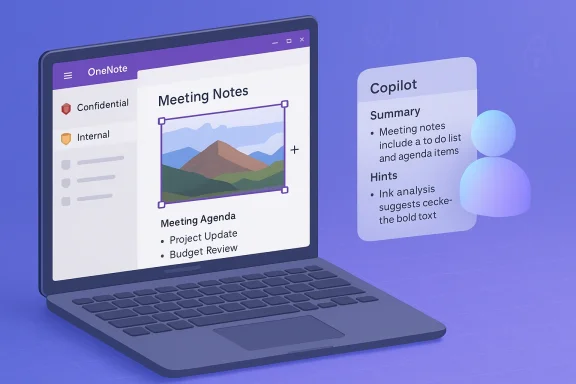
OneNote can now crop images natively without forcing you to jump to a separate editor. The feature exposes a Picture Format / Crop affordance when an image is selected, supports mouse drag handles and keyboard cropping shortcuts, and is available across the modern OneNote app and web in varying degrees. That puts basic image edits — trimming screenshots, focusing on diagrams, and resizing photos for notes — directly where you work. Microsoft’s web and support docs show crop controls already present in the web client and increasingly integrated into the Windows desktop builds.- Key user value: fewer app switches when preparing slide decks or visual notes.
- Caveat: Not all image types behave the same — printouts and inserted PDFs may remain non‑editable in some clients, so legacy workflows that relied on printout editing still require workarounds.
2) Copilot Chat integration and richer AI actions
Copilot is now a first‑class assistant in OneNote. The assistant can summarize pages, generate agendas from meeting notes, extract to‑dos, analyze inked handwriting, and accept image uploads for context. Microsoft’s guidance shows Copilot workflows (open Copilot pane, ask a task‑oriented prompt) and highlights the requirement for eligible Microsoft 365 licensing or Copilot seats for tenant‑aware features. Handwritten ink recognition and canvas‑based Copilot actions are explicitly supported in current OneNote builds.- What Copilot does well: fast summarization, generating action lists from mixed media notes, and converting messy meeting pages into structured next steps.
- Limits and gating: some enterprise features require Microsoft 365 Copilot licenses; Copilot behavior varies by licensing, tenant settings, and whether the flow runs on‑device or in the cloud. Expect feature parity gaps across platforms and staged rollouts.
3) Touch keyboard improvements (better tablet/hybrid experience)
For touch‑first devices, OneNote now triggers the touch keyboard more predictably and offers refined touch typing experiences. The Microsoft Insider posts and product notes indicate automatic keyboard appearance on canvas focus, reduced visual disruption for dictation, and layout/responsiveness controls that improve note capture on tablets and 2‑in‑1 devices. This matters for students and field workers who rely on pen + on‑screen typing.4) Language interoperability and proofing controls
OneNote gains stronger proofing language controls: you can apply a proofing language to an entire page and decouple default language from keyboard input. That reduces accidental language switches when authors write in multiple languages, and lowers false positives in spelling and grammar checking for multilingual teams. Microsoft Q&A and Insider notes say the capability landed in recent builds and should reach broad availability by early 2026.5) Modern sensitivity labels for sections (Purview integration)
OneNote now supports Microsoft Purview sensitivity labels on notebook sections, letting admins and users classify and protect content with the same labels used across Office apps. The official rollout message (MC1157712) and related documentation put the general rollout window starting in late January 2026 and emphasize encryption/access controls and consistency with tenant policies. For regulated organizations, this is a major compliance gain — OneNote content can now be treated like Word or Excel data for classification and DLP.6) Updated to‑do checkboxes (visual redesign)
OneNote’s To‑Do tag (Ctrl+1) now appears using a redesigned circular checkbox in some clients, replacing the long‑time square checkbox in certain builds. The change arrived via an update in January 2026 and has already generated notable community feedback and workarounds to restore older visuals via tag customization. The visual change is display‑level, not data‑level, but it affects recognition and muscle memory for longtime users.7) Refreshed OneNote icon and visual polish
OneNote’s iconography has been modernized to align with the broader Microsoft 365 icon system and Copilot visual language. The refresh is largely cosmetic but reinforces Microsoft’s design direction — gradients, softer corners, and content‑first glyphs. The redesign has been rolling out since late 2025 and surfaced both praise for consistency and criticism for reduced legibility at small sizes.Deep dive: Why these updates matter (productivity & UX)
Faster mixed‑media workflows
Native image cropping, on‑canvas Copilot prompts, and paste‑plain‑text shortcuts (recently added to OneNote) all converge to reduce context switching. Instead of exporting an image to an editor, trimming it, saving and reinserting, users can now trim in place and ask Copilot to summarize or extract action items from the same page. For people who assemble meeting artifacts or prepare reports from field captures, that is a real time saver.Better accessibility and mobile parity
Touch keyboard improvements and proofing language controls reduce friction for mobile and international users. The touch keyboard changes remove jarring full‑screen overlays during dictation and make typing on hybrid devices feel more native. The expanded language proofing lets multilingual teams avoid persistent false positives and preserves the author’s intended language setting across pages. These are incremental changes but address long‑standing pain points.Enterprise readiness — finally
Bringing sensitivity labels to OneNote is a big enterprise milestone. Until now, OneNote content could be a blind spot for classification and DLP policies; labels allow admins to extend encryption, access restrictions, and audit controls to notebook sections. When combined with tenant‑aware Copilot deployments and the Copilot Control System governance surfaces, IT organizations can better align OneNote usage with corporate compliance frameworks. However, configuration is necessary — labels and Copilot entitlements are not automatic.Critical analysis: strengths, risks, and operational trade‑offs
Strengths — practical and strategic gains
- Reduced context switching: On‑canvas crop + Copilot actions let users prepare deliverables faster.
- Multimodal intelligence: Copilot’s ability to analyze typed text, ink, images, and audio transcripts makes OneNote a versatile knowledge capture surface.
- Enterprise controls: Purview sensitivity labels and Copilot admin tooling are critical for regulated industries seeking to adopt AI without sacrificing compliance.
- Platform parity momentum: Proofing language and keyboard UX improvements show Microsoft addressing cross‑platform fragmentation that previously undermined OneNote for international teams.
Risks and caveats — what IT and power users must watch
- AI hallucinations and over‑reliance: Generative assistants can produce plausible but incorrect outputs. For legal, financial, or safety‑critical notes, Copilot summaries must be verified. Training and guardrails are essential; organizations should treat Copilot as an accelerator, not an oracle.
- Data exfiltration & policy gaps: If Copilot or web‑grounded chat is allowed without strict DLP, users could inadvertently upload PII or proprietary data to cloud LLMs. Admins must map entitlements and enforce label‑based protections and blocklists where necessary. The Copilot Control System and Purview integrations are helpful — but only if configured correctly.
- Inconsistent rollouts and UX churn: Microsoft’s staged feature flights mean users on different clients will experience different behaviors. The To‑Do checkbox redesign is a clear example: some users saw circles, others squares, and some saw behavior flip‑flop during staged deployment. That inconsistency can break training, automations, or scripts that rely on UI expectations.
- Licensing surprises and hidden gates: Some Copilot capabilities require Microsoft 365 Copilot seats or Copilot Pro; administrators need to map licensing to expected user value. Failure to account for license gates can create false expectations and stalled projects.
- Privacy & on‑device vs cloud distinction: Microsoft’s hybrid model runs some inference on Copilot+ hardware when available, but falls back to cloud models otherwise. IT teams should record which clients and locales permit on‑device runs and how telemetry is retained. Policies should be explicit about data residency and deletion.
Practical guidance: what to do now (IT admins and power users)
- Audit your OneNote estate
- Identify which OneNote clients users run (Win32 app, web, mobile) and which builds are deployed.
- Check for staged rollout exposures (some visual changes and Copilot affordances arrive earlier to Insiders).
- Lock down high‑risk flows
- Use Purview sensitivity labels to classify OneNote sections that contain regulated data.
- Create DLP rules to block Copilot uploads of protected content where required.
- Map Copilot access to privileged groups for tenant‑aware access.
- Train teams on Copilot best practices
- Teach verification steps, prompt hygiene (avoid pasting raw PII), and template prompts for repeatable tasks.
- Provide a short playbook that shows when to trust Copilot outputs and when to cross‑check source data.
- Manage UX churn proactively
- Communicate upcoming visual or behavioral changes (e.g., checkbox redesign) to power users and document any tag customization steps for reverting appearance.
- Where necessary, provide scripts or macros that standardize tags across notebooks.
- Verify on‑device vs cloud behavior
- Confirm which devices in your fleet qualify as Copilot+ and whether on‑device SLMs are used.
- Adjust privacy and telemetry expectations accordingly and document retention windows.
- Keep a small pilot before broad enablement
- Run a controlled pilot for Copilot features with representative users, capture logs, and evaluate DLP interactions before opening usage company‑wide.
How to use the headline features (quick user cheatsheet)
- To crop an image in OneNote:
- Select the image → Picture Format tab → Crop → drag handles or choose keyboard cropping options. If your client lacks this, use the Windows Snip (Win+Shift+S) and paste the clipped image as a fallback.
- To ask Copilot for a summary:
- Open the target page → Home tab → Copilot → type “Summarize this page” or use a more specific prompt (e.g., “Extract action items and owners”). Remember results should be reviewed.
- To set a page proofing language:
- Review → Language → Set Proofing Language → select language → check “Apply to whole page” and uncheck “Follow keyboard input language” to lock defaults.
- To apply a sensitivity label:
- In OneNote (supported clients) open the section, choose Sensitivity → pick appropriate label — admin configuration determines available options and protection actions.
- To revert or customize the To‑Do tag:
- Home → Tags → Customize Tags → select To Do (Ctrl+1) → Modify Tag → pick a preferred symbol/colour. Note: changing the tag affects how new tags appear; old instances may need reapplication for visual uniformity.
Platform parity and rollout realities
Microsoft’s OneNote teams are shipping features in waves across web, Windows, Android, iOS, and Mac. Some experiences (crop, Copilot options, checkboxes) are available earlier in the Windows desktop builds or Insider channels, while web or mobile clients catch up afterwards. That staged approach reduces global risk but increases short‑term fragmentation: documentation and internal training must explicitly reference the build or platform the instructions apply to. Track the Microsoft 365 message center and the OneNote Insider blog for timeline details, and communicate expected dates to users to avoid surprise.Final assessment — is OneNote 2026 a step forward?
Yes — for the majority of productivity scenarios, these updates turn OneNote into a more capable, integrated workspace. The combination of on‑canvas editing, AI summarization, language controls, and compliance labels moves OneNote from a digital scrapbook toward a disciplined knowledge workspace suited for teams.However, the wins come with practical costs: governance complexity, potential for AI errors, and user disruption from UX changes. Organizations that want to take full advantage of the 2026 improvements should allocate a short adoption phase: pilot Copilot with a controlled group, lock down high‑risk endpoints with Purview and DLP, educate users on verification and prompt hygiene, and prepare comms to handle interface changes like the checkbox redesign.
OneNote’s direction is unmistakably toward AI‑assisted, compliance‑ready note management. If you plan carefully — aligning licensing, policy, and user training — the 2026 updates can save hours of context switching each week and finally bring OneNote into parity with the expectations of modern knowledge work.
Quick reference: official documentation and community threads to follow
- Microsoft Support: Copilot in OneNote (how to summarize and use Copilot).
- Microsoft 365 Message Center (MC1157712) for Purview sensitivity label rollout timeline.
- Microsoft Tech Community posts on touch keyboard and Copilot ink support for practical rollout notes.
- Community feedback threads (Microsoft Q&A and Reddit) for real‑world user reports about checkbox changes and icon feedback.
Conclusion
Microsoft’s OneNote 2026 updates represent meaningful progress: practical on‑canvas tools, deeper Copilot assistance, better language and touch behavior, and enterprise controls that align OneNote with corporate compliance needs. They bring real productivity upside — but only when governance, licensing, and user training are part of the deployment plan. Adopt smartly: pilot, secure, educate, and then scale.
Source: Geeky Gadgets 7 New OneNote Features : Copilot, Security Labels, Touch Keys & More
