

Attaching files in Outlook is one of those everyday tasks that feels trivial until it goes wrong — a “file too large” error, a missing image in a sent message, or a recipient locked out of a OneDrive link can turn a five‑minute chore into a support ticket. This feature guide consolidates the practical steps for every Outlook platform (New Outlook and classic desktop, Outlook for Mac, Outlook on the web, and mobile), explains when to use a traditional attachment versus a cloud link, verifies technical limits that commonly trip users, and offers actionable troubleshooting and security guidance for both end users and admins.
Email attachments are still the simplest way to deliver an exact copy of a file to someone else: PDFs, Word docs, spreadsheets, images, and ZIP files travel with the message and can be downloaded even when the recipient is offline. Modern Outlook clients, however, also encourage cloud workflows — primarily OneDrive or SharePoint — so you can send a link instead of embedding a copy. That dual model solves many size and collaboration problems but introduces new considerations around permissions, access, and device offline behavior.
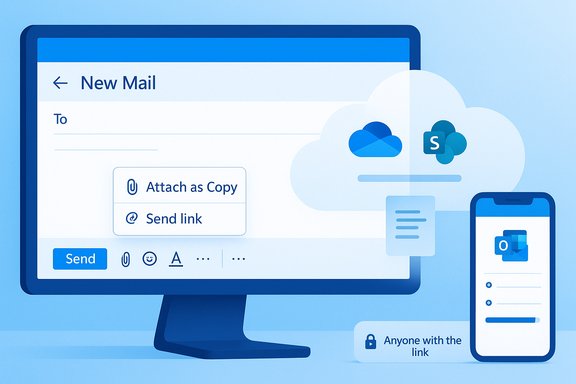
Microsoft’s official documentation for the New Outlook confirms the user-facing options: when composing a message you’ll see an Attach File control that offers suggested cloud files, OneDrive/SharePoint locations, or “Browse this computer” for local attachments — and you can opt to send a link or attach a copy when selecting cloud items. Community and forum threads also show how these choices are experienced in the wild, and how drag‑and‑drop and new Windows interactions speed the workflow for many users.
Attaching files in Outlook should be quick and reliable, and for most messages that remains true. The complexity arises at the edges — large files, cross‑tenant sharing, and device offline behaviors — and the right approach depends on whether you need an immutable copy or a collaborative, up‑datable document. Use the steps above as your working standard: attach directly for small, static files; share links for large or collaborative files; compress folders; and, when problems arise, fall back on saving images or files locally and attaching them as ordinary files. For administrators, the guidance is clear: set sensible transport and sharing policies, document them for users, and secure endpoints so offline attachment caching doesn’t become a data‑leak vector.
Source: H2S Media How to Attach a File in Outlook (Windows 11, Mac & Web)
 Background / Overview
Email attachments are still the simplest way to deliver an exact copy of a file to someone else: PDFs, Word docs, spreadsheets, images, and ZIP files travel with the message and can be downloaded even when the recipient is offline. Modern Outlook clients, however, also encourage cloud workflows — primarily OneDrive or SharePoint — so you can send a link instead of embedding a copy. That dual model solves many size and collaboration problems but introduces new considerations around permissions, access, and device offline behavior.Microsoft’s official documentation for the New Outlook confirms the user-facing options: when composing a message you’ll see an Attach File control that offers suggested cloud files, OneDrive/SharePoint locations, or “Browse this computer” for local attachments — and you can opt to send a link or attach a copy when selecting cloud items. Community and forum threads also show how these choices are experienced in the wild, and how drag‑and‑drop and new Windows interactions speed the workflow for many users.
What you need to know right now (quick summary)
- For everyday needs, the paperclip/Attach File control in Outlook remains the fastest way to add files; drag‑and‑drop works across nearly all clients.
- Many users still assume a 20 MB limit; the correct quick rule is: personal Outlook/Outlook.com traditionally enforces a ~25 MB attachment limit, while Microsoft 365 organizations default to 25 MB but can be configured up to 150 MB (and separate OneDrive/SharePoint upload limits apply). Always check both sender and recipient limits before sending large files.
- When attachments exceed mailbox limits or when collaboration is needed, use OneDrive links — OneDrive currently supports very large single files (the documented upload limit is significantly higher than 100 GB in current Microsoft documentation; verify for your tenant).
Platform-by-platform: Exact steps and UX notes
Windows — New Outlook (Windows 11 / Windows 10)
The New Outlook for Windows keeps attachment controls simple and suggests recent cloud files before local items, giving a direct choice of sending a linked copy or a traditional attachment.- Click New mail (or press Ctrl+N).
- Click the paperclip / Attach File icon in the compose window.
- Choose:
- Suggested files (recent cloud files),
- OneDrive / Browse cloud locations (attach as link or copy with permissions options),
- Browse this computer (attach a local copy).
- If you pick a OneDrive file, you’ll be prompted to send a link or attach a copy and to set view or edit permissions.
Windows — Outlook Classic (desktop app)
Classic Outlook uses the Ribbon:- New Email → Message tab → Attach File in the Include group.
- Recent files appear in the dropdown; select Browse This PC to attach from disk.
- You can attach multiple files by holding Ctrl while selecting in File Explorer, or simply drag multiple files into the message window.
Outlook on the web (Outlook.com / outlook.office.com)
Browser-based Outlook supports both attach‑as‑copy and cloud sharing:- New mail → click the paperclip icon at the top of the compose pane.
- Choose Browse this computer for local attachments or pick a cloud location.
- Outlook Web uploads the local file to Microsoft’s servers before you can send, so wait for the upload progress to finish — sending prematurely can result in missing attachments. Drag‑and‑drop from the desktop into the browser is supported.
Outlook for Mac
The Mac client offers a native experience:- New Email (Cmd+N) → click the paperclip icon in the message toolbar.
- Finder opens — select a file and choose Open / Choose.
- Dragging from Finder directly into the message body also attaches the file.
Outlook Mobile (iOS / Android)
Mobile clients show a smaller toolbar:- Compose → attach icon (paperclip or +) → choose Gallery, Files, OneDrive, or Photos.
- Functionality is limited compared to desktop: compressed images, fewer file‑type options, and smaller upload bandwidth.
Handling large files: when to attach vs when to link
Email systems and admins often limit message size. Here’s the practical breakdown:- Small files (under 10–20 MB): attach as a normal file — instant downloads for recipients and no cloud sign‑in required.
- Medium files (20–100 MB): prefer cloud links. Many receiving mail systems reject messages above 25 MB by default. Microsoft 365 tenants can be configured larger, but the recipient’s settings still matter.
- Very large files (>100 MB): use OneDrive, SharePoint, or a dedicated file transfer service. OneDrive upload capabilities are much larger than legacy figures — check tenant and client specifics; recent Microsoft documentation shows the OneDrive/SharePoint single‑file upload limit at the hundreds‑of‑gigabytes range when using modern clients.
Compressing and zipping: practical compression rules
- Use ZIP when sending folders or many files: right‑click → Send to > Compressed (zipped) folder on Windows, or right‑click → Compress on Mac.
- Compression yields vary:
- Text and Office documents: often large reductions (30–90%).
- Images: modest reductions (10–40%) depending on format and prior compression.
- Already compressed formats (MP4, JPG, PDF) rarely shrink.
- Encrypt sensitive ZIPs if sending over email, but be mindful that some recipients may be blocked from receiving encrypted archives by corporate gateways.
Troubleshooting — real problems and fixes
Uploads fail or take forever in Outlook Web
Symptoms: slow upload progress, timed‑out attachments, “attachment missing” after sending.- Cause: slow or unstable internet, browser timeouts, or large files. Outlook Web uploads the file to Microsoft’s servers before allowing Send, so upload interruptions stop the process. Use the Outlook desktop client (which queues sends and uploads in the background) or upload the file to OneDrive first and insert the link.
Images pasted into messages disappear or emails end up in Drafts
Symptoms: paste an image (Snipping Tool) into a message, hit Send, message lands in Drafts with missing image.- Known vectors: clipboard/inline image handling quirks, add‑ins, antivirus email scanners, or broken temporary caches. Community troubleshooting steps include: send the same message from Outlook Web, save the snip locally and attach it instead, run Outlook in Safe Mode to isolate add‑ins, clear the Content.Outlook temp cache, and run Office Quick Repair. Forum archives and support threads document this pattern and the standard fixes.
Recipient can’t open OneDrive link
- Common reasons: link permission set to “specific people”, recipient not signed into a Microsoft account, or tenant‑level sharing restrictions.
- Fixes: change link to “Anyone with the link” if appropriate (least secure), or add the recipient explicitly; attach a copy if you must ensure immediate offline access.
Attachments blocked or file types disallowed
- Some extensions (.exe, .bat, .js) are commonly blocked by Exchange/Outlook for security. Workarounds: compress the file into a ZIP (some gateways still block zipped executables) or use a secure cloud share and send the link.
Admin and security considerations
- Tenant message size and sharing policies matter: administrators can change maximum send/receive sizes (the Microsoft 365 default historically has been 25 MB, but admins can raise this up to larger configured limits like 150 MB in Exchange Online). Even with a higher tenant limit, cross‑system constraints (recipient mail servers or web upload policies) can still block messages.
- Offline attachments in New Outlook: Microsoft has been adding offline attachment capabilities, but the behavior is governed by mailbox policy controls and staged rollouts. Administrators must consider device encryption, DLP, conditional access, and retention when enabling local caching of attachments. Community and admin documentation show that enabling offline attachments increases local data surface area and requires configuration and testing.
- OneDrive sharing controls: OneDrive link types (view, edit, specific people, anyone with link) are powerful but create risk if set too liberally — use auditing, expiration, and password protection where available.
Step‑by‑step quick reference (cheat sheet)
- If file is < 10 MB: attach directly via paperclip or drag‑and‑drop.
- If file is 10–50 MB: prefer OneDrive link if recipient is internal or needs to edit; attach directly only if you’re certain recipient can receive it. Check recipient limits.
- If file is > 50–100 MB: upload to OneDrive/SharePoint or use a file transfer service; insert a link into the email.
- Need folder or multiple files: compress into a ZIP and attach, or upload the folder to OneDrive and share a link.
- If image quality is critical on Mac: attach as file (not inline) or use OneDrive link — Outlook for Mac may compress inline images.
Best practices and professional workflows
- Prefer OneDrive links for collaborative files so recipients always open the latest version and you retain the ability to revoke access.
- For legal, financial, or archival needs where a fixed unchanging version must be delivered, attach a copy (not a link) and consider using PDF/A or a digitally signed format.
- If emailing large media or design files frequently, use a shared folder in OneDrive/SharePoint and provide short instructions for access in the email — this reduces confusion and follow‑ups.
- Maintain a small checklist before hitting Send: confirm attachments appear in the message header, verify attachment sizes, and, if using links, verify permissions by opening the link in a private browser window.
Strengths, shortcomings, and risk assessment
- Strength: Modern Outlook’s dual model (attach vs link) gives users the best of both worlds — reliable embedded files for fixed copies and cloud links for collaboration and oversized content. Microsoft’s help pages document both workflows clearly and the UI supports both.
- Strength: OneDrive and SharePoint integration mean you can avoid email bounces and preserve single-authority documents for teams; recent OneDrive limits support very large single-file uploads when using modern clients.
- Risk: Default mailbox message size limits still trip users. Many recipients with different mail systems will still be limited to ~25 MB unless their admin raised it. Sending large attachments remains a brittle cross‑system problem.
- Risk: Cloud links introduce access and privacy risks — users often choose “Anyone with the link” without realizing the exposure. Admins should set sensible defaults, and users should use expiration and permission restrictions for sensitive files.
- Risk: Local caching of attachments (offline mode in New Outlook) helps productivity but increases exposure if devices aren’t encrypted or managed; admins should combine offline allowances with endpoint security and DLP.
Corrections and cautions about common claims
- If you read a guide that states OneDrive upload limit is 100 GB, treat it as outdated: Microsoft documentation and community answers show that modern OneDrive/SharePoint single‑file upload limits are much higher (hundreds of GB) when using current clients or the OneDrive sync app; the exact cap can depend on client and browser versions. Validate the limit for your tenant and client before relying on a specific number.
- Likewise, the “20 MB” blanket attachment limit is an oversimplification. Outlook.com and many tenants default to ~25 MB, Microsoft 365 administrators can raise the org limit, and Exchange Online historically allowed a configurable maximum (up to 150 MB in many configurations). Always check both sender and recipient configurations when large files are involved.
Final checklist before you send
- Confirm the file(s) appear in the compose window (and that upload progress is complete if using the web).
- Confirm recipients can access OneDrive links (specific people vs anyone with the link).
- Consider compressing or exporting to PDF to reduce size or ensure formatting.
- For sensitive files, use password protection or secure file transfer methods instead of open cloud links.
- If attachments misbehave (images missing, message saved to Drafts), save images locally then attach, test in Outlook Web, and run Safe Mode / disable add‑ins as needed — community troubleshooting guides are rich with these steps.
Attaching files in Outlook should be quick and reliable, and for most messages that remains true. The complexity arises at the edges — large files, cross‑tenant sharing, and device offline behaviors — and the right approach depends on whether you need an immutable copy or a collaborative, up‑datable document. Use the steps above as your working standard: attach directly for small, static files; share links for large or collaborative files; compress folders; and, when problems arise, fall back on saving images or files locally and attaching them as ordinary files. For administrators, the guidance is clear: set sensible transport and sharing policies, document them for users, and secure endpoints so offline attachment caching doesn’t become a data‑leak vector.
Source: H2S Media How to Attach a File in Outlook (Windows 11, Mac & Web)
