

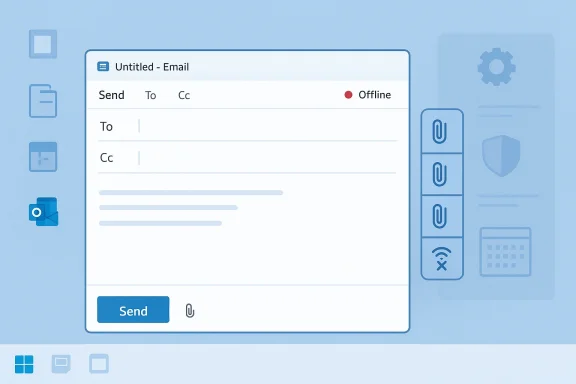
Outlook for Windows is getting a practical — if incremental — fix for a long-standing annoyance: you will soon be able to attach files to messages while offline and have them sent automatically once your connection returns, a capability Microsoft is rolling toward broad availability in the coming months.
For decades, desktop email clients earned their keep by letting users keep working when the network didn’t cooperate. The classic Outlook experience included robust offline access to mail, calendars, and attachments via local OST/PST stores. The “new Outlook” for Windows — a modern, web‑backed client Microsoft has been shipping to replace Mail & Calendar — has closed many gaps but still draws criticism for missing conveniences and web‑style behavior that makes it feel less resilient in low‑connectivity scenarios.
Allowing users to add attachments while offline is a practical, user‑facing fix: it removes a common interruption (losing connectivity mid‑compose), shortens the “send later” mental model, and reduces the number of aborted workflows where a user must save a draft, reconnect, and then reattach a file. Several independent writeups and community threads picked up the change after it appeared on Microsoft’s product roadmap and in early previews.
Known unknowns and caveats:
The extended enterprise opt‑out timeline (March 2027) acknowledges that many organizations need more time to align add‑ins, compliance, and operational procedures with the modern client. That extra year is a pragmatic concession that enterprise migration rarely fits a single calendar window.
This is a welcome and pragmatic improvement: not transformative, but meaningful. It restores a small slice of the offline resilience many users expect from a desktop mail client and gives IT teams a manageable lever to balance productivity and control. But it is not a substitute for careful piloting: security, DLP, and retention behaviors must be validated before turning it on tenant‑wide.
Allowing attachments while offline is not the kind of headline feature that rewrites calendars, but it is exactly the sort of pragmatic polish many users have been asking for as Microsoft tries to move the Windows mailing experience from a web‑style wrapper back toward the resilient, offline‑capable client that professionals rely on. The devil will be in the details — encryption, DLP, and retention — and those details should be tested thoroughly before administrators flip the switch across an organization.
In short: useful, overdue, and worth piloting now.
Source: Windows Central No Wi‑Fi? No problem: The new Outlook will let you attach files offline
 Background: why this small change matters
For decades, desktop email clients earned their keep by letting users keep working when the network didn’t cooperate. The classic Outlook experience included robust offline access to mail, calendars, and attachments via local OST/PST stores. The “new Outlook” for Windows — a modern, web‑backed client Microsoft has been shipping to replace Mail & Calendar — has closed many gaps but still draws criticism for missing conveniences and web‑style behavior that makes it feel less resilient in low‑connectivity scenarios.Allowing users to add attachments while offline is a practical, user‑facing fix: it removes a common interruption (losing connectivity mid‑compose), shortens the “send later” mental model, and reduces the number of aborted workflows where a user must save a draft, reconnect, and then reattach a file. Several independent writeups and community threads picked up the change after it appeared on Microsoft’s product roadmap and in early previews.
What Microsoft announced (and when)
- The offline‑attachments feature for Outlook for Windows appears in Microsoft’s rollout plans and has been discussed in reporting about the New Outlook’s feature updates.
- The rollout schedule originally targeted a sooner release window but was updated so that broad availability is expected in the April–May 2026 timeframe, with preview and targeted releases appearing slightly earlier in some insider rings.
- Parallel changes — tighter local Office‑to‑mail integration and simpler folder‑sharing flows — are also being tested, indicating Microsoft is prioritizing local file handling and offline resilience.
How the feature will work for end users
Microsoft has described the new behavior in terms that emphasize convenience and admin control. Based on roadmap notes and preview instructions:- Users will be able to attach files to an email while the Outlook client is offline; the attachments are cached and the message is queued to send automatically when connectivity is restored.
- Enabling the capability on a per‑device basis will be handled through the Outlook settings path: Settings > General > Offline, where users (or admins) can turn on offline email, calendar, and people and toggle an Include file attachments option.
- Administrators can control the behavior with an Exchange/OWA mailbox policy — the OWAMailboxPolicy‑OfflineEnabledWin policy is referenced as the server‑side toggle that governs whether offline features are allowed for Outlook for Windows in a tenant. That means some organizations may ship the feature disabled by default until IT explicitly enables it.
Why this is more than a convenience — practical benefits
This isn’t a flashy feature, but it addresses a real productivity gap for several user groups:- Mobile and field workers who routinely compose messages in transit when cellular coverage drops will no longer have to postpone sending attachments until they reach a Wi‑Fi zone.
- Travelers on unreliable hotel or conference Wi‑Fi will be able to finish composed messages with attachments and trust the client to send them when a connection comes up.
- Knowledge workers with brief, intermittent disconnects (e.g., flaky VPNs or ferry rides) regain momentum: draft → attach → continue, without extra manual steps.
What the feature does not — and what remains unknown
The announcement leaves several important technical questions unanswered, and we should call them out explicitly so readers and administrators know what to validate when the feature reaches their environment.Known unknowns and caveats:
- Storage location and encryption: Microsoft hasn’t publicly detailed whether offline attachments will be stored in an encrypted local cache (similar to an OST) or how long temporary copies persist on disk. That matters for regulated environments. This detail isn’t clearly specified in the roadmap summaries and should be treated as unverified until Microsoft publishes technical documentation. Flag: unverifiable until official docs or release notes are posted.
- Attachment size limits while offline: It’s not explicit whether the offline attach flow enforces the same size limits as online sends (e.g., mailbox/tenant caps or Exchange transport limits) at the time of attachment or only at send time. Admins should test large attachments in preview rings.
- File type handling and scanning: Will attachments added offline be scanned by tenant‑level DLP or anti‑malware engines before being cached or only when the message is submitted? The roadmap notes do not include those operational details. Administrators should verify integration with their security stack.
- Shared mailbox support and multi‑recipient workflows: Preview reporting indicates Microsoft is also addressing shared mailbox behaviors and find‑in‑message usability; how the offline file flow interacts with complex mailbox topologies remains to be validated.
Enterprise impact and the migration timeline
Microsoft has been moving Windows users toward the “new Outlook” and away from the native Mail & Calendar apps, but the company has acknowledged feature gaps and deployment challenges by giving enterprises more time to prepare. Notably:- Microsoft pushed the enterprise “opt‑out” phase for the New Outlook rollout out by roughly one year — moving the planned start from April 2026 to March 1, 2027 — explicitly to give administrators more time to test features, adjust policies, and address add‑in and workflow compatibility.
- The offline attachments change is part of a broader set of improvements Microsoft has signaled to make the new Outlook more resilient and closer to classic Outlook feature parity. The company’s roadmap and secondary reporting mention other conveniences (local Office file sending, easier folder sharing) that complement the offline attach work.
- Use the extended timeline to create a formal migration & validation plan that includes offline testing, DLP and M365 compliance workflows, add‑in compatibility checks, and performance benchmarking under low‑connectivity conditions.
- Establish a preview pilot group (helpdesk, remote workers, legal/compliance) to stress‑test offline attach behavior, attachment persistence, and policy enforcement before enabling tenant‑wide.
- Adjust user training materials to explain the new offline behavior and any local storage considerations, especially for regulated teams.
Security and compliance considerations (what to test)
Offline capabilities increase the attack surface if not properly managed. Administrators need to validate a short checklist in preview:- Local disk encryption and retention: confirm where attachments are cached, whether those files are stored encrypted, and how long they remain after the message is sent. If the caching mechanism writes to profile folders, endpoint encryption policies (BitLocker, E3/E5 management) must be applied. This is a test item — not yet documented in detail.
- DLP and Data Residency: verify that tenant DLP policies trigger on attachments added offline and that policy enforcement (block, audit, encrypt) executes when the message synchronizes. Admins should check whether DLP checks run at attach time or only at transmission.
- Malware scanning and gateway inspection: confirm whether attachments added offline are queued for scanning by Exchange/Defender for Office 365 before delivery or exposed to recipients prior to scanning. The security posture depends on whether the scan happens before or after the outbound send.
- Device‑management policies and conditional access: offline caching implies files will exist on endpoints; Conditional Access and endpoint compliance checks remain crucial to prevent sensitive attachments from being cached on unmanaged or compromised devices.
Admin configuration and rollout checklist
If you are responsible for deploying or defending your organization’s mail environment, follow these steps in your preview pilot phase:- Create a pilot OU or device group and enable the feature for a small set of users. Confirm Settings > General > Offline > Include file attachments appears and operates as described in the preview environment.
- Validate OWAMailboxPolicy‑OfflineEnabledWin behavior: enable/disable the policy and confirm client responses. Determine your tenant’s default (enabled/disabled) and document the change management plan.
- Test DLP and malware detection: attach files (including policy‑triggering content and files designed to test gateway scans) while offline and observe whether the messages are blocked, flagged, or delayed upon reconnection.
- Measure local storage footprint: attach a range of file sizes to understand local cache consumption and edge cases (e.g., attach then cancel, attach while switching accounts).
- Verify user education: push guidance to the pilot group that explains the offline attach flow, where attachments are stored, and how to securely delete cached items if needed.
Real‑world edge cases and testing scenarios to try now
During pilot and staging, try these scenarios to catch surprises before broad rollout:- Compose a message with multiple large attachments while disconnected, then reconnect to a low‑bandwidth VPN. Does the send queue stall, retry, or fail cleanly? Measure retry behavior and user feedback.
- Add an attachment that violates an existing DLP policy (e.g., containing PII) while offline. Does Outlook block the send locally, or does the message get queued and later blocked server‑side? Record the timeline and logs.
- Attach a file, then remove the recipient before reconnection. Does the queued message still attempt to send or is it canceled? Does the local cache keep the file?
- Test shared mailbox workflows: compose in a shared mailbox offline with attachments and confirm permissions, send behavior, and auditing are preserved.
Broader product strategy: Where this fits in Microsoft’s Outlook roadmap
The offline attachments capability is emblematic of Microsoft’s approach to the New Outlook: gradually close parity gaps while leaning on cloud‑first architecture and centralized policy. Roadmap and community reports indicate Microsoft is working on several complementary improvements — shared mailbox handling, Ctrl+F behavior restoration, and tighter Office integration for local files — suggesting the company recognizes the perception problem that led critics to call the Modern Outlook a “web wrapper.”The extended enterprise opt‑out timeline (March 2027) acknowledges that many organizations need more time to align add‑ins, compliance, and operational procedures with the modern client. That extra year is a pragmatic concession that enterprise migration rarely fits a single calendar window.
Final assessment: strengths, risks, and a plain‑English verdict
Strengths- Real, measurable productivity improvement in low‑connectivity scenarios; it removes friction from common tasks.
- Centralized policy control lets enterprises opt in only when they are ready, preserving governance.
- Part of a broader push to restore parity with the classic client — signaling Microsoft’s attention to real user feedback.
- Local caching semantics (encryption, retention, discovery) are not fully documented in public previews — this matters for compliance and endpoint security. Admins should treat these details as unverified until Microsoft publishes technical docs.
- Interaction with tenant DLP, malware scanning, and transport limits needs careful validation; the user experience may differ in regulated environments.
- Users and admins may assume parity where it does not yet exist; the feature is helpful but not a complete replacement for a fully offline‑native client.
This is a welcome and pragmatic improvement: not transformative, but meaningful. It restores a small slice of the offline resilience many users expect from a desktop mail client and gives IT teams a manageable lever to balance productivity and control. But it is not a substitute for careful piloting: security, DLP, and retention behaviors must be validated before turning it on tenant‑wide.
Quick reference: What to do next (for IT and power users)
- IT: Add offline attachments to your New Outlook pilot checklist and validate OWAMailboxPolicy‑OfflineEnabledWin behavior in a test tenant.
- Security teams: Include offline cache storage checks in DLP and EDR testing cycles.
- Power users: Try the feature in preview rings to understand local behavior and build simple guidance for colleagues before a managed rollout.
Allowing attachments while offline is not the kind of headline feature that rewrites calendars, but it is exactly the sort of pragmatic polish many users have been asking for as Microsoft tries to move the Windows mailing experience from a web‑style wrapper back toward the resilient, offline‑capable client that professionals rely on. The devil will be in the details — encryption, DLP, and retention — and those details should be tested thoroughly before administrators flip the switch across an organization.
In short: useful, overdue, and worth piloting now.
Source: Windows Central No Wi‑Fi? No problem: The new Outlook will let you attach files offline
