

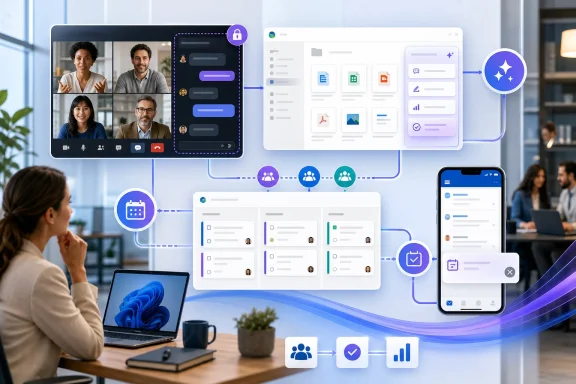
Microsoft 365’s July wave is less about flashy new apps than it is about reshaping the everyday mechanics of collaboration: how teams turn meetings into tasks, how event staff coordinate behind the scenes, how SharePoint users package repeatable AI work, and how Outlook decides which productivity conveniences remain available without a Copilot license. For Windows users and Microsoft 365 administrators, the update brings worthwhile workflow improvements alongside several retirements and policy changes that deserve attention before they arrive.
The latest Microsoft 365 changes continue a familiar pattern. Microsoft is making its productivity suite more integrated, more AI-assisted, and more dependent on consistent governance across Teams, SharePoint, Outlook, Planner, and Forms.
That integration is valuable when it eliminates fragmentation. A task created in a meeting should not disappear into an isolated board. A document-review process should not rely on one employee remembering the perfect prompt. Event organizers need a safe, private way to coordinate without exposing backstage discussion to attendees.
At the same time, some changes narrow the feature set for users who do not have premium AI licensing. The planned retirement of Outlook Meeting Insights is the clearest example: a broadly useful contextual feature is being replaced with a richer Copilot-centered experience for licensed users, while unlicensed users lose the capability entirely.
The immediate July updates include:
This is an important distinction. A one-off AI prompt is personal and ephemeral. A reusable skill becomes a shared operational asset.
Reusable SharePoint AI skills can reduce that variability.
A skill might be designed to:
Instead of telling every employee how to phrase an AI request, a department can define the desired process once. A communications team can standardize how content is summarized. A project management office can ensure progress reports follow the same format. A legal or compliance team can create guided review steps that consistently flag the same categories for human attention.
That makes the concept easier to adopt than a fully autonomous agent. It is better understood as a structured layer over existing SharePoint AI capabilities than as a new identity with independent authority.
Still, administrators should not assume that permission boundaries alone solve every governance concern. A skill may be permitted to examine documents that a user can access, but a poorly worded skill could still produce misleading summaries, classify information incorrectly, or generate output that users treat as authoritative without validation.
That makes governance essential from the first deployment.
A sensible rollout model includes:
This fills a practical collaboration gap. Teams channels have long served as the place where discussions, files, calls, and decisions happen, but task tracking could still be fragmented across personal task lists, standalone Planner plans, meeting-generated plans, and external project tools.
Adding Planner directly to these channel types enables more natural task coordination.
A private channel for a leadership working group, for example, can now keep sensitive planning discussions and task assignments in one place. A shared channel involving outside collaborators can maintain a project plan without forcing every participant into the parent Team.
The benefits are straightforward:
Administrators should test the experience in both Shared and Private channels before treating availability as universal. The membership model in these channels can be more complex than in standard channels, and organizations with strict external sharing, information barriers, or data-loss prevention requirements should validate how plans behave in their environment.
There is also a human process issue. A Planner tab is useful only when a team agrees that it is the place where work is actually tracked. If members continue to create separate plans, use personal tasks, or keep work in chat messages, the new channel support can create more task surfaces rather than fewer.
The best practice is to establish a simple rule: each ongoing initiative should have a clear system of record for tasks, and the Teams channel should point directly to it.
It was a small capability, but it served a very common need: replying quickly to “When can you meet?” without manually reviewing a calendar and typing a polished list of slots.
That sounds minor, but the difference matters on a phone. The old experience reduced several small points of friction:
The change also illustrates an uncomfortable truth about cloud productivity software: even modest features that fit neatly into a daily workflow can disappear if the vendor decides they no longer align with a broader product direction.
Organizations should update mobile Outlook training materials, support documentation, and any screenshots that reference Send Availability. Employees should be encouraged to use calendar invites when possible, rather than extending email threads around scheduling.
For cases where an email response remains necessary, a concise manual template can reduce friction:
This should be particularly useful for large or structured sessions where organizers need to coordinate speaker transitions, moderation, timing, technical issues, and audience management.
Potential uses include:
This matters especially for regulated industries, public-sector environments, legal proceedings, board-level meetings, and highly sensitive internal announcements. A private chat can contain operational decisions, informal commentary, or sensitive event management details that may need to follow retention, eDiscovery, and records-management policies.
Event organizers also need guidance. A backstage chat should support professional coordination, not become a place for off-record behavior that conflicts with organizational expectations.
For many users, this will be invisible. For administrators and power users who rely on sender-based rules, filters, allow lists, mail flow rules, or security tools, it requires immediate preparation.
An Outlook rule that previously moved Forms submissions into a “Survey Responses” folder may no longer trigger. A transport rule that identifies the old sender could fail to match. An allow list or third-party email-security policy based on the legacy address may need revision.
The most dangerous outcome is silent misrouting. A notification might land in the Inbox instead of the intended folder, or worse, be filtered into Junk without anyone noticing until an important response has been missed.
Organizations using custom Forms email configurations should validate their own setup separately. The central lesson remains the same: email sender addresses are integration points, even when the messages appear to be simple notifications.
The replacement is more capable for users with a Microsoft 365 Copilot license: the Prepare for this meeting experience can summarize relevant context, tasks, and documents that the user has permission to access.
For users without that license, however, Meeting Insights simply disappears.
But the licensing distinction cannot be ignored.
Meeting Insights was a useful productivity aid for users who did not need—or could not justify—a full Microsoft 365 Copilot license. After retirement, those users will no longer see automatically surfaced supporting material in meeting details.
That creates a two-tier experience:
That is a key security safeguard, but it does not eliminate the need for training. Users need to understand that an AI-generated summary is not a substitute for reviewing the underlying material when accuracy, legal risk, financial decisions, or sensitive commitments are involved.
Administrators should update Outlook guidance and prepare help desks for questions such as:
For a recurring project meeting, that can produce a cluttered collection of task boards instead of one reliable project plan.
This is a practical improvement for teams that hold regular meetings around a long-running initiative.
Consider a product launch team that meets weekly for three months. Instead of generating a new meeting task plan each week, the team can direct all action items to the launch plan already used for milestones, owners, deadlines, and status reporting.
The benefits include:
Automated task capture can generate value only if someone reviews:
The rollout schedule for this capability has already been subject to adjustment, so organizations should treat published timing as a deployment window rather than a guarantee that every tenant will see the feature immediately. The more important preparation step is deciding which recurring meetings should connect to which established Planner plans.
At first glance, this may seem like a small interface adjustment. In practice, it changes the assumptions teams make about task scheduling.
But that is not always correct. A delayed start does not necessarily justify a later due date. A project manager may intentionally move the start date while keeping the deadline fixed because the deliverable remains committed. Conversely, a deadline extension may not mean the work should start later.
Independent dates support more realistic project planning:
If users are accustomed to linked date changes, they may adjust one field and forget the other. That can result in tasks with unrealistic schedules, overdue starts, misleading timelines, or a false impression that work remains on track.
Organizations should communicate this change clearly to Planner users, especially those who use start and due dates for reporting, workload planning, or dependencies.
A good working habit is simple: whenever either date changes, review both.
That direction can produce real productivity gains. It can reduce the number of disconnected tools, lower the friction of routine work, and make institutional processes more consistent.
But those gains are not automatic. They depend on thoughtful permissions, clear ownership, current documentation, licensing decisions, user education, and a willingness to review workflow changes before they become surprises.
The July Microsoft 365 updates reward organizations that treat collaboration software as an evolving platform rather than a static set of familiar apps.
 Overview: A More Opinionated Microsoft 365
The latest Microsoft 365 changes continue a familiar pattern. Microsoft is making its productivity suite more integrated, more AI-assisted, and more dependent on consistent governance across Teams, SharePoint, Outlook, Planner, and Forms.That integration is valuable when it eliminates fragmentation. A task created in a meeting should not disappear into an isolated board. A document-review process should not rely on one employee remembering the perfect prompt. Event organizers need a safe, private way to coordinate without exposing backstage discussion to attendees.
At the same time, some changes narrow the feature set for users who do not have premium AI licensing. The planned retirement of Outlook Meeting Insights is the clearest example: a broadly useful contextual feature is being replaced with a richer Copilot-centered experience for licensed users, while unlicensed users lose the capability entirely.
The immediate July updates include:
- Reusable AI skills in SharePoint
- Planner tabs for Teams Shared and Private channels
- Retirement of Send Availability in Outlook for iOS and Android
- Private organizer and presenter chat in Teams events
- Microsoft Forms automated email sender addresses
- Outlook Meeting Insights
- Planner plans connected to Teams meetings
- Independent start and due dates in Planner
SharePoint Reusable AI Skills Bring Prompting Closer to Process Design
The biggest strategic update is the arrival of reusable AI skills in SharePoint. Users with edit permissions can create skills with natural-language instructions, save them, and use them again for similar work across the same SharePoint site.This is an important distinction. A one-off AI prompt is personal and ephemeral. A reusable skill becomes a shared operational asset.
From ad hoc prompts to repeatable work
Many organizations already use generative AI for document summaries, file classification, content cleanup, policy reviews, and project updates. The difficulty is consistency. One user may ask AI to summarize a proposal in three paragraphs, another may request bullet points, and a third may omit critical caveats entirely.Reusable SharePoint AI skills can reduce that variability.
A skill might be designed to:
- Review uploaded documents against an internal checklist
- Extract deadlines, owners, and action items from project materials
- Organize files into folders based on a defined naming standard
- Produce a consistent executive summary from reports
- Identify missing metadata in a document library
- Prepare a draft status update from site content
- Apply a repeatable review format to policies, grant applications, or contracts
Instead of telling every employee how to phrase an AI request, a department can define the desired process once. A communications team can standardize how content is summarized. A project management office can ensure progress reports follow the same format. A legal or compliance team can create guided review steps that consistently flag the same categories for human attention.
A useful boundary: skills do not replace permissions
The feature’s security model matters. A reusable skill can act only within the boundaries of what the person running it is already allowed to access and do. It does not grant a user broader access to SharePoint content, external systems, or custom code.That makes the concept easier to adopt than a fully autonomous agent. It is better understood as a structured layer over existing SharePoint AI capabilities than as a new identity with independent authority.
Still, administrators should not assume that permission boundaries alone solve every governance concern. A skill may be permitted to examine documents that a user can access, but a poorly worded skill could still produce misleading summaries, classify information incorrectly, or generate output that users treat as authoritative without validation.
The preview and governance caveat
Organizations should also recognize that SharePoint AI capabilities remain subject to rollout conditions, licensing requirements, and tenant configuration. Availability can vary by cloud environment, release ring, licensing status, and whether a site or tenant has been enabled for the relevant SharePoint AI preview.That makes governance essential from the first deployment.
A sensible rollout model includes:
- Start with low-risk skills. Use document summaries, metadata suggestions, and internal formatting tasks before attempting decision-support workflows.
- Assign ownership. Every shared skill should have a named business owner responsible for reviewing its instructions and output quality.
- Define purpose clearly. A skill should state what it does, what it does not do, and when users must escalate work to a human reviewer.
- Test with representative content. Do not validate a skill only on clean sample files. Test it on real-world documents with inconsistent formatting, conflicting information, and incomplete metadata.
- Review content sensitivity. Confirm that the target SharePoint site, document library, and user group are appropriate for AI-assisted processing.
Planner Reaches Teams Shared and Private Channels
Microsoft Planner is now available as a tab in Shared channels and Private channels in Microsoft Teams. Users can create a new plan or bring an existing plan into these spaces, placing task management where focused conversations already occur.This fills a practical collaboration gap. Teams channels have long served as the place where discussions, files, calls, and decisions happen, but task tracking could still be fragmented across personal task lists, standalone Planner plans, meeting-generated plans, and external project tools.
Why Shared and Private channel support matters
Shared channels are designed for collaboration that reaches beyond the membership of a single Team. Private channels, meanwhile, provide a focused working area for a subset of the larger team. Both are common in organizations that need to compartmentalize projects, departments, vendors, committees, or confidential initiatives.Adding Planner directly to these channel types enables more natural task coordination.
A private channel for a leadership working group, for example, can now keep sensitive planning discussions and task assignments in one place. A shared channel involving outside collaborators can maintain a project plan without forcing every participant into the parent Team.
The benefits are straightforward:
- Less context switching between Teams conversations and Planner
- Better visibility into assignments discussed in a channel
- Fewer disconnected task lists
- Improved accountability for projects involving restricted groups
- More practical collaboration with cross-team or external participants
The administrative reality behind the convenience
Planner in Teams is not simply a visual tab. It depends on the organization’s underlying Microsoft 365 configuration, group relationships, sharing settings, app permissions, and user licensing.Administrators should test the experience in both Shared and Private channels before treating availability as universal. The membership model in these channels can be more complex than in standard channels, and organizations with strict external sharing, information barriers, or data-loss prevention requirements should validate how plans behave in their environment.
There is also a human process issue. A Planner tab is useful only when a team agrees that it is the place where work is actually tracked. If members continue to create separate plans, use personal tasks, or keep work in chat messages, the new channel support can create more task surfaces rather than fewer.
The best practice is to establish a simple rule: each ongoing initiative should have a clear system of record for tasks, and the Teams channel should point directly to it.
Outlook Mobile Loses Send Availability
One of the more user-visible July changes is the retirement of Send Availability in Outlook for iOS and Android. The feature allowed users composing an email on a mobile device to select available times from their calendar and insert them into a message.It was a small capability, but it served a very common need: replying quickly to “When can you meet?” without manually reviewing a calendar and typing a polished list of slots.
What changes for mobile users
The feature has been removed from the Outlook mobile compose experience. Users can still open their Outlook calendar, check available times, and manually write those options into an email.That sounds minor, but the difference matters on a phone. The old experience reduced several small points of friction:
- Checking the calendar
- Remembering or copying relevant time slots
- Formatting them clearly
- Returning to the message
- Ensuring the response accurately reflected availability
Why this retirement will be noticed
For occasional users, the removal may be barely visible. For sales staff, managers, recruiters, consultants, support leads, and other mobile-heavy workers, it eliminates a fast and well-established coordination shortcut.The change also illustrates an uncomfortable truth about cloud productivity software: even modest features that fit neatly into a daily workflow can disappear if the vendor decides they no longer align with a broader product direction.
Organizations should update mobile Outlook training materials, support documentation, and any screenshots that reference Send Availability. Employees should be encouraged to use calendar invites when possible, rather than extending email threads around scheduling.
For cases where an email response remains necessary, a concise manual template can reduce friction:
The retirement is not a major technical disruption. It is, however, a reminder that mobile productivity often depends on small conveniences, and those conveniences deserve to be tracked like any other service change.I’m available Tuesday from 10:00 a.m. to noon, Wednesday after 2:00 p.m., or Thursday between 9:00 and 11:00 a.m. Please let me know which option works best.
Teams Private Chat Gives Event Staff a Better Backstage Channel
Microsoft Teams is scheduled to introduce a private chat for organizers, co-organizers, and presenters in meetings, webinars, and town halls. The chat is intended to work before, during, and after an event without being visible to attendees.This should be particularly useful for large or structured sessions where organizers need to coordinate speaker transitions, moderation, timing, technical issues, and audience management.
A clearer separation between production and audience conversation
Teams events often have two simultaneous communication needs:- A public or attendee-facing conversation
- A private operational conversation among people running the event
Potential uses include:
- Confirming that a speaker is ready to join
- Coordinating handoffs between presenters
- Flagging technical problems discreetly
- Managing Q&A escalation
- Sharing moderator notes
- Confirming timing changes
- Handling attendee issues without disrupting the live session
Policy review remains essential
The private event chat is a clear usability win, but it is also a policy decision. Teams administrators should review whether the feature is enabled in their meeting policies and whether it fits their organization’s event governance.This matters especially for regulated industries, public-sector environments, legal proceedings, board-level meetings, and highly sensitive internal announcements. A private chat can contain operational decisions, informal commentary, or sensitive event management details that may need to follow retention, eDiscovery, and records-management policies.
Event organizers also need guidance. A backstage chat should support professional coordination, not become a place for off-record behavior that conflicts with organizational expectations.
Microsoft Forms Changes Its Automated Sender Address
Microsoft Forms automated emails are moving away from the familiar[email][email protected][/email] sender address. Notifications such as response receipts, form submission alerts, and related system messages will instead come from [email][email protected][/email].For many users, this will be invisible. For administrators and power users who rely on sender-based rules, filters, allow lists, mail flow rules, or security tools, it requires immediate preparation.
The practical risk is silent failure
The concern is not that Forms notifications will necessarily stop being sent. The concern is that existing filters may stop recognizing them.An Outlook rule that previously moved Forms submissions into a “Survey Responses” folder may no longer trigger. A transport rule that identifies the old sender could fail to match. An allow list or third-party email-security policy based on the legacy address may need revision.
The most dangerous outcome is silent misrouting. A notification might land in the Inbox instead of the intended folder, or worse, be filtered into Junk without anyone noticing until an important response has been missed.
What administrators should do now
Before the new sender address becomes standard, organizations should audit:- Personal Outlook inbox rules
- Shared mailbox rules
- Exchange Online mail flow rules
- Anti-spam allow lists
- Secure email gateway policies
- Workflow tools that inspect message sender addresses
- Documentation for Forms response monitoring
Organizations using custom Forms email configurations should validate their own setup separately. The central lesson remains the same: email sender addresses are integration points, even when the messages appear to be simple notifications.
Meeting Insights Retirement Creates a Copilot Divide
Microsoft plans to retire Meeting Insights in Outlook. The feature currently surfaces relevant emails and files in meeting details, helping users prepare for upcoming discussions.The replacement is more capable for users with a Microsoft 365 Copilot license: the Prepare for this meeting experience can summarize relevant context, tasks, and documents that the user has permission to access.
For users without that license, however, Meeting Insights simply disappears.
A better experience for some, a reduced experience for others
There is a legitimate argument for the replacement. A modern Copilot-powered preparation experience can provide a more coherent summary than a simple list of potentially related files and emails. It can surface action items and contextual details in a way that better matches how employees actually prepare for a meeting.But the licensing distinction cannot be ignored.
Meeting Insights was a useful productivity aid for users who did not need—or could not justify—a full Microsoft 365 Copilot license. After retirement, those users will no longer see automatically surfaced supporting material in meeting details.
That creates a two-tier experience:
- Copilot-licensed users receive AI-generated meeting preparation based on content they can access.
- Unlicensed users lose the Meeting Insights panel and must manually search for relevant emails, files, and prior context.
Permission trimming remains important
The replacement experience is still expected to respect existing permissions. Copilot should only surface and summarize content the user is already allowed to access.That is a key security safeguard, but it does not eliminate the need for training. Users need to understand that an AI-generated summary is not a substitute for reviewing the underlying material when accuracy, legal risk, financial decisions, or sensitive commitments are involved.
Administrators should update Outlook guidance and prepare help desks for questions such as:
- Why did Meeting Insights disappear?
- Who can access Prepare for this meeting?
- Does Copilot show everyone’s documents?
- Can Meeting Insights be restored?
- What is the non-Copilot workflow for meeting preparation?
Teams Meetings Can Connect to Existing Planner Plans
Microsoft is also rolling out the ability to connect a Teams meeting to an existing Planner plan. This targets a frustrating source of task fragmentation: meeting-related tasks can otherwise end up in separate plans created around individual meetings.For a recurring project meeting, that can produce a cluttered collection of task boards instead of one reliable project plan.
One project, one task destination
The new capability allows meeting tasks to flow into an existing Planner plan selected by the user. If no existing plan is selected, Teams will continue to create a new plan for meeting tasks under the current behavior.This is a practical improvement for teams that hold regular meetings around a long-running initiative.
Consider a product launch team that meets weekly for three months. Instead of generating a new meeting task plan each week, the team can direct all action items to the launch plan already used for milestones, owners, deadlines, and status reporting.
The benefits include:
- A consolidated task backlog
- Better visibility across recurring meetings
- Less manual copying between plans
- Cleaner progress reporting
- Reduced chance of losing follow-up work
Facilitator and automation need oversight
Where Teams Facilitator or other meeting task automation is enabled, automatically generated tasks may be added to the selected plan. That can be powerful, but it also increases the importance of task hygiene.Automated task capture can generate value only if someone reviews:
- Whether the task was actually agreed upon
- Whether the title accurately represents the commitment
- Who owns the work
- Whether the due date is realistic
- Whether the task duplicates an existing item
The rollout schedule for this capability has already been subject to adjustment, so organizations should treat published timing as a deployment window rather than a guarantee that every tenant will see the feature immediately. The more important preparation step is deciding which recurring meetings should connect to which established Planner plans.
Planner’s Independent Dates Offer Flexibility—and More Responsibility
Microsoft Planner is expected to change how task dates behave. Under the upcoming model, changing a task’s start date will no longer automatically change its due date, and changing a due date will no longer update the start date.At first glance, this may seem like a small interface adjustment. In practice, it changes the assumptions teams make about task scheduling.
Why independent dates can be useful
The existing linked-date behavior can be convenient for simple schedules. If a task is moved later, users may expect its deadline to move with it.But that is not always correct. A delayed start does not necessarily justify a later due date. A project manager may intentionally move the start date while keeping the deadline fixed because the deliverable remains committed. Conversely, a deadline extension may not mean the work should start later.
Independent dates support more realistic project planning:
- A task can start earlier while retaining the same deadline.
- A deadline can move without erasing the original planned start.
- Teams can distinguish between delayed work and re-scoped work.
- Project managers can preserve schedule pressure where appropriate.
The risk: stale dates and false confidence
The downside is obvious. Planner will no longer make assumptions on the user’s behalf.If users are accustomed to linked date changes, they may adjust one field and forget the other. That can result in tasks with unrealistic schedules, overdue starts, misleading timelines, or a false impression that work remains on track.
Organizations should communicate this change clearly to Planner users, especially those who use start and due dates for reporting, workload planning, or dependencies.
A good working habit is simple: whenever either date changes, review both.
What Windows and Microsoft 365 Administrators Should Prioritize
These July changes do not require a major tenant redesign, but they do call for active change management. The most effective organizations will handle them as connected workflow updates rather than scattered release notes.Immediate actions
- Audit rules and security controls that rely on the legacy Microsoft Forms sender address.
- Update user guidance for the retirement of Outlook mobile Send Availability.
- Identify users and teams who depend on Outlook Meeting Insights.
- Prepare Copilot-licensed users for the new meeting-preparation experience.
- Test Planner in Shared and Private Teams channels.
- Review Teams event policies for private organizer and presenter chat.
- Identify recurring project meetings that should connect to existing Planner plans.
- Create a pilot governance model for SharePoint reusable AI skills.
The broader operational lesson
Microsoft 365 is evolving from a collection of productivity applications into a more connected operating environment for organizational work. Teams is increasingly the meeting and collaboration surface. Planner is becoming the common destination for tasks. SharePoint is becoming a location not just for files, but for AI-assisted processes and reusable knowledge. Outlook is becoming more selective about which intelligence features remain generally available and which sit behind Copilot licensing.That direction can produce real productivity gains. It can reduce the number of disconnected tools, lower the friction of routine work, and make institutional processes more consistent.
But those gains are not automatic. They depend on thoughtful permissions, clear ownership, current documentation, licensing decisions, user education, and a willingness to review workflow changes before they become surprises.
The July Microsoft 365 updates reward organizations that treat collaboration software as an evolving platform rather than a static set of familiar apps.