

Microsoft’s humble Paint — that staple of Windows nostalgia — has quietly been reborn into a capable, AI-infused creative toolset that changes how many users will think about “built‑in” drawing apps on Windows. What used to be a single-session doodle program is now shipping (or being flighted to Insiders) with layers, transparency, a native project format, per‑tool opacity controls, and multiple generative AI features that can create, restyle, or co‑create images from prompts and rough sketches. This shift reposition Paint from a toy to a low‑friction creative surface that can handle everything from concept sketches and quick annotations to surprise‑useful illustration tasks — provided you understand what’s broadly available today, what’s still in preview, and where Microsoft is intentionally gating features.
Microsoft has steadily modernized the in‑box Windows apps over the last few years, and Paint is central to that effort. The company’s strategy has been evolutionary rather than revolutionary: retain Paint’s accessibility while layering in non‑destructive workflows (layers, project files), brush and transparency refinements, and a set of generative AI tools surfaced through Paint’s Copilot or in‑app menus. Those changes have been rolled out incrementally — often first to Windows Insiders on Canary and Dev channels — as Microsoft tests features and performance on a variety of hardware profiles.
This article explains what the new Paint can do, why it matters for Windows users, how the AI features work (and where they’re limited), and how Paint compares to other drawing options on Windows today. I verify the major technical claims against multiple independent reports drawn from Insider patches and community testing notes, and I flag where Microsoft’s promotional language goes beyond what’s universally available to users right now.
Alongside project files, Paint now exposes per‑tool opacity/transparent controls for Pencil and Brush tools, which provides a far better shading and blending experience than the old single‑opacity brush. That change, too, arrived in Insider builds first and reflects Microsoft’s pragmatic approach of iterating small, focused quality‑of‑life improvements.
However, the modern Paint is not a wholesale replacement for professional tools. Features are being rolled out via Insider channels and sometimes gated by hardware or account requirements, so availability varies. Professionals and power users should still rely on dedicated editing apps for high‑precision work and production pipelines. Administrators should treat Copilot‑driven capabilities and AI gating as policy items to track when coordinating large deployments.
If you want to try Paint’s new features today, join the Windows Insider program to access preview builds and expect iterative refinements over coming months. Meanwhile, keep your expectations aligned: Paint’s renaissance is real, but it’s also deliberately incremental.
Conclusion: For anyone who needs the “best Windows drawing app” without installing or buying software, Paint is now a genuine contender — not because it replaces professional software, but because it finally gives everyday creators modern tools that were long overdue.
Source: Microsoft Best Windows drawing apps: Paint & more | Microsoft Windows
 Background / Overview
Microsoft has steadily modernized the in‑box Windows apps over the last few years, and Paint is central to that effort. The company’s strategy has been evolutionary rather than revolutionary: retain Paint’s accessibility while layering in non‑destructive workflows (layers, project files), brush and transparency refinements, and a set of generative AI tools surfaced through Paint’s Copilot or in‑app menus. Those changes have been rolled out incrementally — often first to Windows Insiders on Canary and Dev channels — as Microsoft tests features and performance on a variety of hardware profiles.This article explains what the new Paint can do, why it matters for Windows users, how the AI features work (and where they’re limited), and how Paint compares to other drawing options on Windows today. I verify the major technical claims against multiple independent reports drawn from Insider patches and community testing notes, and I flag where Microsoft’s promotional language goes beyond what’s universally available to users right now.
What’s new in Paint: practical features that matter
Layers, .paint project files, and non‑destructive workflows
One of the most consequential changes is the addition of a native project container (the .paint format) that preserves layers and edit state. That change turns Paint into a session‑aware editor: you can save a working file and reopen it with layers intact instead of flattening to a single bitmap. The feature was documented in Windows Insider flight notes and corroborated by community testing. For everyday use this is a game changer — it removes the “one chance” constraint that historically forced users to restart edits every time.Alongside project files, Paint now exposes per‑tool opacity/transparent controls for Pencil and Brush tools, which provides a far better shading and blending experience than the old single‑opacity brush. That change, too, arrived in Insider builds first and reflects Microsoft’s pragmatic approach of iterating small, focused quality‑of‑life improvements.
Brush, transparency, and canvas improvements
Beyond opacity sliders, Paint has gained refined brushes and fill controls that support semi‑transparent strokes and richer blending. The app has evolved from a limited raster editor to something closer to an entry‑level image editor with modern export options and better session handling. Those enhancements make Paint a surprisingly serviceable tool for mockups, diagram sketches, and quick visual notes.One‑click background removal and Magic Select lineage
Paint now offers one‑click background removal that uses AI to isolate subjects from their backgrounds — essentially a modernized Magic Select borrowed from earlier Paint 3D workflows but rebuilt for the 2D Paint surface. The result is fast object cutouts and easy asset preparation for collages or presentations. The underlying technique echoes the “magic” selection features introduced in Paint 3D years ago, but here it’s tied into Paint’s non‑destructive canvas.Paint + AI: what’s built in and how it behaves
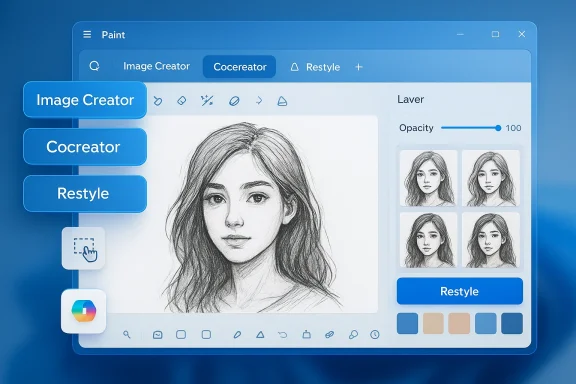
Image Creator: text‑to‑image inside the app
Paint now integrates an in‑app Image Creator that accepts text prompts and generates images in different styles. This kind of text‑to‑image functionality lets users iterate quickly: type a prompt, select a style, and use the generated artwork as a base or inspiration for edits. Microsoft positions Image Creator as an “instant inspiration” tool that keeps you in Paint rather than forcing you to switch apps. That capability is described in vendor material and observed in Insider notes. Users should understand that quality and style options vary and that prompt engineering still matters: short prompts often need refinement to produce useful results.Cocreator: refine sketches with generative AI
A separate feature, often referenced as Cocreator, allows a hybrid workflow: you sketch a rough idea and then ask the AI to refine, reinterpret, or elaborate on that sketch. The key benefit is that the machine complements rather than replaces the user’s hand: you keep the rough composition and let the AI fill in detail, color, or stylistic direction. This is useful for concept ideation, rapid prototyping, and visual exploration. Community testing shows this workflow in action on Insider builds, though rollout timing varies.Restyle and style transfer
Paint now includes a one‑click Restyle or style‑transfer capability that can apply different visual aesthetics to existing images. It’s effectively an in‑app filter powered by generative models that reinterpret the photo or artwork in the target style. Microsoft has been quietly rolling Restyle to Insiders, and the feature is sometimes gated by account and hardware checks (see gating below). Reports note that Restyle is accessible from the Copilot menu inside Paint.Coloring‑book generator and other creative shortcuts
Insider builds have also shown a Copilot‑driven “Coloring book” generator and other prompt‑driven shortcuts targeted at casual creators and educators. These smaller features are examples of Microsoft packaging AI capabilities as simple UI affordances for non‑technical users. They’re attractive for quick, playful use cases but aren’t substitutes for full artistic control when fine detail or fidelity matters.Availability and feature gating: what to expect
One of the most important practical realities is that not all of Paint’s new features are available to every Windows user today. Microsoft has followed a staged rollout approach:- Many of the most advanced AI features and early UX changes are being tested in Windows Insider Canary and Dev channels before broader distribution. That means active testers may see features weeks or months before general roll out.
- Certain capabilities — particularly AI style‑transfer and some Copilot‑driven features — have been observed as gated to Copilot+ hardware and/or Microsoft account sign‑ins in preview flights. This gating controls access as Microsoft evaluates performance, privacy, and load on cloud services. Reports from community testing highlight these hardware/account checks.
- Microsoft is shipping smaller UI and productivity fixes (fill tolerance, opacity, project files) more widely through the Microsoft Store and Insider channels, while generative functions are rolled out more conservatively.
Real‑world workflows: how Paint fits into creative tasks
Paint now fits into three practical workflows for Windows users:- Fast ideation and prototyping: Use Paint’s brush tools, layers, and opacity sliders to sketch concepts, annotate screenshots, and draft visual ideas. The lightweight UI keeps friction low.
- Hybrid generative workflows: Start with a prompt or a skeleton sketch, use Cocreator to expand or refine it, then fine‑tune with brushes and layer masks. This hybrid loop speeds iteration without forcing complete dependence on the model.
- Asset prep and light editing: One‑click background removal and Magic Select–style tools make Paint sensible for quick cutouts and compositing tasks — especially for users who don’t want to open a heavier editor for minor edits.
- Rough‑sketch the composition using Pencil/Brush with opacity for blocking.
- Generate variations or backgrounds using Image Creator or Restyle.
- Use Cocreator to refine the sketch and add detail.
- Remove unwanted background elements with one‑click removal.
- Export as flattened image or save as a .paint project for later edits.
Where Paint is strong — and where it still falls short
Strengths
- Low friction and instant availability. Paint ships with Windows and is already installed or available via the Microsoft Store, making it the easiest place to start. Its low learning curve matters for non‑designers who need quick visuals.
- Non‑destructive basics. Layers, .paint projects, and opacity controls bring essential non‑destructive capabilities to casual users, reducing the need for intermediate exports.
- Generative tools that accelerate ideation. Integrated Image Creator, Cocreator, and Restyle remove context switches and shorten the ideation loop for many everyday creative tasks.
- Improved selection and background removal. One‑click tools make simple compositing and cutouts fast without learning complicated masking workflows.
Limitations and risks
- Feature availability varies. Many AI features are still being tested in Insider channels and can be gated by hardware or account requirements; not every user will have immediate access. This fragmentation complicates enterprise rollout and organizational documentation.
- Not a replacement for professional tools. Paint’s new capabilities are useful but don’t match full‑featured editors for precision color management, vector workflows, CMYK print preparation, advanced masking, or non‑destructive adjustment layers. Professionals will still prefer tools like Photoshop, Affinity Photo, or Krita for advanced work. The new Paint is better for quick work than for high‑fidelity production.
- AI model behavior and provenance. Generative outputs depend heavily on prompts and model training. Users should be cautious about representing AI‑generated results as human‑authored, and organizations should clarify usage rights for generated assets. Some rollout notes imply cloud or Copilot mediation, which can introduce account, telemetry, and privacy considerations. Where Microsoft has gated features to Copilot+ hardware, those checks are part productization and part risk control.
- Privacy and enterprise controls. Administrators deploying Windows across organizations will need to understand how Copilot and Paint’s AI features interact with accounts and cloud services; feature gating suggests Microsoft is trying to manage that surface area, but it also means IT must keep an eye on policy and compliance.
How Paint compares to other Windows drawing apps
Built‑in alternatives: Paint 3D, Snipping Tool, and Photos
Paint’s evolution doesn’t happen in isolation — Microsoft has a collection of built‑in creative tools with overlapping capabilities.- Paint 3D historically focused on simple 3D model editing and stickers. Its Magic Select and texture stickers set the groundwork for later background removal and 3D integration. Some of Paint’s newer 2D selection and magic‑select ideas trace back to Paint 3D’s feature set.
- Snipping Tool and Photos have also received AI touches in recent Insider updates for cropping, quick edits, and generative suggestions; Microsoft’s broader approach is to make these small apps smarter rather than replace third‑party tools.
Third‑party options: where they still lead
There remain many capable third‑party drawing apps on Windows. Three categories stand out:- Free/lightweight raster editors (e.g., Paint.NET): These offer plugin ecosystems and extended editing features beyond classic Paint’s scope, such as better layer effects and plugin filters. Community discussions going back years have consistently pointed to alternatives like Paint.NET for users who outgrow classic Paint.
- Open‑source and pro‑grade free tools (e.g., Krita, GIMP): These provide more sophisticated brush engines, color management, and advanced export options. They remain the preferred option for illustrators and digital painters requiring control over brushes and color spaces.
- Commercial creative suites (e.g., Adobe Photoshop, Affinity Photo, Clip Studio): Professional photo retouching, compositing, and vector workflows still favor commercial software with advanced non‑destructive pipelines, plugin marketplaces, and industry standards.
Recommendations for users and IT teams
For casual creators and students
- Try the latest Paint — check the Microsoft Store for updates and enroll in Windows Insider if you want early access to generative and preview features. Use layers and .paint projects to preserve work and avoid redoing edits.
- Use Image Creator for mood boards and quick concepts, but refine outputs manually before presenting them as finished art. Prompt engineering helps: shorter prompts will usually require more manual editing.
For creatives and hobbyists
- Treat Paint as a rapid prototyping environment. Create initial concepts in Paint, then export or import into GIMP, Krita, or commercial tools for final production if you need advanced controls or print‑ready files.
- Keep in mind file compatibility and export formats — the .paint project should be used only for interim work; when collaborating with others, export flattened PNG or standard formats to ensure everyone can open the files.
For IT admins and enterprise users
- Audit Copilot and generative feature gating: verify whether your organization allows Copilot sign‑ins and whether hardware requirements (Copilot+ gating) are acceptable for rollout. Microsoft’s staged approach means administrators should expect staged availability and account gating for certain features.
- Update user documentation and training materials to include Paint’s project files and opacity controls — their presence materially changes how non‑destructive edits are made on user systems.
The bigger picture: why Microsoft is modernizing Paint
Microsoft’s incremental modernization of Paint demonstrates a broader strategic objective: make Windows’ default apps smarter and more useful so they remain relevant in a world of cloud services and generative AI. By adding project files, non‑destructive controls, and generative features, Microsoft reduces friction for millions of casual creators and helps keep everyday creative tasks inside the OS. At the same time, careful gating and Insider channels let Microsoft validate performance, telemetry, and privacy before scaling features to the full user base. This is a pragmatic approach that balances capability expansion with operational caution.Final verdict
Microsoft Paint has moved from nostalgia to usefulness. For most Windows users — students, office workers, educators, and hobbyists — the new Paint is the best built‑in starting point for fast sketches, quick assets, and rough concepting. Its combination of layers, project files, per‑tool opacity, one‑click removal, and in‑app generative features reduces friction and shortens the creative loop.However, the modern Paint is not a wholesale replacement for professional tools. Features are being rolled out via Insider channels and sometimes gated by hardware or account requirements, so availability varies. Professionals and power users should still rely on dedicated editing apps for high‑precision work and production pipelines. Administrators should treat Copilot‑driven capabilities and AI gating as policy items to track when coordinating large deployments.
If you want to try Paint’s new features today, join the Windows Insider program to access preview builds and expect iterative refinements over coming months. Meanwhile, keep your expectations aligned: Paint’s renaissance is real, but it’s also deliberately incremental.
Conclusion: For anyone who needs the “best Windows drawing app” without installing or buying software, Paint is now a genuine contender — not because it replaces professional software, but because it finally gives everyday creators modern tools that were long overdue.
Source: Microsoft Best Windows drawing apps: Paint & more | Microsoft Windows
