

If you’re trying to pair a Jabra Elite 65t with a Windows 10 PC, hunting for clearance Jabra Evolve 65t units, or wrestling with firmware and support tools like Jabra Direct and Sound+, there’s good news and inconvenient realities. This guide pulls together manufacturer documentation, community troubleshooting and Windows-level fixes into a single, practical feature that explains how to pair, how to fix the common failures you’ll see on Windows 10, what Jabra’s support model and firmware/update tooling looks like, and what to watch for when buying refurbished or clearance Jabra headphones. The step‑by‑step pairing and troubleshooting sections are written for Windows 10 users and validated against Jabra documentation and Windows troubleshooting best practice.
Jabra’s Elite 65t earbuds were an influential early entry in the true‑wireless market: four microphones, an AAC codec option, an IP-rated chassis and a compact charging case. Jabra documents the Elite 65t as Bluetooth 5.0 capable, with up to 5 hours per charge and about 15 hours total with the charging case. Those specs are confirmed in the official Jabra product pages and the Elite 65t user manual.
On paper the Elite 65t should pair cleanly with Windows 10. In practice you’ll encounter three recurring realities:
Recommended remedies:
In short: pairing Jabra Elite 65t with Windows 10 is straightforward for basic playback, but Windows’ legacy audio profile behavior and Jabra’s mobile-first update path create edge cases that can trip up PC‑first users. Follow the step‑by‑step pairing and troubleshooting checklist above, use the mobile Sound+ app for firmware checks, and if you need guaranteed UC performance on Windows, prefer enterprise‑focused Evolve models or a headset that ships with a dedicated USB dongle.
Conclusion: with the right expectations and a little configuration, the Elite 65t can serve casual Windows users well; for mission‑critical PC conferencing, allocate budget toward a UC‑certified Jabra model or a headset/dongle bundle designed for Windows.
Source: Born2Invest https://born2invest.com/?b=style-327608512/
 Background / Overview
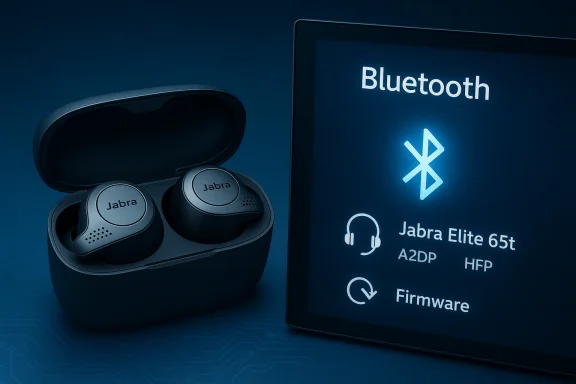
Jabra’s Elite 65t earbuds were an influential early entry in the true‑wireless market: four microphones, an AAC codec option, an IP-rated chassis and a compact charging case. Jabra documents the Elite 65t as Bluetooth 5.0 capable, with up to 5 hours per charge and about 15 hours total with the charging case. Those specs are confirmed in the official Jabra product pages and the Elite 65t user manual. On paper the Elite 65t should pair cleanly with Windows 10. In practice you’ll encounter three recurring realities:
- Windows 10’s classic Bluetrates high‑quality playback (A2DP) and two‑way voice (HFP/HSP), which can force fidelity trade‑offs during calls. This is a Windows-era limitation rather than a Jabra-specific bug.
- The Elite 65t was optimized for smartphones and Jabra’s mobile app (Sound+). While many users pair Elite 65t to PCs, Jabra’s desktop tooling and official PC support for this exact model are more limited than for their enterprise ‘Evolve’ line. Expect some quirks on Windows and be prepared to use workarounds.
- Firmware and update tooling (Jabra Sound+ on mobile, Jabra Direct/Jabra Xpress for Windows) are the route to fixes—but desktop updates can be inconsistent for older models; community reports show the Sound+ mobile app is the most reliable updater for Elite 65t.
How to pair Jabra Elite 65t with Windows 10 — step by step
These steps follow Jabra’s official guidance for the Elite 65t and Windows Bluetooth pairing conventions. If you’re starting from zero, follow these exact steps and test after each stage.- Charge the case and earbuds
- Put both earbuds in the charging case and ensure the case has charge. Jabra recommends a full charge for reliable pairing. Rapid charge features won’t override a dead battery.
- Put the earbuds into pairing mode
- For a first-time pairing: remove the eng case—on a fresh out‑of‑box set, the Elite 65t will enter pairing mode automatically. For re-pairing: with the right earbud turned off, press and hold the multi‑function button on the right earbud for ~5 seconds until LED flashes blue. The PIN, if requested, is usually 0000.
- On Windows 10: open Bluetooth settings
- Start → Settings → Devices → Bluetooth & other devices → Toggle Bluetooth On → Add Bluetooth or other device → Bluetooth.
- Select “Jabra Elite 65t” from the list
- Wait for the device to appear; choose it and accept any prompts. If Windows asks for a PIN enter 0000. After pairing, Windows usually shows two endpoints: Stereo (A2DP) and Hands‑Free (HFP).
- Confirm audio routing
- Right‑click the volume icon → Open Sound settings → choose the Elite 65t Stereo endpoint as the Output device for music. If you want to use the headset microphone, choose the Hands‑Free endpoint as the Input in your conference app or Windows Sound settings.
Quick troubleshooting checklist — get connected in 5–15 minutes
Before you start uninstalling drivers or resetting Windows services, run these high‑value, low‑risk checks. They resolve the majority of pairing problems.- Confirm earbuds are charged and in pairing mode. Low battery often blocks pairing.
- Move earbuds within a few feet of the PC and remove or turn off other paired hosts (phones, tablets) to avoid multipoint conflicts.
- Toggle Windows Bluetooth Off → On (Settings > Bluetooth & devices) and retry.
- Remove stale Windows pairing and re‑pair: Settings → Bluetooth & devices → select device → Remove device → Add device.
- Run Windows Troubleshooter: Settings → Update & Security → Troubleshoot → Additional troubleshooters → Bluetooth → Run.
Deeper, methodical fixes (device manager, den the quick checks don’t work, investigate drivers, services and power management in a careful order so you can stop when you find the resolution. These steps are standard Windows troubleshooting practice and align with Microsoft’s guidance.
1. Device Manager — update, roll back, reinstall
- Open DevicDevice Manager).
- Expand Bluetooth, locate your Bluetooth adapter (Intel Wireless Bluetooth, Qualcomm, Broadcom, Realtek).
- Right‑click → Update driver → Search automatically, or download OEM/chipset drivers from your laptop maker or the chipset vendor.
- If Bluetooth broke after an update, use Roll Back Driver. As a last resort, uninstall the adapter and reboot; Windows should reinstall the driver automatically.
2. ServicesOpen services.msc and restart the Bluetooth Support Service (bthserv).
- In Device Manager: adapter → Properties → Power Management → uncheck “Allow the computer to turn off this device to save power.” Repeat for HID and headset entries to avoid mid‑session suspensions.
3. Sound routing and endpoint choices
- Windows often creates two endpoints for a Bluetooth headset: Stereo (A2DP) for music, and Hands‑Free (HFP) for calls. If you see both, explieo endpoint for music playback. If the mic is unnecessary, disabling Hands‑Free Telephony for the device in Control Panel → Devices and Printers → device → Services will force A2DP playback but will also disable the headset mic.
Why audio can “collapse” during calls (A2DP vs HFP) — and what to do
This is a critical practical point for Windows 10 users: classic Bluetooth uses separate profiles for high‑quality audio and two‑way voice. When an app opens the headset mic, Windows typically switches from A2DP to HFP — you’ll notice music quality drop or stereo collapse during a Teams/Zoom/Skype call. That’s normal for the Windows 10 stack and not a unique Jabra flaw.Recommended remedies:
- If you prioritize music playback over using the headset mic, pick the Stereo endpoint for audio and use the PC’s built‑in mic or a USB microphone for calls.
- If you require both good audio fidelity and mic simultaneously, consider:
- Upgrading to hardware/software that supports LE Audio/LC3 (Windows 11 + LE‑Audio capable radio + headset) — note: this is not generally available for Windows 10.
- Using a USB dongle that presents the headset as a USB audio device (some enterprise headsets include such dongles). Jabra’s Link adapters and UC bundles are intended for this use in enterprise scenarios.
Firmware updates and Jabra tools: Sound+, Direct and Xpress — which to use
Jabra provides two primary update paths:- Jabra Sound+ (mobile app) — the recommended path for consumer earbuds like Elite 65t. It’s the most reliable way to check firmware versions and apply updates on iOS/Android. Use Sound+ to confirm your firmware version and to update the device.
- Jabra Direct / Jabra Xpress (Windows) — desktop management and firmware update tools primarily aimed at enterprise headsets and IT-managed deployments. Jabra Xpress lets administrators manage firmware for many devices and install Jabra Direct on Windows endpoints. For some older consumer earbuds, the desktop updater’s behavior has been inconsistent. Community reports show Windows desktop update attempts sometimes fail or advertise a mismatch between the desktop app and the mobile app. If the desktop updater tries to push firmware that the mobile app does not show, prefer the mobile Sound+ route.
- Check Sound+ on a smartphone to read the current firmware and to perform any available update.
- If you must update via Windows (enterprise deployment or IT requirement), use Jabra Direct or Jabra Xpress, but expect that older Elite 65t firmware updates may be limited or no longer delivered via desktop tools. If the desktop app reports an update that fails repeatedly, try the mobile Sound+ route first.
Jabra support policy and pairing to computers — important limitations
Jabra’s official product pages and support knowledge base emphasize mobile app support for Elite 65t and list documentation and release notes. Community responses from Jabra support representatives indicate the Elite 65t was primarily optimized for phones and tablets, and that pairing to computers is not the primary supported scenario—this explains why some PC-specific problems get limited official help. If you use Elite 65t mainly with Windows, consider these implications:- Jabra may recommend mobile-based updates first (Sound+), and desktop update behavior can be inconsistent for older consumer models.
- If you require guaranteed PC/UC performance (stable mic + stereo), Jabra’s enterprise Evolve series or headsets with vendor-supplied USB adapters are a safer choice for corporate deployments. Jabra’s Xpress and Link dongles are explicitly targeted at enterprise admin workflows.
Buying clearance or refurbished Jabra Evolve 65t — what to check before you buy
If you’re shopping for clearance or refurbished Evolve 65t / Elite 65t devices (or browsing a clearance listing), follow this cappointment or unsupported hardware:- Confirm model and SKU: Evolve and Elite model lines are distinct. Evolve devices are enterprise-focused (often come with USB dongles or UC variants) while Elite are consumer earbuds. Make sure the listing matches the model you want.
- Check warranty status and return policy: Refurbished or clearance items often have limited warranties and shorter return windows. Jabra’s official refurbished store lists delivery and return policies; third‑party sellers vary. Confirm the return window and if the product is covered by any warranty. (jabra.com)
- Inspect firmware/update availability: Older devices may be discontinued and no longer receive firmware updates. Ask the seller for the current firmware version or test in‑hand with Jabra Sound+ if possible. Devices stuck on ancient firmware may be harder to pair with newer PCs or mobile OS releases.
- Prefer sealed/official‑refurb units: If buying used, prefer manufacturer‑refurbished stock or a reputable reseller that certifies battery health and functionality. Used earbuds can have degraded battery life that’s not covered in a clearance sale.
- Check for included accessories: Enterprise Evolve bundles sometimes include USB dongles (Jabra Link) that dramatically improve Windows reliability—these make the unit better for PC use. Verify the dongle is present if you need a stable PC pairing.
Practical troubleshooting scenarios — real problems and fixes
Below are the most common real-world failure patterns and how to address them, validated against community reports and Windows troubleshooting best practice.Scenario A — Device pairs but there’s no audio
- Confirm the Elite 65t is the selected Output in Windows Sound settings. Windows does not always switch default endpoints automatically. If the Stereo endpoint isn’t selected, pick it explicitly.
Scenario B — Audio stutters, drops or one earbud silent
- Check for interference (Wi‑Fi, USB 3.0 devices, microwaves, other BT devices). Move the PC and earbuds closer and away from router/USB cables.
- Update Bluetooth chipset drivers (Intel/Qualcomm/Realtek) from OEM or vendor pages rather than using generic driver-updater tools. Power management settings can also cause suspends, so disable Bluetooth power‑off in Device Manager.
Scenario C — Firmware update fails via Jabra Direct on Windows
- Try updatin+ app on a phone before using Windows desktop tools. If mobile says the device is up to date but Jabra Direct still tries to push an update, prefer the mobile result and contact Jabra support if you need an enterprise image. Community threads show desktop updates sometimes loop or fail for older models.
Scenario D — The mic doesn’t work or calls have poor voice quality
- Confirm the Hands‑Free endpoint is selected for input in your conferencing app or Windows Input selection.
- If you need high-fidelity music and reliable mic simultaneously on Windows 10, consider using a separate USB mic or a Jabra UC bundle / adapter that avoids the classic A2DP/HFP trade‑off dio device to Windows.
Strengths, risks and the bottom line for Strengths
- Elite 65t delivers strong mobile-first features: tight fit, four‑mic array, AAC suppbility. Jabra’s documentation and manuals confirm the hardware capabilities and typical battery figures.
- For mobile users the Sound+ app provides reliable firmware management and customization.
Risks & limitations
- Windows 10 users face legacy profile constraints: the A2DP/HFP trade‑off will affect audio during calls. Expect quality loss if the headset mic is active. This is a system-level limitation on Windows 10.
- Jabra’s desktop firmware/update paths can be inconsistent for older consumer models—expect to rely on the mobile Sound+ app for firmware. Desktop update failure for discontinued models is common; validate firmware status before buying refurbished.
- If you require guaranteed UC performance on Windows (stable mic + stereo), the Elite 65t is not the ideal choice—Evolve series devices or headsets with dedicated USB dongles (Link dongles) are better for enterprise/PC‑first use.
Recommended step‑by‑step checklist to resolve most problems (copyable)
- Charge earbuds, place the right earbud in pairing mode per Jabra instructions.
- On Windows 10: Settings → Devices → Bluetooth & other devices → Add Bluetooth. Pair and select the Stereo endpoint for media.
- Run Windows Bluetooth troubleshooter if the device fails to appear.
- Update Bluetooth chipset drivers from OEM/vendor pages. Avoid third‑party driver updaters.
- If audio quality collapses during calls, either:
- Use Stereo endpoint for music + PC mic for calls, or
- Acquire a USB adapter/dongle or a UC variant that presents as USB audio for Windows.
Final verdict and buying advice
If your primary use is a smartphone/tablet, the Jabra Elite 65t remains a solid value—especially at clearance or refurbished prices—provided you verify firmware and battery health before purchase. If your primary use is Windows 10 (laptop or desktop) and you need both high‑quality stereo and reliable two‑way voice for frequent conferencing, you should either:- Buy a Jabra headset from the Evolve line or a Jabra UC bundle that includes a USB dongle (the Evolve family is built for consistent Windows/UC use), or
- Be prepared to use workarounds: separate USB mic, explicit endpoint selection, or a USB audio adapter.
In short: pairing Jabra Elite 65t with Windows 10 is straightforward for basic playback, but Windows’ legacy audio profile behavior and Jabra’s mobile-first update path create edge cases that can trip up PC‑first users. Follow the step‑by‑step pairing and troubleshooting checklist above, use the mobile Sound+ app for firmware checks, and if you need guaranteed UC performance on Windows, prefer enterprise‑focused Evolve models or a headset that ships with a dedicated USB dongle.
Conclusion: with the right expectations and a little configuration, the Elite 65t can serve casual Windows users well; for mission‑critical PC conferencing, allocate budget toward a UC‑certified Jabra model or a headset/dongle bundle designed for Windows.
Source: Born2Invest https://born2invest.com/?b=style-327608512/
