

If you’re seeing cheap Beats Solo3 or other Beats headphones on clearance and wondering whether they’ll behave on a Windows PC — especially Windows 10 — here’s a clear, practical guide that explains exactly what works, what doesn’t, and how to get the best possible result whether you’re pairing, troubleshooting, or buying used. This piece pulls together verified pairing steps, real-world Windows quirks, shopping cautions for clearance units, and safe workarounds that preserve audio quality for music and calls.
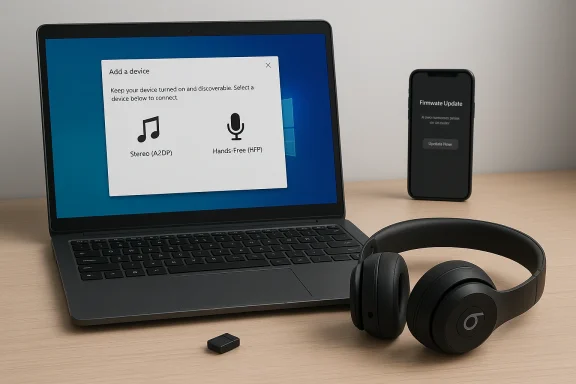
Bluetooth headsets like the Beats Solo3 are designed to be simple to pair with phones and laptops, but Windows — particularly Windows 10 — treats Bluetooth audio in a way that can surprise users. The core technical reality is this: Bluetooth audio uses different profiles for high-fidelity playback and for two‑way voice, and Windows typically exposes those as separate endpoints that behave differently. Understanding that trade‑off and how to manage it is the quickest way to avoid hours of frustration.
Recently the industry introduced LE Audio (LC3) to reduce this compromise, and Microsoft’s newer Windows 11 builds add support for LE Audio — but only if both your PC’s Bluetooth radio and the headset firmware support it. In practice, most existing Beats models (and most Windows 10 PCs) will not benefit from LE Audio without hardware and driver upgrades. If you’re still running Windows 10, plan for the classic A2DP/HFP behavior as the default.
Fixes:
Fix:
Fixes:
Source: Born2Invest https://born2invest.com/?b=style-301939612/
 Background / Overview
Bluetooth headsets like the Beats Solo3 are designed to be simple to pair with phones and laptops, but Windows — particularly Windows 10 — treats Bluetooth audio in a way that can surprise users. The core technical reality is this: Bluetooth audio uses different profiles for high-fidelity playback and for two‑way voice, and Windows typically exposes those as separate endpoints that behave differently. Understanding that trade‑off and how to manage it is the quickest way to avoid hours of frustration.- A2DP (Advanced Audio Distribution Profile) = high-quality stereo playback (music, movies). No usable headset mic on this profile.
- HFP/HSP (Hands‑Free Profile / Headset Profile) = two‑way voice support (calls), but lower audio fidelity and often mono playback. The headset mic appears on this profile.
Recently the industry introduced LE Audio (LC3) to reduce this compromise, and Microsoft’s newer Windows 11 builds add support for LE Audio — but only if both your PC’s Bluetooth radio and the headset firmware support it. In practice, most existing Beats models (and most Windows 10 PCs) will not benefit from LE Audio without hardware and driver upgrades. If you’re still running Windows 10, plan for the classic A2DP/HFP behavior as the default.
Quick summary: what to expect from Beats Solo3 on Windows 10
- Pairing is usually straightforward: put the Beats in pairing mode, open Windows Settings → Bluetooth & other devices → Add Bluetooth or other device → Bluetooth, and select the Beats. If pairing prompts a PIN, try 0000. These steps follow Microsoft’s standard flow.
- After pairing, Windows will likely show two audio endpoints for the same device: Stereo (A2DP) for media and Hands‑Free for calls. Choose the Stereo endpoint for music.
- If you need the headset mic for calls, expect lower audio quality during those calls unless you adopt a workaround (see Workarounds).
- If you buy a clearance or used Beats Solo3, check accessories, firmware, and return policy, because missing cables or an inability to update firmware (mobile-app updates are common) can limit functionality on PCs.
How to pair Beats headphones with Windows 10 — step‑by‑step
Follow this ordered checklist to pair reliably and verify audio routing.- Charge your Beats to at least 30% and power them on. Low battery states can block pairing.
- Enter pairing mode: for most Beats models press and hold the power/Bluetooth button ~5 seconds until an LED flashes or you hear a voice prompt. If unsure, consult the model’s manual.
- On the PC: Start → Settings → Devices → Bluetooth & other devices → toggle Bluetooth On. Click “Add Bluetooth or other device” → Bluetooth.
- Wait for the Beats to appear in the device list, then click to pair. If a PIN is requested, try 0000.
- Confirm the connection and test: right‑click the speaker icon → Open Sound settings (or Control Panel → Sound → Playback). Select the Beats Stereo endpoint for music. For mic tests, choose the Beats Hands‑Free input under Input devices.
The most common Windows 10 problems — and how to fix them
Below are the failure modes we see most often, with clear actions.Symptom: Music sounds thin or muffled when you join a call
Cause: Windows switched from A2DP (Stereo) to HFP (Hands‑Free) when the mic became active. This is expected behavior on Windows 10.Fixes:
- If you don’t need the headset mic for calls: disable Hands‑Free Telephony for the device to force A2DP for playback. Control Panel → Devices and Printers → right‑click the headset → Properties → Services → uncheck Hands‑Free Telephony. Note: this disables the microphone systemwide.
- If you need the mic and high-fidelity playback: use a separate USB microphone or the laptop’s built‑in mic for calls while keeping Beats on the Stereo output. This preserves music quality during conferencing.
Symptom: Headphones pair but there’s no sound
Cause: Windows may not have selected the Stereo endpoint.Fix:
- Open Sound settings and explicitly choose the Beats Stereo endpoint as Output.
- Reboot the app you’re using (apps sometimes cache device lists).
- If only Hands‑Free exists, disable Hands‑Free Telephony temporarily or re‑pair after resetting the headphones.
Symptom: Frequent dropouts or stuttering
Common causes: RF interference (Wi‑Fi/USB 3.0), old Bluetooth radio, or power management settings that let the host sleep the adapter.Fixes:
- Move PC/headphones away from routers, USB 3.0 cables, microwaves, and other 2.4 GHz sources.
- In Device Manager: Bluetooth adapter → Properties → Power Management → uncheck “Allow the computer to turn off this device to save power.” Disable USB selective suspend if using a USB dongle.
- If problems persist, try a modern USB Bluetooth dongle (prefer one that lists aptX/AAC/LE Audio support if you plan to move to Windows 11 later).
Symptom: Mic isn’t detected on a desktop with separate headphone/mic jacks
If you’re using a wired Beats/adapter: confirm the plug is TRRS (three insulating rings). Desktop jacks that split headphone and mic may require a TRRS→dual TRS splitter or a USB audio adapter. These $5–$25 adapters are a reliable fix.Workarounds and best practices: preserve music quality without sacrificing calls
- Use a dedicated USB microphone for conferencing. This is the most widely recommended workaround to avoid A2DP/HFP switching while keeping Beats on Stereo for music. It’s inexpensive, lowers complexity, and provides consistent voice quality.
- Disable Hands‑Free Telephony when you want perfect music. Quick and dirty — but remember it disables the mic for the headset. Useful if you primarily use the Beats for music.
- Buy headsets with a USB dongle or UC (Unified Communications) bundle if you need reliable call quality on Windows. Many UC variants present the headset as a USB audio device and bypass Windows’ Bluetooth HFP limitations.
- Consider a Bluetooth dongle with better codec support (aptX/AAC/LE Audio) if you plan to upgrade to Windows 11 or use LE Audio features in the future. Make sure both the dongle and headset support the same codecs.
Clearance shopping: what to check before you buy Beats on discount
Clearance prices can be tempting, but used or outlet units have specific pitfalls that matter on Windows 10. Use this pre-purchase checklist:- Confirm accessories and adapters are included (charging cable, any USB adapter that shipped with the headset). Missing parts can make a clearance unit harder to use on PC.
- Check return policy and warranty: clearance or open‑box items may have restricted returns. Buy from a seller with a clear refund window in case the headset has firmware or pairing issues.
- Ask whether the microphone works wired (if the listing doesn’t specify). Some headsets have analog mic wired only for mobile devices and not for desktops unless an adapter is included. Confirm before purchase.
- If the headset requires firmware updates via a mobile app (many vendors do), be prepared to use a phone temporarily to bring firmware current; Windows may not offer a direct firmware update path. Confirm vendor update policies.
Firmware and vendor apps: where Windows falls short
Many headphone vendors (Sony, Beats/Apple, Bose) deliver firmware updates and personalization features via mobile companion apps (iOS/Android). That means:- You may need a phone to check for and install firmware updates that improve pairing behavior or fix bugs.
- Attempting to perform mobile-only updates via PC emulators or unofficial routes is unsupported and risky.
Advanced tips for power users and IT admins
- For managed corporate devices: coordinate driver and firmware changes with IT. Corporate images sometimes disable radios or block Store/USB installs. If Bluetooth or audio updates are blocked by policy, you’ll need IT intervention rather than DIY fixes.
- When updating Bluetooth chipset drivers, prefer OEM/chipset vendor packages over generic “driver updater” tools. Manual INF installs are safer than opaque updaters. Verify hardware IDs (VID/PID) before installing legacy drivers.
- If you absolutely require simultaneous high-fidelity stereo and headset mic on Windows, the clean path is to upgrade to a system that supports LE Audio end-to-end (Windows 11 + LE-capable radio + headset firmware). That’s a hardware and OS play, not a simple driver tweak on most Windows 10 systems.
Real-world examples and community-tested fixes
Community troubleshooting across many models (Beats, Sony, Bose, SteelSeries, Arctis) shows the same patterns and effective remedies:- Beats/consumer earbuds: Pairing works as expected, but expect A2DP/HFP trade-offs; firmware updates typically require a phone app. Use a USB mic for calls if you need music fidelity.
- Gaming headsets with USB adapters: Many PC-focused headsets include a USB dongle/adapter that exposes the headset as a USB audio device and avoids Windows’ Bluetooth restrictions. If you need teaming stability for voice during gaming, prefer these.
- Wired/clearance headsets: If buying a wired headset on clearance, confirm whether the cable carries mic signals directly to a PC or relies on Bluetooth features; check for included inline amps and USB power leads. Missing cables can render a clearance buy useless for desktop setups.
Security, driver provenance, and repairability concerns for clearance buys
When reviving or buying discounted hardware, the risks aren’t only functional — they can be security-related:- Avoid downloading drivers from unknown mirrors without verifying checksums. For legacy devices without canonical vendor downloads, prefer the in‑box UVC/generic driver where possible and verify vendor files with multiple mirrors if needed.
- If a clearance listing requires installing an obscure driver to restore microphone features, weigh whether the extra risk is worth the savings — often buying a low‑cost new USB headset or a reputable used unit from a major retailer is a better trade.
A short, practical checklist you can use right now
- Before pairing: charge Beats to 30%+, disable other nearby Bluetooth hosts, confirm Windows Bluetooth is enabled.
- Pairing: Settings → Devices → Bluetooth & other devices → Add Bluetooth or other device → Bluetooth → select Beats. Use PIN 0000 if prompted.
- After pairing: set Stereo (A2DP) as default for music; set Hands‑Free as communications only when you need the mic.
- If call audio collapses: either disable Hands‑Free Telephony (loses mic) or use a USB mic / vendor USB dongle for calls.
- If you buy on clearance: confirm accessories, return policy, firmware update path via mobile app, and test pairing on a Windows 10 PC if possible.
What we can’t verify easily (and the caution you should take)
- Claims that a particular Beats Solo3 unit supports LE Audio or that a specific firmware will enable simultaneous high-fidelity playback and mic on Windows 10 may be model- and firmware-specific and often depend on the PC’s Bluetooth chipset. Verify the exact Beats SKU, the firmware version, and your PC’s Bluetooth chipset documentation before assuming LE Audio benefits. Treat such claims as unverified until you confirm hardware and firmware compatibility.
- If a seller claims the headset was “updated to the latest firmware” without specifying how it was updated (phone app vs. Windows tool), ask for the exact firmware revision or a demonstrable in-person test. Firmware update paths are vendor-controlled and often phone-only.
Conclusion — practical reality for Windows 10 users
Beats Solo3 and similar Bluetooth headsets remain excellent for music and mobile use, and they pair cleanly with Windows 10 for typical playback. The one persistent, platform-level surprise for many users is the A2DP versus HFP trade‑off: Windows 10 often forces lower-fidelity audio when the headset mic is used. That behavior is a consequence of the Bluetooth audio model and Windows’ legacy stack, not poor design by Beats. The best outcomes are achieved by understanding the trade‑offs, picking the right device endpoint after pairing, and using straightforward workarounds (USB mic, disabling Hands‑Free Telephony, or buying a headset with a USB dongle) where necessary. If you’re shopping clearance, be pragmatic: verify accessories, the firmware update path, and return terms before you buy. With a small bit of preparation and the right settings, a discounted Beats can still be a great value on a Windows PC.Source: Born2Invest https://born2invest.com/?b=style-301939612/
