

If you own a Windows 10 PC and you’re shopping for Bose headphones—or trying to get an existing pair working cleanly—there are three things you need to understand up front: the technical limits built into Windows 10’s Bluetooth audio stack, which Bose models give the most practical real‑world experience on a PC, and a clear, copy‑ready step‑by‑step routine to pair, configure, and troubleshoot when things go wrong. erview
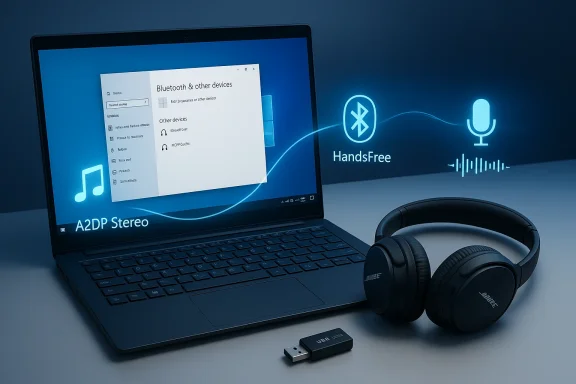
Bluetooth audio on Windows is still governed by a split between two legacy profiles that matter to everyday users: A2DP (Advanced Audio Distribution Profile) for high‑quality stereo playback, and HFP/HSP (Hands‑Free Profile / Headset Profile) for two‑way voice and microphone support. When Windows 10 switches a Bluetooth headset into hands‑free (microphone) mode it commonly drops playback to a low‑fidelity mono stream — the familiar “muffled music during calls” problem. This isn’t a Bose‑only issue; it’s how Windows 10’s audio model and Bluetooth profiles have historically behaved.
A second reality: modern Bluetooth advances such as LE Audio (LC3) and “super‑wideband stereo” are primarily part of the Windows 11 roadmap. Those features require end‑to‑end support (headphones, PC Bluetooth radio, and drivers). On most Windows 10 systems you shouldn’t expect LE Audio benefits unless a vendor provides a specific driver/firmware bridge. Treat any claim that “Bluetooth 5.x equals L” with caution.
Why this matters to buyers: if you want uninterrupted, high‑quality stereo music and game audio, prioritize A2DP and accept a separate microphone solution for calls. If your daily workflow is heang, a dedicated UC (unified communications) solution or a headset that ships with a USB adapter is the more reliable route on a Windows 10 PC.
Below are the realistic, practical picks for Windows 10 users. These are not boutique audiophile choices — they’re the models that minimize friction for PC owners and offer useful tradeoffs.
But there are systemic risks and common marketing gaps readers should know:
Windows 10’s Bluetooth audio model is the real limiter here, not Bose hardware alone. With the right model and the right routine — charge, update, pair, and explicitly choose endpoints — you can get reliable stereo playback for music and a workable approach to calls. If you need both flawless stereo and high‑quality microphone simultaneously on a PC today, choose the UC/USB path or use a separate USB microphone; LE Audio fixes are promising but are tied to Windows 11 and compatible hardware, not a universal fix for Windows 10 systems.
By following the step‑by‑step pairing checklist, confirming firmware and drivers, and choosing the right Bose model for your workflow, you’ll avoid the most common pitfalls and get the best possible experience from Bose headphones on a Windows 10 PC.
Source: Born2Invest https://born2invest.com/?b=style-341922512/
Bluetooth audio on Windows is still governed by a split between two legacy profiles that matter to everyday users: A2DP (Advanced Audio Distribution Profile) for high‑quality stereo playback, and HFP/HSP (Hands‑Free Profile / Headset Profile) for two‑way voice and microphone support. When Windows 10 switches a Bluetooth headset into hands‑free (microphone) mode it commonly drops playback to a low‑fidelity mono stream — the familiar “muffled music during calls” problem. This isn’t a Bose‑only issue; it’s how Windows 10’s audio model and Bluetooth profiles have historically behaved.
A second reality: modern Bluetooth advances such as LE Audio (LC3) and “super‑wideband stereo” are primarily part of the Windows 11 roadmap. Those features require end‑to‑end support (headphones, PC Bluetooth radio, and drivers). On most Windows 10 systems you shouldn’t expect LE Audio benefits unless a vendor provides a specific driver/firmware bridge. Treat any claim that “Bluetooth 5.x equals L” with caution.
Why this matters to buyers: if you want uninterrupted, high‑quality stereo music and game audio, prioritize A2DP and accept a separate microphone solution for calls. If your daily workflow is heang, a dedicated UC (unified communications) solution or a headset that ships with a USB adapter is the more reliable route on a Windows 10 PC.
 Which Bose headphones are best for Windows 10 — practical picks and why
Below are the realistic, practical picks for Windows 10 users. These are not boutique audiophile choices — they’re the models that minimize friction for PC owners and offer useful tradeoffs.Bose QuietComfort 45 (QC45) — best all‑rounder for med- Strengths: comfortable fit, reliable ANC, long battery life, USB‑C charging, and stable A2DP stereo playback for music.
- Windows reality: QC45 pairs and plays reliably foepend on the headset mic for mission‑critical calls you should plan for a USB mic or wired fallback.
- Why buy it: simple, predictable experience for listening, long sessions, and travel.
Bose Noise Cancelling Headphones 700 (Bose 700) — best for call‑heavy users
- Strengths: multi‑microphone array and better voice pickup than many consumer headphones, and Bose sells UC/USB Link options for business use.
- Windows reality: the Bose 700 improves voice pickup in noisy rooms, but Windows 10’s A2DP/HFP split still applies — the UC/USB Link module or a wired connection guarantees the best conferencing quality.
- Why buy it: if conferencing is frequent and you wanerience without sacrificing music quality.
Bose QuietComfort 35 II (QC35 II) — proven, comfortable, still relevant on a budget
- Strengths: classic coooth behavior; often available at discounts.
- Windows reality: older firmware and legacy hardware mean you should verify firmware update paths and rely on wired fallback for mission‑critical calls.
tips for Windows 10 users
When you see “top sellers” lists they usually reflect popularity rather than the best compatibility with Windows 10. Use these buying checks before you click purchase:- Prioritize models with a wired 3.5mm fallback or a USB adapter/UC bundle if you need reliable call quality.
- For conference rooms or corporate use, look for Microsoft Teams certified or UC variants (Bose sells Noise Cancelling Headphones 700 UC and a USB Link module). That USB Link can turn the headphones into a true USB audio device and avoid Bluetooth profile compromises.
- Confirm firmware update tools: Bose’s firmware update utilities are available on desktop as well as moose Music guidance), but key features and fine‑tuning often remain mobile‑centric. If firmware updates require the mobile app, verify you can complete necessary updates before relying on a clearance unit.
- Buy from reputable sellers with stronpurchasing older or clearance units—firmware or hardware issues can be harder to fix on legacy devices.
How to connect Bose headphones to a Windows 10 PC — sty)
This routine is the fastest path to a stable connection. Follow it verbatim when you pair a Bose headset to Windows 10:- Fully charge the headset (or at least >30%) and reboot your Wiring oddities stem from low battery or hung Bluetooth services.
- Put the headset into Bluetooth pairing mode. (Model note: typically hold the power/Bluetooth button for 5–7 seconds until a voice prompt or LED indicates pairing.)
- On the PC: Settings → Devices → Bluetooth & other devices → Add Bluetooth or other device he Bose device name when it appears. If Windows asks for a PIN, try 0000.
- After pairing, open Control Panel → Sound (mmsys.cpl). Confirm you see two en: a Stereo (A2DP) device and a Hands‑Free endpoint. Set the Stereo endpoint as the Default Device for music and media. Set the Hands‑Free endpoint as the communications device only when you must use the headset mic.
- In conferencing apps (Teams, Zoom, Discord) explicitly select the correct input/output endpoints — Windows sometimes chooses the wrong one by default.
Troubleshooting — quick checks and reliable fixes
When pairing or audio quality fails, use this prioritized checklist. Follow the items in order — they move from fast wins to more invasive fixes.Quick checks (5 minutes)
- Confirm headset battery and ensure it’s in pairing mode and withiC.
- Toggle Bluetooth Off/On in Windows and reattempt pairing.
- Reboot the headset and the PC. Sometimes a full power cycle clears a stuck Bluetooth adapter.
Immediate audio pro- If music becomes muffled after joining a call, Windows has likely switched the endpoint to Hands‑Free. Options:
- Use a separate USB microphone for calls so the PC never needs to switch the headset into HFP. This is the most practical workaround for music lovers. le Hands‑Free Telephony for the headset in Devices and Printers → right‑click the device → Properties → Services. Warning: this disables the headset mic systemwide.
Driver, firmware, and power management (10–30 minutes)
- Update the PC’s Bluetooth adapter driver from the OEM (Dell/HP/Lenovo) or chipset vendor (Intel/Broadcom). Don’t rely on generic “driver updaters.” Many compatibilitn the host stack.
- Update Bose firmware via Bose Updater or Bose Music guidance; firmware fixes often resolve pairing quirks. Confirm whether firmware updates are available for youshooting deeper.
- Device Manager → Bluetooth adapter → Power Management → uncheck “Allow the computer to turnve power.” Restart Windows Audio services if needed.
Advanced fixes (30–90+ minutes)
- Remove device from Settings → Devices → Bluetooth & other devices → Remove device. Factoer Bose instructions and re‑pair.
- In Device Manager uninstall entries under “Audio inputs and outputs” and “Sound, video and game controllers,” then reboot to force redetection. Only remove driver software if you have the OEM package to reinstall offline. l radio is flaky, test with a modern USB Bluetooth dongle with up‑to‑date drivers. Community reports show this frequently resolves HFP negotiation problems.
When to suspect the headset vs the PC
- Test the headphones they work fine there but not on the PC, the issue is the PC’s Bluetooth stack or driver. If the problem replicates on the phone, the headset likely needs firmware or service.
Practical workflows for different users
- If you prioritize music fidelity and occasional calls:
- Buy the QC45 or similar. Use A2DP for music and a small USB mic for calls. This avoids the HFP compromise.
- If you do daily, mission‑critical conferencing:
- Buy the Bose 70 USB Link** module for the 700 — treat the USB Link as the primary audio transport for calls.
- If you’re on a corporate laptop:
- Coordinate with IT before changing drivers or installing apps. Use certified UC devices if you can. Corporate images sometimes block the Microsoft Store or prevent driver changes that are required to fix Bluetooth quirks.
Critical analysis — strengths, gaps, and vendor omissions
Bose’s strengths for Windows 10 users are tangible: comfort, consistent ANC, and competitive battery life. The QC45 and 700 are practical, balanced designs for people who want calls. Bose also provides UC/USB solutions for the 700 series that directly address Windows’ Bluetooth limitations.But there are systemic risks and common marketing gaps readers should know:
- Many how‑to and “top sellers” posts omit the systemic A2DP vs HFP trade‑off that is the actual root cause of most Windows 10 Bluetooth support tickets. Short buy guides that promise “works with Windows” without caveating the call vs music compromise give buyers unrealistic expectations.
- Firmware update paths and app‑feature parity are inconsistent. Bose’s best feature management often lives in mobile apps; some PC workflows require the Bose Updater or USB connection to apply firmware patches. Confirm firmware update capability before buying clehon
- LE Audio and Windows 11 improvements reduce this trade‑off, but they are not a fix for Windows 10 users. Claims implying immediate LE Audio benefits on Windows 10 are either incorrect or conditional on vendor drivers and hardware support. If your setup must work flawlessly now, rely on proven workarounds (USB adapters, wired fallback).
Quicdy troubleshooting recipe (one session)
- Fully charge headset, reboot PC.
- Remove headset from Windows Bluetooth list.
- Reset headset (per model instructions).
- Install OEM Bluetooth drivers from laptop maker.
- Pair headset via Settings → Add Bluetooth device.
- Open Control Panel → Sound: set Stereo media.
- For calls: use USB mic or enable Hands‑Free only when needed.
- If still broken: test headset on and PC doesn’t, try a modern USB Bluetooth dongle.
Final verdict and buying checklist
Bose headphones remain a top practical choice for Windows 10 users when you match model to real expectations.- Buy the QC45 if you want a comfortable, dependable music headset and you will accept a separate mic for calls.
- Buy the Bose 700 UC or the USB Link accessory if your priority is daily video conferencing and you want the most reliable call experience on a Windows PC.
- If you already own a QC35 II or QC45: keep firmware current and maintain a wired fallback or USB mic for mission‑critical meetings.
- Confirm return policy and warranty before buying clearance units.
- Verify firmware update path (mobile app vs PC updater) for your model.
- If conferencing matters, prefer a UC bundle or USB adapter.
Windows 10’s Bluetooth audio model is the real limiter here, not Bose hardware alone. With the right model and the right routine — charge, update, pair, and explicitly choose endpoints — you can get reliable stereo playback for music and a workable approach to calls. If you need both flawless stereo and high‑quality microphone simultaneously on a PC today, choose the UC/USB path or use a separate USB microphone; LE Audio fixes are promising but are tied to Windows 11 and compatible hardware, not a universal fix for Windows 10 systems.
By following the step‑by‑step pairing checklist, confirming firmware and drivers, and choosing the right Bose model for your workflow, you’ll avoid the most common pitfalls and get the best possible experience from Bose headphones on a Windows 10 PC.
Source: Born2Invest https://born2invest.com/?b=style-341922512/
