

If you own a pair of Sony WF‑1000XM4 earbuds and a Windows 10 PC, you can get excellent wireless music playback in minutes — but to do it reliably and without surprise compromises (muffled calls, mono audio during meetings, or missing firmware updates) you need to follow a few precise steps, understand the platform tradeoffs, and keep a smartphone handy for firmware and advanced tuning.
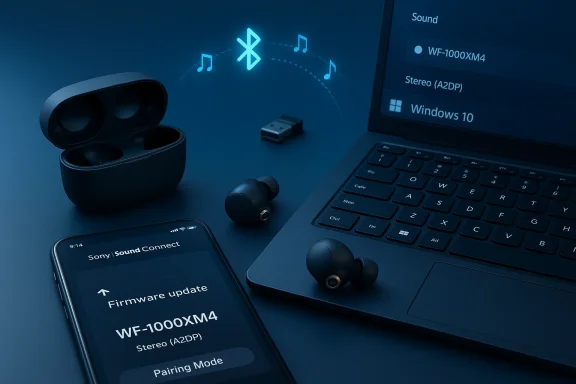
The Sony WF‑1000XM4 are flagship true‑wireless earbuds that pair using standard Bluetooth profiles. On phones, Sony exposes deep personalization, firmware delivery, and EQ through the Sony | Sound Connect (previously Headphones Connect) mobile app, but Sony does not offer a desktop app with the same features; Windows users pair through the operating system’s Bluetooth stack and manage audio endpoints inside Windows. That means day‑to‑day playback works fine on a PC, but firmware updates and fine tuning still require a smartphone.
A practical reality you should accept up front: Windows 10 is no longer receiving mainstream feature and security updates from Microsoft as of October 14, 2025. Microsoft advises upgrading to Windows 11 or enrolling in Extended Security Updates; this affects long‑term driver and stack improvements (for example, full LE Audio support is built into Windows 11 and not Windows 10). If you run Windows 10, plan for a likely future where Bluetooth codec/feature support stalls unless you upgrade hardware or OS.
Practical options:
Practical firmware workflow:
If you remain on Windows 10, the safest approach for conference‑grade voice quality is to pair the WF‑1000XM4 for music and use a separate USB microphone or headset certified for conferencing. This avoids the unavoidable A2DP/HFP tradeoff.
Source: Born2Invest https://born2invest.com/?b=style-303102712/
 Background / Overview
The Sony WF‑1000XM4 are flagship true‑wireless earbuds that pair using standard Bluetooth profiles. On phones, Sony exposes deep personalization, firmware delivery, and EQ through the Sony | Sound Connect (previously Headphones Connect) mobile app, but Sony does not offer a desktop app with the same features; Windows users pair through the operating system’s Bluetooth stack and manage audio endpoints inside Windows. That means day‑to‑day playback works fine on a PC, but firmware updates and fine tuning still require a smartphone. A practical reality you should accept up front: Windows 10 is no longer receiving mainstream feature and security updates from Microsoft as of October 14, 2025. Microsoft advises upgrading to Windows 11 or enrolling in Extended Security Updates; this affects long‑term driver and stack improvements (for example, full LE Audio support is built into Windows 11 and not Windows 10). If you run Windows 10, plan for a likely future where Bluetooth codec/feature support stalls unless you upgrade hardware or OS.
What you need before you begin
- A charged pair of Sony WF‑1000XM4 earbuds and the charging case. The earbuds must have enough charge for pairing and any reset/initialize steps. Sony’s documentation warns that low case battery can block initialization.
- A Windows 10 PC with Bluetooth hardware enabled. If your PC lacks built‑in Bluetooth or has an older radio, consider a modern USB Bluetooth dongle that supports the codecs you want.
- A smartphone (Android or iPhone) with the Sony | Sound Connect app for firmware updates or to initialize the earbuds from the app. Sony’s firmware update releases require a phone and the mobile app.
- Basic admin rights on the PC to update drivers and change sound settings where needed.
Quick pairing — the short version
- Remove the WF‑1000XM4 from the charging case (they will power on automatically). If first time pairing, the earbuds enter pairing mode the first time you remove them. For subsequent pairings, put both earbuds in and press both touch sensors for about five seconds.
- On Windows 10: Open Settings → Devices → Bluetooth & other devices → Add Bluetooth or other device → Bluetooth. Select “WF‑1000XM4” from the list and pair. If prompted for a passkey, enter 0000.
- After Windows reports “Connected,” open Control Panel → Sound (mmsys.cpl) and confirm the WF‑1000XM4 Stereo (A2DP) endpoint is the default for media playback. If Windows defaulted to Hands‑Free for calls, switch the default device to the Stereo entry.
Step‑by‑step: pairing and connecting to a paired computer (Windows 10)
Putting the earbuds into pairing mode
- First pairing (out of the box / after initialize): remove the earbuds from the case. They will enter pairing mode automatically.
- Pairing a second device (or re‑pairing after reset): put the earbuds in your ears, then touch and hold the touch sensors on both earbuds simultaneously for about five seconds until pairing mode activates. Watch for voice guidance and indicator behavior described in Sony’s guide.
On the PC: the Windows 10 flow
- Open Settings → Devices → Bluetooth & other devices. Ensure Bluetooth is switched on.
- Click Add Bluetooth or other device → Bluetooth. Wait for “WF‑1000XM4” to appear and select it. If Windows shows a Swift Pair pop‑up, choose Connect. Otherwise click Pair when prompted. If a passkey is requested, use 0000.
- After pairing, check for the “Bluetooth connected” voice prompt in the earbuds. If the earbuds don’t connect automatically on removal from the case, follow “Connecting to a paired computer” steps in Sony’s help guide: wake the PC, remove the earbuds from their case, and select the previously paired device in Windows.
Confirming audio routing and default devices
- Open Settings → System → Sound or Control Panel → Sound. You’ll usually see two entries for the WF‑1000XM4: one “Stereo” (A2DP) for high‑quality music and one “Hands‑Free” for calls (HFP/HSP). Set the Stereo device as the default for multimedia to avoid poor‑quality playback. Use the Hands‑Free device only when you explicitly need the earbud microphone for calls.
Why calls can sound terrible and how to fix it
Windows’ legacy Bluetooth audio model forces a tradeoff: A2DP (high‑quality stereo) does not carry a high‑quality microphone channel; HFP/HSP (hands‑free) provides mic but at low bandwidth and often mono audio. When Windows switches to the Hands‑Free profile for a meeting or a browser call, music fidelity collapses. This is a long‑standing limitation on Windows 10.Practical options:
- Best‑quality audio while keeping good mic quality in meetings: use the WF‑1000XM4 for music (A2DP) and use a separate USB or built‑in laptop microphone for calls. This prevents Windows from switching the earbuds to HFP.
- If you must use the earbud mic and accept reduced music quality during calls: allow Windows to use HFP.
- If you never need the earbud mic on your PC and prefer consistent stereo playback, disable the Hands‑Free Telephony service for the WF‑1000XM4 in Devices and Printers → right‑click device → Properties → Services → uncheck Hands‑Free Telephony. This forces A2DP stereo but disables the mic system‑wide. Community and Microsoft guidance both cite this as an effective workaround.
Firmware, advanced settings, and the mobile app limitation
Sony distributes firmware updates and many personalization features (EQ, adaptive sound control, spatial listening) through the Sony | Sound Connect mobile app for Android and iOS only. The WF‑1000XM4 firmware update release notes and system requirements explicitly require an Android (10.0+) or iPhone (iOS 16+) device and the mobile app to perform updates. That means if you want the latest security fixes or feature updates for the earbuds, you must temporarily use a phone. Attempting to run mobile app workflows through PC emulators is unsupported and risky.Practical firmware workflow:
- Pair the WF‑1000XM4 with your phone and open Sony | Sound Connect.
- Check and apply firmware updates via the app (if available).
- After the update, re‑pair the earbuds with the PC if you prefer PC audio. Doing firmware updates on a phone reduces a surprising number of PC‑side connectivity issues.
Resetting and initializing the WF‑1000XM4 (when things go wrong)
If pairing stubbornly fails, follow Sony’s supported steps — reset first, then initialize if a reset doesn’t help.- Reset (keeps pairing info): Insert one earbud into the charging case, close the lid, connect the case to AC power, then open/close the lid more than five times in 20 seconds. Wait for the red indicator to flash, then for green flashes that signal completion. Repeat for the other earbud. Reset preserves device registration but helps clear stuck states.
- Initialize (factory restore; deletes all pairings): Place earbuds in the case, leave lid open, then touch and hold both touch sensors for about ten seconds until the case indicator flashes red, release within five seconds and wait for four green flashes. After initializing, delete any WF‑1000XM4 entries from your PC’s Bluetooth list and re‑pair. Sony’s documentation details the exact LED timing and cautions about low case charge preventing initialization.
Troubleshooting matrix — ordered, practical steps
Use this prioritized list when things don’t work. Test after each step.- Quick checks (2–5 minutes)
- Ensure earbuds and case are charged.
- Make sure the earbuds are in pairing mode and within a couple of feet of the PC.
- Toggle Bluetooth Off → On in Windows and re‑attempt pairing.
- Confirm Windows sound routing (2–5 minutes)
- Settings → System → Sound → choose WF‑1000XM4 Stereo for output.
- If apps behave oddly, check App volume and device preferences and set the app to use the Stereo output.
- Restart system services and the Bluetooth radio (5–15 minutes)
- services.msc: restart Bluetooth Support Service (bthserv), Windows Audio, Windows Audio Endpoint Builder.
- Device Manager: disable/enable the Bluetooth radio.
- Driver updates and rollbacks (10–30 minutes)
- Update Bluetooth drivers from your PC/motherboard OEM or Intel/Broadcom vendor pages, not from third‑party “driver updaters.” If a recent driver caused regressions, use Device Manager → Roll Back Driver or uninstall and reboot. Community best practice: prefer OEM vendor packages.
- Disable Hands‑Free Telephony (5 minutes) — if you can live without the earbud mic:
- Control Panel → Devices and Printers → right‑click WF‑1000XM4 → Properties → Services → uncheck Hands‑Free Telephony. Apply and reconnect. This keeps high‑quality A2DP audio attached but disables the mic.
- Try a modern USB Bluetooth dongle (10–30 minutes)
- If your internal adapter is old or flaky, test pairing using a modern dongle. Many users resolve codec/connection stability problems this way.
- Reset or Initialize (10–15 minutes)
- Reset per Sony steps (preserves pairing), and if that fails, perform a full initialize (factory reset) and re‑pair.
- Advanced diagnostics (30–90 minutes)
- Generate powercfg /energy reports, check Event Viewer for Bluetooth errors, run DISM /RestoreHealth and sfc /scannow if Windows system files seem corrupted. If the problem persists across multiple hosts and after initialization, contact Sony support for warranty/repair — the device itself may be faulty.
Advanced context: LE Audio, Windows 11, and long‑term choices
Microsoft has added full Bluetooth LE Audio support, and Windows 11 (22H2+ and especially 24H2) exposes improved functionality: stereo playback while using the mic, better codecs (LC3), shared audio, and richer device metadata. Windows 10 does not include these LE Audio features; if you want future‑proof Bluetooth audio and simultaneous stereo+mic behavior, plan migration to Windows 11 hardware/OS and confirm your PC’s Bluetooth stack has vendor drivers that expose LE Audio. In short: Windows 11 improves the Bluetooth experience substantially; Windows 10 remains constrained.If you remain on Windows 10, the safest approach for conference‑grade voice quality is to pair the WF‑1000XM4 for music and use a separate USB microphone or headset certified for conferencing. This avoids the unavoidable A2DP/HFP tradeoff.
Security and reliability considerations
- Firmware updates matter. Sony’s October 2024/2025 releases fixed security issues in the WF‑1000XM4 Bluetooth stack. Apply firmware updates through the official Sony mobile app; doted PC‑side hacks or emulator‑based flashes (they risk bricking your earbuds).
- Windows 10 end‑of‑support is material. After October 14, 2025, Microsoft no longer provides regular security/feature updates for Windows 10. While your PC will continue to function, Bluetooth stack improvements and driver updates will concentrate on Windows 11. Consider ESU or upgrading hardware/OS for long‑term security and improved Bluetooth features.
Practical recommendations — day‑to‑day checklist
- Keep a smartphone with the Sony | Sound Connect app nearby for firmware updates and deep personalization. Firmware fixes often resolve odd PC behavior.
- For the best music quality on Windows 10: pair the WF‑1000XM4, then set the Stereo/A2DP device as the default audio output for media in Sound settings. Use a separate microphone for calls.
- If you need mic functionality from the earbuds on Windows: accept that call audio will be lower quality, or test whether an app (Zoom/Teams) can be forced to use a different mic to preserve stereo playback.
- If you encounter persistent pairing failures, follow the supported reset and initialize flows in Sony’s documentation before attempting host‑side driver surgery. That sequence is often the shortest path back to stable operation.
Conclusion
Pairing the Sony WF‑1000XM4 with a Windows 10 PC is straightforward for basic playback: put the buds in pairing mode, add the device in Windows, and set the Stereo endpoint for media. The real work for reliable, high‑quality operation is understanding the platform tradeoffs: Sony’s mobile app is the supported path for firmware and deep personalization, Windows 10’s legacy Bluetooth stack forces the A2DP vs HFP compromise for microphone use, and Windows 10 itself has reached end‑of‑support — meaning future Bluetooth feature improvements will land primarily on Windows 11 and compatible hardware. Follow the step‑by‑step pairing, confirm audio endpoints, keep your earbuds updated via the official mobile app, and use a separate mic for conference calls when you need the best possible audio. These practical choices will give you the cleanest, most stable WF‑1000XM4 experience on a Windows PC today.Source: Born2Invest https://born2invest.com/?b=style-303102712/
