

PDF tools have long forced hard choices: pay for a subscription, tolerate crippling feature gates, or trust a sketchy online converter with your private documents — and then along comes a genuinely full-featured, locally runnable PDF toolbox that costs nothing. MakeUseOf’s recent hands‑on calls PDF24 “an all‑in‑one PDF tool that’s lightweight, fast, and completely free,” and that enthusiasm is easy to understand given how many tasks the app consolidates into a single package. PDF landscape in 2026 looks a lot like it did a few years ago: enterprise suites (Adobe Acrobat, Nitro) dominate high‑end editing and workflows; capable free readers and converters fill the low end; and a growing set of independent tools try to sit in the middle by offering advanced features with no subscription. PDF24, developed by geek Software GmbH in Germany, has built a hybrid model: a web‑based toolbox and a downloadable offline app called PDF24 Creator that bundles many tools and keeps processing local when you want it to. The vendor’s own pages and release notes describe it as a free, offline desktop suite where “all files remain on your PC.”
This article verifies the main claims about PDF24, explains where it excels, flags where the original review’s praise is overbroad or ambiguous, and gives practical guidance for Windows users who want a no‑cost, private PDF workflow.
MakeUseOf’s review emphasizes the density of the interface — “close to 50 different tools” visible on one screen — and praises the ability to search and bookmark frequently used sub‑tools. That user experience detail aligns with the Creator’s Tool Launcher and Toolbox model: a single hub that launches focused sub‑apps for tasks such as OCR, compression, annotate, sign, and overlay. The reviewer’s “close to 50” phrasing is a reasonable user impression (different pages and web vs. desktop lists vary), but the vendor’s official count is a more conservative “over 40.” Where exact counts mattr list rather than rounded impressions.
That said, PDF24 does not entirely replace premium editors. If your daily work requires advanced annotation workflows (sticky notes, threaded comments, collaborative reviews), certified enterprise signing, or a single‑window, browser‑style tabbed editing experience, you should test PDF24 against your specific tasks. The product’s architecture — a central launcher with separate tool windows — intentionally trades a single unified frame for focused sub‑apps, which some users will find liberating and others will find tedious. The Reader does support tabs (and you can change that behavior), but many Toolbox tools are separate windows by design.
If you want a capable, free PDF toolbox that respects privacy and covers most document tasks without sending your files to a cloud, PDF24 deserves a spot on your shortlist — just verify the specific annotation, signing, or compliance features you need before you standardize on it.
In short: for day‑to‑day PDF work on Windows where cost and privacy matter, PDF24 is a standout free option — powerful, pragmatic, and surprisingly mature — but not a one‑size‑fits‑all replacement for specialist paid suites.
Source: MakeUseOf I can’t believe this full PDF tool is completely free
This article verifies the main claims about PDF24, explains where it excels, flags where the original review’s praise is overbroad or ambiguous, and gives practical guidance for Windows users who want a no‑cost, private PDF workflow.
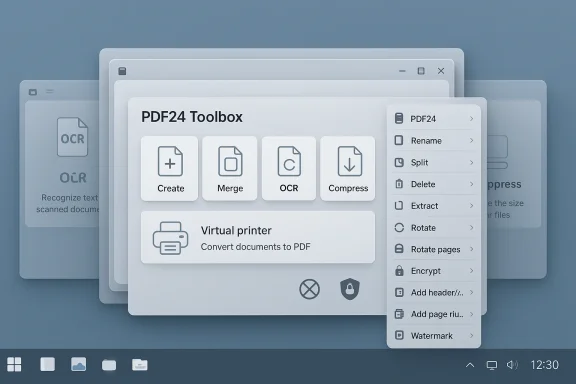 What PDF24 actually includes
A surprisingly deep toolbox
PDF24’s official product pages list a long roster of capabilities — create, merge, split, convert (to and from Word, Excel, PowerPoint, images), compress, add OCR, sign, protect, and more. The desktop package is marketed as a single download that brings “all PDF24 tools as offline version” and promises “many features” without limits. That claim is accurate: the site lists 40+ tools and multiple specialized flows (virtual printer, profile‑based conversions, batch processing).MakeUseOf’s review emphasizes the density of the interface — “close to 50 different tools” visible on one screen — and praises the ability to search and bookmark frequently used sub‑tools. That user experience detail aligns with the Creator’s Tool Launcher and Toolbox model: a single hub that launches focused sub‑apps for tasks such as OCR, compression, annotate, sign, and overlay. The reviewer’s “close to 50” phrasing is a reasonable user impression (different pages and web vs. desktop lists vary), but the vendor’s official count is a more conservative “over 40.” Where exact counts mattr list rather than rounded impressions.
Key features you’ll actually use
- PDF creation and virtual printer — print to PDF from any app, with profile presets and automatic save options.
- Merge, split, reorder pages — drag‑and‑drop page rearrangement and batch processing.
- Compression and optimization — multiple presets and adjustable DPI for balancing quality/size.
- OCR (text recognition) — convert scanned images into searchable PDFs with configurable profiles.
- Security tools — password protect, remove passwords, set owner vs user permissions, and batch protect.
- Annotate and edit — drawing, shapes, text boxes and page editing inside the Toolbox; editing scope is broad but UX varies.
Performance and day‑to‑day usability
Speed, resource use, and thekeUseOf’s reviewer calls out how fast PDF24 opens complex PDFs and praises a distraction‑free reader that lacks intrusive marketing overlays — a contrast with some commercial readers that push upgrades. The PDF24 Creator and Reader are intentionally lightweight; the vendor promotes low resource use and fast startup. Independent reviews corroborate that the Reader is fast and that the Creator avoids heavy bundled extras at install time.
Practical point: PDF24 scales well for everyday office tasks (open/scroll/zoom large files) and the virtual printer approach makes converting content from other Windows apps painless. For large batch jobs (OCR or heavy compression) you’ll still need to give the machine time — but the app’s batch tooling and profiles make repeated tasks efficient.The UI tradeoffs: powerful but non‑unified
One repeated gripe — voiced in the MakeUseOf review — is UI fragmentation: the Toolbox often launches specific tools into their own windows, rather than keeping everything inside a single tabbed frame. That can feel clunky if you expect a browser‑style, single‑window workflow. The product changelog and manual reveal a subtler reality: the Reader supports tabbed instances by default (a registry/setting controls whether new files open as tabs or separate windows), while many Toolbox sub‑tools intentionally open in separate windows because they are distinct sub‑applications. In short, PDF24 supports tabs for document viewing, but the Launcher/Toolbox pattern still spawns multiple windows for specialized tasks — which explains the reviewer’s observation and also shows the platform is configurable.Privacy and security: what happens to your files
Privacy is where PDF24’s positioning is strongest and easiest to verify.- The desktop PDF24 Creator runs entirely offline and keeps files local: the vendor explicitly states desktop tools process files on your PC and do not upload them. That’s the simplest way to guarantee data never leaves your machine. Use the desktop Creator when privacy matters most.
- The web version (tools.pdf24.org) processes uploaded files on servers in the EU, protects uploads with SSL/TLS, and — importantly — automatically deletes uploaded files after one hour (with the option for manual deletion). The company states files are not stored for analytics or evaluation. That timed deletion plus encrypted transit is a reasonable privacy posture for an online tool, but it is not the same as purely local processing. If you need absolute assurance, prefer the desktop Creator.
- The vendor is upfront about being a German company (Geek Software GmbH) and locating processing servers in the EU — useful information for GDPR‑sensitive environments. The FAQ explicitly permits free use in companies and public authorities.
Where PDF24 shines — practical strengths
- Cost and licensing: PDF24 Creator is freeware for both private and commercial use; there’s no subscription. That makes it an obvious choice for cost‑conscious teams and small businesses that need advanced PDF tools without the budget for Acrobat.
- Tool consolidation: Having creation, reading, compression, OCR, and security tools bundled reduces the number of separate apps you must install. This is a big workflow win for administrators and solo users alike.
- Local processing and batch features: The Creator’s batch workflows, virtual printers, and profile presets let you automate repeated document conversions without cloud uploads. That’s valuable for archiving and departmental processing.
- Transparent privacy policy: The vendor documents data handling and retention for web uploads, which is less common in small utility vendors. That transparency is a trust signal.
Where PDF24 falls short — limitations and risks
1) UX fragmentation and tool windowing
MakeUseOf’s complaint that the app “doesn’t have a tabbed interface” reflects a valid UX friction for users who expect one unified window for all tasks. The reality is mixed: the Reader supports tabs and the app is configurable, but the Launcher/Toolbox model intentionally launches focused tools in separate windows — which can feel like extra steps when changelog documents reader options and a registry key to tweak this behaviour, so power users can adjust the experience — but average users might find the multi‑window flow annoying.2) Annotation feature gaps for heavy reviewers
MakeUseOf noticed annotation shortcomings — the review calls out missing sticky notes and a conventional highlighter in the annotate workflow. PDF24 supports drawing, shapes, and some annotation controls, but if your job depends on native sticky note comments, collaborative comment threads, or a sophisticated highlight and comment panel, PDF24’s Toolbox is not the strongest option. If you need advanced annotation (collaborative comments, exportable comment threads), consider a specialist editor (PDF‑XChange, PDFgear, or Acrobat Reader with cloud features). The reviewer’s point is practical: PDF24 is an editor, but it is not designed to replace heavy collaborative annotation platforms.3) Feature depth vs. editorial polish
PDF24 wins on breadth and price, but some advanced editing and enterprise features (fine‑grained redaction auditing, certified digital signature workflows tied to national PKI, or integrated team collaboration) remain the domain of paid suites. For compliance or regulated signing processes, verify audit trail and signature chain requirements before committing to a free tool. The official feature list is rich, but the implementation level for enterprise compliance should be validated against your organisation’s policy.4) Installer and distribution choices
PDF24 supplilers and recommends MSI for corporate deployment. Always obtain installers from the official site or trusted distribution channels; while TechRadar notes PDF24 doesn’t bundle adware, best practice is to avoid third‑party download mirrors that may wrap installers. Administrators should prefer MSI and controlled deployments.Cross‑reference check: what we verified and where claims differ
- Claim: “Completely free” — verified. PDF24 Creator is free for private and commercial use.
- Claim: “Works entirely locally” — verified for the desktop Creator; web tools do process files server‑side with encrypted transfers and one‑hour retention. Use desktop for fully local processing.
- Claim: “Close to 50 tools” — partially verifiable. Official pages list 40+ tools; MakeUseOf’s rounding to “close to 50” is a fair reader impression but not a vendor claim. If you need a precise count, use the vendor’s tool list.
- Claim: “No tabbed interface” — misleading without nuance. The Reader supports tabs by default (configurable), but many Toolbox sub‑tools open in separate windows — the MakeUseOf frustration is real in workflow terms, even though tabs exist for document viewing.
- Claim: “Strong privacy; files stay yours” — corroborated by the privacy policy and FAQ: web uploads are deleted and encrypted; the desktop app keeps files local. That makes PDF24 unusually clear for a free tool.
How to use PDF24 safely and efficiently (quick practical guide)
- Choose the right mode:
- For private/sensitive documents: download and install PDF24 Creator and do all work offline. Use the MSI for enterprise deployment.
- For quick edits on foreign machines: use the web tools (encrypted upload, files auto‑deleted after one hour). Don’t upload PHI, PCI, or classified data without checking policy.
- Common tasks — step‑by‑step examples:
- Merge PDFs
- Open PDF24 Creator → use the Creator or Toolbox Merge tool. Drag files into the merge area, reorder pages, and Save/Export. Save a profile for repeated merges.
- Compress a large PDF
- Launch Compress tool → choose a preset (Screen / Printer / Custom) → adjust DPI and image quality → compress → verify visually before replacing source. Profiles save time for batch runs.
- Add OCR to a scanned PDF
- Open OCR tool → choose language and profile → run OCR → export searchable PDF. Check results on a sample page and tweak deskew/threshold options if text accuracy is poor.
- Protect with password
- Protect PDF → choose user vs owner password and permissions → set AES level if available → save. For bulk protection, use batch Protect or create a passworded zip with 7‑Zip for transport.
- Tips for power users:
- Use the registry/setting
OpenInExistingInstanceor Reader options to control tab vs window behavior if you prefer tabs. The manual documents these keys for administrators. - Deploy via MSI with
-noupdateor group policy to control update behavior in managed environments. The changelog and release notes document installer flags. - Always keep an original backup when applying destructive operations (redaction, compression) — a compressed file may lose image fidelity permanently.
Alternatives and when to pick them
- Pick PDF24 when: you want a zero‑cost toolkit that handles creation, conversion, OCR, compression, and security — and you prefer an offline option for privacy.
- Pick PDFgear (or others like PDF‑XChange Editor) when: you need advanced annotation, a more modern tabbed UX, or features such as a Chat‑with‑PDF assistant and in‑app highlight/sticky note capabilities. PDFgear and similar editors have recently added OCR and Chat featuresy be a better fit for heavy annotation workflows.
- Pick Acrobat / Nitro / Foxit when: your environment requires certified digital signature workflows, enterprise support SLAs, or deep auditing and compliance features that a free tool won’t provide.
Final assessment
PDF24 is an unexpectedly capable, practical, and privacy‑minded PDF workbook for Windows users who don’t want to pay subscription fees. It bundles a wide range of tools — creation, virtual printing, OCR, compression, and basic editing — into a single, free, offline‑capable package. The vendor is transparent about data handling on the web tools and supplies MSI installers and registry options for administrators, which makes deployment and privacy governance straightforward.That said, PDF24 does not entirely replace premium editors. If your daily work requires advanced annotation workflows (sticky notes, threaded comments, collaborative reviews), certified enterprise signing, or a single‑window, browser‑style tabbed editing experience, you should test PDF24 against your specific tasks. The product’s architecture — a central launcher with separate tool windows — intentionally trades a single unified frame for focused sub‑apps, which some users will find liberating and others will find tedious. The Reader does support tabs (and you can change that behavior), but many Toolbox tools are separate windows by design.
If you want a capable, free PDF toolbox that respects privacy and covers most document tasks without sending your files to a cloud, PDF24 deserves a spot on your shortlist — just verify the specific annotation, signing, or compliance features you need before you standardize on it.
In short: for day‑to‑day PDF work on Windows where cost and privacy matter, PDF24 is a standout free option — powerful, pragmatic, and surprisingly mature — but not a one‑size‑fits‑all replacement for specialist paid suites.
Source: MakeUseOf I can’t believe this full PDF tool is completely free
