

If you’re fed up with the Windows Snipping Tool’s limitations and need a more capable, annotation-first workflow, PicPick is a compact, full-featured alternative that many Windows users now prefer for everyday screen capture and quick video walkthroughs. PicPick bundles advanced capture modes, a Paint-like image editor, a Whiteboard overlay, a simple screen recorder with audio, and a handful of designer-focused accessories—while remaining free for personal use and available as a paid Pro edition for commercial environments. The result is a single, small app that replaces multiple utilities and closes several gaps left by Microsoft’s built-in tool.
Windows’ built-in Snipping Tool has improved in recent Windows 11 updates—adding features such as OCR/Text Extractor, simple annotation, and screen recording—but it still shows functional gaps for power users who need timed full-screen captures, scrolling page captures, persistent capture presets, or a richer editor without app-switching. Community discussion has repeatedly recommended third‑party utilities for workflows where Snipping Tool feels restrictive.
PicPick positions itself as an all‑in‑one “graphic design” utility focused on screen capture, lightweight image editing, and small designer helpers (pixel ruler, color picker, protractor, crosshair, magnifier). The developer NGWIN distributes a free version for home use and a paid Pro license for professionals and teams, and the product supports a surprisingly broad range of capture modes and exports across multiple display setups.
For independent verification, PicPick’s official features page lists the same capture modes, editor capabilities, and graphic accessories, while hands‑on reviews such as Softpedia highlight the practical benefits (and caveats) of PicPick’s installer and free vs. commercial licensing.
However, for enterprise deployments where central management, guaranteed support, and zero‑install footprint matter, the native Snipping Tool (or a vendor-standard commercial solution) might be preferable. Equally, if your output needs advanced video editing or photo compositing, PicPick should be the capture-and-annotate step in a pipeline, not the final edit environment.
Source: Pocket-lint Windows Snipping Tool is outdated - I use this free alternative instead
 Background / Overview
Windows’ built-in Snipping Tool has improved in recent Windows 11 updates—adding features such as OCR/Text Extractor, simple annotation, and screen recording—but it still shows functional gaps for power users who need timed full-screen captures, scrolling page captures, persistent capture presets, or a richer editor without app-switching. Community discussion has repeatedly recommended third‑party utilities for workflows where Snipping Tool feels restrictive.PicPick positions itself as an all‑in‑one “graphic design” utility focused on screen capture, lightweight image editing, and small designer helpers (pixel ruler, color picker, protractor, crosshair, magnifier). The developer NGWIN distributes a free version for home use and a paid Pro license for professionals and teams, and the product supports a surprisingly broad range of capture modes and exports across multiple display setups.
What Pocket‑lint and other reviews noticed (summary)
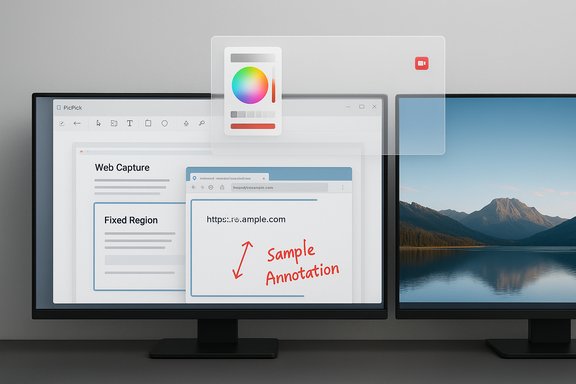
- PicPick addresses several practical failings users report in Snipping Tool: it supports a real delay timer for many capture modes, scrolling window capture for web pages, fixed‑region captures for repeatable screenshots, and multi‑monitor capture options. These capture features are the backbone of the app’s appeal.
- The built-in image editor replaces the need to export into Paint or a separate image app—providing annotations, arrows, shapes, effects (grayscale, color balance, blur), and export to common formats (PNG/JPG/PDF/GIF).
- The Whiteboard overlay is handy for live demonstrations and classroom-style annotating during presentations.
- PicPick’s screen recorder can export to MP4 or animated GIF and capture both microphone and system audio—useful for quick tutorials and troubleshooting videos.
- The Color Picker and Color Palette tools serve designers and developers who need precise color codes.
For independent verification, PicPick’s official features page lists the same capture modes, editor capabilities, and graphic accessories, while hands‑on reviews such as Softpedia highlight the practical benefits (and caveats) of PicPick’s installer and free vs. commercial licensing.
Deep dive: PicPick’s capabilities, explained
Capture modes — flexibility beyond the Snipping Tool
PicPick provides a broad roster of capture modes that make it useful for documentation and design tasks:- Full-screen: capture every pixel on a monitor or across monitors.
- Active window / Window control: select a single open window.
- Region / Freehand: rectangular or freeform captures for ad‑hoc screenshots.
- Fixed region: define a specific area once and reuse it for repeatable captures.
- Scrolling window: click into a window and let PicPick scroll and stitch content into a single long capture—critical for full‑page web grabs.
- Repeat last capture and Capture widget for quick workflows.
Delay timer behavior and why it matters
A common reason users switch away from Snipping Tool is the practical limitation where the Delay setting is unavailable for certain capture contexts (for example, full-screen capture or when using some overlay shortcuts). PicPick offers configurable delay settings (3, 5, 10 seconds) across capture modes so you can open menus, highlight dialog boxes, or trigger hover states and have the capture occur automatically. Multiple community guides and product docs confirm that the Snipping Tool’s delay option is not universally available and that PicPick’s delay flexibility is a real advantage for tutorial creators and testers.Built‑in Image Editor — small but powerful
PicPick’s editor resembles Microsoft Paint in layout but adds:- Vector‑style shape and arrow tools, text annotations, and highlight/balloon tools.
- Effects like frame, watermark, blur (mosaic), greyscale, brightness/contrast, and hue/saturation sliders.
- Crop, resize, rotate, and export to PNG/JPG/BMP/GIF/PDF.
- Layer‑style features are being explored in beta builds (layer and WebP support noted in PicPick’s beta changelog).
Whiteboard — live annotations on any screen
PicPick’s Whiteboard is an overlay you can summon during presentations to draw, point, highlight, and zoom on top of any running app. The Whiteboard stays unobtrusive and offers pencil, arrow, shapes, line thickness, color choices, undo/redo, and optional save/discard. This feature is praised by educators and presenters for in‑place marking without losing access to the underlying content.Screen recording — MP4 and GIF, with audio
PicPick includes a lightweight screen recorder with:- Capture area presets and free selection by pixels/aspect ratio, full‑screen recording, or recording a single window.
- Output to MP4 (video) or animated GIF.
- Options to record microphone and system audio simultaneously so you can narrate while capturing system sounds.
- Settings for recording quality, frame rate, and delay before starting.
Color picker, pixel ruler and designer tools
PicPick is unusually helpful for designers and front‑end developers: the Color Picker captures pixel color under a magnifier and returns RGB/HSL/HTML/C++/Delphi codes; the Pixel Ruler measures UI elements in pixels, inches or centimeters and supports different DPI settings; the Protractor and Crosshair tools provide quick measurements and coordinates. These extras are routinely highlighted in reviews as “killer features” for anyone working with visual layouts or pixel‑perfect UI checks.Pricing, licensing, and distribution — what to watch for
- Free for personal use: PicPick’s installer and main download pages clearly state the free edition is intended for personal and non‑commercial use. Commercial users and organizations are expected to purchase a license (per‑user pricing and team plans are available). This is enforced in the EULA and the downloads/pricing pages.
- Pro / Team pricing: The vendor lists per‑user pricing with volume discounts and annual billing options—typically a one‑time payment per user with entitlement for two installs (PC + laptop) depending on the plan. Verify current pricing in the app or on the purchase page before rolling out in an organization.
- Installer caveats (histor): Older reviews note that the PicPick installer historically offered an optional third‑party component; modern download pages and reputable review sites still recommend being attentive during installation to decline optional offers and always download from the official site. Softpedia’s historical hands‑on review flagged this and praised the product’s functionality overall.
- If you use PicPick only at home or for personal projects, the free edition is generally acceptable.
- If you use it for work, in a business, or on corporate devices, purchase the commercial license to comply with the EULA.
- For fleet deployments, contact the vendor for volume licensing and enterprise options.
Security, privacy & safe installation practices
PicPick’s EULA and privacy policy describe ordinary e‑commerce and site data collection (registration, purchase info), and the vendor provides an official contact and business address. There’s no indication PicPick pushes an automatic cloud backup of every capture; sharing requires explicit configuration (FTP, Dropbox, Google Drive, OneDrive, etc. so it won’t silently leak captures unless you enable an upload destination. That said, good hygiene is essential: always download from the official site, avoid third‑party repackagers, and verify checksums where provided. Security checklist before installing PicPick:- Download only from the official site or trusted stores. Community advice and security best practices repeatedly warn against random third‑party mirrors.
- Decline optional offers during installer steps if you don’t recognize them; older installer versions historically included optional bundles.
- If you need strict control over uploads in a corporate environment, restrict outbound connections in firewall rules or configure PicPick to save locally only. PicPick’s sharing integrations are explicit; they do not automatically upload every capture without configuration.
- Audit where captures are saved and whether you have auto‑save or auto‑upload turned on. If you handle PII, ensure exported assets are routed to secure storage rather than public endpoints.
How PicPick compares to the Windows Snipping Tool (practical side‑by‑side)
- Capture variety: PicPick > Snipping Tool. PicPick adds Fixed Region, Scrolling Window, repeatable fixed coordinates, and robust multi‑monitor options.
- Built‑in editing: PicPick > Snipping Tool for annotation speed and editor features; Snipping Tool is improving, but PicPick’s editor is closer to a single‑app flow for capture→edit→export.
- Screen recording: Both support basic screen recording, but Snipping Tool is native and integrated with system updates; PicPick’s recorder is convenient for quick videos but lacks advanced trimming and editing features of dedicated video tools. Use PicPick for short walkthroughs and a dedicated NLE for polished tutorials.
- Licensing & governance: Snipping Tool is free and preinstalled on Windows; PicPick is free for personal use but requires a commercial license for business use. In managed fleets, Snipping Tool has the advantage of being predictable and centrally maintained.
Strengths: why PicPick earns a spot in your toolbox
- Single app replaces several utilities: capture modes, editor, whiteboard, color tools, and a recorder.
- Speed for documentation tasks: fixed regions and repeat captures save time when producing step‑by‑step guides.
- Designer tooling included: color picker, pixel ruler and protractor are genuine productivity boosters for UI, CSS, and graphic work.
- Small footprint and long OS support: PicPick continues to support legacy Windows versions and provides a portable build, useful for technicians and consultants.
Risks and limitations you should consider
- License compliance for businesses: PicPick’s free edition is explicitly for personal use. Deploying it across a company without licenses risks non‑compliance. Purchase commercial licenses for work use.
- Not a replacement for advanced image/video editing: PicPick simplifies many tasks but won’t replace Photoshop, Affinity Photo, or a dedicated NLE for complex edits. Expect to export to other tools for heavy edits.
- Installer caveats and mirror hazards: historically optional offers in the installer and the existence of third‑party mirrors mean you must be cautious about where you download executables. Always prefer the official site and scan new installers in your standard security stack.
- Occasional bugs and edge cases: public reviews and forum threads sometimes report minor capture glitches (scrolled page captures in non‑IE browsers historically had issues). Test critical capture workflows (especially scrolling captures or non‑standard browsers) before committing to PicPick for a production workflow.
How to adopt PicPick in a real workflow (quick-start checklist)
- Download PicPick from the official site and verify the file name matches the vendor’s download page.
- Choose the free personal installation for home use; buy a commercial license if you’ll use it for work or on company machines.
- Customize hotkeys for your common captures (fixed region, scrolling window, full screen). Set a default output folder and a naming pattern to avoid clutter.
- Configure recorder settings: default output (MP4 vs GIF), audio inputs, and a sensible frame rate for your use case.
- If you work with confidential data, disable any cloud destinations or set PicPick to save locally by default. Test uploads only after confirming destination policies.
Verdict — when to use PicPick and when not to
PicPick is an excellent, pragmatic upgrade over the Windows Snipping Tool for individuals who need richer capture modes, a built‑in editor, and handy designer tools without building a multi‑app toolchain. It’s particularly useful for technical writers, QA testers, educators, and frontend designers who frequently capture, annotate, and share images.However, for enterprise deployments where central management, guaranteed support, and zero‑install footprint matter, the native Snipping Tool (or a vendor-standard commercial solution) might be preferable. Equally, if your output needs advanced video editing or photo compositing, PicPick should be the capture-and-annotate step in a pipeline, not the final edit environment.
Final notes and practical recommendations
- PicPick is a strong, pragmatic tool that addresses several real pain points with the Windows Snipping Tool—especially around delayed captures, scrolling windows, and built‑in editing. The official product pages and independent reviews confirm the feature set and its practical value.
- Respect the EULA: the free edition is personal only. For professional use, purchase the Pro license to remain compliant with vendor requirements.
- Always install from the official site and keep an eye on the vendor’s changelog or beta releases if you rely on specific capture behaviors—PicPick actively updates with new features such as layer support and WebP export in beta builds.
Source: Pocket-lint Windows Snipping Tool is outdated - I use this free alternative instead
