

If you take screenshots regularly, the built‑in Windows Snipping Tool is a helpful default — but for many workflows it’s the start, not the finish. This deep feature guide shows which free and freemium utilities are worth installing, why they matter, how they differ from Snipping Tool, and the concrete security and configuration steps you should take before rolling them out on a personal PC or across a team.
Windows’ native screenshot options (Snipping Tool and the Win + Shift + S overlay) are convenient for one‑off captures and quick annotations, but they leave gaps for users who need scrolling captures, cursor inclusion, automated workflows, instant share links, GIF recording, or robust post‑capture pipelines. The OS toolset has improved — recent Windows builds have added OCR/text extraction and basic recording features — yet power users and documentation teams still rely on third‑party tools for advanced capture scenarios.
This article evaluates the most common and dependable Snipping Tool alternatives on Windows, verifies their key capabilities, and highlights the practical tradeoffs (privacy, cloud uploads, learning curve, and system footprint) you must consider before installing them.
Before deploying any third‑party capture app, validate default behaviors, test on representative content, and lock down automatic cloud destinations for anything you wouldn’t want publicly discoverable. With careful configuration and the right mix of tools, you can turn screenshot drudgery into a fast, reliable, and secure part of your daily workflow.
Source: Guiding Tech Best Alternatives to Snipping Tool for Windows
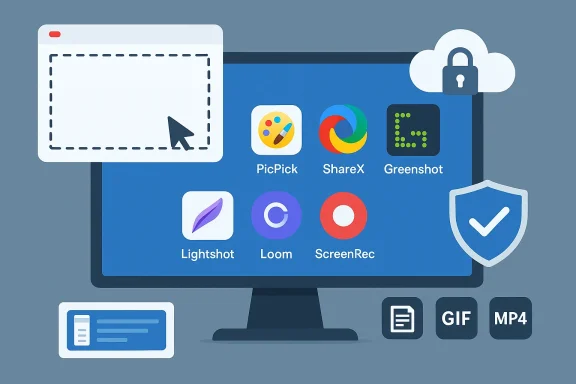 Background / Overview
Windows’ native screenshot options (Snipping Tool and the Win + Shift + S overlay) are convenient for one‑off captures and quick annotations, but they leave gaps for users who need scrolling captures, cursor inclusion, automated workflows, instant share links, GIF recording, or robust post‑capture pipelines. The OS toolset has improved — recent Windows builds have added OCR/text extraction and basic recording features — yet power users and documentation teams still rely on third‑party tools for advanced capture scenarios.This article evaluates the most common and dependable Snipping Tool alternatives on Windows, verifies their key capabilities, and highlights the practical tradeoffs (privacy, cloud uploads, learning curve, and system footprint) you must consider before installing them.
What to look for in a Snipping Tool alternative
When selecting a replacement or companion tool to the Windows Snipping Tool, prioritize features that match your workflow and risk tolerance. Key criteria:- Capture flexibility: region, window, full screen, scrolling page capture, and cursor inclusion.
- Output types: static images (PNG/JPG), animated GIFs, MP4 video exports.
- Post‑capture editing: annotations, blurring/redaction, callouts, and export presets.
- Automation & sharing: hotkeys, auto‑naming, upload destinations, and link generation.
- Privacy & security: local save vs. automatic cloud uploads, encryption, and discoverability of shared links.
- Maintenance and trust: open‑source vs. closed source, active development, and safe download sources.
Short primer: what Windows still does best
Before we dive into alternatives, remember the strengths of the built‑in options:- Win + Shift + S (Snipping Tool overlay) is fastest for clipboard captures.
- Windows + PrtScn saves a PNG directly to Pictures\Screenshots, useful for quick archival.
- Xbox Game Bar (Win + G) captures video optimized for games and can include cursor when enabled.
PicPick — the versatile all‑in‑one for creators and documentation writers
What it is
PicPick is a freemium, all‑in‑one capture + editor designed for people who need design helpers (color picker, pixel ruler, protractor) alongside advanced screenshot modes. It’s free for personal use and offers a paid Pro license for business environments.Key features
- Multiple capture modes: full screen, active window, region, fixed region (repeatable), and scrolling window stitching for full web pages.
- Delay timer (3/5/10s) usable across modes to capture menus and tooltips.
- Built‑in editor with annotations, shapes, filters (shadow, blur), and export to PNG/JPEG/PDF/GIF.
- Lightweight screen recorder that can export MP4 or animated GIFs and capture system and microphone audio.
- Designer utilities: color picker, palette, magnifier, crosshair and protractor.
Strengths
- Replaces multiple small utilities with a single, cohesive app.
- Scrolling capture and fixed‑region captures are particularly useful for repeatable documentation processes.
- Editor eliminates the need to open a separate image tool for quick annotations.
Risks and caveats
- The free edition is ad‑supported; businesses should budget for a Pro license to avoid licensing issues.
- As a closed‑source tool, it lacks the auditability of open‑source projects for privacy‑critical deployments.
Who should use PicPick
- Technical writers, QA testers, and UX designers who need robust capture modes and an integrated editor without building a ShareX automation pipeline.
Lightshot — fastest one‑off share, but treat its online uploads with extreme caution
What it is
Lightshot is a minimal, ultra‑fast screenshot tool and browser extension that emphasizes speed and instant sharing via prnt.sc short links. It is available for Windows and macOS.Key features
- Rapid region selection and a tiny editor for quick annotations.
- One‑click upload to the Lightshot/prnt.sc service producing a short shareable URL.
- Simple image search that tries to find visually similar images online.
Strengths
- Speed: capture, annotate, and share in under ten seconds.
- Cross‑platform availability useful for mixed OS teams.
Serious privacy warning
Independent reporting and community audits have shown that images uploaded to Lightshot’s public prnt.sc gallery can be discoverable via brute force or scraping; researchers found many sensitive images publicly accessible. This makes Lightshot uploads unsuitable for any screenshots that contain personal data, credentials, invoices, or private corporate content. Use Lightshot only for throwaway screenshots that are intentionally public.Who should use Lightshot
- Social users and collaborators who need instant, ephemeral links for non‑sensitive images — but never for confidential captures.
ShareX — the power user’s toolbox (open source, highly automatable)
What it is
ShareX is a free, open‑source capture and automation workstation for Windows. It targets power users who want scripting, advanced upload destinations, and programmatic after‑capture pipelines. ShareX is actively developed on GitHub and provides an enormous number of customization points.Key features (verified)
- Over 80 upload destinations and custom uploader support (Imgur, S3, FTP, OneDrive and custom endpoints).
- Scrolling/long capture with automated tile stitching.
- Video recording and animated GIF exports via an FFmpeg backend.
- After‑capture tasks: OCR, watermarking, resizing, auto‑upload, and automatic filename templating.
- Hotkey macros, custom workflows, and a scripting‑friendly UI.
Strengths
- No cost and zero ads; suitable for privacy‑sensitive deployments where code auditability matters.
- Extremely powerful automation reductions: set a hotkey to capture, OCR, upload to a private S3, and copy a time‑limited URL to the clipboard.
- Active community support and frequent updates.
Risks and operational cautions
- Steep learning curve: users must spend time configuring destinations and post‑capture tasks to avoid accidental public uploads.
- Auto‑upload misconfiguration is the most common operational risk; if your team captures sensitive content, disable auto‑upload or restrict destinations to internal stores.
Who should use ShareX
- Developers, technical documenters, admins, or engineers who need repeatable automation and private upload workflows. It’s the right choice when you want maximum control and no vendor cloud dependency.
Greenshot — the fast, open‑source annotator for documentation and Office workflows
What it is
Greenshot is a simple, open‑source screenshot utility focused on fast capture and annotation with direct export to Office apps. It’s lightweight and designed to be unobtrusive for heavy capture workloads.Key features
- Quick hotkey captures for region, window, and full screen.
- Simple editor with arrows, text boxes, highlights, and obfuscation (blur).
- Direct export to Word and Excel, saving time for documentation tasks.
Strengths
- Very low system footprint and quick to learn.
- Open source, making it a safe default for privacy‑sensitive environments where you prefer auditable code.
Caveats
- Scrolling capture support is limited or browser‑dependent; if you need reliable full‑page web stitching, prefer PicPick, ShareX, or a browser’s native web capture.
- Beware of fake download pages — always get Greenshot from the official project page or GitHub to avoid tampered installers.
Who should use Greenshot
- Documentation teams and business users who need fast, repeatable still captures and simple Office integration without complex configuration.
ScreenRec and Loom — when video + instant sharing matter
ScreenRec — quick recording + private link sharing
ScreenRec targets users who want straightforward screen recording with instant private links. The vendor’s free tier historically includes unlimited local recordings for registered users and a modest cloud allotment (2 GB) with a 720p ceiling on the free plan; unregistered usage may be limited to short sessions. These constraints are important when you plan long training recordings. ScreenRec’s appeal is speed and a simple sharing model, but check cloud storage limits before relying on it for long multi‑hour captures.Loom — team‑oriented asynchronous video
Loom targets teams that want recorded walkthroughs with transcripts, viewer analytics, and organized workspaces. It integrates with collaboration tools and is optimized for replacing long emails and meetings with short recorded explanations. Where Loom shines is workspace management, captions, and viewer metrics — but it’s cloud‑first and has free‑tier limits, so verify plan constraints for large teams or compliance environments.Who should use them
- ScreenRec is ideal for quick one‑off explainer clips and support screenshots when private, short cloud links are acceptable.
- Loom best serves product teams, support organizations, and educators who need managed libraries, transcripts, and team analytics.
Snagit: the premium reference point (and why people still pay)
Snagit remains the polished, all‑in‑one paid tool for advanced documentation: scrolling captures, high‑quality recordings, templates, and a built‑in, friendly editor. For many teams the question is not whether Snagit is capable — it is — but whether the subscription cost is justified versus free alternatives. Recent vendor moves toward subscription licensing have pushed some long‑time Snagit customers to evaluate free replacements for everyday tasks, keeping Snagit valuable where vendor support, SLAs, and advanced editorial templates are required. If you depend on guaranteed vendor support or specialized export templates, keeping a single Snagit license for those edge cases remains sensible.Security, privacy, and installation best practices (concrete checklist)
- Download only from official project pages or verified GitHub release pages. Do not use third‑party mirrors.
- Audit default behaviors after install:
- Disable automatic cloud uploads unless you explicitly need them.
- Set local save locations to an encrypted or managed folder for sensitive work.
- Turn off link generation for public hosting services (Lightshot/prnt.sc) when handling private content.
- Check permissions and telemetry settings. Some desktop apps communicate with vendor servers for link generation or analytics; understand what data is sent.
- For organizations: prefer open‑source tools (ShareX, Greenshot) where you need code auditability and avoid cloud‑first products unless vetted by your security team.
- Periodically clear clipboard history (Win + V → Clear all) if you frequently capture credentials or PII.
- Use a consistent file‑naming and archival strategy (date_project_context.png) and rotate or prune screenshot caches to avoid sensitive data persisting unintentionally.
Practical migration scenarios: which tool to pick depending on your need
- If you need rapid, throwaway public links for social sharing:
- Lightshot for extreme speed, but never upload private material.
- If you need robust automation and private upload destinations:
- ShareX, configured to upload only to private S3, internal FTP, or a company OneDrive with DLP rules. Expect a time investment to configure templates.
- If you produce documentation with many annotated stills and Office export:
- Greenshot for speed and reliability; PicPick if you also want an integrated editor and designer tools.
- If you make frequent short training videos and want team management/transcripts:
- Loom for workspace features; ScreenRec for one‑click private links when you prefer minimal setup.
- If you need pixel‑perfect scrolling web captures and cursor capture:
- PicPick and ShareX both provide reliable options; test them on the family of web pages you capture (some pages use JS that breaks scrolling methods).
Testing checklist before you adopt a tool company‑wide
- Confirm download integrity: vendor checksum or signed installer.
- Verify default upload behavior: does the app auto‑upload captures or only on demand?
- Reproduce key workflows: scrolling capture, timed capture, cursor capture, GIF/MP4 export, and annotation templates.
- Conduct a short privacy audit: capture a mock "sensitive" screen and verify whether traces remain in caches, cloud, or temporary files.
- Document remediation steps (disable auto‑upload, move cache, set retention rules) and add them to an IT-approved install script.
Final analysis — strengths, tradeoffs, and a recommended starter kit
- Snipping Tool remains excellent for fast, zero‑install captures and for clipboard‑first workflows. Use it for routine, non‑sensitive snapshots and when you need fast edits without installing anything.
- ShareX is the best single free alternative for power users who want automation, local control, and no ads. It is the best candidate for teams that automate capture→process→upload pipelines, provided you invest in safe configuration.
- PicPick is the best single app for creators who want everything in one place: scrolling capture, cursor inclusion, a capable editor, and design utilities.
- Lightshot is a speed champion for throwaway public links but poses serious privacy risks for sensitive screenshots — avoid its cloud uploads for confidential material.
- Greenshot is the minimal, open‑source editor for repeatable Office workflows where low footprint and speedy annotation matter.
- ScreenRec and Loom address video first‑use cases; choose by whether you prefer one‑click private links (ScreenRec) or team workspace features and transcripts (Loom).
- Keep Windows Snipping Tool for quick captures.
- Install ShareX for automation and private uploads (train power users on safe destinations).
- Install PicPick on at least one machine for documentation creators who need editing and scrolling capture.
- Use Lightshot only for public, non‑sensitive shares and disable its auto‑upload if you’re unsure.
Closing thoughts
The Windows Snipping Tool will handle the basics well, but modern content creation and documentation workflows demand specialized functionality — scrolling capture, GIF exports, automated uploads, and robust annotation. There’s no universal replacement: the best choice depends on whether speed, privacy, automation, or editorial power is most important to your work.Before deploying any third‑party capture app, validate default behaviors, test on representative content, and lock down automatic cloud destinations for anything you wouldn’t want publicly discoverable. With careful configuration and the right mix of tools, you can turn screenshot drudgery into a fast, reliable, and secure part of your daily workflow.
Source: Guiding Tech Best Alternatives to Snipping Tool for Windows
