

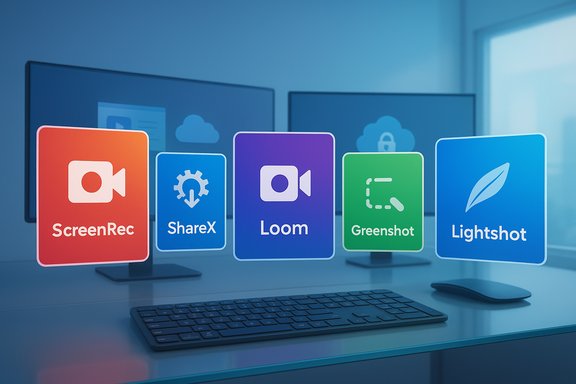
If you’re hunting for a free Snagit alternative on Windows 11 that can capture screenshots, record your screen, and let you annotate quickly, there are solid no‑cost options that match different workflows and skill levels. A recent roundup named five standout substitutions — ScreenRec, ShareX, Loom, Greenshot, and Lightshot — and positioned them as practical, free replacements for Snagit’s core tasks.
This feature goes beyond the roundup: it verifies the headline claims, cross‑checks technical details against vendor documentation and independent reviews, and calls out real world security, privacy, and workflow trade‑offs you should know before you install. Read on for an in‑depth, hands‑on analysis of each tool, why it’s worth trying, and which one you should pick depending on whether you need speed, automation, team video, simple annotation, or bare‑metal performance.
Windows users who outgrow the built‑in Snipping Tool or Snip & Sketch usually look for three things: flexible capture modes (region, window, full screen, scrolling pages), reliable screen recording with audio, and fast annotation/sharing. Snagit has long been the commercial go‑to because it bundles capture, editing, templates, and a polished editor. But if you don’t need Snagit’s advanced editor or enterprise integrations, free alternatives can give you 80–90% of the everyday functionality without the license cost. The five tools on this list each occupy a different niche in that spectrum: fast sharing (ScreenRec), power automation (ShareX), async video communication (Loom), lightweight annotation (Greenshot), and ultra‑simple quick captures (Lightshot).
What follows is a verified look at the capabilities and limits of each, with concrete technical checks and safety notes so you can make an informed choice.
Before replacing Snagit, evaluate your critical needs:
Concluding note: free tools change rapidly — features, limits, and pricing tiers can be updated by vendors. Confirm current plan details and download locations on the vendor websites before deploying in production; the vendor pages and community changelogs referenced above are authoritative starting points for those checks.
Source: Windows Report 5 Free Snagit Alternatives for Windows 11 You Should Try
This feature goes beyond the roundup: it verifies the headline claims, cross‑checks technical details against vendor documentation and independent reviews, and calls out real world security, privacy, and workflow trade‑offs you should know before you install. Read on for an in‑depth, hands‑on analysis of each tool, why it’s worth trying, and which one you should pick depending on whether you need speed, automation, team video, simple annotation, or bare‑metal performance.
 Background / Overview
Windows users who outgrow the built‑in Snipping Tool or Snip & Sketch usually look for three things: flexible capture modes (region, window, full screen, scrolling pages), reliable screen recording with audio, and fast annotation/sharing. Snagit has long been the commercial go‑to because it bundles capture, editing, templates, and a polished editor. But if you don’t need Snagit’s advanced editor or enterprise integrations, free alternatives can give you 80–90% of the everyday functionality without the license cost. The five tools on this list each occupy a different niche in that spectrum: fast sharing (ScreenRec), power automation (ShareX), async video communication (Loom), lightweight annotation (Greenshot), and ultra‑simple quick captures (Lightshot).What follows is a verified look at the capabilities and limits of each, with concrete technical checks and safety notes so you can make an informed choice.
1) ScreenRec — Best overall for fast recording + instant share
What it is and why it matters
ScreenRec is a minimalist screen recorder and screenshot tool that emphasizes speed, private cloud sharing, and no watermarks. It’s aimed at users who want to create quick walkthroughs or support clips and deliver them instantly via a private link. The vendor states the free tier provides unlimited recordings for registered users (with a 2 GB free cloud allotment) and no watermark; unregistered use has a 5‑minute limit.Verified features
- Screen + webcam + microphone + system audio — ScreenRec documents support for recording desktop and webcam overlays together, plus capturing system sound and mic.
- No watermark, unlimited local recording (registered) — The vendor explains a 5‑minute cap for unregistered sessions; registering unlocks unlimited recording length under the free tier (720p ceiling on the free plan per pricing page).
- Instant link sharing + private cloud storage — Every recording can be saved locally and uploaded to ScreenRec’s cloud, producing a shareable private link automatically. The free account includes 2 GB cloud storage.
Strengths
- Extremely quick to use — one hotkey and you’re recording.
- Clean, watermark‑free exports and simple MP4 output that plays everywhere.
- Built‑in private links make sharing with non‑technical collaborators frictionless.
Risks and limitations
- The free plan’s cloud storage (2 GB) is small; long sessions stored in the cloud will force local exports or upgrades. Verify you’re logged in to avoid the 5‑minute unregistered cap.
- No advanced video editor — exports are final MP4s and need external editors for trimming or polishing. Independent reviewers frequently point this out.
- ScreenRec is not open source; if your policy forbids third‑party cloud backup of sensitive captures, treat the automatic upload behavior as a workflow consideration.
2) ShareX — Top pick for power users and automation
What it is and why it matters
ShareX is a free, open‑source capture workstation for Windows. It’s built to be extensible: hotkeys, scripted post‑capture tasks, upload destinations, and advanced capture types (including scrolling capture and automated stitching) make it a favorite of developers, technical writers, and admins. The project is actively maintained on GitHub and supports dozens of upload destinations and custom uploader configurations.Verified features
- Over 80 upload destinations & custom uploader support — Packaging and community pages regularly state ShareX supports dozens of destinations (Imgur, S3, FTP, OneDrive, custom uploaders) and exports.
- Scrolling / long capture and automation — ShareX provides a Scrolling capture mode that automates scrolling and merges multiple captured tiles; the changelog and docs discuss scroll methods and stitching options.
- GIF and video capture (FFmpeg backend), hotkey macros, OCR support — ShareX records video using FFmpeg and can also create GIFs. It supports after‑capture tasks such as OCR, watermarking, resizing, and auto‑upload.
Strengths
- Unrivaled flexibility for automated capture → process → upload pipelines.
- No cost and no ads; the open‑source license (GPL) makes it suitable for scrutiny and scripting.
- Powerful for creating templates (e.g., automatically upload then copy a private URL to clipboard).
Risks and limitations
- Steep learning curve: initial setup and destination configuration take time; the full power is unlocked only through configuration.
- Auto‑upload features can inadvertently leak sensitive captures if misconfigured. Always audit the Destinations list and disable automatic uploads if you capture credentials or private documents. The project changelog explicitly warns about destination authorization and highlights destination validation behavior added in recent updates.
- Windows‑only: ShareX does not provide official macOS or Linux clients (use alternatives on those platforms).
3) Loom — Best for video communication and team workflows
What it is and why it matters
Loom is oriented around asynchronous video messaging: quick screen + webcam captures shared to a managed workspace with transcripts, comments, and viewer analytics. It’s more collaboration‑focused than pure screen capture utilities and integrates with Slack, Gmail, Jira, Notion and many other tools. Loom is now part of the Atlassian ecosystem (acquired in 2023) and continues to evolve as a business communication product.Verified features
- Screen + webcam + system audio and auto‑captions — Loom’s feature set includes simultaneous screen and webcam recording, capture of system audio, and automatic transcriptions/closed captions for videos (available per plan and feature rollout).
- Shareable links, trimming, and workspace libraries — Loom generates shareable links, supports basic editing like trimming and thumbnail selection, and offers team libraries for organizing content. The free Starter tier is feature‑limited.
Strengths
- Designed for replacing long email threads and synchronous meetings with short, annotated videos.
- Built‑in transcription and viewer engagement metrics help teams track who watched and for how long.
- Cross‑platform: desktop apps for Windows/Mac, browser extensions, and mobile apps.
Risks and limitations
- Free plan constraints: historically the free tier has had limits (e.g., clip counts, recording length or advanced analytics) and business features require paid plans. Check current plan limits before committing to Loom for training or course creation.
- Data residency and enterprise controls: if your organization requires strict on‑premise storage, verify enterprise or Atlassian agreements — Loom is cloud‑first.
4) Greenshot — Simple, fast, and annotation‑focused
What it is and why it matters
Greenshot is an open‑source, lightweight screenshot tool optimized for quick captures and annotations. It’s a classic “capture → annotate → export” workflow that integrates with Office and can send images to email, printer, or online services. Greenshot remains a favorite when all you need are crisp still images and fast markups.Verified features
- Region/window/full screen capture with annotation editor — Greenshot’s editor supports arrows, text boxes, highlights, and obfuscation (blur) tools.
- Export to multiple targets (Office, file, clipboard, print) — Greenshot explicitly supports exporting to Word/Excel, saving to file, or uploading to photo sites via plugins.
- Open source for Windows; macOS presence via App Store (proprietary) — The primary Greenshot project is open source on GitHub and aimed at Windows users. A macOS port exists as a separate (paid/proprietary) App Store app.
Strengths
- Extremely low system footprint and fast hotkeys; ideal for documentation writers, testers, and QA who need many annotated stills.
- Open source: code reviewable and widely trusted for privacy‑sensitive environments.
- Simple export flow into Office and email is convenient for business documentation.
Risks and limitations
- Scrolling capture support is limited or browser‑specific (works well with Internet Explorer historically); for robust scrolling capture you may prefer ShareX or Snagit.
- Beware of fake download pages — Greenshot maintainers warn of copycat sites that distribute modified installers; always download from the official project pages (Greenshot.org or the project’s GitHub).
5) Lightshot — Quick and minimal, but treat uploads with caution
What it is and why it matters
Lightshot (prnt.sc) is an ultra‑simple screenshot tool and browser extension for quickly selecting a screen region, annotating it in a tiny editor, and uploading to the web to get a short link. It’s built around speed and instant sharing. The convenience of “capture → upload → link” is the product’s selling point.Verified features and a critical caveat
- Rapid selection + online upload to prnt.sc — Lightshot uploads images to a public prnt.sc URL when you choose to upload, and offers a short link for sharing. The official Lightshot pages document this flow and gallery features.
- Privacy concern: uploads can be discoverable — Independent reporting has shown that Lightshot’s URL scheme and public hosting model make some uploaded screenshots discoverable by brute force or scraping; investigators found many images containing sensitive information accessible via generated URLs. This is an important privacy hazard for uploading confidential screens.
Strengths
- Fast and lightweight — perfect when you need to grab and send an image in under 10 seconds.
- Available as a desktop app and browser extension for Chrome/Firefox.
Risks and limitations
- Public upload model: do not use Lightshot’s upload/share function for passwords, account pages, invoices, or anything private. The WIRED investigation explicitly warned users that uploaded images may be broadly discoverable and that Lightshot’s public URLs are not intended to be secure.
- Limited advanced editing and no built‑in video recording.
Choosing the right free Snagit alternative for your needs
- If you want the fastest start‑to‑finish screen recording + instant private sharing: choose ScreenRec (register for unlimited local recordings and 2 GB cloud).
- If you’re a power user who automates captures, uploads, or needs scrolling captures and scripted workflows: choose ShareX (invest time to configure destinations and after‑capture tasks).
- If your primary task is async team communication with transcriptions and viewer analytics: choose Loom (verify free plan limits before adoption).
- If you only ever need annotated still images and fast Office export: choose Greenshot (open source, lightweight).
- If speed is everything but you never upload private material: Lightshot is fine — otherwise avoid its online upload for sensitive content.
Installation and security best practices (concrete steps)
- Download from the official site
- Always download installers from the project’s official domain or the GitHub releases page (ShareX, Greenshot) to avoid tampered binaries. Greenshot maintainers warn about fake sites — verify domain and checksums when offered.
- Check permissions and default behaviors
- For cloud‑enabled apps (ScreenRec, Loom, Lightshot), check whether items are uploaded automatically. If your captures include PII or confidential screenshots, disable auto‑upload or use local save only.
- Audit ShareX upload destinations
- Before enabling automation, open ShareX → Destinations and review each destination; disable any uploaders you don’t trust. The ShareX changelog highlights destination validation and unauthorized uploader warnings for a reason.
- Use local exports for sensitive content
- If in doubt, save captures locally and move them into your team’s secure storage (SFTP, internal SharePoint/OneDrive with DLP) rather than public cloud links.
- Keep software updated
- All projects receive security and functional updates. On managed devices, coordinate updates with IT policies. ShareX and Greenshot are actively developed on GitHub; check releases regularly.
Comparative quick reference (high‑level)
- ScreenRec — best for instant, private link sharing and one‑click recording; limited editing; free tier has 2 GB cloud and 720p cap for free.
- ShareX — best for power users and automation; steep learning curve; open source and highly configurable.
- Loom — best for async video comms and team libraries; cloud‑first and richer collaboration features; free plan limits apply.
- Greenshot — best for quick annotated screenshots and Office exports; open source and lightweight.
- Lightshot — best for one‑off quick captures when speed is king; do not upload private content.
Final analysis — strengths, tradeoffs, and recommended next steps
These five free alternatives each offer a clear value proposition compared with Snagit’s all‑in‑one commercial offering. ShareX and ScreenRec are the closest functional substitutes for capturing both screenshots and recorded walkthroughs, but they serve different user types: ShareX for configurability and automation; ScreenRec for instant sharing and simplicity. Loom is not a straight screenshot tool but excels where team communication and transcripts matter. Greenshot and Lightshot remain excellent for rapid still captures — Greenshot for safe, Office‑friendly workflows, Lightshot for throwaway, fast sharing (with privacy caveats).Before replacing Snagit, evaluate your critical needs:
- Do you need long recordings with private hosting? ScreenRec or Loom (paid tiers) will handle that.
- Do you need scheduled or automated uploads and scripted after‑capture processing? Use ShareX but plan time to configure it safely.
- Are you capturing sensitive corporate data? Prefer local exports or an open‑source tool you can inspect (Greenshot / ShareX) and avoid public upload endpoints like Lightshot’s gallery.
Concluding note: free tools change rapidly — features, limits, and pricing tiers can be updated by vendors. Confirm current plan details and download locations on the vendor websites before deploying in production; the vendor pages and community changelogs referenced above are authoritative starting points for those checks.
Source: Windows Report 5 Free Snagit Alternatives for Windows 11 You Should Try
