

Windows 11 places a remarkably flexible set of screenshot tools under a handful of keyboard shortcuts, letting you capture full screens, active windows, selected regions, or even short video snips with a few keystrokes — and understanding which key does what, where the image is saved, and how cloud sync or OEM keyboards can change behavior is now essential for anyone who shares screenshots regularly.
Windows has long exposed a basic Print Screen key (PrtScn) for captures, but Windows 11 blends the old-school clipboard-first workflow with modern capture-and-edit flows centered on the Snipping Tool and the Win + Shift + S overlay. The result is a suite of capture options that serve casual users, productivity workflows, and gamers — yet minor differences in defaults, OEM keyboard layouts (Fn keys), and cloud sync settings (OneDrive or other backup tooling) cause most of the confusion people run into.
This feature article explains exactly what each keyboard shortcut does, where Windows saves screenshots by default, how laptop Fn keys and OneDrive can change behavior, and practical troubleshooting and privacy considerations every Windows 11 user should know.
Windows + PrtScn (auto-save)
Strengths of built‑ins:
Practical setup:
Conclusion: Once you understand which key does what and where Windows writes the files (or whether the image only lives on the clipboard), taking and managing screenshots in Windows 11 becomes fast, predictable, and far more powerful than the old single-key approach.
Source: Windows Report Keyboard Screenshot Key in Windows 11: How to Use It
 Background
Windows has long exposed a basic Print Screen key (PrtScn) for captures, but Windows 11 blends the old-school clipboard-first workflow with modern capture-and-edit flows centered on the Snipping Tool and the Win + Shift + S overlay. The result is a suite of capture options that serve casual users, productivity workflows, and gamers — yet minor differences in defaults, OEM keyboard layouts (Fn keys), and cloud sync settings (OneDrive or other backup tooling) cause most of the confusion people run into.This feature article explains exactly what each keyboard shortcut does, where Windows saves screenshots by default, how laptop Fn keys and OneDrive can change behavior, and practical troubleshooting and privacy considerations every Windows 11 user should know.
Overview: the keyboard shortcuts you need to know
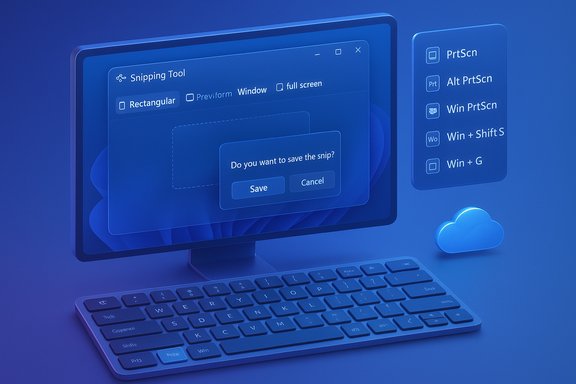
Windows 11 supports multiple screenshot flows. Here are the core keyboard shortcuts and the default behavior you can expect on most consumer machines:- PrtScn (Print Screen) — copies the entire screen to the clipboard. Use Ctrl + V in an editor to paste and save.
- Alt + PrtScn — copies only the active window to the clipboard. Paste into any app to save.
- Windows key + PrtScn — captures the entire screen and automatically saves a timestamped PNG to Pictures\Screenshots; the screen briefly dims to confirm capture.
- Windows key + Shift + S — opens the Snipping Tool overlay (rectangular, freeform, window, full-screen); the snip is copied to the clipboard and a notification appears to open the Snipping Tool editor to annotate and save.
- Win + G (Xbox Game Bar) — in-game overlay with capture widget; screenshots are saved to Videos\Captures by default.
How each shortcut works (step-by-step)
1. Capture the entire screen — PrtScn and Windows + PrtScn
PrtScn (Print Screen)- Press PrtScn.
- The entire desktop is copied to the clipboard.
- Open an image editor (Paint, Word, etc. and press Ctrl + V to paste, then save.
Windows + PrtScn (auto-save)
- Press Windows + PrtScn.
- The screen briefly dims to indicate a capture.
- The screenshot is automatically saved as a timestamped PNG in Pictures > Screenshots.
2. Capture a selected region — Windows + Shift + S (Snipping Tool overlay)
This is the fastest way to capture a specific area and get immediate editing options.- Press Windows + Shift + S.
- The screen will dim and a compact toolbar appears with four options: Rectangular, Freeform, Window, Full-screen.
- Make your selection. The image is copied to the clipboard and a notification usually appears; clicking it opens the Snipping Tool editor where you can annotate, use OCR/text extraction (where available), and save.
3. Capture the active window — Alt + PrtScn
- Make the desired window active by clicking it.
- Press Alt + PrtScn. The active window is copied to the clipboard.
- Paste (Ctrl + V) into an editor and save if needed.
4. Capture in games — Xbox Game Bar (Win + G)
- Press Win + G to open Xbox Game Bar.
- Use the Capture widget (camera icon) or press Win + Alt + PrtScn to grab a shot.
- Captures are saved by default to Videos > Captures.
5. Hardware buttons and devices without PrtScn
- Surface and many tablets use Volume Up + Power or similar hardware combos to take a screenshot; those images generally save to Pictures\Screenshots.
- Use the On‑Screen Keyboard (Win + Ctrl + O) for a virtual PrtScn if the physical key is missing.
Where Windows saves screenshots and how to find them
Knowing where captures end up is crucial:- Pictures > Screenshots: default for Windows + PrtScn and many Snipping Tool saves.
- Videos > Captures: default for Xbox Game Bar screenshots and recordings.
- Clipboard: PrtScn, Alt + PrtScn, and Win + Shift + S initially copy images to the clipboard; you must paste into an editor or click the Snipping Tool notification to open and save.
Customization and traps to watch for
Remapping Print Screen to Snipping Tool
Windows allows you to change the Print Screen behavior so it opens the Snipping Tool overlay instead of copying to clipboard. This is controlled in Settings > Accessibility > Keyboard (toggle: Use the Print screen key to open screen capture). If that toggle is on, pressing PrtScn will launch Win + Shift + S behavior rather than copy to clipboard — a common source of confusion.Fn keys and compact keyboards
Many laptops place PrtScn as a secondary function; you might need Fn + PrtScn or an Fn-lock toggle to make PrtScn work as expected. OEMs vary: always check keyboard legends and Fn-lock behavior when a key appears unresponsive.OneDrive and cloud backups intercepting screenshots
OneDrive historically offered an “Automatically save screenshots I capture” toggle that uploaded captures to the cloud; Microsoft has changed that experience in recent updates, recommending OneDrive Folder Backup for Pictures instead. That change explains why some users suddenly find screenshots uploaded or missing — the behavior depends on your OneDrive settings and whether the Pictures folder is included in cloud backup. If screenshots vanish from the local Pictures folder, check OneDrive’s backup settings.Snipping Tool auto-save and feature variability
The modern Snipping Tool has gained features over successive Windows 11 builds (annotation, quick markup, OCR/text extraction, short video snips). Some features appear first in staged rollouts or Insider channels, so behavior can vary between devices and builds. If a specific Snipping Tool option is missing, confirm you’re on a recent Windows 11 build and the Snipping Tool app is updated via Microsoft Store.Troubleshooting: if a shortcut “does nothing”
- Confirm the key combo you pressed (PrtScn vs Win + PrtScn vs Win + Shift + S). A clipboard-first capture leaves no file until you paste.
- Open Paint and press Ctrl + V to see if a clipboard image exists.
- Check Settings > Accessibility > Keyboard to see whether PrtScn is set to launch Snipping Tool.
- Ensure no third‑party app (OneDrive, ShareX, Greenshot, Snagit) or enterprise policy has taken control of the key. Disable or quit capture apps temporarily to test.
- If on a laptop, try Fn + key combinations or use the On‑Screen Keyboard (Win + Ctrl + O).
Advanced tips and power-user workflows
- Pin the Snipping Tool to the taskbar for immediate access to capture and editing features.
- Use Xbox Game Bar for captures during full‑screen apps or games; it records video too.
- For scrolling or full‑page web captures, use Microsoft Edge Web Capture (Ctrl + Shift + S) or a third‑party tool like ShareX or Greenshot for advanced stitching and automation.
- Remap keys with PowerToys Keyboard Manager if your keyboard lacks convenient shortcuts — PowerToys must be running for remaps to apply. This is useful for remapping an unused key to PrtScn behavior.
Security and privacy considerations
Screenshots can contain sensitive information (passwords, personal data, banking details). Treat capture and storage decisions carefully:- If OneDrive or another cloud backup is set to protect your Pictures folder, your screenshots may be uploaded to the cloud automatically; verify backup scope before capturing sensitive material.
- Recent changes in gaming and Copilot features introduce additional telemetry choices; when features that analyze or process captures are enabled, examine privacy settings for those specific features. Because these areas evolve quickly, review settings after major Windows or Game Bar updates.
- Use local-only saving for sensitive captures: paste directly into an editor and save to an encrypted or private folder rather than leaving images in shared or synced directories. This reduces accidental cloud exposure.
Comparative analysis: built-in tools vs third-party apps
Windows 11’s built-in toolkit (PrtScn, Win + PrtScn, Win + Shift + S, Snipping Tool, Xbox Game Bar) is now broad enough for most users — especially because the Snipping Tool combines capture, annotation, and short video snips. For heavy or specialized needs, third‑party tools remain valuable:Strengths of built‑ins:
- No-extra-install simplicity; built into OS and quick to access.
- Multiple workflows: clipboard-first for fast pastes, auto-save for archival, and Snipping Tool overlay for selective editing.
- ShareX, Greenshot, Snagit: advanced capture automation, scrolling captures, upload integrations, and more robust annotation/workflow features. These tools are aimed at power users who need consistent, scriptable capture behavior across machines.
Quick-reference cheat sheet (copyable)
- PrtScn — copy full screen to clipboard. Paste to save.
- Alt + PrtScn — copy active window to clipboard. Paste to save.
- Windows + PrtScn — auto-save full-screen PNG to Pictures\Screenshots.
- Windows + Shift + S — open Snipping Tool overlay; copy to clipboard, click notification to edit/save.
- Win + G — Game Bar capture; saves to Videos\Captures.
Final verdict and practical setup suggestions
Windows 11 has matured its screenshot UX into a multi‑modal, practical system: clipboard-first shortcuts for quick pastes, an overlay for rapid selection and annotation, auto-save for archival captures, and a gaming overlay for full-screen scenarios. Most users will be best served by learning three shortcuts: PrtScn, Windows + Shift + S, and Windows + PrtScn, and by confirming OneDrive or backup settings to avoid surprises.Practical setup:
- Decide whether you prefer PrtScn to act as clipboard or PrtScn to open Snipping Tool and set it in Settings > Accessibility > Keyboard.
- If you rely on cloud backups, verify OneDrive's Pictures backup settings so captures go where you expect.
- Pin Snipping Tool to the taskbar if you annotate frequently; install PowerToys only if you need custom key remaps or automation.
Conclusion: Once you understand which key does what and where Windows writes the files (or whether the image only lives on the clipboard), taking and managing screenshots in Windows 11 becomes fast, predictable, and far more powerful than the old single-key approach.
Source: Windows Report Keyboard Screenshot Key in Windows 11: How to Use It
