

A recently referenced product listing for the Brother PocketJet PJ‑663 — an A4-capable mobile thermal printer — brings two practical concerns into sharp relief for Windows users: driver compatibility with Windows 10 and retail availability at local pickup points. I attempted to verify the exact retail entry the user supplied but the remote product page could not be retrieved during verification; that means the local pickup note you quoted ("Not available for pickup at Lenox Square Mall") is treated here as an unverified retail claim. What can be verified, however, are the PJ‑663’s technical specifications, Brother’s published driver support for Windows 10 (32‑ and 64‑bit), and the common installation and connectivity pitfalls that trip up users — all of which are important if you’re evaluating the PJ‑663 for mobile A4 printing in a Windows environment.
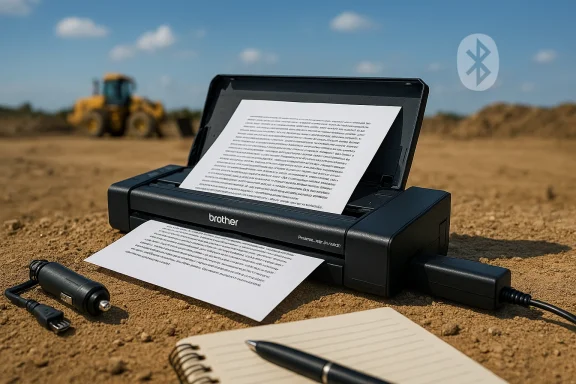
The Brother PocketJet family is a long‑running line of direct thermal, A4‑capable mobile printers designed for field use where a full‑sized laser or inkjet isn’t practical. The PJ‑663 sits in that lineage as a compact, low‑weight device optimized for single‑page throughput and low logistics overhead: no ink cartridges, low maintenance, and the ability to run from optional batteries or vehicle power.
The PJ‑663 targets use cases such as:
That said, verify the retail details before purchase (local pickup notes on third‑party pages are often stale), and be mindful of the PJ‑663’s limitations: no ARM support, Bluetooth pairing complexity, and thermal print permanence issues. If you intend to deploy the PJ‑663 in a mission‑critical environment, keep an offline copy of the driver, test the device end‑to‑end in your Windows 10 setup, and confirm battery and consumable logistics ahead of time.
If you want a concise, tailored installation checklist or step‑by‑step help applying Brother’s driver for a specific Windows 10 machine (32‑bit or 64‑bit), provide the Windows edition and whether you plan to use USB or Bluetooth and I will produce a focused, copy‑and‑pasteable installer and troubleshooting script for that configuration.
Source: hotelier.com.py https://hotelier.com.py/product/Brother-PocketJet-PJ-663-Test-Mobilnej-Drukarki-A4/291896/
 Background / Overview
The Brother PocketJet family is a long‑running line of direct thermal, A4‑capable mobile printers designed for field use where a full‑sized laser or inkjet isn’t practical. The PJ‑663 sits in that lineage as a compact, low‑weight device optimized for single‑page throughput and low logistics overhead: no ink cartridges, low maintenance, and the ability to run from optional batteries or vehicle power.The PJ‑663 targets use cases such as:
- On‑site invoicing and delivery receipts
- Field service reporting and ticketing
- Mobile point‑of‑service receipts that require A4 (or Letter)‑sized output
- Law enforcement and inspection scenarios where portability and one‑page clarity are critical
What the PJ‑663 is (and is not)
Key hardware characteristics
- Printing method: Direct thermal (no ink or toner).
- Maximum resolution: 300 × 300 dpi.
- Paper sizes supported: A4, Letter, Legal.
- Print speed: Average single‑page speed in Brother’s standard test environment (JEITA J1 pattern) is approximately 9.4 seconds per page.
- Interface options: USB 2.0 (Full Speed, mini‑B), IrDA, and Bluetooth v2.0 + EDR (Serial Port Profile and Basic Imaging Profile).
- Portability: Lightweight body (around 473 g excluding battery/paper) and compact dimensions.
- Power options: AC adapter, cigarette lighter car adapter, and optional rechargeable Ni‑MH or Li‑ion batteries (battery yield varies substantially by chemistry — Ni‑MH yields ~70 sheets in Brother’s duty test, Li‑ion ~300 sheets under the same conditions).
What to expect in daily use
The PJ‑663 is optimized for single‑page, monochrome documents. It is not a substitute for high‑volume enterprise printers: throughput, buffering, and advanced finishing features are outside its design goals. Because it uses direct thermal technology, printed output is sensitive to heat, light exposure, and oils over the long term — archival longevity is far less than pigment or laser prints. For short‑term documents, receipts, or official field tickets, it’s highly effective.Driver and Windows 10 compatibility: the facts you need
Official support status
Brother’s support materials list the PJ‑663 under downloadable drivers for modern Windows desktop OS families, including Windows 10 (32‑bit and 64‑bit) and Windows 11 in the regionally configured downloads interface. Important exceptions are documented by Brother as well:- ARM‑based Windows devices are not supported by Brother for the PJ‑663 (no ARM driver packages).
- Bluetooth support and some mobile OS features vary by host OS and driver packages.
- Brother explicitly recommends installing the supplied driver package before connecting the printer via USB.
Practical implications
- If you have a standard Intel/AMD Windows 10 desktop or laptop, Brother provides driver installers intended to work on Windows 10 x86/x64. That means the PJ‑663 can be installed and used with Windows 10 systems in most cases.
- If your Windows device uses an ARM processor (for example, some lightweight laptops or tablets with Windows on ARM), the PJ‑663 will not have an official driver, and attempts to use generic or compatibility hacks may fail.
- The PJ‑663’s Bluetooth function uses a Serial Port Profile (SPP). On Windows, that typically requires pairing and creation of a COM port via your Bluetooth manager before configuring the printer to use that COM port.
Installation caveats you must follow
Brother’s own installation guidance contains a few non‑negotiable steps that prevent installation errors:- Do not plug the printer into the PC via USB until the installer asks you to connect it. Plugging in early can trigger Windows to attempt to install a driver automatically, which frequently leads to conflicts.
- When using Bluetooth, establish the SPP outgoing COM port first with your Bluetooth stack; the driver expects a COM port mapping for serial communications.
- Run the installer with administrator privileges and accept any Windows Security prompts during driver installation (User Account Control and driver signing prompts are normal).
Common Windows‑side problems and how to fix them
Symptom: Windows shows the printer as “Driver unavailable” or “Unknown device”
- Reason: Windows attempted to auto‑install a generic or partial USB driver prior to Brother’s installer completing.
- Fix:
- Remove the device from Device Manager and disconnect the printer.
- Uninstall any partially installed Brother printer packages via Apps & Features and remove related entries in Devices and Printers.
- Reboot.
- Run Brother’s driver installer as Administrator and only connect the USB cable when prompted.
Symptom: Bluetooth pairing completes but printing fails or times out
- Reason: Bluetooth was paired but no SPP outgoing COM port was created, or the wrong COM port was selected in the printer driver.
- Fix:
- Use Windows Bluetooth settings or your third‑party Bluetooth manager to pair and then look for an outgoing Serial Port service.
- Record the COM port number assigned (COM3, COM4, etc.).
- During driver configuration, select the matching COM port as the communication interface.
Symptom: Partial or garbled output
- Reason: Wrong page size, incompatible print data, or incorrect driver configuration.
- Fix:
- Confirm print driver page size is set to A4 (or Letter, depending on your paper).
- Use the PJ‑663’s driver utility to adjust margins and printable area settings if your printouts are truncated.
- If printing from line‑printer applications, ensure the driver’s emulation matches the application’s expectations.
Symptom: Printer works but text is faint or head cleaning required
- Reason: Thermal head contamination or inappropriate thermal paper.
- Fix:
- Use Brother‑approved thermal paper; lower quality or incompatible paper can reduce clarity.
- Run a head cleaning routine and inspect the thermal head for toner or residue (Brother provides a cleaning sheet and procedure).
Driver acquisition and trustworthy sources
If you’re preparing a new Windows 10 system for a PJ‑663, the fastest safe route is:- Download the PJ‑663 driver installer from Brother’s official support page for your region and choose the correct OS family (Windows → Windows 10 32‑bit or 64‑bit).
- Avoid third‑party driver repositories whenever possible; they can host outdated or repacked installers that introduce compatibility or security issues.
- If Brother’s page shows multiple driver versions, choose the latest stable release and confirm included utilities like P‑touch Transfer where relevant.
Retail availability and local pickup: why listings can be misleading
The product page the user cited included a local pickup availability note ("Not available for pickup at Lenox Square Mall") as a snippet. Retail availability flags on third‑party e‑commerce listings are often derived from inventory feeds or manual stock checks and can be inconsistent for several reasons:- Inventory synchronization lag: retailers publish product pages and rely on nightly or hourly syncs; a product may sell out between syncs.
- Regionalized stock: warehouses and mall pickup locations represent separate inventory pools; a product may be in stock regionally but not at a specific mall pick‑up point.
- Listing staleness: smaller retailers sometimes keep product pages live even after the item is discontinued or moved to backorder.
- Localization and shipping constraints: international product pages often forward claims about compatibility or stock that don’t map cleanly to local pickup options.
Real‑world reliability and use cases: what independent reviews say
Independent reviewers and field reports generally echo a few consistent themes about the PJ‑663:- It is very portable and reliable for single‑page field printing.
- Print quality for text is judged to be solid at 300 dpi for the intended use cases (invoices, tickets, receipts, reports).
- Battery life varies dramatically by chemistry (Ni‑MH vs Li‑ion) and printing duty; expect fewer sheets on older battery types.
- Bluetooth connectivity can be finicky depending on host device Bluetooth stack and driver configuration; many users default to USB for reliability when a wired connection is practical.
Security and lifecycle considerations
- Driver signing and Windows security dialogs: Modern Windows will prompt during driver install. Accept the prompts when installing Brother’s official packages, but avoid unsigned third‑party packages.
- Firmware updates: Brother occasionally publishes firmware updates; check the support site for firmware and follow the vendor’s instructions carefully. Firmware updates can add features or fix bugs but should be applied only when necessary.
- End‑of‑life risk: PocketJet models are long‑lived, but manufacturers can end formal support at any time. If you require multi‑year deployments in critical operations, consider the long‑term driver and firmware policy and maintain an offline copy of the working driver package and installation notes.
- Data handling: The PJ‑663 is a printer only — it doesn’t store user documents locally — but you should still consider document handling and retention policies for printed sensitive documents.
Alternatives and when to consider them
The PJ‑663 competes in a niche category — A4 mobile thermal printers. Alternatives fall into two categories:- Other PocketJet models — newer or slightly older PocketJet variants may offer different battery options, Bluetooth profiles, or accessory kits. If Bluetooth compatibility with newer mobile OS versions is important, check each model’s driver notes.
- Mobile ink/laser solutions — if you need color or higher durability prints, mobile inkjet or compact laser options might suit you better; the tradeoff is weight, consumables, and the absence of true direct thermal convenience.
Step‑by‑step: recommended Windows 10 installation procedure
Follow these steps to minimize common problems:- On the Windows 10 PC, download the PJ‑663 driver installer for your OS (choose x86 or x64 as appropriate).
- Save the installer and disable unnecessary network print services temporarily to avoid Windows Update attempts during install.
- Run the installer as Administrator.
- During installation, when prompted, choose the communication interface you will use (USB or Bluetooth).
- If using Bluetooth, before connecting the printer, pair the device and create the outgoing SPP COM port; note the COM number.
- When the installer prompts, connect the USB cable (if using USB) or enter the COM port (if using Bluetooth).
- Allow Windows to accept the driver signing prompt and complete the wizard.
- Print a test page and verify page size, margins, and print clarity. Adjust printable area settings in the driver utility if necessary.
Final assessment: strengths, weaknesses, and purchase checklist
Strengths
- True A4 mobile printing capability in a compact, lightweight package.
- No ink/toner — thermal printing reduces consumable complexity.
- Official Windows 10 driver availability for x86/x64 desktop and laptop systems.
- Strong value for field and point‑of‑service workflows that need single A4 pages.
Weaknesses / Risks
- No ARM Windows support — a hard stop if you are on Windows on ARM devices.
- Bluetooth complexity — SPP pairing and COM port setup may confuse less technical users.
- Thermal print longevity — not suitable where archival permanence is required.
- Retail listing volatility — third‑party product pages and local pickup information can be inaccurate or stale.
Purchase checklist
- Confirm your Windows device is Intel/AMD x86/x64 (not ARM).
- Download and test the driver installer before committing to bulk purchases.
- Verify local pickup inventory by contacting the retailer if pickup is critical.
- Purchase Brother‑approved thermal paper (and spares) to ensure print quality.
- If Bluetooth is required, confirm the host device supports SPP and that you can create COM ports.
Conclusion
The Brother PocketJet PJ‑663 remains a compelling solution for portable A4 thermal printing when your workflow demands compact size, single‑page output, and minimal consumable overhead. From a Windows 10 standpoint, official drivers exist for 32‑ and 64‑bit Windows systems, and Brother’s installation guidance — especially the instruction to avoid connecting the USB cable until the installer requests it — should be followed exactly to prevent driver conflicts.That said, verify the retail details before purchase (local pickup notes on third‑party pages are often stale), and be mindful of the PJ‑663’s limitations: no ARM support, Bluetooth pairing complexity, and thermal print permanence issues. If you intend to deploy the PJ‑663 in a mission‑critical environment, keep an offline copy of the driver, test the device end‑to‑end in your Windows 10 setup, and confirm battery and consumable logistics ahead of time.
If you want a concise, tailored installation checklist or step‑by‑step help applying Brother’s driver for a specific Windows 10 machine (32‑bit or 64‑bit), provide the Windows edition and whether you plan to use USB or Bluetooth and I will produce a focused, copy‑and‑pasteable installer and troubleshooting script for that configuration.
Source: hotelier.com.py https://hotelier.com.py/product/Brother-PocketJet-PJ-663-Test-Mobilnej-Drukarki-A4/291896/
