

Portable apps make it possible to carry a curated toolkit on a USB stick or in your cloud folder and run the exact same software — with your settings intact — on any Windows PC, and the PortableApps.com platform is the easiest, safest way to do that at scale. The service packages hundreds of well‑known utilities into a single, lightweight launcher that installs to a USB drive or a local cloud folder, keeps apps organized and updated, and preserves your configuration so you never have to reconfigure tools across machines. The concept is simple; the payoff is enormous for IT pros, tech reviewers, and anyone who hops between systems and wants to avoid repeated installs, unexpected system changes, or cluttered profiles.
PortableApps.com began as a community project to package Windows applications so they can be run from removable media without installation. Today it’s a full‑featured portable app store and platform that bundles a menu launcher, in‑platform app store, automatic updates, backup tools, and a standard packaging format used by hundreds — now more than a thousand — portable packages. The platform installer itself is tiny (single‑digit megabytes) and designed to live in the root of a USB stick or inside a local folder that a cloud sync client mirrors. That evolution matters: where early portable collections were ad hoc and fragile, PortableApps.com provides a consistent installer and menu experience that helps avoid the chaos of scattered portable downloads. Instead of individually unpacking zip archives or copying .exe files into a folder, you use a single management interface to browse, install, and update apps. The platform automatically creates a folder hierarchy for apps, documents and settings and exposes a consistent menu in the system tray so your tools are always just a click away.
The tradeoffs are clear and manageable: some apps will still need admin rights for certain operations; cloud‑only streaming isn’t a substitute for local sync; and enterprise policies can block portable execution. Treat PortableApps as a productivity multiplier rather than a silver bullet, verify each app’s behavior for the machines you regularly use, and leverage the platform’s backup and updater to keep your toolkit safe and current. Portable toolkits remain one of the quietest efficiency wins for Windows users: small, fast, and focused — and when managed through PortableApps.com, they’re easier to keep secure, reproducible, and up to date than cobbling together random .exe files on a thumb drive.
Source: MakeUseOf I use this free app store to access my favorite apps from USB and Google Drive on any PC
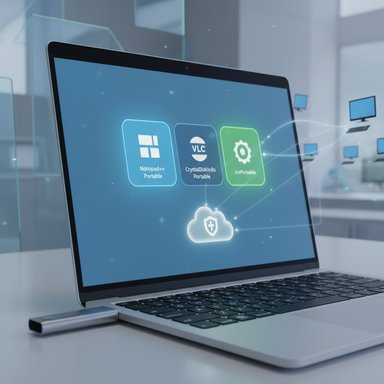 Background / Overview
PortableApps.com began as a community project to package Windows applications so they can be run from removable media without installation. Today it’s a full‑featured portable app store and platform that bundles a menu launcher, in‑platform app store, automatic updates, backup tools, and a standard packaging format used by hundreds — now more than a thousand — portable packages. The platform installer itself is tiny (single‑digit megabytes) and designed to live in the root of a USB stick or inside a local folder that a cloud sync client mirrors. That evolution matters: where early portable collections were ad hoc and fragile, PortableApps.com provides a consistent installer and menu experience that helps avoid the chaos of scattered portable downloads. Instead of individually unpacking zip archives or copying .exe files into a folder, you use a single management interface to browse, install, and update apps. The platform automatically creates a folder hierarchy for apps, documents and settings and exposes a consistent menu in the system tray so your tools are always just a click away. How the PortableApps Platform works
What the platform is and what it does
- The PortableApps.com Platform is a small launcher that organizes and runs portable applications from a single location. It includes:
- An integrated App Store for browsing and installing portable packages.
- An Updater to keep your portable apps current.
- A Menu and system tray launcher for fast access.
- Utilities for backup & restore, portable fonts, and app settings.
- The platform is intentionally minimal: the core download is a few megabytes, and most of the storage is consumed by the actual apps you choose to install. The platform packages also include metadata and digital signatures where available to reduce supply‑chain risks.
Where you can run it
You may install the platform onto:- A USB flash drive (recommended to the drive root for easiest operation).
- A local folder on your PC.
- A local folder that is synchronized by a cloud sync client (OneDrive, Google Drive, Dropbox) so the folder is mirrored across machines — but with one important caveat: do not attempt to run apps directly from a remote cloud storage layer; the folder must be fully synced locally before running. PortableApps.com explicitly recommends running from a local synced folder rather than streaming from the cloud.
Quick installation walkthrough
- Download the PortableApps.com Platform installer (small EXE) and run it. The installer is signed and will prompt for an install location; choose the root of your USB drive or the base directory of your synced cloud folder for best results.
- Launch StartPortableApps.exe from the drive (or shortcut). The menu will appear in the system tray.
- Use Apps → Get More Apps in the menu to browse categories and install from the portable app directory. Check boxes for the apps you want and click Install; the platform downloads and configures them automatically.
- When using cloud sync, wait for the folder to be fully downloaded by the client on any machine before launching apps; otherwise apps may fail or produce corrupted writes. PortableApps strongly recommends local sync-first workflows.
What PortableApps changes about the common “portable app” headaches
Many Windows users keep a handful of portable utilities on a stick. PortableApps.com improves on that by:- Centralizing management — one menu, one updater, one backup tool instead of dozens of manual processes.
- Standardizing packaging — PortableApps.com Format installers ensure apps land in the expected folders and preserve settings under the Platform’s Data folder.
- Reducing supply‑chain risk — apps distributed through the platform are scanned and packaged centrally, which reduces the chance of accidentally grabbing a tampered binary from an unreliable mirror.
What’s in the catalog — and the numbers
A common line in older blog posts is “PortableApps has 450 apps,” but that figure is dated. The PortableApps directory has grown substantially: recent counts published on the project site report well over 1,000 portable packages (and the site’s count has climbed further in 2025), reflecting both official packages and portable repackagings maintained by the community. If you’re reading older coverage that quotes smaller numbers, treat that as historical context rather than current inventory. Verify the live app directory before assuming a fixed catalog size.Pocket toolbox: examples of must‑have portable apps
The MakeUseOf primer lists a pragmatic set of portable utilities for troubleshooting and everyday work. Each of these is available as a portable build either from the original publisher or as a PortableApps.com package:- Everything (file index/search) — official portable builds are available; it’s the fastest file search replacement for Windows.
- HWiNFO64 (hardware diagnostics) — offers a portable download on its own site. Use it for temperature, sensors, and hardware health checks.
- CrystalDiskInfo (drive health) — packaged as a PortableApps title and updated through the platform.
- Revo Uninstaller — portable pack exists, but uninstall operations require admin privileges on the target machine. Expect limited functionality without elevation.
- Recuva / rcvPortable (file recovery) — PortableApps provides rcvPortable wrappers for Recuva so you can run recovery tools without installing them.
- TeamViewer (Portable) — TeamViewer provides a portable variant for one‑off remote support sessions. Licensing and advanced features differ from installed clients.
- Productivity staples — Notepad++ Portable, GIMP Portable, VLC Portable, 7‑Zip Portable and many more are maintained in the PortableApps catalog.
Strengths: why this workflow still makes sense
- True mobility: carry the same app set and settings between workstations without installing software or leaving a mess in AppData. This is ideal for consultants, reviewers, reviewers, and lab technicians.
- Storage and clutter control: your main PC stays cleaner; apps and their settings live on the removable or cloud‑synced folder.
- Single‑pane updates and backups: the platform’s updater and backup utility reduce manual maintenance. For people testing many apps every day, this saves substantial time.
- Open source, community‑driven: many packages and the platform itself are open‑source or community‑packaged, increasing transparency around builds and packaging.
Risks and caveats — what every user must consider
No solution is risk‑free. PortableApps.com simplifies many problems but introduces or preserves several real issues you must accept and manage.1) Administrative actions and limited accounts
Some tools (uninstallers, deep system scanners, driver or firmware utilities) require admin rights to do meaningful work. Running a portable uninstaller or a low‑level drive tool on a standard user account will either fail or provide limited functionality. Always check each app’s system requirements; platform pages and app descriptions normally note when elevation is necessary.2) Don’t run directly from “online‑only” cloud storage
Cloud sync providers often present files as placeholders until they are downloaded locally. Portable apps must execute against a local copy; running a placeholder or streamed file can cause crashes and corruption. PortableApps.com recommends running from a local synced folder where the cloud client has fully downloaded the app files. That is a practical limitation when you want on‑demand access without full local storage.3) File system and permissions pitfalls
Using NTFS vs. exFAT matters. The platform supports NTFS and recommends correct permissions for silent updates; on drives with restrictive ACLs, the platform may not be able to run installers silently. When using a shared USB or an NTFS volume, confirm that the PortableApps folder has the needed access rights.4) Enterprise policy and endpoint control
Corporate or school machines may deliberately block unknown executables; some organizations lock down execution policies, block USB execution, or audit and prevent non‑approved apps. IT administrators concerned about compliance or security can detect and limit the use of portable tools — a legitimate risk if you rely on portable apps for critical/admin workflows.5) Antivirus and SmartScreen false positives
Portable executables — especially less commonly downloaded builds — can trigger SmartScreen or vendor heuristics. PortableApps.com packages are scanned, but on first run you may still see warnings. Verify signatures and checksums if you’re uncertain, and prefer official PortableApps store packages over random third‑party repacks.6) Version parity and update behavior
Some portable builds are community repackagings of upstream installers. That can produce slight differences in configuration or update paths compared to vendor installers. In practice this mostly affects edge cases like the browser plugin ecosystems or apps that rely on specific installed services. Always read the app’s PortableApps page if you rely on vendor‑specific features.Best practices and safe workflows
Follow these practical steps to get the most out of PortableApps while minimizing risks:- Use a high‑quality USB 3.1/3.2 or USB‑C flash drive (or an external SSD). Cheap flash drives are slow and more likely to fail under heavy I/O.
- Put the PortableApps platform in the drive root (X:\PortableApps) or in the base of your cloud folder for consistent path behavior.
- Sync with OneDrive/Google Drive/Dropbox only if the client is set to keep the folder locally available before launching apps; avoid running from streaming/placeholder states.
- Back up your PortableApps/Data folder regularly (the platform has a built‑in backup tool). If you rely on the toolkit for critical work, keep a redundant copy in a separate cloud or NAS location.
- Disable autorun of unknown executables on shared machines and refuse to run tools on systems you don’t control unless you understand the implications. If a tool asks to run as Administrator, pause and evaluate whether the action is necessary and safe.
- Prefer official PortableApps.com packages for convenience and integrity, and verify checksums for manually added apps when possible.
When PortableApps isn’t the right fit
- If you need to run apps on machines with strict application whitelisting, or on publicly managed kiosks with no execution privileges, portable apps likely won’t work.
- If you’re trying to avoid any data ever touching a corporate device (for compliance or privacy reasons), note that even running portable apps can leave logs, temp files, or even registry entries depending on the app and the account; portable does not guarantee zero footprint in every case. Check the app’s behavior and test on a disposable VM or test machine.
Verdict: who should use PortableApps.com?
PortableApps.com remains one of the best free portable app stores for Windows precisely because it solves the management problem that comes when you carry dozens of utilities between machines. It’s ideal for:- IT technicians and support staff who troubleshoot across many PCs.
- Reviewers, QA testers, and software demonstrators who need predictable, non‑intrusive tools.
- Power users who dislike clutter and want a single, portable toolkit.
Quick reference: credible sources and verification notes
- The platform download and feature details are published on the PortableApps.com site, which lists the platform version, installer size, and packaging details. The official download page and support documentation are the canonical references for installing and using the platform.
- The Portable App Directory and individual app pages confirm which titles are maintained as portable packages (Notepad++ Portable, VLC Portable, CrystalDiskInfo Portable, rcvPortable for Recuva, etc.. These pages are the best place to verify an app’s portable status and any admin requirements.
- Official app sites are useful when you need vendor‑provided portable builds (for example HWiNFO provides its own portable zip builds). Always check the publisher site when the PortableApps packaging notes “packaged with permission” for the latest upstream behavior.
Closing analysis
The PortableApps.com approach is pragmatic: it accepts that Windows will never be perfectly portable for every workload, and instead optimizes the parts that are portable — executables, settings files, portable configuration formats — while giving you a single, maintainable UI for app discovery and updates. For power users, sysadmins, and anyone who wants a clean main profile and a consistent on‑the‑go toolkit, the platform delivers enormous day‑to‑day utility.The tradeoffs are clear and manageable: some apps will still need admin rights for certain operations; cloud‑only streaming isn’t a substitute for local sync; and enterprise policies can block portable execution. Treat PortableApps as a productivity multiplier rather than a silver bullet, verify each app’s behavior for the machines you regularly use, and leverage the platform’s backup and updater to keep your toolkit safe and current. Portable toolkits remain one of the quietest efficiency wins for Windows users: small, fast, and focused — and when managed through PortableApps.com, they’re easier to keep secure, reproducible, and up to date than cobbling together random .exe files on a thumb drive.
Source: MakeUseOf I use this free app store to access my favorite apps from USB and Google Drive on any PC
