

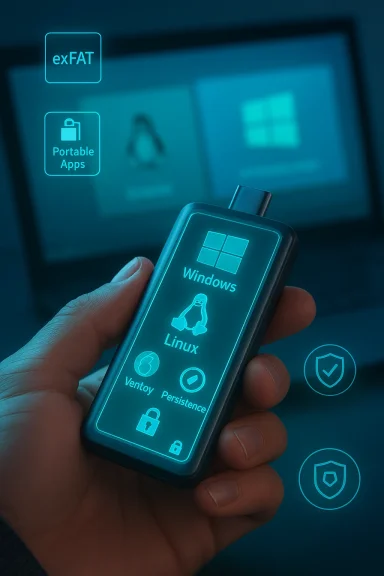
I learned to carry a pocket-sized toolkit built around a single external NVMe SSD and a cheap USB enclosure so I can boot Windows, Linux, and a library of recovery ISOs anywhere — and in practice it turned a handful of one-use installer sticks into a single, flexible rescue and productivity appliance that fits in my pocket. This approach solved two problems at once: it keeps my favorite apps and troubleshooting tools with me, and it gives me a known-good environment to repair or reinstall machines without hunting for recovery media. The method is simple in concept and surprisingly powerful in the field, but it also carries important security and firmware caveats you need to understand before you rely on it.
The trade-off most users accept is being tied to one operating system and a single machine. That limits what you can do remotely, and it makes recovery harder when a boot drive becomes corrupted. A portable NVMe SSD configured as a multiboot and portable-apps drive changes that: it acts as both a rescue toolkit and a way to take your working environment and utilities to any PC you can boot. The idea is to combine three things on one device:
Key practical points about Ventoy:
This pocket-sized combination of NVMe storage, Ventoy multiboot convenience, a cross-platform data partition, and a curated suite of portable apps turns a single small device into a complete repair, recovery, and productivity toolkit. It’s not magic — it’s deliberate preparation: a tested workflow, trusted images, sensible encryption, and a compact hardware foundation that fits in your pocket when you need it most.
Source: How-To Geek I carry Windows, Linux, and repair tools in my pocket: Here is how
 Background: why carry an external OS toolkit?
The trade-off most users accept is being tied to one operating system and a single machine. That limits what you can do remotely, and it makes recovery harder when a boot drive becomes corrupted. A portable NVMe SSD configured as a multiboot and portable-apps drive changes that: it acts as both a rescue toolkit and a way to take your working environment and utilities to any PC you can boot. The idea is to combine three things on one device:- Bootable installation and recovery ISOs for Windows and multiple Linux distributions.
- A data partition formatted for cross-platform access that contains portable apps, configurations, and drivers.
- A compact set of troubleshooting utilities (Sysinternals, NirSoft tools, diagnostic boot environments) for forensic repair and diagnostics.
What you need (hardware and software)
Hardware: practical choices that fit a pocket
- NVMe SSD (M.2) — I prefer an NVMe SSD because it’s compact and fast; even a PCIe 3.0 NVMe drive is more than adequate for most installer and live-session tasks. That speed makes live environments snappy and file transfers quick. A 256–512 GB drive is a good balance for carrying multiple ISOs and portable apps without getting costly.
- USB-C NVMe enclosure — Pick an enclosure that supports the SSD form factor and USB 3.1/3.2 Gen 2 or better. Inexpensive enclosures work fine; you don’t need the latest PCIe 5.0 gear for a technician’s toolkit.
- Good USB cable and a spare — Cheap cables can limit throughput or fail unexpectedly; keep a spare that matches the enclosure (USB-C to USB-C, or USB-C to USB-A if you need legacy ports).
Software and file-system choices
- Ventoy — Install once, then drag and drop ISOs. Supports ISO, WIM, IMG, VHD(x), EFI and a wide range of filesystems; it also supports plugins for persistence and theming. Ventoy’s model of leaving a large, user-accessible partition and a small boot partition is what makes a single device act like an OS library.
- exFAT — Recommended for the data partition if you want universal access from Windows, Linux, and macOS. It avoids the FAT32 4 GB single-file limit and is widely supported by modern OSes. If you only use Windows targets and need Windows-native features, NTFS is an option; for Linux-only toolkits, ext4 may be better.
- Rufus / Microsoft Media Creation Tool — When you need to create a dedicated Windows installation USB (instead of using Ventoy), Rufus and the Media Creation Tool are the most reliable options. Rufus can handle >4 GB install.wim issues by selecting NTFS with UEFI helpers, which is important for Windows images.
How the multiboot flow works (Ventoy explained)
Ventoy’s value proposition is straightforward: it installs a boot partition once and leaves the rest of the drive as a normal filesystem so you can copy ISOs. At boot, Ventoy presents a menu and maps the chosen ISO to a virtual media device so the ISO boots as if it were on a dedicated USB installer. The install-once, copy-many model eliminates repetitive reformatting and lets technicians iterate quickly on the set of images they carry. Ventoy also supports persistence plugins for Linux live images, and it exposes options to handle Windows 11 hardware-check bypasses for older machines — but those bypasses should be used deliberately and with caution.Key practical points about Ventoy:
- Keep the Ventoy partition intact; don’t manually modify the small boot partition.
- Copy ISO files directly into the data partition — folders and nested structures are supported.
- Use ventoy.json and plugin files for advanced behaviors like password protection, automatic selection, or persistence backends.
Building the kit: step-by-step for a reliable technician’s SSD
- Buy a 256–512 GB NVMe SSD and a USB enclosure that supports USB 3.2 Gen 2 or better.
- Plug the enclosure into a host PC and back up any data on the device; Ventoy installation will reformat.
- Download the latest Ventoy release and run Ventoy’s installer on the target drive (Windows GUI or Linux CLI). Confirm the device and install. This creates a small VTOYEFI boot partition and a large data partition.
- Format the data partition as exFAT if you want universal cross-platform access, or NTFS if you need Windows-specific features. exFAT avoids FAT32’s 4 GB per-file limit which will break some Windows install files.
- Copy ISOs you rely on:
- Windows 11 and Windows 10 ISOs (keep official builds or a tested set).
- A few Linux distributions (Ubuntu, Kubuntu, Fedora, a lightweight distro for old hardware).
- Rescue images (WinPE-based recovery, Hiren’s BootCD PE, Clonezilla, GParted live).
- Add a directory for portable apps and drop portable builds of tools you need (VS Code portable, VLC, Audacity, VeraCrypt, LibreWolf, Screenpresso). Keep a README with checksums and versions.
- Test the drive on at least two different machines: one modern UEFI/Secure Boot system and one older BIOS/legacy or UEFI-without-Secure-Boot system. Confirm you can enter the boot menu (Esc/F12/F9 varies by vendor) and successfully boot at least one Windows installer and one Linux live image.
What to carry on the data partition: a practical checklist
- Installation ISOs
- Windows 11 ISO (current build you trust)
- Windows 10 ISO (if you still support it)
- Ubuntu / Kubuntu and a lightweight Debian-based distro
- Rescue & diagnostic ISOs
- WinPE / Hiren’s BootCD PE
- Clonezilla
- Memtest86+
- GParted live
- Portable apps and small utilities
- Sysinternals Suite (executables copied to a folder)
- NirSoft utilities (password recovery and network tools)
- Revo Uninstaller Portable
- VS Code Portable, VLC, Audacity, VeraCrypt, LibreWolf, Screenpresso
- Driver packs and vendor rescue tools for systems you commonly repair
- Checksums.txt / README.md listing file names, versions, and checksums for verification
Using the drive in the field: booting, repairing, and forensics
- If the local OS is corrupted, plug in the drive and use the firmware boot menu to select the external drive. Boot into a Windows installer or WinPE to run repair tools, run sfc /scannow, DISM, or perform a clean reinstall as needed.
- If you suspect malware on a machine, boot into a Linux live environment or WinPE and scan the mounted internal disk with trusted command-line tools or your portable AV tools. Running from external media reduces the risk of the host malware interfering with the cleanup. Note: claims about any single AV product failing in specific cases are anecdotal; treat such experiences as cautionary rather than definitive.
- When assisting friends or working on public machines, prefer trusted, official ISOs and verified checksums to avoid booting unknown or tampered images. Never boot images you don’t trust.
Filesystems, cross-platform access, and the FAT32 trap
- FAT32: Avoid as the main data filesystem; it has a 4 GB single-file limit that breaks many modern Windows installers where install.wim exceeds 4 GB.
- exFAT: The pragmatic recommendation for a cross-platform portable partition because Windows, macOS, and modern Linux distributions all support it with good interoperability.
- NTFS: Use when you need Windows-native features like file permissions or compression, or when you must host very large installer files and you don’t need macOS compatibility without third-party drivers.
- ext4 / Linux filesystems: Best when the toolkit will only be used on Linux hosts.
Security: encryption, tampering, and the downside of a single key device
A tiny SSD that holds installers, account recovery tools, and portable apps is also a high-value target. Treat it like a house key:- Encrypt sensitive files or the entire partition with VeraCrypt or another vetted encryption tool if you carry credentials, sensitive configs, or personal data on the drive.
- Keep a tested, encrypted backup of the toolset in a separate location — never make the pocket SSD your only copy.
- Consider using hardware tokens (FIDO2) for online account auth and treat file-key login schemes as secondary or local-only conveniences because they can be cloned or tampered with.
Advanced tips and troubleshooting
Make images persistent when you need a portable workspace
Ventoy supports persistence for some Linux distributions via a plugin model. Create a persistence file and associate it with the ISO using ventoy.json so changes survive reboots. This is useful for carrying a familiar, private workspace that you can boot anywhere. Test persistence on a non-critical machine before relying on it in production.Dealing with Secure Boot
Ventoy can be configured to work with Secure Boot by enrolling its signing keys or by prompting for a temporary bypass. Enroll keys only on machines you control or under well-documented workflows. Avoid enrolling a key system-wide on a machine you don’t manage.Speed and responsiveness
An NVMe SSD in a modern enclosure will feel far faster than a USB flash stick when running live OSes or portable apps. You’ll notice shorter boot times, faster application launches, and quicker file operations during installs. That performance difference matters when you use the drive daily.Common problems and fixes
- Boot menu doesn’t show the device: verify BIOS/UEFI settings (USB boot enabled, correct boot order), try different ports, or update the enclosure firmware if available.
- Windows installer fails due to FAT32: reformat the data partition to exFAT or NTFS and re-copy the ISO.
- Ventoy menu missing an ISO: ensure the file isn’t corrupted and that it’s in a supported format; verify the ISO checksum.
Example field workflow: recover, repair, and restore in an hour
- Boot the target PC from your NVMe drive using the firmware boot menu.
- Choose a WinPE or Windows installer ISO from Ventoy.
- Mount the internal drive and back up user data to a spare external drive or to your SSD’s data partition.
- Attempt non-destructive repairs first (chkdsk, DISM, sfc /scannow, Windows Update troubleshooting).
- If unrecoverable, perform a clean install from the Windows ISO, then use your portable drivers and Revo Uninstaller portables from the data partition to reconfigure the system.
Costs, trade-offs, and why you don’t need bleeding-edge hardware
You don’t need an ultra-fast PCIe 5.0 SSD to make this work. A solid PCIe 3.0 NVMe or even a SATA SSD in an enclosure performs well enough to boot OSes and run portable apps with comfortable responsiveness. The main cost drivers are storage capacity and the quality of the enclosure; buy a reputable brand for better longevity and thermal behavior. For most users, a 256–512 GB NVMe SSD and a $20–$50 enclosure is all you need to build a professional-grade toolkit.Final verdict: strengths, caveats, and best practices
This pocket NVMe SSD approach provides a compact, fast, and extremely flexible technician’s toolkit. Its strengths are clear:- Portability and convenience: One drive carries installers, rescue tools, and portable apps.
- Speed: NVMe responsiveness makes live sessions and installs faster than flash sticks.
- Maintainability: Adding or updating images is as easy as copying files.
- Security: The device contains valuable tools and must be protected with encryption and backups. Treat the drive like a sensitive credential.
- Firmware and platform variance: Some systems will require disabling Secure Boot or special handling; test workflows on the hardware families you support.
- Trust: Never boot images you didn’t obtain from trusted sources; verify checksums and signatures where available.
- Keep a verified, official Windows recovery USB as an additional safety net.
- Maintain an encrypted backup of your installer library and portable apps.
- Periodically update and smoke-test the SSD on multiple machines to ensure compatibility.
- Document versions and checksums on the drive so you and any helpers can verify what’s on it quickly.
This pocket-sized combination of NVMe storage, Ventoy multiboot convenience, a cross-platform data partition, and a curated suite of portable apps turns a single small device into a complete repair, recovery, and productivity toolkit. It’s not magic — it’s deliberate preparation: a tested workflow, trusted images, sensible encryption, and a compact hardware foundation that fits in your pocket when you need it most.
Source: How-To Geek I carry Windows, Linux, and repair tools in my pocket: Here is how
