

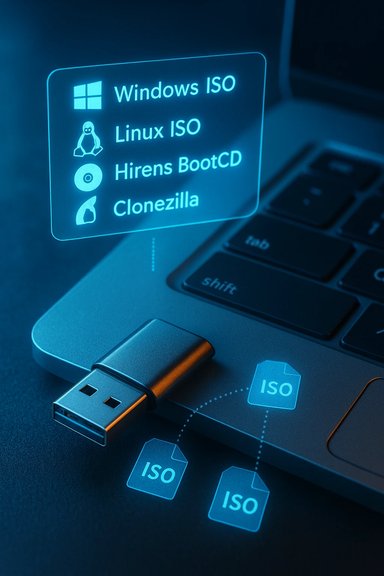
I stopped carrying a handful of dedicated installer sticks the moment I discovered a working Ventoy drive: install Ventoy once, copy ISO/WIM/IMG/VHD(x)/EFI files like ordinary files to the drive, and boot whichever image you need from a tidy menu. This simple architectural shift converts a USB stick from a single‑use installer into a compact, repeatable OS library that fits in a pocket and saves hours of reflashing and reformatting.
Background
Ventoy is an open‑source multiboot solution that separates the bootloader from the payload images. Instead of writing a single ISO to a USB stick and destroying the rest of the device’s storage each time, Ventoy installs a small boot partition and leaves the rest of the device as a normal data store where you can drag‑and‑drop images. The bootloader then presents a menu at boot time that lets you choose any copied image — no extraction, no flashing, no special layout beyond installing Ventoy once. This approach has become a practical standard for technicians, hobbyists, and power users who need to carry multiple Windows installers, a rotating set of Linux ISOs, and rescue/diagnostic tools like Hiren’s BootCD PE or Clonezilla — all on a single drive. Community write‑ups and field reports repeatedly highlight the time saved when you stop reflashing and start curating.How Ventoy works: the technical overview
The install‑once, copy‑many model
When you run Ventoy’s installer, it writes a small boot partition and configures the drive’s bootloader. After that one destructive step (the initial install formats the device), the rest of the drive becomes an ordinary filesystem — by default exFAT on many setups — where you can copy ISO, WIM, IMG, VHD(x), or EFI files directly. At boot, Ventoy maps the chosen file to a virtual drive so the image thinks it’s booting from real media; no extraction is needed.- Supported image types include ISO, WIM, IMG, VHD(x), and EFI.
- Ventoy creates a temporary “view” of the ISO at runtime, which makes installers behave as if they were booted from a DVD/USB.
Filesystem and partition flexibility
Ventoy supports multiple filesystem types for the data partition — notably FAT32, exFAT, NTFS, UDF and common Linux filesystems — and can handle ISOs larger than 4 GB, which removes the classic FAT32 single‑file limit worry for large Windows images. You can choose the filesystem to suit your needs: use exFAT for cross‑platform convenience, NTFS for large Windows installers, or ext4 on Linux‑only drives.Firmware and architecture coverage
Ventoy boots on a wide range of firmware environments: legacy BIOS, IA32 UEFI, x86_64 UEFI, ARM64 UEFI and even MIPS/other variants in many cases. That broad compatibility is one reason technicians can use a single Ventoy drive across mixed fleets without rebuilding media for every target. The project maintains an extensive “tested images” list that documents thousands of tested files.Persistence, virtual disks, and advanced features
Persistence for live Linux systems
If you use live Linux distributions and want changes to persist across reboots, Ventoy supports a persistence plugin model. You create or download a persistence backend file (a file that looks like a virtual disk) and configure ventoy.json to associate that file with a particular ISO. On boot, Ventoy presents options to use the persistent store so your live session can save packages, settings, or user files. This works for many mainstream distros (Ubuntu family, Arch variants, Kali, MX and more), though exact behavior depends on the distro’s live system implementation.vDisk (virtual disk) booting and full‑system images
Ventoy can also boot virtual disk images (vhd/vhdx) and other disk formats. That capability lets you carry full prebuilt systems or cloned images, which can be helpful for demonstration environments, forensic booting, or quick recovery tests. Booting a VHD(x) can behave differently across hardware; test on representative machines before relying on it in production.VentoyPlugson and plugin framework
Ventoy’s plugin framework (ventoy.json) unlocks many runtime tweaks — persistence mapping, menu customization, password protection, forced options, and automatic behaviors. VentoyPlugson is a GUI web utility that makes editing those JSON options painless, so you don’t have to hand‑edit configs to enable advanced features. The backend repo and releases provide prebuilt persistence images to speed setup.Secure Boot and firmware realities
Secure Boot support and enrollment flow
Ventoy added Secure Boot support early in its lifecycle; Secure Boot capability is available and improves usability on machines that insist on signed boot code. Ventoy’s documentation explains two common approaches for first‑time Secure Boot use on a given machine: enrolling Ventoy’s key or enrolling an image hash, and notes that this enrollment is a one‑time step per machine. If the machine refuses to boot a particular vendor’s shim or triggers compatibility errors, the fallback is to disable Secure Boot for that session — though many enterprise contexts won’t allow that. Practical note: Secure Boot behavior remains heavily influenced by the target machine’s firmware implementation and vendor policy. Some firmware bugs or idiosyncrasies mean a Ventoy image that works on one PC may need the Secure Boot enrollment step on another. Community threads show cases where updating the Ventoy installation or regenerating the drive resolved Secure Boot errors, while other situations required a firmware update or disabling Secure Boot as a last resort. Treat the first Secure Boot boot on a new machine as a one‑time step to document.Secure Boot vs NTFS: the Rufus parallel
Windows installer creators often encounter the FAT32 4 GB limit for install.wim. Tools like Rufus solve this by using NTFS + a UEFI boot helper (UEFI:NTFS) to allow UEFI to boot an NTFS partition; UEFI:NTFS can be signed and therefore compatible with Secure Boot in many setups. This nuance matters when comparing Ventoy to a Rufus‑created Windows installer: Ventoy handles raw ISOs and supports NTFS/exFAT on its data partition, but firmware quirks around NTFS booting and Secure Boot mean you should test specific hardware.Real‑world workflows: how I organize a single drive for everything
A practical layout and naming scheme
A Ventoy drive is effectively an OS library, not a single installer. A simple, repeatable layout reduces cognitive load:- Top‑level folders by OS family: /Windows, /Linux, /Rescue, /Tools.
- Windows builds grouped by year and edition: /Windows/2024/Win11‑22H2‑x64.iso.
- Linux by purpose: /Linux/desktop/Ubuntu‑LTS.iso, /Linux/server/CentOS‑stream.iso.
- Utilities and rescue ISOs in /Tools: HirenPE.iso, SergeiStrelec.iso, Clonezilla.iso.
Speed and media recommendations
- Use a USB 3.0/3.1 stick or an external NVMe enclosure for large image libraries — copy and boot performance is tied to media throughput.
- Prefer reputable brands (SanDisk, Samsung, Kingston) and avoid bargain no‑name sticks for mission‑critical recovery tools; flash wear and counterfeit capacities are real risks.
Deployment, unattended installs, and recovery at scale
Ventoy plays well with automation: it can boot Windows ISOs and accept autounattend.xml, or pair an installer with answer files to enable unattended deployment. For repetitive workstation provisioning, pairing Ventoy with scripted post‑install tasks reduces operator time. It’s also ideal for rescue: keep a curated, tested set of rescue ISOs (MemTest86, WinPE, Clonezilla, HirenPE), and verify checksums before field deployments.- Advantages for IT pros:
- Single portable media for multi‑OS servicing.
- Rapid swap of installer versions without reflashing.
- Ability to bootstrap recovery and reimage workflows on the fly.
Integrity, verification, and security hygiene
Security and integrity are essential when carrying OS installers:- Always download ISOs from official sources and verify checksums (SHA‑256/PGP) before copying to Ventoy.
- Keep a small README with checksums and the date on the Ventoy partition for quick cross‑checks.
- Treat rescue tools and ISOs from third parties carefully: validate signatures and avoid running untrusted WinPE tools that could carry malware.
- Use encrypted containers or BitLocker To Go for sensitive configuration files stored on the same device; however, remember BitLocker‑To‑Go is Windows‑centric and may not be mountable on all platforms.
Limitations, failure modes, and cautionary points
Ventoy is robust, but it is not a magic bullet. Know the practical limits:- Rare incompatible ISOs: Some obscure or specially crafted ISOs may not boot under Ventoy without tweaks or plugin adjustments. In those cases, dedicated flashing tools (Rufus, Media Creation Tool, dd) remain fallbacks.
- Firmware quirks: Some UEFI implementations and OEM firmwares are inconsistent with Secure Boot, NTFS boot helpers, or external media boot order — you may need to enroll keys, update firmware, or temporarily disable Secure Boot.
- Flash reliability and wear: USB sticks are consumable. Keep redundancy, refresh critical media every 3–5 years, and test periodically.
- Unattended install caveats: Using installer bypasses or modified installers (to avoid account requirements, TPM checks, etc. can create support problems and update limitations later; document such decisions and keep official, supported media accessible.
Ventoy vs. traditional tools (Rufus, Media Creation Tool, Etcher)
- Ventoy: Best for multiboot libraries, drag‑and‑drop ISO management, persistence support, and technicians who want a one‑time install model. It avoids repeated flashing and is flexible with filesystems.
- Rufus: A power‑user tool for single images with advanced options (split WIM, NTFS + UEFI:NTFS, Windows To Go style builds). Rufus’s UEFI:NTFS approach allows large Windows images to boot on UEFI systems and is widely used when FAT32’s 4 GB limit is a problem. Choose Rufus when you need a single, highly‑tuned Windows installer or Windows To Go style image.
- Microsoft Media Creation Tool: The official, supported way to create a Windows installer. Use it when you want the most straightforward, Microsoft‑sanctioned outcome on supported hardware.
- Etcher / balenaEtcher / dd: Great for raw images and simple one‑time flashes; not ideal for curated multiboot libraries.
Practical, step‑by‑step Ventoy starter checklist
- Back up the USB drive — installing Ventoy formats the device.
- Download the latest Ventoy release and verify its checksum.
- Install Ventoy to the USB device (one‑time destructive operation).
- Copy verified ISOs/WIMs/IMG/VHD(x)/EFI files into folders you control (Windows, Linux, Tools).
- (Optional) Add persistence images for live Linux distros and configure ventoy.json (use VentoyPlugson if you prefer a GUI).
- Test the stick on a spare machine: confirm BIOS/UEFI boot, test Secure Boot enrollment if needed, and verify at least one Windows install and one Linux live boot.
- Keep a second validated recovery USB (Media Creation Tool / Rufus) for edge cases.
Strengths and why IT pros quietly rely on Ventoy
- Speed and convenience: copying an ISO is far faster than reflashing.
- Repeatability: a curated drive is a reproducible field toolkit.
- Flexibility: supports many image formats, persistence, and boot architectures.
- Extensibility: plugin system and GUI helpers (VentoyPlugson) let you automate and standardize behavior.
Risks and recommended mitigations
- Risk: Corrupt or malicious ISOs. Mitigation: verify checksums and signatures before copying; keep a small verification script or README on the stick.
- Risk: Firmware incompatibility or Secure Boot blocks. Mitigation: document the enrollment steps, test on representative hardware, keep a fallback official Media Creation Tool stick.
- Risk: Media failure and data loss. Mitigation: use high‑quality media, refresh periodically, and maintain redundancy with a second drive or cloud archive.
Final verdict and practical takeaway
Ventoy reshapes the mental model of portable installers: from disposable, single‑use sticks to versioned, curated OS libraries. For technicians, it reduces wasted time, lowers friction during multi‑OS servicing, and provides productivity wins from persistence and plugin automation. For regular users it simplifies keeping multiple installers at hand without the USB clutter.The tool is mature, actively maintained, and well‑documented; nevertheless, it lives at the intersection of complex firmware behavior and varied ISO implementations. The best approach is pragmatic: use Ventoy for multiboot convenience, keep an official installer stick as a fallback, verify everything you carry, and use high‑quality media. When managed with discipline — checksums, testing, redundancy — a single Ventoy drive becomes one of the most practical and cost‑effective items in a technician’s toolkit.
Source: MakeUseOf I carry every Windows and Linux installer on a single drive with this open-source tool
