

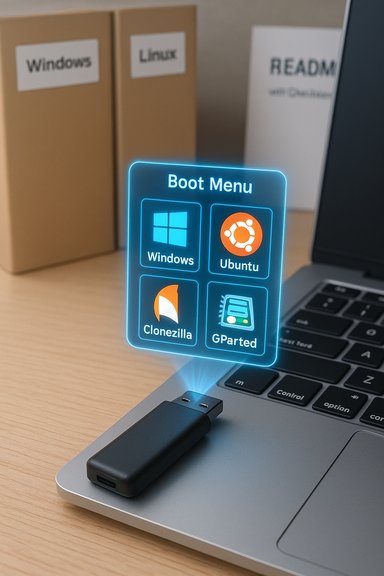
I switched to Ventoy years ago and never looked back; a single USB stick now carries installers, live desktops, and rescue tools I actually use instead of forcing me to recreate boot media for every reinstall or quick fix. The convenience is obvious — install Ventoy once, drop ISO files onto the data partition, and boot whichever image you need — but the real win is how a carefully curated Ventoy drive becomes a compact, repeatable, field-ready toolkit for both routine installs and emergency recoveries.
Background / Overview
Ventoy is a lightweight multiboot USB platform that separates the bootloader from payload images so you can treat the USB like normal storage: copy ISO/WIM/IMG/VHD(x)/EFI files to it and boot them from a menu without repeatedly rewriting the device. That drag-and-drop workflow removes friction for technicians, hobbyists, and power users who maintain multiple OS images and diagnostic ISOs. The project’s documentation and multiple hands-on guides explain the install-once, copy-many model and the practical benefits it delivers. At a technical level Ventoy installs a small boot partition (VTOYEFI) and leaves a large, user-accessible data partition formatted as exFAT by default; you can reformat that data partition to NTFS, UDF, or other supported filesystems to host very large images. Ventoy natively supports many image types and includes a plugin system (ventoy.json) for advanced behaviors such as persistence, menu customization, password protection, and temporary runtime settings.Why a Ventoy drive should be part of every toolkit
- No reformatting for each ISO — add or remove installers by simple file copy.
- Supports many image types — ISO, WIM, IMG, VHD(x), EFI and more.
- Persistence options for live Linux — retain changes in supported distros without repartitioning.
- Secure Boot workflow — tools to enroll Ventoy’s keys if you need to keep Secure Boot enabled.
- Powerful runtime toggles — temporary enable/disable of Windows 11 bypass, menu tweaks, etc.
What to keep on a Ventoy drive (practical, short list)
The strategy is to keep a compact, purpose-driven selection of installers and rescue tools rather than every OS you can find. The following list matches the most useful categories and the specific items referenced by field users and guides.- Windows installers
- Latest Windows 11 ISO (clean installs, repairs)
- A Windows 10 ISO if you still support older hardware
- Linux distributions
- Ubuntu (desktop/server releases you use)
- MX Linux or another lightweight Debian-based distro for older hardware
- Zorin OS or a Windows-friendly distro for non-technical users
- Troubleshooting and rescue tools
- Clonezilla (disk imaging & cloning)
- Memtest86+ (memory diagnostics)
- GParted live (partitioning & resizing)
- A WinPE-based recovery image or a compact PE distribution for offline repairs
- Extras
- A persistent Ubuntu image or persistence data file for a portable workspace
- A README on the Ventoy partition listing ISO names and build dates for quick reference.
Ventoy and Windows 11: power, convenience — and cautions
Ventoy provides explicit controls to bypass Windows 11 hardware checks (TPM, Secure Boot, CPU) and to bypass the online account (NRO) requirement when booting standard Windows 11 ISOs. Those controls are implemented by temporarily writing registry keys during setup; the global control options and temporary F5 tools are documented on the Ventoy site and exposed in the boot menu for one-time use or permanent ventoy.json configuration. Why that matters: for older hardware that won’t meet Microsoft’s strict requirements, Ventoy can enable a smooth clean install without additional ISO modification or external tools. That’s extremely convenient for refurbishing older PCs.Why to be careful:
- The bypass is an installation-time convenience. It does not magically make the OS certified on unsupported hardware, and long-term driver or firmware incompatibilities may still occur.
- Bypassing Secure Boot or TPM checks can expand your attack surface — especially if you use unofficial or modified ISOs. Treat this as a deliberate, documented exception, not the default behavior.
- Because Ventoy can alter installation behavior, always validate your workflow on a test system before using it in production.
Secure Boot with Ventoy: the enrollment trade-off
Ventoy includes Secure Boot support — an enrollment workflow that asks you to “Enroll key from disk” the first time you boot on a Secure Boot system. The official Ventoy documentation describes two methods (Enroll Key / Enroll Hash) and notes that Secure Boot support is enabled by default in modern Ventoy installers. The documentation also provides utilities to delete Ventoy’s enrolled key if you later choose to revert. Operational notes and community experience:- Key enrollment can be hit-or-miss depending on firmware quality; some users report MOK manager or enrollment dialogs freezing on particular motherboards. If you encounter problems, toggling Secure Boot off temporarily or testing enrollment on another machine are viable workarounds. Community threads document a mix of success and board-specific quirks. Treat Secure Boot enrollment as optional but useful; keep a fallback plan.
- Enrolling Ventoy’s key means you are adding trust for that bootloader on that machine. In environments with strict supply-chain or security policies, consider disabling automatic enrollment and use a controlled process or a separate machine for enrollment. If you’re responsible for protected endpoints, minimize the attack surface by using official ISOs signed by known vendors and verifying checksums.
Linux, persistence, and Timeshift: a pragmatic look
For Linux users, persistence is a major benefit: Ventoy’s persistence plugin accepts a data file on the data partition that live images can use to save settings, installed packages, and browser profiles. Ventoy supports persistence for many popular Ubuntu-derived and Arch-based distros, and it provides a menu for selecting persistence files when multiple options exist. That makes a Ventoy stick a portable workspace you can boot on different machines. Distribution choices explained:- Ubuntu — an excellent general-purpose desktop and server distro with broad compatibility. Keep a release you actually use (e.g., Ubuntu 24.x LTS) and an ISO for testing new versions. Note: some system tools (notably Btrfs snapshot tools like Timeshift) require particular subvolume layouts to work out-of-the-box; Ubuntu 25+ variants and installer choices can create layouts that need manual adjustment for Timeshift compatibility. Community reports and package builds show Timeshift packages targeted to specific Ubuntu versions and the occasional incompatibility with new installer defaults — so test your snapshot/restore workflow before committing.
- MX Linux — a strong choice for reviving older PCs; lightweight desktop options and helpful MX utilities make it an excellent rescue/rescue-install image.
- Zorin OS — a polished, Windows-friendly experience for non-technical users; useful as a rescue or demo OS for friends and family.
Key rescue tools — why they belong on the stick
- Clonezilla — robust, scriptable disk cloning and imaging; ideal for copying unbootable systems or creating full-disk backups before risky operations. Clonezilla works well from a live ISO and supports many filesystems and image targets. It’s the right tool when you want a faithful sector-level copy or a reliable restore path.
- Memtest86+ — a standalone, reliable memory test for detecting failing DIMMs; run it when you suspect RAM faults. The upstream Memtest86+ project provides installers and a USB-flash creation guide and continues to receive active updates. Use it early in hardware troubleshooting when crashes or random reboots appear.
- GParted live — the standard GUI partition manager for resizing, moving, and rescuing partitions; often the fastest way to fix partition table issues or shrink/expand partitions before imaging. The GParted live ISO is small and boots quickly from Ventoy.
Drive configuration, filesystem, and hardware choices
- Drive size: prefer 64 GB or larger if you keep multiple current Windows and Linux ISOs; 128 GB–1 TB if you want to carry many ISOs plus persistence files. Smaller sticks (16–32 GB) work fine for a minimal set (one Windows ISO + a couple of tools).
- Filesystem: exFAT by default for wide OS compatibility; use NTFS or UDF if you need to host >4 GB files and prefer Windows-native semantics. Reformatting the Ventoy data partition to the filesystem of your choice is supported.
- Speed & longevity: prefer quality USB 3.x flash drives or small external SSDs for faster boot times and improved reliability. Cheap flash drives are slow and degrade sooner; for field kits, spend a little more on endurance and throughput.
- Organization: create folders (e.g., /Windows, /Linux, /Tools) and keep a README on the top-level that lists ISO names, versions, and checksums for quick verification when under pressure. Ventoy scans recursively, so folder structures are supported.
Checklist: how to build a reliable Ventoy rescue stick (step-by-step)
- Back up any data on the target USB drive — Ventoy installation will format it.
- Download the latest official Ventoy release and verify its checksum.
- Install Ventoy (Windows: Ventoy2Disk.exe as Administrator; Linux: Ventoy2Disk.sh with sudo). Confirm the device and proceed.
- Reformat or leave the data partition as exFAT/NTFS/UDF depending on your needs.
- Copy the ISOs you actually use to the drive root or organized folders.
- Add persistence data files if you need a persistent live Linux workspace and configure ventoy.json (or use the F5 temporary control to test).
- If you require Secure Boot, test enrollment on a non-critical machine and follow Ventoy's enrollment prompts; have a fallback plan (disable Secure Boot) if firmware problems appear.
- Test booting each ISO on at least one representative system (UEFI + Legacy BIOS where applicable).
- Keep a small README and checksum file on the Ventoy partition so you can verify ISOs in the field.
- Maintain a fallback stick with minimal items (one Windows installer + one Linux live + one imaging tool) for firmware-locked or highly secured scenarios.
Security, integrity, and supply-chain hygiene
- Verify every ISO you add with SHA256 or vendor-supplied checksums. Never use a downloaded ISO without validating it.
- Keep a record of which ISOs are signed and which are modified (e.g., custom Win11 builds or unattended installs).
- Treat Ventoy’s Win11 bypass and Secure Boot enrollment as deliberate exceptions: document when and why you used them.
- If you distribute or lend the stick, consider adding physical labeling and a short README that explains contained ISOs and required checks.
Pitfalls and troubleshooting (real-world observations)
- Secure Boot enrollment sometimes fails on specific motherboards; the community reports freezes or MOK manager not appearing. If that happens, disable Secure Boot temporarily or use a different machine for enrollment.
- Timeshift and other snapshot tools may require specific subvolume layouts on Btrfs; upgrades to Ubuntu or installer choices can change defaults and break Timeshift until you adjust the subvol layout or configuration. Test snapshot/restore before relying on it as your only rollback strategy.
- Don’t overstuff the stick with ISOs you never use; fewer, trusted images lead to faster troubleshooting and lower risk of accidentally booting the wrong image under pressure. The best rescue sticks are curated, not exhaustive.
Final verdict: who should use Ventoy and how to get the most value
Ventoy is a real productivity multiplier for anyone who regularly installs, tests, or repairs systems. It eliminates repetitive work, supports advanced features like persistence and Windows 11 install helpers, and adapts to both consumer and professional workflows. Pair it with a short, well-tested ISO list (Windows 11 + Ubuntu LTS + MX Linux + Clonezilla + Memtest86+ + GParted) and you have a toolkit that covers more than 90% of common scenarios.That said, use the advanced features intentionally. Secure Boot enrollment, Windows 11 bypass options, and persistence all change the behavior of installations or system boot flows. Validate on representative hardware, keep checksums and README files, and prefer quality USB hardware. With those disciplines, a Ventoy USB stick is one of the best single investments a Windows or Linux technician can make.
Conclusion
One well-configured Ventoy drive replaces a drawer full of single-purpose sticks. It reduces setup time, improves repeatability, and — when paired with a small, curated set of tested ISOs and tools — can be trusted for everything from routine installs to disaster recovery. Build the kit with intention, verify every ISO, and test your workflows; the convenience then becomes unstoppable.
Source: XDA I keep these operating systems on a Ventoy USB drive
