

If you want to make a bootable Windows 11 USB from Linux in minutes, you don’t need Windows-only tools — you need the right workflow. Copying the official Windows ISO onto a USB and booting it used to require clunky utilities or fiddly partitioning; today, Ventoy lets you drop ISO/WIM/VHD(x)/IMG files onto a prepared USB and boot them directly. It’s fast, repeatable, and ideal for technicians and hobbyists who bounce between installers. This guide explains exactly how Ventoy works, verifies the important technical bits, walks you through a bulletproof Linux workflow (commands included), and flags the real-world gotchas so you don’t waste time or brick a device.
Ventoy is an open‑source multiboot USB solution that installs a small bootloader on a USB device and leaves the big partition free for ISO/WIM/IMG/VHD(x)/EFI files. Instead of reformatting and re‑creating a bootable stick for every OS image, you install Ventoy once and then copy ISO images like files — they show up in a boot menu. Ventoy’s own documentation and GitHub list this behavior as the core advantage.
The idea makes creating a bootable Windows 11 USB on Linux exceptionally simple: install Ventoy to the stick from Linux, copy the Windows 11 ISO into the Ventoy partition, and boot the target PC from that device. That’s literally the “simple AF” promise in many video tutorials and community posts — and it’s accurate with caveats. We’ll verify what’s reliable, what’s optional, and what can trip you up.
However, the important caveat is that booting and completing the Windows installation will take longer, and Secure Boot or firmware quirks may add troubleshooting time. Ventoy makes the media creation step quick and repeatable, but don’t conflate media creation time with total install time on a target machine. Verified Ventoy docs show the efficiency and features; community threads demonstrate the edge cases where Secure Boot or firmware blacklists require additional steps. Use Ventoy as your default “media toolkit” on Linux, but keep WoeUSB or a Windows host with Rufus as a fallback when you hit a machine that refuses Ventoy’s bootloader under Secure Boot.
If you want, follow the step‑by‑step commands above now and you’ll have a functioning Ventoy stick in short order — and you’ll be able to add or remove Windows ISOs as easily as copying files.
Source: YouTube
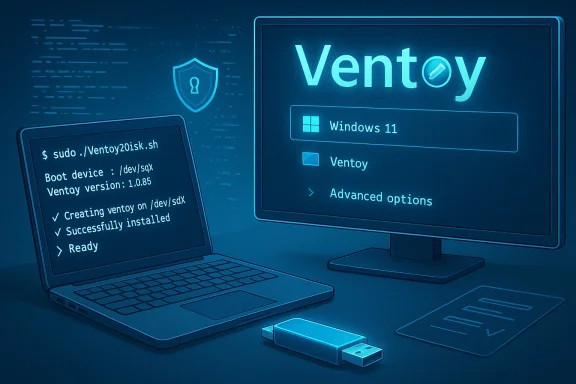 Background / Overview
Ventoy is an open‑source multiboot USB solution that installs a small bootloader on a USB device and leaves the big partition free for ISO/WIM/IMG/VHD(x)/EFI files. Instead of reformatting and re‑creating a bootable stick for every OS image, you install Ventoy once and then copy ISO images like files — they show up in a boot menu. Ventoy’s own documentation and GitHub list this behavior as the core advantage. The idea makes creating a bootable Windows 11 USB on Linux exceptionally simple: install Ventoy to the stick from Linux, copy the Windows 11 ISO into the Ventoy partition, and boot the target PC from that device. That’s literally the “simple AF” promise in many video tutorials and community posts — and it’s accurate with caveats. We’ll verify what’s reliable, what’s optional, and what can trip you up.
Why Ventoy is the quick win for Linux users
- No repeated formatting — once Ventoy is installed, you can add or remove ISOs by simple copy/delete. That beats rewriting the stick each time.
- Multi‑ISO support — boot multiple Windows and Linux installers from the same drive; Ventoy supports ISO, WIM, IMG, VHD(x), EFI files and more.
- Large files supported (>4GB) — Ventoy supports ISO files larger than 4 GB, so you won’t be blocked by FAT32 limits if you use NTFS/exFAT or Ventoy’s features.
- UEFI and Secure Boot aware — Ventoy has options and documentation for Secure Boot, and Secure Boot support has evolved across releases. It’s not perfect on every machine, but Ventoy provides methods to enroll keys or hashes to get Secure Boot working in many environments.
- Works on Linux natively — Ventoy includes a Linux shell installer script (Ventoy2Disk.sh), so you can prepare a Windows 11 USB without touching Windows.
What you must verify first (before touching the USB)
- Have a genuine Windows 11 ISO — download the official ISO for the edition you want. Windows 11 ISO sizes are often 5–7 GB depending on release; plan accordingly. Microsoft’s system requirements and ISO guidance remain authoritative for installation.
- Pick a good USB drive — USB 3.0 (or USB 3.1) flash drives or external SSDs make installs and copying much faster. A 16 GB stick is a safe minimum; 32 GB or larger is better if you multitask ISOs.
- Know how to identify the target device — on Linux use lsblk, hdparm -I, or sudo fdisk -l to find the correct /dev/sdX. Mistargeting will overwrite drives. (We’ll show commands below.)
- Confirm the target PC’s firmware mode — most Windows 11 machines need UEFI + Secure Boot + TPM 2.0. Windows 11 minimum requirements (processor, 4 GB RAM, 64 GB storage, UEFI + Secure Boot capable, TPM 2.0) are enforced by Microsoft’s installer for supported hardware; if your hardware is unsupported you must accept the consequences of bypassing checks.
Quick summary of the verified Ventoy facts (sources)
- Install method on Linux: run Ventoy2Disk.sh with the -i, -I or -u flags to install/update.
- Secure Boot: Ventoy added Secure Boot support in earlier releases and provides a key/hash enrollment workflow; however, it may fail on some machines and sometimes requires disabling Secure Boot or enrolling the Ventoy key. Ventoy’s docs explicitly say this solution is not perfect and describe how to enroll keys or hashes on first boot.
- Supported payloads: ISO/WIM/IMG/VHD(x)/EFI are supported and Ventoy claims hundreds of tested images.
Step‑by‑step: Create a bootable Windows 11 USB on Linux with Ventoy (the 5‑minute workflow)
Below is a reproducible, copy‑paste friendly workflow. Times assume a reasonably fast USB 3.0 stick and a local ISO file already downloaded.1. Prepare and verify the USB device
Run these commands to identify and unmount your target USB.- List block devices and identify the USB. Replace the device name when you proceed.
- lsblk
- sudo fdisk -l
- Unmount any mounted partitions from the USB (change /dev/sdX accordingly):
- sudo umount /dev/sdX* || true
2. Download and install Ventoy (example)
- Download the latest Ventoy Linux tarball from the official release (choose the latest release for your architecture).
- Extract and run the installer script from the extracted folder.
Code:
tar -xzf ventoy-1.1.xx-linux.tar.gz
cd ventoy-1.1.xx
sudo sh Ventoy2Disk.sh -i /dev/sdX- Use
-i /dev/sdXto install if the disk is not already Ventoy. - Use
-I /dev/sdXto force a fresh install even if Ventoy is already present. - Use
-u /dev/sdXto update an existing Ventoy install.
3. Copy the Windows 11 ISO file
After installation the large partition will auto‑mount in many desktop environments. If not, mount it manually.- Copy the ISO to the Ventoy partition:
You can copy many ISOs; Ventoy builds a boot menu listing them. No further flashing is required — just copy/delete like normal files.Code:cp ~/Downloads/Windows11_24H2_x64.iso /media/$USER/VENTOY/ sync sudo eject /dev/sdX
4. Boot the target PC from the Ventoy USB
- Insert the USB into the target machine, enter the firmware boot menu (F12, Esc, F10, Novo, etc.), and pick the USB device (there will often be an entry like “UEFI: <USB brand>”).
- Choose the Windows 11 ISO from the Ventoy menu.
- Windows Setup will start; continue the install to the target drive (not to the Ventoy USB).
Practical tips and troubleshooting (what can go wrong and how to fix it)
Secure Boot hiccups
- Ventoy supports Secure Boot and offers a first‑boot enrollment screen to add Ventoy’s key or hash, but Ventoy’s docs warn the solution is not perfect and instruct that you may need to disable Secure Boot if a particular machine rejects the loader. If you see “Verification failed” or “Security Violation” messages, first try enrolling the key; if that fails, temporarily disable Secure Boot in UEFI.
- Community reports show some systems with updated DBX (blacklists) or shim issues may still refuse to boot Ventoy under Secure Boot until Ventoy or shim updates are applied. If Secure Boot is mandatory (corporate laptops), test on a non‑critical machine first. Community troubleshooting threads document these behaviours and solutions — including reinstalling Ventoy from scratch after updates or removing entries in UEFI DBX/MOK if you know what you’re doing.
Windows Setup refuses the target drive
- If Windows Setup says it can’t install to the target disk, the problem is usually partitioning/firmware mismatch (UEFI vs legacy/MBR vs GPT). Ensure you boot the installer in the same mode (UEFI) the target drive expects, and use GPT partitioning for UEFI installs. If necessary, use the installer’s drive options to delete partitions and let Windows create the proper GPT layout. Ventoy’s menu will report whether you booted in BIOS or UEFI mode; use that to diagnose.
ISO doesn’t boot / corrupted copy
- If an ISO fails to boot from Ventoy but works in a VM, the file copy may be incomplete. Re-copy the ISO and use soving the device. Also verify ISO integrity with checksums when in doubt.
Large ISOs and file system choices
- Ventoy supports >4 GB images, but the Ventoy partition file system must also support large files (NTFS/exFAT recommended). Ventoy’s site and GitHub explain supported filesystems and the plugin framework for special cases.
Alternatives on Linux — when to use them
If Ventoy isn’t suitable or fails on your hardware, these are solid alternatives:- WoeUSB — Linux‑native tool designed to create Windows bootable USBs; it formats the drive, makes NTFS partitions, and writes the ISO into a Windows‑friendly layout. Use when you want a “traditional” single‑ISO bootable stick created from Linux. WoeUSB is widely used and well documented in community guides.
- Manual dd / diskpart style approaches — Not recommended for Windows ISOs (because of filesystem and UEFI quirks), but advanced users can use partitioning and file copying with diskpart equivalents in Linux. This is error‑prone for Windows images.
- Rufus (on Windows) — If you can use a Windows machine to prepare media, Rufus is the most feature‑rich tool (including options to bypass Windows 11 hardware checks, split WIM files, and create Windows To Go images). Many power users prefer Rufus for fine‑grained control, but it requires Windows.
Advanced Ventoy features that matter for Windows installs
- VHD/VHDX boot — Ventoy can boot Windows from VHD(x) files with the WinVHD plugin, enabling scenarios like keeping a portable Windows VHD on the Ventoy partition and booting it on multiple machines. That’s useful if you want a portable Windows environment rather than an installer. The Ventoy VHD plugin page and GitHub provide release binaries and usage instructions.
- Persistence for Linux ISOs — Ventoy supports persistence for some Linux distros via plugins; useful for live USBs that retain changes across reboots. Not directly relevant to Windows installs but great for multi‑use sticks.
- Windows auto installation / unattended installs — Ventoy supports auto installation scenarios through variable expansions and injection files; this can automate Windows setup for repeated deployments. Read the Ventoy docs and plugin notes before attempting unattended Windows installs.
Security, compliance, and update considerations
- Secure Boot enrollment tradeoffs — enrolling the Ventoy key or trusting the Ventoy shim grants any Ventoy‑signed USB the ability to boot on that machine. If you’re in a security‑sensitive environment, temporarily disabling Secure Boot to use Ventoy may be preferable to enrolling a 3rd‑party key permanently. Ventoy’s documentation and community conversations explicitly discuss this tradeoff.
- Windows update eligibility on unsupported hardware — some users use Rufus or other tools to bypass TPM/Secure Boot checks. That allows installation on older hardware, but Microsoft may limit updates or support for such systems. Confirm update policy for your scenario before bypassing hardware checks. Microsoft’s Windows 11 specs and support pages outline official minimum requirements and upgrade paths.
- Keep Ventoy updated — Ventoy continues to iterate; new releases fix Secure Boot, add payload support, and address compatibility. Update Ventoy on your USB when new stable releases appear. Use
sh Ventoy2Disk.sh -u /dev/sdXto update an existing install.
Example troubleshooting checklist (fast)
- USB not recognized in boot menu: try different port (rear port on desktops), ensure USB is UEFI‑bootable (Ventoy uses UEFI), re‑create Ventoy on the stick.
- “Verification failed” Secure Boot error: follow Ventoy’s enrollment screen instructions, or disable Secure Boot for the install attempt.
- Windows refuses to install to the target disk: verify you booted in UEFI; if not, recreate or change firmware settings and delete existing partitions on the target disk to let Windows create GPT layout.
- ISO appears in Ventoy but doesn’t boot: re‑copy the ISO, verify checksum, ensure the ISO is an official Microsoft image (custom/modded ISOs sometimes fail).
Final checklist — everything you need before you start
- [ ] Official Windows 11 ISO downloaded and checksum verified.
- [ ] A USB 3.0 stick (16 GB recommended) or external SSD.
- [ ] A Linux machine with sudo access (to run Ventoy2Disk.sh).
- [ ] Basic familiarity with lsblk/fdisk to identify devices.
- [ ] Firmware access to disable/enable Secure Boot if necessary.
- [ ] Optional: a second USB or Windows machine if Ventoy fails and you need Rufus or Media Creation Tool as fallback.
Conclusion — how fast and reliable is “5 minutes”?
If you already have the Windows 11 ISO and a decent USB 3.0 drive, a Ventoy install + ISO copy can be done in under five minutes on a fast Linux desktop: install Ventoy with Ventoy2Disk.sh (a minute or two), copy the ISO (depends on drive speed — a few minutes on USB 3.0), then boot. That’s the practical reality shown in tutorials and community walkthroughs.However, the important caveat is that booting and completing the Windows installation will take longer, and Secure Boot or firmware quirks may add troubleshooting time. Ventoy makes the media creation step quick and repeatable, but don’t conflate media creation time with total install time on a target machine. Verified Ventoy docs show the efficiency and features; community threads demonstrate the edge cases where Secure Boot or firmware blacklists require additional steps. Use Ventoy as your default “media toolkit” on Linux, but keep WoeUSB or a Windows host with Rufus as a fallback when you hit a machine that refuses Ventoy’s bootloader under Secure Boot.
If you want, follow the step‑by‑step commands above now and you’ll have a functioning Ventoy stick in short order — and you’ll be able to add or remove Windows ISOs as easily as copying files.
Source: YouTube
