Xbox PC App Postgame Recaps: Quick Session Highlights After Exit

  • Thread Author
Microsoft is quietly testing a new “postgame recaps” feature in the Xbox PC app that automatically summarizes your recent play session—highlights like screenshots, achievements, and in‑game events—after you exit a game, and the rollout has begun with Xbox Insiders in the PC Gaming Preview.

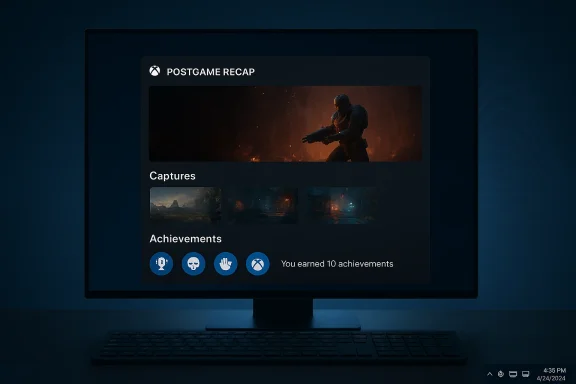
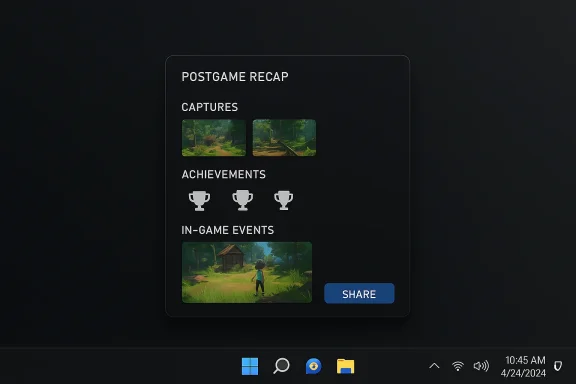
Dark postgame recap panel showing captures, trophies, an in-game image, and a SHARE button.Background​

Microsoft has been iterating the Xbox PC app steadily for several years, moving the client from a simple storefront into a centralized gaming hub on Windows. The company has increasingly added convenience features—library aggregation, quick‑launch elements and social tools—that aim to reduce launcher fragmentation and surface meaningful moments from play sessions. This latest experiment, rolled out to Insiders, builds on that trajectory by offering an at‑a‑glance recap designed to appear wheneful rather than after every single session.
Microsoft’s official announcement describes the feature as a lightweight background process that may start the Xbox PC app in the system tray during play so it can pop a recap after you quit a game. The company emphasizes customization—recap types can be toggled in Settings > App > Postgame recaps—and says the feature is optimized to minimize memory and performance impact. If you disable all recap types, the app will not start in the tray.

What postgame recaps actually show​

The test version surfaces a compact summary of the session with items such as:
  • Captures you took using Game Bar (screenshots or short clips)
  • Achievements you unlocked during the session, including rare/trophy items
  • Relevant in‑game events the app can detect or correlate (examples in the announcement were sparse)
  • An occasional short check‑in the first time you play a title, with recommendations for other games you might enjoy
The recaps are designed as quick, shareable summaries rather than fully produced, sports‑style highlight reels. The example Microsoft used for the announcement showed a Grounded 2 recap that listed achievements and captures and offered to share the summary with friends through the Xbox app.
Third‑party reporting that surfaced earlier versions of similar functionality described a “last session” card and a recap sharing option in the Xbox PC app—suggesting Microsoft has been iterating several variants of session recaps for some time.

How it works (the practical, observable details)​

Microsoft’s blog post and the Insider release notes are intentionally light on implementation specifics, but the announcement and accompanying community write‑ups make a few operational points clear:
  • The Xbox PC app may run in the system tray while you play so it can assemble and show a recap after you exit. This is presented as an optimization to avoid polling or heavyweight background monitoring.
  • You’re most likely to see a recap when you take a Game Bar capture or unlock an achievement, which suggests the recap is triggered by explicit events rather than continuous deep analysis of gameplay.
  • There’s no stated requirement for a Copilot+ PC or other premium hardware, and Microsoft didn’t advertise a generative AI engine behind the recaps—so the first iteration appears to be an event‑aggregation and UI summarization feature rather than an LLM‑generated narrative.
Those points matter: a recap that relies on system events (capture Bar signals) can be implemented with considerably less resource use and privacy exposure than one that continuously records, indexes, and analyzes gameplay. That distinction shapes both user risk and user value.

Where postgame recaps will (and won’t) work​

Based on Microsoft’s messaging and how the Xbox PC app currently integrates platform services, the feature appears to be scoped to titles that are connected to Xbox services—titles installed through the Microsoft Store or the Xbox app, and games that expose achievements or multiplayer data through Xbox services. There is no explicit mention of automatic recaps for third‑party storefronts like Steam, GOG, or the Epic Games Store in the announcement. Early coverage and community examples likewise show the UX tied to Xbox‑authenticated titles and the Xbox app’s game‑metadata surfaces.
That limitation isn’t surprising. Achievements, cloud events, and standardized metadata are far easier to aggregate for Microsoft’s own ecosystem, and cross‑store instrumentation requires cooperation from third‑party launchers—something Microsoft has done selectively (library aggregation) but not uniformly (recaps may need richer telemetry than a simple launch). Community guides and forum posts already document the settings path to toggle the feature, underscoring the current implementation’s dependence on the Xbox app’s account and services.

Privacy and telemetry: what to watch​

Any new feature that runs in the background during games raises two immediate concerns: what is being recorded or transmitted, and how long is it retained?
  • Microsoft says the recaps highlight captures you already made with Game Bar and achievements you unlocked. If those are the only inputs, the privacy risk is relatively constrained: the app is aggregating metadata and user‑initiated captures rather than constantly recording gameplay. However, official messaging does not enumerate every possible signal the feature may use; the phrase “relevant in‑game events” is deliberately vague and warrants caution.
  • The Xbox blog explicitly calls out customization and opt‑out: you can turn individual recap types on or off, and if you opt out of all types the Xbox app will stop starting in the system tray when you launch a game. That opt‑out control is meaningful—but users should verify that toggling off recaps in the app also prevents any incidental telemetry or event logging that Microsoft may collect for diagnostics or feature improvement.
  • There’s no explicit statement in the announcement about where recap data is stored or how long screenshots, summary metadata, or derived assets are retained. Until Microsoft adds an explicit retention/processing paragraph or privacy FAQ for this feature, treat any non‑local sharing or cloud processing as a potential data surface. Independent reporting and community posts so far have not documented cloud storage of the recaps; they instead show a local UI card and a share action that copies an image to the clipboard for user‑directed sharing. That behavior reduces remote privacy risk but does not eliminate telemetry concerns.
  • For adversarial or high‑sensitivity users: if you’re playing anything you want to keep private (work‑related streams, NDA content, sensitive screenshots), the safe approach is to disable recap triggers (captures or the recap feature entirely) or leave the Xbox app closed when you play.
In short: Microsoft provides basic controls, but the lack of explicit retention and processing detail means caution is prudent until the feature matures and privacy documentation is published.

Performance considerations​

A major selling point in Microsoft’s messaging is that postgame recaps are “optimized to minimize memory and performance impact.” The mechanics implied by the announcement—triggering on captures/achievements and running only a small system‑tray helper—align with a low‑overhead design. That’s good news for gaming rigs where every percentage point of CPU/GPU budget matters.
That said, the devil is in the implementation details:
  • Running a process in the system tray while you play can still consume RAM and, in edge cases, CPU or GPU resources (if the app hooks into overlay APIs or monitors frame timing). On low‑end systems or battery‑constrained handhelds, even a modest background task can have measurable effects.
  • If Microsoft later expands recaps to include automatic clip generation, live highlight detection, or AI‑driven summaries, the resource profile could change—especially if parts of the work are performed locally (encoding) or demand network I/O for cloud processing.
  • Community testing through the Xbox Insider program will surface the broad range of real‑world performance behaviors. Early adopters should watch resource use in Task Manager and report regressions through Insider feedback channels.

Comparisons: Is this new?​

Automatic session summaries are common in mobile and social gaming ecosystems, and consoles have long kept automatic capture triggers (e.g., PlayStation clipping on trophy events). What sets Microsoft’s postgame recaps apart is the attempt to turn existing PC signals (Game Bar captures, Xbox achievements) into a concise, shareable end‑of‑session UI on Windows. That’s a subtle but meaningful difference: many PC players alrelocal recording tools, but they must manage those assets themselves. Microsoft’s feature aims to lower the friction for sharing and reflecting on a play session.
However, it’s not the same as an AI‑generated highlight reel or a cloud‑produced montage. The early rollout is explicitly conservative: small, event‑driven recaps rather than fully assembled gameplay videos. If your mental model was a SportsCenter‑style package delivered automatically, the current implementation isn’t there yet.

How to try it (Insiders) and how to control it​

If you want to test postgame recaps now, you’ll need:
  • The Xbox Insider Hub app installed and an account enrolled in th** ring.
  • The Xbox PC app on Windows updated to the Insider build that contains postgame recaps.
  • Play a supported title (one that uses Xbox services, typically from the Microsoft Store or Xbox app) and trigger a capture or unlock an achievement during your session to increase the chance of seeing a recap.
To change recap settings:
  • Open the Xbox app, go to your profile > Settings > App > Postgame recaps.
  • Toggle Show achievements and captures, Show upcoming game events, and Share feedback on my screen as desired.
  • If you opt out of all recap types, the Xbox app will no longer start in the system tray when you launch games.
Community guides and forum posts have already begun to document the exact toggles and screenshots of the UX for early testers, so those resources are useful if you want quick step‑by‑step visuals while the feature is in preview.

Developer and platform implications​

From a platform perspective, this feature is modest but strategic:
  • Iscovery and retention surface inside the Xbox PC app: recaps that include “recommended games” could help Microsoft nudge players toward Game Pass or store titles. The first‑time check‑in and recommendation card implies the UX doubles as a light discovery engine.
  • For game developers using Xbox services, recaps represent a new way their achievements and event hooks can be surfaced to players. That could make achievements more visible and increase post‑session engagement.
  • For third‑party storefronts not integrated with Xbox services, the lack of automatic recap support reinforces the pattern of Microsoft privileging first‑party instrumented experiences—though that could change if Microsoft expands the feature or offers APIs for broader support.

Risks and edge cases​

  • False positives and noise: If recaps appear after inconsequential sessions (short crashes, testing, menu browsing), the feature risks being perceived as clutter. Microsoft’s selective trigger policy partially mitigates that, but user feedback will ultimately determine the right balance.
  • Performance on low‑end hardware: Even a lightweight system‑tray helper can affect low‑spec machines or battery life on handhelds. Testers should evaluate the actual impact on frame rates and thermals, not just memory usage.
  • Privacy unclearances: Without a clear retention and transmission statement, privacy‑sensitive players and streamers may be wary. Microsoft’s opt‑out toggles are positive, but explicit documentation of what is logged locally, what—if anything—is uploaded, and how long assets are retained is still needed.
  • Ecosystem fragmentation: If recaps are only available for Xbox‑instrumented titles, then players who primarily use Steam or other launchers may feel excluded, which undermines a unified PC gaming UX ambition. Microsoft has built cross‑store aggregation, but deeper telemetry and metadata integration remain uneven.

Practical recommendations for Windows gamers​

  • If you value privacy and control: disable postgame recaps (or individual crosoft publishes clear retention and telemetry documentation.
  • If you want to try the feature: join the Xbox Insider PC Gaming Preview and test it for titles you don’t mind sharing recaps from; monitor Task Manager for any unexpected resource use.
  • Streamers and content creators: avoid relying on recaps for highlights until you confirm the feature’s behavior with overlays, streaming tools, and your workflow—especially if you capture sensitive content or NDA‑protected gameplay.
  • For IT admins and privacy teams: treat the feature like any new background client behavior—evaluate company policy effects if game machines are used for both work and play, and document acceptable configurations.

What to look for as the feature matures​

  • A clear privacy and telemetry FAQ detailing exactly what signals postgame recaps read, whether any data is uploaded, and how long any assets are stored.
  • Broader storefront support or public APIs so players on Steam, Epic, or GOG can gain similar recap capabilities.
  • Optionality around local vs. cloud processing, and a “do not create” setting ensuring no implicit assets are created when users explicitly request that.
  • Performance telemetry from Microsoft or independent testers that demonstrates the feature’s real‑world CPU, GPU, and memory impact across a range of hardware.

Final assessment​

Postgame recaps in the Xbox PC app are a restrained, pragmatic experiment: they take existing, user‑initiated signals (Game Bar captures, achievements) and turn them into a lightweight summary UI that lowers the friction for sharing and reflection. In its current form the feature looks more like a polished convenience than an ambitious AI highlight producer, which is both a strength and a limitation. The conservative design reduces immediate privacy and performance concerns, but the lack of explicit retention and telemetry details is the biggest gap Microsoft needs to close.
For Windows gamers, the feature is worth trying if you’re an Insider and curious about quick session summaries, but everyone else should wait for wider rollout and better privacy documentation. Microsoft’s incremental, test‑driven approach is appropriate here—postgame recaps could become a small but useful addition to the Xbox PC app’s evolving role as Windows’ centralized gaming surface, provided Microsoft listens to Insider feedback and publishes the missing operational details.

Source: How-To Geek Windows is getting automatic recaps for PC games
 

Microsoft has begun quietly testing a new way to close a gaming session on PC: postgame recaps — a short, automated summary that appears after you exit a game and highlights captures, achievements, and notable in‑game moments from your session. The feature is rolling out to Xbox Insiders enrolled in the PC Gaming Preview, and it arrives as another piece in Microsoft’s broader strategy to make the Xbox PC app a central, Xbox‑style hub for Windows gaming.

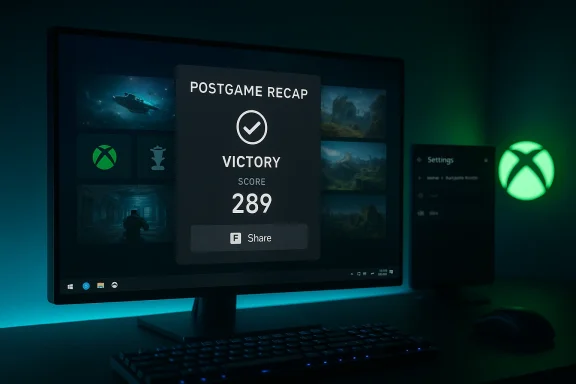
Neon-lit gaming setup displays a postgame recap: Victory with a score of 289.Background​

Microsoft has been steadily reshaping the Xbox app on Windows for more than a year, transforming it from a Game Pass storefront into a fuller gaming shell that aggregates libraries, surfaces play history, and introduces console‑style workflows to PC players. That work has included an aggregated library for multiple storefronts, cross‑device play history, Game Bar integrations, and specialized modes for handheld Windows hardware. The postgame recaps feature continues that trend by focusing on session‑level discovery and social sharing right after play ends.
The official announcement for postgame recaps was published by Xbox on February 18, 2026, and describes the feature as a targeted Insider preview intended to gather feedback before a broader rollout. Microsoft pitches the recaps as “useful, not constant” — they will appear selectively when the app detects relevant activity, such as a screenshot or an unlocked achievement. The company also includes an in‑app feedback mechanism so Insiders can tell the team what works and what doesn’t.

What are Postgame Recaps?​

Postgame recaps are short summaries shown by the Xbox PC app after you stop playing a game. They’re designed to surface the most salient bits from your last session so you can:
  • See screenshots and clips you captured with Xbox Game Bar.
  • Review achievements you unlocked during that session.
  • Glance at relevant in‑game events — developer‑exposed or telemetry‑detected moments the app considers noteworthy.
  • Optionally get recommendations or a brief check‑in the first time you play a title.
The recaps are intended to be quick and shareable: Microsoft suggests they’ll act like a lightweight “retrospective” for casual sharing or to prompt additional engagement (for example, trying a recommended title). Early reporting from coverage of the Insider preview indicates Microsoft has also added a share image/card option that copies a visual summary of a session to the clipboard for immediate posting.

How the feature works (from what we can verify)​

Microsoft’s description and early hands‑on reports establish a few clear mechanics:
  • The Xbox PC app may run in the system tray while you play so it can detect when a game session ends and display a recap immediately afterward. Microsoft says this is optimized to limit memory and performance impact; if you disable all recap types the app will stop starting in the tray when you launch a game.
  • Postgame recaps are event‑driven rather than constant. They’re more likely to appear when you take a Game Bar capture, unlock an achievement, or on a first‑time playthrough check‑in. This reduces noise and aims to show recaps only when they add value.
  • Users can control recap behavior via Settings > App > Postgame recaps, toggling different recap types on or off to tailor the experience. That places the control in the same general settings area where Microsoft has been consolidating Xbox app preferences.
Both the official Xbox Wire announcement and independent coverage confirm those behaviors; they match the experience reported by early Insiders who have seen the feature in action.

Why Microsoft is building this​

Postgame recaps are more than a cosmetic convenience; they align with a few clear strategic goals for Microsoft’s PC gaming platform:
  • Drive engagement. Short, shareable recaps can reinforce positive moments and make it easier to share achievements and captures with friends, which can help retention and social visibility for Xbox ecosystems.
  • Unify experiences across devices. Microsoft has emphasized cross‑device continuity — “jump back in,” aggregated libraries, and cloud features — and session summaries are another way to carry context between Xbox consoles, handhelds, and Windows PCs.
  • Surface content and recommendations. By adding a brief first‑time check‑in and recommending related titles, the recaps become a soft channel for discovery that ties into Microsoft’s curation and store systems.
  • Leverage Game Bar and local telemetry. The feature reuses captures and Game Bar metadata, showing how Microsoft is increasingly integrating system tools into social and discovery flows. This plays to Microsoft’s advantage because Game Bar is a common capture mechanism on Windows.
Taken together, postgame recaps fit a broader push to surface Xbox‑branded features at the system level on Windows and to encourage players to treat the Xbox app as the place to manage sessions, captures, and social sharing.

Controls and privacy: what you can (and can’t) opt out of​

Microsoft highlights user control as a central part of the rollout. Important details Insiders should note:
  • Granular toggles: You can turn off individual recap types — e.g., screenshot recaps or achievement recaps — inside the Xbox app settings. That makes the feature adaptable to players who want some recaps but not others.
  • System tray behavior is conditional: If you disable all recap types, the Xbox app will not run in the system tray while a game is running. That directly addresses a common privacy an about background processes.
  • Data sources are local captures and telemetry: The recaps use Game Bar captures and achievement events; Microsoft’s announcement frames this as session metadata aggregation rather than a continuous monitoring service. Still, the app must be active (or compile a recap, which is a behavioral detail users should understand.
Caveat: Microsoft’s public post is explicit about controls but does not provide a deep technical breakdown of the telemetry (e.g., exactly which in‑game events can trigger a recap beyond achievements and captures). Until release notes or documentation list event types and retention policies in full, some privacy questions remain partially opaque and will require community testimentation. Treat Microsoft’s optimization claims as company statements until independent profiling confirms memory and CPU footprints under a range of workloads.

Early community reaction and testing notes​

Community and Insider reports capture both enthusiasm and skepticism.
  • Enthusiasts appreciate the convenience: early posts and preview coverage show users enjoying quick session summaries and the ability to create a shareable image/card from the last session. This mirrors reactions when similar recap/share features appeared on other platforms.
  • Skeptics focus on background processes and potential telemetry creep: a recurring thread in Insider forums is that any new background resident process raises questions about resource usage and what’s being logged. Microsoft’s explicit option to disable recap types and to prevent system tray residency if all are off helps, but some Insiders will want to audit performance impacts directly.
  • Practical issues: previous Xbox PC app updates have sometimes introduced instability for some users (crashes in My Library, etc.) during Insider previews. That precedent prompts a measured reaction: Insiders are eager to test new features but will expect rapid fixes if regressions appear.
In short, early feedback is mixed but constructive. Insiders tend to test with a critical eye and provide feedback in the Xbox Insider Hub and associated communities — exactly the environment Microsoft expects for a staged rollout.

How to try it (step‑by‑step for PC Insiders)​

If you want to test postgame recaps as an Xbox Insider, the basic path is straightforward (as described by Microsoft):
  • Install the Xbox Insider Hub from the Microsoft Store (if you’re not already an Insider).
  • Enroll in the PC Gaming Preview within the Insider Hub.
  • Check the Microsoft Store for updates to the Xbox PC app and Game Bar; Insiders are rolled features progressively, so availability may take time.
  • Once you see postgame recaps enabled, adjust the behavior at Settings > App > Postgame recaps, choosing which recap types you want.
Reminder: these preview features are staged. You may not see the new recap option immediately even if you’re enrolled; Microsoft typically performs phased rollouts to gather feedback and catch problems at small scale.

Comparison: where postgame recaps sit relative to other platforms​

Postgame recaps aren’t a wholly novel idea — other services and launchers have offered session summaries, sharing cards, and activity highlights for years — but Microsoft’s implementation matters because of the platform reach and integration points it controls on Windows.
  • Steam offers session details, screenshot sharing, and gallery creation natively in its client.
  • Game Bar on Windows has long provided capture and clip tools; the Xbox app’s recaps build on that local capture ecosystem rather than replacing it.
  • Console ecosystems (PlayStation, Xbox) have historically leaned into session highlights and share cards; bringing that modality to PC (and tying it to Xbox identity) narrows the social gap between console and PC players.
Where Microsoft can differentiate is by weaving recaps into cross‑device play history, cloud continuity, and store recommendations, creating a loop: capture → recap → share → discover → play. That continuity is the strategic value proposition most analysts point to in Microsoft’s recent Xbox app efforts.

Risks, trade‑offs and unanswered technical questions​

Any new feature that runs in the background and uses local gameplay data deserves scrutiny. Key risks and open questions:
  • Performance impact: Microsoft claims the app’s tray resident mode is optimized to minimize memory and CPU usage. However, until independent profiling by Insiders or third‑party testers confirms those claims across a range of hardware, performance impact remains an open question—especially for resource‑tight handheld PCs and budget machines. Treat Microsoft’s optimization statement as aalidated.
  • Privacy and telemetry clarity: The announcement lists captures and achievement events as triggers, but it doesn’t enumerate all event classes or retention/processing details. Users wanting full transparency should expect additional documentation or opt‑in controls before a broad release. Microsoft’s toggle model mitigates some concerns, but deeper telemetry policy documentation would strengthen trust.
  • Integration with third‑party titles / publisher agreements: How publishers view automated session highlights that use in‑game event markers is a variable to watch. While the recaps primarily rely on client captures and achievement events, inclusion of publisher‑flagged events or automatic promotion could raise content or licensing questions down the line. At present, there’s no public indication that Microsoft has publisher opt‑in requirements for recap‑highlighted events; this is something to monitor as the feature reaches release.
  • Feature creep and notification overload: Microsoft’s “show only when useful” approach aims to avoid noise, but the balance between helpfulness and interruption is subjective. Expect iterative tuning based on Insider feedback.

Developer and publisher perspective​

For developers and publishers, recaps are a potential new touchpoint to highlight moment‑to‑moment engagement. Possible implications:
  • Developers could see increased visibility if recaps surface their game’s micro‑moments as shareable highlights.
  • Publishers might request controls to flag or exclude certain events from recaps (for narrative spoilers, premium content, or safety reasons).
  • For competitive titles, publishers will want clarity on how event metadata is captured and whether shareable recaps can expose sensitive matchmaking or competitive info.
At this stage, Microsoft has emphasized local captures and achievements as the primary sources, which simplifies the playing field for developers; deeper integration or semantic event highlighting would likely require additional documentation and probably publisher consent.

What to watch next​

If you’re tracking this feature or the Xbox PC app overall, focus on these near‑term signals:
  • Insider feedback trends. Are Insiders reporting performance regressions tied to the tray resident behavior? Are they finding recaps genuinelmmunity threads and the Xbox Insider Hub will be the primary barometer.
  • Privacy/telemetry documentation. Watch for follow‑up posts from Microsoft that enumerate the event types, retention windows, and processing details for recaps. That documentation will determine whether privacy concerns are adequately addressed.
  • Publisher responses. If major publishers request controls or changes to how games’ events are surfaced, Microsoft’s reaction will show how extensible and publisher‑friendly the system is.
  • Broader integration. Look for signs that recaps will tie into Game Pass discovery, cross‑device recommendations, or Xbox Copilot features. Those integrations would escalate recaps from a convenience to a strategic channel for retention and discovery.

Practical tips for Insiders testing postgame recaps​

If you’re an Insider and want to provide useful feedback, follow these practical steps:
  • Baseline your system. Monitor CPU, memory, and GPU usage with and without the Xbox app in the system tray across a few representative sessions.
  • Test a variety of titles. Use a mix of heavy AAA, lighter indie, multiplayer, and single‑player experiences to see how the recaps behave across genres.
  • Capture deliberately. Create screenshots/clips with Game Bar and unlock achievements so you can verify which actions trigger a recap.
  • Record repro steps. When filing feedback, include exact sequence: game title, time, whether Game Bar was used for captures, and whether any toggles were changed in Settings.
  • Verify share functionality. If the recap creates an image or clipboard card, test the output quality, metadata exposure (does it include timestamps or location info?), and whether it reveals anything you wouldn’t want to share.
These steps produce the kind of reproducible data Microsoft needs to tune the feature responsibly.

Conclusion​

Postgame recaps are a small‑scale, targeted addition with outsized strategic significance: by packaging session highlights into a quick, shareable card, Microsoft deepens the Xbox PC app’s role as a central hub for Windows gaming. The feature aligns with the company’s recent moves — aggregated libraries, cross‑device continuity, and richer Game Bar integrations — and it has been framed as opt‑in and controls‑driven.
That said, practical adoption will hinge on a few real‑world tests: whether the recaps genuinely add value without interrupting play, whether the system tray behavior stays lightweight across diverse hardware, and whether Microsoft supplies clear telemetry and privacy documentation. Insiders are now the canaries for these answers — you can try the feature by enrolling in the PC Gaming Preview and reporting detailed feedback back to Microsoft. The early coverage and community threads are already showing both excitement and healthy skepticism, which is precisely the environment a staged Insider preview is built to manage.
If Microsoft follows through with transparent documentation and responsive iteration, postgame recaps could become a polished, unobtrusive way to close gaming sessions and share moments — a small UX pattern that helps make the Xbox PC app feel more like a console‑grade companion on Windows. Until then, measure expectations, test deliberately, and share the data: Insiders’ feedback will determine whether the feature becomes a meaningful part of the Xbox experience on PC or another nice idea that requires more tuning.

Source: TechPowerUp Xbox Insiders on PC Now Preview Postgame Recaps in the Xbox App
 

Microsoft is quietly testing a new feature for the Xbox PC app that shows a short, automated “postgame recap” after you finish a play session — a lightweight summary that highlights captures, achievements, and other session‑level moments — and the rollout has begun today for Xbox Insiders enrolled in the PC Gaming Preview.

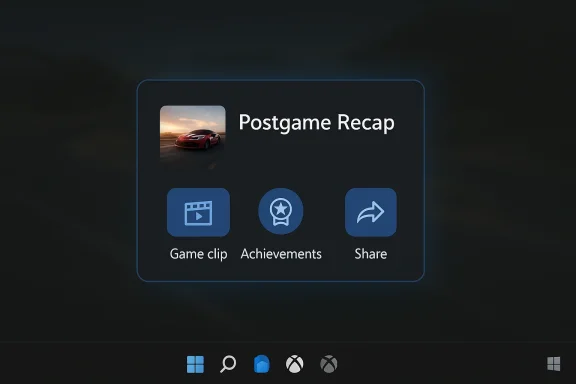
Postgame recap panel with a car thumbnail and options: Game clip, Achievements, Share.Background / Overview​

Microsoft has been repositioning the Xbox PC app from a Game Pass storefront into a central Windows gaming hub for several years. That evolution has included an aggregated library that surfaces titles from multiple storefronts, tighter Game Bar integration for captures, and features tuned for handheld Windows devices. Postgame Recaps are the next incremental feature in that strategy: rather than opening a social panel or feed while you play, the app attempts to summarize the session at exit so pllights and optionally share or act on them.
This experiment is being run in the Xbox Insider program’s PC Gaming Preview ring, which is the standard staging ground Microsoft uses to gather feedback and iterate before a broader release. Microsoft’s own blog post announcing the feature emphasizes that recaps show up only when they are useful (for example, after you take a screenshot or unlock an achievement), and that Insiders should send feedback to help refine the experience.

What exactly are Postgame Recaps?​

The feature in plain terms​

Postgame Recaps are short, contextual summaries shown by the Xbox PC app immediately after you exit a game. The recaps can include:
  • Screenshots and clips recorded through Xbox Game Bar during the session.
  • Achievements you unlocked during that playthrough.
  • Relevant in‑game events — either developer‑exposed events or telemetry‑detected moments the app recognizes as noteworthy.
  • A first‑time play check‑in and light recommendations for other games in some cases.
Microsoft describes them as selective rather than constant: the app attempts to display a recap when there is a clear, useful highlight to show (for example, captures or achievements) rather than after every session. (windowscentral.com)

How the UX presents itself​

Insiders who have seen the feature report a compact, shareable card UI that summarizes the session and includes a simple feedback control. The recap is designed to be quick — the sort of thing you’d glance at, maybe copy an image to the clipboard, and share to a social channel or save for later. Early hands‑on coverage and forum posts show an image/card share option and toggles to control what kinds of recaps appear.

How the feature works (technical and behavioral details)​

Running in the background​

To detect when a play session ends and immediately present a recap, the Xbox PC app may run in the system tray while you play. Microsoft says the app has been optimized to minimize memory and performance impact, and it also notes a clear user control: if you opt out of all recap types, the Xbox app will not start in the system tray when you launch a game. That conditional system‑tray behavior is the pragmatic compromise that enables session detection while allowing users to disable the functionality entirely.

Event‑driven detection​

Recaps are event‑driven, not continuous surveillance. The feature is more likely to present a recap when it sees meaningful session activities — for example:
  • You took a Game Bar screenshot or recording during the session.
  • You unlocked an achievement.
  • You’re playing a game for the first time (first‑time check‑in).
  • The app detected other telemetry or developer‑exposed events deemed relevant.
Microsoft’s guidance indicates that recaps will be shown selectively to reduce noise and keep the experience helpful rather than intrusive.

Settings and controls​

You can manage Postgame Recaps from the Xbox PC app itself:
  • Open the Xbox app and select your profile picture.
  • Navigate to Settings > App > Postgame recaps.
  • Toggle types of recaps on or off — for example, Show achievements and captures, Show upcoming game events, and Share feedback on my screen.
If you disable all recap types, the Xbox app will stop launching into the system tray during game sessions. That single setting gives a full opt‑out for users who prefer the app not run in the background.

Verifieecks​

  • Microsoft’s official announcement (Xbox Wire) confirms the feature is available to Xbox Insiders on PC today and describes the selective behavior, settings path, and the system‑tray optimization.
  • Independent tech outlets and hands‑on coverage corroborate the feature details — what appears in recaps (captures, achievements, events), the conditional system‑tray process, and the presence of feedback controls. Early press coverage and community posts match Microsoft’s published description.
  • Community and forum writeups provide step‑by‑step guidance for Insiders who want to test the feature and document earlsettings. These community threads also surface practical tips for increasing the chance of seeing a recap (take a capture, unlock an achievement).
Where Microsoft makes performance or telemetry claims (e.g., “optimized to minimize memory and performance impact”), those are company statements. Independent profiling under a wide range of hardware and workloads would be required to verify the true resource cost; community reports so far suggest the trade‑off is modest, but a definitive measurement is not yet public.

Privacy, telemetry, and control — what to watch for​

Local vs. cloud processing​

Microsoft frames Postgame Recaps as aggregating session metadata — captures you made and achievement events — and not as a continuous monitoring system. The recaps use local captures (Game Bar screenshots/clips) and achievement events as primary inputs. That indicates much of the content is already present on your device or within Xbox services tied to your account.
However, Microsoft’s announcement does not provide a full technical breakdown of what in‑game telemetry might be scanned or how long summary metadata is retained. That gap is important because the line b aggregation and richer telemetry profiling can be subtle. Until Microsoft publishes more detailed documentation, some privacy questions remain open and rightly deserve attention from privacy‑minded Insiders.

Controls that matter​

  • Granular toggles: The per‑recap toggles in Settings > App > Postgame recaps give users immediate control over which recap types appear, letting players balance convenience against background processes.
  • Full opt‑out: Turning off all recap types prevents the app from launching in the system tray while games are running, removing the background resident process that enables session detection.
  • Feedback channel: The dedicated feedback prompt in the recap UI is a deliberate design choice that asks Insiders to report misuse, bugs, or privacy concerns; Microsoft intends to iterate based on that feedback.

Unanswered questions (and how Insiders should test)​

events (beyond achievements and captures) can trigger a recap?
  • Is any session metadata uploaded to Microsoft servers solely to generate the recap card, and if so, what is retained and for how long?
  • Does the system‑tray process change CPU or power consumption in meaningful ways on low‑end or handheld Windows hardware?
Until Microsoft expands its documentation or independent testers profile the feature, those are legitimate testing targets for Insiders and privacy analysts. The current documentation and early community reports are helpful but not exhaustivcom]

Platform and developer implications​

Discovery and retention baked into exit UX​

Postgame Recaps are small, targeted nudges that can promote discovery and retention. The UX is designed to be actionable: when a recap includes a recommended game card or a quick check‑in the first time you play, Microsoft gains a lightweight, post‑session surface for Game Pass or store recommendations. That is both a convenience for players and a business signal: the moment after you finish a satisfying session is a high‑engagement moment for suggestions.

Opportunity for developers​

Game developers who integrate with Xbox services (achievements, events, and Game Bar hooks) benefit because session highlights are more likely to surface. Achievements and developer‑exposed events become not only in‑game mechanics but part of your post‑session narrative that players may share. That could give small teams an easy way to drive visibility for specific mechanics or community moments.

Third‑party storefronts and fairness​

Because Postgame Recaps currently rely on Xbox services and Game Bar captures, titles distributed through other storefronts that don’t integrate with Xbox services may not have the same richness in their recaps. That raises the risk of an ecosystem tilt where Microsoft‑instrumented games enjoy more prominent in‑app recaps and recommendations. Whether Microsoft opens APIs or broadens support will determine whether this remains an advantage for integrated titles or becomes a platform‑level capability for all PC games.

Insiders’ hands‑on reactions and practical tips​

Early reactions​

Community threads and early coverage show Insiders appreciate the succinctness and shareability of recaps. Players who capture screenshots or hit achievements during a session report that a tidy recap card appears reliably and is easy to share. At the same time, a subset of Insiders are scrutinizing the background process behavior and asking for clarity on telemetry and retention.

How to increase the chance of seeing a recap (if you want to test it)​

  • Take a screenshot or clip with Xbox Game Bar during your session.
  • Unlock an achievement.
  • Try a first‑time playthrough of a game (some recaps present a first‑time check‑in).
  • Make sure you’re running the Insider build of the Xbox PC app and are enrolled in the PC Gaming Preview ring via the Xbox Insider Hub.

Report issues and privacy concerns​

Microsoft intentionally surfaces a feedback control in the recap UI; Insiders should use that flow to report incorrect recap contents, unexpected telemetry, or performance regressions. This is a live preview — the engineering team expects and relies on tester feedback to iterate.

Performance considerations and testing strategy​

What Microsoft says​

Microsoft claims the app is optimized to minimize memory and performance impact when running in the system tray, and that disabling all recap types prevents the app from launching in the tray. These are important mitigations for players on limited hardware, and are useful controls for Insiders to validate. (news.xbox.com)

What independent testers should measure​

  • Baseline idle memory and CPU while a game is running with the Xbox app not running in the tray.
  • Memory and CPU with the Xbox app running in the tray and Postgame Recaps enabled.
  • Battery drain differential on handheld or laptop hardware within the tray.
  • Any latency or input regressions in competitive titles when the Xbox app is resident.
Independent profiling under different hardware classes (ultraportable laptops, gaming desktops, handheld Windows devices) will give a clearer picture of whether the “optiross the ecosystem. Community reports to date are encouraging but not exhaustive.

Versioning and rollout notes​

The Insider‑channel rollout for Postgame Recaps is part of recent Xbox PC app preview updates. Release notes summarizing the update listversion that includes the Postgame Recaps feature and some user‑facing audio tweaks for controller navigation. If you rely on the preview channel for early features, ensure you have the Xbox Insider Hub and the matching Xbox PC app preview installed.
Microsoft’s blog post explicitly frames the preview as an opportunity to gather feedback before a broader release; the timeline for a general availability rollout will depend on what Insiders report and how the team iterates. Expect Microsoft to refine the UX, add more granular privacy documentation if requested, and potentially broaden platform integration based on feedback.

Strengths, risks, and editorial assessment​

Strengths​

  • Convenience at the right moment: Postgame Recaps capture the moment when players are most receptive to review, share, or act on what they did — a natural place for lightweight social features and recommendations.
  • Granular user control: The fact that each recap type can be toggled and that a full opt‑out prevents the app from running in the tray is a responsible design choice that respects player agency.
  • Developer value: Achievements and event hooks get a second life as shareable narrative beats that can encourage player engagement and retention.

Risks and unknowns​

  • Telemetry transparency: Microsoft’s public announcement does not yet provide a comprehensive technical specification of which in‑game events are considered or how recap metadata is stored and transmitted. That leaves room for privacy questions and demands further clarification.
  • Background resource cost: The conditional system‑tray resident process is a practical necessity, but without broader profiling across device classes the true cost for low‑power machines is still unknown. Insiders should test closely on handhelds and ultraportables.
  • Ecosystem tilt risk: If recaps privilege titles with deep Xbox service integration, there is a potential advantage for Microsoft‑instrumented games over third‑party storefronts — a concern for platform parity unless APIs or broader support are added.

Overall editorial take​

Postgame Recaps are a thoughtful, low‑friction feature that matches how modern players document and share sessions. The engineering trade‑offs (a light background process and selective triggers) look reasonable on paper, and Microsoft’s settings and opt‑outs are solidly implemented at launch. That said, the feature sits at the intersection of convenience, discovery, and telemetry; a measured rollout with robust community testing and clearer telemetry documentation will be essential to maintain trust. Insiders should both test the feature and probe the open privacy questions so Microsoft can address them before wide availability.

Practical checklist for Insiders who want to try Postgame Recaps​

  • Ensure you are enrolled in the Xbox Insider program and in the PC Gaming Preview ring via the Xbox Insider Hub.
  • Update the Xbox PC app to the preview build that includes Postgame Recaps (Insider release notes and community posts list recent preview versions).
  • Play a supported title and do at least one of the following: take a Game Bar capture, unlock an achievement, or play a game for the first time. This increases the chance of seeing a recap.
  • Review and configure recap settings: Profile > Settings > App > Postgame recaps. Toggle the recap types and opt out of background behavior if desired.
  • Use the feedback button in the recap UI to report bugs, privacy concerns, or UX suggestions — that feedback is precisely the point of the Insider preview.

Postgame Recaps are a small but strategic piece of Microsoft’s broader effort to make the Xbox PC app the default hub for Windows gaming: a place to launch, manage, capture, and now retrospect your sessions. For players who enjoy quick recaps and sharing moments, the feature will likely feel natural and useful. For privacy‑conscious users and those on constrained hardware, the available toggles and full opt‑out provide immediate mitigations — but the community and independent testers should push for deeper telemetry transparency and independent performance profiling before the feature moves beyond Insiders.

Source: TechPowerUp Xbox Insiders on PC Now Preview Postgame Recaps in the Xbox App | TechPowerUp}
 

Microsoft has quietly begun testing postgame recaps in the Xbox PC app, a new feature that surfaces a compact summary of your play session after you quit a game — highlighting captures you took, achievements you unlocked, and select in‑game events — and it’s rolling out now to Xbox Insiders enrolled in the PC Gaming Preview.

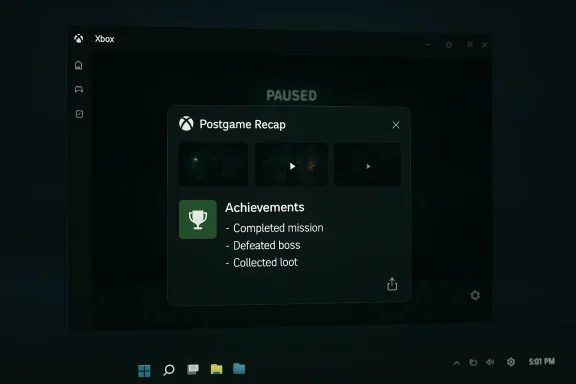
Xbox Postgame Recap overlay displaying three achievements after a paused game.Background​

Microsoft has been steadily reshaping the Xbox PC app from a simple storefront into a centralized gaming hub on Windows, adding discovery tools, aggregated libraries, cloud streaming features, and system integrations that bring a more console‑like experience to PC players. The company’s recent moves — from Home redesigns and aggregated libraries to cloud streaming and Copilot experiments — make the Xbox PC app a natural place to test session‑level UX experiments such as postgame recaps.
The official announcement, published by the Xbox team, lays out the basic behavior: after you finish a play session you may see a recap that highlights captures, achievements, and relevant events, plus a lightweight feedback CTA so Insiders can tell Microsoft what worked and what didn’t. On first‑time play sessions the recap may also surface a short check‑in and recommendations for other games to try. Microsoft emphasizes the feature is experimental, selective, and configurable.
Industry reporters and community hands‑on posts that have seen the feature corroborate the Xbox team’s description and provide early UX notes about when recaps appear and how they behave. Those early independent write‑ups match Microsoft’s claims about selective recaps, system‑tray behavior, and granular settings.

What postgame recaps show — the feature, in practice​

Session highlights, not cinematic montages​

In its current preview form, the Xbox PC app surfaces a compact “postgame recap” card that can include:
  • Captures taken via Xbox Game Bar (screenshots or short clips) recorded during the session.
  • Achievements earned or progress toward in‑game milestones.
  • Relevant in‑game events, where the app can correlate telemetry or achievement events to produce contextually meaningful bullets.
  • Occasional first‑time check‑ins that may also offer recommendations for other games you might enjoy.
The aim is to create a quick, shareable reminder of the last session rather than a fully edited highlight reel. Early screenshots provided in Microsoft’s announcement show a compact card listing achievements and listing captures with ale.

When you’ll see a recap​

Postgame recaps are event‑driven rather than purely time‑based. Microsoft notes that recaps are most likely to appear when you take a capture through Game Bar or unlock an achievement — and they’re intentionally sporadic so you won’t get a recap after every brief session. This event gating reduces noise and targets moments that matter to players. Independent hands‑on reporting and community posts confirm this behavior for Insiders.

How to control what appears​

User control is central to the rollout. You can tailor or disable recaps in the Xbox PC app at: Profile > Settings > App > Postgame recaps. There are granular toggles for different recap types, and Microsoft states that if you opt out of all recap types the Xbox app will no longer start in the system tray while you play. That single setting essentially provides a full opt‑out for background session monitoring associated with recaps.

Why Microsoft is testing this now​

Microsoft is trying to solve a small but persistent problem for players: capturing memorable moments and remembering to share them after long sessions. The Xbox ecosystem already stores captures, achievements, and session metadata; surfacing those artifacts at the moment they matter is a natural next step in the platform’s maturation.
This experiment also fits a broader pattern: Microsoft is turning the Xbox PC app into a discovery, continuity, and social hub for Windows gaming. Features like aggregated libraries, cloud streaming, system tray quick launches, and contextual AI assistants (Gaming Copilot) show Microsoft’s appetite for higher‑level session tooling that keeps players in the Xbox experience even when they’re not on a console. Postgame recaps are a small, tightly scoped example of that strategy.

Benefits: what players stand to gain​

  • Forgetfulness reduction: Recaps act as a reminder of captures and achievements you might otherwise forget to share or archive.
  • Lightweight sharing: Quick share controls let players convert a session into an easily postable summary for friends or social feeds.
  • Discovery nudges: First‑time check‑ins and recommendation cards can help players discover new titles based on actual play behavior.
  • Streamlined UX: Postgame recaps reduce the friction of hunting for the clip folder, achievement lists, or the manual process of assembling a “look what I did” post.
  • Granular control: Microsoft provides toggles so users can keep only the recap types they want, or disable the feature entirely.

Risks and tradeoffs: what to watch for​

While the feature is small, it touches areas that matter to PC players — background processes, privacy, resource use, and user attention. Below are the main concerns:

Background resident process and performance​

To detect session endings and pop a recap immediately, Microsoft’s implementation may run the Xbox PC app in the system tray while a game is active. Microsoft says this is optimized to minimize memory and performance impact and that full opt‑out prevents the app from auto‑starting in the tray. Still, any background process has the potential to consume memory or interfere with games on low‑RAM systems or on handheld devices with limited resources. Insiders should validate resource usage on their own hardware; Mic claims are plausible but independent telemetry is not yet widely available.

Privacy and telemetry questions​

The feature uses local captures and achievement events to compose recaps. However, the public announcement and early coverage do not provide a detailed technical decomposition of what other telemetry or event hooks the recaps may use (for example, whether certain in‑game events are detected via cloud services or local parow‑level detail is common in preview posts, but it’s worth flagging: players who care about minimizing telemetry collection will want clearer transparency on what’s processed locally, what is sent to Microsoft, and whether any identifiers or session metadata are retained. The Xbox announcement emphasizes control and local sources like Game Bar captures, but it does not offer a full telemetry spec. Early community threads call this out as an area for clarification.

UX noise and interruption​

Even with event gating, post‑session overlays can be perceived as interruptive — especially by players who quit frequently or prefer a minimalist environment after intense play. Microsoft intends recaps to be infrequent and contextually useful, but different player types (speedrunners, competitive players, streamers) will have different tolerance levels. Insiders and early reviewers are already pointing out that the feature must remain clearly optional and highly configurable to avoid becoming an annoyance.

Sharing pressures and social expectations​

Quick share actions reduce friction for broadcasting moments, but they can also create social pressure to share immediately or, worse, leak content you didn’t intend to share. The preview includes a feedback action and share controls, but players should be mindful that sharing is a deliberate action and that Microsoft provides granular toggles to disable share prompts if desired.

Controls and how to opt out (practical how‑to)​

Microsoft has made the settings straightforward and accessible. To manage or disable postgame recaps:
  • O** and select your profile avatar.
  • Go to Settings > App.
  • Select Postgame recaps and toggle individual recap types on or off.
  • If you disable all recap types, the Xbox PC app will not start in the system tray while you play, effectively preventing any postgame recaps from being generated.
This approach gives a single switch for a full opt‑out while still offering per‑type granularity for players who want only achievement notices or only capture reminders. Multiple independent reports and Microsoft’s own announcement confirm the settings path.

Verification and cross‑checking: what we confirmed​

To validate Microsoft’s claims and understand how the feature behaves in preview, we cross‑checked:
  • Microsoft’s official announcement on Xbox Wire describing the rollout, the event‑driven behavior, settings path, and system‑tray optimization.
  • Independent tech reporting from Thurrott and Windows Central that reproduced Microsoft’s details and added hands‑on impressions about when recaps appear and how they can be controlled.
  • Community and forum write‑ups that documented early Insider experiences, UI screenshots, and the practical effects of opting out. Those community notes match Microsoft’s description and clarify some UX nuances testers are already debating.
Where Microsoft’s announcement was high level — particularly about the precise telemetry used to identify “relevant in‑game events” — independent sources either reproduced the same vagueness or reported only the behaviors they observed in practice. We have flagged those gaps below as areas where Microsoft should provide more technical transparency if the feature reaches a wider audience.

Comparisons: what else does this resemble?​

  • Steam and several launcher ecosystemssion” or “last played” cards and activity summaries for years. Microsoft’s postgame recaps mirror that basic utility but attempt to be more contextual by combining captures, achievements, and event markers.
  • The Xbox PC app previously introduced a “last session” card and sharing flows in earlier releases; postgame recaps appear to be an evolution of that direction with a focus on immediate post‑session recall and feedback.
  • On the AI and assistant side, Microsoft’s broader work with Gaming Copilot and contextual in‑game tools shows the company is actively experimenting with ways to provide situational utility to players. Postgame recaps are a lower‑risk variant of that strategy — static summaries rather than continuous AI overlays.

Recommended best practices for Insiders and early testers​

If you decide to try postgame recaps as an Xbox Insider, consider these practical steps:
  • Verify resource use: Open Task Manager while launching a game with the Xbox PC app present and note any resident Xbox process memory usage. If it’s material on your hardware, toggle recaps off and re‑test. Microsoft explicitly says the feature is optimized, but individual configurations vary.
  • Audit Game Bar captures: Ensure your capture storage settings and privacy preferences are configured to your comfort level before enabling automatic recap prompts.
  • Use granular toggles: Turn on only the recap types you find valuable (e.g., captures but not recommendations) to reduce noise and background presence.
  • Report precise feedback: Microsoft is soliciting Insider feedback via the Xbox Insider Hub and community channels. If you encounter unexpected telemetry, excessive CPU/memory use, or unclear content sources, document the exact steps and include logs/screenshots when filing bug reports.

What Microsoft should clarify before broad release​

Postgame recaps are conceptually simple, but adoption will hinge on how transparent and respectful Microsoft is about telemetry and resource use. Before a full public rollout, Insiders and privacy‑conscious players should expect Microsoft to provide:
  • A clear telemetry spec explaining what session metadata is read, what is processed locally versus in the cloud, and what identifiers (if any) are attached to recaps that are used for recommendations.
  • Per‑game recall settings, not just global toggles, so players can opt into recaps for single titles while keeping them off elsewhere.
  • Developer guidance on what in‑game events can be surfaced and how studios can opt‑out or annotate events that should not be used for recaps (for example, competitive or sensitive moments).
  • Accessibility and localization assurances so recaps are useful for players in different regions and with different assistive needs.
These clarifications will make the feature more trustworthy and increase the likelihood players will keep it enabled.

Verdict: a useful small feature — if Microsoft gets the details right​

Postgame recaps are a modest but sensible addition to the Xbox PC app’s toolkit: they solve a real pain point for players who capture moments and forget them, and they fit the app’s broader mission of providing contextual utility around gaming sessions. The preview appears to be sensibly scoped: event‑driven triggers, granular settings, and an explicit opt‑out.
However, the feature’s value depends on two fragile points: transparency about exactly what is being monitored and processed, and discipline in ensuring the background behavior does not degrade gaming performance — particularly on constrained devices and handhelds. Microsoft’s public announcement and independent reporting line up on the surface mechanics, but deeper telemetry and performance details are still sparse. That lack of full technical disclosure is the single biggest open risk as Insiders test the feature.

Quick reference: what to expect and how to turn it off​

  • Who gets it first: Xbox Insiders enrolled in the PC Gaming Preview.
  • What it shows: captures, achievements, relevant events, occasional first‑time check‑ins and game recommendations.
  • Why it runs in the background: the Xbox PC app may start in the system tray while you play so it can detect session end and display a recap; disabling all recap types stops that behavior.
  • How to disable: Profile > Settings > App > Postgame recaps — toggle individual types or disable all for a full opt‑out.

Closing thoughts​

As the Xbox PC app continues to evolve into a central hub for Windows gaming, Microsoft will increasingly experiment with small, session‑level features like postgame recaps that aim to improve discovery and sharing. The preview’s focus on selective triggers and granular controls is the right approach for an experience that treads between convenience and potential intrusion. Insiders should test the feature with an eye toward resource use and telemetry, and Microsoft should respond to tester feedback with clearer telemetry documentation and per‑title controls before a broader rollout.
If Microsoft follows through on those transparency and performance guarantees, postgame recaps could become a quietly useful addition to daily PC play — the kind of small UX lift that helps players remember, share, and discover without getting in the way.

Source: Thurrott.com Microsoft Starts Testing Postgame Recaps on its Xbox PC App
 

Microsoft has begun quietly testing a new “postgame recaps” feature in the Xbox PC app that surfaces a short, automated summary after you finish a play session—highlighting captures, achievements, and select in‑game events—and the rollout is limited to Xbox Insiders enrolled in the PC Gaming Preview for now.

A PC monitor displays a postgame recap screen with a large hero image, captures, and achievements.Background​

Microsoft’s Xbox PC app has been steadily evolving from a simple storefront into a general-purpose gaming hub for Windows, absorbing features like library aggregation, system-tray launch shortcuts, and session sharing over the last two years. That evolution has positioned the Xbox PC app as a central place for PC gamers to launch titles, manage Game Pass, and now potentially capture the highlights of a session automatically. Independent coverage and early Insider posts confirm that the new postgame recaps are being trialed as a lightweight, event-driven overlay that appears after a session ends.
The official announcement from Xbox’s team frames the feature as experimental and opt‑in for Insiders: recaps will appear “when they’re useful,” not after every session, and players can control what types of recaps they receive in the app’s settings. The announcement also explains how the app supports the feature by running in the system tray while you play, and that Microsoft has optimized the behavior to minimize memory and performance impact. Those are the company’s claims; we’ll evaluate what they mean and where there’s still uncertainty.

What postgame recaps actually do​

The basics, straight from Xbox​

According to Microsoft, a postgame recap may include:
  • Game Bar captures you took during the session (screenshots and short clips).
  • Achievements you unlocked during the session.
  • Relevant in‑game events surfaced either by telemetry or by developer-provided hooks.
  • An option to share feedback directly from the recap UI.
On your first time playing a game (and occasionally afterward), the recap can also show a brief check‑in and recommendations for other games you might enjoy. Players can toggle individual recap types in Settings > App > Postgame recaps. If you disable all recap types, Microsoft says the Xbox PC app will stop launching in the system tray when you start a game.

How it’s triggered​

Postgame recaps are event‑driven rather than a constant running summary. The most likely triggers appear to be:
  • You took a capture through Xbox Game Bar during the session.
  • You unlocked an achievement.
  • You’re launching a game for the first time on that device (first‑time check‑in).
  • Other session-level telemetry or developer-sent events the app deems relevant.
That selective approach reduces noise and is explicitly designed to present recaps only when there’s something meaningful to show. Early reports and forum posts from Insiders match Microsoft’s description: recaps don’t appear after every quit, and they feel focused on surfaces that players commonly want to review or share.

Where to find the controls (and how to turn them off)​

Microsoft places the control for postgame recaps under Settings > App > Postgame recaps inside the Xbox PC app. From that panel you can:
  • Toggle the entire feature on or off.
  • Enable or disable individual recap types (captures, achievements, recommendations).
  • Prevent the Xbox app from running in the system tray when a game launches (this happens automatically if you turn everything off).
Those options are intended to give users simple, fine-grained control over visibility and background residency. Documentation and early release notes explicitly call out the Settings path, and community moderators have confirmed it in Insider threads and release notes. If you value zero background processes while gaming, disabling all recap types should prevent the app from starting in the tray.

Why Microsoft is doing this: product rationale​

There are a few clear motivations behind postgame recaps:
  • Retention and engagement: Short recaps remind players of their session highlights—screenshots, achievements, moments they may want to share—raising the chances they’ll come back or spread word of the game.
  • Social sharing: Recaps package session data in a shareable format (image/card or clipboard-ready content in earlier builds), making it easier for players to brag or promote.
  • Onboarding and discovery: First-time check‑ins and recommendations can nudge players toward other content in Game Pass or the store, a direct product benefit for Microsoft’s ecosystem.
  • Data for product teams: Aggregated, anonymized (or opt-in) telemetry around when recaps are shown and how users interact with them provides rapid feedback during the Insider preview.
This aligns with Microsoft’s broader strategy of turning the Xbox PC app into a daily hub for gaming activity, similar to how consoles present post-session summaries and community highlights. The difference is the PC environment’s expectations for privacy and performance, which Microsoft must navigate carefully. Coverage in the tech press and Insider posts highlights both the potential usefulness of the feature and the need for careful controls.

Early reactions from Insiders and the community​

Community threads and early hands‑on posts show a split reaction: some Insiders appreciate the convenience, while others worry about background processes and telemetry creep. Enthusiasts value the immediate reminder of what they captured or unlocked during long gaming sessions—especially when they record something mid-session and forget about it by the time they quit. Skeptics focus on resource usage, privacy, and the precedent of Microsoft’s PC app sometimes introducing regressions during preview flights.
Points raised by early testers include:
  • Praise for the quick, shareable recap cards that surface captures and achievements.
  • Requests for more granular settings (for example, separate toggles for screenshots vs. clips).
  • Concerns that running the Xbox app in the tray—even when optimized—adds an additional process during gameplay.
  • Questions about whether any recap metadata is uploaded to Microsoft servers or retained locally.
Those practical concerns are expected in any Insider cycle: the feature is intentionally limited to Insiders so Microsoft can iterate with feedback before a broader release. The company has included an in-recap feedback action specifically for that purpose.

Critical analysis: benefits​

A small but real productivity bump for casual sharing​

For many players, the single best benefit is convenience. Postgame recaps are a low-friction way to surface moments you might otherwise forget—especially useful for social sharing, content creators, or anyone who records highlights mid-session. Being reminded of a capture or an unlocked achievement immediately after quitting a game increases the chance you’ll preserve and share that moment rather than losing it in a long session.

Better onboarding and discovery opportunities​

The first-time check‑in and recommendation component can help less-experienced players discover related titles in Game Pass or the store, which supports Microsoft’s discovery and retention goals. Done thoughtfully, this is a subtle nudge rather than an intrusive ad.

User control is built in​

Putting the settings under Settings > App > Postgame recaps, and making postgame recaps conditional on event triggers, are good product decisions. They acknowledge the PC audience’s demand for control and reduce the odds of constant interruption. That Microsoft also tied system‑tray residency to the recap toggles (turn everything off and the tray process won’t start) is a practical compromise.

Critical analysis: risks and concerns​

Performance and system overhead claims are unverified​

Microsoft says the app is “optimized to minimize memory and performance impact,” but at the time of this preview there’s no independent, large-scale telemetry published to verify that claim. Insider testers report mixed outcomes depending on hardware and workloads. For users running competitive or CPU/GPU‑heavy titles, any additional background process raises concerns—especially on machines with limited RAM or older CPUs. Treat Microsoft’s performance claims as vendor assertions until independent testing confirms them.

Privacy and telemetry questions remain​

The official announcement does not include a dedicated privacy FAQ describing how long recap metadata or derived images are stored, whether anything is uploaded to Microsoft servers, or what telemetry is recorded beyond standard diagnostics. Community thread analysis and early posts suggest that recaps are displayed locally and that share actions are deliberate user actions (copy to clipboard or explicit share), but the absence of an explicit retention and processing statement means cautious users should assume telemetry could exist until Microsoft documents it. For high-sensitivity scenarios (NDA content, work-related captures), the safest approach is to disable recap triggers or avoid running the Xbox app in the background while playing.

Anti‑cheat and compatibility risks​

Some PC games—particularly competitive titles—disallow overlays or recording/overlay functionality due to anti‑cheat measures. The Xbox Game Bar has historically worked around many of these limitations, but any new session‑detection behavior or background presence of the Xbox app could interact poorly with anti‑cheat drivers in edge cases. Microsoft will need to ensure robust compatibility or provide clear guidance where recaps cannot be used for specific titles. Tom’s Hardware and other outlets have already raised privacy and anti‑cheat questions around Microsoft’s in‑game AI and overlays—recaps are a lighter-weight interaction, but the same compatibility concerns apply.

UX friction and notification fatigue​

Even with event-driven triggers, some players will object to any post‑quit interruption. A visually heavy card or modal that obscures other end-of-game behaviors (auto‑save, closing overlays, launching other tools) can be annoying. The balance Microsoft must strike is between being helpful and being intrusive; early Insider feedback will be crucial for tuning that balance.

How Microsoft could make this better (practical recommendations)​

  • Publish a short, dedicated privacy and telemetry FAQ for postgame recaps that explains:
  • What metadata is collected locally and what (if anything) is uploaded.
  • Storage retention policies for any server-side artifacts.
  • How players can audit or delete recap-related data.
  • Ship a lightweight performance dashboard or telemetry snapshot in the Insider build so testers can see the actual memory and CPU difference when recaps are enabled vs. disabled.
  • Add per-game exceptions and a per-game toggle:
  • Let players disable recaps on a per-title basis, or automatically suppress recaps for titles flagged as competitive or blocked by anti‑cheat restrictions.
  • Deliver more share controls and export options:
  • Options to export recap assets locally, redact specific captures, or generate smaller, privacy‑focused recap images.
  • Communicate anti-cheat compatibility publicly:
  • A simple list of known titles where overlays or recaps are inhibited, or a detection mode that prevents recap capture when an anti-cheat driver is active.
Those fixes would address the major community concerns while preserving the core value proposition. They’re also realistic given how Microsoft has iterated other Xbox app features during Insider previews.

Technical and security implications, deeper dive​

Memory and CPU footprint​

The Xbox team’s statement that the app is “optimized to minimize memory and performance impact” likely refers to a trimmed-down tray process that listens for session start/stop signals and intercepts Game Bar capture events. In practice, a background process typically consumes tens of megabytes of RAM and a small CPU footprint when idle, but spikes can occur when processing captures or generating recap assets.
Independent testing by Insiders will be the first reliable measure—until then, assume a marginal baseline overhead and potential short-lived CPU bursts when the recap UI is constructed. For systems with less than 8 GB of RAM or integrated GPUs, the perceived impact is likely to be higher.

Data surfaces and telemetry​

From publicly available descriptions and community reports, the recap UI appears to assemble content locally (captures and achievements) and present a UI card from which users can share. There’s no clear evidence yet that raw captures are uploaded automatically. That said, many modern features submit telemetry about feature use (did you open the recap, did you share it, did you close it immediately) to help product teams prioritize improvements. Microsoft should be explicit about what telemetry is collected and why. Until Microsoft publishes that clarity, players who are privacy-sensitive should use the app’s toggles to disable recap triggers.

Anti‑cheat and overlays​

Anti‑cheat systems typically interact with any process that reads or writes to game memory, injects overlays, or hooks rendering APIs. Since postgame recaps rely on Game Bar captures (which are generally allowed in most titles) and a tray listener rather than an in‑game overlay, they may avoid most anti‑cheat issues. Still, any change in process behavior during gameplay can trigger false positives or create edge-case compatibility issues in titles with strict drivers. Microsoft must coordinate with anti‑cheat vendors and preserve the ability to suppress recaps for affected titles.

How this compares to other platforms​

  • Steam, for years, has offered session summaries and an integrated screenshot manager that surfaces recent captures and allows sharing. Microsoft’s postgame recaps are similar in intent but are more focused on a concise end‑of‑session card rather than a full screenshot library. Previous Xbox app updates already introduced “Last session” sharing and system‑tray recently‑played lists; postgame recaps expand on that direction with automatic, event-driven summaries.
  • Console ecosystems (Xbox and PlayStation) have often included session summaries and acn an end‑session screen. The PC-specific challenge is the diversity of hardware and the higher sensitivity among PC players to background processes—a difference Microsoft must respect.

Practical advice for Insiders and cautious players​

  • If you want to try postgame recaps: join the Xbox Insider Program, enroll in the PC Gaming Preview, open the Xbox PC app, and enable the feature. Monitor whether the app starts in the system tray while you play and check Settings > App > Postgame recaps to tailor the behavior.
  • If you care about performance: toggle individual recap types off or disable the feature entirely; Microsoft says the app will not run in the tray if all recall types are off. For competitive play, consider disabling recaps temporarily.
  • If you care about privacy: avoid taking captures during sensitive sessions, or disable recap triggers. Until Microsoft publishes a privacy FAQ specific to recaps, treat any automatic UI action with caution and rely on the app’s toggles to minimize the feature’s footprint.
  • If you’re a content creator: postgame recaps could save you time by reminding you of clips and screenshots you might otherwise forget. But continue using your established recording and export workflows for long-term archival and editing—recaps are a convenience, not a replacement for a dedicated capture pipeline.

What to watch next​

  • Microsoft’s listening phase: the Xbox team explicitly asked Insiders for feedback and has built a feedback action into the recap UI. Expect iterative changes based on what Insiders report about performance, privacy, and UX friction.
  • Privacy documentation: the community will be watching for a dedicated privacy/retention FAQ that spells out storage and telemetry choices. That documentation will determine whether cautious players feel comfortable enabling the feature broadly.
  • Compatibility reports: look for lists or guidance from Microsoft about titles where recaps are suppressed for anti‑cheat or technical reasons. Clear guidance will reduce confusion and prevent players from blaming recaps for unrelated crashes or overlay failures.

Final verdict​

Postgame recaps are a sensible, modest feature that fits naturally into the Xbox PC app’s trajectory of aggregating session data and making it easier to act on captures and achievements. The concept is solid: a short, event-driven summary after a session is helpful for discovery, sharing, and recall. Microsoft has placed reasonable controls in Settings, and the company’s decision to roll the feature out to Insiders first is appropriate.
That said, the rollout must answer three central questions before this becomes a broadly recommended feature: (1) Can Microsoft substantiate its performance claims with independent or at least transparent telemetry? (2) Will Microsoft publish clear, explicit privacy and data-retention guidance for recap assets and metadata? (3) Has the company thoroughly vetted compatibility with anti‑cheat systems and provided ways to suppress recaps for sensitive titles?
Insiders should test the feature and provide focused feedback on those points. Long term, postgame recaps could be a genuine convenience for PC players—provided Microsoft proves it respects performance, privacy, and compatibility in practice.

Quick checklist: Should you enable postgame recaps?​

  • Yes, if:
  • You want a quick reminder of screenshots and clips after playing.
  • You enjoy one‑click sharing of session highlights.
  • You’re an Insider and comfortable testing preview features.
  • No, or be cautious, if:
  • You run competitive titles that rely on strict anti‑cheat drivers.
  • You operate on a machine with limited RAM or an older CPU.
  • You have strict privacy requirements for captured content.
Follow the Settings path (Settings > App > Postgame recaps) to tailor or disable the feature as you see fit. Microsoft’s approach so far demonstrates the right combination of convenience and control—but the company must follow through with transparent performance and privacy documentation before this becomes a standard part of everyone’s PC gaming routine.
Conclusion: postgame recaps are a welcome, if small, addition to the Xbox PC app’s toolbox. They show Microsoft’s intent to bring console-like polish to PC gaming, but the feature’s success will depend on real-world performance, privacy assurances, and compatibility work guided by the Insider community’s feedback.

Source: Thurrott.com Microsoft Starts Testing Postgame Recaps on its Xbox PC App
 

Back
Top