

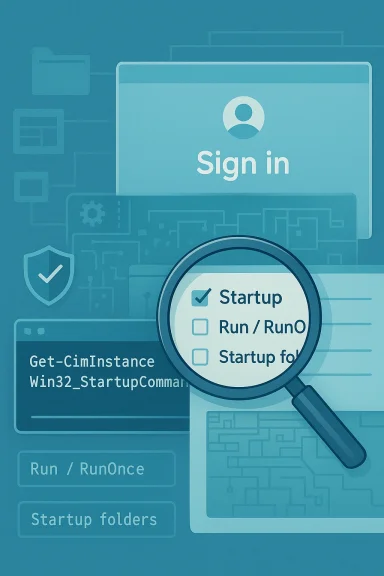
Windows hides more startup activity than most people realize, and that gap matters both for performance tuning and for security hygiene. A single PowerShell line using Win32_StartupCommand can expose far more logon-starting items than the Task Manager Startup tab shows, including entries that live in Registry Run keys and Startup folders. But the command is not a magic “everything” button: it still misses scheduled tasks, services, and broader autostart locations that Microsoft’s own Autoruns utility can enumerate.
Windows startup management has always been a compromise between usability and completeness. Microsoft’s Task Manager Startup tab is intentionally designed to help ordinary users disable boot-time apps without turning the interface into a forensic lab, and Microsoft documents that it shows startup apps along with an impact score rather than every possible autostart mechanism. That means the list is useful, but curated by design.
The command at the center of this discussion,
That distinction matters because Windows autostart is distributed across multiple mechanisms. Traditional Run and RunOnce registry keys, per-user and common Startup folders, and 32-bit registry redirection on 64-bit systems all contribute to what launches at sign-in. In other words, the startup experience is not one list; it is a stack of different launch points that Windows surfaces only selectively in consumer-facing tools.
Historically, that fragmentation has been both a convenience and a headache. It allows developers to build self-launching utilities, updaters, and login helpers without a single monolithic startup manager, but it also creates blind spots for users trying to speed up a machine or track down suspicious persistence. The result is familiar to anyone who has ever opened Task Manager, disabled a few obvious items, and still wondered why the PC boots like it is carrying a backpack full of bricks. That frustration is not imagined.
Microsoft’s Sysinternals Autoruns exists largely because of that complexity. Its documentation says it shows the currently configured auto-start applications as well as the full list of Registry and file-system locations available for auto-start configuration, and it covers a much wider set of locations than the Task Manager or the Win32_StartupCommand class alone. That is the historical arc here: simple consumer UI on one end, deep administrative visibility on the other.
This gap is especially visible on systems where vendors install helper services, tray apps, telemetry agents, or login launchers that do not present themselves in an obvious way. Some items appear in Task Manager, some surface in Settings, and others only reveal themselves when you inspect the underlying Registry, startup folders, or more specialized autostart locations. The machine is doing exactly what it was configured to do; the problem is the visibility layer.
A second consequence is user confidence. People often believe they have already cleaned up startup because they removed everything in Task Manager that looked nonessential. Then the machine still feels sluggish, and the next troubleshooting step becomes guesswork. That is where a broader command-line view becomes genuinely valuable.
The key strength is not the syntax; it is the data source. Because the WMI class is built to represent commands that run when a user logs on, it can aggregate items from several standard autostart locations. Microsoft’s documentation explicitly ties it to startup commands and notes that it can enumerate autostart programs regardless of where the information is stored.
Why
Using
There is also an important documentation nuance here: Microsoft labels the class with
Microsoft’s Windows startup guidance also notes the standard startup folders under the Start menu for per-user and public locations. Those folders are an old but still valid mechanism for autostart, and they are part of why a command like this is more useful than staring only at the Task Manager UI.
There are also RunOnce variants that are intended to execute once and then remove themselves. Those are often used by installers and update routines, but they are not always cleaned up perfectly. That can leave orphaned or stale entries behind, which in turn makes startup inventories look messier than the live system state actually is.
In practice, these folder-based entries are often more understandable than Registry-based ones, because the shortcut target and filename can be inspected directly. That makes them less mysterious, but not necessarily less impactful. A lightweight shortcut can still point to a heavy background process that wakes up at every boot.
That means the PowerShell command is excellent for a good-enough startup audit but not for an exhaustive investigation. If your goal is merely to identify obvious boot-time clutter, it is a strong first pass. If your goal is malware hunting, incident response, or deep hardening, you need a broader tool. One command is useful; one command is not omniscient.
There is a subtle user-experience trap here too. People often assume “startup app” means “anything that starts automatically,” but Windows uses that phrase more narrowly in consumer interfaces. The result is a semantic mismatch: the UI speaks one language, while the system exposes many launch mechanisms. That mismatch is the real story behind the article’s provocative premise.
This is particularly relevant on consumer systems loaded with OEM utilities, cloud sync clients, updater stubs, and background helpers. Some of these tools are genuinely useful, but many are nice-to-have rather than essential. If you want a faster desktop experience, the command gives you a fuller inventory before you start disabling things.
Registry Run keys are especially attractive to unwanted software because they are easy to abuse and easy to overlook. If a suspicious process keeps returning after reboots, startup entries are among the first places an investigator should inspect. A PowerShell export gives you a baseline you can compare later, which is more useful than merely looking once and hoping the picture stays the same.
The tradeoff is complexity. Autoruns is more powerful, but it is also more intimidating, and it surfaces a lot of items that should not be casually disabled. That can be overwhelming for a home user who simply wants to trim startup clutter and avoid a longer boot cycle. More visibility does not automatically equal more clarity.
The Location field is the next most important, because it tells you where the entry lives. If you understand whether something is in HKLM, HKCU, a startup folder, or a redirected 32-bit node, you are already much closer to understanding its scope and behavior. The User field then tells you whether the entry is tied to a particular account or applies more broadly.
For readers, the best next step is to treat startup auditing as a habit rather than a one-time cleanup ritual. A saved PowerShell output can become a baseline that makes future changes obvious, and that is useful whether you are chasing performance, investigating odd behavior, or just trying to keep a Windows install tidy. The command is small, but the discipline behind it is what makes it powerful.
Source: MakeUseOf This PowerShell command lists every startup app Windows doesn't show you
 Background
Windows startup management has always been a compromise between usability and completeness. Microsoft’s Task Manager Startup tab is intentionally designed to help ordinary users disable boot-time apps without turning the interface into a forensic lab, and Microsoft documents that it shows startup apps along with an impact score rather than every possible autostart mechanism. That means the list is useful, but curated by design.The command at the center of this discussion,
Get-CimInstance Win32_StartupCommand, queries a WMI class that Microsoft defines as “a command that runs automatically when a user logs onto the computer system.” Microsoft’s own documentation also makes clear that the class is meant to enumerate autostart programs regardless of where the information is stored, and it exposes properties such as Command, Location, and User for each entry.That distinction matters because Windows autostart is distributed across multiple mechanisms. Traditional Run and RunOnce registry keys, per-user and common Startup folders, and 32-bit registry redirection on 64-bit systems all contribute to what launches at sign-in. In other words, the startup experience is not one list; it is a stack of different launch points that Windows surfaces only selectively in consumer-facing tools.
Historically, that fragmentation has been both a convenience and a headache. It allows developers to build self-launching utilities, updaters, and login helpers without a single monolithic startup manager, but it also creates blind spots for users trying to speed up a machine or track down suspicious persistence. The result is familiar to anyone who has ever opened Task Manager, disabled a few obvious items, and still wondered why the PC boots like it is carrying a backpack full of bricks. That frustration is not imagined.
Microsoft’s Sysinternals Autoruns exists largely because of that complexity. Its documentation says it shows the currently configured auto-start applications as well as the full list of Registry and file-system locations available for auto-start configuration, and it covers a much wider set of locations than the Task Manager or the Win32_StartupCommand class alone. That is the historical arc here: simple consumer UI on one end, deep administrative visibility on the other.
Why the Task Manager View Feels Incomplete
Task Manager is not “lying” in a literal sense, but it is definitely incomplete. Microsoft says the Startup tab is meant to show startup apps and let users disable them; it is not documented as a comprehensive autostart inventory. That design choice makes the interface approachable, yet it also means a user can assume the system is clean when a different startup mechanism is still doing work in the background.This gap is especially visible on systems where vendors install helper services, tray apps, telemetry agents, or login launchers that do not present themselves in an obvious way. Some items appear in Task Manager, some surface in Settings, and others only reveal themselves when you inspect the underlying Registry, startup folders, or more specialized autostart locations. The machine is doing exactly what it was configured to do; the problem is the visibility layer.
The practical consequence
If you are trying to improve boot time, the visible list is only part of the story. Disabling one obvious browser launcher may help, but a cloud sync agent, OEM updater, or scheduled helper may still consume CPU, disk, or network resources during sign-in. Microsoft’s startup impact guidance makes clear that startup tasks are measured by CPU and disk use at startup, which is a reminder that several categories of software can contribute to the overall delay.A second consequence is user confidence. People often believe they have already cleaned up startup because they removed everything in Task Manager that looked nonessential. Then the machine still feels sluggish, and the next troubleshooting step becomes guesswork. That is where a broader command-line view becomes genuinely valuable.
- It shows entries that are easier to correlate with Registry paths.
- It can reveal per-user differences that the casual eye misses.
- It provides a repeatable inventory for before-and-after comparisons.
- It is faster than hunting manually through several Windows tools.
What Microsoft actually exposes
Microsoft’s WMI definition shows that Win32_StartupCommand includes properties such as Caption, Command, Location, Name, User, and UserSID. Those fields are not just decorative metadata; they help you map the entry back to where it lives and who it belongs to. That makes the output more actionable than a simple app name in a list box.What the PowerShell Command Actually Does
The command itself is straightforward:Get-CimInstance Win32_StartupCommand | Select-Object Name, Command, Location, User | Format-List. It queries the WMI class, narrows the output to a few readable fields, and formats the results as a list. In practical terms, it is a compact inventory tool for logon-starting items that may not be obvious in Task Manager.The key strength is not the syntax; it is the data source. Because the WMI class is built to represent commands that run when a user logs on, it can aggregate items from several standard autostart locations. Microsoft’s documentation explicitly ties it to startup commands and notes that it can enumerate autostart programs regardless of where the information is stored.
Why Get-CimInstance matters
Using Get-CimInstance instead of older WMI cmdlets is a sensible modern PowerShell choice. It is the current, supported way to query CIM-backed information and is generally preferred for remote-friendly administration. For a startup audit, that means you can use the same command locally or in managed environments without changing the basic logic.There is also an important documentation nuance here: Microsoft labels the class with
Privileges("SeRestorePrivilege"), which hints that elevated access may be useful when enumerating some entries. That is why running PowerShell as administrator often gives a more reliable picture, especially on systems with restricted permissions or multiple user profiles.Better output choices
The command is useful in several output modes, and each serves a different purpose.Format-List is best for quick inspection because it preserves detail and keeps entries readable. Out-GridView is better if you want to sort, search, and visually triage a long list, while redirecting to a file creates a permanent audit trail.Format-Listis ideal for human reading.Out-GridViewis ideal for interactive filtering.- File output is ideal for change tracking.
- CSV-style workflows are ideal for scripting and comparisons.
Where the Entries Come From
The underlying value of the command is that it surfaces startup registrations from places Windows actually uses. Microsoft’s Win32_StartupCommand documentation maps the class to registry-backed startup locations, including HKEY_LOCAL_MACHINE\SOFTWARE\Microsoft\Windows\CurrentVersion\Run and related startup paths. In plain English, it is reading the places software uses to tell Windows, “launch me when a user logs in.”Microsoft’s Windows startup guidance also notes the standard startup folders under the Start menu for per-user and public locations. Those folders are an old but still valid mechanism for autostart, and they are part of why a command like this is more useful than staring only at the Task Manager UI.
The registry side
The HKLM Run key applies machine-wide, which means one entry can affect every user profile on the system. The HKCU Run key applies per user, which is why two accounts on the same PC may have different startup behavior. That split matters in enterprise environments where the same hardware can behave very differently depending on which account signs in.There are also RunOnce variants that are intended to execute once and then remove themselves. Those are often used by installers and update routines, but they are not always cleaned up perfectly. That can leave orphaned or stale entries behind, which in turn makes startup inventories look messier than the live system state actually is.
The folder side
The user startup folder and the common startup folder remain important because they are simple and durable. Dropping a shortcut there is an easy way for software to start automatically without deep Registry manipulation. Microsoft’s startup-app guidance explicitly includes startup folders in the supported locations associated with automatic launch.In practice, these folder-based entries are often more understandable than Registry-based ones, because the shortcut target and filename can be inspected directly. That makes them less mysterious, but not necessarily less impactful. A lightweight shortcut can still point to a heavy background process that wakes up at every boot.
- Per-user startup items affect one account.
- Common startup items affect everyone.
- RunOnce entries may disappear after use.
- Startup folders often expose simpler, human-readable launch logic.
What It Still Misses
The biggest limitation is that Win32_StartupCommand is broader than Task Manager, but it is not the whole autostart universe. Microsoft’s own Autoruns documentation is explicit that Autoruns covers logon entries, Explorer add-ons, browser helper objects, AppInit DLLs, image hijacks, boot execute images, Winlogon notification DLLs, Windows Services, Winsock Layered Service Providers, media codecs, and more. That list makes the limitation impossible to ignore.That means the PowerShell command is excellent for a good-enough startup audit but not for an exhaustive investigation. If your goal is merely to identify obvious boot-time clutter, it is a strong first pass. If your goal is malware hunting, incident response, or deep hardening, you need a broader tool. One command is useful; one command is not omniscient.
What remains invisible
Several important autostart categories sit outside the command’s reach. Scheduled tasks can launch at logon, services can start automatically, and autostart extensibility points can trigger code in ways that don’t look like a normal startup app. Those are exactly the kinds of places where persistence can hide, and exactly why security teams reach for more complete tooling.There is a subtle user-experience trap here too. People often assume “startup app” means “anything that starts automatically,” but Windows uses that phrase more narrowly in consumer interfaces. The result is a semantic mismatch: the UI speaks one language, while the system exposes many launch mechanisms. That mismatch is the real story behind the article’s provocative premise.
- Task Manager is convenient, not exhaustive.
- Run keys are only one family of startup locations.
- Startup folders are visible, but not the only folder-like trigger.
- Services and scheduled tasks are often overlooked by casual users.
- Security persistence can exploit the same gaps.
Why this matters in real troubleshooting
If a system still boots slowly after you disable every visible startup app, the remaining culprit may not be a traditional “app” at all. It could be a service, a scheduled task, or a shell extension waiting to load at sign-in. The lesson is not that Task Manager is bad; it is that it is only one lens on a much larger boot process.Performance Impact and Boot-Time Cleanup
For most readers, the appeal of the command is performance. A machine that feels sluggish during sign-in often has too many things trying to announce themselves at once, and not all of those things are visible in the place most users check first. The command helps separate obvious app bloat from the broader set of startup registrations that may be silently contributing to delays.This is particularly relevant on consumer systems loaded with OEM utilities, cloud sync clients, updater stubs, and background helpers. Some of these tools are genuinely useful, but many are nice-to-have rather than essential. If you want a faster desktop experience, the command gives you a fuller inventory before you start disabling things.
A smarter cleanup workflow
A rational approach is to inventory first, document second, and disable third. The sequence matters because startup troubleshooting is easy to do badly: people often remove items by name recognition alone and later discover they turned off a component they actually needed. The safer pattern is to review the entry, understand the path, and test in small increments.- Run the PowerShell query and save the result.
- Identify obvious vendor updaters, sync agents, and helper apps.
- Cross-check unfamiliar items by path and publisher.
- Disable one or two noncritical items.
- Reboot and compare the before-and-after experience.
- Fewer launchers means less contention at sign-in.
- Less contention usually means a smoother desktop handoff.
- Smaller startup sets are easier to maintain long term.
- Baselines make performance regressions easier to spot.
Enterprise versus consumer impact
For consumers, the main benefit is faster boot and fewer tray nuisances. For enterprises, the same command becomes a fleet-management tool, especially when you need to compare a baseline against a suspect machine. In managed environments, consistency is often more valuable than raw speed, because it helps IT understand what changed and when.Security and Persistence Risks
The security angle may be even more important than performance. Microsoft and security practitioners have long treated autostart locations as high-value persistence targets, because code that runs at logon can survive ordinary process shutdowns and often evade casual inspection. That is why broader startup auditing is part of routine defensive hygiene.Registry Run keys are especially attractive to unwanted software because they are easy to abuse and easy to overlook. If a suspicious process keeps returning after reboots, startup entries are among the first places an investigator should inspect. A PowerShell export gives you a baseline you can compare later, which is more useful than merely looking once and hoping the picture stays the same.
Why baseline comparison is powerful
A one-time scan tells you what is there today. A saved scan tells you what changed between today and last week, which is often the more important question. In security terms, change detection is more actionable than static observation, because persistence mechanisms depend on surviving across sessions.- Baseline outputs help identify unauthorized additions.
- Repeated audits can reveal subtle persistence changes.
- File output makes later comparisons straightforward.
- Unfamiliar entries deserve path-level scrutiny, not blind deletion.
Better tools for deeper inspection
When the situation is uncertain, Autoruns is the better next step. Microsoft says it shows a much wider range of autostart locations and includes a “Hide Signed Microsoft Entries” option that helps focus on third-party items. That combination makes it much better for triage when you suspect something more than ordinary bloatware.Why Autoruns Still Matters
Autoruns remains the gold standard because it replaces guesswork with breadth. Microsoft’s documentation says it exposes currently configured auto-start applications and the full list of Registry and file-system locations available for auto-start configuration. That is a materially different scope from a WMI class focused on logon commands.The tradeoff is complexity. Autoruns is more powerful, but it is also more intimidating, and it surfaces a lot of items that should not be casually disabled. That can be overwhelming for a home user who simply wants to trim startup clutter and avoid a longer boot cycle. More visibility does not automatically equal more clarity.
The right tool for the right job
For basic cleanup, the PowerShell command is the sweet spot. It is built into Windows, quick to run, and understandable even to users who only occasionally touch the terminal. For advanced audits or suspicious behavior, Autoruns gives you the panoramic view that Task Manager never intended to provide.- PowerShell is the fast, built-in first pass.
- Autoruns is the deep-dive follow-up.
- Task Manager is the friendly front-end, not the whole story.
- Security teams often need both levels of visibility.
Why the simpler command wins first
Many users never need the full complexity of Autoruns because they are not investigating a compromised device. They just want to know why a PC starts slowly and what can be safely disabled. In that context, a smaller and less intimidating tool is not a weakness; it is a usability advantage.How to Read the Output Without Making Mistakes
The most important field in the output is often Command, because that tells you what is actually executed. A friendly display name can be misleading, but the command line usually exposes the executable path and arguments. That is where you can spot obvious vendor updaters, launchers, and odd-looking paths that deserve a second look.The Location field is the next most important, because it tells you where the entry lives. If you understand whether something is in HKLM, HKCU, a startup folder, or a redirected 32-bit node, you are already much closer to understanding its scope and behavior. The User field then tells you whether the entry is tied to a particular account or applies more broadly.
A safer decision process
The goal is to identify and understand, not to vandalize. If something is unfamiliar, search the executable path, check the publisher, and consider whether the software belongs to hardware support, security, sync, or update management. The right question is not “Do I recognize the name?” but “What is this responsible for, and do I still need it?”- Check the full command line, not just the display name.
- Use the location to infer scope and source.
- Treat missing or broken paths as a clue, not proof.
- Prefer disabling over deleting when testing is possible.
- Reboot and observe before making the next change.
When to be cautious
Be extra careful with items related to security software, drivers, input devices, GPU utilities, and accessibility features. Those entries can look like fluff until you discover they were the reason something stopped working after a reboot. The safest mindset is curious, not destructive.Strengths and Opportunities
The real strength of this PowerShell approach is that it lowers the barrier to better startup visibility. It gives everyday Windows users a way to ask a deeper question without installing a separate tool, while also giving admins a repeatable inventory method that can be scripted, stored, and compared over time. It is not perfect, but it is genuinely useful.- Built into Windows and available on most modern systems.
- Faster and simpler than deploying third-party tools.
- More informative than the Task Manager Startup tab alone.
- Easy to save for baseline comparisons and audits.
- Helpful for both boot-time cleanup and security triage.
- Works well as a first pass before using deeper tools.
- Exposes path and user context that aid troubleshooting.
Risks and Concerns
The main risk is overconfidence. Users may assume that because the command found a lot of startup entries, it found all of them, which is not true. Another risk is overcorrection: disabling unfamiliar startup items without understanding their role can create broken software, missing features, or a worse boot experience than the one you started with.- It does not cover services, scheduled tasks, or all autostart mechanisms.
- It may tempt users to delete instead of investigate.
- Some entries are essential system or vendor components.
- Results can be noisy on machines with lots of software.
- Misreading the output can lead to false conclusions.
- It is not a malware scanner and should not be treated like one.
- Users may skip better tools once they think the list is “complete.”
Looking Ahead
The likely future here is not that Windows will suddenly expose every autostart mechanism in one friendly panel. More likely, Microsoft will continue separating convenience views for consumers from deeper diagnostic tools for power users and administrators. That is consistent with the current split between Task Manager, WMI, and Sysinternals, and it preserves the balance between simplicity and control.For readers, the best next step is to treat startup auditing as a habit rather than a one-time cleanup ritual. A saved PowerShell output can become a baseline that makes future changes obvious, and that is useful whether you are chasing performance, investigating odd behavior, or just trying to keep a Windows install tidy. The command is small, but the discipline behind it is what makes it powerful.
- Save one clean startup snapshot for reference.
- Recheck after installing new software.
- Compare output if boot time suddenly worsens.
- Escalate to Autoruns if behavior looks suspicious.
- Review entries before disabling anything important.
Source: MakeUseOf This PowerShell command lists every startup app Windows doesn't show you
