

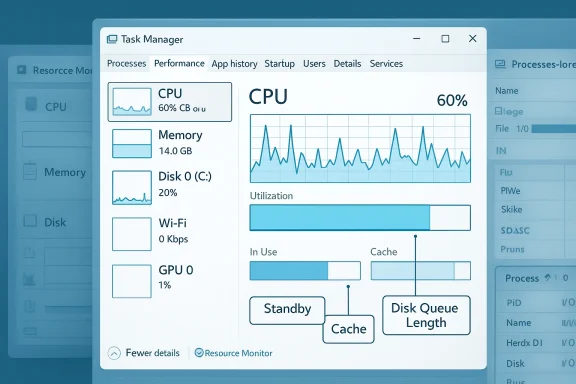
If Task Manager tells you the CPU is at 25%, the memory bar is at 90%, or the disk is at 100%, your reaction is predictable: something is wrong — but often the numbers are telling only part of the story. Task Manager is excellent for quick triage, yet it compresses complicated, layered system behavior into a handful of simplified metrics. Those simplifications are what make the utility feel authoritative—and what sometimes make it misleading unless you know exactly what it’s measuring. This feature unpacks the three most common ways Task Manager "lies" by omission, explains the real mechanics under the hood, and shows the practical, verifiable steps you should take when Task Manager raises the alarm. Manager is Windows’ built-in diagnostic dashboard: fast to open, visually clear, and usually good enough to point you at a misbehaving app or resource choke. For many people it’s the first — and sometimes only — tool they use when a PC feels sluggish. But the utility was designed for immediate readability, not forensic accuracy. In the tradeoff between simplicity and depth, Task Manager prioritizes the former.
That design choice means Task Manager:
More importantly, the meaning of "100%" itself can be ambiguous on systems with dynamic frequency scaling (Turbo Boost, P‑states). Microsoft changed how Task Manager reports CPU utilization in recent Windows releases to use "utility" counters that normalize work performed rather than raw percentage of wall‑clock time. This change makes Task Manager reflect effective work relative to frequency, which can produce numbers that differ from older tools and historical expectations.
Microsoft’s memory manager organizes physical memory into lists (active, standby, modified, etc.) so that unused pages are still useful for caching until a running process demands reclaimed pages. Memory compression is another layer: Windows can compress pages in RAM to delay paging to disk. These behaviors reduce page faults and make the system feel faster, but they inflate the “used” memory value you see in Task Manager.
This behavior is well understood in Windows performance diagnostics: the disk “% active time” counter measures device busy time, and it can hit 100% when the device’s internal queue is saturated with many small operations. The user-facing consequence varies by device: a mechanical HDD will show high active time and high latency sooner than a modern NVMe SSD.
Task Manager’s simplicity is its power and its limitation. What looks like a “lie” is usually a consequence of summarization: Windows trades granularity for quick clarity. Knowing what Task Manager is actually measuring — and which diagnostic tools to use next — transforms those scary spikes into understandable, solvable problems. If you’re the person friends and family call when their PC acts up, learning to ask the right follow‑up questions after Task Manager opens will save you hours of chasing red herrings and give you confidence that your diagnosis is based on verifiable counters, not impressions.
Source: How-To Geek 3 ways the Windows Task Manager is lying to you
That design choice means Task Manager:
- Aggregates multi-core CPU activity into a single percentage by default.
- Presents memory as a single “used” bar even though large portions are reclaimable cache or standby pages.
- Shows disk “usage” as a percentage representing device busy time, not raw throughput.
 CPU: the ilrcentage
What Task Manager shows — and what it hides
When Task Manager reports “CPU: 25%,” it’s showing a blended snapshot derived from Windows performance counters that attempt to represent how much work the system is doing. But that single value is an average across logical processors, smoothed over a sampling interval, and influenced by how Windows measures CPU utility. On modern multi-core CPUs the global percentage masks per-core variance: a single thread can peg one core at near 100% while the other cores are mostly idle, yet the aggregate looks modest.More importantly, the meaning of "100%" itself can be ambiguous on systems with dynamic frequency scaling (Turbo Boost, P‑states). Microsoft changed how Task Manager reports CPU utilization in recent Windows releases to use "utility" counters that normalize work performed rather than raw percentage of wall‑clock time. This change makes Task Manager reflect effective work relative to frequency, which can produce numbers that differ from older tools and historical expectations.
Why that matters
- A single busy thread on Core 3 can cause UI jank even if Task Manager reports low overall CPU usage.
- Clock scaling (turbo boost) can make identical workloads show very different percentages at different frequencies. A core running at a higher frequency does more work per unit time; the “utility” counters account for that.
- Windows’ scheduler migrates threads between cores to balance performance and power. Those migrations make short spikes harder to see in Task Manager’s aggregated graphs.
How to verify and diagnose
- Switch Task Manager’s CPU graph to show logical processors: right‑click the CPU graph > Change graph to > Logical processors. This surface-level step exposes per-core load.
- Use Resource Monitor (resmon.exe) for per-process threads and calls, and Process Explorer from Sysinternals for thread-level CPU samples and stacks when you need to see what is consuming a core. Sysinternals’ tools are the canonical companion utilities for deep inspection.
- For absolute clarity, enable thread stacks in Process Explorer or sample a process with Windows Performance Recorder (WPR) or ProcDump to capture the offending thread.
RAM: “used” ≠ “unavailable”
Why the memory bar looks scarier than it is
When Task Manager shows high RAM usage, the instinctive conclusion is "we're out of memory." That’s rarely true on modern Windows systems. Windows aggressively caches file data and application working sets in RAM to improve responsiveness. The memory labeled as "In Use" or "Cached/Standby" often includes pages that can be reclaimed instantly if an application needs them. The OS prefers to keep memory warm rather than sit with it idle.Microsoft’s memory manager organizes physical memory into lists (active, standby, modified, etc.) so that unused pages are still useful for caching until a running process demands reclaimed pages. Memory compression is another layer: Windows can compress pages in RAM to delay paging to disk. These behaviors reduce page faults and make the system feel faster, but they inflate the “used” memory value you see in Task Manager.
The key distinctions Task Manager hides
- Standby (cached) memory: contains recently used file data and program pages that are not actively in process working sets but are immediately reclaimable.
- Compressed memory: parts of RAM used more efficiently than raw physical pages would indicate.
- Hardware-reserved memory: memory set aside for device mappings or integrated GPU and not available to the OS.
Tools and steps to inspect real memory pressure
- Open Resource Monitor and check the Memory tab to see Standby, Modified, In Use, and Free breakdowns. This immediately tells you how much of the “used” memory is actually reclaimable.
- Use RAMMap (a Sysinternals tool) to see exactly how pages are distributed across caches, file-mapped ranges, and driver allocations. RAMMap shows that a surprising share of what looks “used” is tied to cache and can be reclaimed if necessary.
- If memory hogging persists, use Process Explorer or Windows Performance Recorder to find the process(es) with growing private bytes or leaking kernel allocations.
When high memory is a genuine problem
High memory usage is only a problem when:- The system actively swaps (page file I/O) and you see an application suffering high hard fault counts.
- The working set of active processes grows and does not shrink when idle.
- Kernel memory is leaking (nonpaged pool grows steadily).
Disk: busy vs. throughput — why “100%” is ambiguous
What Task Manager really measures for disk
Task Manager’s disk percentage indicates the percentage of time the physical device is busy servicing I/O requests during the sampling interval. It is not a direct measure of megabytes-per-second throughput. A storage device can be "100% busy" handling many tiny random I/O requests while moving only a modest amount of data in MB/s. Conversely, a large sequential transfer on a fast NVMe SSD might show modest "active time" while delivering huge throughput.This behavior is well understood in Windows performance diagnostics: the disk “% active time” counter measures device busy time, and it can hit 100% when the device’s internal queue is saturated with many small operations. The user-facing consequence varies by device: a mechanical HDD will show high active time and high latency sooner than a modern NVMe SSD.
Why this distinction matters
- A 100% disk active time with low MB/s often means the drive is struggling with many small random I/O requests — a worst-case for HDDs in particular.
- Task Manager may display 0 KB/s read/write while the disk is reported as 100% busy if the disk is in an error or stalled state; diagnosing such cases requires Resource Monitor or Performance Monitor counters, not just the Task Manager metric.
Digging deeper: what to look at
- Open Resource Monitor and inspect the Disk tab to see per-process read/write bytes, I/O operation count, and disk queue length. Disk queue length combined with % active time tells you whether the device is keeping up.
- Use Performance Monitor (perfmon.exe) to collect counters such as:
- PhysicalDisk\% Disk Time (or Active Time)
- PhysicalDisk\Avg. Disk Queue Length
- PhysicalDisk\Disk Bytes/sec
- If you suspect an HDD, check SMART attributes and actual throughput using vendor utilities or DiskMon; for SSDs, check firmware updates and controller metrics.
Short diagnostic checklist
- If Task Manager shows 100% disk but low MB/s, check the disk queue length. A queue length consistently above 1.0 for a single spindle HDD suggests saturation.
- Identify which process has the most I/O operations (not just bytes). Many small I/O ops can saturate a disk.
- Consider whether an antivirus or indexing service is issuing many small I/Os; disabling or pausing those tasks temporarily can confirm the culprit.
Tools that tell the whole story (and when to use them)
Quick triage tools
- Task Manager — excellent first look for obvious outliers: runaway processes, sudden spikes, or services that crash/restart frequently.
Deeper inspection (recommended)
- Resource Monitor — shows per-process CPU, Disk, Network, and Memory details and breaks memory into standby/in-use/free. Use it when Task Manager hints at a resource bottleneck.
- Process Explorer (Sysinternals) — view thread stacks, per-thread CPU, handles, and a more complete process tree. It’s the most useful replacement for debugging thread-level CPU use and threads stuck in kernel calls.
- Process Monitor — capture real-time file and registry activity to see what a process is doing behind the scenes (useful when a program generates heavy small I/O).
- RAMMap (Sysinternals) — detailed page-level view of what’s filling RAM and whether those pages are truly in use or are cache/standby.
- Performance Monitor — the canonical source of truth for time-series performance counters; use it to log and analyze in-depth metrics over time.
Practical, step‑by‑step troubleshooting workflow
When Task Manager raises an alarm, follow this sequence to separate the noise from the root cause:- Reproduce the problem and take a quick Task Manager snapshot. Note which resource is flagged (CPU, Memory, Disk).
- Open Resource Monitor and verify:
- For CPU: which process has the highest CPU, and how are cores distributed?
- For Memory: how much is standby vs in use vs free?
- For Disk: which process has the most IOPS and what is the disk queue length?
- If a process appears responsible, open Process Explorer to inspect threads and call stacks (for CPU) or use Process Monitor to capture I/O events (for disk/file activity).
- If the disk is saturated by small I/Os, identify whether they come from the filesystem (app writes), antivirus scanning, search/indexing, or driver/firmware issues.
- Use Performance Monitor to log the relevant counters (CPU utility, Disk Queue Length, Paging File, etc.) for 60–300 seconds to confirm whether the issue is transient or sustained.
- If necessary, collect a trace with Windows Performance Recorder/Analyzer for a forensic-level investigation.
Strengths, risks, and the long view
Strengths
- Task Manager is fast, convenient, and tuned for quick triage. It surfaces the most common, high-impact problems that typical users face.
- For many everyday issues, Task Manager plus Resource Monitor is enough to identify misbehaving apps and obvious bottlenecks.
Risks and pitfalls
- Misinterpreting the aggregated CPU percentage can lead you to chase the wrong process or to dismiss a real per-core issue.
- Treating the memory bar as a binary "full/empty" indicator may prompt unnecessary upgrades or misguided tweaks (e.g., swapping out hardware that isn’t the root cause).
- Responding to a 100% disk reading with panic upgrades or reformatting is premature if you haven’t checked queue length and IOPS patterns.
When Task Manager should make you worry
Task Manager is usually right enough. But escalate your concern if you see:- Consistent paging and high hard fault counts even after a fresh reboot.
- A process that grows private bytes without bound over time (possible memory leak).
- Disk queue length that stays high and corresponds with slow UI responses or I/O timeouts.
- Kernel nonpaged pool steadily increasing (potential driver leak).
Final takeaways — how to read Task Manager (the short checklist)
- CPU: if overall usage looks low but the system is sluggish, inspect per-core graphs and thread activity in Process Explorer. Remember that Task Manager’s CPU percentage is an aggregate and may mask single-thread hotspots.
- Memory: don’t panic at high “used” RAM. Check Standby/Cached values in Resource Monitor or RAMMap to see how much memory is reclaimable. Memory compression and caching are features that improve responsiveness, not necessarily signs of failure.
- Disk: a 100% active time is a device busy indicator, not a throughput readout. Use queue length and IOPS to determine whether small random I/O is saturating the device.
Task Manager’s simplicity is its power and its limitation. What looks like a “lie” is usually a consequence of summarization: Windows trades granularity for quick clarity. Knowing what Task Manager is actually measuring — and which diagnostic tools to use next — transforms those scary spikes into understandable, solvable problems. If you’re the person friends and family call when their PC acts up, learning to ask the right follow‑up questions after Task Manager opens will save you hours of chasing red herrings and give you confidence that your diagnosis is based on verifiable counters, not impressions.
Source: How-To Geek 3 ways the Windows Task Manager is lying to you
