

Have you ever opened Task Manager, stared at a wall of svchost.exe entries, and felt like Windows was hiding the real culprit? That frustration is real, and it’s why Resource Monitor still matters in 2026. Task Manager is excellent for a quick health check, but it does not always reveal which specific Windows service inside a shared host process is responsible for heavy memory use, especially when several services are bundled together for efficiency. Microsoft’s own documentation and Sysinternals tooling make clear that the system is designed to expose process-level activity first, then let administrators drill deeper when a problem needs more context.
Windows has always been a balancing act between usability and efficiency. One of the oldest examples of that trade-off is svchost.exe, the generic service host process that loads internal Windows services instead of launching each one as a separate executable. That design reduces overhead and helps the operating system use memory more efficiently, but it also makes troubleshooting more opaque when a shared host starts consuming unusually large amounts of RAM or CPU. Microsoft describes Task Manager as a system monitor that shows performance and resource consumption, but not as a forensic tool that breaks every shared host down to its deepest internal component.
The practical problem is simple: if a service host instance grows large, Task Manager will show you the process that is responsible, not necessarily the exact service that triggered the spike. That is why people often see several svchost entries with different memory footprints and no obvious explanation. This is not a flaw in Windows so much as a consequence of how Windows services are architected. The operating system is optimizing for performance and manageability, while the user is often trying to do the opposite — isolate a misbehaving component quickly.
Resource Monitor fills that gap. Microsoft positions it as part of the built-in troubleshooting toolkit, alongside Task Manager and other system configuration tools, and it gives you a more detailed, real-time view of CPU, memory, disk, and network activity. For memory investigations, the key distinction is that Resource Monitor exposes metrics like Working Set, Commit, Shareable, and Private memory, which makes it easier to separate transient usage from memory that is effectively pinned to a process. In other words, it does not just say a process is “using RAM”; it helps explain what kind of memory pressure exists.
That matters because high memory usage is not always a bug. Windows Update, indexing, printer services, Bluetooth support, telemetry, and a long list of background tasks can legitimately swell memory use for a while and then settle down. The challenge is knowing the difference between normal background churn and a genuine leak or runaway service. That is where a more granular workflow becomes valuable.
That limitation is why many users conclude that Windows is “lying” to them. The reality is more nuanced: Task Manager is presenting a summarized view of the system, and summarized views are only as good as the questions they are meant to answer. If the problem is “which process has high working memory?” Task Manager is usually enough. If the problem is “which specific service inside a shared host is leaking memory?” Task Manager often stops one layer too early.
A useful mental model is this: Task Manager shows you the apartment building, while Resource Monitor helps you identify which apartment is noisy. That distinction is especially important on modern Windows systems where background services are numerous, dynamic, and often transient. If you only look at the building, every problem looks the same.
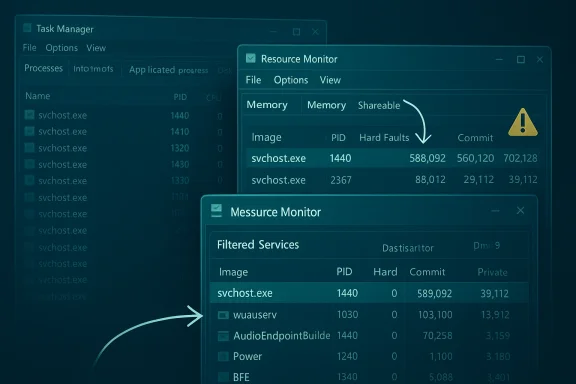
The biggest win is that Resource Monitor can help you correlate a high-memory svchost.exe with the underlying service group. You can use the Memory tab to sort by Working Set and identify the process instance that is using the most RAM. Then you can pivot into the CPU tab and inspect the matching process by PID to see the service list underneath it. That extra step is what turns a vague complaint into a diagnosable issue.
For most RAM investigations, the two numbers that matter most are Working Set and Private. Working Set helps you spot immediate pressure; Private memory helps you spot memory that is not likely to be reclaimed easily. A process with a huge private footprint is usually more suspicious than one with a high but mostly shareable working set.
Once you find the matching PID, check the box next to that svchost instance. The Services section below will filter to show the services hosted inside that process. That is the moment Task Manager cannot give you on its own. You now have a bridge between “this process is large” and “this specific service group is active.”
This is one of the few areas where a tiny amount of curiosity pays off quickly. If you do not recognize a service name, open the Services console, find the entry, and read the Description column. In many cases, you will immediately see whether the service is related to Windows Update, Bluetooth, networking, printing, or another subsystem that can legitimately swell during normal operation.
This is where resource literacy matters. A process with a high Working Set is not automatically consuming memory in a harmful way, and a high Commit number may simply reflect a reservation that is not fully resident. Likewise, services hosted inside svchost are often designed to share infrastructure for efficiency, so the aggregate process can look larger than any individual service would in isolation.
That makes it easier to avoid the common mistake of disabling something important because it was briefly busy. A little patience can save a lot of cleanup later. In some cases, the safest answer is simply to wait for the service to finish its task. Not every loud process is a broken one.
That additional depth matters because some problems live below the process layer. A service host may be suffering from DLL issues, a handle leak, or injected behavior that only becomes visible when you inspect loaded modules and open handles. Process Explorer is built for that kind of investigation, and Microsoft continues to update it as part of the Sysinternals suite.
This is also where security concerns enter the picture. If a process looks suspicious or behaves inconsistently, verifying signatures and inspecting loaded components can help separate a legitimate Windows component from something masquerading as one. That kind of verification is not always necessary, but when it is needed, Resource Monitor is usually just the opening move.
For enterprises, the stakes are higher because one noisy service can affect an entire fleet. Service hosting is a foundational design decision, so administrators cannot simply blame every large svchost on “Windows being Windows.” They need to distinguish between expected maintenance behavior and system-wide anomalies, especially on managed devices where policy, update rings, and endpoint tooling all interact.
This is why Microsoft has kept its diagnostic stack layered instead of forcing everything into one window. Task Manager handles the quick look, Resource Monitor handles the mid-level investigation, and Sysinternals handles the deep dive. That hierarchy is deliberate, and it matches the way Windows itself is built.
There is also the risk of false attribution. A spike may coincide with a service but be caused by a transient event, a delayed update, or another process entirely. Without observing behavior over time, users can misread a snapshot as a verdict. That is why real-time monitoring is more trustworthy than a single screenshot.
That also suggests a future in which the best Windows users are not the ones who memorize shortcuts, but the ones who know which tool answers which question. Task Manager is for a quick orientation. Resource Monitor is for isolating resource pressure. Process Explorer is for the deep, uncomfortable questions that follow when the system still does not make sense.
Source: Task Manager is lying to you about RAM — here's how to find out what's really happening
 Overview
Windows has always been a balancing act between usability and efficiency. One of the oldest examples of that trade-off is svchost.exe, the generic service host process that loads internal Windows services instead of launching each one as a separate executable. That design reduces overhead and helps the operating system use memory more efficiently, but it also makes troubleshooting more opaque when a shared host starts consuming unusually large amounts of RAM or CPU. Microsoft describes Task Manager as a system monitor that shows performance and resource consumption, but not as a forensic tool that breaks every shared host down to its deepest internal component.The practical problem is simple: if a service host instance grows large, Task Manager will show you the process that is responsible, not necessarily the exact service that triggered the spike. That is why people often see several svchost entries with different memory footprints and no obvious explanation. This is not a flaw in Windows so much as a consequence of how Windows services are architected. The operating system is optimizing for performance and manageability, while the user is often trying to do the opposite — isolate a misbehaving component quickly.
Resource Monitor fills that gap. Microsoft positions it as part of the built-in troubleshooting toolkit, alongside Task Manager and other system configuration tools, and it gives you a more detailed, real-time view of CPU, memory, disk, and network activity. For memory investigations, the key distinction is that Resource Monitor exposes metrics like Working Set, Commit, Shareable, and Private memory, which makes it easier to separate transient usage from memory that is effectively pinned to a process. In other words, it does not just say a process is “using RAM”; it helps explain what kind of memory pressure exists.
That matters because high memory usage is not always a bug. Windows Update, indexing, printer services, Bluetooth support, telemetry, and a long list of background tasks can legitimately swell memory use for a while and then settle down. The challenge is knowing the difference between normal background churn and a genuine leak or runaway service. That is where a more granular workflow becomes valuable.
Why Task Manager Can Mislead
Task Manager is not wrong; it is incomplete for this specific kind of diagnosis. It is built to show the system in a concise way, and that is useful when you want a fast answer to “what is using my CPU?” or “which app is frozen?” But once services are hosted together, one svchost.exe instance can represent a bundle of multiple Windows components, so the process list does not always reveal which service inside the bundle is the one consuming memory.That limitation is why many users conclude that Windows is “lying” to them. The reality is more nuanced: Task Manager is presenting a summarized view of the system, and summarized views are only as good as the questions they are meant to answer. If the problem is “which process has high working memory?” Task Manager is usually enough. If the problem is “which specific service inside a shared host is leaking memory?” Task Manager often stops one layer too early.
The svchost model
The Service Host model dates back to Windows 2000, and it remains one of the central reasons Windows can run many background functions without spawning a huge number of isolated processes. Shared hosting means lower overhead, but it also means that multiple services can live together in one process container. That is efficient for the OS, but it complicates root-cause analysis when something goes wrong.A useful mental model is this: Task Manager shows you the apartment building, while Resource Monitor helps you identify which apartment is noisy. That distinction is especially important on modern Windows systems where background services are numerous, dynamic, and often transient. If you only look at the building, every problem looks the same.
- Task Manager gives a quick overview.
- Shared service hosts can hide the exact culprit.
- High memory in svchost does not automatically mean malware.
- A summarized view is not the same as a diagnostic view.
What Resource Monitor Adds
Resource Monitor provides a more detailed breakdown of system activity, and Microsoft still treats it as a legitimate built-in diagnostics tool rather than a legacy relic. Its memory view is especially useful because it exposes multiple dimensions of memory behavior instead of a single headline figure. That makes it easier to understand whether a process is truly consuming private memory or merely participating in normal working-set activity.The biggest win is that Resource Monitor can help you correlate a high-memory svchost.exe with the underlying service group. You can use the Memory tab to sort by Working Set and identify the process instance that is using the most RAM. Then you can pivot into the CPU tab and inspect the matching process by PID to see the service list underneath it. That extra step is what turns a vague complaint into a diagnosable issue.
Key memory columns
The Memory tab is not just a prettier process list. Its columns tell you different things about how memory is being used, and those differences matter when you are distinguishing between a temporary spike and an ongoing leak. Commit shows reserved virtual memory, Working Set shows what is actively resident, Shareable points to memory that can theoretically be shared, and Private shows memory reserved for that process alone.For most RAM investigations, the two numbers that matter most are Working Set and Private. Working Set helps you spot immediate pressure; Private memory helps you spot memory that is not likely to be reclaimed easily. A process with a huge private footprint is usually more suspicious than one with a high but mostly shareable working set.
- Commit = reserved virtual memory
- Working Set = actively resident memory
- Shareable = memory that may be shared with others
- Private = memory unique to that process
How to Identify the Culprit
The workflow is straightforward, but the sequence matters. First, open Resource Monitor with Win+R, typeresmon, and press Enter, or open it from Task Manager’s Performance tab. Then go to the Memory tab and sort by Working Set so the biggest consumers rise to the top. If the suspicious entry is svchost.exe, note its PID and switch to the CPU tab to match it there.Once you find the matching PID, check the box next to that svchost instance. The Services section below will filter to show the services hosted inside that process. That is the moment Task Manager cannot give you on its own. You now have a bridge between “this process is large” and “this specific service group is active.”
A practical sequence
The best way to approach a slow-PC mystery is to be methodical rather than reactive. A quick, repeatable sequence reduces the chance that you chase the wrong symptom. That matters because memory pressure can shift quickly, and many services are noisy only for a short time.- Open Resource Monitor.
- Go to the Memory tab.
- Sort by Working Set.
- Identify the largest svchost.exe instance.
- Record the PID.
- Switch to the CPU tab.
- Match the PID and inspect the Services section.
- Cross-reference unfamiliar service names in services.msc.
Reading the Services Behind svchost.exe
The service names you uncover are not always obvious. Some are descriptive, while others are terse internal names that only make sense after a quick lookup in the Services console. Microsoft’s service management tools are designed to expose those descriptions, which is whyservices.msc remains a useful companion to Resource Monitor.This is one of the few areas where a tiny amount of curiosity pays off quickly. If you do not recognize a service name, open the Services console, find the entry, and read the Description column. In many cases, you will immediately see whether the service is related to Windows Update, Bluetooth, networking, printing, or another subsystem that can legitimately swell during normal operation.
Common interpretations
It is important not to overreact to a service name you do not know. A strange-looking service is not evidence of malware by itself, and a high-memory svchost is often doing exactly what Windows asked it to do. The real question is whether its behavior is consistent with the service’s purpose.- Update-related services can spike during patching.
- Network and telemetry services may fluctuate with connectivity.
- Printing and device services can wake up on demand.
- Bluetooth services can remain idle for long periods and then burst.
- A service that stays large for hours deserves closer scrutiny.
When High RAM Is Normal
Not every memory spike is a crisis. Windows is a highly dynamic operating system, and many services only look suspicious if you catch them in the middle of doing real work. Windows Update, Store activity, indexing, system maintenance, and device services can all create memory pressure that is temporary but perfectly legitimate.This is where resource literacy matters. A process with a high Working Set is not automatically consuming memory in a harmful way, and a high Commit number may simply reflect a reservation that is not fully resident. Likewise, services hosted inside svchost are often designed to share infrastructure for efficiency, so the aggregate process can look larger than any individual service would in isolation.
Interpreting spikes versus leaks
The difference between a spike and a leak is often pattern, not just size. A spike rises, does useful work, and falls. A leak tends to hold onto memory, creep upward over time, and resist normal cooldown. Resource Monitor helps because it lets you watch the behavior in real time instead of relying on a static snapshot.That makes it easier to avoid the common mistake of disabling something important because it was briefly busy. A little patience can save a lot of cleanup later. In some cases, the safest answer is simply to wait for the service to finish its task. Not every loud process is a broken one.
- Temporary spikes are common during updates.
- Persistent growth is more concerning than a one-time peak.
- Shared host processes naturally appear larger.
- A service can be busy without being faulty.
- Real-time monitoring matters more than one screenshot.
When You Need Deeper Tools
Resource Monitor is the right next step for many users, but it is not the final word. If the process is hard to identify, if you suspect malware, or if you need per-thread and handle-level visibility, Microsoft’s Process Explorer is the better instrument. Sysinternals describes it as a tool that shows handles and DLLs opened or loaded by processes, which is precisely the kind of depth that Resource Monitor does not attempt to provide.That additional depth matters because some problems live below the process layer. A service host may be suffering from DLL issues, a handle leak, or injected behavior that only becomes visible when you inspect loaded modules and open handles. Process Explorer is built for that kind of investigation, and Microsoft continues to update it as part of the Sysinternals suite.
Why Process Explorer exists
The value of Process Explorer is not that it replaces Task Manager. It is that it reveals a different slice of the system, one that is closer to forensic analysis than to casual monitoring. If you want to know what a process has loaded, what it has opened, or how its behavior changes over time, Process Explorer is the step up.This is also where security concerns enter the picture. If a process looks suspicious or behaves inconsistently, verifying signatures and inspecting loaded components can help separate a legitimate Windows component from something masquerading as one. That kind of verification is not always necessary, but when it is needed, Resource Monitor is usually just the opening move.
- Use Resource Monitor for fast memory triage.
- Use Process Explorer for deeper process inspection.
- Investigate DLLs and handles when behavior looks abnormal.
- Verify suspicious binaries before changing system settings.
- Treat persistent unexplained growth as a red flag.
Enterprise and Consumer Impact
For consumers, the practical value is immediate: fewer blind guesses, fewer unnecessary restarts, and a better chance of finding the service that is actually causing the slowdown. If a family PC becomes sluggish after waking from sleep or after an update cycle, Resource Monitor can help determine whether the culprit is a normal Windows service, a third-party app, or a configuration issue. That shortens the path from frustration to fix.For enterprises, the stakes are higher because one noisy service can affect an entire fleet. Service hosting is a foundational design decision, so administrators cannot simply blame every large svchost on “Windows being Windows.” They need to distinguish between expected maintenance behavior and system-wide anomalies, especially on managed devices where policy, update rings, and endpoint tooling all interact.
Why admins care
A desktop user may only care that the machine feels sluggish. An administrator has to care whether the memory issue is reproducible, whether it affects specific builds, and whether a service should be adjusted, patched, or left alone. In a managed environment, that also means keeping an eye on which services are allowed to run, which update components are active, and whether telemetry or support tooling is creating noise that looks like failure.This is why Microsoft has kept its diagnostic stack layered instead of forcing everything into one window. Task Manager handles the quick look, Resource Monitor handles the mid-level investigation, and Sysinternals handles the deep dive. That hierarchy is deliberate, and it matches the way Windows itself is built.
- Consumers need simple root-cause hints.
- Enterprises need reproducible diagnostics.
- Shared service hosts complicate fleet-wide monitoring.
- Policy and update behavior can mimic malfunction.
- Layered tools match layered problems.
Strengths and Opportunities
The big strength of this approach is that it turns a vague complaint into a repeatable diagnostic method. It also encourages users to learn how Windows actually structures services, which makes them better troubleshooters over time. For IT teams, that learning curve becomes an operational advantage because it reduces guesswork and speeds up triage.- Resource Monitor is already included in Windows, so there is no extra software barrier.
- The Working Set and Private columns provide much better memory context than a simple process total.
- The PID-based workflow creates a reliable bridge between process-level and service-level analysis.
- services.msc adds human-readable descriptions for obscure service names.
- Process Explorer extends the workflow when deeper inspection is required.
- The method helps separate normal background activity from genuine leaks.
- It reduces unnecessary reboots and service disabling.
Risks and Concerns
The main risk is overconfidence. If a user sees a large svchost instance and immediately disables a service, they may break normal system behavior or create a new problem that is harder to diagnose than the original slowdown. Shared service hosting exists for good reasons, and not every large process is an enemy.There is also the risk of false attribution. A spike may coincide with a service but be caused by a transient event, a delayed update, or another process entirely. Without observing behavior over time, users can misread a snapshot as a verdict. That is why real-time monitoring is more trustworthy than a single screenshot.
- Disabling the wrong service can cause functional regressions.
- A transient spike can be mistaken for a leak.
- Malware can masquerade as legitimate system behavior.
- The wrong diagnostic tool can produce misleading conclusions.
- Users may overlook third-party drivers or apps that trigger service activity.
- Obscure service names can lead to unnecessary panic.
- Fixing symptoms without identifying the pattern can hide the real issue.
Looking Ahead
The broader lesson here is that Windows troubleshooting is becoming more layered, not less. As the platform grows more modular and service-driven, the distance between “something is slow” and “here is the exact component causing it” can widen. Tools like Resource Monitor and Process Explorer remain essential because they reveal those intermediate layers that a general-purpose dashboard cannot fully expose.That also suggests a future in which the best Windows users are not the ones who memorize shortcuts, but the ones who know which tool answers which question. Task Manager is for a quick orientation. Resource Monitor is for isolating resource pressure. Process Explorer is for the deep, uncomfortable questions that follow when the system still does not make sense.
What to watch next
The useful next steps are not glamorous, but they are practical. They build confidence and make the next slowdown easier to diagnose. The more familiar you are with these tools, the less mysterious Windows feels when something starts to drag.- Watch for persistent memory growth instead of one-time spikes.
- Compare Working Set against Private memory before acting.
- Cross-check suspicious services in services.msc.
- Use Process Explorer if you suspect handles, DLLs, or tampering.
- Keep an eye on update cycles and other normal maintenance windows.
- Re-test after a reboot to separate a leak from a temporary state.
- Document the PID and service names so the pattern can be repeated.
Source: Task Manager is lying to you about RAM — here's how to find out what's really happening
Last edited:
