

Microsoft released PowerToys 0.100 on June 9, 2026, for Windows users, adding a rebuilt Shortcut Guide, a Command Palette Extension Gallery, multi-monitor Dock support, Power Display reliability work, and a platform move to .NET 10. The version number is the least interesting part of the release. After years of behaving like a bag of useful side projects, PowerToys is starting to look like Microsoft’s unofficial answer to the question Windows itself keeps avoiding: how much power-user functionality belongs in the operating system?
The answer, increasingly, is almost all of it — but not necessarily in Windows proper. PowerToys 0.100 is a reminder that Microsoft has found a useful middle lane between the glacial caution of Windows shell development and the chaos of third-party tweaking utilities. It is also a reminder that the most interesting Windows interface work in 2026 is happening just outside the OS.
PowerToys 0.100 is not PowerToys 1.0, and that distinction matters. Microsoft has been careful for years to keep the project in the zero-dot release lane, even as the utility suite has become one of the most polished and useful add-ons available for Windows 10 and Windows 11. The version number says “still evolving.” The user experience increasingly says “why isn’t this already built in?”
That tension has defined the modern PowerToys revival since Microsoft resurrected the brand in 2019. The original Windows 95-era PowerToys were a set of enthusiast utilities that exposed hidden convenience features and interface hacks. The modern incarnation has become something more ambitious: a public workshop for Windows workflows Microsoft either cannot, will not, or should not push into the default desktop experience.
The 0.100 release lands in that context. It is not a single blockbuster feature drop. It is a release about discovery, polish, reliability, and integration — the boring nouns that usually signal software maturity. The headline additions are practical, but the larger story is architectural: PowerToys is no longer merely adding clever tools. It is turning into a framework for how advanced Windows features can be shipped, tested, extended, and refined outside the slower Windows release train.
That is good news for enthusiasts and IT pros, but it also creates a strange product split. Windows 11 remains the thing every user gets. PowerToys is the thing many users actually want after they get past the default desktop.
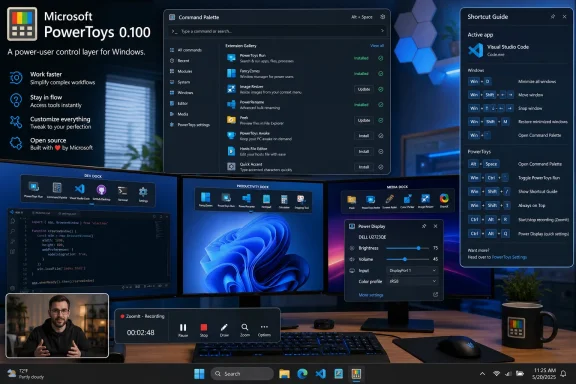
The new Shortcut Guide appears as a side pane and detects the active application when invoked. Instead of merely showing a static list of Windows key combinations, it can surface shortcuts relevant to the current app, Windows itself, and enabled PowerToys utilities. That shifts the feature from a cheat sheet to something closer to contextual assistance.
This is a small interface decision with large implications. A static shortcut poster is documentation. A context-sensitive guide is product design. It says the system should meet users where they are rather than expecting them to memorize a private language of key chords.
There is a limit, of course. Shortcut coverage depends on supported applications, and the feature will only be as good as its mappings and maintenance. But that limitation is also revealing. PowerToys can evolve this kind of feature openly, with community contributions and app-specific improvements, in a way the Windows shell team would likely struggle to do at OS scale.
For WindowsForum readers, the new Shortcut Guide is less about teaching beginners that Win+D shows the desktop and more about reducing cognitive friction. Power users accumulate workflows over years, then forget half of them when switching contexts. A guide that understands the foreground app is not glamorous. It is the kind of thing that makes a 12-hour admin day feel slightly less hostile.
PowerToys 0.100 gives Command Palette an Extension Gallery, available from its settings, for browsing, installing, updating, and removing extensions. That sounds like a housekeeping feature until you consider what it enables. Extensibility is only useful if normal users can discover and manage extensions without spelunking through GitHub releases, WinGet commands, or Store listings.
This is where Microsoft’s developer instincts and desktop instincts finally meet in a productive way. A command surface that can be extended by developers but managed by users is exactly the sort of thing Windows has historically failed to make approachable. Shell extensions have long been powerful but opaque. Start menu integrations are constrained. Context menus became so unruly in Windows 10 that Windows 11 tried to hide much of the mess behind an extra click.
Command Palette has the chance to be different because it is starting from a cleaner premise. It is a fast invocation surface where the user explicitly asks for action. That makes it a natural home for power features that would be too intrusive in the default shell.
The new multi-monitor Dock support pushes the idea further. Each display can now have its own Dock configuration, and users can choose which monitors show a Dock and where commands are pinned. That matters because serious Windows setups are often multi-monitor setups, and multi-monitor users do not think of their desktop as one flat canvas. They think in zones, roles, machines, and contexts.
A developer might keep build commands and performance metrics on one screen, communication tools on another, and documentation controls on a third. An admin might pin remote-management utilities on the monitor used for consoles and status widgets on the monitor used for dashboards. This is not the mainstream Windows desktop Microsoft designs for in commercials. It is the real desktop many WindowsForum readers actually use.
PowerToys 0.100 focuses on reliability and compatibility improvements for Power Display. Microsoft says startup is faster on many systems, monitor identification is more reliable across reboots, settings are preserved more consistently, and displays are rescanned when the PC wakes from sleep. The release also adds a Max Compatibility Mode for displays that do not properly advertise DDC capabilities.
That last detail is the most telling. Power-user utilities live in the gap between specifications and reality. A spec may say the monitor should identify itself cleanly. A user with three external panels, a USB-C dock, a KVM switch, and a corporate laptop knows better. Useful software is often the software that gracefully handles the hardware ecosystem as it exists, not as standards bodies imagined it.
This is where PowerToys can deliver value Windows itself often cannot. If Microsoft built aggressive monitor controls directly into Windows Settings, every edge case would become a mainstream support problem. As a PowerToy, the feature can move faster, expose compatibility toggles, and assume a slightly more technical user.
That does not make it niche. External display management is now central to hybrid work, gaming rigs, creator setups, and enterprise desks. The fact that monitor brightness and input switching still feel like vendor-OS no-man’s-land in 2026 is embarrassing. Power Display is an implicit indictment of how fragmented that experience remains.
That may sound adjacent to Windows administration rather than central to it, but the line has blurred. IT pros now produce internal training videos, support walkthroughs, onboarding clips, incident explanations, and documentation snippets. Developers make demos for pull requests and bug reports. Security teams record reproducible proof-of-concept behavior. The “presentation tool” is now a daily communication tool.
Adding webcam overlay is especially revealing. It pulls ZoomIt toward the language of modern video communication, where the narrator is often part of the content. Appending clips with transitions is similarly practical. It reduces the need to leave the utility for basic stitching, which matters when the goal is not to become a video editor but to explain something quickly and clearly.
This is the PowerToys pattern at its best. Microsoft is not trying to replace Camtasia, OBS, or a full editor. It is making the simple thing simple enough that users do not need to reach for heavier tools every time. For a suite that began as “utilities for power users,” PowerToys increasingly understands that power users do not always want power. Sometimes they want less ceremony.
Moving a suite this broad to a newer runtime is not just about chasing version numbers. PowerToys now includes utilities that touch windowing, input, file management, display control, OCR, launch surfaces, environment variables, registry previews, keyboard remapping, and more. Keeping that collection modern requires active maintenance across frameworks, installers, accessibility surfaces, UI libraries, and Windows platform changes.
Microsoft also says the installer footprint has been reduced by 15 percent. That is not a life-changing number, but it points in the right direction. PowerToys has become large enough that size, startup behavior, update reliability, and settings preservation matter. Once a utility suite becomes part of a user’s daily workflow, rough edges stop being charming and start becoming operational risk.
The auto-update improvements are therefore more important than they look. PowerToys now relaunches more reliably after updates, provides clearer success notifications, and backs up configuration files before updates so settings can be restored if corruption is detected. Those are not headline features. They are trust features.
Trust is the real currency for tools like this. A user will tolerate an experimental image resizer. They will not tolerate a keyboard remapper that forgets its configuration before a workday, a window manager that breaks a carefully tuned layout, or a launcher that vanishes after an update. PowerToys 0.100 appears to understand that maturity is measured less by the feature list than by whether users can stop thinking about the tool.
This does not mean every PowerToy should become a native Windows feature. In fact, that would probably ruin the suite. One reason PowerToys works is that it can assume intent. Users install it because they want more control. Windows itself has to serve everyone, including people who would be confused, annoyed, or harmed by powerful defaults.
But Microsoft’s bifurcated strategy also has costs. Users who do not know PowerToys exists remain stuck with a less capable desktop. IT departments have to decide whether to bless and deploy an optional Microsoft utility suite that is not quite the OS, not quite an app, and not quite a developer tool. Documentation and support workflows must account for features that may or may not be present on a given machine.
This is especially relevant in managed environments. PowerToys is open source and Microsoft-backed, which helps. But it is still a rapidly evolving utility collection that touches sensitive parts of the user experience. Keyboard remapping, file previews, hosts file editing, environment variables, screen capture, and window management are not trivial from a governance perspective.
The enterprise question is not whether PowerToys is useful. It plainly is. The question is where it belongs in the stack: approved optional install, packaged standard utility, developer workstation baseline, or restricted tool for specific roles. PowerToys 0.100 does not settle that debate, but its polish makes the debate harder to ignore.
That is a healthier model than pretending the Windows shell can absorb every useful idea. The Windows installed base is enormous, conservative, and astonishingly varied. The same feature that delights a developer can confuse a home user or break a corporate process. PowerToys gives Microsoft a place to say: this is supported enough to use, but optional enough to evolve.
Command Palette may be the clearest example. If Microsoft tried to replace Start search with an extensible command surface overnight, the backlash would be immediate. As a PowerToy, it can grow among users who actually want it. Over time, its best ideas can influence Windows, Visual Studio Code, Windows Terminal, or other Microsoft interfaces.
The Shortcut Guide follows the same pattern. Context-aware shortcut discovery could eventually belong in Windows, Office, Edge, or developer tools. But PowerToys is the right place to learn what works, which apps matter, and how users invoke the experience without making it feel like Clippy in a side panel.
This is also why the Extension Gallery matters. Once a utility suite becomes extensible, curation becomes product strategy. Microsoft is not merely letting people bolt random capabilities onto a launcher. It is creating a discovery surface, and discovery surfaces eventually become ecosystems. That brings opportunity, but also responsibility around quality, security, permissions, and user trust.
PowerToys 0.100 makes that framing look outdated. The release is full of features that map directly to professional workflows: contextual shortcut discovery, extension management, multi-monitor docks, external display control, technical recording improvements, update safeguards, and UI modernization. These are not toys in any meaningful sense. They are productivity infrastructure.
The name is now both charming and misleading. “PowerToys” carries historical warmth, but it undersells the seriousness of the suite. A tool that controls monitor inputs, remaps keyboards, edits hosts files, manages environment variables, previews registry files, extracts text from the screen, and coordinates multi-monitor command docks is not a toy. It is a parallel control layer for Windows.
That raises a branding problem Microsoft may never solve because the name is beloved. It also raises a strategic question: if PowerToys becomes essential to a serious Windows setup, why is it still optional? The best answer is that optionality is exactly what keeps it useful. The worst answer is that Windows has become too cautious to ship its own best ideas directly.
Both answers can be true.
That is the right shape for a project at this stage. A utility suite with dozens of features does not need constant spectacle. It needs fewer dead ends, better integration, safer updates, more consistent design, and clearer paths for users to discover what already exists.
The release also shows that Microsoft understands its audience. Windows power users do not merely want toggles. They want workflows. They want the operating system to respect multi-monitor setups, keyboard-driven work, fast switching, repeatable demos, and hardware that does not behave perfectly.
That audience has historically been difficult for Microsoft to serve inside Windows itself. Too much power in the default interface becomes clutter. Too little power sends advanced users to unsupported hacks. PowerToys 0.100 continues to demonstrate a better compromise: ship the advanced layer beside Windows, keep it Microsoft-backed, and let the people who need it opt in.
The answer, increasingly, is almost all of it — but not necessarily in Windows proper. PowerToys 0.100 is a reminder that Microsoft has found a useful middle lane between the glacial caution of Windows shell development and the chaos of third-party tweaking utilities. It is also a reminder that the most interesting Windows interface work in 2026 is happening just outside the OS.
 PowerToys Crosses a Psychological Version Line Without Becoming Finished
PowerToys 0.100 is not PowerToys 1.0, and that distinction matters. Microsoft has been careful for years to keep the project in the zero-dot release lane, even as the utility suite has become one of the most polished and useful add-ons available for Windows 10 and Windows 11. The version number says “still evolving.” The user experience increasingly says “why isn’t this already built in?”That tension has defined the modern PowerToys revival since Microsoft resurrected the brand in 2019. The original Windows 95-era PowerToys were a set of enthusiast utilities that exposed hidden convenience features and interface hacks. The modern incarnation has become something more ambitious: a public workshop for Windows workflows Microsoft either cannot, will not, or should not push into the default desktop experience.
The 0.100 release lands in that context. It is not a single blockbuster feature drop. It is a release about discovery, polish, reliability, and integration — the boring nouns that usually signal software maturity. The headline additions are practical, but the larger story is architectural: PowerToys is no longer merely adding clever tools. It is turning into a framework for how advanced Windows features can be shipped, tested, extended, and refined outside the slower Windows release train.
That is good news for enthusiasts and IT pros, but it also creates a strange product split. Windows 11 remains the thing every user gets. PowerToys is the thing many users actually want after they get past the default desktop.
The New Shortcut Guide Admits Windows Has a Discoverability Problem
The rebuilt Shortcut Guide is the most symbolic change in PowerToys 0.100 because it addresses one of Windows’ oldest failures: the platform is full of useful keyboard shortcuts that many users never discover. Microsoft has spent decades layering more capability onto the Windows desktop, but the operating system still often assumes users will learn by accident, folklore, or frantic web searches.The new Shortcut Guide appears as a side pane and detects the active application when invoked. Instead of merely showing a static list of Windows key combinations, it can surface shortcuts relevant to the current app, Windows itself, and enabled PowerToys utilities. That shifts the feature from a cheat sheet to something closer to contextual assistance.
This is a small interface decision with large implications. A static shortcut poster is documentation. A context-sensitive guide is product design. It says the system should meet users where they are rather than expecting them to memorize a private language of key chords.
There is a limit, of course. Shortcut coverage depends on supported applications, and the feature will only be as good as its mappings and maintenance. But that limitation is also revealing. PowerToys can evolve this kind of feature openly, with community contributions and app-specific improvements, in a way the Windows shell team would likely struggle to do at OS scale.
For WindowsForum readers, the new Shortcut Guide is less about teaching beginners that Win+D shows the desktop and more about reducing cognitive friction. Power users accumulate workflows over years, then forget half of them when switching contexts. A guide that understands the foreground app is not glamorous. It is the kind of thing that makes a 12-hour admin day feel slightly less hostile.
Command Palette Starts Looking Like the Windows Launcher Microsoft Never Shipped
Command Palette has quietly become one of the most important pieces of PowerToys. Windows has had launchers before, from the Start menu search box to PowerToys Run, but Command Palette is more explicit about its ambition. It is not just for opening apps. It is for commands, extensions, pinned actions, widgets, and workflow shortcuts.PowerToys 0.100 gives Command Palette an Extension Gallery, available from its settings, for browsing, installing, updating, and removing extensions. That sounds like a housekeeping feature until you consider what it enables. Extensibility is only useful if normal users can discover and manage extensions without spelunking through GitHub releases, WinGet commands, or Store listings.
This is where Microsoft’s developer instincts and desktop instincts finally meet in a productive way. A command surface that can be extended by developers but managed by users is exactly the sort of thing Windows has historically failed to make approachable. Shell extensions have long been powerful but opaque. Start menu integrations are constrained. Context menus became so unruly in Windows 10 that Windows 11 tried to hide much of the mess behind an extra click.
Command Palette has the chance to be different because it is starting from a cleaner premise. It is a fast invocation surface where the user explicitly asks for action. That makes it a natural home for power features that would be too intrusive in the default shell.
The new multi-monitor Dock support pushes the idea further. Each display can now have its own Dock configuration, and users can choose which monitors show a Dock and where commands are pinned. That matters because serious Windows setups are often multi-monitor setups, and multi-monitor users do not think of their desktop as one flat canvas. They think in zones, roles, machines, and contexts.
A developer might keep build commands and performance metrics on one screen, communication tools on another, and documentation controls on a third. An admin might pin remote-management utilities on the monitor used for consoles and status widgets on the monitor used for dashboards. This is not the mainstream Windows desktop Microsoft designs for in commercials. It is the real desktop many WindowsForum readers actually use.
Power Display Shows Why “It Works on My Monitor” Is Not Enough
Power Display arrived as a utility for controlling external monitor brightness, contrast, volume, input source, and color temperature from a single flyout. In practice, that puts PowerToys into one of the most annoying corners of the PC experience: monitor control. Displays are theoretically standardized enough to manage over protocols like DDC/CI. In reality, monitor behavior varies wildly by manufacturer, model, firmware, cable, dock, GPU, and whatever cursed combination of sleep and wake events the user’s desk happens to produce.PowerToys 0.100 focuses on reliability and compatibility improvements for Power Display. Microsoft says startup is faster on many systems, monitor identification is more reliable across reboots, settings are preserved more consistently, and displays are rescanned when the PC wakes from sleep. The release also adds a Max Compatibility Mode for displays that do not properly advertise DDC capabilities.
That last detail is the most telling. Power-user utilities live in the gap between specifications and reality. A spec may say the monitor should identify itself cleanly. A user with three external panels, a USB-C dock, a KVM switch, and a corporate laptop knows better. Useful software is often the software that gracefully handles the hardware ecosystem as it exists, not as standards bodies imagined it.
This is where PowerToys can deliver value Windows itself often cannot. If Microsoft built aggressive monitor controls directly into Windows Settings, every edge case would become a mainstream support problem. As a PowerToy, the feature can move faster, expose compatibility toggles, and assume a slightly more technical user.
That does not make it niche. External display management is now central to hybrid work, gaming rigs, creator setups, and enterprise desks. The fact that monitor brightness and input switching still feel like vendor-OS no-man’s-land in 2026 is embarrassing. Power Display is an implicit indictment of how fragmented that experience remains.
ZoomIt’s Upgrade Turns an Old Sysinternals Tool Into a Modern Creator Utility
ZoomIt has a long history as a Sysinternals favorite for technical presentations, screen zooming, annotation, and demos. Its presence inside PowerToys already signaled that Microsoft sees value in consolidating scattered power-user tools under one approachable roof. In 0.100, ZoomIt gains webcam overlay support while recording and the ability to append multiple clips with transitions.That may sound adjacent to Windows administration rather than central to it, but the line has blurred. IT pros now produce internal training videos, support walkthroughs, onboarding clips, incident explanations, and documentation snippets. Developers make demos for pull requests and bug reports. Security teams record reproducible proof-of-concept behavior. The “presentation tool” is now a daily communication tool.
Adding webcam overlay is especially revealing. It pulls ZoomIt toward the language of modern video communication, where the narrator is often part of the content. Appending clips with transitions is similarly practical. It reduces the need to leave the utility for basic stitching, which matters when the goal is not to become a video editor but to explain something quickly and clearly.
This is the PowerToys pattern at its best. Microsoft is not trying to replace Camtasia, OBS, or a full editor. It is making the simple thing simple enough that users do not need to reach for heavier tools every time. For a suite that began as “utilities for power users,” PowerToys increasingly understands that power users do not always want power. Sometimes they want less ceremony.
The .NET 10 Move Is a Maintenance Story With User Consequences
PowerToys 0.100 also upgrades the project to .NET 10. To many users, that will sound like plumbing. To anyone who has watched Windows utilities age into abandonware, it is a meaningful signal.Moving a suite this broad to a newer runtime is not just about chasing version numbers. PowerToys now includes utilities that touch windowing, input, file management, display control, OCR, launch surfaces, environment variables, registry previews, keyboard remapping, and more. Keeping that collection modern requires active maintenance across frameworks, installers, accessibility surfaces, UI libraries, and Windows platform changes.
Microsoft also says the installer footprint has been reduced by 15 percent. That is not a life-changing number, but it points in the right direction. PowerToys has become large enough that size, startup behavior, update reliability, and settings preservation matter. Once a utility suite becomes part of a user’s daily workflow, rough edges stop being charming and start becoming operational risk.
The auto-update improvements are therefore more important than they look. PowerToys now relaunches more reliably after updates, provides clearer success notifications, and backs up configuration files before updates so settings can be restored if corruption is detected. Those are not headline features. They are trust features.
Trust is the real currency for tools like this. A user will tolerate an experimental image resizer. They will not tolerate a keyboard remapper that forgets its configuration before a workday, a window manager that breaks a carefully tuned layout, or a launcher that vanishes after an update. PowerToys 0.100 appears to understand that maturity is measured less by the feature list than by whether users can stop thinking about the tool.
Windows 11 Keeps Benefiting From a Project That Lives Beside It
The awkward truth is that PowerToys often makes Windows 11 feel more complete than Windows 11 does on its own. FancyZones remains more flexible than the default snap experience for complex layouts. Keyboard Manager fills gaps Microsoft has never fully addressed in Settings. Text Extractor gives users OCR at the desktop level. Hosts File Editor, Environment Variables, PowerRename, Peek, and File Locksmith all solve real problems that Windows exposes awkwardly or not at all.This does not mean every PowerToy should become a native Windows feature. In fact, that would probably ruin the suite. One reason PowerToys works is that it can assume intent. Users install it because they want more control. Windows itself has to serve everyone, including people who would be confused, annoyed, or harmed by powerful defaults.
But Microsoft’s bifurcated strategy also has costs. Users who do not know PowerToys exists remain stuck with a less capable desktop. IT departments have to decide whether to bless and deploy an optional Microsoft utility suite that is not quite the OS, not quite an app, and not quite a developer tool. Documentation and support workflows must account for features that may or may not be present on a given machine.
This is especially relevant in managed environments. PowerToys is open source and Microsoft-backed, which helps. But it is still a rapidly evolving utility collection that touches sensitive parts of the user experience. Keyboard remapping, file previews, hosts file editing, environment variables, screen capture, and window management are not trivial from a governance perspective.
The enterprise question is not whether PowerToys is useful. It plainly is. The question is where it belongs in the stack: approved optional install, packaged standard utility, developer workstation baseline, or restricted tool for specific roles. PowerToys 0.100 does not settle that debate, but its polish makes the debate harder to ignore.
The Suite Is Becoming a Test Lab for Windows Itself
The most interesting way to understand PowerToys is not as a collection of utilities, but as a research-and-deployment channel. It lets Microsoft observe which power-user ideas gain traction before committing them to Windows proper. It also lets the company serve advanced users without forcing every experiment through the politics and compatibility burden of the operating system.That is a healthier model than pretending the Windows shell can absorb every useful idea. The Windows installed base is enormous, conservative, and astonishingly varied. The same feature that delights a developer can confuse a home user or break a corporate process. PowerToys gives Microsoft a place to say: this is supported enough to use, but optional enough to evolve.
Command Palette may be the clearest example. If Microsoft tried to replace Start search with an extensible command surface overnight, the backlash would be immediate. As a PowerToy, it can grow among users who actually want it. Over time, its best ideas can influence Windows, Visual Studio Code, Windows Terminal, or other Microsoft interfaces.
The Shortcut Guide follows the same pattern. Context-aware shortcut discovery could eventually belong in Windows, Office, Edge, or developer tools. But PowerToys is the right place to learn what works, which apps matter, and how users invoke the experience without making it feel like Clippy in a side panel.
This is also why the Extension Gallery matters. Once a utility suite becomes extensible, curation becomes product strategy. Microsoft is not merely letting people bolt random capabilities onto a launcher. It is creating a discovery surface, and discovery surfaces eventually become ecosystems. That brings opportunity, but also responsibility around quality, security, permissions, and user trust.
The 0.100 Release Makes PowerToys Harder to Dismiss as Enthusiast Candy
For years, the lazy read on PowerToys was that it was for tinkerers. That was never entirely fair, but it was understandable. A suite with color pickers, window zones, key remaps, and quick launchers sounds like a hobbyist toolkit if you do not live inside Windows all day.PowerToys 0.100 makes that framing look outdated. The release is full of features that map directly to professional workflows: contextual shortcut discovery, extension management, multi-monitor docks, external display control, technical recording improvements, update safeguards, and UI modernization. These are not toys in any meaningful sense. They are productivity infrastructure.
The name is now both charming and misleading. “PowerToys” carries historical warmth, but it undersells the seriousness of the suite. A tool that controls monitor inputs, remaps keyboards, edits hosts files, manages environment variables, previews registry files, extracts text from the screen, and coordinates multi-monitor command docks is not a toy. It is a parallel control layer for Windows.
That raises a branding problem Microsoft may never solve because the name is beloved. It also raises a strategic question: if PowerToys becomes essential to a serious Windows setup, why is it still optional? The best answer is that optionality is exactly what keeps it useful. The worst answer is that Windows has become too cautious to ship its own best ideas directly.
Both answers can be true.
The Real Upgrade Is Confidence, Not Novelty
PowerToys 0.100 is packed with changes, but its most important message is confidence. Microsoft is treating the suite like durable software rather than a side experiment. The update improves the new, tends the old, modernizes the foundations, and makes extension discovery more humane.That is the right shape for a project at this stage. A utility suite with dozens of features does not need constant spectacle. It needs fewer dead ends, better integration, safer updates, more consistent design, and clearer paths for users to discover what already exists.
The release also shows that Microsoft understands its audience. Windows power users do not merely want toggles. They want workflows. They want the operating system to respect multi-monitor setups, keyboard-driven work, fast switching, repeatable demos, and hardware that does not behave perfectly.
That audience has historically been difficult for Microsoft to serve inside Windows itself. Too much power in the default interface becomes clutter. Too little power sends advanced users to unsupported hacks. PowerToys 0.100 continues to demonstrate a better compromise: ship the advanced layer beside Windows, keep it Microsoft-backed, and let the people who need it opt in.
PowerToys 0.100 Is a Small Release With a Large Shadow
This release is best understood as a consolidation point, not a finish line. The new features matter, but the direction matters more. PowerToys is becoming more discoverable, more extensible, more resilient, and more central to the modern Windows enthusiast and professional desktop.- PowerToys 0.100 was released on June 9, 2026, with a rebuilt Shortcut Guide, Command Palette Extension Gallery, multi-monitor Dock support, and multiple utility improvements.
- The new Shortcut Guide changes the feature from a static shortcut reference into a contextual aid that reacts to the active application.
- Command Palette’s Extension Gallery makes extensibility more practical by bringing extension discovery, installation, updating, and removal into the tool itself.
- Power Display’s reliability work matters because external monitor control remains one of the messiest real-world Windows hardware experiences.
- The .NET 10 upgrade, installer reduction, and auto-update safeguards show Microsoft treating PowerToys as durable daily-use software rather than an experimental bundle.
- For IT pros, the release strengthens the case for PowerToys on managed workstations while also making governance, packaging, and support decisions more important.
References
- Primary source: thurrott.com
Published: 2026-06-11T22:10:34.806794
Loading…
www.thurrott.com - Official source: learn.microsoft.com

Microsoft PowerToys - Windows Utilities for Power Users
Microsoft PowerToys includes 25+ free Windows utilities including FancyZones, PowerToys Run, Color Picker, PowerRename, and more. Boost productivity for power users on Windows 10/11.learn.microsoft.com - Related coverage: windowscentral.com

Windows 11 search and app launching are getting a speed boost | Windows Central
A new Extension Gallery in PowerToys streamlines how you find, install, and update Command Palette extensions.www.windowscentral.com - Related coverage: pcworld.com

Windows PowerToys update brings 3 big changes and improvements | PCWorld
The Command Palette, Keyboard Manager, and CursorWrap features just got even better.www.pcworld.com - Official source: devblogs.microsoft.com

PowerToys 0.100 is here: new Shortcut Guide, Command Palette improvements and much more! - Windows Command Line
We're back with a fresh PowerToys release! This month introduces the brand-new Shortcut Guide, a major Command Palette update with the new Extensiondevblogs.microsoft.com - Related coverage: thewincentral.com
Loading…
thewincentral.com