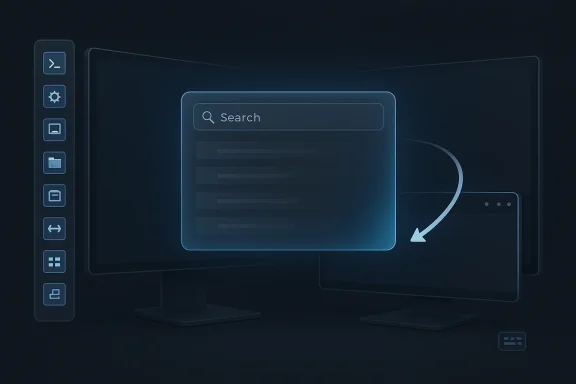
PowerToys 0.98 is not just another incremental utility update; it is a clear sign that Microsoft is treating PowerToys as a serious Windows productivity platform rather than a loose bundle of niche add-ons. The release brings a new Command Palette Dock in preview, a thoroughly rebuilt Keyboard Manager editor, major refinements to CursorWrap, and a handful of quality-of-life changes that make several utilities easier to discover and faster to use. The result is a release that feels both more ambitious and more polished than many recent PowerToys builds, while still leaving enough rough edges to justify Microsoft’s preview-first approach. (github.com)
PowerToys has long occupied a unique space in the Windows ecosystem. It is neither a core operating system component nor a casual app; instead, it is a laboratory for features aimed at people who want to work faster, automate repetitive tasks, and reduce friction in everyday Windows workflows. In version 0.98, that mission becomes especially visible because Microsoft is not simply polishing an existing toolchain. It is deepening the integration between different utilities, making the interface more consistent, and building new workflows around the Command Palette as a central hub. (github.com)
That emphasis matters because PowerToys has always been strongest when it acts like a toolkit rather than a collection of isolated apps. The 0.98 release leans into that idea by making Command Palette more extensible and more central to the rest of PowerToys, while also improving other utilities such as Always On Top, Awake, New+, ZoomIt, and Advanced Paste. Microsoft is not just adding features; it is trying to reduce the number of places users need to go in order to control them. (github.com)
That approach also reflects a broader shift in Windows utility design. Modern productivity tools increasingly emphasize persistent context rather than one-shot invocation. Instead of opening a tool, doing one action, and closing it, users keep a slim interface present all the time. The Dock fits that model well, especially for users who work across multiple apps and want a small, consistent area for frequent commands. (github.com)
There is also an important ecosystem angle here: Microsoft explicitly points users to the Microsoft Store and WinGet for additional Command Palette extensions. That hints at a future where the Dock is less about a fixed set of built-in actions and more about a customizable launch bar for third-party and Microsoft-provided extensions alike. (github.com)
Transparency may seem minor, but it matters in a launcher that appears on top of whatever the user is doing. A launcher that can visually blend better with the desktop can feel less intrusive, especially when it is used repeatedly throughout the day. Meanwhile, preserving search text can be a small but meaningful time saver for users who repeatedly query similar items. (github.com)
That centralization should help reduce context switching. It also reinforces the idea that Command Palette is becoming the successor to earlier launcher-style functionality inside PowerToys, rather than simply another module alongside them. Microsoft’s own documentation already describes Command Palette as the successor to PowerToys Run, and version 0.98 makes that direction even more obvious.
Microsoft also says the new editor includes a fresh editing dialog that makes it easier to remap keys or shortcuts, send text, or open an app or URL. For power users, that broader action set matters because Keyboard Manager becomes more than a remapping tool; it becomes a small automation layer for keyboard-driven workflows. (github.com)
There is also a maintenance advantage. A refreshed UI architecture can make future improvements easier to ship, especially if Microsoft wants to keep expanding remapping features without carrying legacy interface debt. The downside is that preview rebuilds can introduce temporary complexity, so users who depend on stable remapping behavior may want to test carefully before switching everything over. (github.com)
Microsoft also says existing remappings should carry over, which is critical for adoption. Any redesign of a configuration-heavy utility lives or dies by migration quality, and PowerToys appears to have prioritized continuity. The release further adds support for multi-line input when sending text and gives users the ability to enable or disable Keyboard Manager through a shortcut or a Command Palette command. That tightens the link between modules and makes the utility more flexible in daily use. (github.com)
The new options are useful too. Users can now disable CursorWrap when only one monitor is connected, which prevents the feature from becoming a distraction on laptops or docked systems that change display state frequently. There is also a new activation mode that makes wrapping work only while holding Ctrl or Shift, a design that may appeal to users who want the behavior available only as an intentional action rather than a constant rule. (github.com)
Microsoft also added transparency adjustment for pinned windows using modifier-key plus/minus shortcuts. That may not matter to everyone, but it can be helpful when users want a pinned window to stay visible without completely obscuring what is underneath. It also shows that Microsoft is thinking about the utility as part of the visual layering model of Windows, not just as a binary pin/unpin tool. (github.com)
These updates matter because PowerToys is most effective when each module feels like part of a cohesive toolkit rather than an unrelated experiment. ZoomIt’s trimming feature, for example, makes the screen-capture workflow more practical. New+’s ability to hide the standard “New” entry may appeal to users trying to simplify context menus. Advanced Paste improvements suggest Microsoft is still investing in clipboard and AI-assisted workflows, even as Command Palette becomes more central. (github.com)
Preview features also come with the usual caution. The Dock is explicitly preview-only, and Keyboard Manager’s new editor is being kept alongside the older system while Microsoft continues to refine it. That is the right engineering choice, but it also tells readers not to expect a perfectly settled experience yet. (github.com)
For Windows 11 users, especially those who live in keyboard shortcuts, window management, and multi-monitor productivity, this release is easy to recommend as one to watch closely. The Command Palette Dock may become a daily habit, the refreshed Keyboard Manager may become the preferred way to remap keys, and CursorWrap may quietly solve a long-standing annoyance. Even where the changes are subtle, they point in the same direction: PowerToys is becoming more coherent, more capable, and more ambitious with every release.
Source: Thurrott.com PowerToys 0.98 Arrives with Command Palette Dock, More
 Background: PowerToys keeps evolving into a Windows power-user platform
PowerToys has long occupied a unique space in the Windows ecosystem. It is neither a core operating system component nor a casual app; instead, it is a laboratory for features aimed at people who want to work faster, automate repetitive tasks, and reduce friction in everyday Windows workflows. In version 0.98, that mission becomes especially visible because Microsoft is not simply polishing an existing toolchain. It is deepening the integration between different utilities, making the interface more consistent, and building new workflows around the Command Palette as a central hub. (github.com)That emphasis matters because PowerToys has always been strongest when it acts like a toolkit rather than a collection of isolated apps. The 0.98 release leans into that idea by making Command Palette more extensible and more central to the rest of PowerToys, while also improving other utilities such as Always On Top, Awake, New+, ZoomIt, and Advanced Paste. Microsoft is not just adding features; it is trying to reduce the number of places users need to go in order to control them. (github.com)
The Command Palette Dock is the headline feature
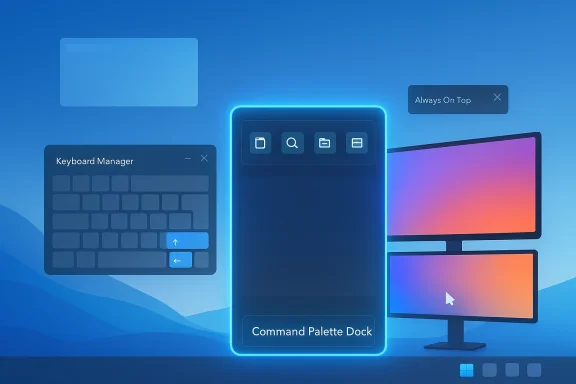
The most visible addition in PowerToys 0.98 is the new Command Palette Dock, and it is easy to understand why Microsoft is treating it as a preview feature. The Dock is an optional mode that keeps favorite commands and extensions permanently within reach in a compact strip that can sit on the top, bottom, left, or right edge of the screen. That makes it feel more like a lightweight taskbar for frequently used Command Palette actions than a traditional launcher panel. (github.com)Why the Dock matters
The Dock is an attempt to solve a very real productivity problem: power users often accumulate a handful of commands they rely on every day, but launching a full search interface every time can still feel like a step too many. By allowing users to pin items directly into a persistent container, Microsoft is turning Command Palette from a search-and-execute tool into something closer to an always-available command surface. (github.com)That approach also reflects a broader shift in Windows utility design. Modern productivity tools increasingly emphasize persistent context rather than one-shot invocation. Instead of opening a tool, doing one action, and closing it, users keep a slim interface present all the time. The Dock fits that model well, especially for users who work across multiple apps and want a small, consistent area for frequent commands. (github.com)
How it works
Microsoft says the Dock is enabled from Command Palette settings on the Dock page, where users can choose its position and appearance. Once enabled, commands can be pinned using a Pin to Dock option from Command Palette’s right-click or more-actions menu. Pinned items can then be rearranged or removed through an Edit Dock option, which suggests Microsoft is aiming for a workflow that remains flexible after setup. (github.com)There is also an important ecosystem angle here: Microsoft explicitly points users to the Microsoft Store and WinGet for additional Command Palette extensions. That hints at a future where the Dock is less about a fixed set of built-in actions and more about a customizable launch bar for third-party and Microsoft-provided extensions alike. (github.com)
The opportunity and the risk
The Dock is promising, but it is also the feature most likely to expose rough edges. Persistent UI elements are always harder to get right than transient launchers because they must coexist with Windows taskbars, docks, app windows, and multi-monitor layouts. Microsoft is clearly signaling that this is a preview for a reason: the concept is strong, but the implementation will need user feedback before it can become a stable default part of the PowerToys experience. (github.com)Command Palette itself becomes more capable
The Dock would be enough to make this a notable release, but PowerToys 0.98 also gives Command Palette a substantial internal refresh. Microsoft says it has improved performance, added support for window transparency, and introduced several new settings and fixes. For a tool built around speed, those changes are not cosmetic; they directly affect how usable the launcher feels in daily work. (github.com)Performance and transparency
The release notes describe improvements to caching, UI responsiveness, and other optimizations that should make Command Palette faster and smoother. Microsoft also added options to adjust window transparency, preserve search text between activations, and hide non-app results. That combination suggests the team is refining both the visual feel and the practical ergonomics of the tool. (github.com)Transparency may seem minor, but it matters in a launcher that appears on top of whatever the user is doing. A launcher that can visually blend better with the desktop can feel less intrusive, especially when it is used repeatedly throughout the day. Meanwhile, preserving search text can be a small but meaningful time saver for users who repeatedly query similar items. (github.com)
Better integration with PowerToys
One of the more consequential changes is the new built-in PowerToys extension that lets users control PowerToys functions directly from Command Palette. Microsoft says users can toggle Light Switch, switch FancyZones layouts, pick a color, and perform other actions without leaving the launcher. This is an important signal: Command Palette is no longer just a launcher for external items and commands, but a control plane for PowerToys itself. (github.com)That centralization should help reduce context switching. It also reinforces the idea that Command Palette is becoming the successor to earlier launcher-style functionality inside PowerToys, rather than simply another module alongside them. Microsoft’s own documentation already describes Command Palette as the successor to PowerToys Run, and version 0.98 makes that direction even more obvious.
Keyboard Manager gets the biggest practical overhaul
If the Command Palette Dock is the flashiest new feature, the Keyboard Manager rewrite may be the most important for long-term usability. Microsoft says the utility has been rebuilt from the ground up using WinUI 3, which should make it feel more native in Windows 11 and easier for the team to maintain going forward. That alone is notable, because UI consistency is a frequent weakness in utility suites that grow feature by feature over time. (github.com)A single unified editor
The old Keyboard Manager experience required users to work across two separate windows. PowerToys 0.98 replaces that with a single, unified view for both single-key remappings and shortcut remappings. That change sounds simple, but it should reduce friction for users who routinely remap keys, block unwanted shortcuts, or create custom productivity mappings. (github.com)Microsoft also says the new editor includes a fresh editing dialog that makes it easier to remap keys or shortcuts, send text, or open an app or URL. For power users, that broader action set matters because Keyboard Manager becomes more than a remapping tool; it becomes a small automation layer for keyboard-driven workflows. (github.com)
Why the rebuild matters for Windows 11 users
A WinUI 3 rebuild is more than a cosmetic refresh. It suggests Microsoft wants Keyboard Manager to match the visual and behavioral language of modern Windows 11 apps more closely. That may help reduce the feeling that PowerToys is a separate utility island bolted onto the OS. For a product family that is increasingly central to Windows productivity, that consistency is important. (github.com)There is also a maintenance advantage. A refreshed UI architecture can make future improvements easier to ship, especially if Microsoft wants to keep expanding remapping features without carrying legacy interface debt. The downside is that preview rebuilds can introduce temporary complexity, so users who depend on stable remapping behavior may want to test carefully before switching everything over. (github.com)
Small but meaningful workflow upgrades
PowerToys 0.98 also adds individual toggle switches for remappings, allowing users to disable an entry without deleting it. That is one of those features that seems obvious in hindsight but saves time in real-world use. It gives users a way to test mappings, suspend them temporarily, and preserve their work for later. (github.com)Microsoft also says existing remappings should carry over, which is critical for adoption. Any redesign of a configuration-heavy utility lives or dies by migration quality, and PowerToys appears to have prioritized continuity. The release further adds support for multi-line input when sending text and gives users the ability to enable or disable Keyboard Manager through a shortcut or a Command Palette command. That tightens the link between modules and makes the utility more flexible in daily use. (github.com)
CursorWrap gets more reliable for multi-monitor setups
The relatively new CursorWrap utility also receives an important update in PowerToys 0.98. CursorWrap is designed for users who work across multiple displays and want the mouse pointer to wrap from one edge of the screen to the opposite side instead of getting trapped at the boundary. Microsoft says the wrapping engine has been rewritten to better support complex multi-monitor layouts, which should improve reliability in more unusual desktop setups. (github.com)Better behavior on real-world desktops
This is the kind of improvement that matters most in practice, because multi-monitor environments are rarely simple. Users may have monitors at different resolutions, arranged asymmetrically, or positioned in ways that create awkward cursor transitions. A rewritten wrapping engine suggests Microsoft has acknowledged that the original behavior needed more robust geometry handling. (github.com)The new options are useful too. Users can now disable CursorWrap when only one monitor is connected, which prevents the feature from becoming a distraction on laptops or docked systems that change display state frequently. There is also a new activation mode that makes wrapping work only while holding Ctrl or Shift, a design that may appeal to users who want the behavior available only as an intentional action rather than a constant rule. (github.com)
Why this matters for power users
CursorWrap is not a headline feature in the way Command Palette is, but it is exactly the sort of utility that makes PowerToys attractive to enthusiasts. It solves a very specific irritation and does so in a way that can improve muscle-memory workflows. Better multi-monitor support should make it more dependable for people who spend the day dragging windows, moving between screens, or controlling virtual desktops. (github.com)Always On Top becomes easier to reach
PowerToys 0.98 also improves Always On Top, and the change is more useful than it may first appear. In addition to the familiar keyboard shortcut, users can now right-click a window’s title bar and choose the Always On Top option directly from the system menu. That is a small but smart ergonomic change because it gives mouse-first users a quicker path to the same outcome. (github.com)Microsoft also added transparency adjustment for pinned windows using modifier-key plus/minus shortcuts. That may not matter to everyone, but it can be helpful when users want a pinned window to stay visible without completely obscuring what is underneath. It also shows that Microsoft is thinking about the utility as part of the visual layering model of Windows, not just as a binary pin/unpin tool. (github.com)
Other updates spread the polish across the suite
Several other changes in PowerToys 0.98 are less dramatic but still reinforce the release’s focus on usability. ZoomIt gets a new video editor experience that lets users trim screen recordings, Awake receives reliability improvements, New+ can hide the built-in Windows “New” context-menu item, and Advanced Paste gains auto-copy for custom action hotkeys plus improved support for Foundry Local. (github.com)These updates matter because PowerToys is most effective when each module feels like part of a cohesive toolkit rather than an unrelated experiment. ZoomIt’s trimming feature, for example, makes the screen-capture workflow more practical. New+’s ability to hide the standard “New” entry may appeal to users trying to simplify context menus. Advanced Paste improvements suggest Microsoft is still investing in clipboard and AI-assisted workflows, even as Command Palette becomes more central. (github.com)
What stands out about version 0.98
The biggest takeaway from PowerToys 0.98 is that Microsoft is clearly organizing the suite around a few core ideas: a more powerful launcher in Command Palette, a more modern configuration experience in Keyboard Manager, and better handling of specific workflow annoyances such as cursor movement, window pinning, and pasting content. This is not a release defined by one flashy feature alone; it is defined by the way those features start to connect with one another. (github.com)Strengths
Among the strongest points in this release are:- Cleaner integration between Command Palette and other PowerToys utilities. (github.com)
- A more modern Keyboard Manager experience built on WinUI 3. (github.com)
- Better multi-monitor reliability for CursorWrap. (github.com)
- More accessible Always On Top controls for mouse-driven users. (github.com)
- Small workflow refinements across other modules that improve day-to-day usability. (github.com)
Risks and limitations
The main risk is that this release adds complexity at the same time as it adds power. The Dock, the rebuilt Keyboard Manager editor, and several new settings all expand the configuration surface area. For experienced users, that is welcome; for casual users, it may feel like yet another layer to learn. (github.com)Preview features also come with the usual caution. The Dock is explicitly preview-only, and Keyboard Manager’s new editor is being kept alongside the older system while Microsoft continues to refine it. That is the right engineering choice, but it also tells readers not to expect a perfectly settled experience yet. (github.com)
The bigger picture for Windows 11 productivity
PowerToys 0.98 is a strong reminder that Microsoft still sees value in shipping experimental productivity features outside the main Windows release cadence. That allows the company to test ideas with enthusiasts, refine interfaces in public, and learn which workflows deserve deeper OS integration later. In that sense, PowerToys remains one of the best indicators of where Windows UX ideas may be headed next. (github.com)For Windows 11 users, especially those who live in keyboard shortcuts, window management, and multi-monitor productivity, this release is easy to recommend as one to watch closely. The Command Palette Dock may become a daily habit, the refreshed Keyboard Manager may become the preferred way to remap keys, and CursorWrap may quietly solve a long-standing annoyance. Even where the changes are subtle, they point in the same direction: PowerToys is becoming more coherent, more capable, and more ambitious with every release.
Source: Thurrott.com PowerToys 0.98 Arrives with Command Palette Dock, More