

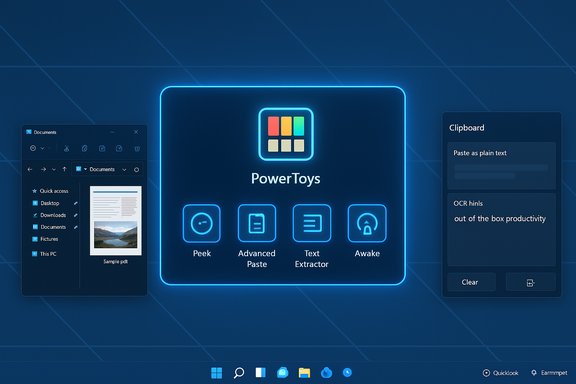
Microsoft’s PowerToys — long a secret weapon for Windows tinkerers — is the standout recommendation in a recent SlashGear roundup urging Windows 11 upgraders to install five free apps right away, and for good reason: PowerToys bundles a set of small, highly practical utilities that fix multiple UI gaps in Windows 11 and add workflow shortcuts you won’t find elsewhere. The suite’s Peek, Advanced Paste, Text Extractor, Run, Awake, and other modules address frequent friction points, and many editorial roundups echo SlashGear’s insistence that PowerToys should be day-one software on a fresh install.
Background / Overview
Windows 11 brought visual polish and some new productivity features, but it also left several small, high-frequency annoyances unfixed: no native macOS-style Quick Look, limited per-app audio controls in the quick settings, the lack of an easy “paste as plain text” action, and no built-in, scheduled light/dark theme switching. Independent reviewers and forum roundups consistently point newcomers toward a compact toolset of free apps that restore or improve these missing capabilities. Common picks across recent editorials include Microsoft PowerToys plus utilities for fast file preview, per-app audio control, better media playback and safer PDF handling.This feature unpacks why PowerToys matters, verifies the most important claims against primary documentation and independent reporting, and offers a practical day‑one installation and configuration plan — including trade-offs, performance considerations, and safer alternatives for certain borderline-reputation tools.
PowerToys: why it’s still essential on Windows 11
Microsoft describes PowerToys as “utilities for power users,” but the modern suite has broadened into a set of time-saving conveniences that benefit casual and technical users alike. The official documentation and release notes show PowerToys has evolved rapidly and now includes higher‑level features (like the Peek file preview) that integrate directly with File Explorer. Key reasons to install PowerToys immediately:- High signal-to-noise improvements: Small features — a color picker, window zoning, a quick launcher, and improved clipboard paste options — produce outsized productivity gains for everyday tasks.
- Official Microsoft support path: PowerToys is maintained by Microsoft on GitHub and documented on Microsoft Learn; it is installable via the Microsoft Store, GitHub releases, or winget, simplifying deployment and updates.
- Modular control: You enable only the utilities you want, limiting background work and memory usage to the modules you actually use.
What PowerToys adds that Windows 11 doesn’t
The SlashGear excerpt highlights several PowerToys utilities that most users will find immediately useful. Each claim below is verified against Microsoft documentation and independent coverage.- Advanced Paste (Paste-as-Plain-Text and more). Advanced Paste lets you quickly paste clipboard content as plain text, save clipboard content to a .txt, or perform AI-driven text transforms when configured. This is documented in the PowerToys Advanced Paste docs, which also explain optional AI/semantic features that require an API key for advanced transforms.
- Peek (Quick preview / Quick Look). Peek provides a macOS Quick Look–style preview of files selected in File Explorer. The PowerToys docs show Peek’s default activation shortcut and settings, and recent release notes describe refinements to activation behavior and supported file types. Independent coverage tracked Peek’s rollout as a major usability win.
- Text Extractor (OCR from screen). Text Extractor performs local OCR on selected screen regions and copies the text to the clipboard — useful for extracting uncopyable text from images or videos. This capability is in the official PowerToys toolset and runs locally by default.
- Awake (keep system active). Awake prevents sleep on demand — handy during long downloads, unattended runs, or remote tasks — and is lightweight to toggle. Release notes and docs describe improvements and typical use cases.
- Run (launcher) and New+ (Explorer templates). Run acts as a Spotlight-like quick launcher; New+ adds templates to File Explorer’s New menu for creating new files from templates. These restore convenience workflows many users miss after upgrading.
Practical caveats and trade-offs
- Background resource usage. PowerToys runs a small background process and each enabled module consumes some memory/CPU. For most modern PCs the footprint is negligible, but on very low‑RAM devices it’s worth enabling only the modules you need. Independent reviews that track resource behavior recommend enabling modules selectively.
- Hotkey conflicts. Peek and other utilities use global hotkeys; these have historically conflicted with IDEs or other apps (there are community reports and bug fixes addressing Ctrl+Space behavior). If you rely on application-specific shortcuts, check and remap PowerToys hotkeys as needed.
- Enterprise restrictions. On managed machines, group policies or app installers controlled by IT may block PowerToys installation or certain features. Always consult your administrator for work devices.
Deep dive: the PowerToys utilities you’ll use every day
Advanced Paste: paste with intent
Advanced Paste does more than “plain text” stripping. You can:- Paste as plain text to strip formatting
- Save clipboard text as a .txt file
- Use image-to-text OCR paste actions
- Use optional AI chains (requires API key) to translate, summarize, or reformat content automatically
Peek: macOS Quick Look for File Explorer
Peek is now a core PowerToys utility. Default activation can be Space (or Ctrl+Space depending on version/settings) and Peek supports images, Office docs, PDFs, plaintext, Markdown, and archived content. The Microsoft docs list configurable options including focus behavior, pinning, and source formatting. Community coverage shows Peek closed a major usability gap for Windows users who like quick previews without launching full apps. Be mindful: earlier versions temporarily reserved Ctrl+Space system-wide and caused some conflicts; most of those conflicts have been resolved, and you can change the activation shortcut.Text Extractor: OCR without opening apps
Text Extractor lets you draw a selection on-screen and copy the recognized text to the clipboard; the flow is fast and local by default. This is one of those features that saves minutes during note-taking, research, or when transcribing on-screen content. Microsoft documents and multiple guides confirm the feature and recommended workflows.FancyZones, Run and other productivity wins
- FancyZones: advanced window layouts and snapping that outperform default Windows Snap.
- Run: launcher with fuzzy search for files, apps, and calculations.
- Color Picker and Image Resizer: small utilities that remove the need to open heavier applications for simple tasks.
Four other free apps to install immediately (complementing PowerToys)
Several cross-published roundups converge on the same complementary apps that fix other Windows 11 gaps: fast file preview, per-app audio mixing, reliable media playback, and trustworthy PDF handling. Below are four practical installs — each checked against official or highly reputable sources.1) QuickLook — spacebar preview like macOS
- What it does: Press Space to preview files without opening apps; supports images, PDFs, text, and many more file types. QuickLook is open-source and widely used as the macOS-style solution on Windows.
- Why it pairs with PowerToys: If you prefer a single key (space) to preview files, QuickLook is a lightweight alternative to Peek — or a complement if you want different preview behavior.
- Caveats: QuickLook relies on plugins for extended file support; keep it updated from its GitHub/Microsoft Store releases.
2) EarTrumpet — per-app audio control from the tray
- What it does: Provides a modern, per‑app volume mixer with device routing and fast access from the system tray. EarTrumpet’s GitHub and project pages are explicit about features, and editors have repeatedly praised it as the better Windows audio UI.
- Why it matters: Windows’ built-in volume flyout is still limited; EarTrumpet gives immediate control for conferencing, streaming, and swapping output devices on the fly.
- Caveats: In a few Windows betas users reported OS/driver quirks that affected restored app volumes; EarTrumpet surfaces these issues rather than causes them.
3) VLC Media Player — the universal media player
- What it does: Plays almost any media format, supports streaming and conversions, and remains the go-to cross-platform player for odd codecs. Recent release notes and coverage show ongoing updates and Arm support efforts for Windows devices.
- Why install: Avoid codec headaches and missing-format playback; VLC handles MKV, obscure containers, and many subtitle formats without extra downloads.
- Caveats: Periodically some users report install/update oddities on particular Windows 11 builds; if you hit an issue, try the official stable installer from the VideoLAN site or a release candidate only if you need Arm64 native builds.
4) PDF tools — pick a trustworthy editor/reader (avoid unknown “free” vendors)
- What to avoid: Some newer free PDF editors aggressively claim “full features for free” but have poor transparency about ownership, telemetry, or business models. Community warnings and forum investigations call out suspicious behavior for certain products that appear out of nowhere. If a vendor lacks verifiable company info, treat claims of “unlimited free” with caution.
- Recommended alternatives:
- SumatraPDF — ultra‑lightweight reader for fast viewing and low memory usage, open-source and portable. Ideal for quick reading without editing.
- PDF‑XChange Editor — a robust free tier with feature parity for many editing tasks; well‑documented and trusted among reviewers. Good mid‑range alternative to Adobe.
- Adobe Reader / Acrobat or Foxit — conservative choices when you must handle sensitive documents and need an enterprise‑grade vendor with established privacy practices.
Installation checklist: day‑one steps (practical, minimal friction)
- Update Windows 11 via Settings > Windows Update to the latest stable build. Reboot if required.
- Install PowerToys:
- Easiest: Open Microsoft Store and install “PowerToys” or
- Command line: open an elevated terminal and run:
- winget install --id Microsoft.PowerToys --source winget
- Or download the latest GitHub release installer and run it.
- Launch PowerToys and enable only the modules you plan to use (suggested starter set: Peek, Run, FancyZones, Text Extractor, Advanced Paste).
- Install QuickLook (if you prefer spacebar preview) from its GitHub/Microsoft Store distribution and set its autostart if you want the spacebar preview to be instant.
- Install EarTrumpet from the Microsoft Store or via winget; configure per-app device assignments.
- Install VLC for robust media playback if you handle a variety of codecs. Verify the official VideoLAN installer.
- Choose a PDF reader/editor from the recommended list (SumatraPDF or PDF‑XChange) and avoid installing unfamiliar “100% free” PDF editors without verifiable company data. Validate their privacy stance for sensitive documents.
Security, privacy, and governance notes
- Install from trusted channels — prefer the Microsoft Store, GitHub releases (official repo), or the vendor’s official site. Avoid random download portals. Microsoft Learn’s install page documents official PowerToys distribution options.
- Check telemetry and permissions — many free apps include optional telemetry. Review privacy settings and disable telemetry where possible if privacy is a concern.
- Sensitive documents and third‑party PDF editors — do not upload confidential PDFs to unknown cloud services. For sensitive workflows, use vendor-stable products (PDF‑XChange, Adobe, or a vetted enterprise solution) or local, open‑source readers. Forum investigations have flagged some new “free” PDF editors as suspicious; take user warnings seriously.
- Corporate policy — in managed environments, check with IT before installing third‑party utilities; PowerToys settings and hotkey remaps can be controlled or blocked by group policies.
Critical analysis: strengths, limits, and hidden costs
PowerToys and the other recommended apps deliver immediate, measurable value: faster previews, smarter paste behaviors, per-app audio control, and universal media playback. These are practical, high-frequency wins that reduce friction for everyday tasks.Strengths:
- Huge productivity ROI for small installs. Each utility fixes a specific pain point without forcing you into heavy software suites.
- Modularity and official support (PowerToys). Microsoft’s stewardship and GitHub transparency give better assurance than random freeware.
- Open-source pedigree for many utilities. QuickLook, SumatraPDF, and EarTrumpet have public repos or long histories, which helps with auditability.
- Supply-chain and reputation risks in the PDF space. Not all free claims are equally safe — community reporting has flagged questionable PDF apps. Verify company identity, privacy policy, and community sentiment before trusting any vendor with sensitive files.
- Hotkey and UX collisions. Global shortcuts are convenient but can conflict with power‑user workflows — test and remap as needed.
- Resource and compatibility variance across hardware. On very low-end machines or obscure Win11 builds, some utilities may misbehave or require troubleshooting; community forums and GitHub issues are useful troubleshooting channels.
Final verdict and recommended day‑one configuration
PowerToys deserves the “must-install” label for most Windows 11 users: it fixes multiple day‑to‑day gaps, is actively maintained, and is flexible enough for both casual and power users. Pair PowerToys with QuickLook or use PowerToys’ Peek depending on your preferred preview hotkey; add EarTrumpet for audio control and VLC for universal media playback. For PDFs, favor well-established tools (SumatraPDF for lightweight reading; PDF‑XChange or Adobe for editing).Install with these rules of thumb:
- Use official distribution channels (Store, GitHub, winget).
- Enable only the features you need.
- Vet any free PDF tool before using it for confidential material.
- Check for hotkey conflicts and remap immediately if you use specialized apps.
Conclusion
A fresh Windows 11 install becomes useful in minutes with a short, well-chosen set of free apps: install PowerToys, add a quick file previewer, secure better audio controls, pick a reliable media player, and choose a trustworthy PDF tool. These small, focused installs fix the most visible day‑one annoyances, improve productivity immediately, and — when installed from official sources and configured conservatively — do so without compromising security or system stability.
Source: SlashGear 5 Free Apps You Should Install As Soon As You Upgrade To Windows 11 - SlashGear
