

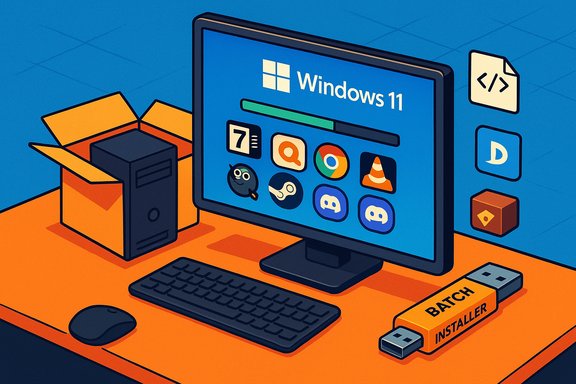
When you unbox a new Windows 11 PC, the fastest way to go from “fresh out of the box” to “productive and personalized” is to install a small, well-chosen toolkit of apps — and a batch installer to install them. Ninite is the simplest path most users will recognize: pick the apps you want, download a single installer, and let it run unattended. This approach removes installer cruft, saves time, and reduces the friction of configuring a new machine.
Setting up a new Windows 11 machine has become a routine that rewards automation. Reviewers and power users alike routinely use a short list of free utilities — archive managers, media players, alternative browsers, image editors, search tools, and game launchers — to cover the most immediate gaps in a fresh OS install. Community roundups and hands-on guides repeatedly recommend combining a compact app list with either a batch GUI installer like Ninite or scripted package managers such as winget or Chocolatey for reproducible setups.
Batch installers matter because they reduce repetitive clicks and prevent the accidental installation of bundled toolbars or PUPs (potentially unwanted programs). For reviewers and technicians, that repeatability is essential; for everyday users it saves time and avoids the frustration of hunting for official installers. Use-cases range from a one-off home laptop to a USB toolkit for recurring workstation builds.
Key practical advantages of the Ninite model:
Caveat: claims about signature verification or offline provisioning should be validated against standalone vendor documentation before deploying to high‑security or enterprise environments; treat any single-vendor claim with caution and verify through your organization’s change control when necessary.
This feature distilled community and editorial guidance into a practical, defensible day‑one strategy for Windows 11: pick a small, high-impact app list, automate the install with the right tool for your environment, and follow up with privacy and startup audits to keep the system lean and secure.
Source: bgr.com 5 Free Windows 11 Apps You Should Always Install First On New Computers - BGR
 Background
Setting up a new Windows 11 machine has become a routine that rewards automation. Reviewers and power users alike routinely use a short list of free utilities — archive managers, media players, alternative browsers, image editors, search tools, and game launchers — to cover the most immediate gaps in a fresh OS install. Community roundups and hands-on guides repeatedly recommend combining a compact app list with either a batch GUI installer like Ninite or scripted package managers such as winget or Chocolatey for reproducible setups.Batch installers matter because they reduce repetitive clicks and prevent the accidental installation of bundled toolbars or PUPs (potentially unwanted programs). For reviewers and technicians, that repeatability is essential; for everyday users it saves time and avoids the frustration of hunting for official installers. Use-cases range from a one-off home laptop to a USB toolkit for recurring workstation builds.
What Ninite Actually Does — A Practical Overview
Ninite offers a web interface where you check the apps you want and then download a single, small installer that orchestrates the rest. The installer fetches the official publisher installers at runtime and performs silent, unattended installs that skip optional toolbars and prompts. The result: a fast, clean batch installation with minimal user interaction.Key practical advantages of the Ninite model:
- Single-run convenience — one executable installs multiple apps in series, saving time.
- Cleaner installs — Ninite’s runner avoids bundled extra software and declines optional offers automatically, reducing clutter.
- Repeatability — keep a Ninite .exe or generated installer on a USB stick for future machines or re-imaging.
- Ninite needs an internet connection at run time because it downloads current publisher installers, so it isn’t suitable for fully offline, version-locked deployments unless you use paid enterprise features.
- Power users who need scriptable version pinning and advanced automation will often prefer winget or Chocolatey.
The Day‑One App Kit: What to Install First (and Why)
Across editorial roundups and community lists, a handful of free apps consistently appear as the best day‑one installs for Windows 11. The following list synthesizes those recommendations and explains the motivation for each pick.Essential utilities (the core 7)
- 7‑Zip — Robust, open-source archive manager with broad format support; essential for extracting uncommon containers.
- Everything — Blazingly fast filename search that finds files instantly across local NTFS volumes; a huge productivity boost over slow Explorer searches.
- Google Chrome (or alternative browser like Firefox/Brave/Vivaldi) — Your daily web workhorse; pick one that fits your privacy and extension needs. Browsers shape most of your daily experience.
- VLC Media Player — The reliable "plays anything" media player for audio and video files that Windows’ default apps may not handle.
- GIMP (or alternative like Paint.NET/Krita) — Free image editor for casual photo tweaks and more advanced edits without subscription costs.
- Steam (or your chosen game store) — If you game, install Steam for library continuity and launcher conveniences; optional but common on many day‑one lists.
- Discord — Widely used for communication, social communities, and collaboration; included more for social/connectivity needs than system functionality.
Useful add-ons and alternatives
- PowerToys — Modular productivity utilities (FancyZones, File Explorer add-ons, etc. that restore power-user features to Windows. Enable only modules you use to avoid bloat.
- Patch My PC — An updater that helps keep many third‑party apps current; useful as a follow-up to initial installs.
- CopyQ — Clipboard manager for productivity-heavy workflows.
Alternatives to Ninite — When to Use Winget, Chocolatey, or GUI Helpers
Ninite is excellent for straightforward day‑one installs, but it’s one choice among several. Consider these alternatives depending on your needs:- winget (Windows Package Manager) — Built into modern Windows 11 builds; supports scripting, repeatable installation lists, and can be used offline when packages are cached. Use Winstall.app for a GUI to generate winget scripts. This is the go-to for reproducible deployments and version control.
- Chocolatey — Mature package manager with a large community repository; good for automation and enterprise scenarios, but requires more familiarity than Ninite.
- Patch My PC — Focused on updates and patching; useful after the initial install to maintain up‑to‑date third‑party software.
- Use Ninite for a quick, safe, user-friendly run on consumer machines.
- Use winget if you want a scriptable, repeatable day‑one script that can be checked into dotfiles or used by teams.
- Use Chocolatey for advanced automation where package customizations and enterprise policies require it.
Security, Privacy, and Supply‑Chain Considerations
Installing third‑party apps in bulk raises a set of security and privacy trade-offs you should consider before clicking “Run.”- Source integrity — Ninite downloads publisher installers at runtime; community sources indicate the runner verifies publisher signatures or hashes during runtime to reduce the risk of tampered payloads, but independent audits and enterprise validation policies should be consulted for high‑security environments. Treat the claim cautiously if you require cryptographic guarantees.
- Telemetry and tracking — Popular apps like Chrome, Spotify, or even some features in PowerToys can surface telemetry or cloud‑linked functionality. Audit privacy options immediately after sign-in and disable syncing or telemetry where it conflicts with your privacy priorities.
- Background processes and resource use — A pile of small utilities can add background services and startup entries, which can slow low‑RAM machines. Audit autoruns and enable only necessary modules in multipurpose tools (e.g., PowerToys).
- Enterprise constraints — Corporate machines often require signed packages, whitelisting, or management via Intune/MDM. Coordinate with IT and prefer store-signed or internally vetted installers for corporate devices.
Day‑One: A Practical, Repeatable Setup Workflow
Below is a step‑by‑step workflow that blends best practices from reviewer guides and community toolkits to get a new Windows 11 PC ready with minimal fuss.- Set up Windows initially:
- Run Windows Update and install firmware/drivers.
- Enable disk encryption (BitLocker or device encryption) and create a recovery method.
- Choose your install strategy:
- Option A (consumer, simple): Use Ninite to generate a one‑shot installer with the apps you want. Keep this .exe on USB for future use.
- Option B (power user): Use winstall.app to generate a winget script for reproducible installs and version control. Save the script with your dotfiles.
- Run the installer as an Administrator and let it finish. Reboot if required.
- Post-install housekeeping:
- Audit startup entries and background services; disable what you don’t need.
- Configure privacy/sync settings in browsers and cloud apps.
- Create a restore point or a system image for quick rollback.
- Follow-up maintenance:
- Use Patch My PC or a package manager to keep installed apps updated.
- Periodically revisit autoruns after adding new utilities.
Critical Analysis — Strengths, Blind Spots, and Practical Risks
What works well
- Time and friction savings — The single biggest practical win is time: a handful of utilities installed in one automated run gets a new PC ready quickly. Ninite’s straightforward UI makes it accessible to non‑technical users.
- Cleaner end-state — Because Ninite avoids optional toolbars and adware, machines remain cleaner post-install compared with manual installs from vendor bundles.
- Reproducibility for testers and reviewers — A saved installer or script means the same exact baseline can be reproduced across units, saving hours in lab or review workflows.
Where to be careful
- Assumed offline/enterprise features — Ninite’s default consumer workflow is online and downloads the latest installers. Enterprise users requiring offline provisioning or frozen versions should verify the vendor’s Pro features or use curated internal packages. Claims about signature verification are helpful but should be validated for sensitive deployments.
- Compositional bloat — Installing everything “just in case” can creep resource usage over time. Adopt a minimal list and add tools as workflows demand.
- Privacy trade-offs — Popular conveniences (cloud sync, store accounts) often come with telemetry. If privacy is a priority, trade convenience for vetted, open‑source alternatives and audit settings after install.
A balanced recommendation
For most home and enthusiast users, Ninite is an excellent first step for day‑one setup: simple, safe, and fast. Power users and enterprises should complement Ninite with scripted winget manifests, internal package repositories, or configuration management to meet reproducibility and compliance needs. Keep your day‑one list small, verify post‑install settings, and document your baseline for future rebuilds.Quick Reference: Day‑One Checklist (Copy/Paste Friendly)
- Run Windows Update and firmware update tool.
- Enable BitLocker/device encryption and configure recovery.
- Choose installer: Ninite (GUI) or winget + Winstall (script).
- Install essentials: 7‑Zip, Everything, Chrome/Firefox/Brave, VLC, GIMP, Steam, Discord.
- Audit startup items and privacy settings; disable unnecessary telemetry.
- Create a system image or restore point for quick rollback.
- Save your Ninite .exe or winget script in cloud/dotfiles for reuse.
Final Verdict
A small, curated toolkit of free apps paired with an automated installer is the single most effective way to make a new Windows 11 PC immediately useful. Ninite wins on simplicity and safety for most consumers; winget and Chocolatey win on reproducibility and advanced automation for power users and IT pros. The real work is not the click to install — it’s the post‑install configuration: trimming startup items, tightening privacy settings, and choosing a minimal, repeatable baseline. When used responsibly, batch installers transform a repetitive chore into a fast, auditable process that leaves machines cleaner and users happier.Caveat: claims about signature verification or offline provisioning should be validated against standalone vendor documentation before deploying to high‑security or enterprise environments; treat any single-vendor claim with caution and verify through your organization’s change control when necessary.
This feature distilled community and editorial guidance into a practical, defensible day‑one strategy for Windows 11: pick a small, high-impact app list, automate the install with the right tool for your environment, and follow up with privacy and startup audits to keep the system lean and secure.
Source: bgr.com 5 Free Windows 11 Apps You Should Always Install First On New Computers - BGR
