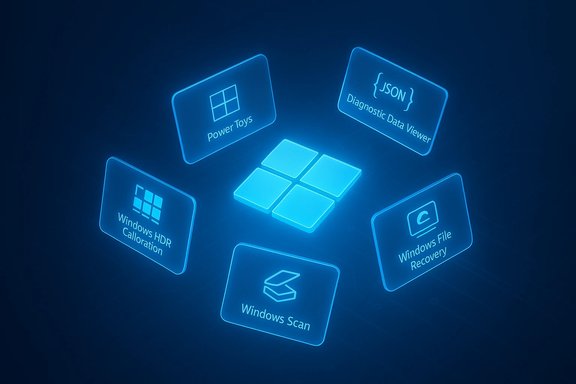
Windows 11 feels familiar the instant you log in, but a handful of free, first‑party Microsoft apps quietly amplify that experience in ways most new users never discover — PowerToys, Diagnostic Data Viewer, Windows File Recovery, Windows HDR Calibration, and Windows Scan are five such tools worth installing during a fresh setup.
Windows has long shipped with a mixture of core system components and optional utilities. In recent years Microsoft has shifted many focused tools into the Microsoft Store and smaller, first‑party apps rather than bundling them into the core OS image. That approach reduces out‑of‑box bloat, but it also hides useful utilities behind the Store search box. Pocket‑lint highlighted this pattern when it collected five under‑appreciated Microsoft apps every newcomer to Windows 11 should know about, and the list offers a tidy starting point for day‑one installs.
This feature unpacks those five apps with a strict emphasis on verifiable technical detail, practical setup guidance, and a candid look at risks and limitations. Each app section includes: what it does, why it matters, how to get started, compatibility and requirements verified against official documentation, strengths, and potential pitfalls to watch for.
These five Microsoft apps are small, free, and high‑utility additions a new Windows 11 user can install in minutes — and they repay that time with better control, clarity, and capability.
Source: Pocket-lint 5 Microsoft apps I wish every new Windows 11 user knew about
 Background
Windows has long shipped with a mixture of core system components and optional utilities. In recent years Microsoft has shifted many focused tools into the Microsoft Store and smaller, first‑party apps rather than bundling them into the core OS image. That approach reduces out‑of‑box bloat, but it also hides useful utilities behind the Store search box. Pocket‑lint highlighted this pattern when it collected five under‑appreciated Microsoft apps every newcomer to Windows 11 should know about, and the list offers a tidy starting point for day‑one installs.This feature unpacks those five apps with a strict emphasis on verifiable technical detail, practical setup guidance, and a candid look at risks and limitations. Each app section includes: what it does, why it matters, how to get started, compatibility and requirements verified against official documentation, strengths, and potential pitfalls to watch for.
Microsoft PowerToys
What it is
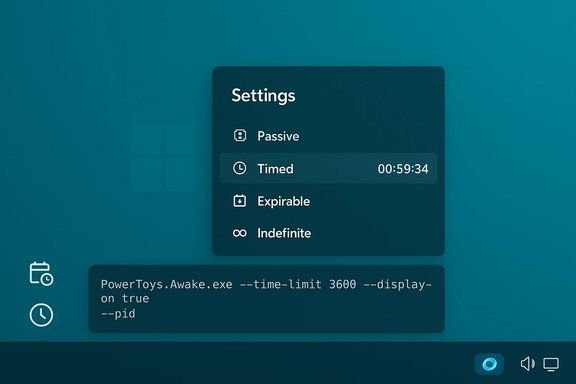
Microsoft PowerToys is an official, open‑source suite of small productivity utilities for Windows that bundles multiple modules into a single installer: FancyZones (window layouts), PowerRename (bulk rename), Keyboard Manager, Always on Top, and others. Microsoft actively maintains PowerToys in a GitHub repository and distributes it through the Microsoft Store and GitHub releases. Pocket‑lint calls PowerToys “that needs no introduction” for power users, and that’s accurate — it’s a Swiss‑army kit of practical utilities.Why it matters
PowerToys restores and extends power‑user affordances that many Windows veterans miss: keyboard remaps without third‑party drivers, predictable snap zones for complex multi‑window workflows, and selective file operations that would otherwise require multiple steps. New modules frequently prototype features Microsoft may eventually fold into Windows proper, making PowerToys a forward‑looking sandbox for practical shell enhancements. Independent coverage and recent release notes confirm the project continues to receive meaningful updates.How to get started
- Open the Microsoft Store and search for “PowerToys,” or download from the official GitHub releases page.
- Install and run PowerToys with administrator privileges to enable modules that require elevated access.
- Use the PowerToys Settings app to enable/disable modules and to configure keyboard shortcuts, FancyZones layouts, and PowerRename filters.
Verified technical requirements & recent changes
- PowerToys runs on Windows 10 and Windows 11; it requires administrative installation for some modules. Recent releases introduced a “Light Switch” module for automatic theme switching and improvements to shortcut conflict detection. These enhancements are reported in reputable coverage and release notes.
Strengths
- Modular: enable only what you need.
- Lightweight: individual modules are small and focused.
- Actively maintained: frequent releases and community contributions.
- Power users gain immediate productivity wins (window management, batch operations, custom shortcuts).
Risks and limitations
- Elevated access: some modules require admin privileges and deeper system hooks; test in a controlled environment if deploying across a fleet.
- Feature overlap: certain modules may duplicate functionality that IT policies lock down (for example, hotkey remapping).
- Occasional instability: new modules ship quickly — enable them conservatively on mission‑critical systems.
Diagnostic Data Viewer
What it is
The Diagnostic Data Viewer (DDV) is Microsoft’s own tool to inspect the telemetry and diagnostic events Windows collects and (potentially) sends to Microsoft. It presents events, timestamps, and full JSON payloads and allows exporting to CSV for offline review. Pocket‑lint recommends the app for transparency‑minded users who want to see what’s being collected.Why it matters
Windows 11 includes telemetry by default, and while Settings provide toggles to reduce collection, they don’t always make the exact contents transparent. The DDV gives users the ability to audit diagnostic events locally, filter by time ranges, and export logs — an important tool for privacy audits, troubleshooting, or simply learning what signals the OS is surfacing. Official Microsoft documentation explains how the app stores up to 1 GB or ~30 days of diagnostic history by default and how to turn data viewing on and off.How to get started
- Install Diagnostic Data Viewer from the Microsoft Store.
- In Settings > Privacy & security > Diagnostics & feedback, enable “Turn on Diagnostic Data Viewer” to start local collection.
- Launch DDV, review events and JSON payloads, and use the export feature if you need an offline copy.
Verified technical details
- Applies to Windows 11 (and Windows 10 builds back to 1803 for the viewer feature).
- The app stores diagnostic data locally (default cap: 1 GB or 30 days); enabling Office/Microsoft 365 diagnostic data requires toggling it per‑app and has a fixed 1 GB cap. Microsoft documents these limits and the recommended practice of turning off data viewing when finished.
Strengths
- Full visibility: raw JSON view for each event gives the most accurate picture of what is logged.
- Exportable logs: useful for security or compliance reviews.
- Official tool: avoids the need for third‑party telemetry inspectors that may themselves raise privacy questions.
Risks and limitations
- Storage and performance: turning on data viewing uses local disk and can consume up to the default cap; turn it off when not needed.
- Interpretation burden: JSON payloads are technical. Users should avoid panicking over single events and focus on patterns.
- Not a privacy cure: DDV shows what is collected but does not stop telemetry by itself; changing telemetry collection still requires Settings changes or third‑party remediation for persistent blocking.
Windows File Recovery (winfr)
What it is
Windows File Recovery (winfr) is Microsoft’s command‑line tool for attempting to recover deleted or corrupted files from local drives, USB media, and SD cards. It’s published in the Microsoft Store and runs from an elevated Command Prompt session. Pocket‑lint lists it as a useful first‑resort recovery option for deleted photos, documents, and more.Why it matters
When a file has been deleted and backups are absent, a free, vendor‑supported recovery utility is a logical first step. Microsoft’s tool supports NTFS, FAT, exFAT, and ReFS file systems with distinct scanning modes and targeted filters to narrow searches — capabilities you’d expect from a baseline commercial recovery product. Official guidance stresses minimizing drive writes prior to recovery to avoid overwriting recoverable data.How to get started
- Install Windows File Recovery from the Microsoft Store.
- Open an elevated Command Prompt (Run as administrator).
- Use the basic syntax: winfr SourceDrive: DestinationDrive: [/mode] [/switches]
- Example: winfr C: E: /regular /n *.docx
- Choose /regular for recent deletions on NTFS, or /extensive for formatted disks, FAT/exFAT media, or severe corruption.
Verified technical details
- Compatibility: Windows File Recovery supports Windows 10 (version 2004 and later) and Windows 11; it runs as a CLI tool and requires that destination and source drives be different to avoid overwriting recoverable sectors. Microsoft’s support docs and independent guides confirm these constraints and the two primary modes (Regular and Extensive).
Strengths
- Free and vendor‑supported: avoids unknown third‑party binaries when trying to recover sensitive data.
- Flexible command syntax: target by filename, wildcard, or folder path to reduce noise.
- Two modes tuned to file system types and scenario severity.
Risks and limitations
- Command‑line only: intimidating for non‑technical users; mistakes can be costly.
- TRIM and SSDs: recovery probability on SSDs is limited by TRIM behavior; the sooner you run recovery, the better.
- No guarantees: recovered files may be corrupted or partially overwritten; critical recovery should still consider professional services or imaging the drive first.
- Destination drive requirement: the recovery output must be written to a different physical drive to preserve source sectors.
Practical tips
- If possible, image the source drive (sector copy) and operate on the image to avoid writes.
- Use the /n filter switches to limit results — scanning an entire drive without filters can be time‑consuming and noisy.
- If the CLI is too daunting, several GUI front‑ends (third‑party) wrap winfr; verify their provenance before use.
Windows HDR Calibration
What it is
Windows HDR Calibration is Microsoft’s official app for tuning HDR displays on Windows 11. The app walks users through test patterns to set maximum/minimum brightness and color saturation for HDR workflows, then saves settings as a profile for later use. Pocket‑lint recommends the app for HDR‑capable systems where precise visual tuning matters.Why it matters
HDR panels vary widely in peak luminance and color processing; an uncalibrated HDR image can look washed‑out or oversaturated. Windows HDR Calibration provides an easy, Microsoft‑approved way to match screen output to user preferences and to vendor specifications for HDR gaming and video. Microsoft support pages document the test patterns and recommend following them for HDR gaming interest group (HGIG) compatibility.Verified technical requirements
- Requires Windows 11 and an HDR‑capable display with HDR enabled.
- The app runs full screen and recommends a modern GPU (AMD RX 400 series or later, Intel 11th Gen integrated or discrete DG1, or NVIDIA GTX 10xx or later) and a WDDM 2.7 driver or later for proper color saturation behavior. Microsoft documents these hardware and driver requirements in support pages.
How to use
- Install Windows HDR Calibration from the Microsoft Store.
- Turn on HDR in Settings > System > Display > HDR.
- Launch the app on the HDR monitor (it must be fullscreen) and follow the three HGIG test patterns to adjust darkest, brightest, and maximum brightness levels.
- Tweak color saturation and save a profile.
Strengths
- Official, focused HDR tools tailored to Windows HDR pipelines.
- HGIG‑aligned tests useful for game developers and enthusiasts.
- Profiles let you switch quickly when changing displays or rooms.
Risks and limitations
- Hardware dependence: some external HDR monitors or TVs expose post‑processing that undermines calibration; you may need to disable display post‑processing via the monitor OSD.
- Not a substitute for professional colorimeters: while helpful, it’s a perceptual calibration tool — not a spectrophotometer‑based color profile creation used by color professionals.
- Inconsistent results across HDR modes: built‑in HDR modes for streaming vs. games may behave differently; follow Microsoft’s guidance for built‑in vs. external displays.
Windows Scan
What it is
Windows Scan is Microsoft’s lightweight scanning app for flatbed scanners and ADF feeders. It strips away OEM app bloat and focuses on the core task: select scanner, pick file type (JPEG, PNG, TIFF, BMP), choose destination folder, and scan. Pocket‑lint praises it as a simple alternative to heavy OEM suites.Why it matters
Printer and scanner vendor utilities often bundle account sign‑ins, extra services, and heavyweight UIs. For quick document or photo scans where you want minimal fuss, Windows Scan offers a clean, stable path to a saved image file with a few clicks. Microsoft support documentation explains the basic workflow and notes that the app may need a driver or scanner installation to appear in the Scanner dropdown.How to get started
- Install Windows Scan from the Microsoft Store if it is not already present.
- Ensure the scanner is powered, connected, and has a driver installed (Windows Update or vendor installer).
- Open Scan, pick the correct scanner, choose source (Flatbed or Feeder), select file type, and hit “Scan.”
Strengths
- Minimal UI and low overhead.
- Supports common file types and lets you choose save locations.
- Works with both flatbed and feeder devices.
Risks and limitations
- Feature set: it intentionally lacks advanced features (OCR, cloud integration, heavy post processing) that OEM suites or dedicated apps offer.
- UI aging: Windows Scan’s interface has not kept pace with modern UI updates and may feel dated, though functionally stable.
- Vendor optimizations: some scanners expose advanced controls only through OEM software; Windows Scan covers the basics, not every vendor feature.
Cross‑checking key claims and practical verification
- The claim that PowerToys continues to prototype features such as auto light/dark switching and shortcut conflict detection is corroborated by recent release notes and coverage; one well‑regarded report shows the Light Switch module rolling out and PowerToys moving quickly through 0.x releases.
- Diagnostic Data Viewer’s storage and behavior (1 GB or 30 days default; optional Office diagnostic viewing with a fixed 1 GB cap) are explicitly documented by Microsoft’s Diagnostic Data Viewer and Office support pages. Users should follow Microsoft’s explicit guidance to turn off data viewing when finished to free local disk space.
- Windows File Recovery’s CLI syntax, two modes (Regular/Extensive), and file system guidance (NTFS preferred for Regular, Extensive for FAT/exFAT/ReFS and formatted drives) are described in Microsoft’s official support pages and corroborated by independent guides. The practical constraints of SSD/TRIM and the recommendation to minimize drive writes are consistent across Microsoft and community documentation.
- Windows HDR Calibration’s hardware requirements (modern GPUs and WDDM 2.7) and HGIG‑aligned tests are documented on Microsoft’s support page; users with displays that apply post‑processing should follow vendor settings to avoid skewed results.
- Windows Scan’s workflow and dependency on scanner drivers are confirmed by Microsoft’s “Install and use a scanner in Windows” documentation, which explains source selection (flatbed/feeder) and file type options.
Installation checklist and day‑one recipe
- Update Windows: Run Windows Update and reboot until the system reports no pending updates.
- Open Microsoft Store and install:
- PowerToys (enable FancyZones and Keyboard Manager first).
- Diagnostic Data Viewer (enable data viewing when you want to inspect telemetry; remember to turn it off afterward).
- Windows File Recovery (note: CLI usage — copy sample commands before running).
- Windows HDR Calibration (if you have an HDR display).
- Windows Scan (if you use a flatbed or ADF scanner).
- Create a recovery plan:
- If you plan to use Windows File Recovery, ensure you have a second drive to store recovered files or create a disk image first.
- Read up:
- Keep the Microsoft support pages bookmarked or saved for reference on command syntax, hardware requirements, and privacy controls linked to Diagnostic Data Viewer and HDR Calibration.
- Choose alternatives where appropriate:
- If you need GUI file recovery or professional image calibration, consider vetted third‑party alternatives after reading reviews and verifying vendor reputation.
Final verdict — why these five deserve wider adoption
Each app on this list solves a specific, high‑frequency problem that Windows 11’s default experience either hides or intentionally omits from the core image. PowerToys recovers power‑user conveniences, Diagnostic Data Viewer supplies transparency and auditing capability, Windows File Recovery offers a vendor‑supplied rescue tool, Windows HDR Calibration improves visual fidelity for HDR media and games, and Windows Scan strips away OEM fluff for fast, reliable scanning. Pocket‑lint’s roundup is a practical reminder that useful first‑party tools exist off the beaten path — and each pick stands up to verification against Microsoft documentation and independent coverage.Caveat and closing note
These tools are not a silver bullet. Diagnostic Data Viewer is an audit tool, not a privacy switch; Windows File Recovery is powerful but constrained by physical realities like TRIM; PowerToys introduces advanced hooks that may not be appropriate for tightly managed corporate endpoints. Treat them as well‑documented, official utilities that complement your Windows toolkit — install deliberately, read the documentation linked in the Store and support pages, and always back up before attempting recovery or making sweeping system changes.These five Microsoft apps are small, free, and high‑utility additions a new Windows 11 user can install in minutes — and they repay that time with better control, clarity, and capability.
Source: Pocket-lint 5 Microsoft apps I wish every new Windows 11 user knew about