

PowerToys’ Color Picker is a deceptively simple utility that solves a persistent pain point for designers, developers, and anyone who needs precise color values: pick any pixel on the screen, get a clean color code in the format you need, and move on—fast.
Since its modern revival as an open-source project, Microsoft PowerToys has become the go-to toolkit for power users who want lightweight, pragmatic enhancements to Windows. One of the most meaningful additions in recent cycles is Color Picker, a system‑wide eyedropper that integrates into daily workflows without the overhead of a full graphics suite. The utility’s convenience and polish have prompted coverage in mainstream tech press and consistent attention from the PowerToys community. PowerToys’ Color Picker doesn’t attempt to be a full color management app. Instead, it focuses on one mission: capture an accurate color from anywhere on your multi‑monitor desktop and convert it into usable values—then store a short, accessible history so you can reuse those values immediately. That single-minded design is what makes it so valuable to designers and front‑end developers who routinely need to match UI and brand colors.
Community and official documentation confirm the utility’s defaults, workflow, and current limitations—making Color Picker a pragmatic addition to the designer’s toolkit rather than a silver‑bullet color solution.
Source: Neowin https://www.neowin.net/news/closer-...n-windows-is-an-excellent-tool-for-designers/
 Background
Since its modern revival as an open-source project, Microsoft PowerToys has become the go-to toolkit for power users who want lightweight, pragmatic enhancements to Windows. One of the most meaningful additions in recent cycles is Color Picker, a system‑wide eyedropper that integrates into daily workflows without the overhead of a full graphics suite. The utility’s convenience and polish have prompted coverage in mainstream tech press and consistent attention from the PowerToys community. PowerToys’ Color Picker doesn’t attempt to be a full color management app. Instead, it focuses on one mission: capture an accurate color from anywhere on your multi‑monitor desktop and convert it into usable values—then store a short, accessible history so you can reuse those values immediately. That single-minded design is what makes it so valuable to designers and front‑end developers who routinely need to match UI and brand colors. Overview: what Color Picker does and why it matters
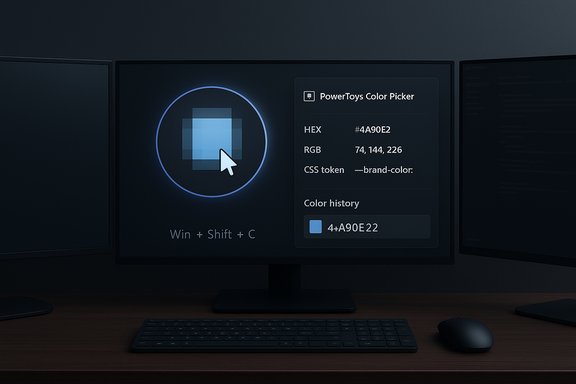
Color Picker is a small, fast utility intended for repeatable, daily use. Its primary capabilities include:- Instant activation by a configurable hotkey (default Win + Shift + C).
- Pixel sampling from anywhere on the screen, including other apps, images, and the desktop.
- Zoom / magnifier support for pixel‑accurate selection.
- A built‑in editor with a color history (up to 20 entries) for quick recall.
- Configurable output formats (HEX by default) and support for many custom format tokens.
- Export and format customization so values can be copied in developer‑friendly forms (e.g., CSS variables, function calls).
Deep dive: features and practical usage
Activation and basic sampling
By default, Color Picker activates with Win + Shift + C, which opens a hover preview and a small sampling cursor. The default activation can be changed in PowerToys Settings, and you can configure whether activation opens the editor or immediately picks a color. This lets you tailor the flow to whether you want transient picks or deeper editing. Practical steps to pick a color:- Press the Color Picker shortcut (default Win + Shift + C).
- Hover over the pixel and use the zoom wheel to magnify the area if needed.
- Left‑click (default) to copy the color to the clipboard and open the editor, or use the scroll‑wheel click to copy and close immediately.
Zoom, accuracy, and multi‑monitor behavior
The built‑in zoom magnifier is crucial on high‑DPI displays and for UI elements with thin anti‑aliased borders. Scrolling while the picker is active freezes the image and zooms into the area under the cursor so you can select the non‑hover or inactive state of an element. This avoids accidental sampling of hover states or tooltips. Note that the utility is designed to work across multiple monitors and will sample any pixel visible on the desktop.Editor, history, and format management
The editor stores a history of up to 20 colors and exposes an array of color formats you can enable or reorder. The history is intended as a short working set—enough to collect palette-ish values during a design session without building a permanent library. You can fine‑tune colors in the editor (HSV/RGB/HEX sliders) and export or copy values in any configured format. Export options let you group values by color or by format for easy sharing. Color formats are surprisingly flexible: PowerToys supports common standards (HEX, RGB, HSL), but also provides a tokenized format system so you can create custom string formats that produce things like:- CSS variable declarations
- SASS/LESS snippets
- Engine‑friendly vectors or function calls (e.g., new Color(R, G, B) style strings)
Keyboard and mouse actions
PowerToys lets you map specific mouse buttons to actions while the picker is active (default left‑click opens the editor, middle click picks and closes, right click cancels). You can also configure the global activation behavior and modify the keyboard shortcut to avoid conflicts with other apps. This small amount of customization makes the tool fit into different workflows without friction.How Color Picker compares with other Windows options
PowerToys vs Snipping Tool’s built‑in color picker
Windows’ Snipping Tool has recently gained a color picker in its capture editor, giving casual users a quick, disposable way to sample colors during captures. The Snipping Tool picker is useful for ad‑hoc work inside the capture flow, but it lacks the standalone history, export formatting, and token customization found in PowerToys’ Color Picker. For one‑off checks, Snipping Tool is convenient; for sessions where you need to collect multiple values and reuse them, PowerToys is the better match.PowerToys vs third‑party eyedroppers
Third‑party apps (free and commercial) have offered system‑wide pickers for years and sometimes provide advanced features such as color averaging over an area, clipboard managers, or command‑line hooks. PowerToys’ advantages are clear:- It’s first‑party, open‑source, and maintained on GitHub—less risk of unknown telemetry.
- It integrates with the PowerToys settings dashboard and shares a consistent UX with other PowerToys utilities.
- It provides flexible output formatting and a purposeful history without heavyweight install or configuration.
Technical specifics and verified claims
The following points are verified against PowerToys’ official documentation and independent coverage:- Default activation shortcut: Win + Shift + C (configurable).
- Color history length: stores up to 20 picked colors in the editor history.
- Supported output formats: native HEX, RGB, HSL and a token system for custom formats; users can enable multiple formats in the editor.
- Zoom and magnifier: scroll wheel zoom to freeze and magnify the sampling area for pixel accuracy.
- Limitations: cannot render on top of Start menu or Action Center; does not support Wide Color Gamut (WCG) or HDR color spaces; activation shortcut may not work for applications launched with elevated privileges unless PowerToys is also running elevated. These are documented limitations.
Installation, updates, and troubleshooting
PowerToys can be installed via multiple routes: Microsoft Store, GitHub Releases, or package managers like winget. If you prefer command line installation for enterprise or automation, the winget command is supported (for example, winget install Microsoft.PowerToys). After installation, enable Color Picker in the PowerToys Settings panel. If Color Picker does not appear, check that the module is enabled and that PowerToys has the necessary permissions. Common troubleshooting notes:- If the shortcut does not trigger when another app is running as Administrator, either run PowerToys elevated or launch the target app without elevation to restore the hotkey behavior.
- Display overlay exceptions: Color Picker doesn’t render above the Start menu or Action Center, but it still samples colors from those areas even when overlays are present.
- HDR/WCG discrepancies: sampled color values from HDR displays can be misleading if the pipeline or app uses a wide color gamut; PowerToys currently treats screen pixels in standard color spaces. For color‑critical work, calibrate displays or work in sRGB contexts until HDR support arrives.
Workflow tips and pro techniques
- Use the editor history as a temporary palette while building UI mockups: pick colors you’re considering, then copy them into a palette file or design tool in a single pass.
- Create custom output formats for direct copy‑pasting into code. Example format strings can generate CSS variables or engine‑ready constructors.
- When sampling elements with hover or transient states, hover near the element then scroll to zoom and sample the frozen, underlying pixel.
- For color‑matching between displays, pick the value on the target monitor and paste it into your design app on the same machine. If color calibration differs between displays, keep a calibrated reference monitor for final checks.
- Pinpoint anti‑aliasing issues using the magnifier: sample neighboring pixels to determine the true flat color under blended edges.
Accessibility, high‑DPI, and developer friendliness
Color Picker’s zooming behavior and keyboard shortcuts make it usable on high‑DPI laptops and with assistive tech. The tokenized format system benefits developers who want immediate pasteable snippets. PowerToys retains a low runtime footprint by enabling only the modules you need—Color Picker sits dormant until invoked and doesn’t add constant overhead to the system. For enterprise deployments, administrators can script installs and selectively enable utilities to match policy.Risks, limitations, and points of caution
No tool is perfect; PowerToys’ Color Picker has a few notable constraints and risk areas to consider:- Color management and HDR: PowerToys does not currently handle Wide Color Gamut (WCG) / HDR sampling. For color‑critical workflows (e.g., print, high‑end photography, HDR displays), Color Picker’s sampled values should be treated as a helpful starting point rather than a final source of truth. Calibrated workflows remain essential for final production colors.
- Elevated processes and security boundaries: global hotkeys are subject to Windows security context. If an application is launched with administrator privileges, Color Picker’s hotkey may be inactive unless PowerToys is also elevated. This is a common OS‑level limitation but can disrupt workflows if not anticipated.
- Enterprise policy and endpoint detection: because PowerToys hooks into low‑level OS events (hotkeys, clipboard, overlays), some enterprise endpoint protection policies may flag its behavior. Organizations should validate PowerToys against company security policies before rolling out broadly. The open‑source nature helps audits but does not remove the need for formal approval in regulated environments.
- Not a color grading suite: Color Picker is not an asset manager, color grading system, or a replacement for color‑managed design tools. It’s optimized for rapid sampling and short‑term history; treat it as a utility, not an archival color library.
Practical examples: integrating Color Picker into design and development pipelines
- Front‑end developer: create a custom color format string in PowerToys that outputs CSS variables, e.g., --brand-color: %He;, so grabbing a brand color lets you paste a ready‑to‑drop CSS declaration into a stylesheet.
- Documentation author: use the editor history to collect and export a neat CSV of colors used in a UI, then paste that into a style guide.
- QA and handoff: during QA passes, testers can sample colors from a build and paste exact HEX values into bug reports so designers and devs can reproduce mismatches precisely.
Community and provenance
Color Picker’s roots come from community contributions; early implementations and standalone projects were later integrated into PowerToys. The collaborative model means the utility matures quickly, and the GitHub repo is the place to follow feature requests, bug reports, and release notes. Notable coverage of the feature’s arrival and evolution appears in mainstream tech outlets and the PowerToys changelogs. That background both explains the tool’s rapid polish and its ongoing roadmap of small, iterative improvements.Final assessment: strengths and where it fits
Strengths- Speed and convenience: Instant activation and pixel‑accurate sampling remove friction from everyday color work.
- Flexible output: Tokenized formats and export options make it developer‑friendly.
- Lightweight and first‑party: Integrated into PowerToys and open‑source; less risk than opaque third‑party utilities.
- Built for sessions: The short history and editor are tailored to ad‑hoc palette building during design sessions.
- Not a replacement for color‑managed pipelines: HDR/WCG limitations mean you should still use calibrated tools for final color grading.
- Potential enterprise constraints: Elevated process interaction and policy scrutiny can complicate wide deployments.
- Feature gaps vs specialist tools: If you need color averaging, batch sampling, or deep asset management, some third‑party tools remain more feature‑rich.
Conclusion
PowerToys’ Color Picker is not a flashy, headline-grabbing app—but that’s precisely its point. It’s a focused utility that saves designers and developers real time by turning a common, fiddly task into a single keystroke. For everyday UI work, rapid prototyping, and clear developer handoffs, the tool is excellent: fast, configurable, and reliable for most non‑HDR workflows. For teams and power users who need more advanced color‑management features, it complements rather than replaces specialized tools.Community and official documentation confirm the utility’s defaults, workflow, and current limitations—making Color Picker a pragmatic addition to the designer’s toolkit rather than a silver‑bullet color solution.
Source: Neowin https://www.neowin.net/news/closer-...n-windows-is-an-excellent-tool-for-designers/
